在ROS中开始自主机器人仿真 - 3 建立自己的自主机器人URDF模型
要建立自己的自主机器人,首先,必须要建立自己的机器人模型,
URDF(Unified Robot Description Format)模型。
Part 3 建立机器人URDF模型
机器人URDF模型主要由两个文件组成:.xacro 是主文件,包含URDF项,包括关节,连杆;.gazebo包含gazebo的具体信息以便在gazebo中仿真。
例子请见:How to Build a Differential Drive Simulation
以下工程的源码下载地址请见:
http://download.csdn.net/download/ziqian0512/9816156
使用方法主要包括以下三个部分:
rviz查看机器人
roslaunch neurobot_description neurobot_rviz.launchgazebo 仿真
groslaunch neurobot_gazebo neurobot_world.launch
控制机器人运动
rostopic pub /cmd_vel geometry_msgs/Twist "linear:x: 0.1y: 0.0z: 0.0
angular:x: 0.0y: 0.0z: 0.0"
如何一步步设计自己的工程请见以下部分的详细说明:
1. 创建工程
catkin_create_pkg neurobot_description2. 差分驱动模型
neurobot_description/urdf/
├── macros.xacro   帮助简化的宏
├── materials.xacro  材料说明
├── neurobot.gazebo gazebo具体信息
└── neurobot.xacro URDF 主文件
在neurobot.xacro中添加chassis, wheels,
添加chassis
  <link name='chassis'><pose>0 0 0.1 0 0 0pose><inertial><mass value="15.0"/><origin xyz="0.0 0 0.1" rpy=" 0 0 0"/><inertia
          ixx="0.1" ixy="0" ixz="0"iyy="0.1" iyz="0"izz="0.1"/>inertial><collision name='collision'><geometry><box size=".4 .2 .1"/>geometry>collision><visual name='chassis_visual'><origin xyz="0 0 0" rpy=" 0 0 0"/><geometry><box size=".4 .2 .1"/>geometry>visual><collision name='caster_collision'><origin xyz="-0.15 0 -0.05" rpy=" 0 0 0"/><geometry><sphere radius="0.05"/>geometry><surface><friction><ode><mu>0mu><mu2>0mu2><slip1>1.0slip1><slip2>1.0slip2>ode>friction>surface>collision><visual name='caster_visual'><origin xyz="-0.15 0 -0.05" rpy=" 0 0 0"/><geometry><sphere radius="0.05"/>geometry>visual><collision name='caster_front_collision'><origin xyz="0.15 0 -0.05" rpy=" 0 0 0"/><geometry><sphere radius="0.05"/>geometry><surface><friction><ode><mu>0mu><mu2>0mu2><slip1>1.0slip1><slip2>1.0slip2>ode>friction>surface>collision><visual name='caster_front_visual'><origin xyz="0.15 0 -0.05" rpy=" 0 0 0"/><geometry><sphere radius="0.05"/>geometry>visual>link>
添加差分驱动轮子
  <link name="left_wheel"><collision name="collision"><origin xyz="0 0 0" rpy="0 1.5707 1.5707"/><geometry><cylinder radius="0.1" length="0.05"/>geometry>collision><visual name="left_wheel_visual"><origin xyz="0 0 0" rpy="0 1.5707 1.5707"/><geometry><cylinder radius="0.1" length="0.05"/>geometry>visual><inertial><origin xyz="0 0 0" rpy="0 1.5707 1.5707"/><mass value="5"/><inertia
        ixx=".1" ixy="0.0" ixz="0.0"iyy=".1" iyz="0.0"izz=".1"/>inertial>link>
添加hinges链接wheels和chassis
<joint type="continuous" name="left_wheel_hinge"><origin xyz="0 0.15 0" rpy="0 0 0"/><child link="left_wheel"/><parent link="chassis"/><axis xyz="0 1 0" rpy="0 0 0"/><limit effort="10000" velocity="1000"/><joint_properties damping="1.0" friction="1.0"/>joint><joint type="continuous" name="right_wheel_hinge"><origin xyz="0 -0.15 0" rpy="0 0 0"/><child link="right_wheel"/><parent link="chassis"/><axis xyz="0 1 0" rpy="0 0 0"/><limit effort="10000" velocity="1000"/><joint_properties damping="1.0" friction="1.0"/>joint>要实现自主导航还需要添加camera和laser,有了激光器和摄像头我们才能让机器人去感知外部世界。
添加camera
<link name="camera"><collision><origin xyz="0 0 0" rpy="0 0 0"/><geometry><box size="${cameraSize} ${cameraSize} ${cameraSize}"/>geometry>collision><visual><origin xyz="0 0 0" rpy="0 0 0"/><geometry><box size="${cameraSize} ${cameraSize} ${cameraSize}"/>geometry><material name="green"/>visual><inertial><mass value="${cameraMass}" /><origin xyz="0 0 0" rpy="0 0 0"/><box_inertia m="${cameraMass}" x="${cameraSize}" y="${cameraSize}" z="${cameraSize}" /><inertia ixx="1e-6" ixy="0" ixz="0" iyy="1e-6" iyz="0" izz="1e-6" />inertial>link><joint name="camera_joint" type="fixed"><axis xyz="0 1 0" /><origin xyz=".2 0 0" rpy="0 0 0"/><parent link="chassis"/><child link="camera"/>joint>添加laser
<joint name="hokuyo_joint" type="fixed"><axis xyz="0 1 0" /><origin xyz=".15 0 .1" rpy="0 0 0"/><parent link="chassis"/><child link="hokuyo"/>joint><link name="hokuyo"><collision><origin xyz="0 0 0" rpy="0 0 0"/><geometry><box size="0.1 0.1 0.1"/>geometry>collision><visual><origin xyz="0 0 0" rpy="0 0 0"/><geometry><mesh filename="package://neurobot_description/meshes/hokuyo.dae"/>geometry>visual><inertial><mass value="1e-5" /><origin xyz="0 0 0" rpy="0 0 0"/><inertia ixx="1e-6" ixy="0" ixz="0" iyy="1e-6" iyz="0" izz="1e-6" />inertial>link>3. 添加模型插件
只有添加了模型插件,我们才能编写代码控制机器人的运动,采用信息。插件是模型和代码的桥梁。
在neurobot.gazebo中添加gazebo具体描述信息和插件。
差分驱动
<gazebo><plugin name="differential_drive_controller" filename="libgazebo_ros_diff_drive.so"><legacyMode>falselegacyMode><alwaysOn>truealwaysOn><updateRate>10updateRate><leftJoint>left_wheel_hingeleftJoint><rightJoint>right_wheel_hingerightJoint><wheelSeparation>0.4wheelSeparation><wheelDiameter>0.2wheelDiameter><torque>10torque><commandTopic>cmd_velcommandTopic><odometryTopic>odomodometryTopic><odometryFrame>odomodometryFrame><robotBaseFrame>chassisrobotBaseFrame>plugin>gazebo>camera
<gazebo reference="camera"><material>Gazebo/Greenmaterial><sensor type="camera" name="camera1"><update_rate>30.0update_rate><camera name="head"><horizontal_fov>1.3962634horizontal_fov><image><width>800width><height>800height><format>R8G8B8format>image><clip><near>0.02near><far>300far>clip>camera><plugin name="camera_controller" filename="libgazebo_ros_camera.so"><alwaysOn>truealwaysOn><updateRate>0.0updateRate><cameraName>neurobot/camera1cameraName><imageTopicName>image_rawimageTopicName><cameraInfoTopicName>camera_infocameraInfoTopicName><frameName>cameraframeName><hackBaseline>0.07hackBaseline><distortionK1>0.0distortionK1><distortionK2>0.0distortionK2><distortionK3>0.0distortionK3><distortionT1>0.0distortionT1><distortionT2>0.0distortionT2>plugin>sensor>gazebo>
laser
laser的几何信息采用mesh文件hokuyo.dae放在meshes文件夹中,
<gazebo reference="hokuyo"><sensor type="gpu_ray" name="head_hokuyo_sensor"><pose>0 0 0 0 0 0pose><visualize>falsevisualize><update_rate>40update_rate><ray><scan><horizontal><samples>720samples><resolution>1resolution><min_angle>-1.570796min_angle><max_angle>1.570796max_angle>horizontal>scan><range><min>0.10min><max>30.0max><resolution>0.01resolution>range><noise><type>gaussiantype><mean>0.0mean><stddev>0.01stddev>noise>ray><plugin name="gazebo_ros_head_hokuyo_controller" filename="libgazebo_ros_gpu_laser.so"><topicName>/neurobot/laser/scantopicName><frameName>hokuyoframeName>plugin>sensor>gazebo>
gazebo仿真材料信息
<gazebo reference="chassis"><material>Gazebo/Orangematerial>gazebo><gazebo reference="left_wheel"><material>Gazebo/Bluematerial>gazebo><gazebo reference="right_wheel"><material>Gazebo/Bluematerial>gazebo>4.机器人控制
终于到了我们可以控制自己建立的机器人了。
在rviz中查看自己的机器人
roslaunch neurobot_description neurobot_rviz.launch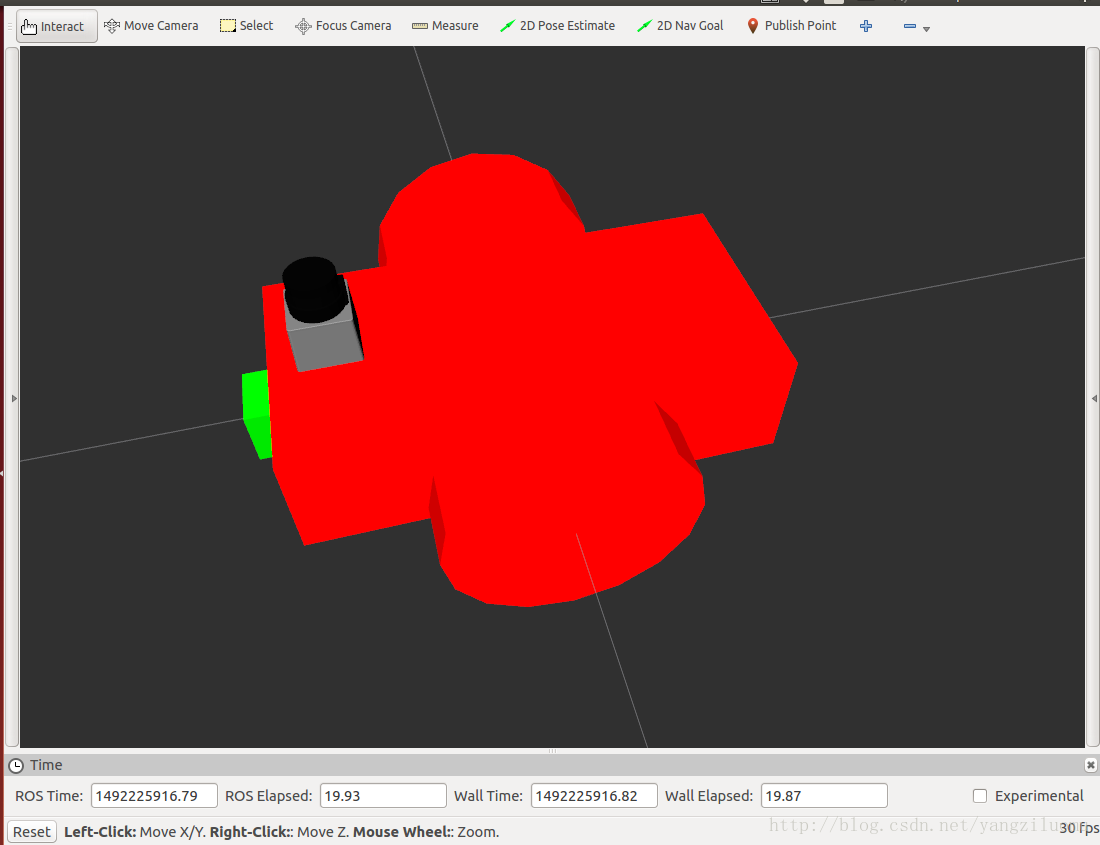
neurobot_rviz.launch 文件如下
<launch><param name="robot_description" command="$(find xacro)/xacro.py '$(find mybot_description)/urdf/mybot.xacro'"/><node name="joint_state_publisher" pkg="joint_state_publisher" type="joint_state_publisher"><param name="use_gui" value="False"/>node><node name="robot_state_publisher" pkg="robot_state_publisher" type="state_publisher"/><node name="rviz" pkg="rviz" type="rviz"/>
launch>
在gazebo中加载机器人并控制机器人运动
依然采用在turtlebot中使用的world场景,加载机器人。
roslaunch neurobot_gazebo neurobot_world.launch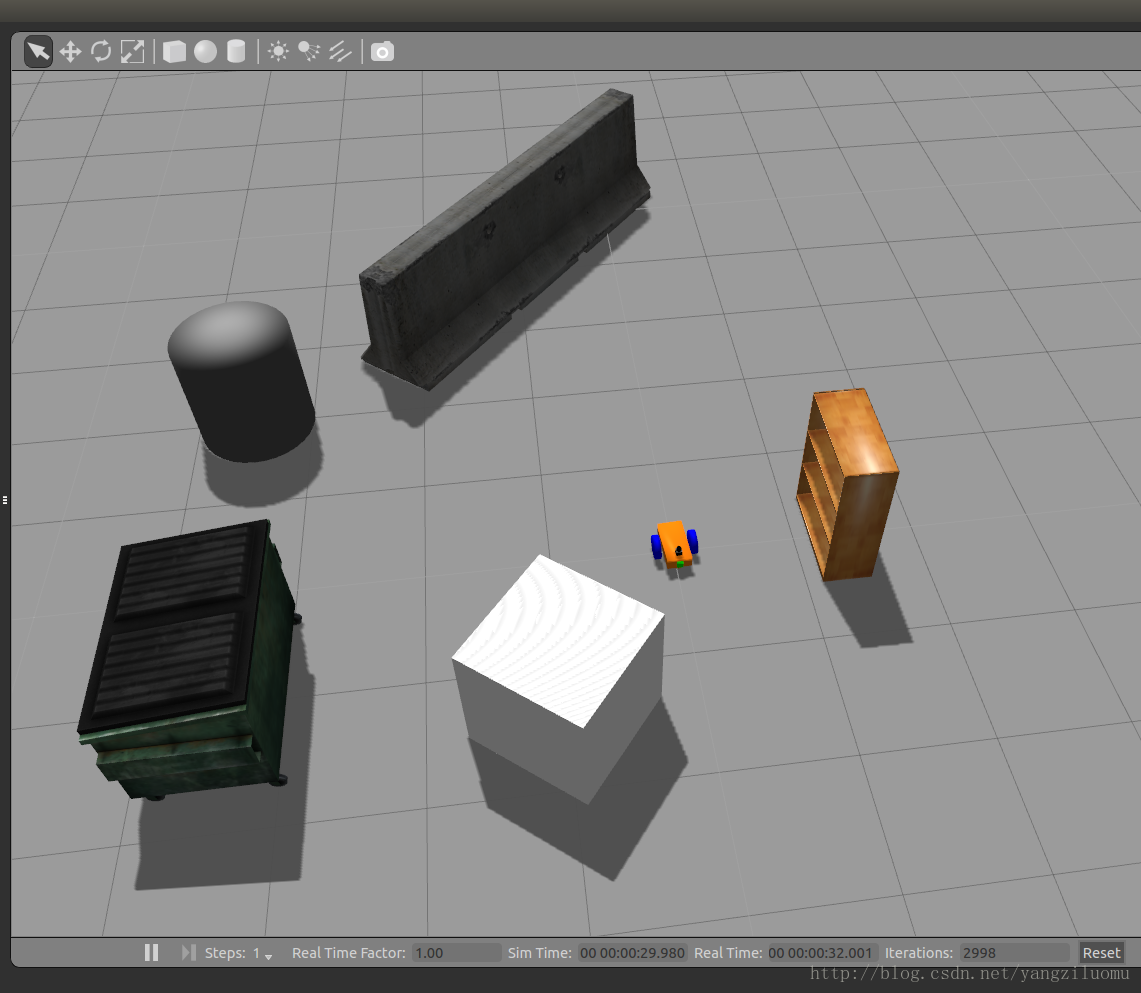
通过如下命令
rostopic list我们可以找到非常重要的四个topic
/cmd_vel  速度控制命令
/neurobot/camera1/image_raw 图像信息
/neurobot/laser/scan 激光数据
/odom 里程计使用如下命令便可以控制机器人运动了,fancy。
rostopic pub /cmd_vel geometry_msgs/Twist "linear:x: 0.1y: 0.0z: 0.0
angular:x: 0.0y: 0.0z: 0.0"也可以使用我们之前turtlebot中使用的keyboard_teleop.launch 和keyop.launch, 将topic主题映射到/cmd_vel。
References:
How to Build a Differential Drive Simulation
urdf Tutorials
本文来自互联网用户投稿,文章观点仅代表作者本人,不代表本站立场,不承担相关法律责任。如若转载,请注明出处。 如若内容造成侵权/违法违规/事实不符,请点击【内容举报】进行投诉反馈!