带ui的简易图片批量处理工具(python3, tkinter)
带ui的简易图片批量处理工具(python)
- 1. 使用方式
- 2. 实现的功能
- 2.1 旋转
- 2.2 翻转
- 2.3 缩放
- 2.4 正方形裁剪
- 2.5 百分比缩放
- 2.6 像素化
- 2.7 黑白化
- 3. 代码实现
简单封装了一些常用的批量图片处理操作,适用于没必要上PS的轻量级场合,比如快速制作机器学习的图片训练集,裁剪图片形状,又或者只是需要调整一下大小、旋转和翻转,并应用到所有指定图片上的情况。
为了方便使用,用tkinter写了简单的ui,用于批量调整训练集图片。
使用pyinstaller打包后,exe文件大小26.1MB,也算是一个方便的小工具。
语言:python3
封装的图片处理库:PIL, imageio
可视化UI:tkinter
1. 使用方式
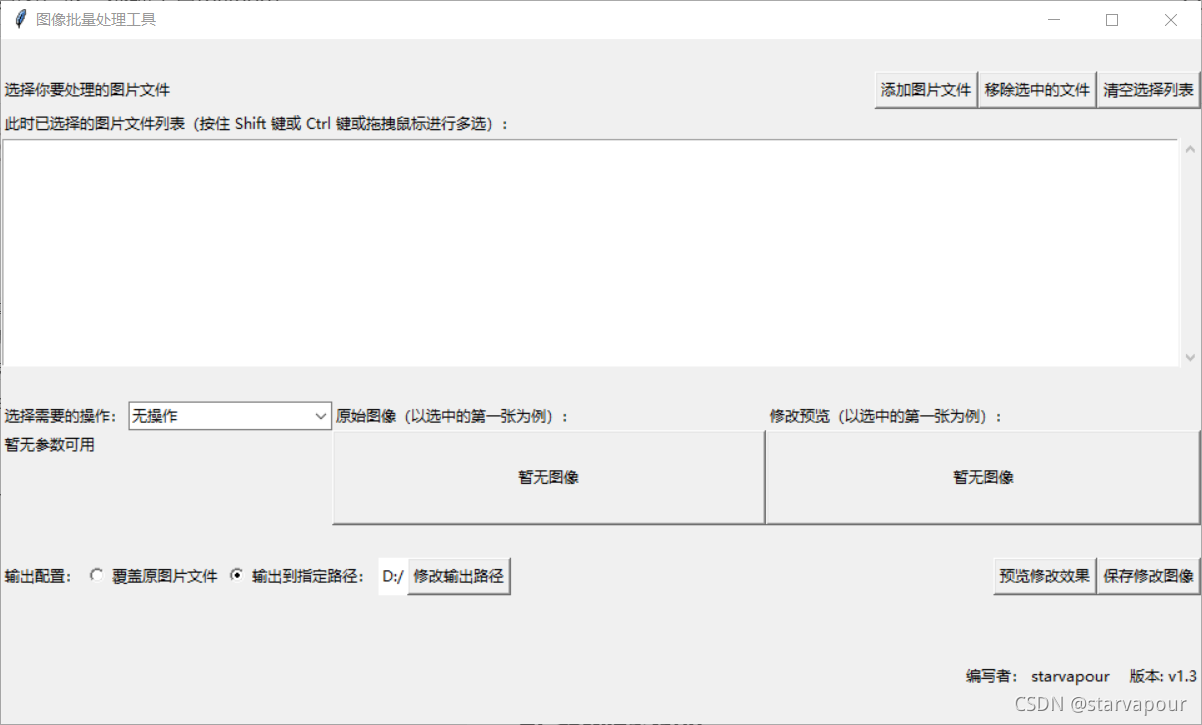
1、选择添加图片文件后,可以单选或者多选,将确认的文件显示在列表中,此时可以选择一部分文件然后移除,也可以直接清空文件选择列表,文件添加可以多次操作。
2、完成文件选择后,选择所需要的操作,然后填入相应的操作参数,之后点击预览可以预览列表中选中的第一个图片文件,如果没有选中,则默认预览列表第一张。
3、在最下面选择输出的模型,再点击保存,确认操作后,修改保存将被执行。
2. 实现的功能
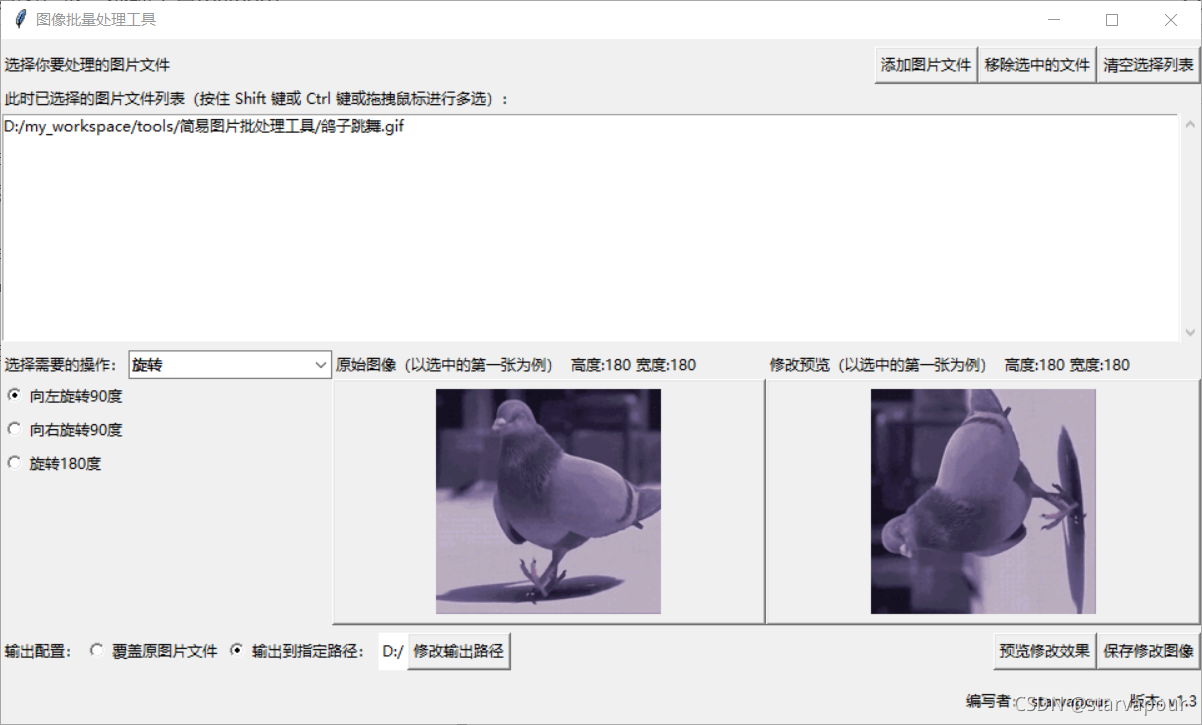
2.1 旋转
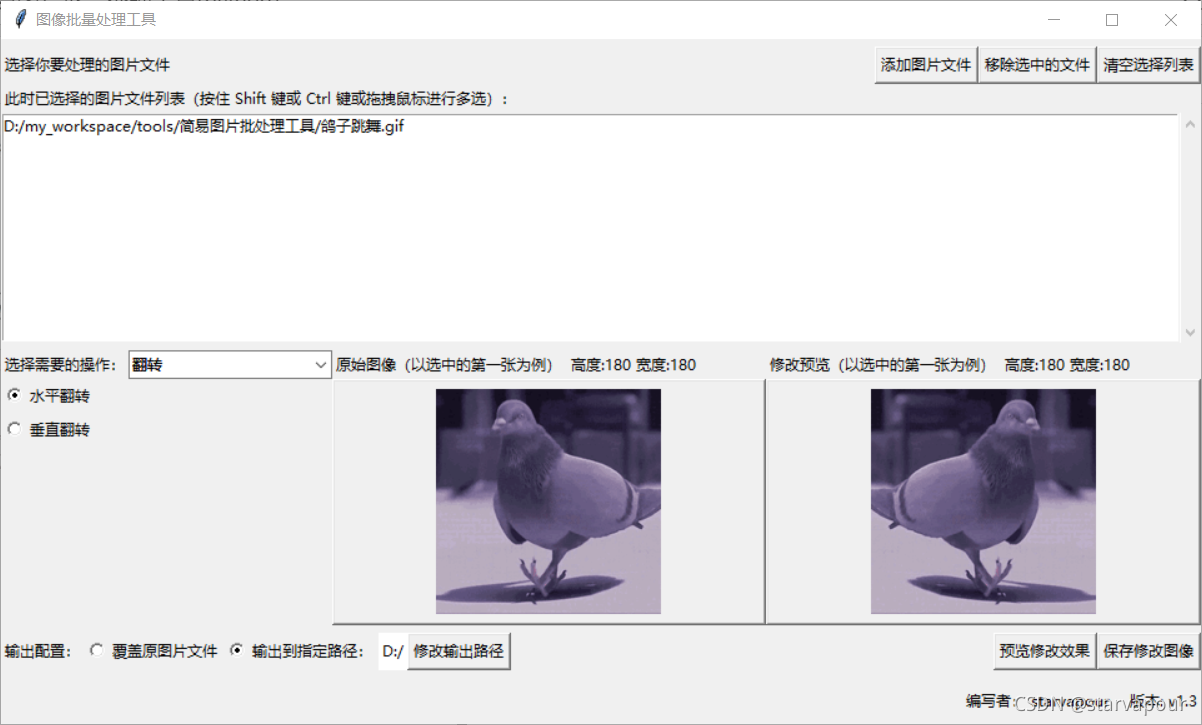
2.2 翻转
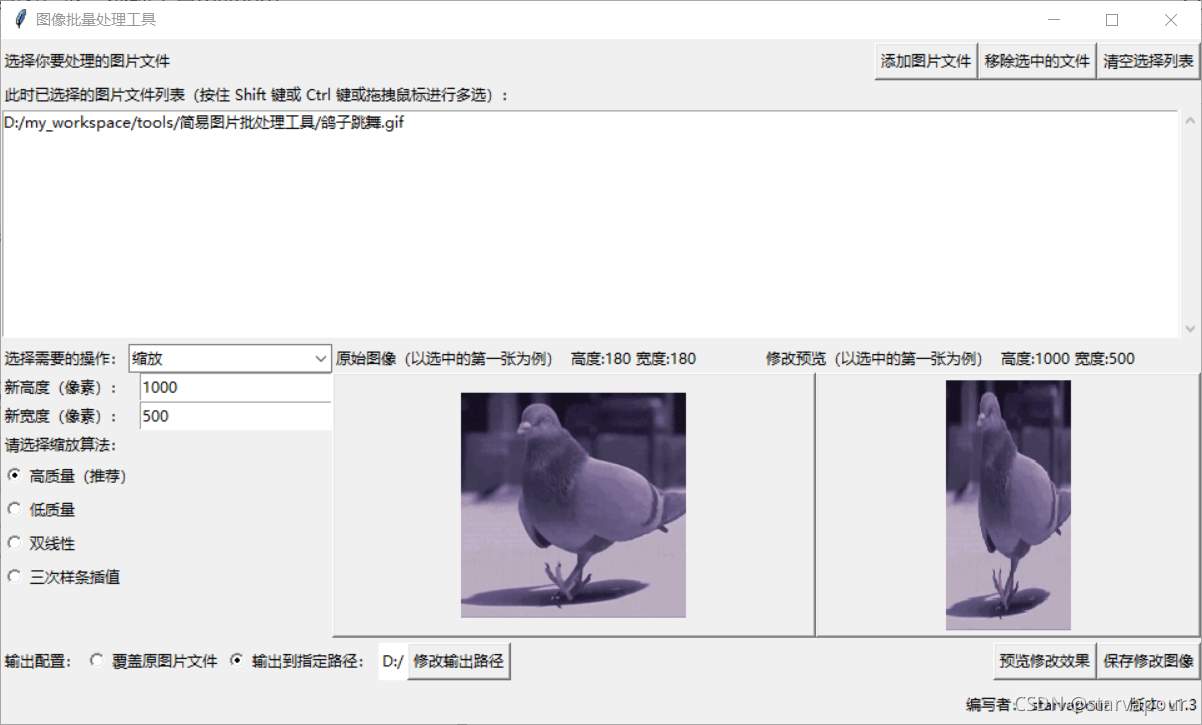
2.3 缩放
2.4 正方形裁剪
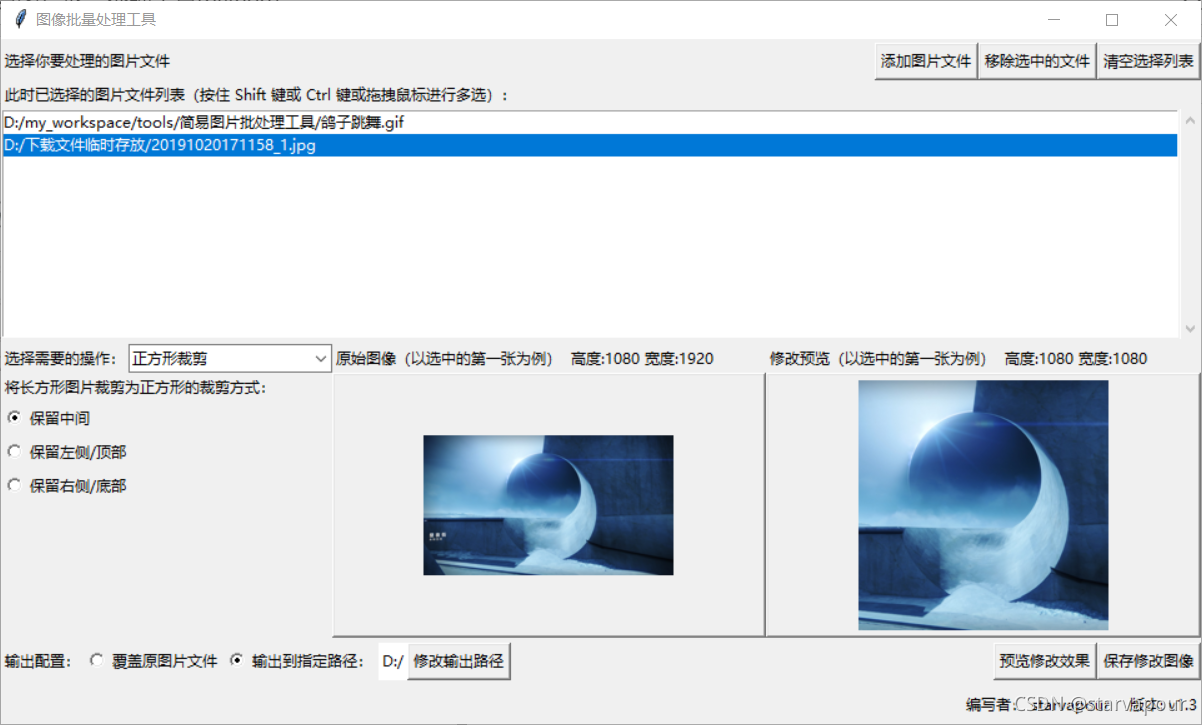
2.5 百分比缩放
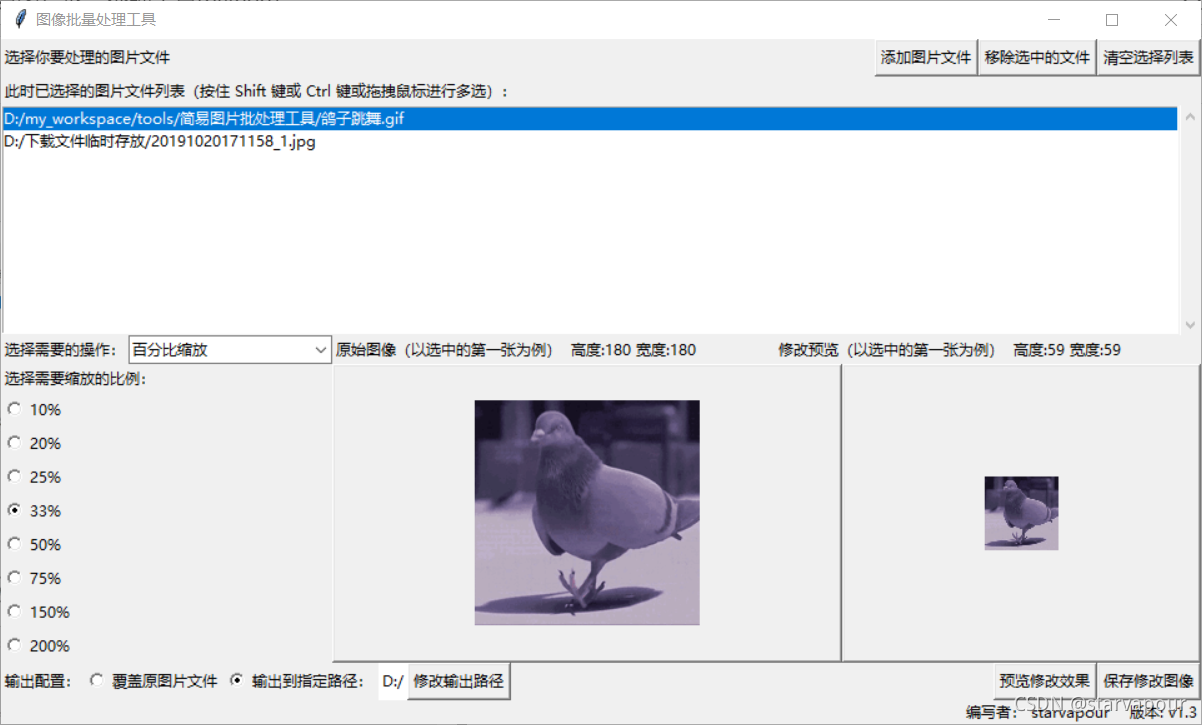
2.6 像素化
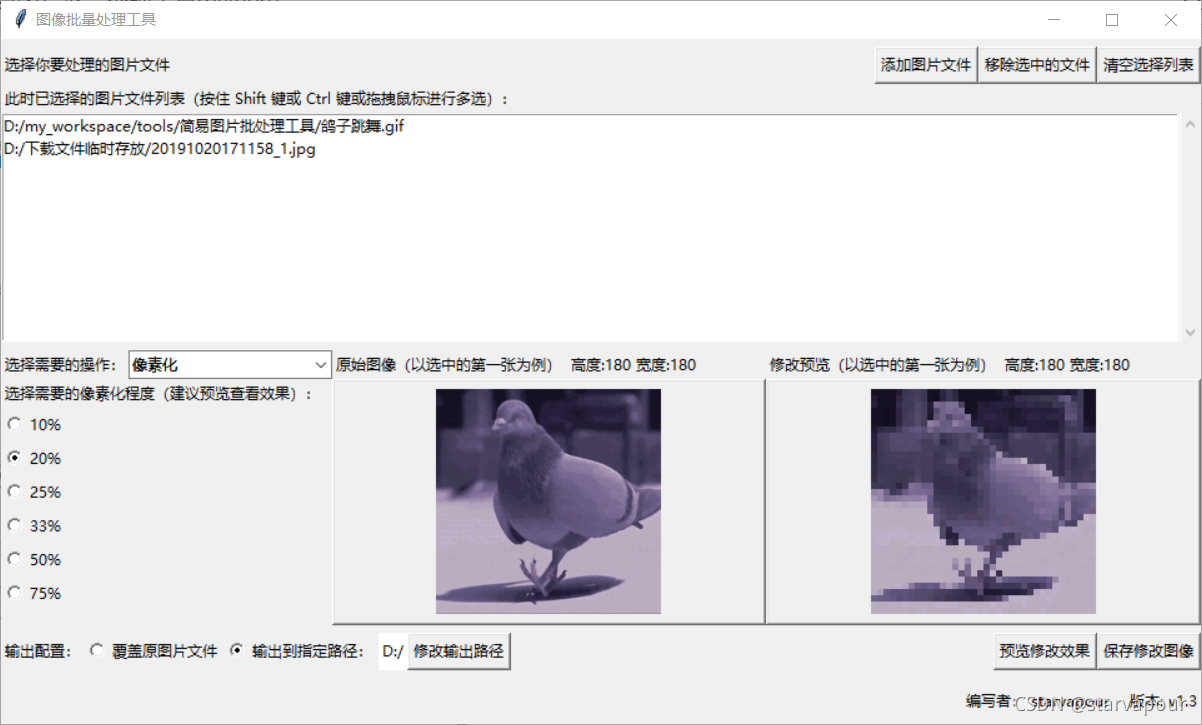
2.7 黑白化
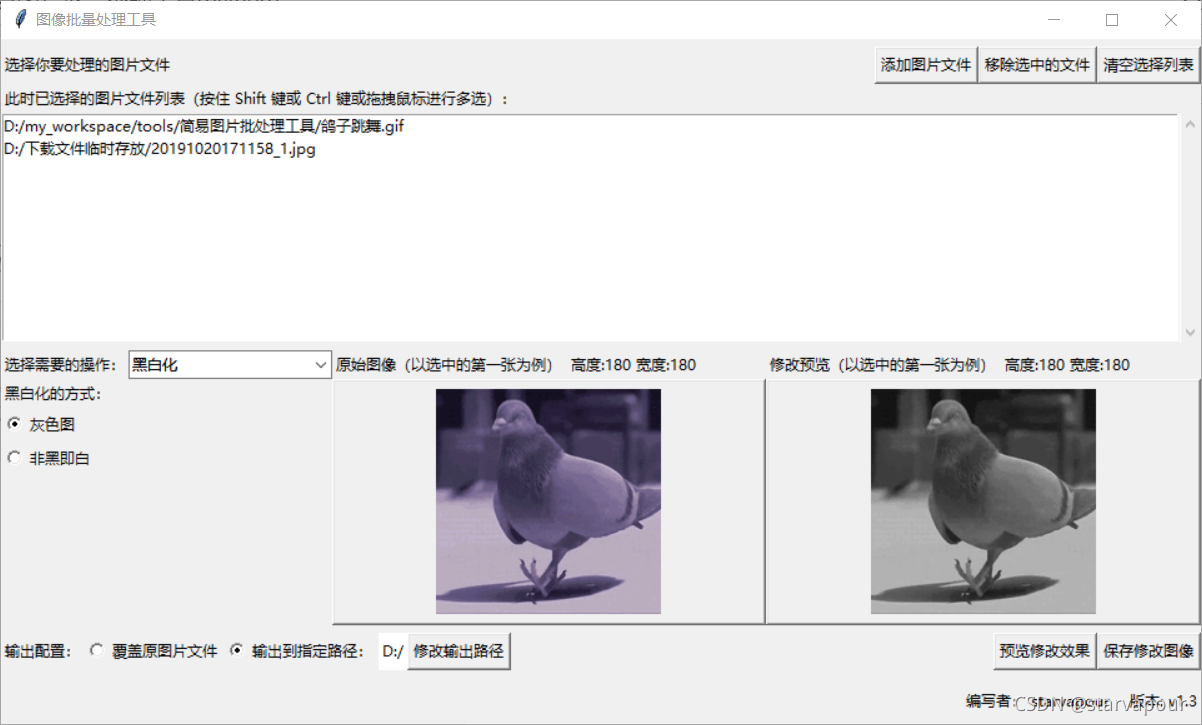
3. 代码实现
from tkinter import Tk, Frame, Label, Button, Scrollbar, Listbox, filedialog, \StringVar, messagebox, IntVar, Radiobutton, Entry
from tkinter.ttk import Combobox
from tkinter.filedialog import askdirectory
from tkinter.messagebox import askokcancel
from os import mkdir
from os.path import split as path_split
from os.path import realpath, exists, splitext
from PIL.Image import fromarray
from imageio import mimread, mimsave
from PIL.Image import open as Image_open
from PIL.ImageTk import PhotoImage as ImageTk_PhotoImage
from PIL.Image import ANTIALIAS, BILINEAR, BICUBIC, NEAREST, \FLIP_LEFT_RIGHT, FLIP_TOP_BOTTOM, ROTATE_90, ROTATE_180, ROTATE_270# 记录配置信息
class Config:# 版本号version = 'v1.3'# 主窗口的长宽root_height = 540root_width = 960# 预览图片最大长度限制size_limit = 200# 记录缓存数据
class Data:# 程序运行路径running_path = path_split(realpath(__file__))[0]# 记录操作参数值rotation = Noneflip = Noneresize_method = Nonesquare_cut = Nonepercent_reduce = Nonepixel_ratio = Noneoutput_method = Noneconvert_method = None# 高度文本框height_entry = None# 宽度文本框width_entry = None# 输出路径output_path = None# 预览图片ori_img = Nonepreview_img = None# 用于显示的图片ori_img_display = Nonepreview_img_display = None# 使用Image库打开图片
def load_image(img_path):return Image_open(img_path)# 将图片转换为适用于界面显示的gif
def image_to_display(img):# 将长宽中较大值压到极限,等比例缩小if max(img.size) > Config.size_limit:rate = Config.size_limit / max(img.size)shape = (int(img.size[0] * rate), int(img.size[1] * rate))img = img.resize(shape)return ImageTk_PhotoImage(img)# 处理图片
def change_img(img, operate):# 啥都不做if operate[0] == "无操作":passelif operate[0] == "旋转":# 向左旋转90度if operate[1] == 0:img = img.transpose(ROTATE_90)# 向右旋转90度elif operate[1] == 1:img = img.transpose(ROTATE_270)# 旋转180度elif operate[1] == 2:img = img.transpose(ROTATE_180)elif operate[0] == "翻转":# 水平翻转if operate[1] == 0:img = img.transpose(FLIP_LEFT_RIGHT)# 垂直翻转elif operate[1] == 1:img = img.transpose(FLIP_TOP_BOTTOM)elif operate[0] == "缩放":height, width, resize_method = operate[1]type_dict = {0: ANTIALIAS, 1: NEAREST, 2: BILINEAR, 3: BICUBIC}img = img.resize((width, height), type_dict[resize_method])elif operate[0] == "正方形裁剪":width, height = img.sizecut_length = max(img.size) - min(img.size)crop_shape = (0, 0, width, height)# crop_shape(left, upper, right, lower)# 坐标系统的原点(0, 0)是左上角# 保留居中if operate[1] == 0:# 裁剪宽if width > height:crop_shape = (cut_length//2, 0, cut_length//2 + height, height)# 裁剪高elif height > width:crop_shape = (0, cut_length//2, width, cut_length//2+width)# 保留左侧/顶部',elif operate[1] == 1:# 裁剪宽if width > height:crop_shape = (0, 0, width-cut_length, height)# 裁剪高elif height > width:crop_shape = (0, 0, width, height-cut_length)# 保留右侧/底部elif operate[1] == 2:# 裁剪宽if width > height:crop_shape = (cut_length, 0, width, height)# 裁剪高elif height > width:crop_shape = (0, cut_length, width, height)# 裁剪图片img = img.crop(crop_shape)elif operate[0] == "百分比缩放":width, height = img.sizepercent_reduce = operate[1]img = img.resize((width*percent_reduce//100, height*percent_reduce//100), ANTIALIAS)elif operate[0] == "像素化":width, height = img.sizepixel_ratio = operate[1]img = img.resize((width*pixel_ratio//100, height*pixel_ratio//100), ANTIALIAS)img = img.resize((width, height), NEAREST)elif operate[0] == "黑白化":# 灰色图if operate[1] == 0:img = img.convert("L")# 非黑即白if operate[1] == 1:img = img.convert("1")img = img.convert("L")return imgdef main():# 主窗口root = Tk()# 主窗口标题root.title('图像批量处理工具')# 主窗口大小root.geometry(f'{Config.root_width}x{Config.root_height}')# 主框架-----------------------------------------------------------------------root_frame = Frame(root)# 文件选择框架file_field_frame = Frame(root_frame)# 操作框架operate_field_frame = Frame(root_frame)# 保存操作框架save_field_frame = Frame(root_frame)# 信息框架info_field_frame = Frame(root_frame)# 文件选择框架-----------------------------------------------------------------------# 顶部子框架file_field_top_frame = Frame(file_field_frame)# 中部子框架file_field_middle_frame = Frame(file_field_frame)# 底部子框架file_field_bottom_frame = Frame(file_field_frame)# 已选择的文件列表与下拉框file_scrolbar = Scrollbar(file_field_bottom_frame)file_listbox = Listbox(file_field_bottom_frame, yscrollcommand=file_scrolbar.set, selectmode="extended")file_scrolbar.config(command=file_listbox.yview)# 文件选择信息标签file_field_label = Label(file_field_top_frame, text='选择你要处理的图片文件')# 添加文件按钮def add_choisen_file():img_paths = filedialog.askopenfilenames(filetypes=[('图片文件', ('.jpg', '.jpeg', '.png', '.bmp', ".gif")), ('所有文件', '*')])# 将选中的图片文件路径添加到list_box内for file in img_paths:# 在添加时检验是否为合法的图片文件,无法正确打开的文件将被跳过try:load_image(file)except:messagebox.showinfo('图片文件错误', f'{file}不是正确的图片文件,将被跳过!')else:file_listbox.insert("end", file)add_file_button = Button(file_field_top_frame, text='添加图片文件', command=add_choisen_file)# 删除选中文件列表def remove_choisen_file():for index in file_listbox.curselection():file_listbox.delete(index)delete_file_button = Button(file_field_top_frame, text='移除选中的文件', command=remove_choisen_file)# 清空选中文件列表def clear_choisen_file():file_listbox.delete(0, "end")# 清空文件按钮clear_file_button = Button(file_field_top_frame, text='清空选择列表', command=clear_choisen_file)# 文件选择提示标签file_choice_describe_label = Label(file_field_middle_frame, text='此时已选择的图片文件列表(按住 Shift 键或 Ctrl 键或拖拽鼠标进行多选):')# 操作框架-----------------------------------------------------------------------# 左侧子框架,图像操作参数区域,预览按钮operate_field_left_frame = Frame(operate_field_frame)# 右侧子框架,图像预览区域operate_field_right_frame = Frame(operate_field_frame)# 图像预览区域上下分为描述区和图像区,每个区域又分左右两部分operate_field_right_top_frame = Frame(operate_field_right_frame)operate_field_right_bottom_frame = Frame(operate_field_right_frame)# 原始图片标签与预览图片描述标签ori_desc_label = Label(operate_field_right_top_frame, text='原始图像(以选中的第一张为例):', anchor='nw')preview_desc_label = Label(operate_field_right_top_frame, text='修改预览(以选中的第一张为例):', anchor='nw')# 原始图片标签与预览图片显示标签,带有边框ori_img_label = Label(operate_field_right_bottom_frame, text='暂无图像', relief="raised")preview_img_label = Label(operate_field_right_bottom_frame, text='暂无图像', relief="raised")# 作为可变对象,先packori_desc_label.pack(side="left", fill="x", expand="yes")preview_desc_label.pack(side="right", fill="x", expand="yes")ori_img_label.pack(side="left", fill="both", expand="yes")preview_img_label.pack(side="right", fill="both", expand="yes")# 图片操作区# 操作选择区operate_field_left_top_frame = Frame(operate_field_left_frame)# 参数配置区,默认空白operate_field_left_bottom_frame = Frame(operate_field_left_frame)# 显示无参数时的标签operate_parameter_init_label = Label(operate_field_left_bottom_frame, text='暂无参数可用', anchor='w')operate_parameter_init_label.pack(fill="x")# 作为分页切换的特殊frame,提前打包operate_field_left_bottom_frame.pack(side="bottom", fill="both", expand="yes")operate_desc_label = Label(operate_field_left_top_frame, text='选择需要的操作:')# 操作选择下拉框xVariable = StringVar()operater_combobox = Combobox(operate_field_left_top_frame, textvariable=xVariable, state="readonly")# 可选的操作类型operater_combobox["value"] = ("无操作", "旋转", "翻转", "缩放", "正方形裁剪", "百分比缩放", "像素化", "黑白化")# 默认操作序号operater_combobox.current(0)# 更新参数框架的窗体布局def update_operater(event):# 针对图片参数配置区进行操作# 首先摧毁旧frame里面的所有组件for widget in operate_field_left_bottom_frame.winfo_children():widget.destroy()# 为frame配备新组件# 获取操作名operate = operater_combobox.get()# 根据操作分配新的组件布局if operate == "无操作":# 显示无参数时的标签operate_parameter_init_label = Label(operate_field_left_bottom_frame, text='暂无参数可用', anchor='w')operate_parameter_init_label.pack(fill="x")elif operate == "旋转":Data.rotation = IntVar()Data.rotation.set(0)Radiobutton(operate_field_left_bottom_frame, text='向左旋转90度',variable=Data.rotation, value=0, anchor='w').pack(side="top", fill="x")Radiobutton(operate_field_left_bottom_frame, text='向右旋转90度',variable=Data.rotation, value=1, anchor='w').pack(side="top", fill="x")Radiobutton(operate_field_left_bottom_frame, text='旋转180度',variable=Data.rotation, value=2, anchor='w').pack(side="top", fill="x")elif operate == "翻转":Data.flip = IntVar()Data.flip.set(0)Radiobutton(operate_field_left_bottom_frame, text='水平翻转',variable=Data.flip, value=0, anchor='w').pack(side="top", fill="x")Radiobutton(operate_field_left_bottom_frame, text='垂直翻转',variable=Data.flip, value=1, anchor='w').pack(side="top", fill="x")elif operate == "缩放":# 三层小frame# 长度frameheight_frame = Frame(operate_field_left_bottom_frame)height_label = Label(height_frame, text='新高度(像素):', anchor='w')height_label.pack(side="left", fill="both", expand="yes")height_entry = Entry(height_frame)height_entry.pack(side="left", fill="both", expand="yes")Data.height_entry = height_entryheight_frame.pack(side="top", fill="x")# 宽度framewidth_frame = Frame(operate_field_left_bottom_frame)width_label = Label(width_frame, text='新宽度(像素):', anchor='w')width_label.pack(side="left", fill="both", expand="yes")width_entry = Entry(width_frame)width_entry.pack(side="left", fill="both", expand="yes")Data.width_entry = width_entrywidth_frame.pack(side="top", fill="x")# 缩放算法Data.resize_method = IntVar()Data.resize_method.set(0)Label(operate_field_left_bottom_frame, text='请选择缩放算法:', anchor='w').pack(side="top", fill="both")Radiobutton(operate_field_left_bottom_frame, text='高质量(推荐)',variable=Data.resize_method, value=0, anchor='w').pack(side="top", fill="x")Radiobutton(operate_field_left_bottom_frame, text='低质量',variable=Data.resize_method, value=1, anchor='w').pack(side="top", fill="x")Radiobutton(operate_field_left_bottom_frame, text='双线性',variable=Data.resize_method, value=2, anchor='w').pack(side="top", fill="x")Radiobutton(operate_field_left_bottom_frame, text='三次样条插值',variable=Data.resize_method, value=3, anchor='w').pack(side="top", fill="x")elif operate == "正方形裁剪":Data.square_cut = IntVar()Data.square_cut.set(0)Label(operate_field_left_bottom_frame, text='将长方形图片裁剪为正方形的裁剪方式:',anchor='w').pack(side="top", fill="x")Radiobutton(operate_field_left_bottom_frame, text='保留中间',variable=Data.square_cut, value=0, anchor='w').pack(side="top", fill="x")Radiobutton(operate_field_left_bottom_frame, text='保留左侧/顶部',variable=Data.square_cut, value=1, anchor='w').pack(side="top", fill="x")Radiobutton(operate_field_left_bottom_frame, text='保留右侧/底部',variable=Data.square_cut, value=2, anchor='w').pack(side="top", fill="x")elif operate == "百分比缩放":Data.percent_reduce = IntVar()Data.percent_reduce.set(33)Label(operate_field_left_bottom_frame, text='选择需要缩放的比例:',anchor='w').pack(side="top", fill="x")Radiobutton(operate_field_left_bottom_frame, text='10%',variable=Data.percent_reduce, value=10, anchor='w').pack(side="top", fill="x")Radiobutton(operate_field_left_bottom_frame, text='20%',variable=Data.percent_reduce, value=20, anchor='w').pack(side="top", fill="x")Radiobutton(operate_field_left_bottom_frame, text='25%',variable=Data.percent_reduce, value=25, anchor='w').pack(side="top", fill="x")Radiobutton(operate_field_left_bottom_frame, text='33%',variable=Data.percent_reduce, value=33, anchor='w').pack(side="top", fill="x")Radiobutton(operate_field_left_bottom_frame, text='50%',variable=Data.percent_reduce, value=50, anchor='w').pack(side="top", fill="x")Radiobutton(operate_field_left_bottom_frame, text='75%',variable=Data.percent_reduce, value=75, anchor='w').pack(side="top", fill="x")Radiobutton(operate_field_left_bottom_frame, text='150%',variable=Data.percent_reduce, value=150, anchor='w').pack(side="top", fill="x")Radiobutton(operate_field_left_bottom_frame, text='200%',variable=Data.percent_reduce, value=200, anchor='w').pack(side="top", fill="x")# Radiobutton(operate_field_left_bottom_frame, text='300%',# variable=Data.percent_reduce, value=300, anchor='w').pack(side="top", fill="x")elif operate == "像素化":Data.pixel_ratio = IntVar()Data.pixel_ratio.set(33)Label(operate_field_left_bottom_frame, text='选择需要的像素化程度(建议预览查看效果):',anchor='w').pack(side="top", fill="x")Radiobutton(operate_field_left_bottom_frame, text='10%',variable=Data.pixel_ratio, value=10, anchor='w').pack(side="top", fill="x")Radiobutton(operate_field_left_bottom_frame, text='20%',variable=Data.pixel_ratio, value=20, anchor='w').pack(side="top", fill="x")Radiobutton(operate_field_left_bottom_frame, text='25%',variable=Data.pixel_ratio, value=25, anchor='w').pack(side="top", fill="x")Radiobutton(operate_field_left_bottom_frame, text='33%',variable=Data.pixel_ratio, value=33, anchor='w').pack(side="top", fill="x")Radiobutton(operate_field_left_bottom_frame, text='50%',variable=Data.pixel_ratio, value=50, anchor='w').pack(side="top", fill="x")Radiobutton(operate_field_left_bottom_frame, text='75%',variable=Data.pixel_ratio, value=75, anchor='w').pack(side="top", fill="x")elif operate == "黑白化":Data.convert_method = IntVar()Data.convert_method.set(0)Label(operate_field_left_bottom_frame, text='黑白化的方式:',anchor='w').pack(side="top", fill="x")Radiobutton(operate_field_left_bottom_frame, text='灰色图',variable=Data.convert_method , value=0, anchor='w').pack(side="top", fill="x")Radiobutton(operate_field_left_bottom_frame, text='非黑即白',variable=Data.convert_method , value=1, anchor='w').pack(side="top", fill="x")# 打包新的frameoperate_field_left_bottom_frame.pack(side="bottom", fill="both", expand="yes")# 下拉菜单选择操作operater_combobox.bind("<>" , update_operater)# 获取当前选择的操作,返回(操作名,参数列表)def get_operate():operate = operater_combobox.get()if operate == "无操作":return operate, Noneelif operate == "旋转":return operate, Data.rotation.get()elif operate == "翻转":return operate, Data.flip.get()elif operate == "缩放":return operate, [int(Data.height_entry.get()), int(Data.width_entry.get()), Data.resize_method.get()]elif operate == "正方形裁剪":return operate, Data.square_cut.get()elif operate == "百分比缩放":return operate, Data.percent_reduce.get()elif operate == "像素化":return operate, Data.pixel_ratio.get()elif operate == "黑白化":return operate, Data.convert_method.get()# 保存操作框架-----------------------------------------------------------------------# 左侧:输出描述,覆盖原文件,自定义输出路径,浏览# 右侧:预览按钮,保存按钮output_desc_label = Label(save_field_frame, text="输出配置:", anchor='w')Data.output_method = IntVar()Data.output_method.set(1)output_method_0 = Radiobutton(save_field_frame, text='覆盖原图片文件',variable=Data.output_method, value=0, anchor='w')output_method_1 = Radiobutton(save_field_frame, text='输出到指定路径:',variable=Data.output_method, value=1, anchor='w')# 输出路径文本框Data.output_path = StringVar()Data.output_path.set(Data.running_path.replace('\\','/') + '/output')output_path_label = Label(save_field_frame, textvariable=Data.output_path, anchor='w', bg='white')# 选择路径按钮def choose_output_path():output_path = askdirectory()if output_path:Data.output_path.set(output_path)choose_output_path_button = Button(save_field_frame, text='修改输出路径', command=choose_output_path)# 预览按钮# 图像预览区operate_field_right_bottom_framedef preview_img():# 针对图像预览区进行操作# 首先摧毁旧frame里面的所有组件for widget in operate_field_right_top_frame.winfo_children():widget.destroy()for widget in operate_field_right_bottom_frame.winfo_children():widget.destroy()# 为frame配备新组件# 如果选择列表为空if not file_listbox.size():ori_desc_label = Label(operate_field_right_top_frame, text='原始图像(以选中的第一张为例):', anchor='nw')preview_desc_label = Label(operate_field_right_top_frame, text='修改预览(以选中的第一张为例):', anchor='nw')# 原始图片标签与预览图片显示标签,带有边框ori_img_label = Label(operate_field_right_bottom_frame, text='暂无图像', relief="raised")preview_img_label = Label(operate_field_right_bottom_frame, text='暂无图像', relief="raised")# 取出选中的第一张图片作为预览图片,没有选中则取出列表中的第一张else:select_list = file_listbox.curselection()# 如果选择的图片不为空if select_list:ori_img_path = file_listbox.get(file_listbox.curselection()[0])# 否则取出列表第一个else:ori_img_path = file_listbox.get(0)# 原始图像Data.ori_img = load_image(ori_img_path)# 用于显示的原始图像Data.ori_img_display = image_to_display(Data.ori_img)# 预览图像try:Data.preview_img = change_img(Data.ori_img, get_operate())except:messagebox.showinfo('长宽数据错误', f'请输入正确的长度与宽度!')Data.preview_img = Data.ori_imgfinally:# 用于显示的预览图像Data.preview_img_display = image_to_display(Data.preview_img)ori_desc_label = Label(operate_field_right_top_frame,text=f'原始图像(以选中的第一张为例) 高度:{Data.ori_img.size[1]} 宽度:{Data.ori_img.size[0]}', anchor='nw')preview_desc_label = Label(operate_field_right_top_frame,text=f'修改预览(以选中的第一张为例) 高度:{Data.preview_img.size[1]} 宽度:{Data.preview_img.size[0]}', anchor='nw')ori_img_label = Label(operate_field_right_bottom_frame, image=Data.ori_img_display, relief="raised")preview_img_label = Label(operate_field_right_bottom_frame, image=Data.preview_img_display, relief="raised")# 图像预览区packori_desc_label.pack(side="left", fill="x", expand="yes")preview_desc_label.pack(side="right", fill="x", expand="yes")ori_img_label.pack(side="left", fill="both", expand="yes")preview_img_label.pack(side="right", fill="both", expand="yes")preview_button = Button(save_field_frame, text='预览修改效果', command=preview_img)# 对图片操作后保存# 针对gif进行分解处理def save_new_image(img_path, current_operate, save_path):# 如果不是gif图片if splitext(img_path)[1].lower() != ".gif":change_img(load_image(img_path), current_operate).save(save_path)# 如果是gifelse:# 使用PIL获取gif的fpsfps = 1000 / Image_open(img_path).info['duration']# 使用imageio库读出gif图片gif_img = mimread(img_path)# 将gif帧拆解分别处理gif_img = map(lambda x: change_img(fromarray(x), current_operate), gif_img)# 保存图片mimsave(save_path, gif_img, 'GIF', fps=fps)# 保存按钮def save_img():if not file_listbox.size():messagebox.showinfo('无法保存', f'尚未选择任何图片文件')elif operater_combobox.get() == "无操作":messagebox.showinfo('无法保存', f'未选择任何要执行的操作')else:current_operate = get_operate()# 是否可以保存can_save = Trueif operater_combobox.get() == "缩放":can_save = False# 测试书写的高宽是否正常try:select_list = file_listbox.curselection()# 如果选择的图片不为空if select_list:ori_img_path = file_listbox.get(file_listbox.curselection()[0])# 否则取出列表第一个else:ori_img_path = file_listbox.get(0)Data.ori_img = load_image(ori_img_path)Data.preview_img = change_img(Data.ori_img, current_operate)except:messagebox.showinfo('无法保存', f'高度与宽度数据填写有误!')else:# 检验合格can_save = True# 检查没问题,可以进行保存if can_save:# 获取保存模式output_method = Data.output_method.get()# 覆盖原文件输出if output_method == 0:# 进行一次确认提示if askokcancel('保存确认','修改图片将覆盖图片原文件,该操作不可撤销,确认要对所有选择的图片文件执行该操作吗?'):# 对所有原始图像操作并保存for img_path in file_listbox.get(0, 'end'):save_new_image(img_path, current_operate, img_path)# 提示完成messagebox.showinfo('保存完成', f'所有修改后的图片都已经覆盖原文件')elif output_method == 1:# 进行一次确认提示if askokcancel('保存确认',f'即将输出所有修改后的图片到指定文件夹{Data.output_path.get()},确认要对所有选择的图片文件执行该操作吗?'):output_path = Data.output_path.get()# 如果路径不存在,则创建输出文件夹if not exists(output_path):mkdir(output_path)# 对所有原始图像操作并保存for img_path in file_listbox.get(0, 'end'):new_path = output_path + "/" + path_split(img_path)[1]save_new_image(img_path, current_operate, new_path)# 提示完成messagebox.showinfo('保存完成', f'所有修改后的图片都已经输出到{Data.output_path.get()}')save_button = Button(save_field_frame, text='保存修改图像', command=save_img)# 信息框架-----------------------------------------------------------------------info_label = Label(info_field_frame, text=f"编写者: starvapour 版本: {Config.version}", anchor='e')# 组件pack-----------------------------------------------------------------------# 文件选择区packfile_scrolbar.pack(side="right", fill="y")file_listbox.pack(side="left", fill="both", expand=True)file_field_label.pack(side="left")clear_file_button.pack(side="right")delete_file_button.pack(side="right")add_file_button.pack(side="right")file_choice_describe_label.pack(side="left", fill="x")file_field_top_frame.pack(fill="x", expand="yes")file_field_middle_frame.pack(fill="x", expand="yes")file_field_bottom_frame.pack(fill="x", expand="yes")# 操作选择区packoperate_field_right_top_frame.pack(side="top", fill="x")operate_field_right_bottom_frame.pack(side="bottom", fill="both", expand="yes")operate_desc_label.pack(side="left", fill="y", expand="yes")operater_combobox.pack(side="right", fill="y", expand="yes")operate_field_left_top_frame.pack(side="top", fill="x")operate_field_left_frame.pack(side="left", fill="y")operate_field_right_frame.pack(side="right", fill="both", expand="yes")# 保存操作区packoutput_desc_label.pack(side="left", fill="y")output_method_0.pack(side="left", fill="y")output_method_1.pack(side="left", fill="y")output_path_label.pack(side="left", fill="both")choose_output_path_button.pack(side="left", fill="y")save_button.pack(side="right", fill="y")preview_button.pack(side="right", fill="y")# 信息区packinfo_label.pack(side="right", fill="y")# 主框架packfile_field_frame.pack(fill="x", expand="yes")operate_field_frame.pack(fill="both", expand="yes")save_field_frame.pack(fill="x", expand="yes")info_field_frame.pack(fill="x", expand="yes")root_frame.pack(fill="both", expand="yes")root.mainloop()if __name__ == '__main__':main()本文来自互联网用户投稿,文章观点仅代表作者本人,不代表本站立场,不承担相关法律责任。如若转载,请注明出处。 如若内容造成侵权/违法违规/事实不符,请点击【内容举报】进行投诉反馈!