简书网站的搭建
项目的搭建
依旧是使用脚手架create-react-app xxx 去搭建自己的项目,然后接下来删除没用的代码:
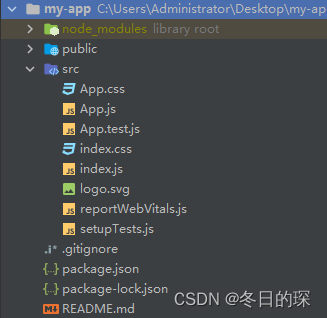
在以上的项目中呢,只需要留下App.js、index.js、index.css即可,当然还可以留着reportWebVitals.js这个文件,这个是处理离线缓存、消息推送、后台自动更新等任务,不过生产环境不用留。
然后重构index.css为style.js,引入yarn add styled-components这个模块
这里提一嘴啊,慕课那课太老了,api都更新了,在style.js里引入reset
import {createGlobalStyle} from 'styled-components'
export const Globalstyle = createGlobalStyle`body {html, body, div, span, applet, object, iframe,h1, h2, h3, h4, h5, h6, p, blockquote, pre,a, abbr, acronym, address, big, cite, code,del, dfn, em, img, ins, kbd, q, s, samp,small, strike, strong, sub, sup, tt, var,b, u, i, center,dl, dt, dd, ol, ul, li,fieldset, form, label, legend,table, caption, tbody, tfoot, thead, tr, th, td,article, aside, canvas, details, embed,figure, figcaption, footer, header, hgroup,menu, nav, output, ruby, section, summary,time, mark, audio, video {margin: 0;padding: 0;border: 0;font-size: 100%;font: inherit;vertical-align: baseline;}/* HTML5 display-role reset for older browsers */article, aside, details, figcaption, figure,footer, header, hgroup, menu, nav, section {display: block;}body {line-height: 1;}ol, ul {list-style: none;}blockquote, q {quotes: none;}blockquote:before, blockquote:after,q:before, q:after {content: '';content: none;}table {border-collapse: collapse;border-spacing: 0;}}
`
然后在入口文件里引入这个组件!!!!
import {Globalstyle} from './style';const root = ReactDOM.createRoot(document.getElementById('root'));
root.render(至此,就可以了。大体轮廓就这样了~~~
接下来开始建立我们的项目了
我们先写头部,所以建立common这个文件夹,因为头部在各个网页是通用的
说明一下:我们有APP这个大组件,然后在APP这个大组件里有Header这个小组件,再把APP渲染到我们的入口文件,也就是index.js里,这就是目前的结构~~
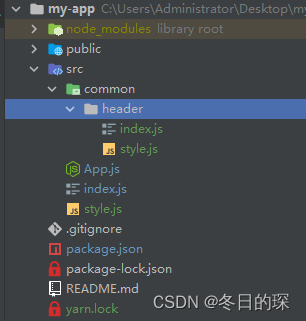
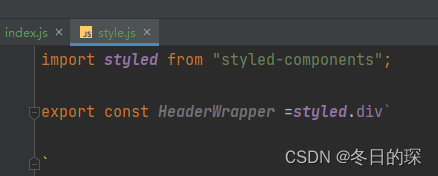
我们在header目录下的style里引入刚刚安装的模块,然后这样的话,就可以在这个文件下编辑header目录下index.js的样式了,也就是头部组件的样式
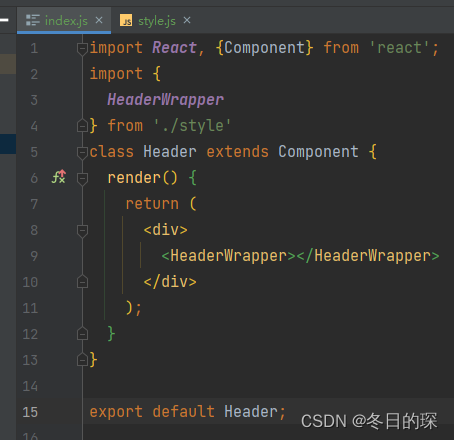
我们在header这个目录下的入口文件引入刚刚写的那个小组件,先引入再使用
在style.js里导入图片:
import logoPic from '../../statics/logo.png'  //先引入export const Logo=styled.a.attrs({href:'/'
})`position: absolute;top: 0;left: 0;display: block;width: 100px;height: 58px;background: url(${logoPic});  //在这里哦  再使用background-size: contain;`
在header目录下的index.js里引入阿里巴巴矢量图标
我们首先到阿里巴巴官网上下载下我们需要的图标,然后在common的目录下新建statics文件夹,引入iconfont,需要的就是这几个:
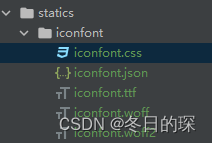
然后在总的入口文件里引入就可以了:
import './statics/iconfont/iconfont.css'就可以在header目录下的index.js里用啦!!!:
目前效果:

index,js:
import React, {Component} from 'react';
import {HeaderWrapper, Logo, Nav,NavItem,NavSearch,Addition,Button,SearchWrapper
} from './style'
class Header extends Component {render() {return (style.js:
import styled from "styled-components";
import logoPic from '../../statics/logo.png'
export const HeaderWrapper =styled.div`position: relative;height: 58px;border-bottom: 1px solid #f0f0f0;
`
export const Logo=styled.a.attrs({href:'/'
})`position: absolute;top: 0;left: 0;display: block;width: 100px;height: 58px;background: url(${logoPic});background-size: contain;`
export const Nav =styled.div`width: 960px;height: 100%;margin: 0 auto;padding-right: 70px;box-sizing: border-box;
`
export const NavItem =styled.div`line-height: 56px;padding: 0 15px;font-size: 17px;color: #333;&.left{float: left;}&.right{float: right;color: #969696;}&.active{color: #ea6f5a;}
`
export const SearchWrapper=styled.div`float: left;position: relative;.iconfont {position: absolute;right: 5px;bottom: 4px;width: 30px;height: 30px;border-radius: 15px;line-height: 30px;text-align: center;color: #666;&.focused {background: #777;color: #fff;}}
`
export const NavSearch =styled.input.attrs({placeholder:'搜索'
})`width: 160px;height: 38px;border: none;outline: none;border-radius: 19px;background: #eee;margin-top: 9px;padding: 0 30px 0 20px;box-sizing: border-box;font-size: 14px;margin-left: 20px;color: #666;&::placeholder{color: #999;}&.slide-enter{transition: all .2s ease-in-out;}&.slide-enter-active{width: 240px;}&.slide-exit{transition: all .2s ease-out;}&.slide-exit-active{width: 160px;}&.focused{width: 240px;}
`
export const Addition =styled.div`position: absolute;right: 0;top: 0;height: 56px;
`export const Button =styled.div`float: right;margin-top: 9px;line-height: 38px;border-radius: 19px;border: 1px solid #ec6149;margin-right: 20px;padding: 0 20px;&.reg{color: #ec6149; }&.writing{color: #fff;background: #ec6149;}`
本文来自互联网用户投稿,文章观点仅代表作者本人,不代表本站立场,不承担相关法律责任。如若转载,请注明出处。 如若内容造成侵权/违法违规/事实不符,请点击【内容举报】进行投诉反馈!