黑马程序员Vue全套视频
Vue 2
创建vue实例
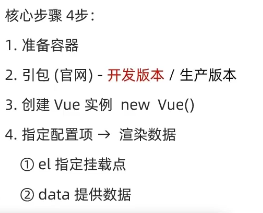
示例:
<head><meta charset="UTF-8"><meta name="viewport" content="width=device-width, initial-scale=1.0"><title>Documenttitle><script src="https://cdn.jsdelivr.net/npm/vue@2.7.14/dist/vue.js">script>
head><body><div id="app">{{ msg }}{{ name }}div><script>const app = new Vue({el: "#app",data: {msg: 'Hello World',name: '黑剑'}})script>body>
插值表达式
注意点:
1 支持的是表达式, 而非语句
<p>{{ if }}p>
2 不能在标签属性中使用
<p title="{{username}}"> xxxxp>
使用三元运算符示例
<body><div id="app">{{ msg }}{{ name }}div><script>const app = new Vue({el: "#app",data: {msg: 'Hello World',name: '黑剑'}})script>body>
v-html
把标签内容渲染到文本框内
<body><div id="app"><div v-html="msg">div>div><script>new Vue({el: '#app',data: {msg : `莲莲`}})script>body>
v-show & v-if
<p v-show="seen">看见黑刀了p><script>new Vue({el: 'p',data: {seen: true}})script>
v-else-if
<div class="msg"><p v-if="position === 1">甘雨p><p v-else-if="position === 2">刻晴p><p v-else>可莉p>div><script>new Vue({el: '.msg',data: {position: 10}})script>
v-on
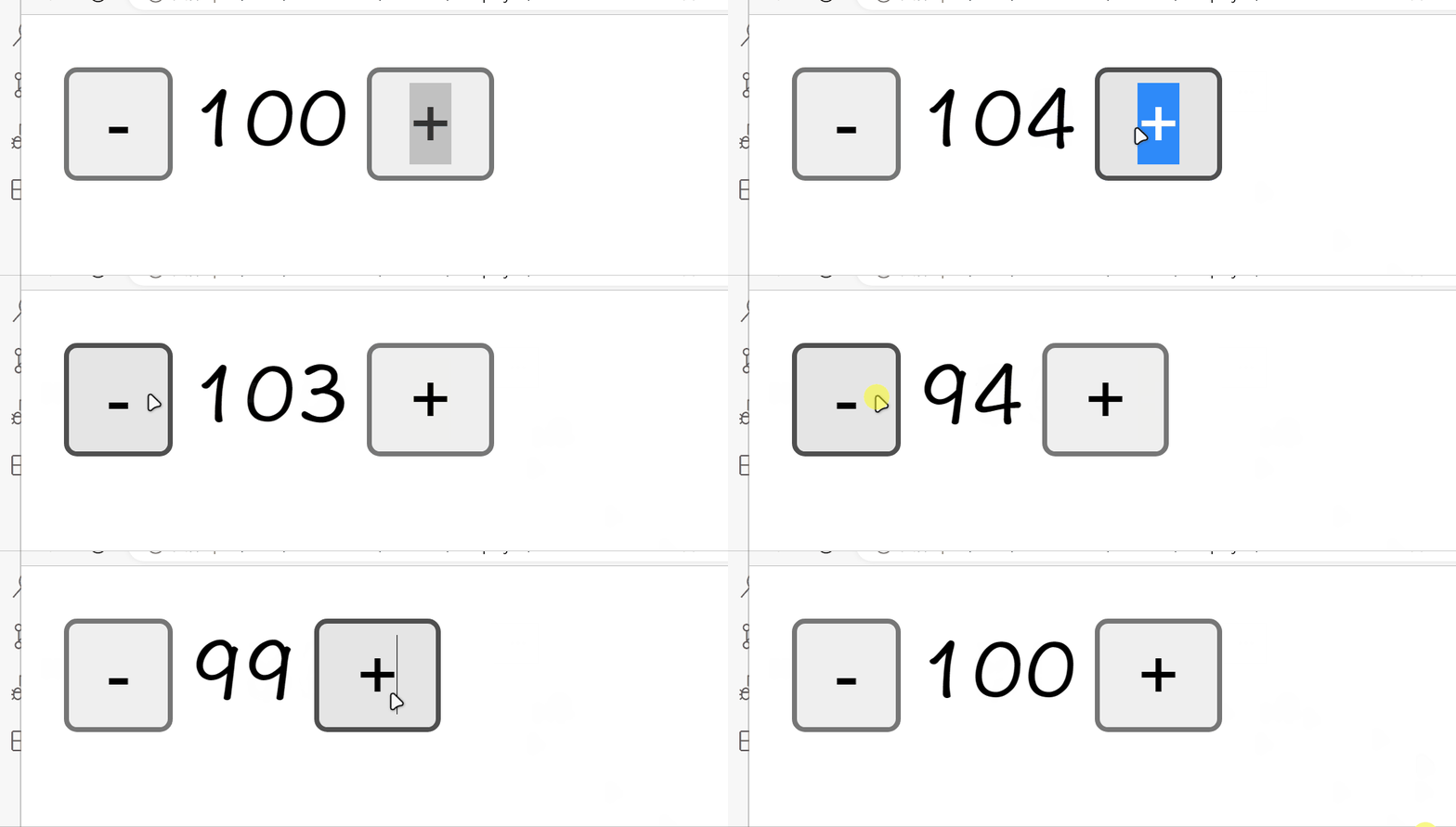
监听DOM事件
<body><div class="msg"><button v-on:click="count--">-button><span>{{ count }}span><button v-on:click="count++">+button>div><script>new Vue({el: '.msg',data: {count: 100}})script>
body>
简写 v-on -> @
<div class="msg"><button @click='fn'>点击显示|隐藏button><div v-show="isShow"><img src="123.png" alt="#">div>div><script>new Vue({el: '.msg',data: {isShow: true},methods: {fn() {this.isShow = !this.isShow} }})script>

+++
方法传参
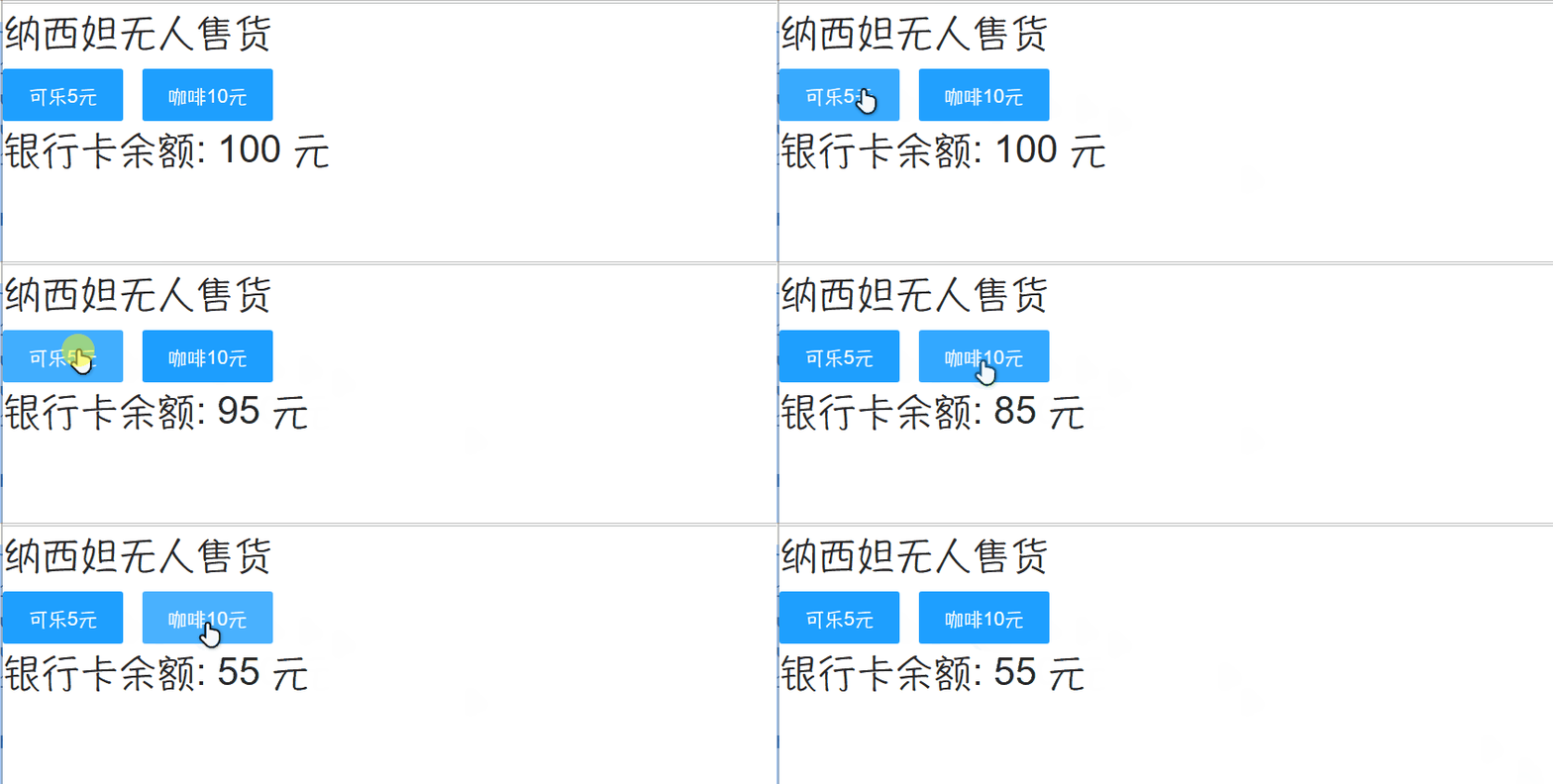
<div class="msg"><h1>纳西妲无人售货h1><button @click="buy(5)" class="layui-btn layui-btn-normal">可乐5元button><button @click="buy(10)" class="layui-btn layui-btn-normal">咖啡10元button><h1>银行卡余额: {{ price }} 元h1>div><script>new Vue({el: '.msg',data: {price: 100},methods: {buy(money) {this.price-=money}}})script>
+++
v-bind
<body><img v-bind:src="imgUrl" alt=""><script>new Vue({el: 'img',data: {imgUrl: '123.png'}})script>
body>
+++
简写 v-bind:src => :src
<body><img :src="imgUrl" alt=""><script>new Vue({el: 'img',data: {imgUrl: '123.png'}})script>
body>
+++
切换图片案例
<body><div class="msg"><button @click="index--" class="layui-btn">上一个NPCbutton><img :src="list[index]" style="width: 100px"><button @click="index++" class="layui-btn layui-btn-warm">下一个NPCbutton>div><script>new Vue({el: '.msg',data: {index: 0,list: ['image/aol.png','image/Apple%20TV.png','image/bbc.png',]}})script>
body>
+++
v-for
注意 : 加标识 key
v-for = “(item, index) in 数组”
- 1 item 每一项 2 index 下标
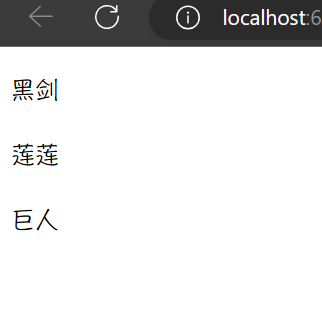
<div class="box"><p v-for="item in list">{{ item }}p>
div>
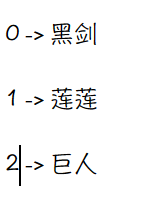
<script>new Vue({el: '.box',data: {list: ['黑剑', '莲莲', '巨人']}})
script>
+++
<div class="box"><p v-for="(item, index) in list">{{index}} -> {{ item }}p>
div>
+++
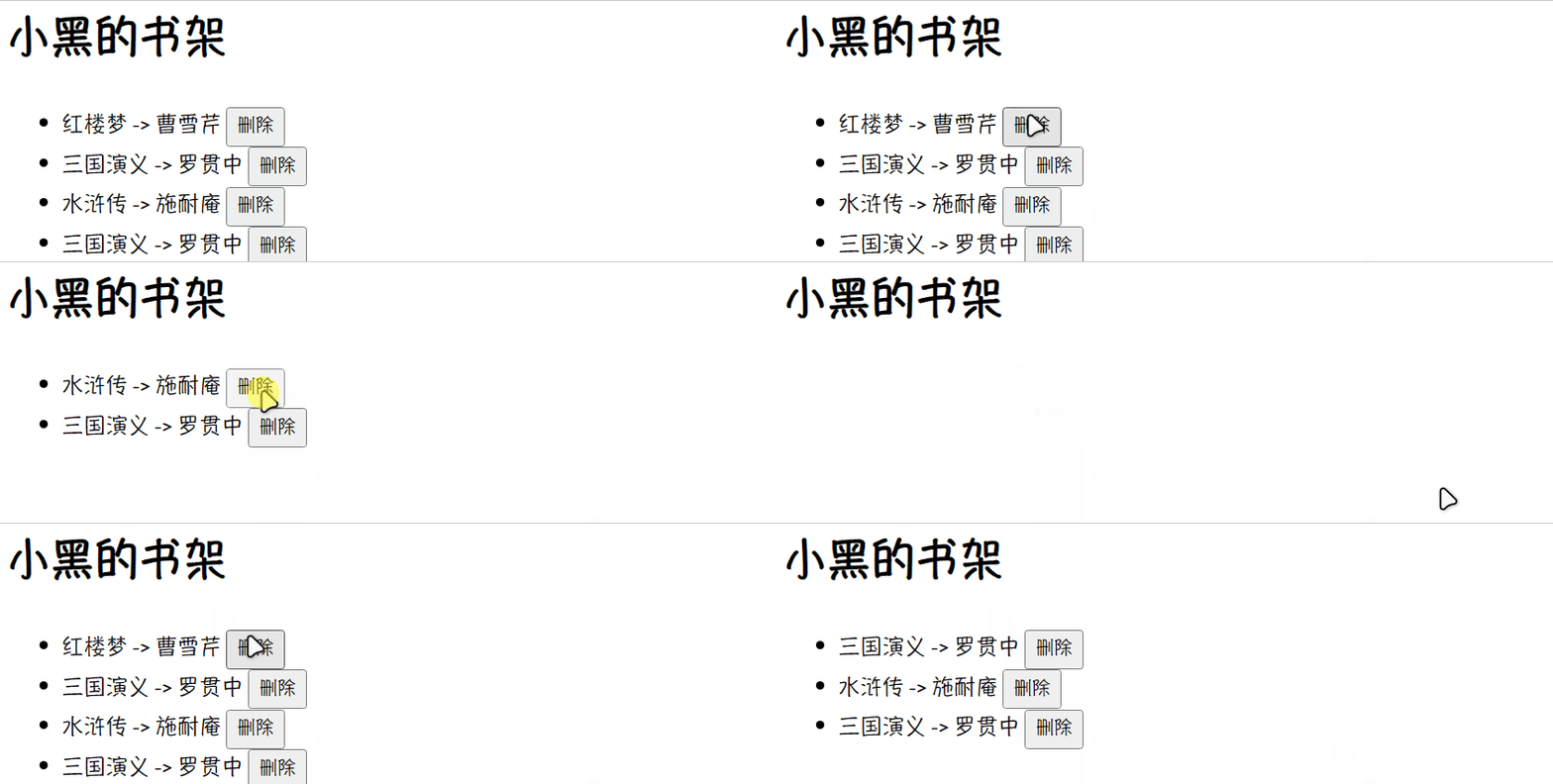
案例: 小黑的书架
<h1>小黑的书架h1>
<ul><li v-for="(item, index) in bookList">{{ item.name }} -> {{ item.author }}<button @click = "del(item.id)">删除button>li>
ul>
<script>new Vue({el: 'ul',data: {bookList: [{id: 1, name: '红楼梦', author: '曹雪芹'},{id: 2, name: '三国演义', author: '罗贯中'},{id: 3, name: '水浒传', author: '施耐庵'},{id: 4, name: '三国演义', author: '罗贯中'}]},methods: {del(id) {this.bookList = this.bookList.filter(item => item.id !== id)}}})
script>
+++
v-for 加 :key
不加key只是替换内部文字, 加key实现标签替换
key 给元素唯一标识, 便于 vue 进行列表项的正确排序复用
1 key的值只能是 字符串或数字类型
2 key 的值唯一
3 推荐id作为key , 不推荐index , 因为index 会发生变化
改进
<li v-for="(item, index) in bookList" :key="item.id">{{ item.name }} -> {{ item.author }}<button @click = "del(item.id)">删除button>
li>
v-model
给表单元素使用, 双向数据绑定, 快速获取或设置表单内容
<body><div id="app">账户: <input type="text" v-model="username"><br><br>密码: <input type="password" v-model="password"> <br> <br><button @click="login">登录button><button @click="register">注册button>div><script>new Vue({el: "#app",data: {username: '',password: ''},methods: {login() {console.log('用户名: ' + this.username + '密码: ' + this.password);},register(){  // 把用户名和密码制空this.username = ''this.password = ''}}})script>
body>
+++
案例: 小黑记事本
DOCTYPE html>
<html lang="en">
<head><meta charset="UTF-8"/><meta http-equiv="X-UA-Compatible" content="IE=edge"/><meta name="viewport" content="width=device-width, initial-scale=1.0"/><link rel="stylesheet" href="./css/index.css"/><script src="https://cdn.jsdelivr.net/npm/vue@2.7.14/dist/vue.js">script><title>记事本title>
head>
<body>
<section id="app"><header class="header"><h1>小黑记事本h1><input v-model="todoName" placeholder="请输入任务" class="new-todo"/><button @click="add" class="add">添加任务button>header><section class="main"><ul class="todo-list"><li class="todo" v-for="(item, index) in list" :key="item.id"><div class="view"><span class="index">{{ index+1 }}.span><label>{{ item.name }}label><button @click="del(item.id)" class="destroy">button>div>li>ul>section><footer class="footer"><span class="todo-count">合 计:<strong> {{ list.length }} strong>span><button @click="clear" class="clear-completed">清空任务button>footer>
section><script>const app = new Vue({el: '#app',data: {todoName: '',list: [{id: 1, name: '跑步一公里'},{id: 2, name: '跳绳280次'},{id: 3, name: '游泳180米'}]},methods: {del(id) {this.list = this.list.filter(item => item.id !== id)},add() {this.list.unshift({id: +new Date(),name: this.todoName})this.todoName = ''},clear() {this.list = []}}})script>
body>
html>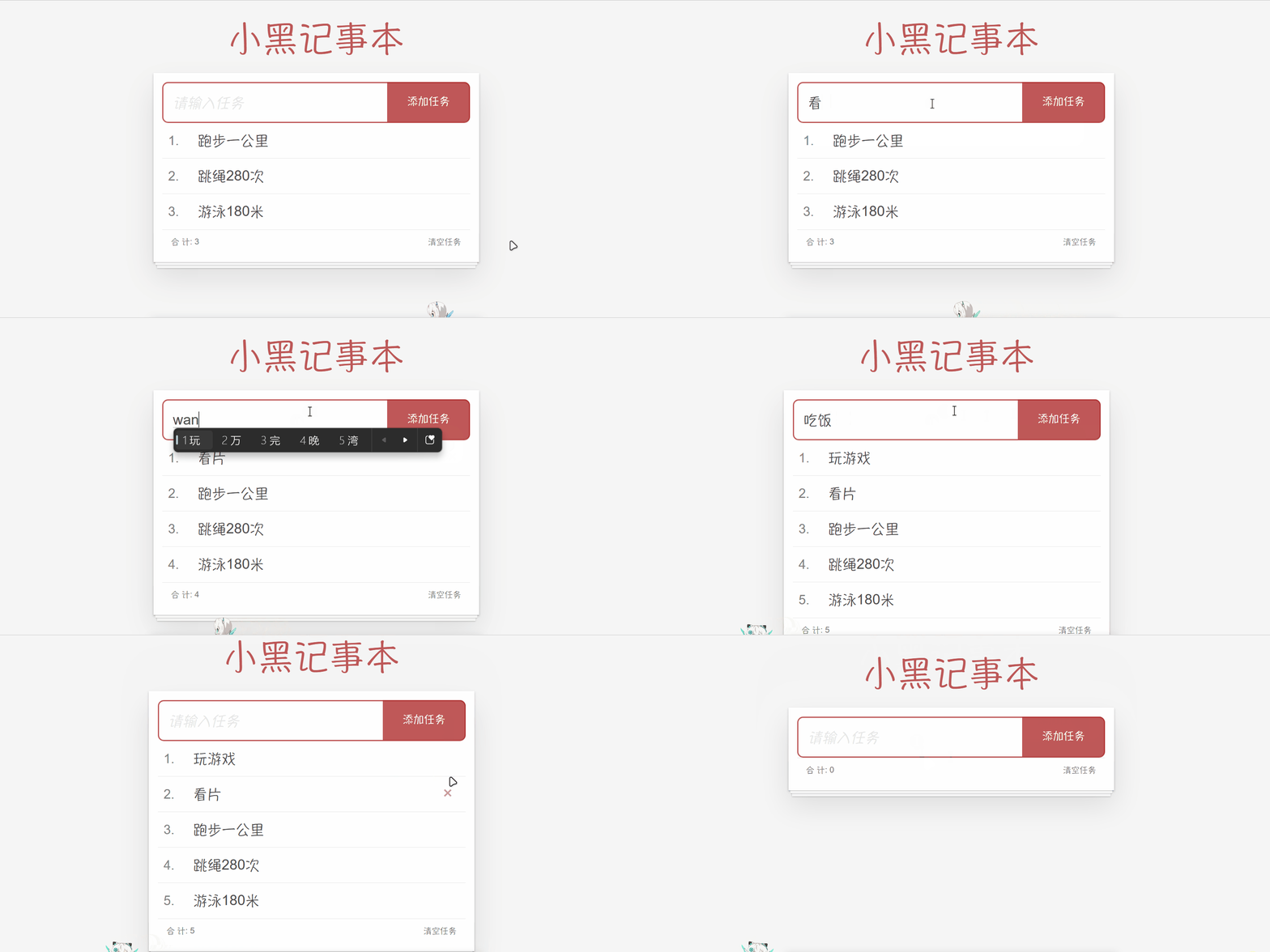
+++
指令修饰符
通过 . 指明一些指令后缀, 不同后缀封装不同操作
小黑记事本修改 18 行
1 按键修饰符
@keyup.enter -> 键盘回车监听
<input @keyup.enter="add" v-model="todoName" placeholder="请输入任务" class="new-todo"/>
2 v-model 修饰符
v-model.trim -> 去除首尾空格
姓名:<input v-model.trim="username" type="text"><br>
v-model.number -> 转数字
年纪:<input v-model.number="age" type="text"><br>
3 事件修饰符
@ 事件名.stop -> 阻止冒泡
<div @click.stop="sonFn" class="son">儿子div>
@ 事件名.prevent -> 阻止默认行为
<a @click.prevent href="http://www.baidu.com">阻止默认行为a>
v-bind 对样式class控制
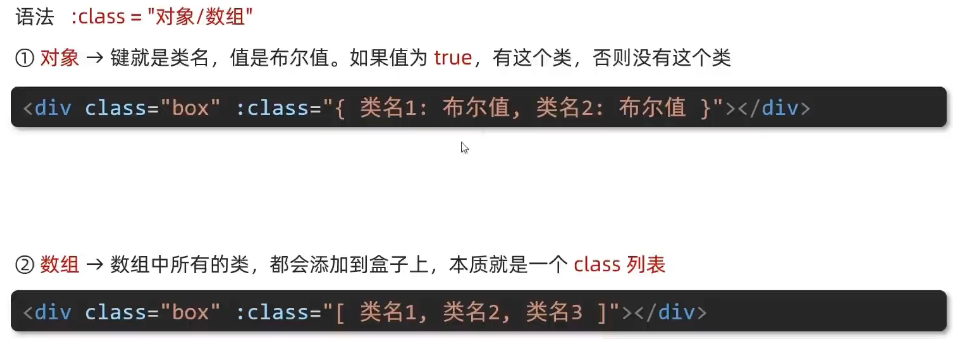
<div class="box" :class="{pink: true, big: true}">黑马程序员div>
<div class="box" :class="['pink', 'big']">黑马程序员div>
v-bind 对样式style控制

<div class="box" :style="{width: '100px', height: '100px', backgroundColor: 'red'}">div>
v-model 用于其他表单元素
<body><div id="app"><h3>小黑学习网h3>姓名:<input type="text" v-model="username"><br><br>是否单身:<input type="checkbox" v-model="single"><br><br>性别: <input v-model="gender" type="radio" name="gender" value="1">男<input v-model="gender" type="radio" name="gender" value="0">女<br><br>所在城市:<select v-model="position"><option value="100">北京option><option value="101">上海option><option value="102">成都option><option value="103">南京option>select><br><br>自我描述:<textarea v-model="text">textarea><button>立即注册button>div><script src="https://cdn.jsdelivr.net/npm/vue@2/dist/vue.js">script><script>const app = new Vue({el: '#app',data: {username: '莲莲', single: false, gender: 0,position: 102, text: '力量正是成为王的理由'}})script>
body>
计算属性
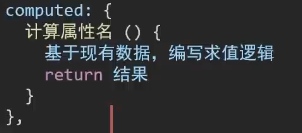
computed: {totalCount() {// 基于现有的数据,编写求值逻辑// 计算属性函数内部,可以直接通过 this 访问到 app 实例// console.log(this.list)// 需求:对 this.list 数组里面的 num 进行求和 → reducelet total = this.list.reduce((sum, item) => sum + item.num, 0)return total}}
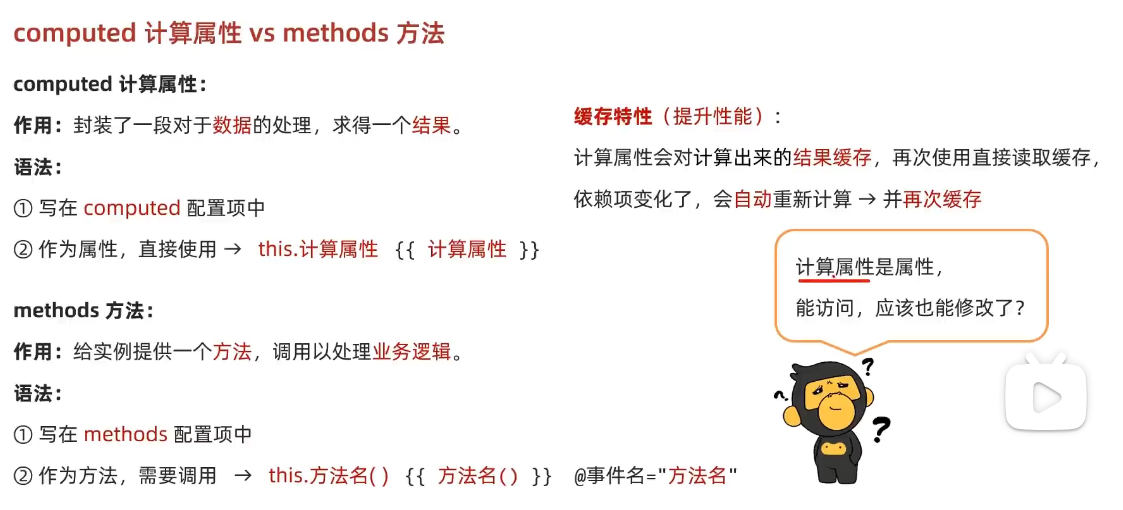
computed 计算属性 vs methods 方法
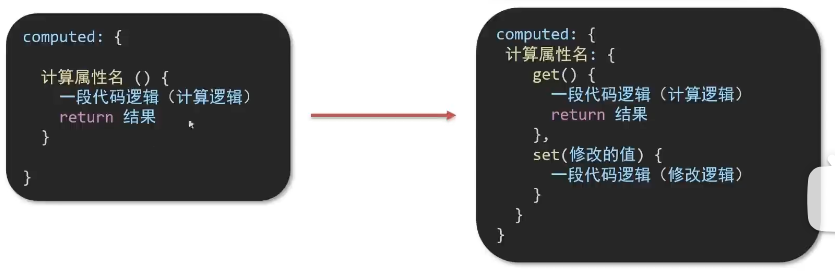
计算属性完整写法
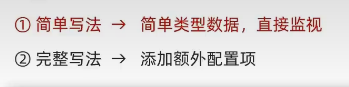
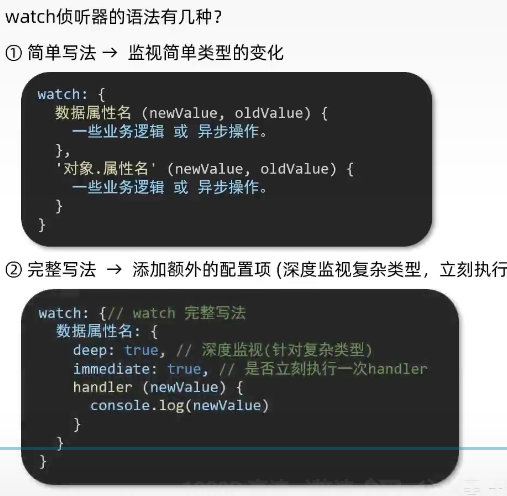
watch 监听器
监视数据变化, 执行一些业务逻辑或异步操作
<textarea v-model="obj.words">textarea>
<script>
const app = new Vue({el: '#app',data: {// words: ''obj: {words: ''}},watch: {'obj.words'(newValue) {console.log(newValue);}}})
script>
翻译 案例
const app = new Vue({el: '#app',data: {// words: ''obj: {words: ''},result: '',// timer: null,  延时器id, 这个属性不会被渲染到上面的页面, 只是做一个标记, 可以不定义},watch: {'obj.words'(newValue) { // oldValue 旧值一般用不到clearTimeout(this.timer)// 一旦有了新值, 立即发起请求this.timer = setTimeout(async () => {const res = await axios({url: 'https://applet-base-api-t.itheima.net/api/translate',params: {words: newValue}})this.result = res.data.dataconsole.log(res.data.data);}, 300)}}
})
+++
水果案例
DOCTYPE html>
<html lang="en">
<head><meta charset="UTF-8"/><meta http-equiv="X-UA-Compatible" content="IE=edge"/><meta name="viewport" content="width=device-width, initial-scale=1.0"/><link rel="stylesheet" href="./css/inputnumber.css"/><link rel="stylesheet" href="./css/index.css"/><title>购物车title>
head>
<body>
<div class="app-container" id="app"><div class="banner-box"><img src="http://autumnfish.cn/static/fruit.jpg" alt=""/>div><div class="breadcrumb"><span>🏠span>/<span>购物车span>div><div class="main" v-if="fruitList.length > 0"><div class="table"><div class="thead"><div class="tr"><div class="th">选中div><div class="th th-pic">图片div><div class="th">单价div><div class="th num-th">个数div><div class="th">小计div><div class="th">操作div>div>div><div class="tbody"><div v-for="(item, index) in fruitList" :key="item.id" class="tr" :class="{ active: item.isChecked }"><div class="td"><input type="checkbox" v-model="item.isChecked"/>div><div class="td"><img :src="item.icon" alt=""/>div><div class="td">{{ item.price }}div><div class="td"><div class="my-input-number"><button :disabled="item.num <= 1" class="decrease" @click="sub(item.id)"> -button><span class="my-input__inner">{{ item.num }}span><button class="increase" @click="add(item.id)"> +button>div>div><div class="td">{{ item.price * item.num }}div><div class="td"><button @click="del(item.id)">删除button>div>div>div>div><div class="bottom"><label class="check-all"><input type="checkbox" v-model="allOK"/>全选label><div class="right-box"><span class="price-box">总价  :  ¥ <span class="price">{{ totalPrice }}span>span><button class="pay">结算( {{totalCount}} )button>div>div>div><div class="empty" v-else>🛒空空如也div>
div>
<script src="https://cdn.jsdelivr.net/npm/vue@2/dist/vue.js">script>
<script>const defaultArr = [{id: 1,icon: 'http://autumnfish.cn/static/火龙果.png',isChecked: true,num: 2,price: 6,},{id: 2,icon: 'http://autumnfish.cn/static/荔枝.png',isChecked: false,num: 7,price: 20,},{id: 3,icon: 'http://autumnfish.cn/static/榴莲.png',isChecked: false,num: 3,price: 40,},{id: 4,icon: 'http://autumnfish.cn/static/鸭梨.png',isChecked: true,num: 10,price: 3,},{id: 5,icon: 'http://autumnfish.cn/static/樱桃.png',isChecked: false,num: 20,price: 34,},]const app = new Vue({el: '#app',data: {// 水果列表fruitList: JSON.parse(localStorage.getItem('list')) || defaultArr,},computed: {allOK: {get() {return this.fruitList.every(item => item.isChecked)},set(value) {this.fruitList.forEach(item => item.isChecked = value)}},totalCount() {return this.fruitList.reduce((sum, item) => {if (item.isChecked) return sum+item.numelse return sum}, 0)},totalPrice() {return this.fruitList.reduce((price, item) => {if (item.isChecked) return price+item.num*item.priceelse return price}, 0)}},methods: {del(id) {this.fruitList = this.fruitList.filter(item => item.id !== id)},sub(id) {const fruit = this.fruitList.find(item => item.id === id)fruit.num--},add(id) {const fruit = this.fruitList.find(item => item.id === id)fruit.num++},},watch: {fruitList: {deep: true,handler(newValue) {localStorage.setItem('list', JSON.stringify(newValue))}}}})
script>
body>
html>
+++
Vue生命周期
Vue 实例从创建到销毁的过程, 四个阶段: 创建, 挂载. 更新, 销毁
钩子函数 (生命周期函数)
针对四个生命周期的前后有八个函数
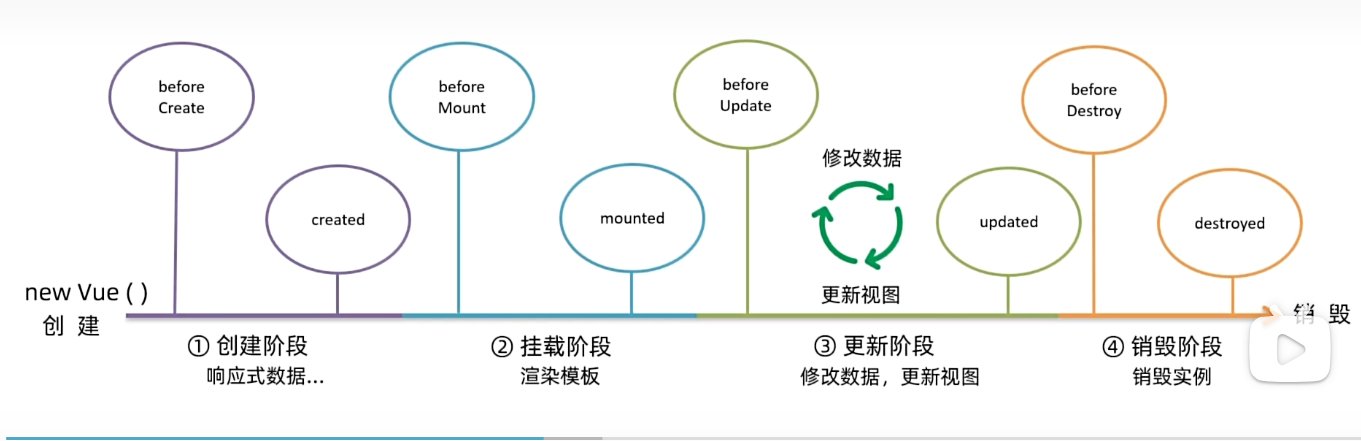
最重要的3个
created: 发送初始化渲染请求
mounted: 操作dom
beforeDestroy: 清除定时器, 延时器(释放vue以外的资源)
记账单饼图案例
DOCTYPE html>
<html lang="en">
<head><meta charset="UTF-8"/><meta name="viewport" content="width=device-width, initial-scale=1.0"/><title>Documenttitle><linkrel="stylesheet"href="https://cdn.jsdelivr.net/npm/bootstrap@5.1.3/dist/css/bootstrap.min.css"/><style>.red {color: red !important;}.search {width: 300px;margin: 20px 0;}.my-form {display: flex;margin: 20px 0;}.my-form input {flex: 1;margin-right: 20px;}.table > :not(:first-child) {border-top: none;}.contain {display: flex;padding: 10px;}.list-box {flex: 1;padding: 0 30px;}.list-box a {text-decoration: none;}.echarts-box {width: 600px;height: 400px;padding: 30px;margin: 0 auto;border: 1px solid #ccc;}tfoot {font-weight: bold;}@media screen and (max-width: 1000px) {.contain {flex-wrap: wrap;}.list-box {width: 100%;}.echarts-box {margin-top: 30px;}}style>
head>
<body>
<div id="app"><div class="contain"><div class="list-box"><form class="my-form"><input v-model.trim="name" type="text" class="form-control" placeholder="消费名称"/><input v-model.number="price" type="text" class="form-control" placeholder="消费价格"/><button @click="add" type="button" class="btn btn-primary">添加账单button>form><table class="table table-hover"><thead><tr><th>编号th><th>消费名称th><th>消费价格th><th>操作th>tr>thead><tbody><tr v-for="(item, index) in list" :id="item.id"><td>{{ index + 1 }}td><td>{{ item.name }}td><td :class="{red: item.price > 500}">{{ item.price.toFixed(2) }}td><td><a @click="del(item.id)" href="javascript:;">删除a>td>tr>tbody><tfoot><tr><td colspan="4">消费总计: {{ totalPrice.toFixed(2) }}td>tr>tfoot>table>div><div class="echarts-box" id="main">div>div>
div>
<script src="https://cdn.jsdelivr.net/npm/echarts@5.4.0/dist/echarts.min.js">script>
<script src="https://cdn.jsdelivr.net/npm/vue@2/dist/vue.js">script>
<script src="https://cdn.jsdelivr.net/npm/axios/dist/axios.min.js">script>
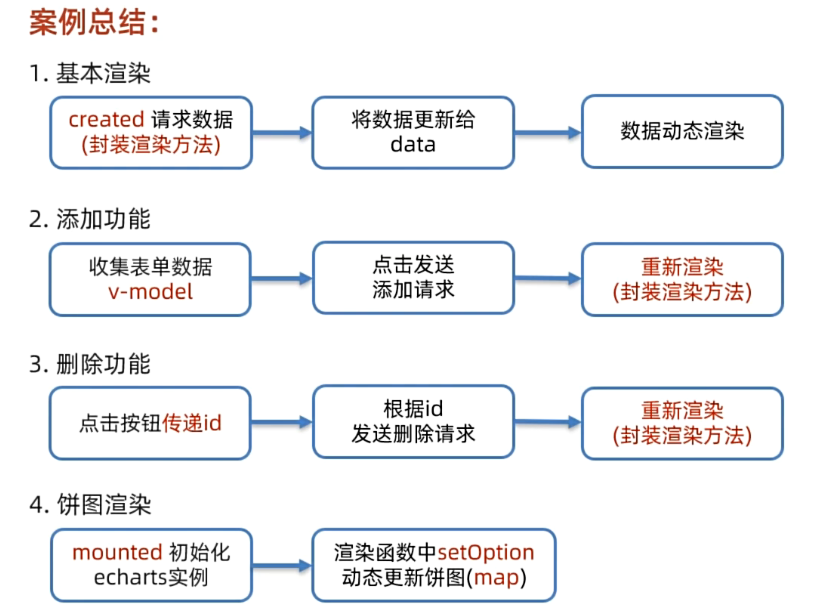
<script>/*** 接口文档地址:* https://www.apifox.cn/apidoc/shared-24459455-ebb1-4fdc-8df8-0aff8dc317a8/api-53371058** 功能需求:* 1. 基本渲染* 2. 添加功能* 3. 删除功能* 4. 饼图渲染*/const app = new Vue({el: '#app',data: {list: [],creatorName: '莲莲',name: '',price: '',},computed: {totalPrice() {return this.list.reduce((sum, item) => sum+item.price, 0)}},async created() {await this.getList()},mounted() {this.myChart = echarts.init(document.getElementById('main'))},methods: {async getList() {const res = await axios.get('https://applet-base-api-t.itheima.net/bill', {params: {creator: this.creatorName,}});this.list = res.data.data;this.myChart.setOption({title: {text: '价格示例图',subtext: '',left: 'center'},tooltip: {trigger: 'item',formatter: '{a}
{b} : {c} ({d}%)'},toolbox: {show: true,feature: {mark: { show: true },dataView: { show: true, readOnly: false },restore: { show: true },saveAsImage: { show: true }}},series: [{name: '价格示例图',type: 'pie',radius: [20, 140],center: ['50%', '50%'],roseType: 'area',itemStyle: {borderRadius: 5},data:this.list.map(item => ({value: item.price, name: item.name}))}]})},async add() {if (!this.name) {alert('请输入消费名称')return}if (typeof this.price !== 'number') {alert('请输入正确的价格')return}await axios.post('https://applet-base-api-t.itheima.net/bill', {creator: this.creatorName,name: this.name,price: this.price});await this.getList()this.name = ''this.price = ''},async del(id) {await axios.delete(`https://applet-base-api-t.itheima.net/bill/${id}`);await this.getList()}}})
script>
body>
html>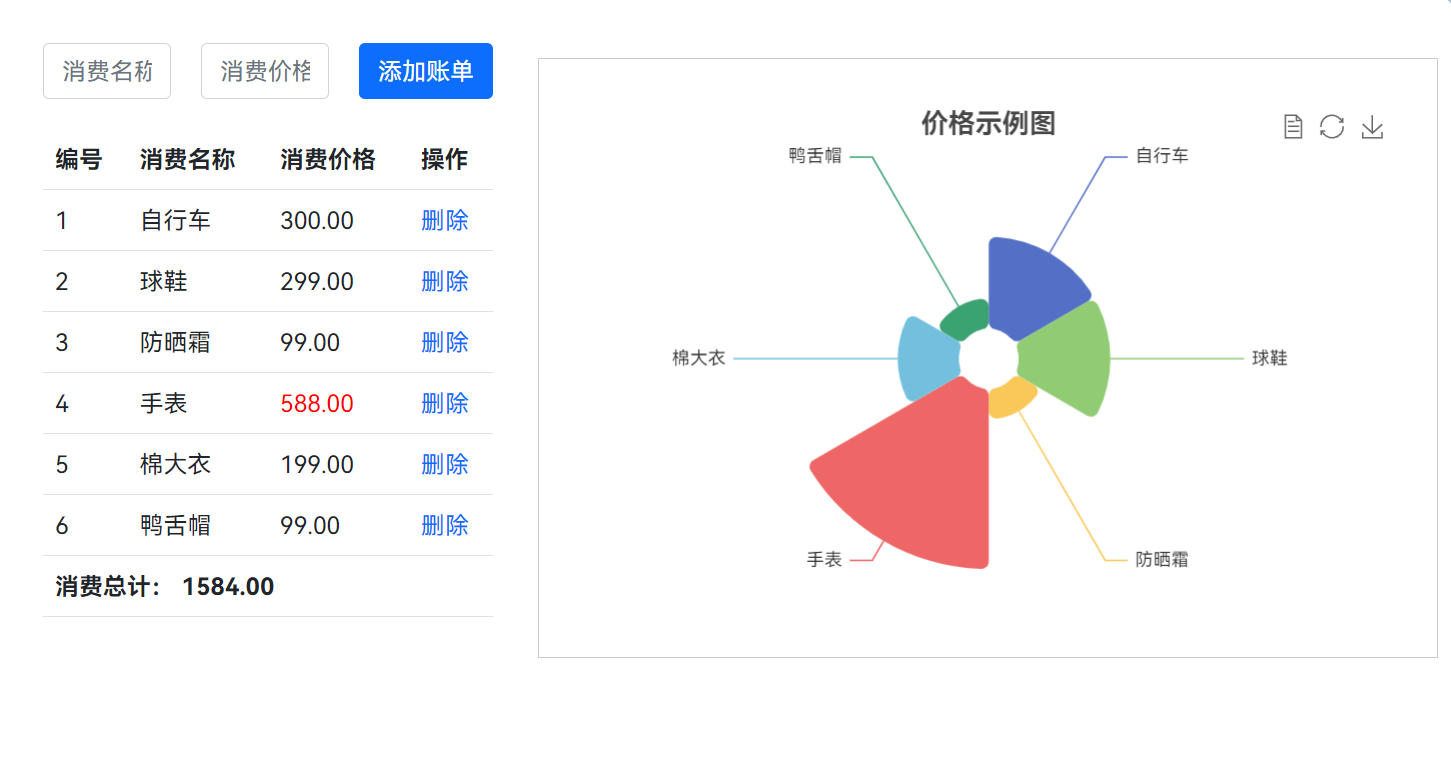
+++
vue-cli 脚手架
vue create [project-name]
cd [project-name]
yarn serve
项目文件夹
.
├── babel.config.js
├── jsconfig.json
├── node_modules  				第三包文件夹
├── package.json              项目配置文件->项目名 版本号 scripts 依赖包
├── public                  放html代码
│   ├── favicon.ico        图标
│   └── index.html              `index.html模板文件`
├── README.md
├── src                  源代码目录
│   ├── App.vue           `App根组件,编写项目内容`
│   ├── assets             静态资源目录  -  图标,字体
│   │   └── logo.png
│   ├── components      组件目录  -  通用组件
│   │   └── HelloWorld.vue
│   └── main.js           `入口文件  -> 打包或运行, 第一个执行的文件`
├── vue.config.js       vue-cli 配置文件
└── yarn.lock        yarn锁文件, 锁定安装版本
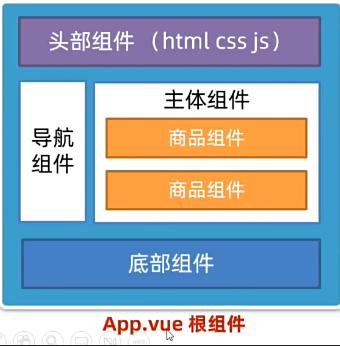
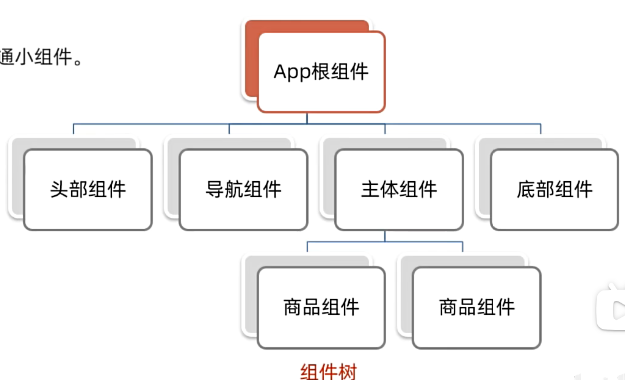
1 组件化
页面拆成一个个组件, 每个组件独立结构, 样式, 行为;
组件分类: 普通组件{Hello.vue 根组件{App.vue}
2 根组件{App.vue}
整个应用最上层的组件, 包裹着许多普通的小组件
1 template {根节点} 只能有一个根节点
2 style 样式
3 script 行为
组件注册
1 局部注册
注册后只能这个组件自己使用这个标签{}
2 全局注册
main.js 中:
import HelloVue from "@/components/HelloVue.vue";
import HelloRing from "@/components/HelloRing.vue";Vue.component('HelloVue', HelloVue)
Vue.component('HelloRing', HelloRing)
+++
默认的style样式作用于全局, 这样style样式只会影响自己
data是一个函数 , 保证每个组件实例对象唯一
每次创建组件实例, 都会新执行一次data函数, 得到一个新对象
+++
组件通信
父子通信
父亲 -> 儿子 props
儿子 -> 父亲 $emit
案例
我是Son组件 {{ title1 }}
我是App组件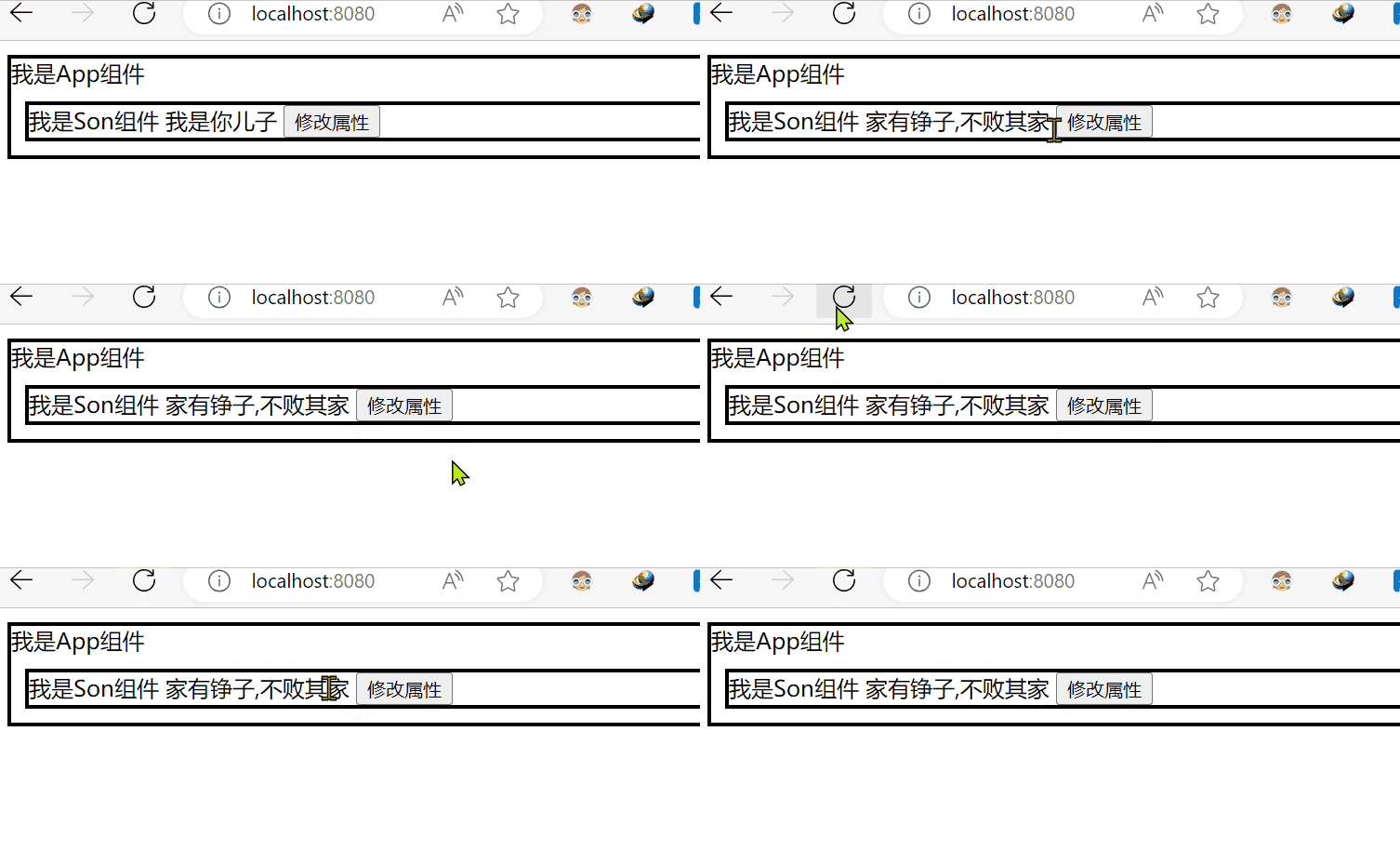
+++
props 详解
// 完整写法(类型、默认值、非空、自定义校验)props: {// w: Number// w: [Number, String]w: {type: Number,required: true,default: 0,validator(val) {// console.log(val)if (val >= 100 || val <= 0) {console.error('传入的范围必须是0-100之间')return false} else {return true}},},},
+++
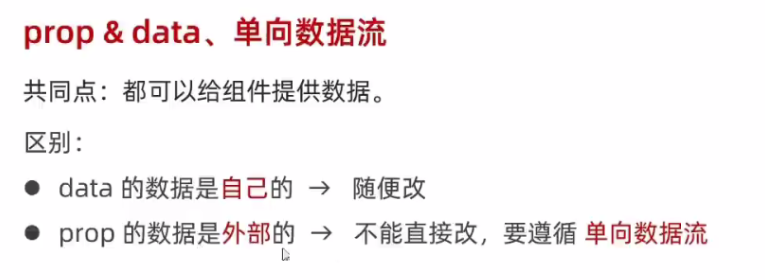
data 和 props 的区别
data 是定义了自己的数据, 自己的数据随便改
{{ count }}
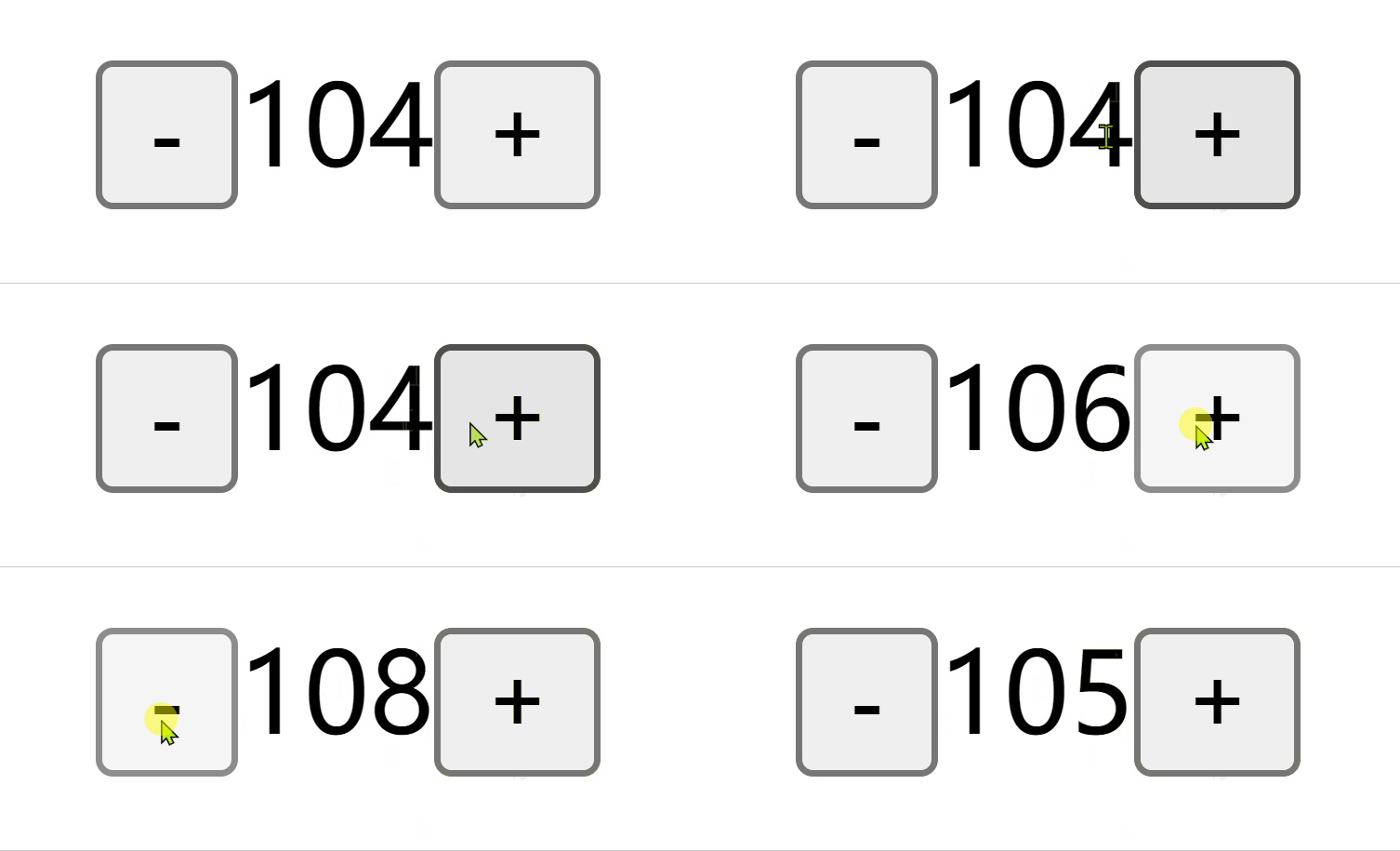
props 是父亲的数据, 不能随便改,
谁的数据谁负责, 应该父亲来改
用@click来改会报错
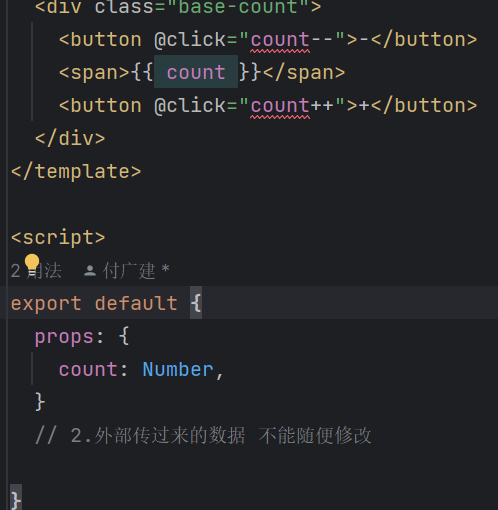
改造一下 => 儿子把这个count绑定一个changeCount通过$emit传给父亲
父亲用@changeCount="handleCount"接收newCount然后把count改一下
利用:count="count"再把count传给儿子
儿子传, 父亲改, 父亲传
BaseCount.vue
{{ count }}
App.vue
+++
+++
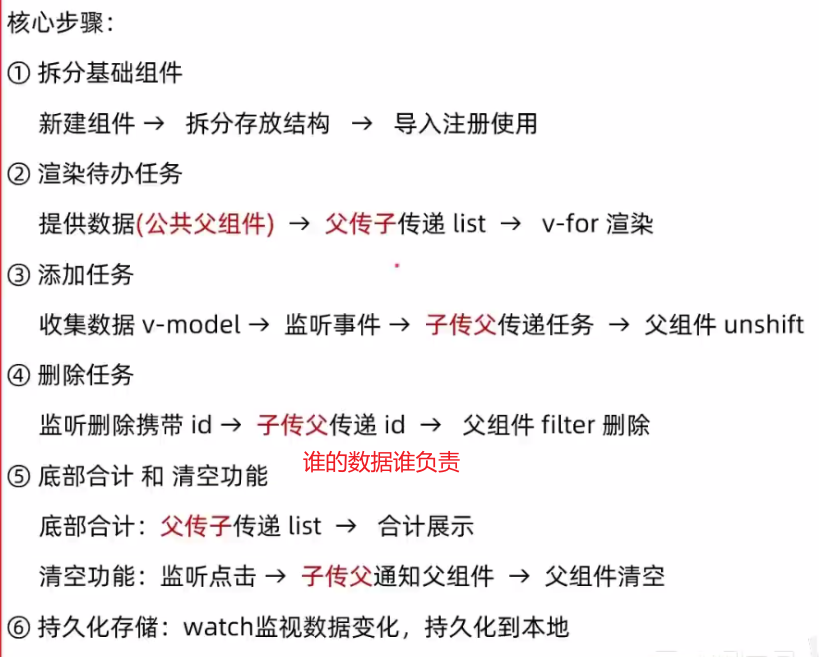
小黑记事本案例
思路
+++
非父子传递数据 Event Bus 事件总线
用于传递简单的数据, 详细的数据
vuex
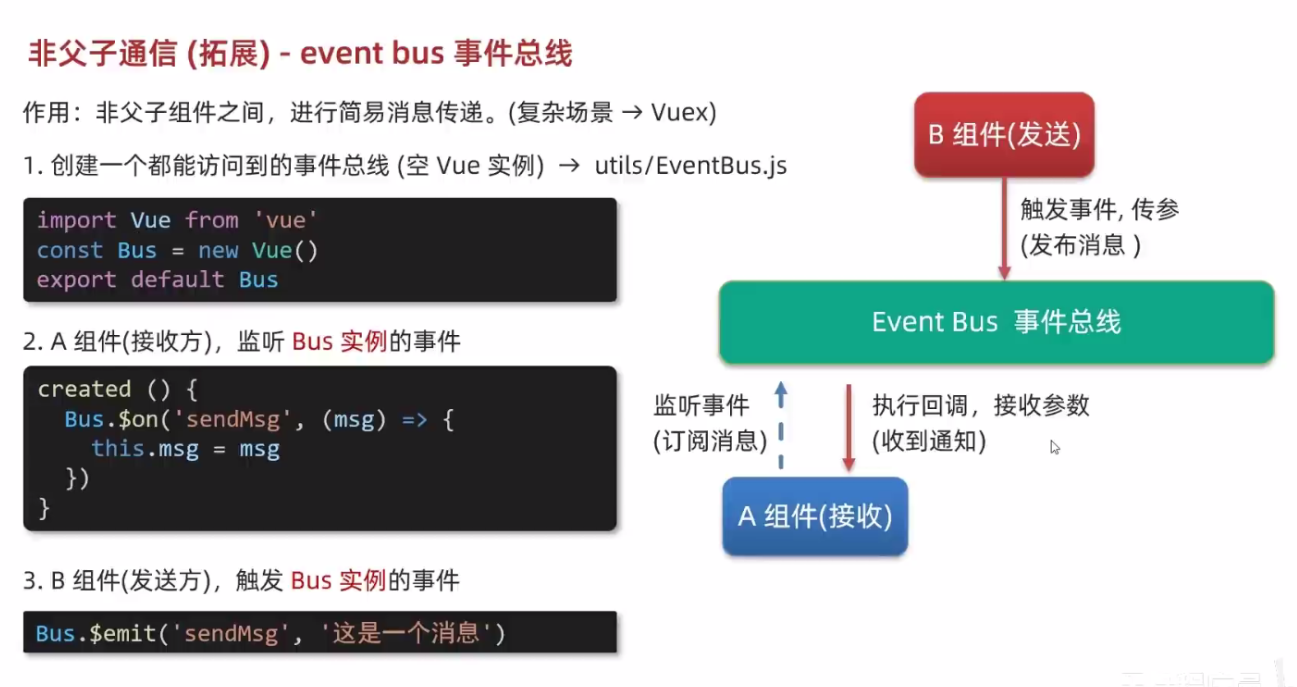
包结构
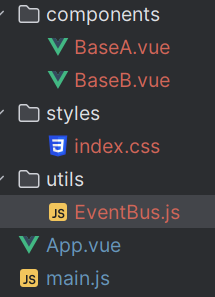
BaseA.vue
我是A组件(接受方) {{ msg }}
BaseB.vue
我是B组件(发布方)
EventBus.js
import Vue from "vue";
const Bus = new Vue()
export default Bus
+++
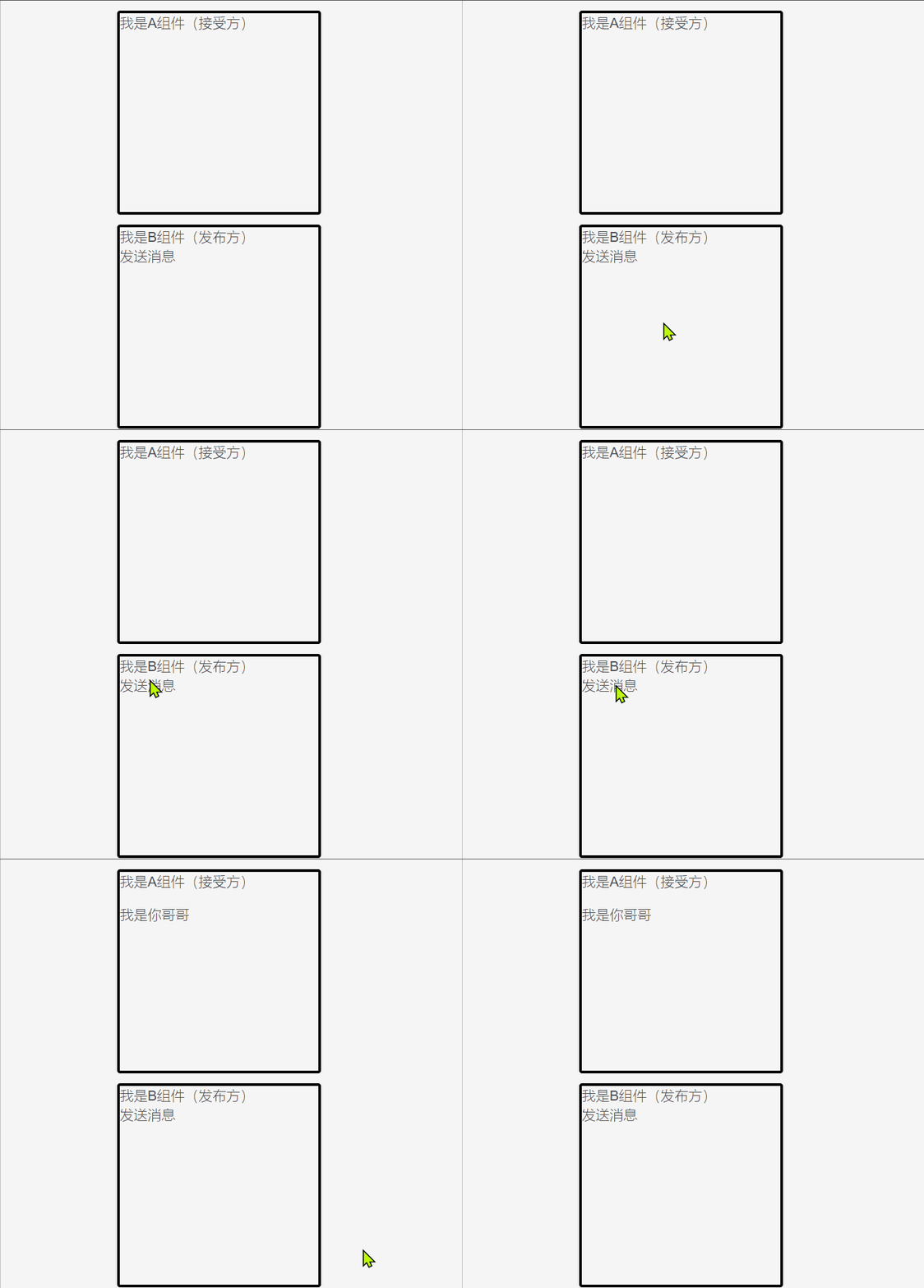
+++
跨层级非父子通信 provide & inject
注意普通的类型非响应式 => 下面例子color改不了的
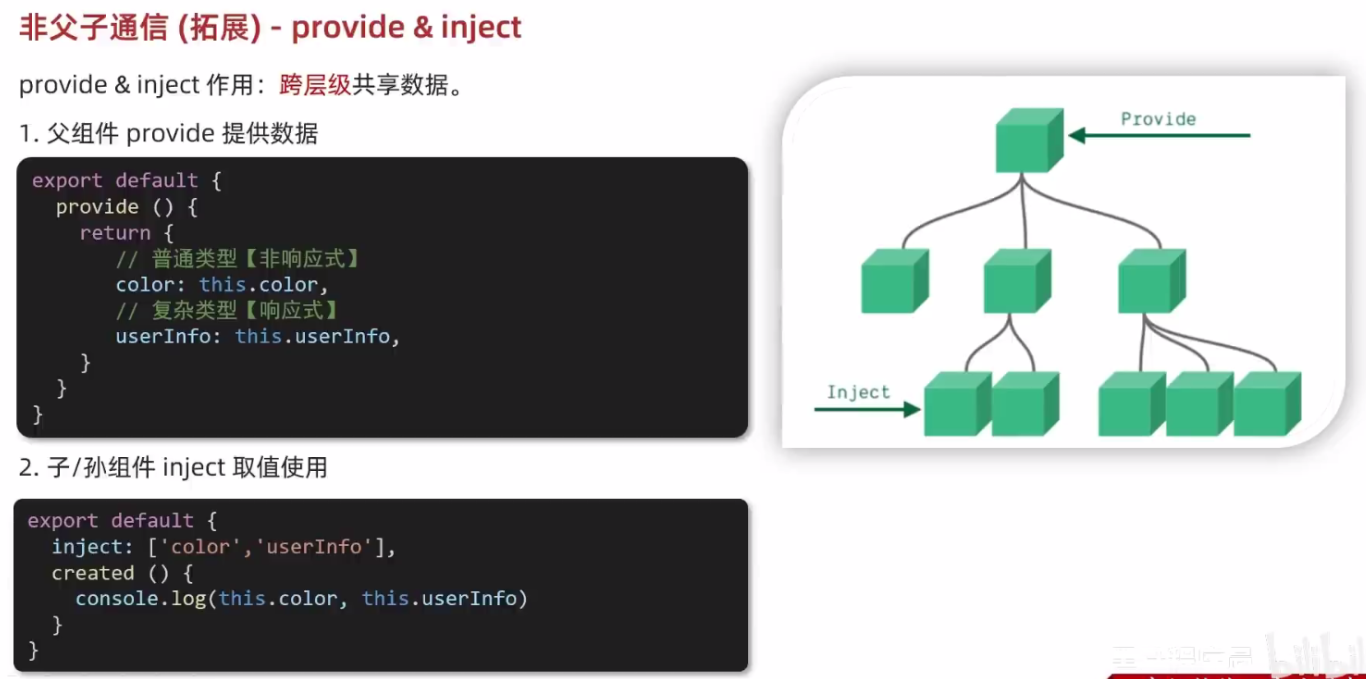
+++
App.vue
我是APP组件SonA.vue
我是SonA组件SonB.vue
我是SonB组件
GrandSon.vue
我是GrandSon{{ color }} -{{ userInfo.name }} -{{ userInfo.age }}
+++
v-model封装下拉框
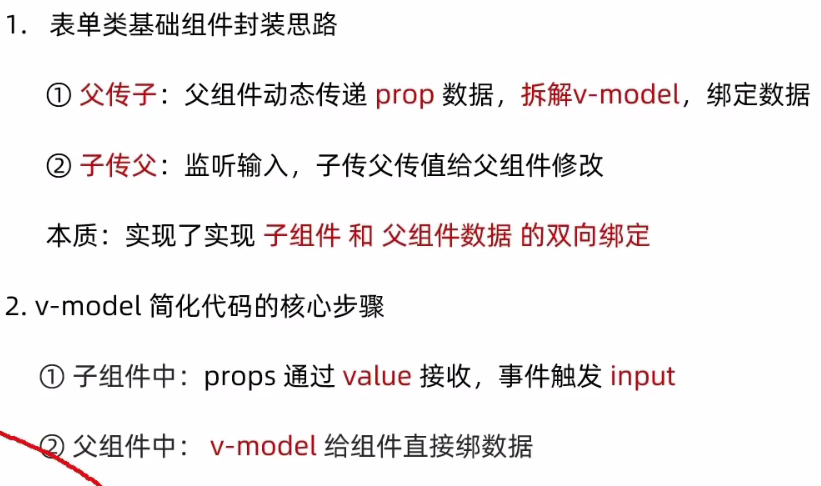
App.vue
BaseSelect.vue
+++
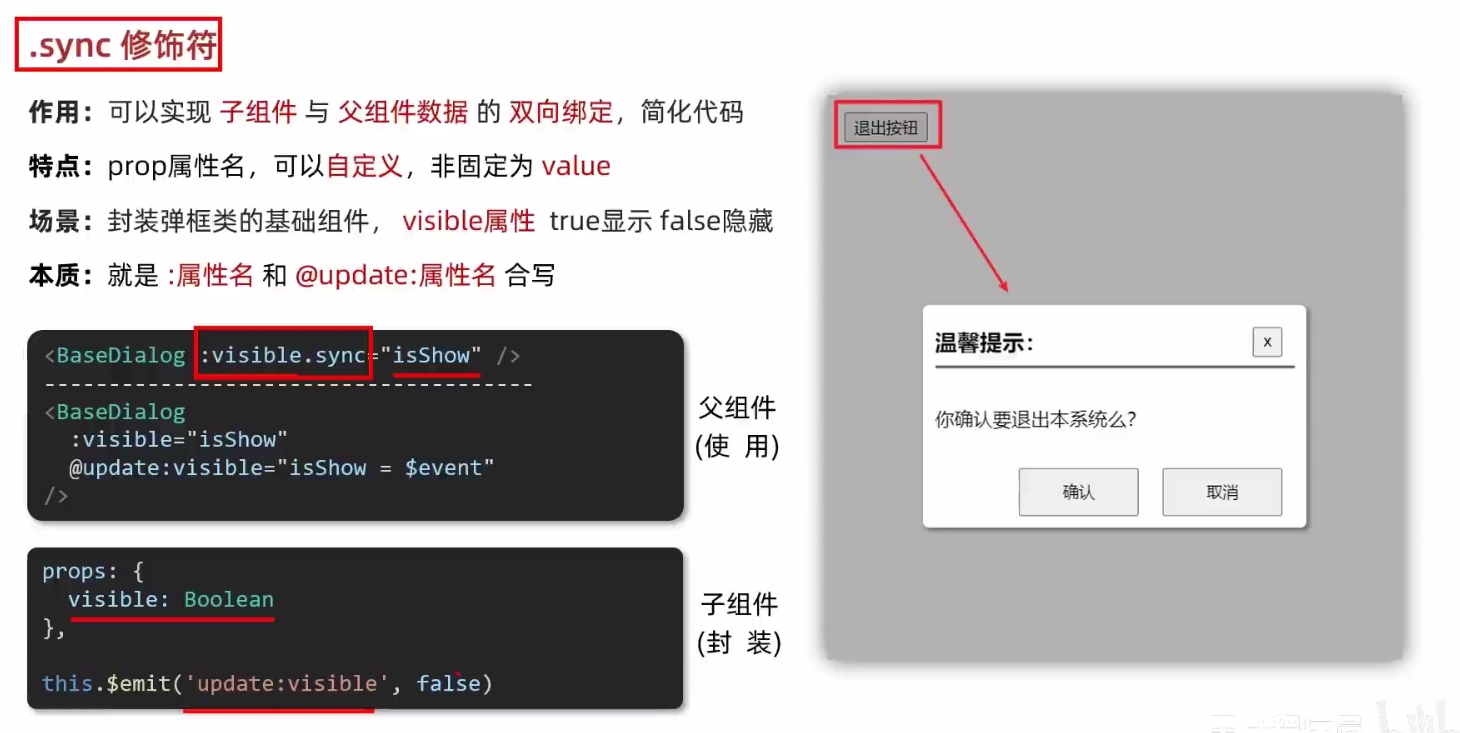
.sync 修饰符
v-model实现不了时, 考虑他
+++
ref和$ref获取dom和组件
const myChart = echarts.init(document.querySelector('.base-chart-box'))
等价于, 下面的更好用, 不会受到其他元素
const myChart = echarts.init(this.$refs.mychart)
+++
自定义 v-loading 指令

- {{ item.title }}{{ item.source }}{{ item.time }}
![]()
+++
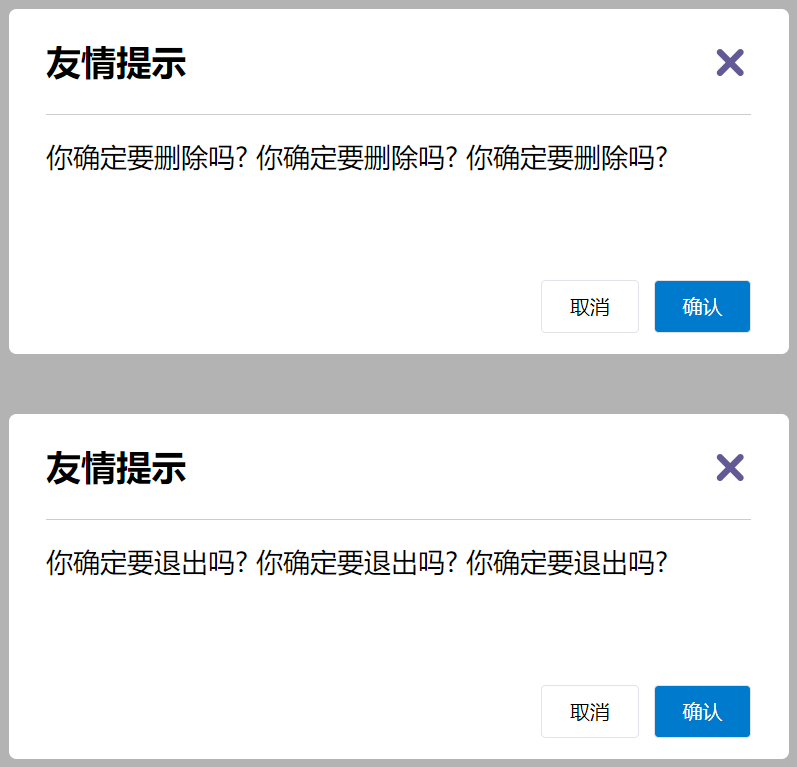
默认插槽
自定义组件内容, 而不是写死
你确定要删除吗?你确定要删除吗?你确定要删除吗? 你确定要退出吗?你确定要退出吗?你确定要退出吗?
+++
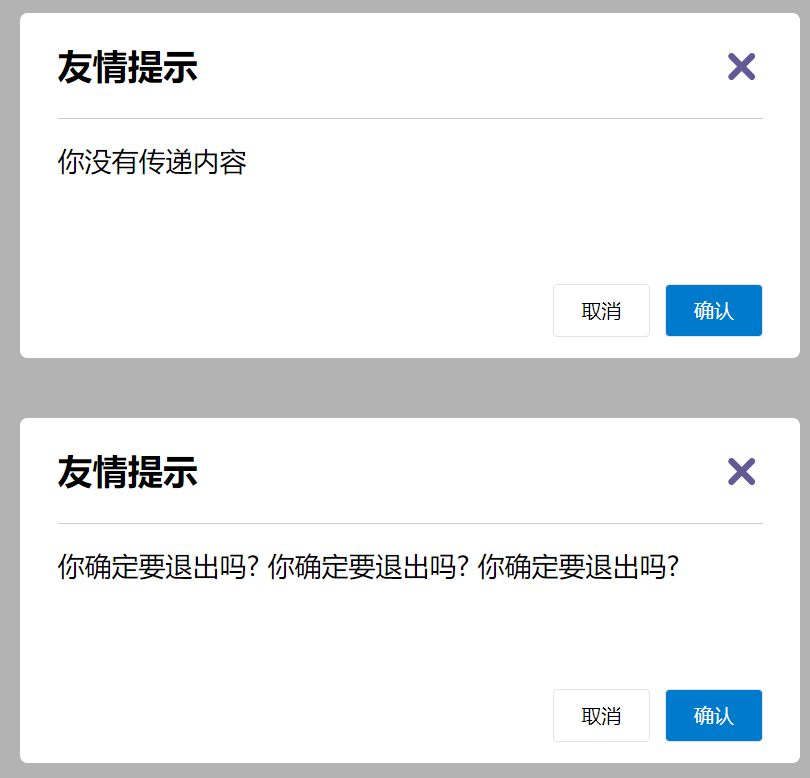
插槽的默认值
你没有传递内容,这是默认值
++++++++++++++++++++++++++++++你确定要退出吗?你确定要退出吗?你确定要退出吗?
+++
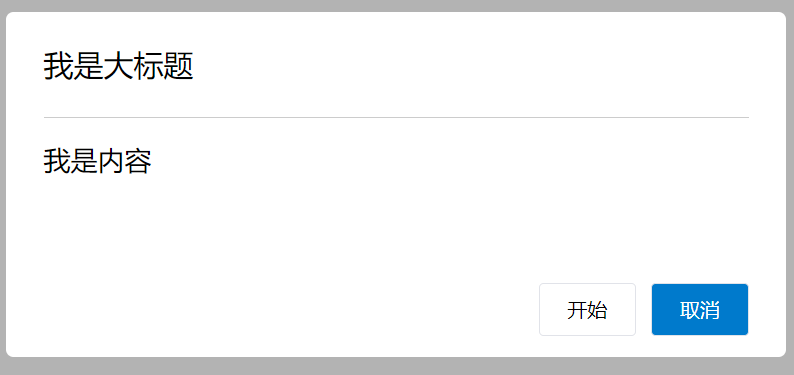
具名插槽
具有名字的插槽, 给多个插槽起名
我是大标题我是内容
+++
作用域插槽
插槽传参的一种语法, 他不是一种插槽,可以给插槽绑定数据, 供将来使用组件时使用
+++
使用步骤:
- 给 slot 标签添加属性以传值
- 所有属性被收集到一个对象中
- template中 #插槽名 = “obj” 来接收
+++
序号 姓名 年纪 操作 {{ index + 1 }} {{ item.name }} {{ item.age }}
实战: 商品页(父子组件)
App.vue
编号 名称 图片 标签 {{ obj.index + 1 }} {{ obj.item.name }} ![]()
MyTable.vue
MyTag.vue
{{ value }}
+++
单页应用 vs 多页应用
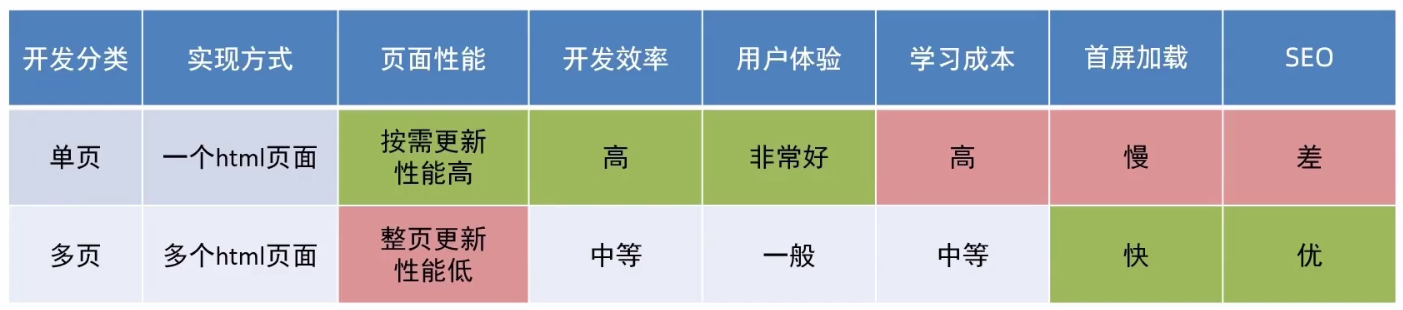
使用场景

路由
路由是一种映射关系
路径和组件的映射关系, 根据路由知道不同路径, 应该渲染那个组件
VueRouter
固定的步骤
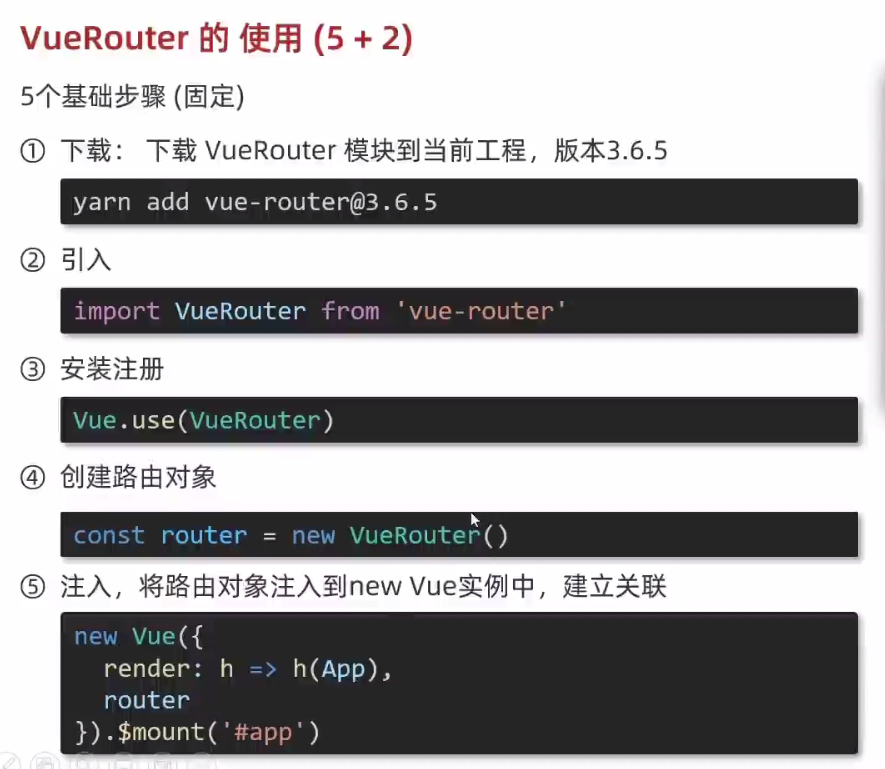
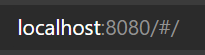
配置vue-router成功的标志是地址栏出现 #
+++
核心步骤
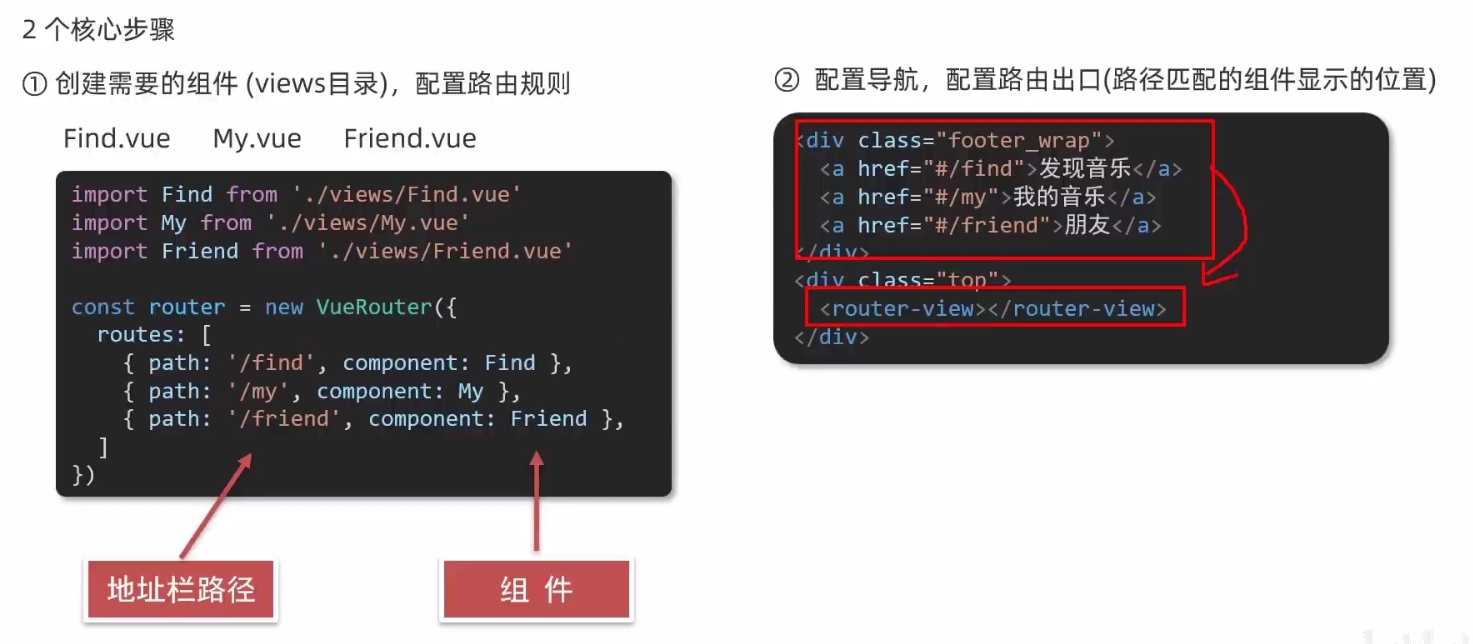
快速上手: 网易云导航栏
发现音乐我的音乐朋友const router = new VueRouter({// routes 路由规则们// route 一条路由规则 { path: 路径, component: 组件 }routes: [{ path: '/find', component: Find },{ path: '/my', component: My },{ path: '/friend', component: Friend },]
})
+++
组件存放目录问题
.vue文件分两类, 一类是页面组件 , 另一类是复用组件
这两类文件分开放, 容易管理
页面组件放到 views文件夹 => 配合路由, 页面展示
复用组件放到 components文件夹 => 封装复用
+++
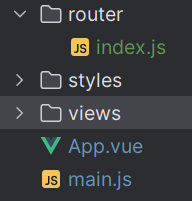
路由的封装抽离
不要把路由配置在main.js里面, 把他抽离出来, 利于维护
做法: 在router新文件夹下新建index.js来存放路由代码
+++
index.js
import VueRouter from "vue-router";
import Find from "@/views/Find.vue";
import Friend from "@/views/Friend.vue";
import My from "@/views/My.vue";
import Vue from "vue";Vue.use(VueRouter)const router = new VueRouter({routes: [{path:'/find', component: Find},{path:'/friend', component: Friend},{path:'/my', component: My},]
})export default router
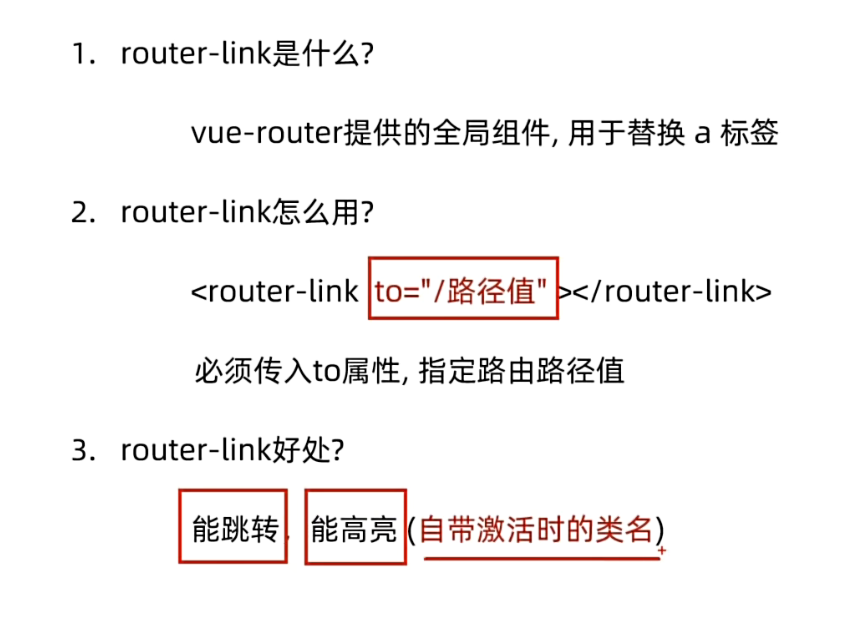
导航链接
把a标签改为router-link标签, href改to, 无#井号
router-link自带高亮, 给class里面的任意一个加入样式即可, 这个class只有点击才会冒出来

App.vue里面添加代码
.footer_wrap a.router-link-active {background-color: purple;
}
[外链图片转存失败,源站可能有防盗链机制,建议将图片保存下来直接上传(img-00XGwTrc-1691723724324)(https://imgfff-1313020458.cos.ap-shanghai.myqcloud.com/image/%E9%AB%98%E4%BA%AE.gif)]
+++
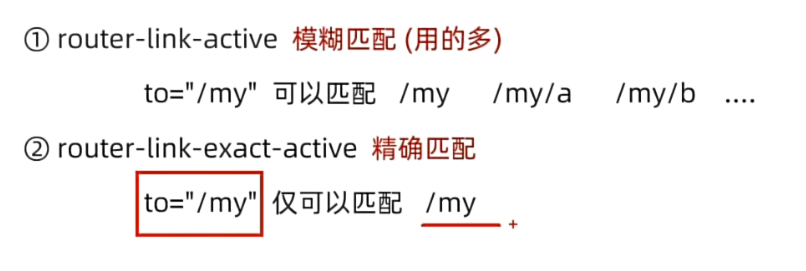
声明式导航. 两个类名
刚才多出的class有两个类属性
router-link-exact-active(灵活) & router-link-active
+++
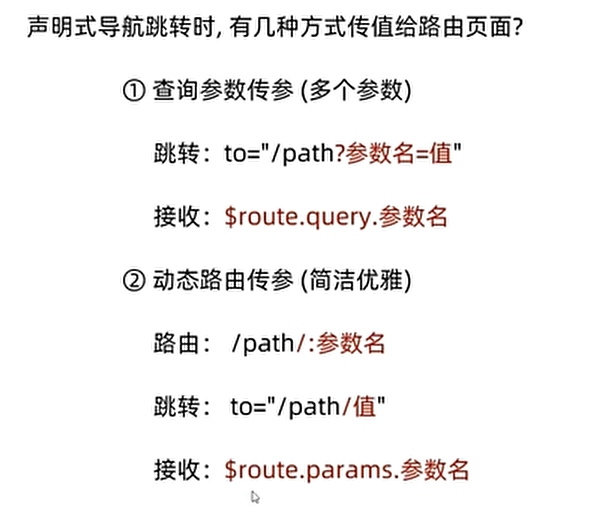
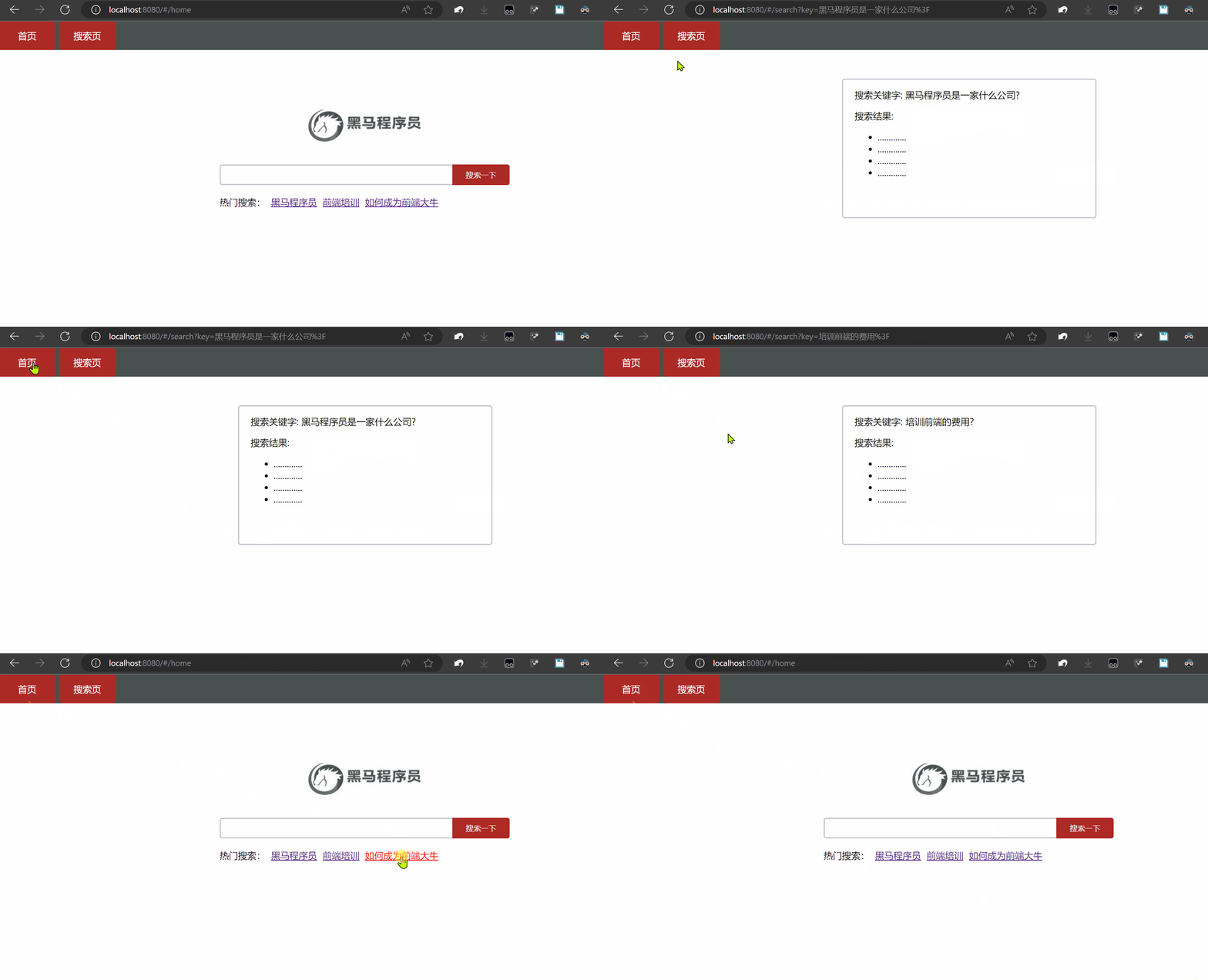
声明式导航 - 跳转传参 (查询参数传参)
热门搜索:黑马程序员 前端培训 如何成为前端大牛
搜索关键字: {{ $route.query.key}}
搜索结果:
- .............
- .............
- .............
- .............
+++
声明式导航 - 跳转传参 (动态路由传参)
需要多配一步路由规则 :words
routes: [{ path: '/home', component: Home },{ path: '/search/:words', component: Search }
]
热门搜索:黑马程序员 前端培训 如何成为前端大牛
搜索关键字: {{ $route.params.words }}
+++
可选符
按照上面的动态路由传参, 此时点击搜索导航栏会出现空白, search/:word 强制必须携带参数, 加一个可选符 ? 解决问题
{ path: '/search/:words?', component: Search }
+++
路由重定向
const router = new VueRouter({routes: [{path:'/', component: Home},//如果访问 localhost:8080/  则重定向到 /home{ path: '/home', component: Home },{ path: '/search/:words?', component: Search },{path: '*', component: NotFound}//这是找不到页面, 404]
})
路径不带
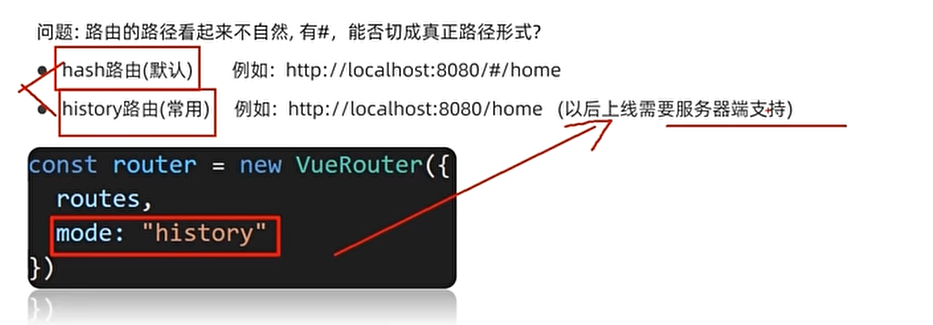
const router = new VueRouter({routes: [{path:'/', component: Home},//如果访问 localhost:8080/  则重定向到 /home{ path: '/home', component: Home },{ path: '/search/:words?', component: Search },{path: '*', component: NotFound}//这是找不到页面, 404],mode: 'history'
})
++++
编程式导航路径跳转
- 通过路径跳转 (常用)
this.$router.push('路由路径')
- 如果路径名字太长了, 给路由起一个名字
this.$router.push({name: '路由名'
})
// 别忘了在router里面给路径起名字
{name: '路由名', path: '/path/xxx', ...},
+++
[外链图片转存失败,源站可能有防盗链机制,建议将图片保存下来直接上传(img-NREDjjnd-1691723724327)(https://imgfff-1313020458.cos.ap-shanghai.myqcloud.com/image/%E5%88%86.gif)]
+++
路由传参
我们点击搜索应该把搜索框里面的内容传给url跳过去
热门搜索:黑马程序员 前端培训 如何成为前端大牛
搜索关键字: {{ $route.query.key }}
搜索结果:
- .............
- .............
- .............
- .............
如果参数比较多, 适合对象式传参
goSearch () {this.$router.push({path: '/search',query: {key: this.inValue,},})}
动态路由传参
goSearch () {this.$router.push(`/search/${this.inValue}`)},
<p>搜索关键字: {{ $route.params.words }} p>
+++
命名路由跳转传参
methods: {goSearch() {this.$router.push({name: 'search',params: {words: `${this.inValue}`,},})},},
+++
综合小案例: 面经
首页请求渲染步骤:
- 安装axios
- 看接口文档, 确认请求方式, 请求地址, 请求参数
- created 中发送请求, 获取数据, 存起来
- 页面动态渲染
+++
跳转详情页传参
- 查询参数传参 ?参数=参数值 => this.$route.query.参数名
- 动态路由传参 改造路由 => /路径/参数 => this.$route.params.参数名
+++
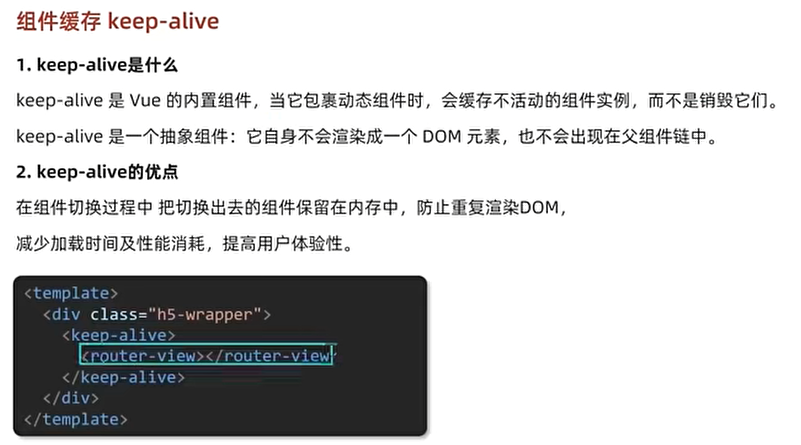
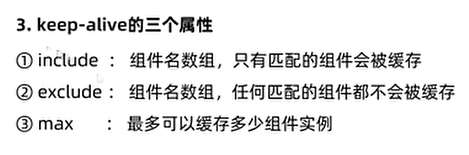
缓存组件
浏览页面返回时接着上一页的内容接着看
+++
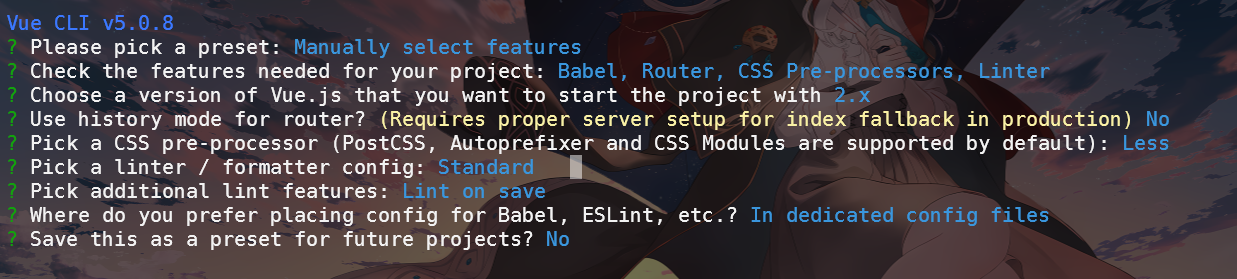
自定义创建项目
步骤 =>
vue create 项目名
关闭ESlint代码规范

开启ESlint代码规范
+++
Vuex
vue的一个插件, 数据管理工具, 管理vue通用的数据
一个数据在多个组件位置需要渲染, 多个组件共享同一个数据
新建文件夹
-store
--index.js
Vue.use(Vuex)
// 创建仓库
const store = new Vuex.Store({// state状态 , 即数据, 类似与vue组件里的data, 而他是所有组件共享的数据state: {title: '大标题',count: 100,}
})// 导出给main.js使用
export default store
在所有可以访问数据的文件里面都可以使用
	根组件 - {{ $store.state.title }}- {{ $store.state.count }}
+++++++++++++++++++++++++++++++++++++++++++++++++
created () {console.log(this.$store.state.count);},
如果嫌太长了, 可以封装成一个计算属性, 来进行优化
computed: {...mapState(['count', 'title'])
},
根组件 - {{ title }}- {{ count }}
mutations
vuex是单向数据流, 组件中不能
直接修改仓库数据, 用mutations改
this.$store.state.count++
// 这样是错的
分两步走
- 在store中定义mutations
mutations: {// 第一个参数是当前store的state属性addCount (state) {state.count += 1}
}
- 在Son1中注册
<button @click="handleAdd">值 + 1</button>
--------------------------------
methods: {handleAdd() {// this.$store.state.count++this.$store.commit('addCount')}
},
+++
++1 ++5 ++10 ++n
我们需要传递参数, mutations 支持传参
this.$store.commit('addCount', 2)
+++++++++++++++++++++++++++++++++++++++++
addCount (state, n) {state.count += n
},
辅助函数使用 mutations
...mapMutations(['addCount', 'changeTitle']),
addCount1() {this.addCount(2)
},
changeTitle1() {this.changeTitle('我是小仓库')
}
可以偷个懒, 在上面直接用辅助函数
<button @click="addCount(2)">值 + 2button>
<button @click="changeTitle('我是小仓库')">更改标题button>
+++
actions
处理异步操作, mutations是同步的
需求 => 1s后 修改数据
actions: {changeCountAction(context, num) {setTimeout(() => {context.commit('changeCount', num)}, 1000)}
},
handleInput(e) {const num = +e.target.valuethis.$store.dispatch('changeCountAction', num)
}
+++
辅助函数 mapActions
把位于actions中的方法提取出来, 映射到组件methods中
...mapActions(['changeCountAction']),
handleInput(e) {const num = +e.target.valuethis.changeCountAction(num)
}
Getters
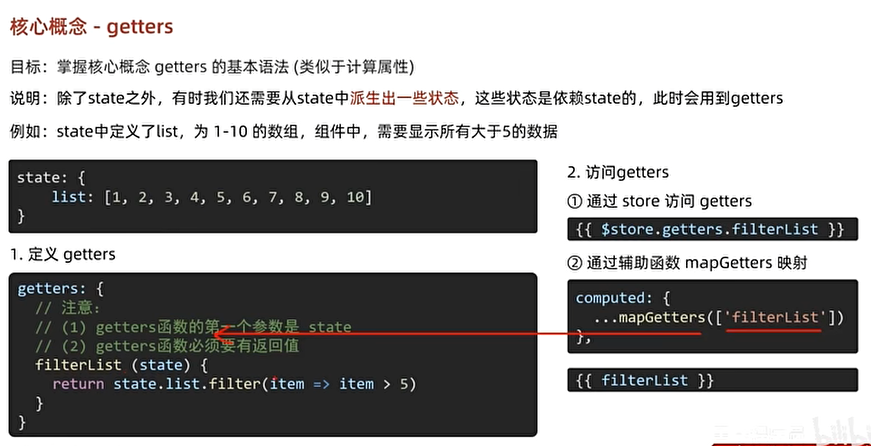
+++
Modules
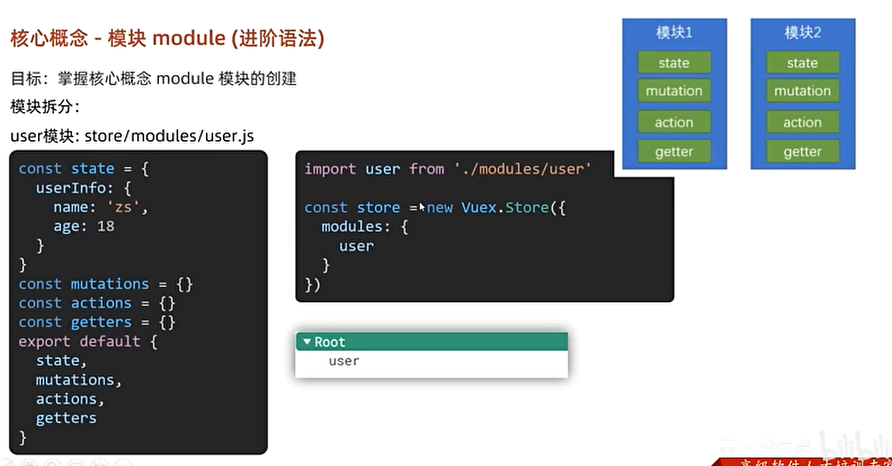
+++
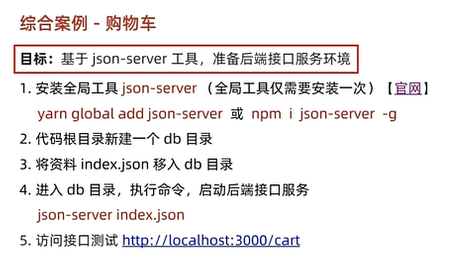
工具快速生成接口
json-server 定义假数据{_}/ hi!
yarn global add json-server
vw 的适配, postcss-px-to-viewport
一款 PostCSS 插件,用于将 px 单位转化为 vw/vh 单位。
一级路由和二级路由的区别一级路由可以单独显示
+++
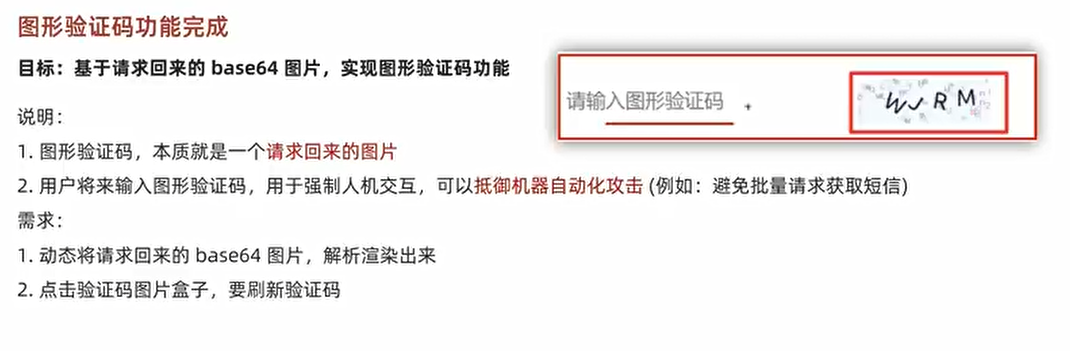
图形验证码功能
+++
api接口模块
把请求封装成方法, 放到api模块, 与页面分离
优点: 请求和页面逻辑分离, 相同请求可以复用, 请求进行统一管理
api - login.js
// 此处用于存放所有登录相关的接口请求
// 1.获取图形验证码
import request from "@/utils/request";export const getPicCode = () => {return request.get('/captcha/image')
}
views - index.vue
// 获取图形验证码
async getPicCode() {const {data: {base64, key}} = await getPicCode()this.picUrl = base64;  //存储地址this.picKey = key;   //存储唯一标识
}
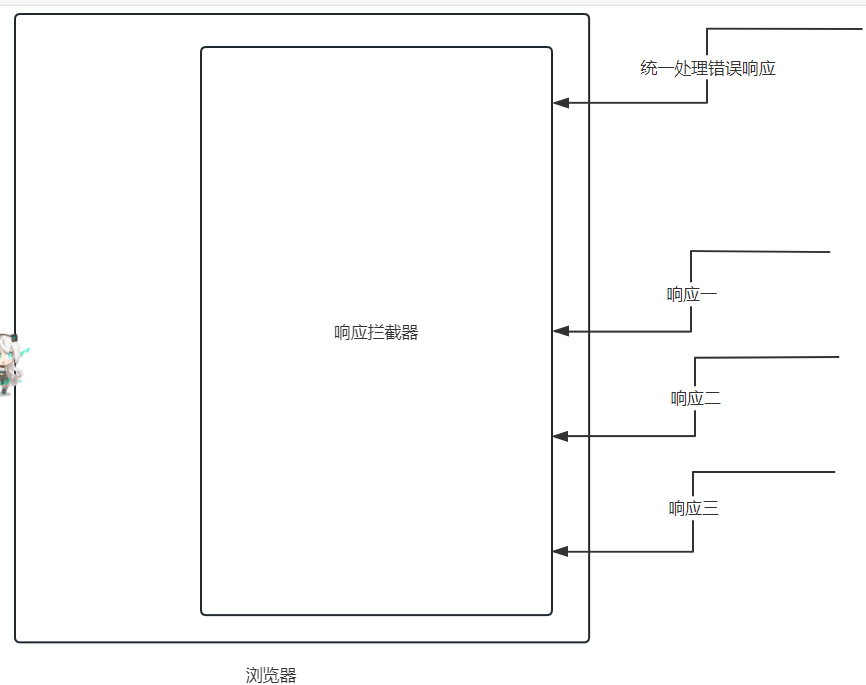
响应拦截器
通过响应拦截器, 统一处理接口的错误提示
响应拦截器统一处理错误
+++
登录权证信息存储
vuex构建user模块存储登录权证 token & userId
优点: 易于获取, 响应式

+++
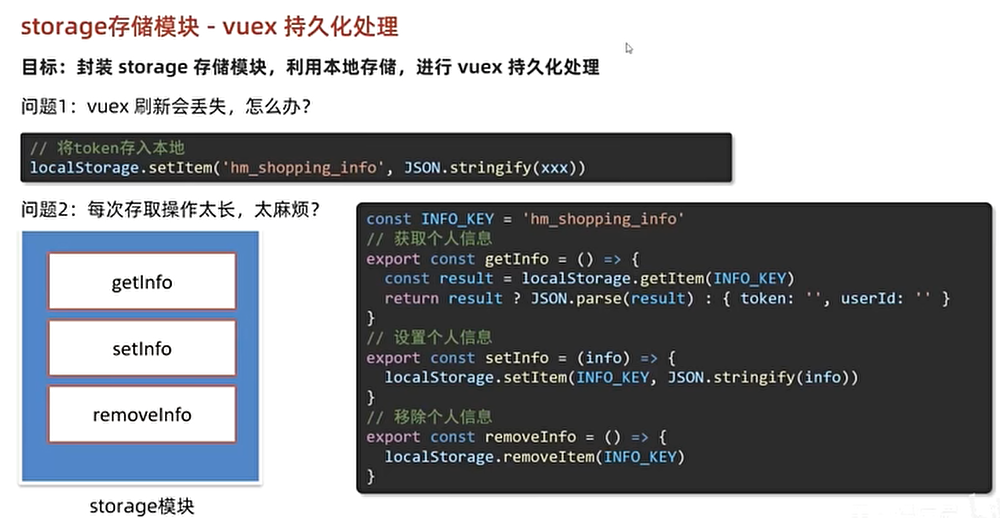
vuex的持久化处理
封装storage存储模块, 利用本地存储, 进行vuex持久化处理
+++
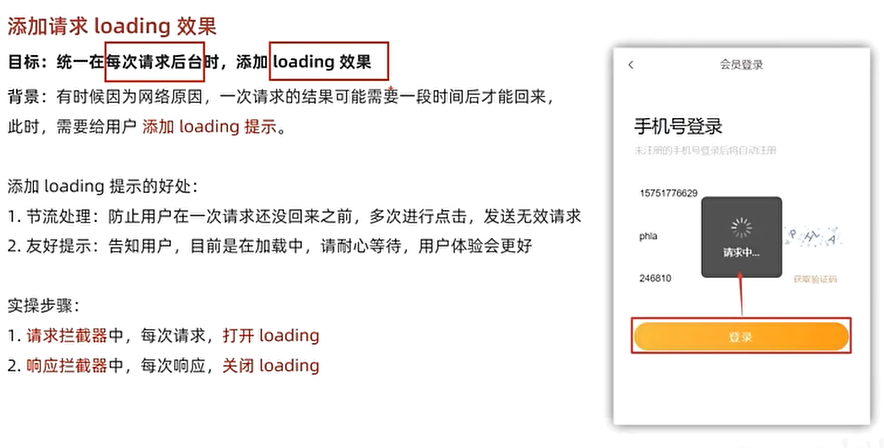
添加请求loading效果
+++
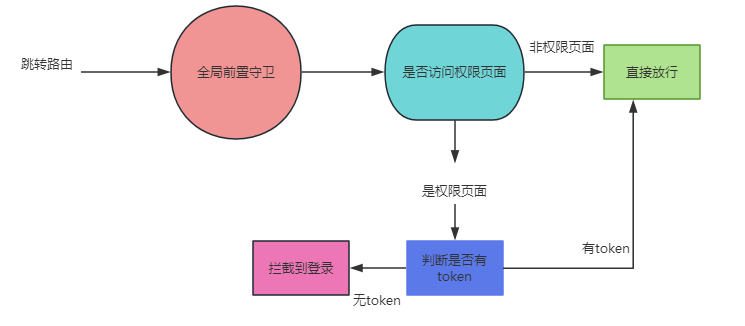
页面访问拦截
基于全局前置守卫, 进行页面访问拦截处理
- 所有路由被匹配到, 会先经过全局前置守卫
- 只有全局前置守卫放行, 才会真正解析渲染组件, 才能看到页面内容
+++
+++
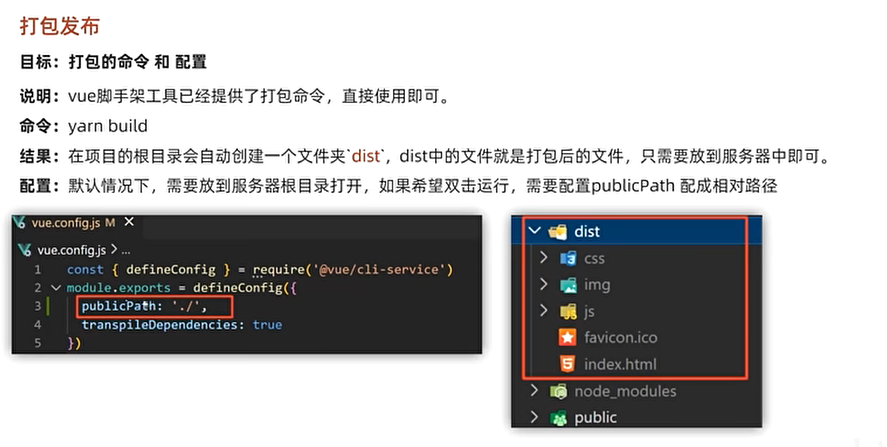
打包发布
vue脚手架不参与上线
yarn build
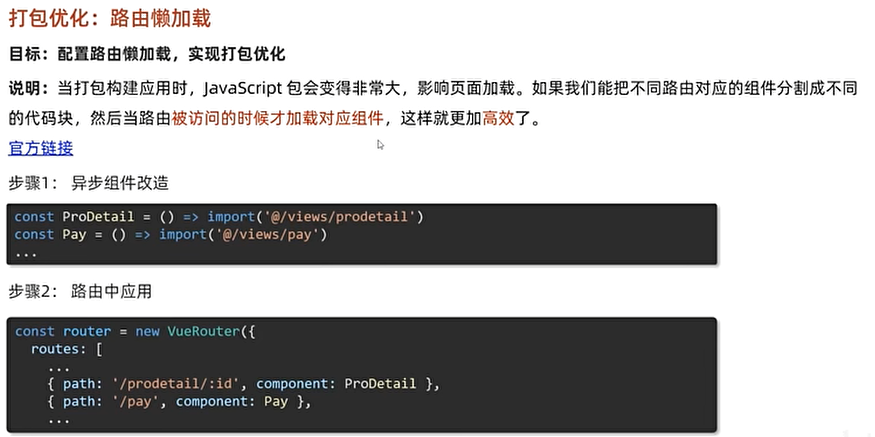
路由懒加载
+++
Vue3
使用create-vue脚手架
npm init vue@latest
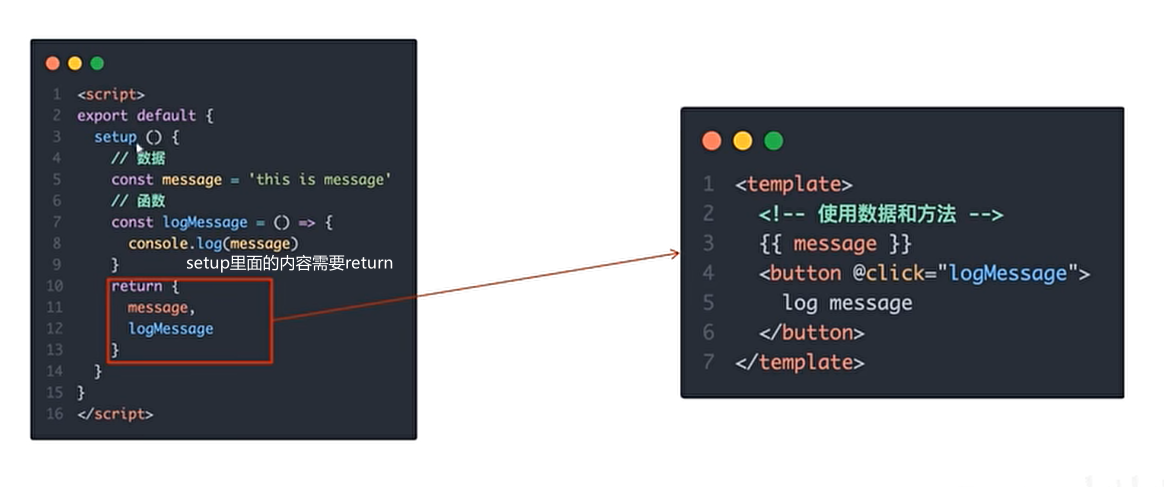
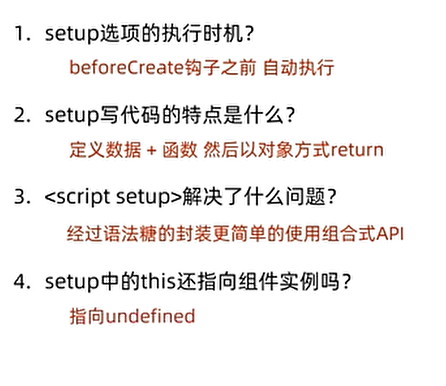
组合式API setup选项
执行时机早于beforeCreate, 最早的钩子
+++
+++
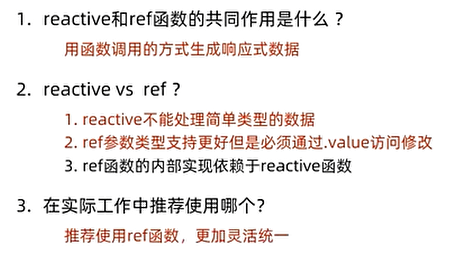
reactive 和 ref 函数
reactive 可以接收对象类型参数传入并返回一个响应式的对象
const state = reactive(对象类型数据)
在
{{ state.count }}
[外链图片转存失败,源站可能有防盗链机制,建议将图片保存下来直接上传(img-jAMm1ZPy-1691723724335)(https://imgfff-1313020458.cos.ap-shanghai.myqcloud.com/image/%E5%87%A1%E5%B0%94%E8%B5%9B%E7%BF%81%E7%9C%9F.gif)]
+++
ref()
接收简单类型或者对象类型的数据传入并返回一个响应式的对象
{{ count }}
+++
组合式API - computed
const list = ref([1, 2, 3, 4, 5, 6, 7, 8])
//基于list派生计算属性, 过滤 >2 的
const list1 = computed(() => {return list.value.filter(item => item > 2)
})
watch函数
侦听一个或多个数据变化, 数据变化执行回调函数
const count = ref(0);
const name = ref('莲莲')
watch(count, (newValue, oldValue) => {console.log(`count发生变化, 老值${oldValue}新值${newValue}`);
})watch([count, name], (newArr, oldArr) => {console.log(newArr, oldArr);
})
immediate deep
在侦听器创建时立即回调, 响应数据变化后继续回调
watch(count, (newValue, oldValue) => {console.log(`count发生变化, 老值${oldValue}新值${newValue}`);
}, {immediate: true,// deep深度监视,默认watch是浅层监视, deep监视复杂类型内部变化deep: true
})
精确侦听对象某个属性
const changeName = () => {info.value.name = '神兵瑞克'
}
const info = ref({name: '黑剑',age: 20
})
watch(() => info.value.name,(value, oldValue, onCleanup) => {console.log('1.' + value,'2.' +  oldValue,'3.' + onCleanup)}
)
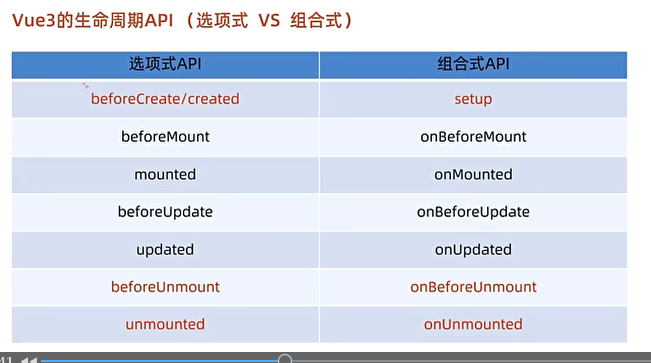
生命周期函数
+++
const getList = () => {setTimeout(() => {console.log('发送请求');}, 2000)
}
getList()
// 有些代码需要在mounted生命周期执行
onMounted(() => {console.log(' mounted 生命周期函数');
})
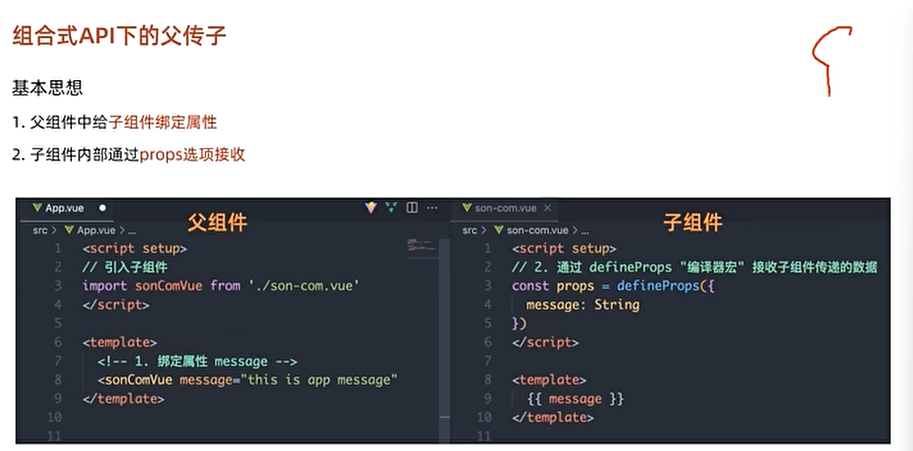
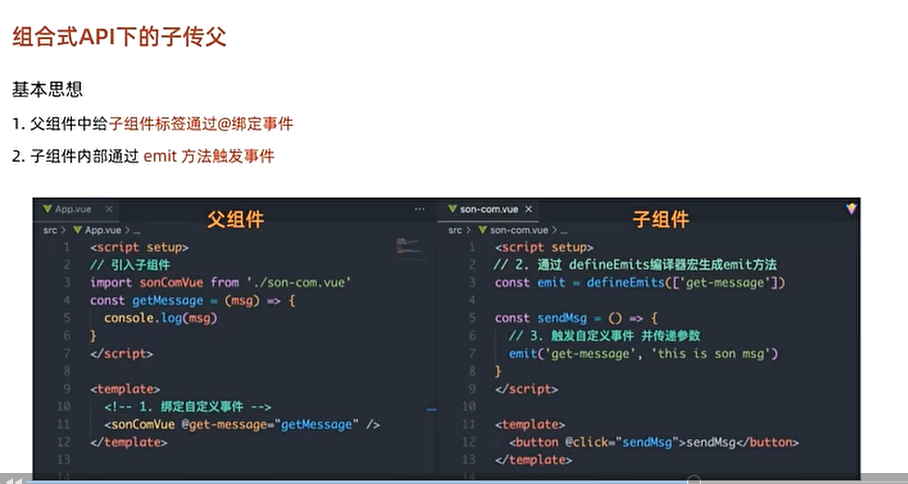
父子通信 组合式API
+++
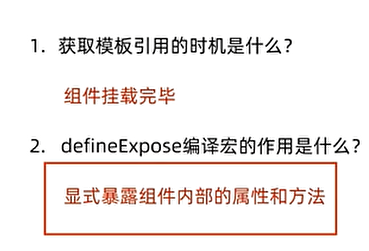
模板引用
通过ref标识获取dom对象或者组件实例对象
+++
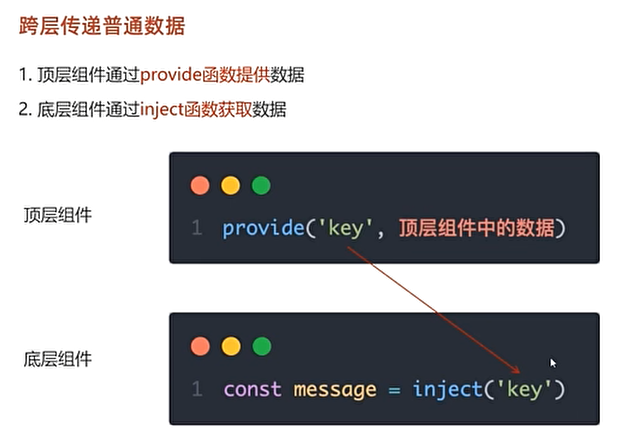
provide 和 inject
跨层级共享数据
defineOptions
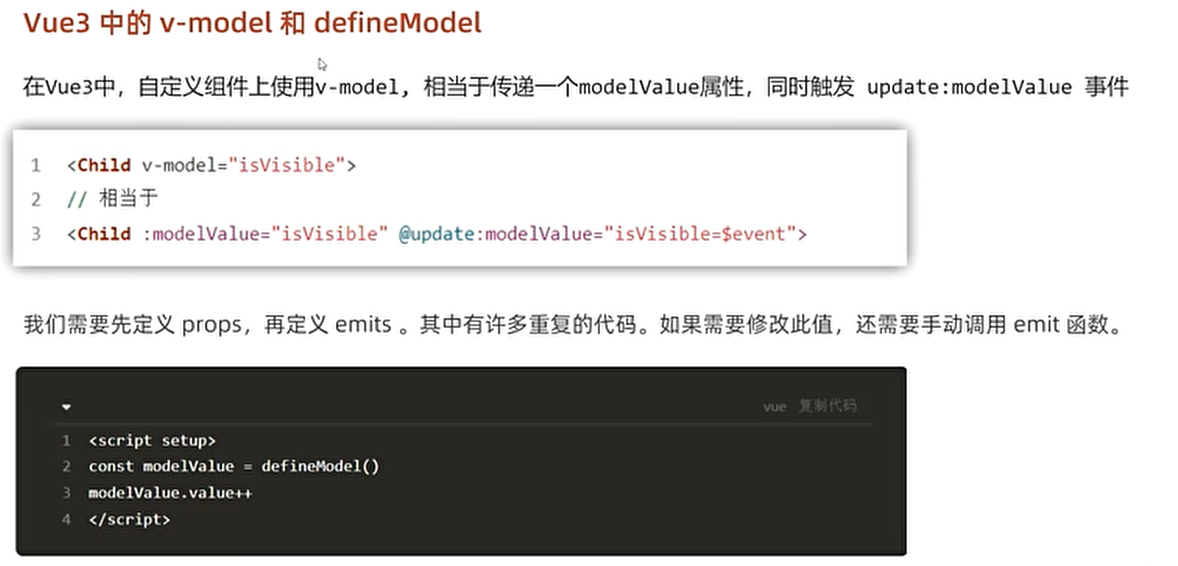
defineModel
快速实现双向绑定
+++
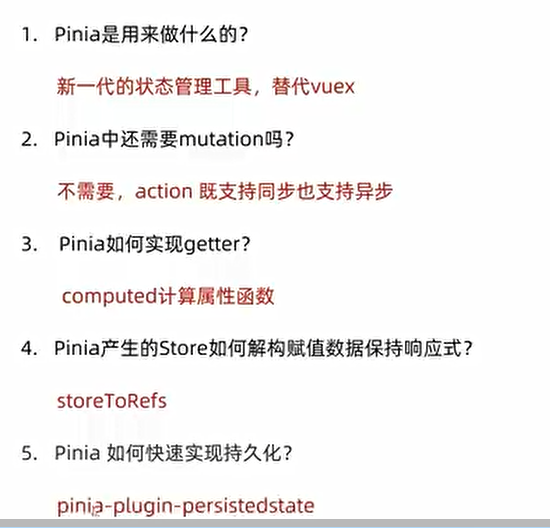
Pinia
vuex的替代品, vue的最新管理工具
+++
img-uDqDfuth-1691723724333)]
+++
页面访问拦截
基于全局前置守卫, 进行页面访问拦截处理
- 所有路由被匹配到, 会先经过全局前置守卫
- 只有全局前置守卫放行, 才会真正解析渲染组件, 才能看到页面内容
+++
[外链图片转存中…(img-uzhuhERP-1691723724333)]
+++
打包发布
vue脚手架不参与上线
yarn build
[外链图片转存中…(img-q2YLgc54-1691723724334)]
路由懒加载
[外链图片转存中…(img-UCRG1Uba-1691723724334)]
+++
Vue3
使用create-vue脚手架
npm init vue@latest
组合式API setup选项
执行时机早于beforeCreate, 最早的钩子
[外链图片转存中…(img-A68m2KZc-1691723724335)]
+++
[外链图片转存中…(img-DB555IIs-1691723724335)]
+++
reactive 和 ref 函数
reactive 可以接收对象类型参数传入并返回一个响应式的对象
const state = reactive(对象类型数据)
在
{{ state.count }}
[外链图片转存中…(img-jAMm1ZPy-1691723724335)]
+++
ref()
接收简单类型或者对象类型的数据传入并返回一个响应式的对象
{{ count }}
[外链图片转存中…(img-mi7wKRqM-1691723724335)]
+++
组合式API - computed
const list = ref([1, 2, 3, 4, 5, 6, 7, 8])
//基于list派生计算属性, 过滤 >2 的
const list1 = computed(() => {return list.value.filter(item => item > 2)
})
watch函数
侦听一个或多个数据变化, 数据变化执行回调函数
const count = ref(0);
const name = ref('莲莲')
watch(count, (newValue, oldValue) => {console.log(`count发生变化, 老值${oldValue}新值${newValue}`);
})watch([count, name], (newArr, oldArr) => {console.log(newArr, oldArr);
})
immediate deep
在侦听器创建时立即回调, 响应数据变化后继续回调
watch(count, (newValue, oldValue) => {console.log(`count发生变化, 老值${oldValue}新值${newValue}`);
}, {immediate: true,// deep深度监视,默认watch是浅层监视, deep监视复杂类型内部变化deep: true
})
精确侦听对象某个属性
const changeName = () => {info.value.name = '神兵瑞克'
}
const info = ref({name: '黑剑',age: 20
})
watch(() => info.value.name,(value, oldValue, onCleanup) => {console.log('1.' + value,'2.' +  oldValue,'3.' + onCleanup)}
)
生命周期函数
[外链图片转存中…(img-zjcj57o4-1691723724336)]
+++
const getList = () => {setTimeout(() => {console.log('发送请求');}, 2000)
}
getList()
// 有些代码需要在mounted生命周期执行
onMounted(() => {console.log(' mounted 生命周期函数');
})
父子通信 组合式API
[外链图片转存中…(img-tPhXbdsC-1691723724336)]
[外链图片转存中…(img-7UPnqYDY-1691723724337)]
+++
模板引用
通过ref标识获取dom对象或者组件实例对象
[外链图片转存中…(img-IwPuc3ro-1691723724337)]
+++
provide 和 inject
跨层级共享数据
[外链图片转存中…(img-M5irHGTa-1691723724337)]
defineOptions
defineModel
快速实现双向绑定
[外链图片转存中…(img-T9R602uu-1691723724337)]
+++
Pinia
vuex的替代品, vue的最新管理工具
[外链图片转存中…(img-WyDxhQEG-1691723724337)]
+++
本文来自互联网用户投稿,文章观点仅代表作者本人,不代表本站立场,不承担相关法律责任。如若转载,请注明出处。 如若内容造成侵权/违法违规/事实不符,请点击【内容举报】进行投诉反馈!