Prometheus笔记(二)监控go项目实时给grafana展示
欢迎加入go语言学习交流群 636728449
Prometheus笔记(二)监控go项目实时给grafana展示
Prometheus笔记(一)metric type
文章目录
- 一、prometheus和grafana安装
- 1、promethues安装
- 2、grafana安装
- 二、获取监控数据
- 三、配置grafana展示数据
- 1、修改配置重启promethues和grafana
- 2、创建数据源
- 3、创建dashboard
- 参考资料
一、prometheus和grafana安装
1、promethues安装
先写好配置文件,保存为prometheus.yml,
global:scrape_interval: 15s # By default, scrape targets every 15 seconds.# Attach these labels to any time series or alerts when communicating with# external systems (federation, remote storage, Alertmanager).external_labels:monitor: 'codelab-monitor'# A scrape configuration containing exactly one endpoint to scrape:
# Here it's Prometheus itself.
scrape_configs:# The job name is added as a label `job=` to any timeseries scraped from this config. - job_name: 'prometheus' //服务的名称,后续要监控我们自己的服务时只需要按照这个格式再添加上# Override the global default and scrape targets from this job every 5 seconds.scrape_interval: 5sstatic_configs:- targets: ['localhost:9090'] //这个为服务的ip和port
更多配置文件写法请参考:https://prometheus.io/docs/operating/configuration/
官方给出供参考的配置文件:https://github.com/prometheus/prometheus/blob/release-2.3/config/testdata/conf.good.yml
然后利用docker启动。
docker run -p 9090:9090 --network=host -v /root/prometheus.yml:/etc/prometheus/prometheus.yml prom/prometheus
启动之后,可以先测试一下是否可以用。
[root@localhost ~]# curl http://localhost:9090/api/v1/label/job/values{	"status":"success","data":["prometheus"]
}
如果是用上面我给出来的默认配置,返回值应该是和这里给出来的一样。说明promethues服务端启动好了。
2、grafana安装
这篇文章只是演示基本用法,所以用到的grafana的配置都是默认的。直接使用下面的命令启动就可以了。
$ docker run -d -p 3000:3000 grafana/grafana
如果需要更多功能则需要更复杂的配置了,更多配置方法请参考:http://docs.grafana.org/installation/docker/
docker镜像起来后,用浏览器登入 127.0.0.0:3000 ,会弹出来登入界面,用户名和密码为admin/admin,第一次会提示修改密码,按照提示操作即可。这样就完成了安装。
二、获取监控数据
这一步我主要写一个简单的go项目,用来获取内存的实时使用率数据,然后在grafana展示。
代码下载地址:https://github.com/Zhanben/goproject/tree/master/gomemory
package mainimport ("net/http""log""time""os""github.com/prometheus/client_golang/prometheus/promhttp""github.com/prometheus/client_golang/prometheus""github.com/shirou/gopsutil/mem")func main (){//初始化日志服务logger := log.New(os.Stdout, "[Memory]", log.Lshortfile | log.Ldate | log.Ltime)//初始一个http handlerhttp.Handle("/metrics", promhttp.Handler())//初始化一个容器diskPercent := prometheus.NewGaugeVec(prometheus.GaugeOpts{Name: "memeory_percent",Help: "memeory use percent",},[]string {"percent"},)prometheus.MustRegister(diskPercent)// 启动web服务,监听1010端口go func() {logger.Println("ListenAndServe at:localhost:1010")err := http.ListenAndServe("localhost:1010", nil)if err != nil {logger.Fatal("ListenAndServe: ", err)}}()//收集内存使用的百分比for {logger.Println("start collect memory used percent!")v, err := mem.VirtualMemory()if err != nil {logger.Println("get memeory use percent error:%s", err)}usedPercent := v.UsedPercentlogger.Println("get memeory use percent:", usedPercent)diskPercent.WithLabelValues("usedMemory").Set(usedPercent)time.Sleep(time.Second*2)}
}
程序跑起来的输出如下:
[root@localhost demoproject]# go run memory.go
[Memory]2018/07/14 11:43:12 memory.go:42: start collect memory used percent!
[Memory]2018/07/14 11:43:12 memory.go:48: get memeory use percent: 41.22097449562238
[Memory]2018/07/14 11:43:12 memory.go:33: ListenAndServe at:locahost:1010
[Memory]2018/07/14 11:43:14 memory.go:42: start collect memory used percent!
[Memory]2018/07/14 11:43:14 memory.go:48: get memeory use percent: 41.219733205342514
[Memory]2018/07/14 11:43:16 memory.go:42: start collect memory used percent!
[Memory]2018/07/14 11:43:16 memory.go:48: get memeory use percent: 41.219733205342514
^Csignal: interrupt
此时可以查询的到promethues监控到的数据。
[root@localhost ~]# curl http://localhost:1010/metrics
...
# HELP go_memstats_sys_bytes Number of bytes obtained by system. Sum of all system allocations.
# TYPE go_memstats_sys_bytes gauge
go_memstats_sys_bytes 3.346432e+06
//这个为代码添加的字段,其余为promethues默认监控字段
# HELP memeory_percent memeory use percent
# TYPE memeory_percent gauge
memeory_percent{percent="usedMemory"} 41.16718525016137
# HELP process_cpu_seconds_total Total user and system CPU time spent in seconds.
# TYPE process_cpu_seconds_total counter
process_cpu_seconds_total 0.01
....
三、配置grafana展示数据
1、修改配置重启promethues和grafana
先将监控服务注册到promethues服务端,修改配置文件:promethues.yml
... //和前面的配置文件一样
scrape_configs:# The job name is added as a label `job=` to any timeseries scraped from this config. - job_name: 'memory' //给你的服务取的名字# Override the global default and scrape targets from this job every 5 seconds.scrape_interval: 5sstatic_configs:- targets: ['localhost:1010'] //改成你自己代码里面使用的端口号暂停掉之前启动的promethues和grafana
[root@localhost ~]# docker ps
CONTAINER ID        IMAGE               COMMAND                  CREATED             STATUS              PORTS                    NAMES
650cb5891e56        grafana/grafana     "/run.sh"                19 hours ago        Up 19 hours         0.0.0.0:3000->3000/tcp   brave_ride
850a44d18dfe        prom/prometheus     "/bin/prometheus -..."   21 hours ago        Up 21 hours         0.0.0.0:9090->9090/tcp   zen_keller[root@localhost ~]# docker stop 850a44d18dfe
850a44d18dfe
[root@localhost ~]# docker stop 650cb5891e56
650cb5891e56
修改好配置文件之后重新启动promethues和grafana
[root@localhost ~]# docker run -d -p 9090:9090 --network=host -v /root/prometheus.yml:/etc/prometheus/prometheus.yml prom/prometheus[root@localhost ~]# docker run -d -p 3000:3000 grafana/grafana
检验promethues服务端是否注册到了我们自己的服务。
[root@localhost demoproject]# curl http://localhost:9090/api/v1/targets
{"status": "success","data": {"activeTargets": [{"discoveredLabels": {"__address__": "localhost:1010","__metrics_path__": "/metrics","__scheme__": "http","job": "memory"},"labels": {"instance": "localhost:1010","job": "memory" //这个memory即我们在promethues的配置文件填写的名字},"scrapeUrl": "http://localhost:1010/metrics","lastError": "","lastScrape": "2018-07-14T07:39:26.127284982Z","health": "up" //注意上面这个字段要为up,要不然后续grafana查询不到数据}],"droppedTargets": []}
}
2、创建数据源
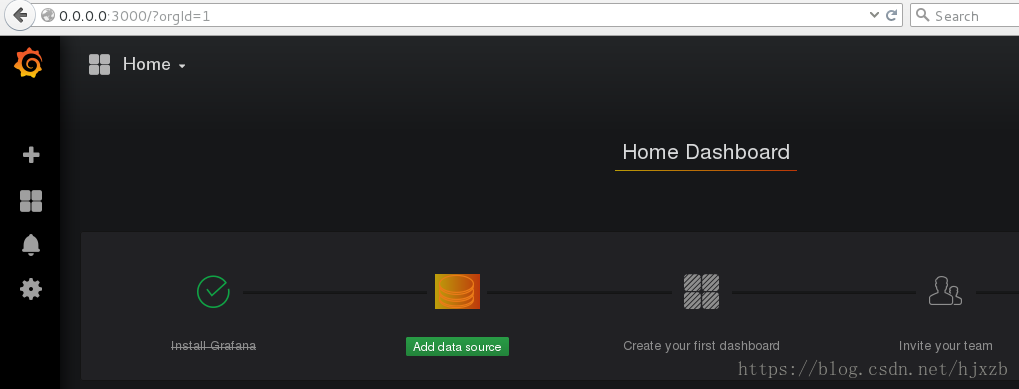
- 打开grafana界面,登入后如下图所示:
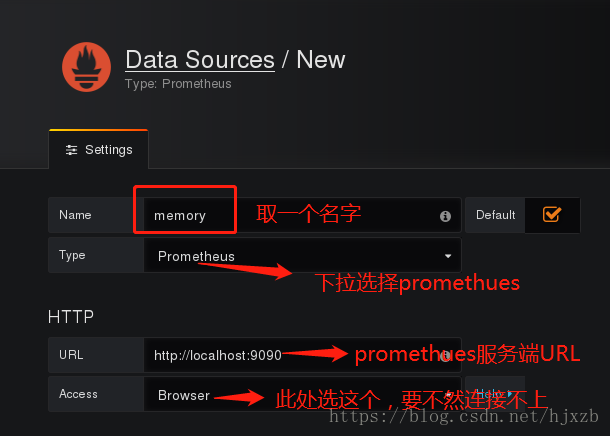
- 创建数据源
按照图片里面的填写的填好。其中memory为数据源名字,可以自己随便取一个。类型需要选择promethues。下面的URL需要填写promethues的服务端的URL,access选择不使用代理的Browser。填好之后点击下面的保存,完成创建数据源。
3、创建dashboard
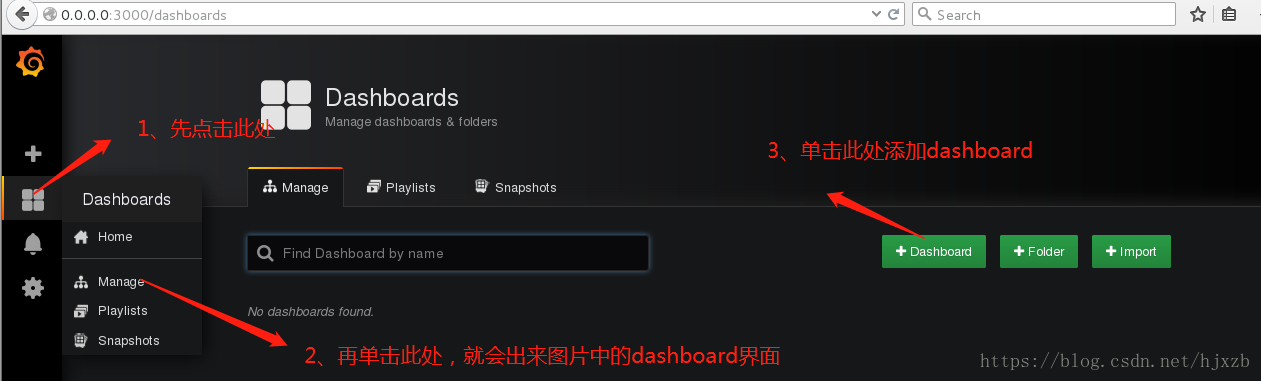
第一步如图所示,按照图中的三步操作。
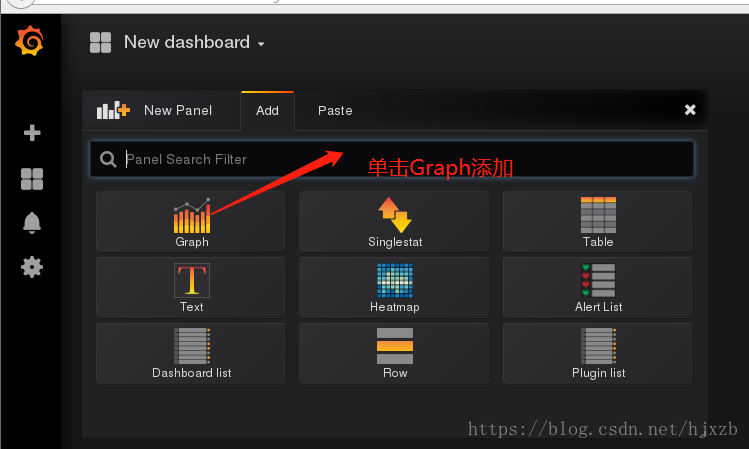
操作完成之后会进入下图所示的界面,然后再次按照图中提示操作即可。
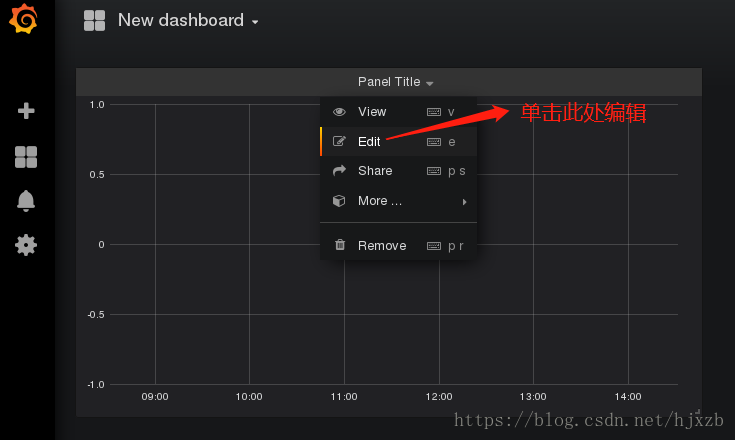
完成之后会弹出来一个panle,单击下拉框,点击Edit。
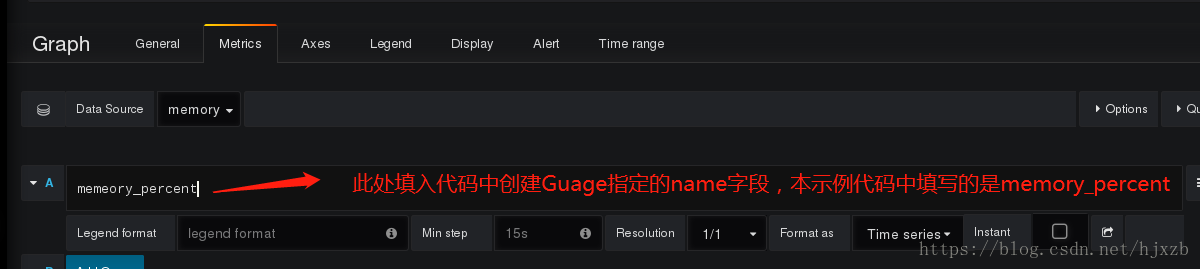
点击Edit之后会pane下方会得到下图展示的界面:
在查询字段的地方填入,代码缩写的字段prometheus.NewGaugeVec创建时填写的name字段,本示例代码为memory_percent。填好之后点击下option旁边的query inspector,就可以在上面的表中查看到数据了。
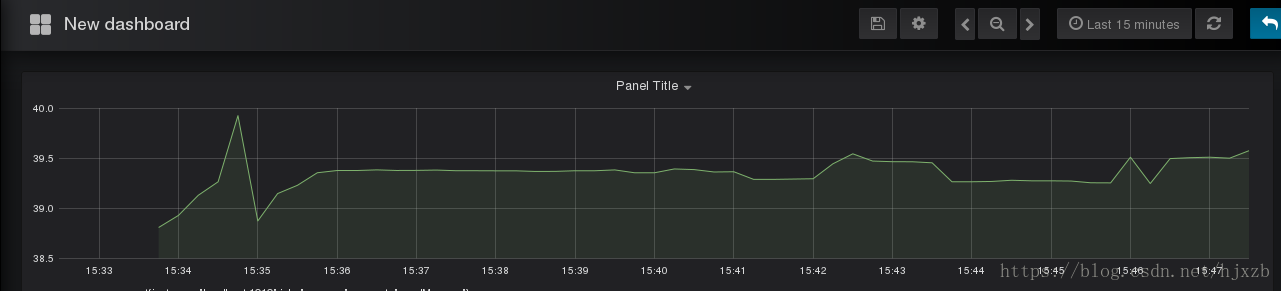
最后查询到的数据如下图所示:
欢迎加入go语言学习交流群 636728449
参考资料
1、 https://godoc.org/github.com/prometheus/client_golang/prometheus
2、 https://prometheus.io/docs/introduction/overview/
本文来自互联网用户投稿,文章观点仅代表作者本人,不代表本站立场,不承担相关法律责任。如若转载,请注明出处。 如若内容造成侵权/违法违规/事实不符,请点击【内容举报】进行投诉反馈!