Visual Studio, Qt, VTK, ITK安装(For Windows)
环境:
Windows11
安装顺序:
Visual Studio→ Qt → VTK → ITK
本文安装版本:
Visual Studio(2019)→ Qt(5.15.2) → VTK(8.2 & 9.2) → ITK(5.2.1)
一、安装Visual Studio
- 下载Visual Studio(推荐下载2019或2017,Qt5中MSVC最高支持到Vs2019)
- 安装并选择 “使用C++的桌面开发” 安装即可
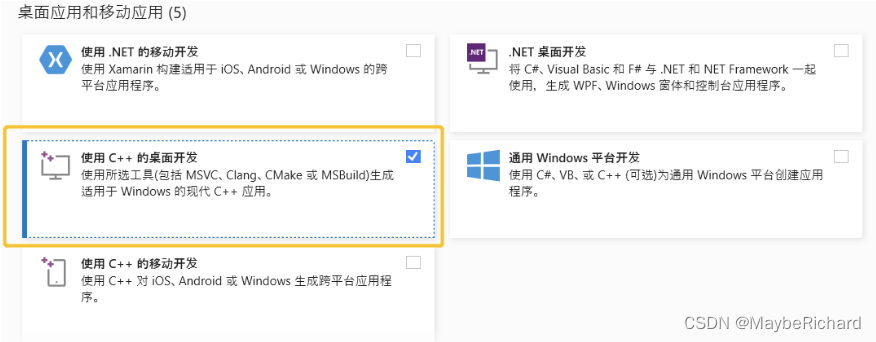
- 安装完成后退出Visual Studio准备安装Qt
二、安装Qt
1.下载Qt
关于Qt版本的选择:
- Qt5.15之后的版本不在提供离线安装版本,5.15之后版本点击这里跳转下载。
Due to The Qt Company offering changes, open source offline installers are not available any more since Qt 5.15. Read more about offering changes in the https://www.qt.io/blog/qt-offering-changes-2020 blog.If you need offline installers, please consider our new Qt for Small Business offering: https://www.qt.io/blog/available-now-qt-for-small-businesses
- Qt5.15之前的版本(5.12)离线安装版本点击这里跳转下载
本文以5.15在线安装方式举例
2.下载Qt5.15 并运行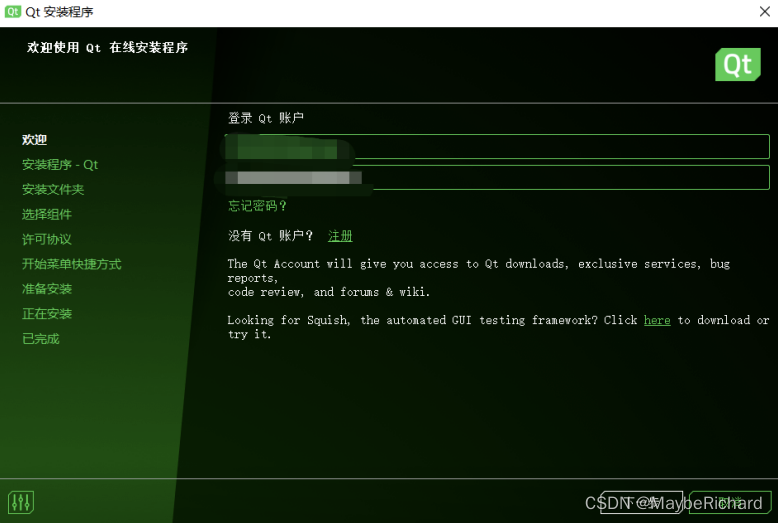
登陆Qt账户(没有账户注册即可,无需费用)
注:如果在线安装过程中频繁失败,可以在该界面左下角设置网络代理。
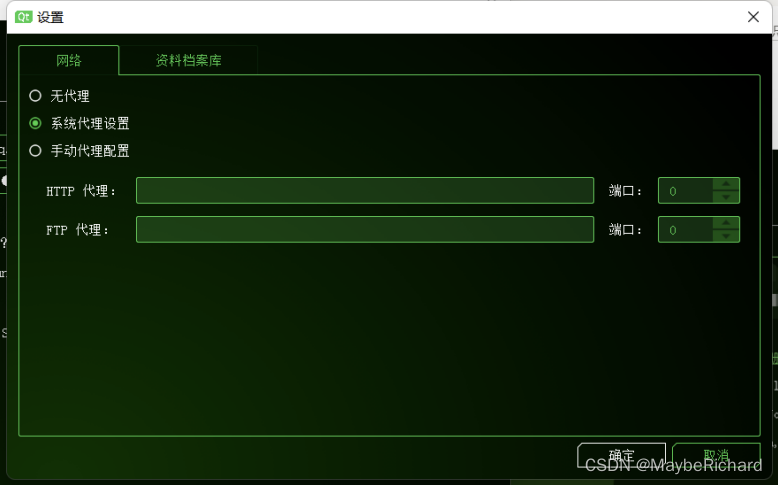
阅读条款,勾选个人用户
设置安装文件夹,选择Custom installation自定义安装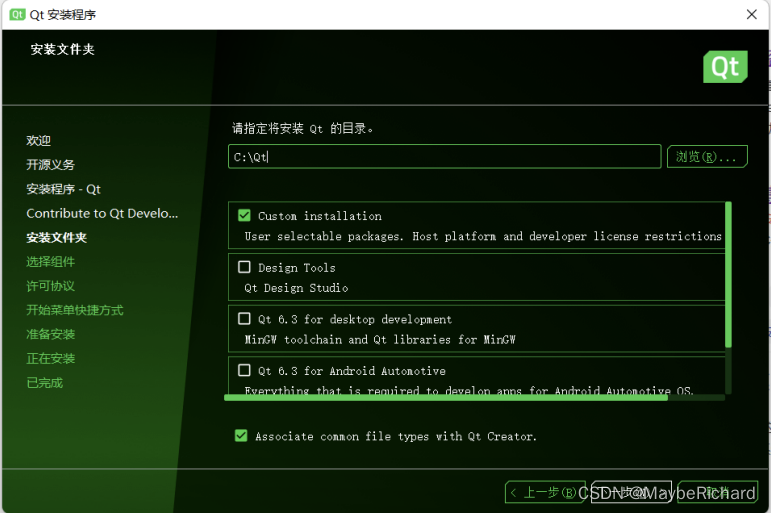
注意安装的目录,一般使用默认位置即可,VTK编译过程中需要验证该地址。
选择自己需要安装的版本,组件尽量全选。MSVC根据自己的VS版本选择。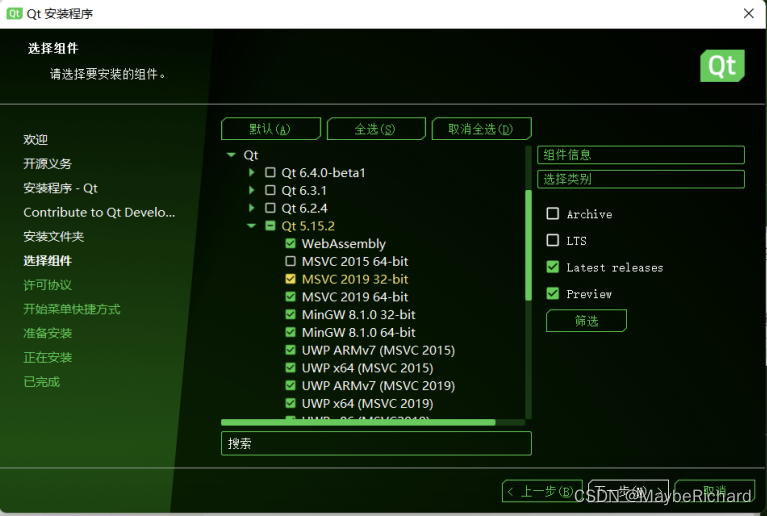
其中部分含义如下:
- MSVC2015 64-bit: Visual Studio 2015 使用的64位编译套件
- MSVC2019 32-bit: Visual Studio 2017 使用的32位编译套件
- MSVC2019 64-bit: Visual Studio 2017 使用的64位编译套件
- MinGW8.1.0 32-bit: QtCreator 使用的32位编译套件
- MinGW8.1.0 64-bit: QtCreator 使用的64位编译套件
- UWP --> Universal Windows Platform: 用于window平台应用程序开发的编译套件
- Source: Qt源码, Qt的一些模块运行需要的驱动没有提供现成的动态库需要自己编译, 建议安装
- Qt Charts: 用于绘制统计数据对应的图表, 比如: 折线图/曲线图等
之后点击同意并进行下一步安装即可。等待安装完成后退出安装程序。
三、安装VTK
准备工作:下载cmake
1.下载VTK,可以在电脑中安装多个版本,本文以8.2和9.2为例,官网地址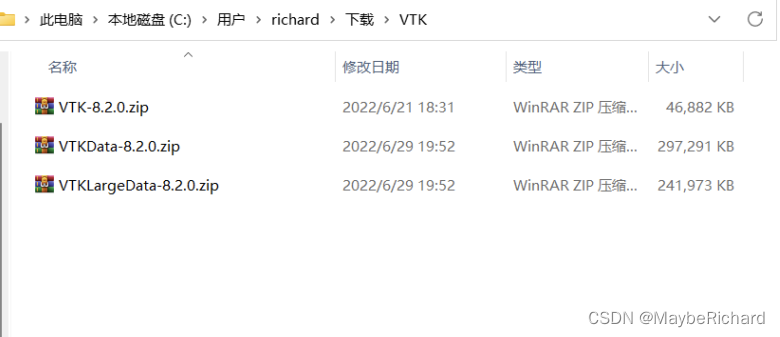
需要下载VTK-...zip,VTKData.zip和VTKLargeData...zip并放到同一个目录。
2.选中三个文件并解压到当前目录,解压后目录如下图所示。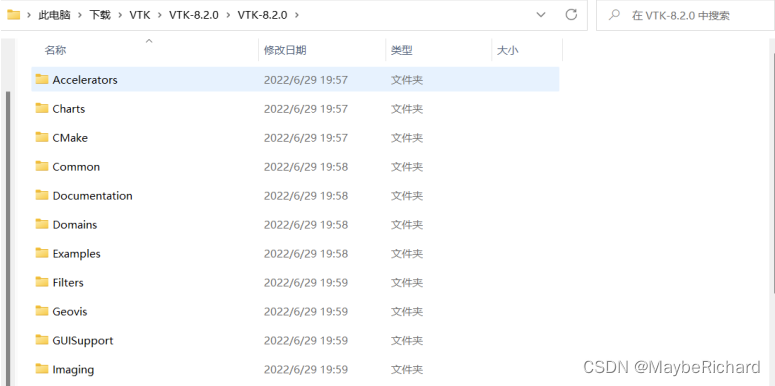
3.在VTK目录中新建bin文件夹,用来存储cmake编译后的文件,bin文件夹一定要和解压的文件在同一个目录。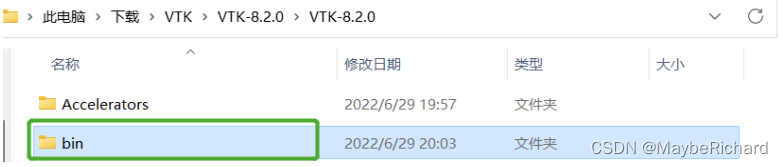
4.打开cmake,分别设置源文件目录和编译后文件目录。
where is the source code:解压后的源文件目录。
where to build the binaries:刚刚创建的bin文件夹,存储编译后的文件。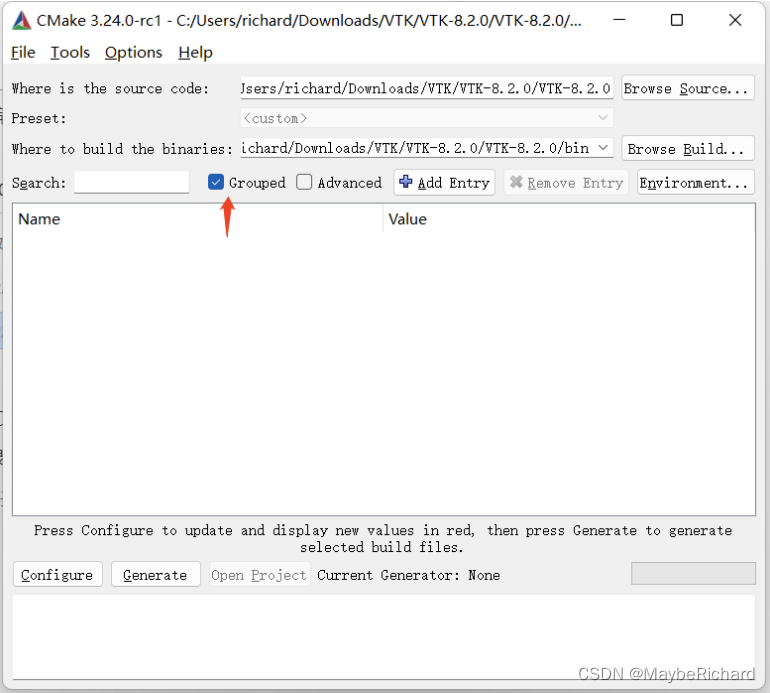
记得勾选Grouped,方便分组浏览选项。
5.目录设置完成后,点击Configure,弹出窗口提示选择生成器。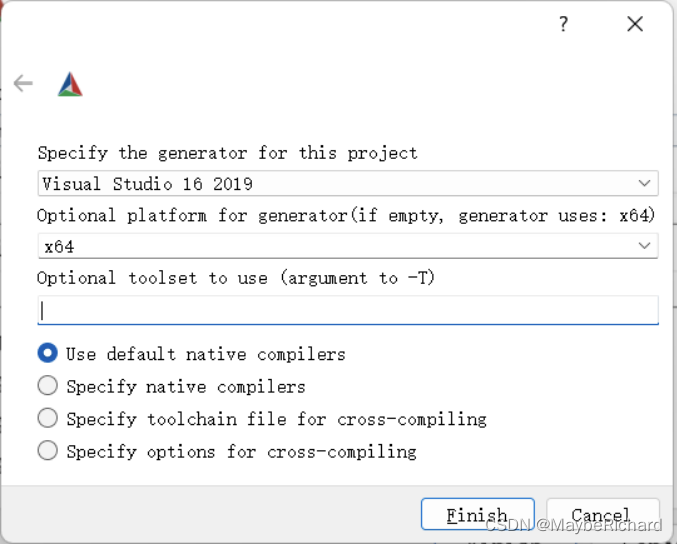
根据自己电脑安装的Vs版本选择,点击完成,自动开始生成配置文件。
6.第一次配置完成后,会有几个红框部分需要设置。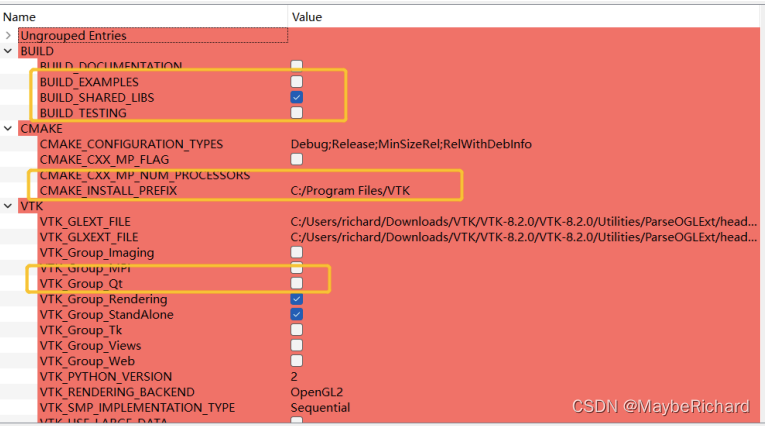
其中:
- BUILD_EXAMPLES——指明是否编译VTK中的例子。未激活可以减少编译时间,之后也
可以再进行单独编译,建议勾选。
- BUILD_TESTING——指明是否编译VTK中的测试代码。未激活可以减少编译时间,之后也可以再进行单独编译,建议勾选。
- CMAKE_INSTALL_PREFIX———设置VTK的生成路径,自行设置。
- VTK_GTOUP_Qt———是否需要QT支持,勾选。
7.勾选完成后,再次点击Configure,完成第二次配置,此时会再次出现几个红框需要设置。
由于上一次设置勾选了Qt支持,所以这一步配置需要设置Qt的路径和版本。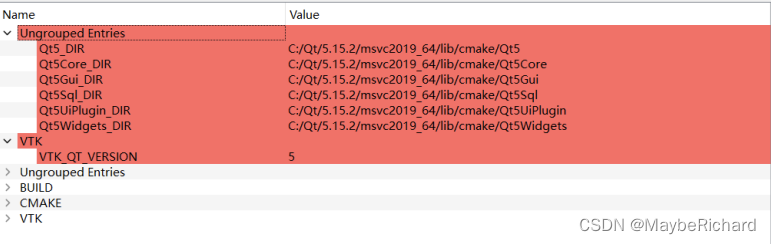
系统一般会自动识别Qt的安装路径和版本(前提是Qt安装正确),确认无误即可再次点击Configure。
8.再次Configure之后,所有红框消失。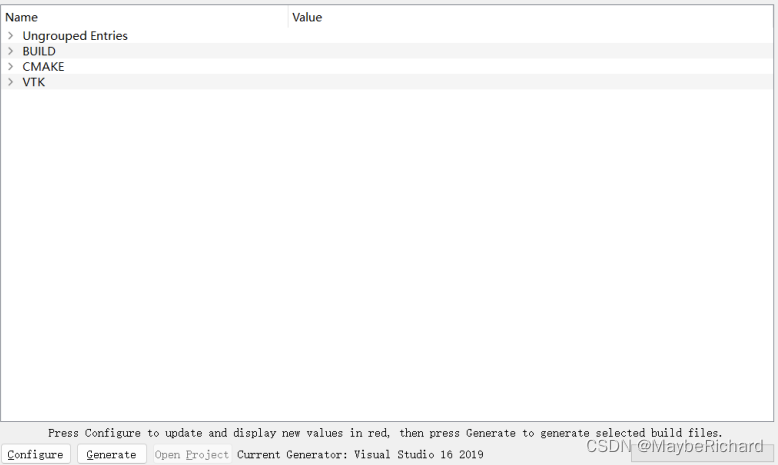
9.点击Generate将会生成二进制文件到%vtk%bin目录中,且Open Project按钮会亮起。
此时不点击Open Project,而是找到Visual Studio并以管理员身份运行(VTK文件的编译需要管理员权限)。
- 新建Visual Studio项目并打开编译后的VTK项目

打开后出现下图所示目录。
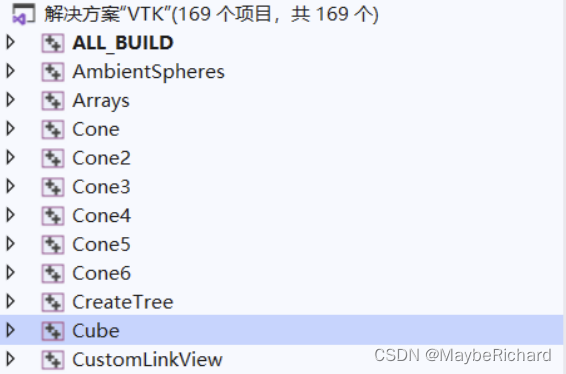
11.如果想运行VTK测试程序,以Cube为例,右击该项目,选择设定为启动项目,再点击本地调试器即可。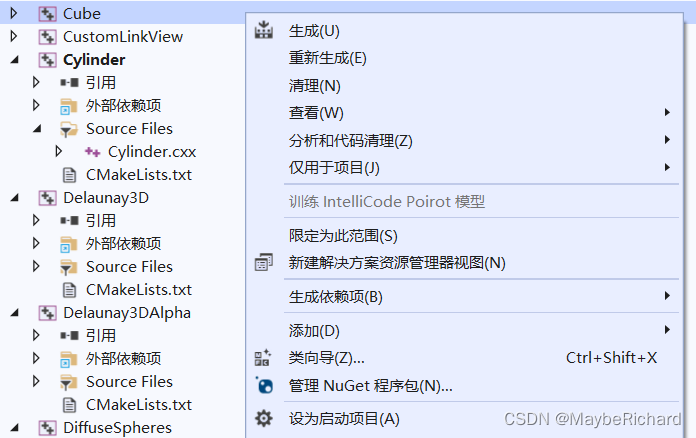
点击“本地Windows调试器”,运行结果如下。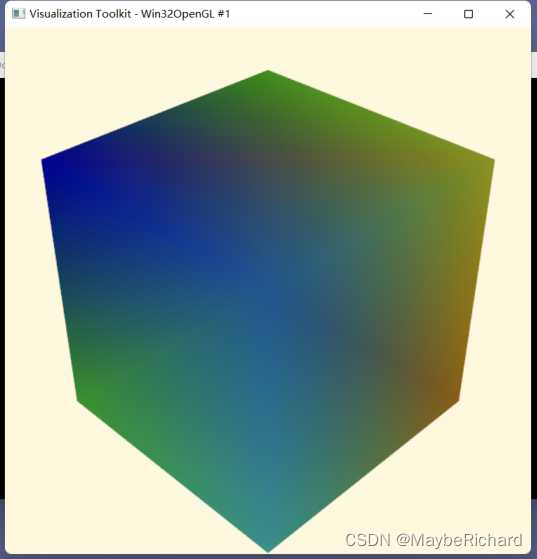
12.接着找到ALL_BUILD项目并右击选择生成,此过程大概需要30分钟。当控制台显示成功:**个,失败0个即可。
13.然后找到INSTALL项目,右击选择仅生成INSTALL,再次等待完成即可。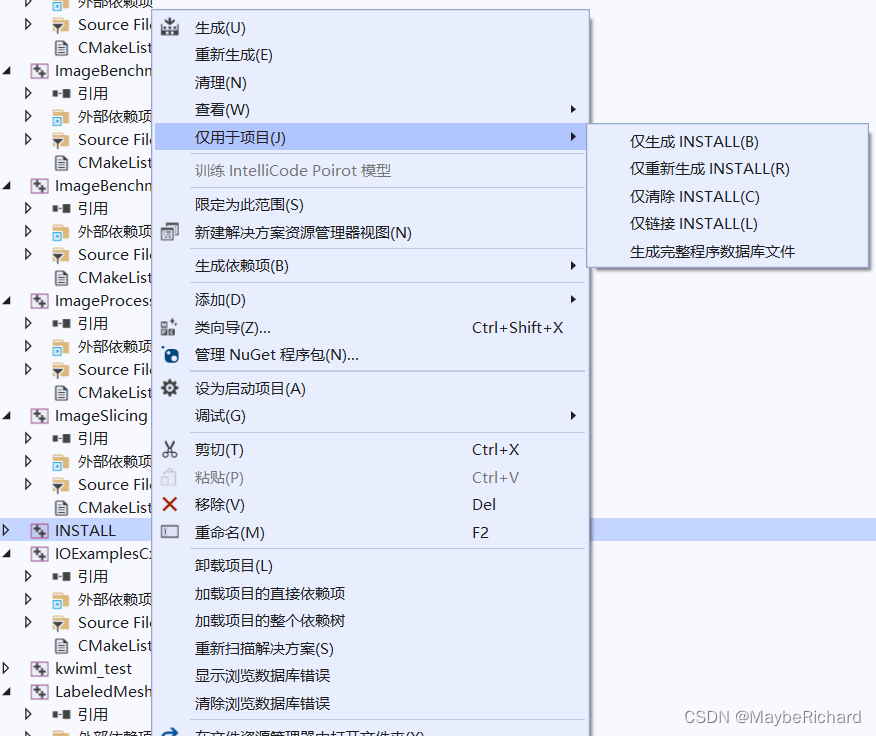
完成后会自动将文件生成到Cmake编译过程中CMAKE_INSTALL_PREFIX所设置的目录。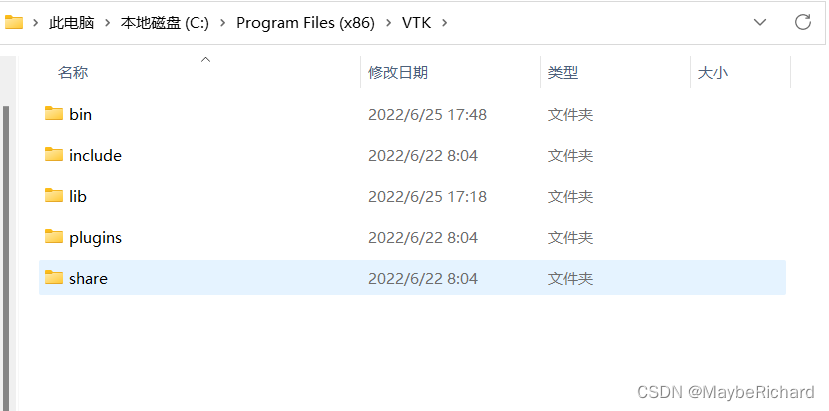
到此完成了VTK8.2的安装。
四、VTK9.2的安装
VTK9.2的安装除了在cmake编译过程中多了一些新特性的设置外和VTK8.2基本相同
- 同样是官网下载 VTK 9.2 的三个包文件,创建并将三个文件放在一个文件夹中。
- 接下来的步骤和VTK 8.2 相同,注意在VTK9.2的Cmake编译过程中,CMAKE_INSTALL_PREFIX的生成目录不要和 VTK 8.2的相同,否则会导致生成文件的冲突/替换(如果计划同时安装两个版本的话)。
五、VS自建工程导入VTK库
1.以管理员身份启动Visual Studio并创建新项目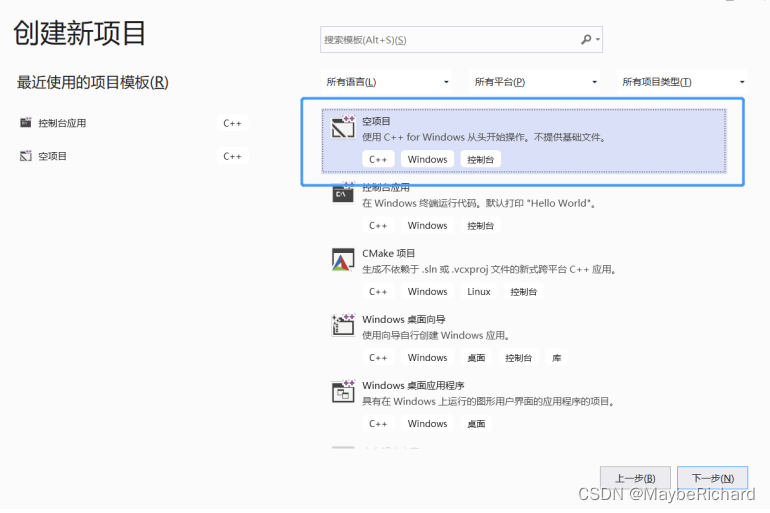
设置项目名和像目录路径,点击创建即可。
2.在菜单栏中选择项目-属性设置库文件。
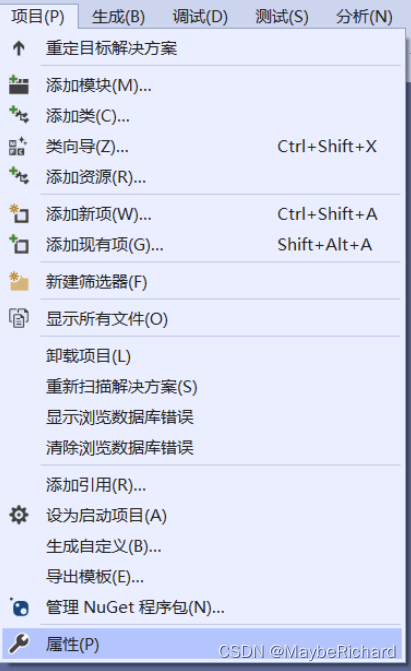
3.首先设置VC++目录中的包含目录和库目录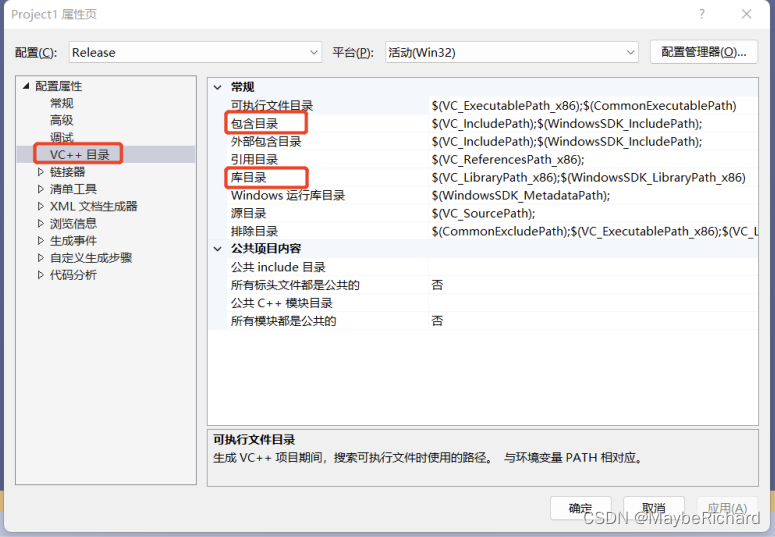
包含目录:%VTK%\include\vtk-..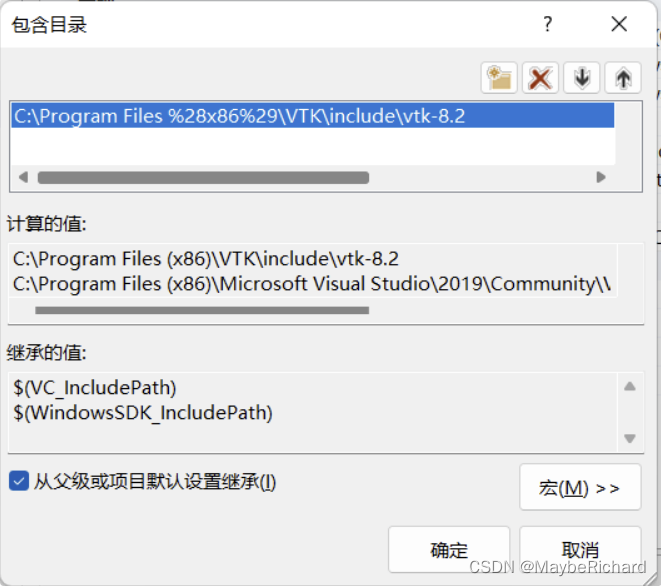
库目录:%VTK%\lib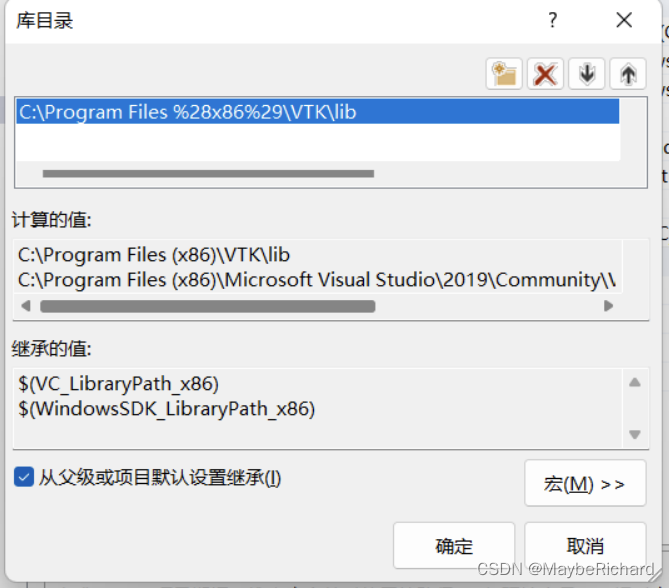
4.接着设置链接器-输入中的附加依赖库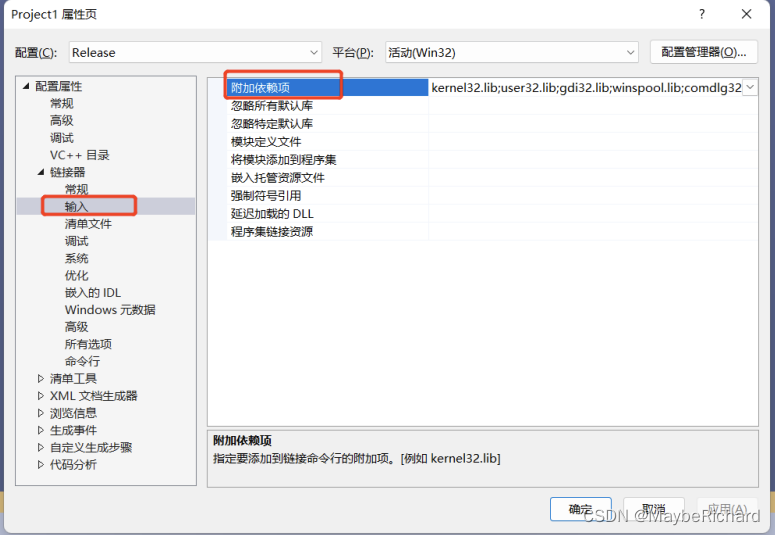
这一步就是要将%VTK%\lib文件夹中的所有.lib文件添加到其中,可以使用正则表达式来添加,
%VTK%\lib*.lib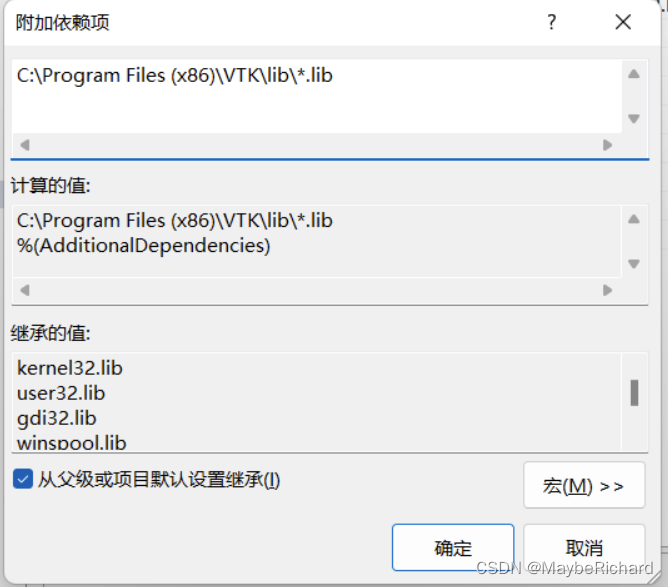
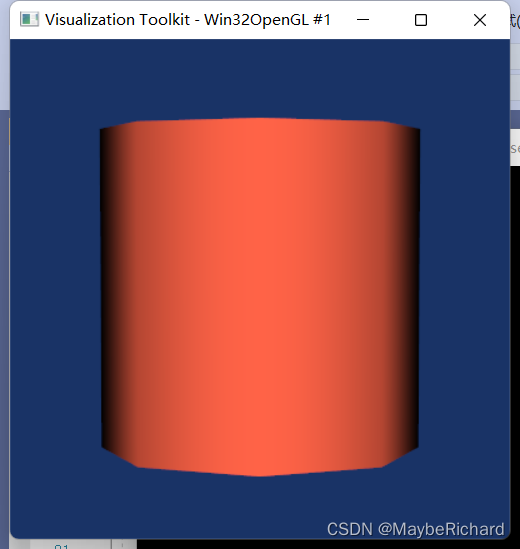
5.到此项目的属性配置完成,此时可以从之前运行的VTK.sln工程中复制任意一个测试实例在本项目中运行。以Cylinder为例进行测试。
6.右击源文件-添加新建项-选择C++文件,复制Cylinder测试用例的代码。
/*=========================================================================Program:   Visualization ToolkitModule:    Cylinder.cxxCopyright (c) Ken Martin, Will Schroeder, Bill LorensenAll rights reserved.See Copyright.txt or http://www.kitware.com/Copyright.htm for details.This software is distributed WITHOUT ANY WARRANTY; without eventhe implied warranty of MERCHANTABILITY or FITNESS FOR A PARTICULARPURPOSE.  See the above copyright notice for more information.=========================================================================*/
//
// This simple example shows how to do basic rendering and pipeline
// creation using C++.
//
#include "vtkCylinderSource.h"
#include "vtkPolyDataMapper.h"
#include "vtkActor.h"
#include "vtkRenderer.h"
#include "vtkRenderWindow.h"
#include "vtkRenderWindowInteractor.h"
#include "vtkProperty.h"
#include "vtkCamera.h"int main()
{// This creates a polygonal cylinder model with eight circumferential facets.// 创建圆柱体 并设置为八边形圆柱体vtkCylinderSource *cylinder = vtkCylinderSource::New();cylinder->SetResolution(8);// The mapper is responsible for pushing the geometry into the graphics// library. It may also do color mapping, if scalars or other attributes// are defined.// 将上面定义好的图形推送到图形库中vtkPolyDataMapper *cylinderMapper = vtkPolyDataMapper::New();cylinderMapper->SetInputConnection(cylinder->GetOutputPort());// The actor is a grouping mechanism: besides the geometry (mapper), it// also has a property, transformation matrix, and/or texture map.// Here we set its color and rotate it -22.5 degrees.// 设置纹理 颜色 点击后的旋转角度vtkActor *cylinderActor = vtkActor::New();cylinderActor->SetMapper(cylinderMapper);cylinderActor->GetProperty()->SetColor(1.0000, 0.3882, 0.2784);cylinderActor->RotateX(3.0);cylinderActor->RotateY(-45.0);// Create the graphics structure. The renderer renders into the// render window. The render window interactor captures mouse events// and will perform appropriate camera or actor manipulation// depending on the nature of the events.// 创建图形结构 渲染器会将其渲染到渲染窗口 渲染窗口的交互器捕获鼠标事件并执行适当的相机或操作vtkRenderer *ren1 = vtkRenderer::New();vtkRenderWindow *renWin = vtkRenderWindow::New();renWin->AddRenderer(ren1);vtkRenderWindowInteractor *iren = vtkRenderWindowInteractor::New();iren->SetRenderWindow(renWin);// Add the actors to the renderer, set the background and size// 将反应器添加到渲染器中,设置渲染厚度额背景和初始尺寸ren1->AddActor(cylinderActor);ren1->SetBackground(0.1, 0.2, 0.4);renWin->SetSize(400, 400);// We'll zoom in a little by accessing the camera and invoking a "Zoom"// method on it.// 缩放渲染后的图形ren1->ResetCamera();ren1->GetActiveCamera()->Zoom(1.5);renWin->Render();// This starts the event loop and as a side effect causes an initial render.// 开始渲染iren->Start();// Exiting from here, we have to delete all the instances that// have been created.// 开始退出,清空所有创建的对象cylinder->Delete();cylinderMapper->Delete();cylinderActor->Delete();ren1->Delete();renWin->Delete();iren->Delete();return 0;
}
运行成功和得到如下界面
六、ITK 5.2.1的安装
1.打开官网并下载Library Source Code栏中的InsightToolkit-5.2.1.zip文件
2.解压下载好的ITK文件,并在文件夹中新建bin目录
3.打开cmake,分别设置源文件和编译后二进制文件的路径

4.点击Configure,设置Visual Studio版本即可
5.弹出红框设置,勾选BUILD_EXAMPLES,再次点击Configure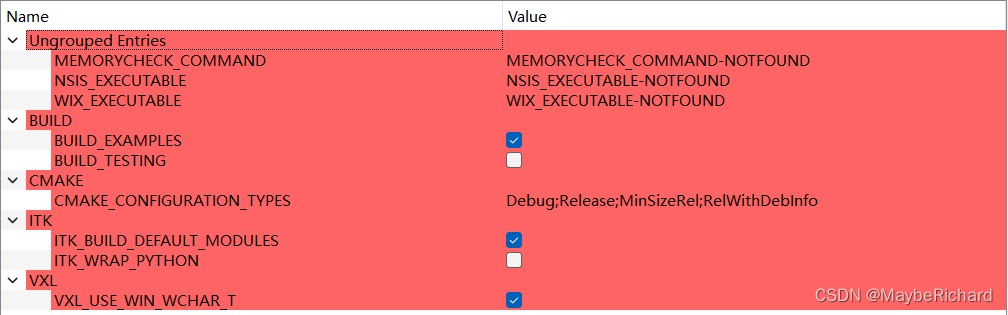
注意在ITK编译的时候路径的长度不能超过50个字符,否则会报错
6.完成后点击Genarate
7.同样以管理员身份打开Visual Studio
8.分别生成ALL_BUILD和INSTALL即可。生成后的文件和VTK在同一路径中。
本文来自互联网用户投稿,文章观点仅代表作者本人,不代表本站立场,不承担相关法律责任。如若转载,请注明出处。 如若内容造成侵权/违法违规/事实不符,请点击【内容举报】进行投诉反馈!