AE+C# 缓冲区的实现(GeoProcessor的用法)
最近在做一个地理信息系统,需要实现缓冲区分析的功能。在网上、参考书上参考别人的代码。发现了一个大bug,一直解决不了,遂奋战至凌晨三点半。终于解决啦~
先搭建窗体:
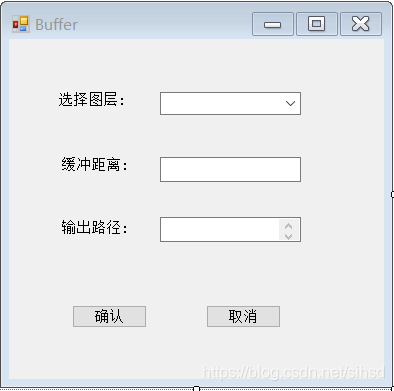
选择图层 :comboBox1
缓冲距离 :textBox1
输出路径 :textBox2
确认:button1
取消:button2
(一)变量以及构造函数的的定义
//变量的定义private IActiveView pActiveView;private AxMapControl mapControl;public Buffer(){InitializeComponent();}//构建含参构造函数,将主窗体的AxMapControl传进来public Buffer(AxMapControl mainMapControl):this(){mapControl = mainMapControl;pActiveView = mainMapControl.ActiveView;}//窗体加载private void Buffer_Load(object sender, EventArgs e){if (mapControl == null || pActiveView.FocusMap.LayerCount == 0){return;}IEnumLayer layers = pActiveView.FocusMap.get_Layers();layers.Reset();ILayer layer = layers.Next();while (layer != null){comboBox1.Items.Add(layer.Name);layer = layers.Next();}}//设置输出路径private void textBox2_MouseDown(object sender, MouseEventArgs e){//set the output layerSaveFileDialog saveDlg = new SaveFileDialog();saveDlg.CheckPathExists = true;saveDlg.Filter = "Shapefile (*.shp)|*.shp";saveDlg.OverwritePrompt = true;saveDlg.Title = "Output Layer";saveDlg.RestoreDirectory = true;saveDlg.FileName = (string)comboBox1.SelectedItem + "_buffer.shp";DialogResult dr = saveDlg.ShowDialog();if (dr == DialogResult.OK)textBox2.Text = saveDlg.FileName;}//取消private void button2_Click(object sender, EventArgs e){this.Close();}//获取图层源路径public static string getLayerPath(ILayer pLayer){IDatasetName pDatasetName = (pLayer as IDataLayer2).DataSourceName as IDatasetName;IWorkspaceName pWorkspaceName = pDatasetName.WorkspaceName;return pWorkspaceName.PathName + "\\" + pLayer.Name + ".shp";}//确认private void button1_Click(object sender, EventArgs e){double bufferDistance = Convert.ToDouble(textBox1.Text.Trim());if (bufferDistance == 0.0){MessageBox.Show("缓冲区距离有误!");return;}if (comboBox1.Text == string.Empty){MessageBox.Show("输入图层不能为空!");return;}if (textBox2.Text == string.Empty){MessageBox.Show("输出路径不能为空!");return;}int index = comboBox1.SelectedIndex;string name = getLayerPath(pActiveView.FocusMap.get_Layer(index));string outPath = textBox2.Text;//Geoprocessor对象的定义ESRI.ArcGIS.Geoprocessor.Geoprocessor pGp = new ESRI.ArcGIS.Geoprocessor.Geoprocessor();//以下两种情况下会报错。//GeoProcessor pGp = new GeoProcessor();//IGeoProcessor2 pGp = new GeoProcessorClass();pGp.OverwriteOutput = true; //允许运算结果覆盖现有文件,可无ESRI.ArcGIS.AnalysisTools.Buffer pBuffer = new ESRI.ArcGIS.AnalysisTools.Buffer();//获取缓冲区分析图层ILayer pLayer = pActiveView.FocusMap.get_Layer(index);IFeatureLayer featLayer = pLayer as IFeatureLayer;//IFeatureCursor cursor = featLayer.Search(null, false);//IFeature feaClass = cursor.NextFeature();pBuffer.in_features = featLayer;pBuffer.out_feature_class = outPath; //输出路径pBuffer.buffer_distance_or_field = bufferDistance; //缓冲区参数pBuffer.dissolve_option = "NONE"; //融合缓冲区重叠交叉部分,如果不融合填"ALL"pGp.Execute(pBuffer, null); //执行string pFolder = System.IO.Path.GetDirectoryName(outPath); //得到字符串中文件夹位置string pFileName = System.IO.Path.GetFileName(outPath); //得到字符串中文件名字mapControl.AddShapeFile(pFolder, pFileName); //往地图控件里添加文件mapControl.ActiveView.Refresh(); //激活窗口刷新this.Close();}
对于我上面提到的bug,就是在我在执行GeoProcessor.Excute()方法时,一直弹出以下错误:

昨天遇到这个问题,当时差点崩溃,因为查了一天资料,别人的用法都是这样。差点想重装VS。突然灵机一动,去对象浏览器里看了一下:
解决方法:
定义Geoprocessor对象时,要用:
ESRI.ArcGIS.Geoprocessor.Geoprocessor pGp = new ESRI.ArcGIS.Geoprocessor.Geoprocessor();
而不能直接用:
GeoProcessor pGp = new GeoProcessor();
补充:
在写这篇博客时,我又想到:是不是我加的引用不对?我昨天其实已经加了GeoProcessor的引用,后来发现没用到,就注释掉了,但是我发现:将GeoProcessor改成小写p的Geoprocessor,就不用那么麻烦了。
using ESRI.ArcGIS.Geoprocessor;
Geoprocessor GP = new Geoprocessor();
emmmm…一定要细心!
2021/4/12 更新:评论很多人要主窗体代码,更新一下。
ps.这个项目太久远了,当时很多技术和意识都不太成熟,用了很多公共变量,暂时没时间完善了,(先活过毕设),大家凑活看吧。
//主窗体界面的公共变量IExtractionOp extractOp = null;//提取分析对象IGeoDataset maskRaster = null;//掩膜数据集IGeoDataset inGeodataset = null;//输入数据集IGeoDataset outGeodataset = null;//输出数据集IFeatureLayer pTocFeatureLayer;//当前所选矢量图层IEngineEditor pEngineEditor = new EngineEditorClass();//启动或停止编辑IEngineEditTask pEngineEditTask = null;IEngineEditLayers pEngineEditLayers = null;IActiveView pActiveView = null;IRasterLayer pOutRasLayer;//输出栅格IRasterLayer pRasterLayer;//所选栅格IRaster raster;Color Color;ILayer pLayer = null;//被选中的图层private frmMapTips frmMapTips = null;//MapTipsstring filepath = System.AppDomain.CurrentDomain.SetupInformation.ApplicationBase;//获取应用程序的目录private ISelectionEnvironment selectionEnvironment;//定义接口对象来设置选择环境private IMap pMap = null;private string sMxdPath = Application.StartupPath;int flag = 0;//标志是否点击了“添加图名”int ind;//当前所选图层的序号
接下来是主窗体界面的无参构造函数
public MainForm(){InitializeComponent();InitObject();//窗体初始化时新建接口对象,对象具有默认的选项设置值selectionEnvironment = new SelectionEnvironmentClass();}private void InitObject(){try{//ChangeButtonState(false);pEngineEditor = new EngineEditorClass();//实例化IEngineEditor接口类型的对象,表示启动或者停止编辑OperateMap.EngineEditor = pEngineEditor;//将该对象的值传到MapManager类中的同接口类型的变量pEngineEditTask = pEngineEditor as IEngineEditTask;//接口转换,将IEngineEditor接口转换为IEngineEditTask接口,设置编辑任务pEngineEditLayers = pEngineEditor as IEngineEditLayers;//接口转换,将IEngineEditor接口转换为IEngineEditLayers接口,设置编辑图层sMxdPath = OperateMap.getPath(sMxdPath) + "\\data\\edit.mxd"; ;//获取Mxd文件的路径if (mainMapControl.CheckMxFile(sMxdPath)){mainMapControl.LoadMxFile(sMxdPath);}pMap = mainMapControl.Map;pActiveView = mainMapControl.Map as IActiveView;//刷新视图}catch (Exception ex){MessageBox.Show(ex.Message);}}
调用时的代码:
private void 缓冲区分析ToolStripMenuItem_Click(object sender, EventArgs e){Buffer bf = new Buffer(mainMapControl);bf.Show();}
本文来自互联网用户投稿,文章观点仅代表作者本人,不代表本站立场,不承担相关法律责任。如若转载,请注明出处。 如若内容造成侵权/违法违规/事实不符,请点击【内容举报】进行投诉反馈!