【小程序】发布商品(上传图片、数据校验)
效果
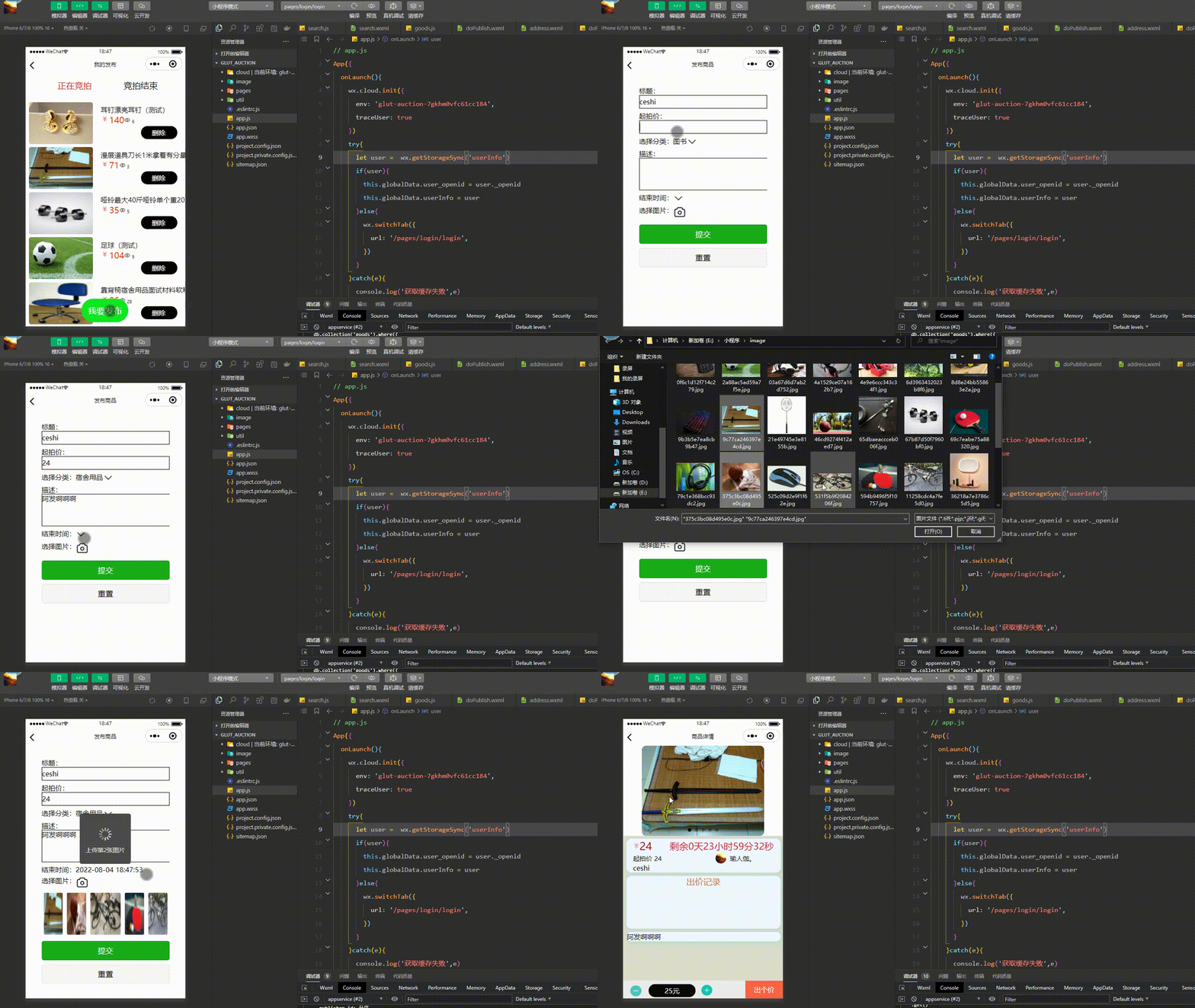
1、主要布局
重点在分类选择器和时间选择器
1-1.分类选择器
使用官方文档的picker标签,传入的数据为一个对象数组,数组中每一个对象包含两个字段

picker 标签的
value属性:绑定的是一个数组下标index值;
range属性:绑定data里面的分类数组
range-key: 绑定data分类数组的key值,一般为分类名
用法如下
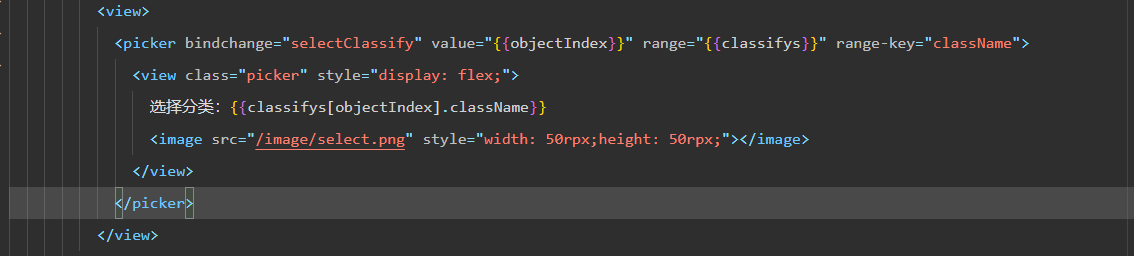
selectClassify 方法

1-2、时间选择器
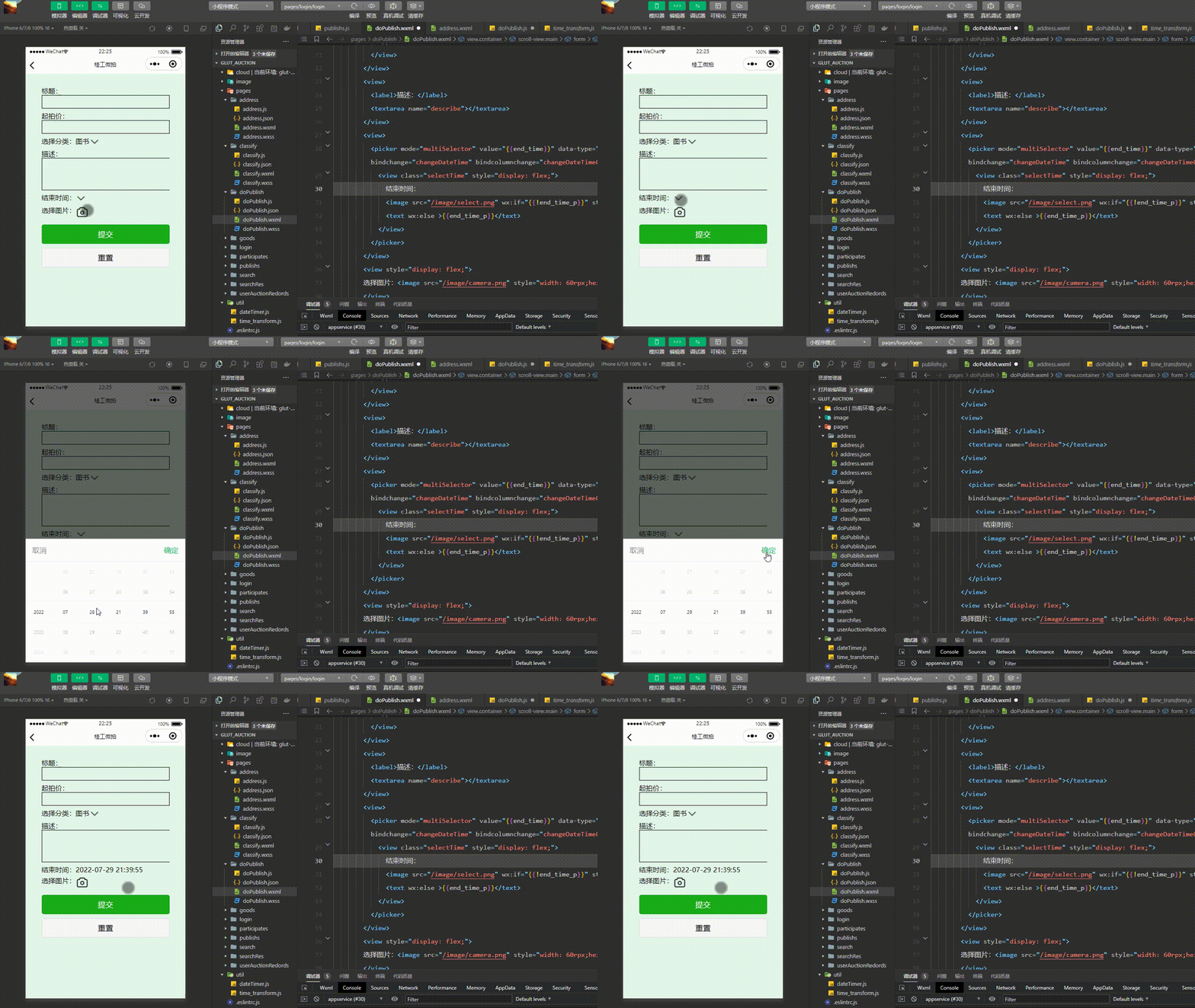
选择picker mode属性为multiSelector,因为微信官方没有提供日期和时间同时选择器,只有日期和时间分开的选择器,因此我们要自己做一个日期时间选择器,因为这个选择器太复杂,这里只给出代码,里面都有详细注释了
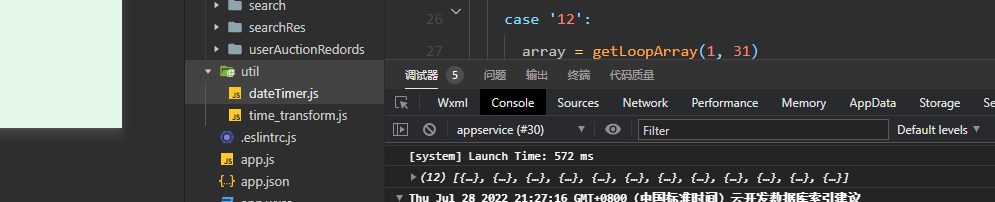
首先在util文件下新建一个js文件
function withData(param) {return param < 10 ? '0' + param : '' + param;
}//传入月头和月尾的天数,返回一个天数数组
function getLoopArray(start, end) {var start = start || 0;var end = end || 1;var array = [];for (var i = start; i <= end; i++) {array.push(withData(i));}return array;
}
//获取每个月份对应的天数
function getMonthDay(year, month) {var flag = year % 400 == 0 || (year % 4 == 0 && year % 100 != 0),array = null;switch (month) {case '01':case '03':case '05':case '07':case '08':case '10':case '12':array = getLoopArray(1, 31)break;case '04':case '06':case '09':case '11':array = getLoopArray(1, 30)break;case '02':array = flag ? getLoopArray(1, 29) : getLoopArray(1, 28)break;default:array = '月份格式不正确,请重新输入!'}return array;
}//获取当前日期时间用来默认显示在滑动块上面
function getNewDateArry() {// 当前时间的处理var newDate = new Date();var year = withData(newDate.getFullYear()),mont = withData(newDate.getMonth() + 1),date = withData(newDate.getDate()),hour = withData(newDate.getHours()),minu = withData(newDate.getMinutes()),seco = withData(newDate.getSeconds());return [year, mont, date, hour, minu, seco];
}function dateTimePicker(startYear, endYear, date) {// 返回默认显示的数组和联动数组的声明var dateTime = [],dateTimeArray = [[],[],[],[],[],[]];var start = startYear || 1978;var end = endYear || 2100;// 默认开始显示数据var defaultDate = date ? [...date.split(' ')[0].split('-'), ...date.split(' ')[1].split(':')] : getNewDateArry();// 处理联动列表数据/*年月日 时分秒*/dateTimeArray[0] = getLoopArray(start, end);dateTimeArray[1] = getLoopArray(1, 12);dateTimeArray[2] = getMonthDay(defaultDate[0], defaultDate[1]);dateTimeArray[3] = getLoopArray(0, 23);dateTimeArray[4] = getLoopArray(0, 59);dateTimeArray[5] = getLoopArray(0, 59);dateTimeArray.forEach((current, index) => {dateTime.push(current.indexOf(defaultDate[index]));});return {dateTimeArray: dateTimeArray,dateTime: dateTime}
}//导出函数
module.exports = {dateTimePicker: dateTimePicker,getMonthDay: getMonthDay
}
在页面js文件的onLoad函数里面初始化data

记得先引入dateTimePicker

选择时间后的处理
//处理选择的时间changeDateTime(e) {let dateTimeArray = this.data.dateTimeArray,{type,param} = e.currentTarget.dataset;this.setData({[type]: e.detail.value,[param]: dateTimeArray[0][e.detail.value[0]] + '-' + dateTimeArray[1][e.detail.value[1]] + '-' + dateTimeArray[2][e.detail.value[2]] + ' ' + dateTimeArray[3][e.detail.value[3]] + ':' + dateTimeArray[4][e.detail.value[4]] + ':' + dateTimeArray[5][e.detail.value[5]]})},//滑动时间触发changeDateTimeColumn(e) {var dateArr = this.data.dateTimeArray,{type} = e.currentTarget.dataset,arr = this.data[type];arr[e.detail.column] = e.detail.value;dateArr[2] = dateTimePicker.getMonthDay(dateArr[0][arr[0]], dateArr[1][arr[1]]);this.setData({dateTimeArray: dateArr,[type]: arr})}在wxml页面引入使用时间选择器
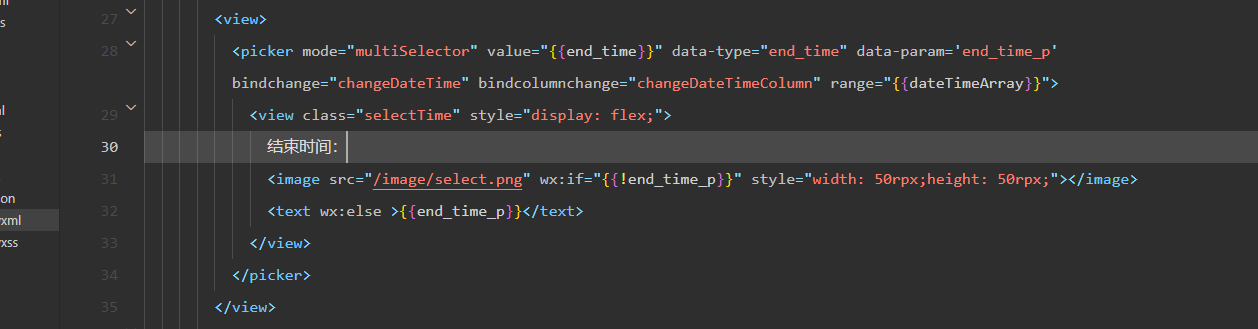
1-3、选择器效果
2、上传图片到云存储
2-1、wx.cloud.upLoadFile 接口
将递归函数整体放进Promise里面
//上传图片到云存储,异步函数,防止图片还没上传,就执行插入云数据库uploadImages() {let _this = thisreturn new Promise(function(resolve,reject){function upload(index){wx.showLoading({title: '上传第' + index + '张图片'})console.log(_this.data.selectImgs)wx.cloud.uploadFile({cloudPath: 'goodsImgs/' + new Date().getTime() + '_' + Math.floor(Math.random() * 1000) + '.jpg', //给图片命名filePath: _this.data.selectImgs[index], //本地图片路径success: (res) => {console.log('上传成功', res.fileID)_this.data.uploadImgs[index] = res.fileIDwx.hideLoading({success: (res) => {},})//判断是否全部上传if (_this.data.selectImgs.length - 1 <= index) {console.log('已全部上传')resolve('success')return } else {upload(index + 1)}},fail: (err) => {reject('error')wx.showToast({title: '上传失败,请重新上传',type: 'none'})}})}upload(0)})},3、保存商品数据到云数据库
3-1、保存数据前的数据校验
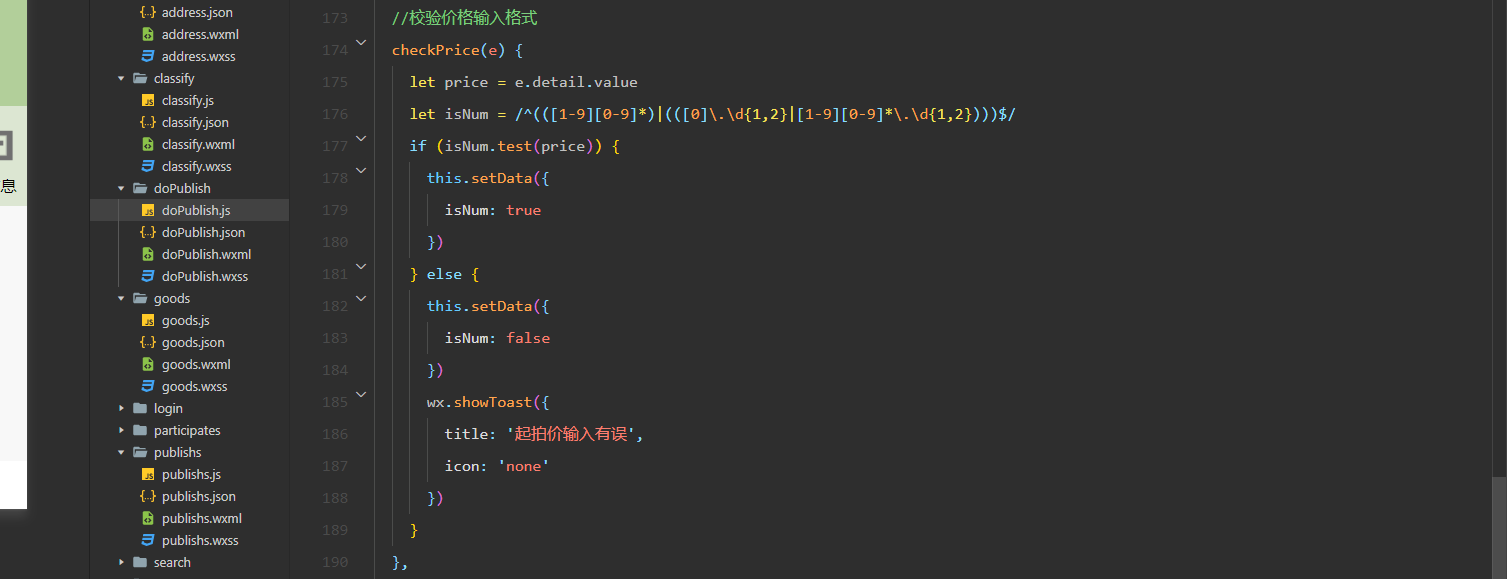
我们要校验起拍价是否输入正确,起拍价规定只能是正数,并且第一位不能为0,小数点后面只能输入2位
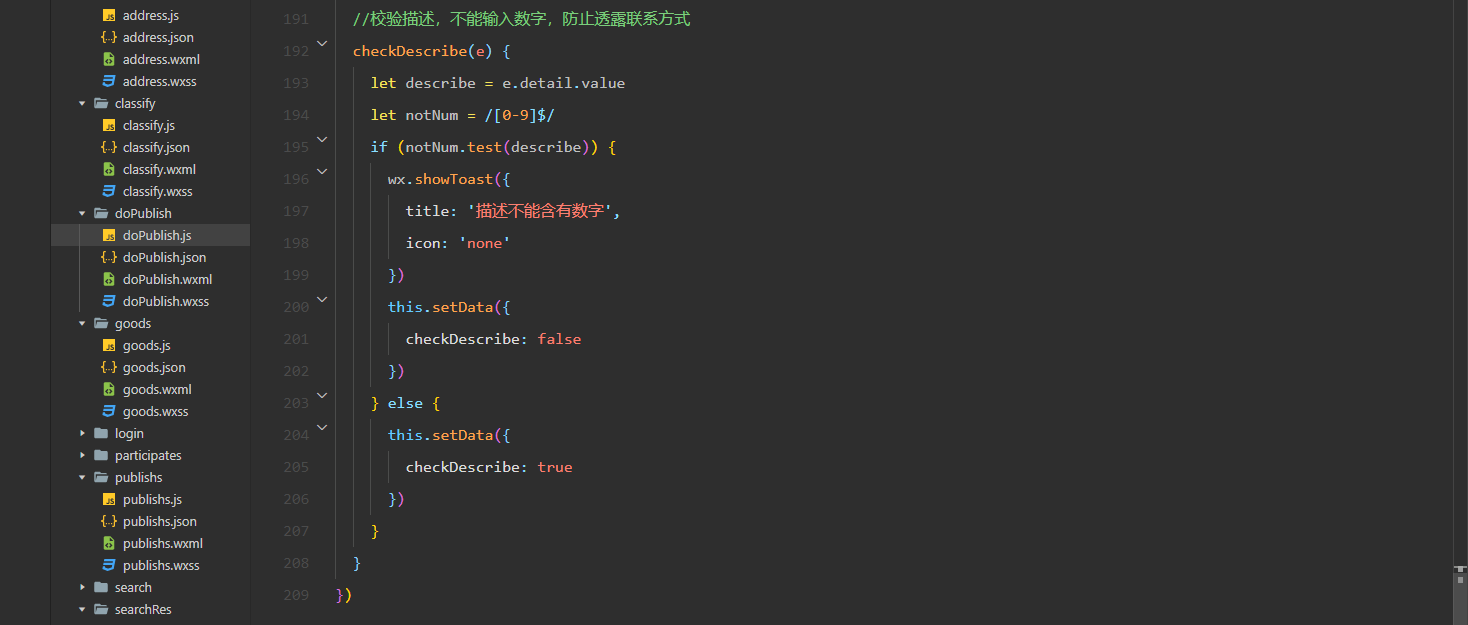
还要校验商品描述,因为我是已拍卖形式交易,价高者才可以获得发布者的联系方式,所以不允许用户在发布商品时暴露联系方式
3-2、提交数据
//提交表单,保存商品到云数据库submit(e) {let dateEndTime = Date.parse(this.data.end_time_p) / 1000; //转时间戳,精确到毫秒let goodsName = e.detail.value.name //商品名let startPrice = e.detail.value.start_price //起拍价let describe = e.detail.value.describe //商品描述let publisherId = wx.getStorageSync('userInfo')._id //获取发布者idlet startTime = Math.floor(new Date().getTime() / 1000) //起拍时间默认为当前时间let classId = this.data.classifys[this.data.objectIndex] // 当前选择的分类//先上传图片再添加到云数据库//点击提交的时候再次校验输入是否有误if (!this.data.isNum || !this.data.checkDescribe) {wx.showToast({title: '起拍价或描述输入不符,请重新输入',icon: 'none'})} else {this.uploadImages().then((resolve, reject) => {let imagesUrl = this.data.uploadImgs //云存储的图片列表wx.showLoading({title: '发布中'})setTimeout(() => {}, 500)wx.cloud.database().collection('goods').add({data: {name: goodsName,start_price: startPrice,describe: describe,current_price: startPrice,images: imagesUrl,publisher_id: publisherId,end_time: dateEndTime,clicks: 0,class_id: classId,start_time: startTime,auctioning: true},success: (res) => {console.log('添加商品')wx.hideLoading({success: (res) => {wx.navigateBack({delta: 1,})},})}})})}},4、完整页面和js代码
4-1、wxml
4-2、wxss
.container{position: fixed;top: 0;left: 0;right: 0;bottom: 0;background-color: white
}
.main{position: fixed;width: 80%;top: 5%;left: 10%;bottom: 10rpx;
}
.addGoods view{margin-bottom: 10rpx;
}
.addGoods input{border: black solid 1px;min-height: 60rpx;margin-bottom: 15rpx;
}
.addGoods textarea{height: 150rpx;border: black solid 1px;
}
.addGoods button{margin-top: 20rpx;
}
.selectTime{margin-top: 15rpx;
}.selectImg{display: flex;flex-wrap: wrap;height: auto
}
4-3、js代码
var dateTimePicker = require('../../util/dateTimer.js')
Page({data: {end_time: '',dateTimeArray: '', //时间数组startYear: 2022, //最小年份endYear: 2050, // 最大年份end_time_p: '', //显示的结束时间classifys: null,objectIndex: 0, //默认显示位置selectImgs: null,uploadImgs: []},onLoad(options) {// 获取完整的年月日 时分秒,以及默认显示的数组var obj = dateTimePicker.dateTimePicker(this.data.startYear, this.data.endYear)this.setData({end_time: obj.dateTime,dateTimeArray: obj.dateTimeArray,})//获取数据库分类信息wx.cloud.database().collection('classifys').get({success: (res) => {this.setData({classifys: res.data})}})},//选择分类selectClassify(e) {this.setData({objectIndex: e.detail.value})},//选择图片selectImg() {wx.chooseImage({count: 9,success: (res) => {this.setData({selectImgs: res.tempFilePaths})}})},//上传图片到云存储,异步函数,防止图片还没上传,就执行插入云数据库uploadImages() {let _this = thisreturn new Promise(function (resolve, reject) {function upload(index) {var picnum = index+1wx.showLoading({title: '上传第' + picnum + '张图片'})console.log(_this.data.selectImgs)wx.cloud.uploadFile({cloudPath: 'goodsImgs/' + new Date().getTime() + '_' + Math.floor(Math.random() * 1000) + '.jpg', //给图片命名filePath: _this.data.selectImgs[index], //本地图片路径success: (res) => {_this.data.uploadImgs[index] = res.fileIDwx.hideLoading({success: (res) => {},})//判断是否全部上传if (_this.data.selectImgs.length - 1 <= index) {console.log('已全部上传')resolve('success')return} else {upload(index + 1)}},fail: (err) => {reject('error')wx.showToast({title: '上传失败,请重新上传',type: 'none'})}})}upload(0)})},//提交表单,保存商品到云数据库submit(e) {let dateEndTime = Date.parse(this.data.end_time_p) / 1000; //转时间戳,精确到毫秒console.log('time',this.data.end_time_p)let goodsName = e.detail.value.name //商品名let startPrice = e.detail.value.start_price //起拍价let describe = e.detail.value.describe //商品描述let publisherId = wx.getStorageSync('userInfo')._id //获取发布者idlet startTime = Math.floor(new Date().getTime() / 1000) //起拍时间默认为当前时间let classId = this.data.classifys[this.data.objectIndex]._id // 当前选择的分类//先上传图片再添加到云数据库//点击提交的时候再次校验输入是否有误if (!this.data.isNum || !this.data.checkDescribe) {wx.showToast({title: '起拍价或描述输入不符,请重新输入',icon: 'none'})} else if(goodsName=='' || startPrice==null || classId=='' || this.data.end_time_p=='' || this.data.selectImgs==null){wx.showToast({title: '每一项输入信息都不能为空',icon: 'none'})}else{this.uploadImages().then((resolve, reject) => {let imagesUrl = this.data.uploadImgs //云存储的图片列表wx.showLoading({title: '发布中'})setTimeout(() => {}, 500)wx.cloud.database().collection('goods').add({data: {name: goodsName,start_price: startPrice *1,describe: describe,current_price: startPrice *1,images: imagesUrl,publisher_id: publisherId,end_time: dateEndTime,clicks: 0,class_id: classId,start_time: startTime,auctioning: true},success: (res) => {wx.hideLoading({success: (res) => {wx.navigateBack({delta: 1,})},})}})})}},reset() {//重置图片和时间this.setData({selectImgs: null,end_time: null,end_time_p: null})},//处理选择的时间changeDateTime(e) {let dateTimeArray = this.data.dateTimeArray,{type,param} = e.currentTarget.dataset;this.setData({[type]: e.detail.value,[param]: dateTimeArray[0][e.detail.value[0]] + '-' + dateTimeArray[1][e.detail.value[1]] + '-' + dateTimeArray[2][e.detail.value[2]] + ' ' + dateTimeArray[3][e.detail.value[3]] + ':' + dateTimeArray[4][e.detail.value[4]] + ':' + dateTimeArray[5][e.detail.value[5]]})},//滑动时间触发changeDateTimeColumn(e) {var dateArr = this.data.dateTimeArray,{type} = e.currentTarget.dataset,arr = this.data[type];arr[e.detail.column] = e.detail.value;dateArr[2] = dateTimePicker.getMonthDay(dateArr[0][arr[0]], dateArr[1][arr[1]]);this.setData({dateTimeArray: dateArr,[type]: arr})},//校验价格输入格式checkPrice(e) {let price = e.detail.valuelet isNum = /^(([1-9][0-9]*)|(([0]\.\d{1,2}|[1-9][0-9]*\.\d{1,2})))$/if (isNum.test(price)) {this.setData({isNum: true})} else {this.setData({isNum: false})wx.showToast({title: '起拍价输入有误',icon: 'none'})}},//校验描述,不能输入数字,防止透露联系方式checkDescribe(e) {let describe = e.detail.valuelet notNum = /[0-9]$/if (notNum.test(describe)) {wx.showToast({title: '描述不能含有数字',icon: 'none'})this.setData({checkDescribe: false})} else {this.setData({checkDescribe: true})}}
})
发布商品就到这里结束了,期间也发现了好多细节,通过自己踏踏实实的敲每一行代码,真的学到了很多!
本文来自互联网用户投稿,文章观点仅代表作者本人,不代表本站立场,不承担相关法律责任。如若转载,请注明出处。 如若内容造成侵权/违法违规/事实不符,请点击【内容举报】进行投诉反馈!