pyecharts-折线图

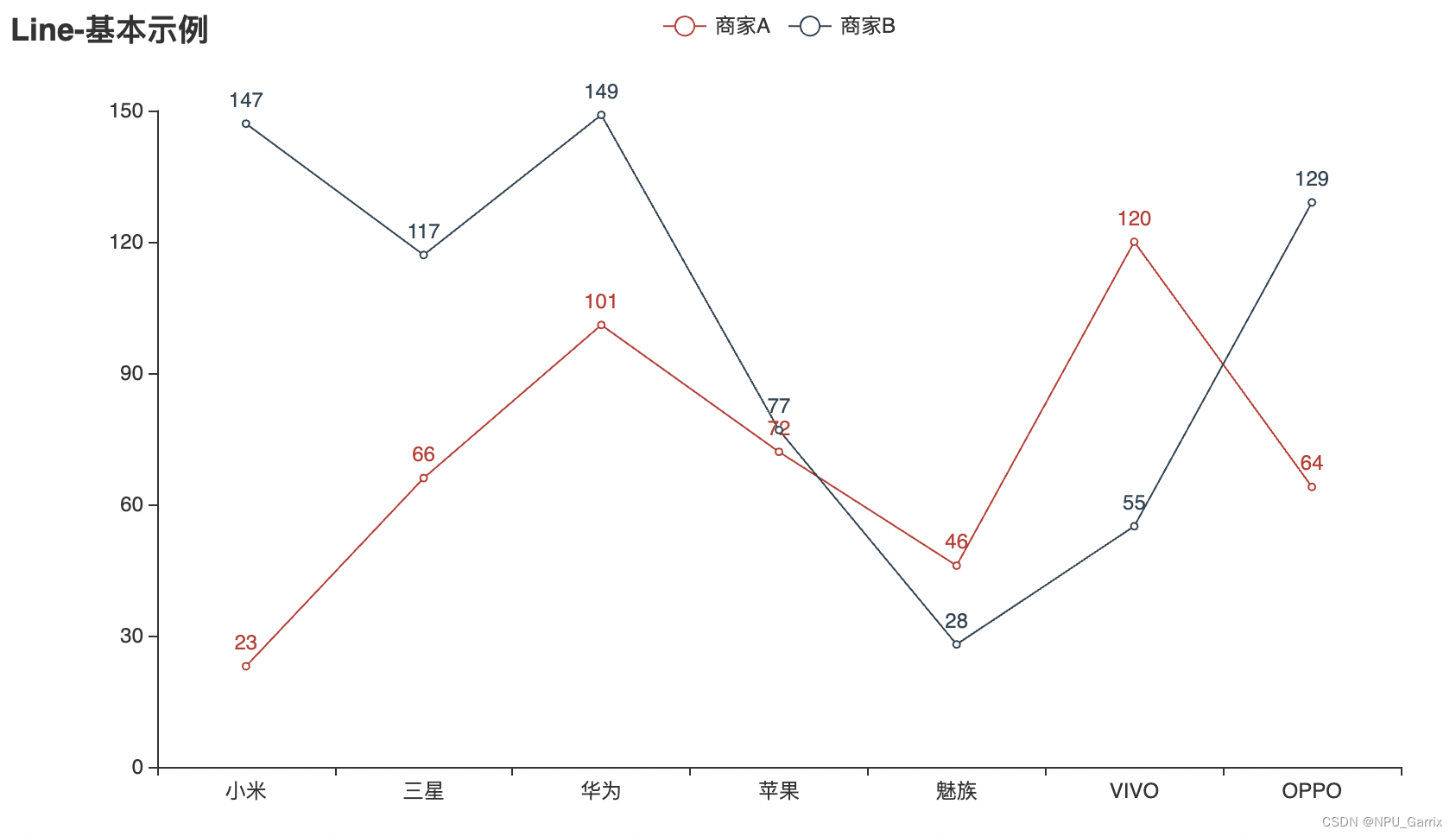
1. 基本示例

import pyecharts.options as opts
from pyecharts.charts import Line
from pyecharts.faker import Fakerc = (Line().add_xaxis(Faker.choose()).add_yaxis("商家A", Faker.values()).add_yaxis("商家B", Faker.values()).set_global_opts(title_opts=opts.TitleOpts(title="Line-基本示例")).render("line_base.html")
)

在这里插入图片描述

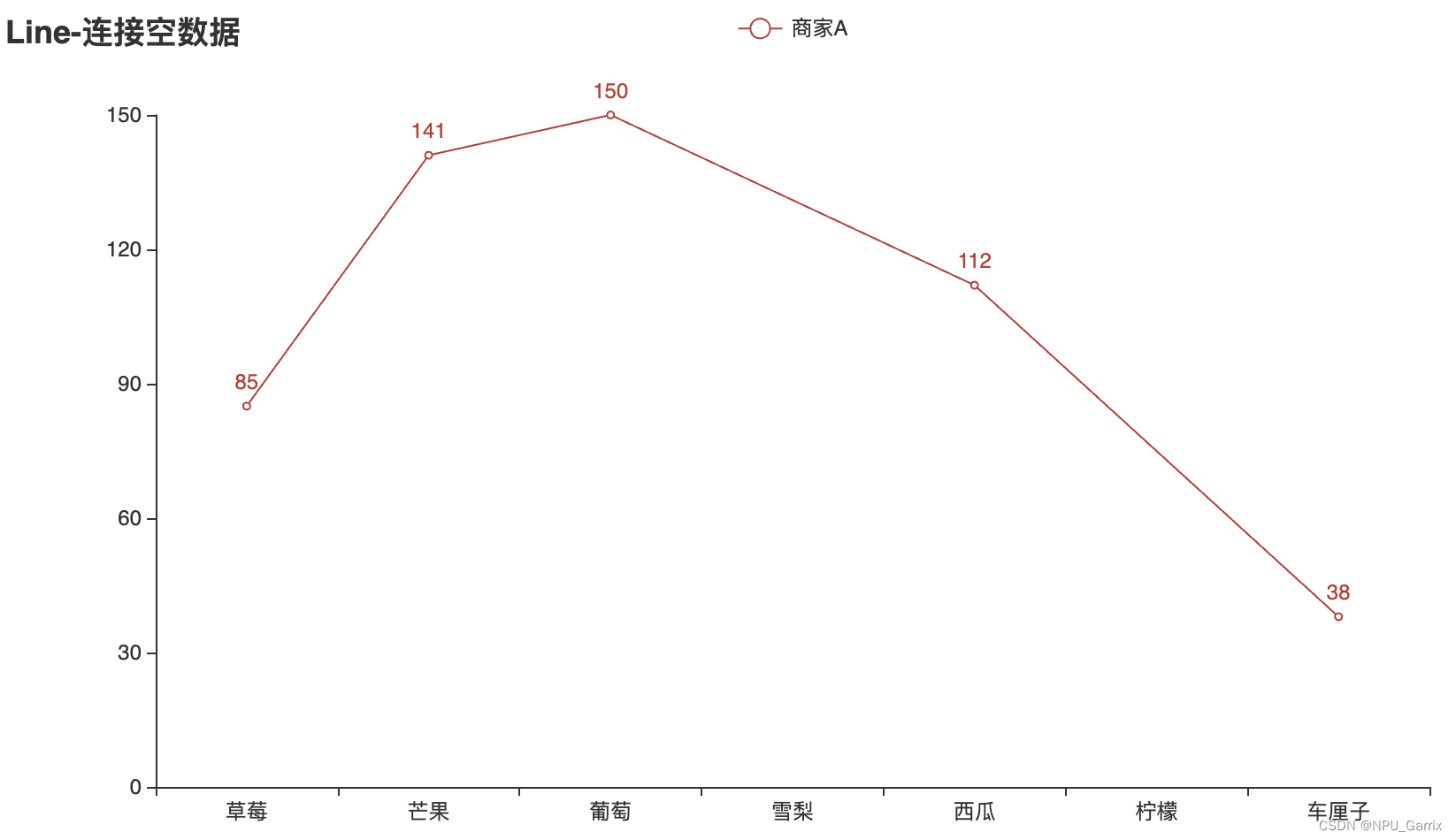
2. 缺失值的平滑处理

import pyecharts.options as opts
from pyecharts.charts import Line
from pyecharts.faker import Fakery = Faker.values()
y[3], y[5] = None, None
c = (Line().add_xaxis(Faker.choose()).add_yaxis("商家A", y, is_connect_nones=True).set_global_opts(title_opts=opts.TitleOpts(title="Line-连接空数据")).render("line_connect_null.html")
)

在这里插入图片描述

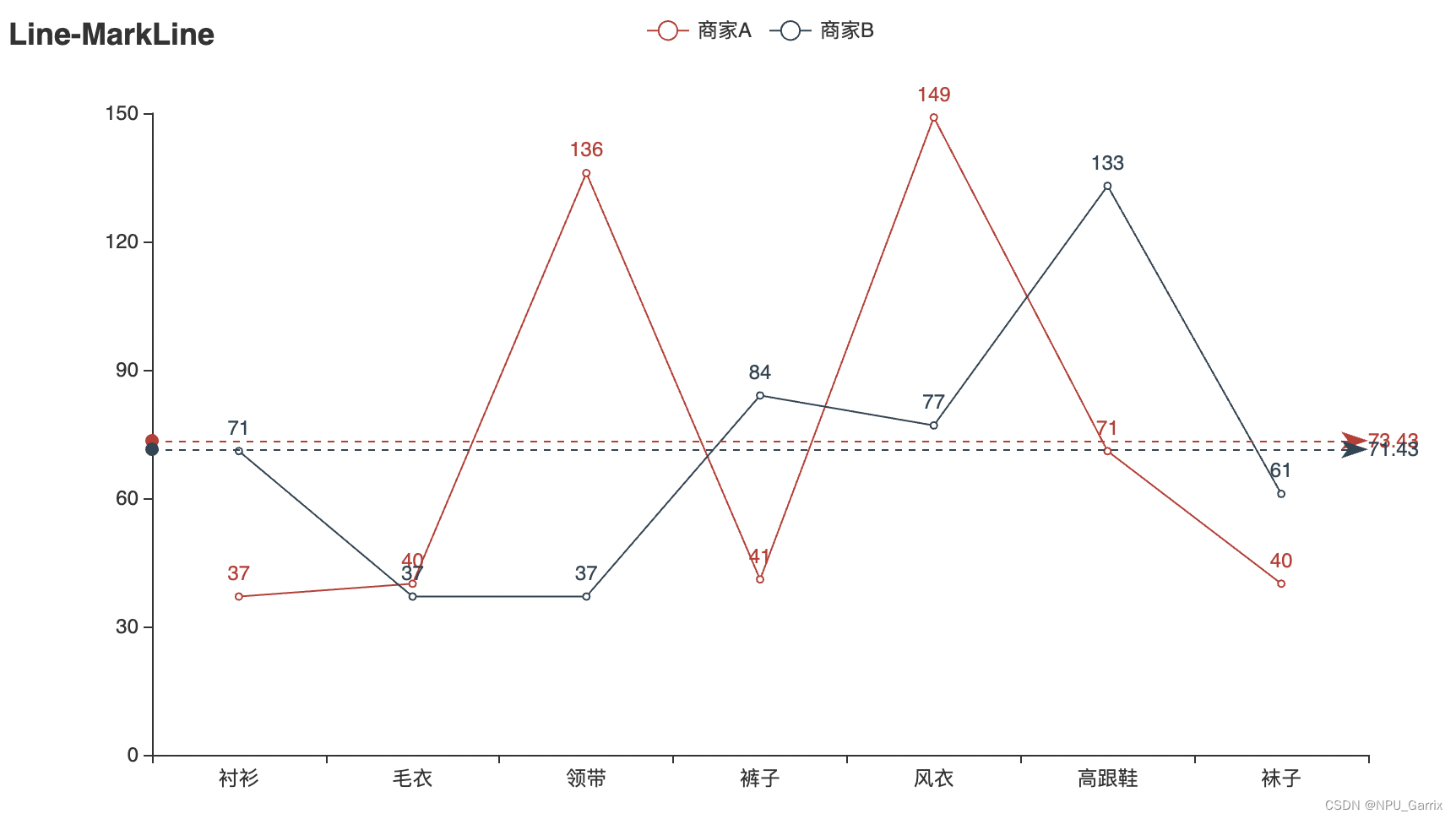
3. markline

import pyecharts.options as opts
from pyecharts.charts import Line
from pyecharts.faker import Fakerc = (Line().add_xaxis(Faker.choose()).add_yaxis("商家A",Faker.values(),markline_opts=opts.MarkLineOpts(data=[opts.MarkLineItem(type_="average")]),).add_yaxis("商家B",Faker.values(),markline_opts=opts.MarkLineOpts(data=[opts.MarkLineItem(type_="average")]),).set_global_opts(title_opts=opts.TitleOpts(title="Line-MarkLine")).render("line_markline.html")
)

在这里插入图片描述

4. markpoint

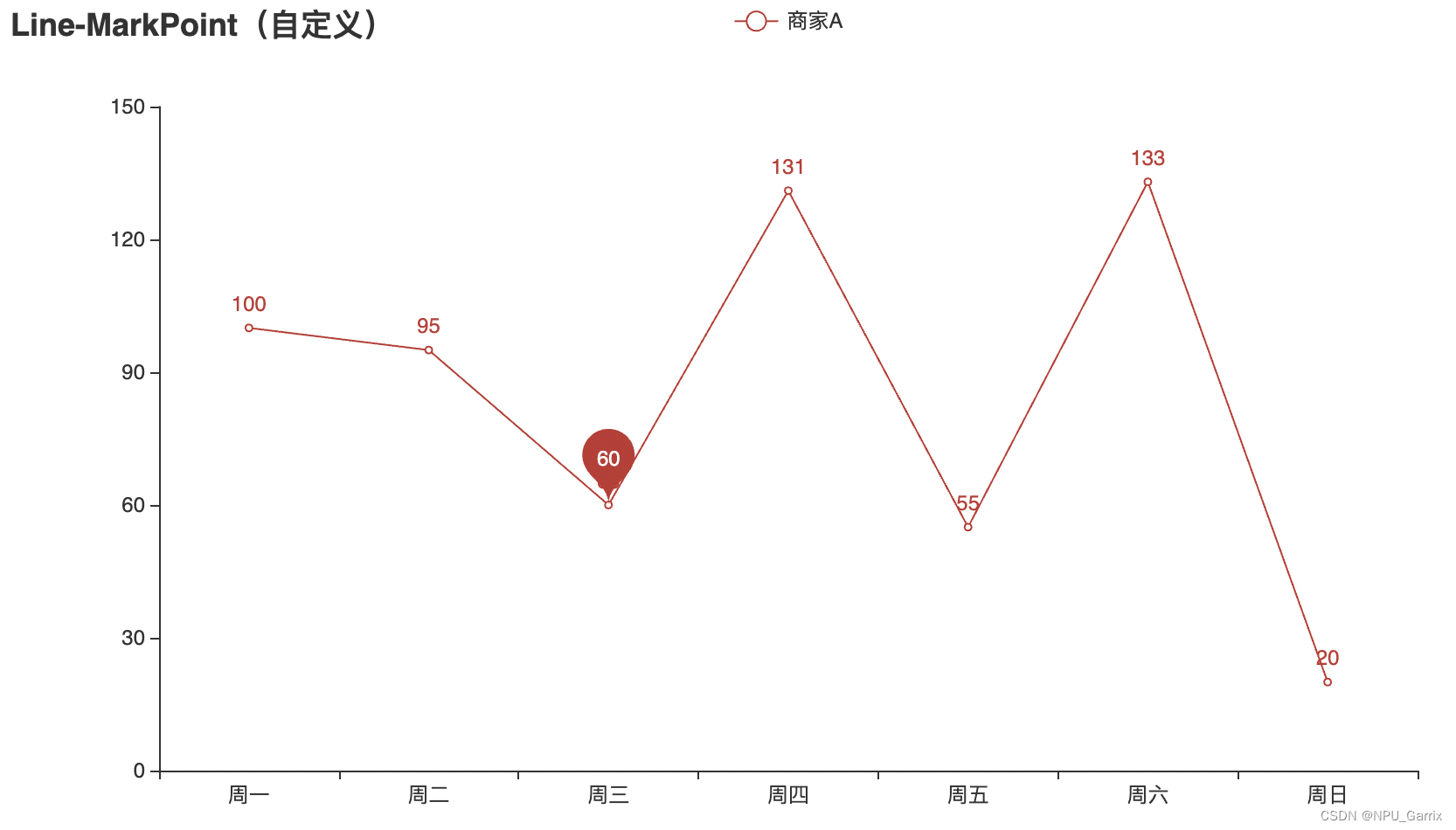
4.1 markpoint自定义

import pyecharts.options as opts
from pyecharts.charts import Line
from pyecharts.faker import Fakerx, y = Faker.choose(), Faker.values()
c = (Line().add_xaxis(x).add_yaxis("商家A",y,markpoint_opts=opts.MarkPointOpts(data=[opts.MarkPointItem(name="自定义标记点", coord=[x[2], y[2]], value=y[2])]),).set_global_opts(title_opts=opts.TitleOpts(title="Line-MarkPoint(自定义)")).render("line_markpoint_custom.html")
)

在这里插入图片描述

4.2 markpoint(最大值最小值)

import pyecharts.options as opts
from pyecharts.charts import Line
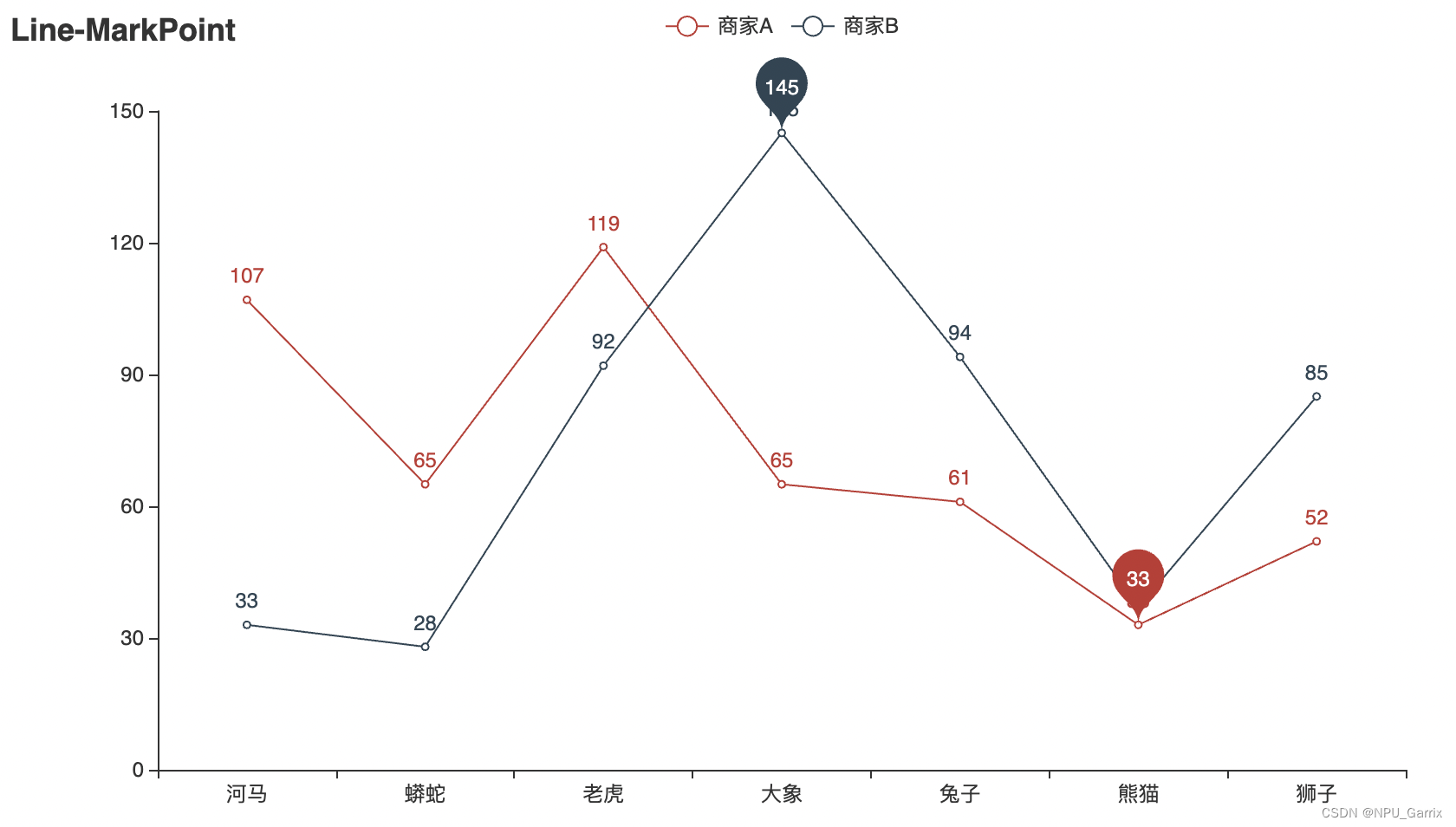
from pyecharts.faker import Fakerc = (Line().add_xaxis(Faker.choose()).add_yaxis("商家A",Faker.values(),markpoint_opts=opts.MarkPointOpts(data=[opts.MarkPointItem(type_="min")]),).add_yaxis("商家B",Faker.values(),markpoint_opts=opts.MarkPointOpts(data=[opts.MarkPointItem(type_="max")]),).set_global_opts(title_opts=opts.TitleOpts(title="Line-MarkPoint")).render("line_markpoint.html")
)

在这里插入图片描述

5. 平滑曲线

import pyecharts.options as opts
from pyecharts.charts import Line
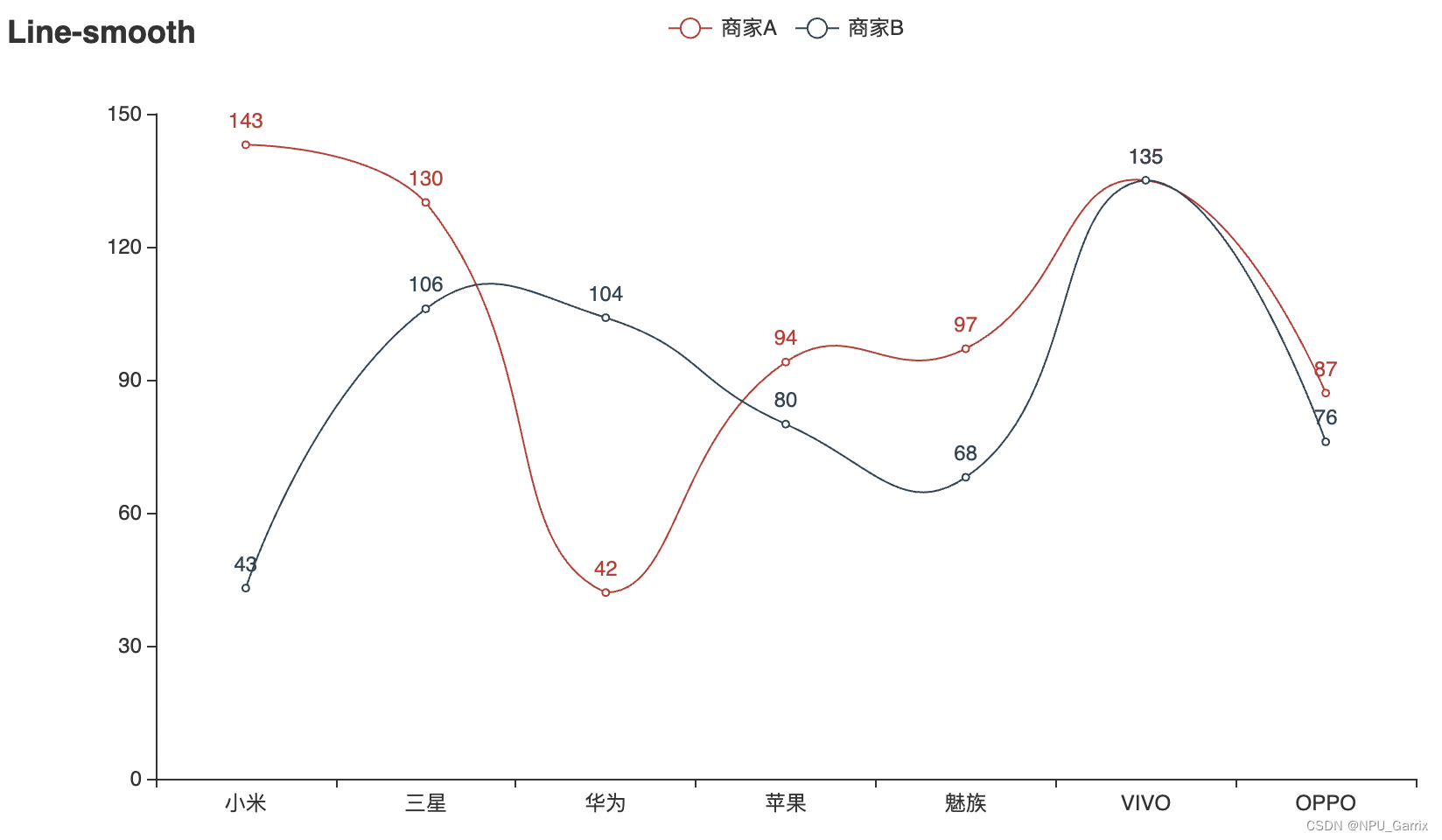
from pyecharts.faker import Fakerc = (Line().add_xaxis(Faker.choose()).add_yaxis("商家A", Faker.values(), is_smooth=True).add_yaxis("商家B", Faker.values(), is_smooth=True).set_global_opts(title_opts=opts.TitleOpts(title="Line-smooth")).render("line_smooth.html")
)

在这里插入图片描述

6. 阶梯状

import pyecharts.options as opts
from pyecharts.charts import Line
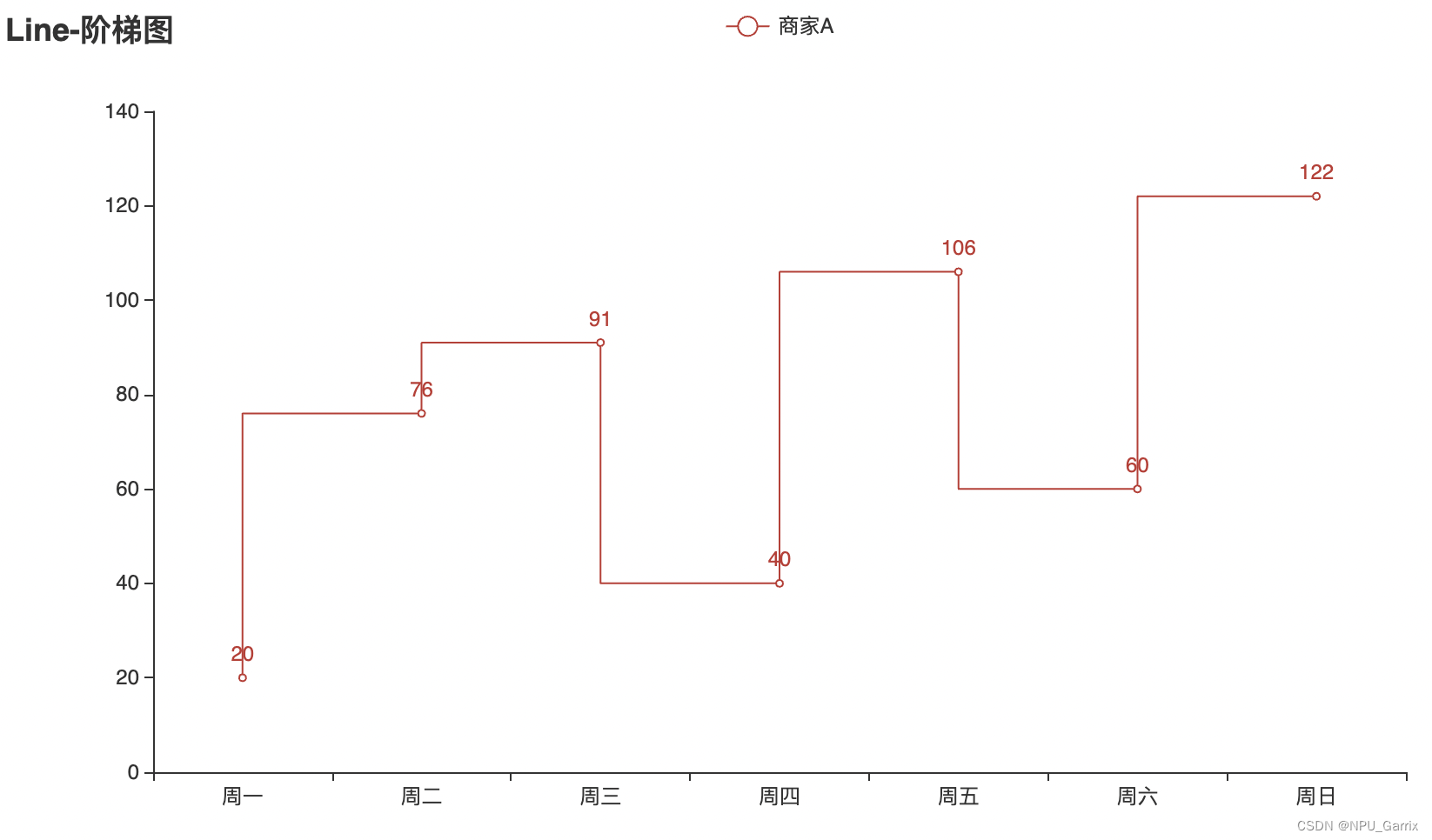
from pyecharts.faker import Fakerc = (Line().add_xaxis(Faker.choose()).add_yaxis("商家A", Faker.values(), is_step=True).set_global_opts(title_opts=opts.TitleOpts(title="Line-阶梯图")).render("line_step.html")
)

在这里插入图片描述

7. 双x轴

import pyecharts.options as opts
from pyecharts.charts import Line# 将在 v1.1.0 中更改
from pyecharts.commons.utils import JsCode"""
Gallery 使用 pyecharts 1.0.0
参考地址: https://echarts.apache.org/examples/editor.html?c=multiple-x-axis目前无法实现的功能:1、暂无
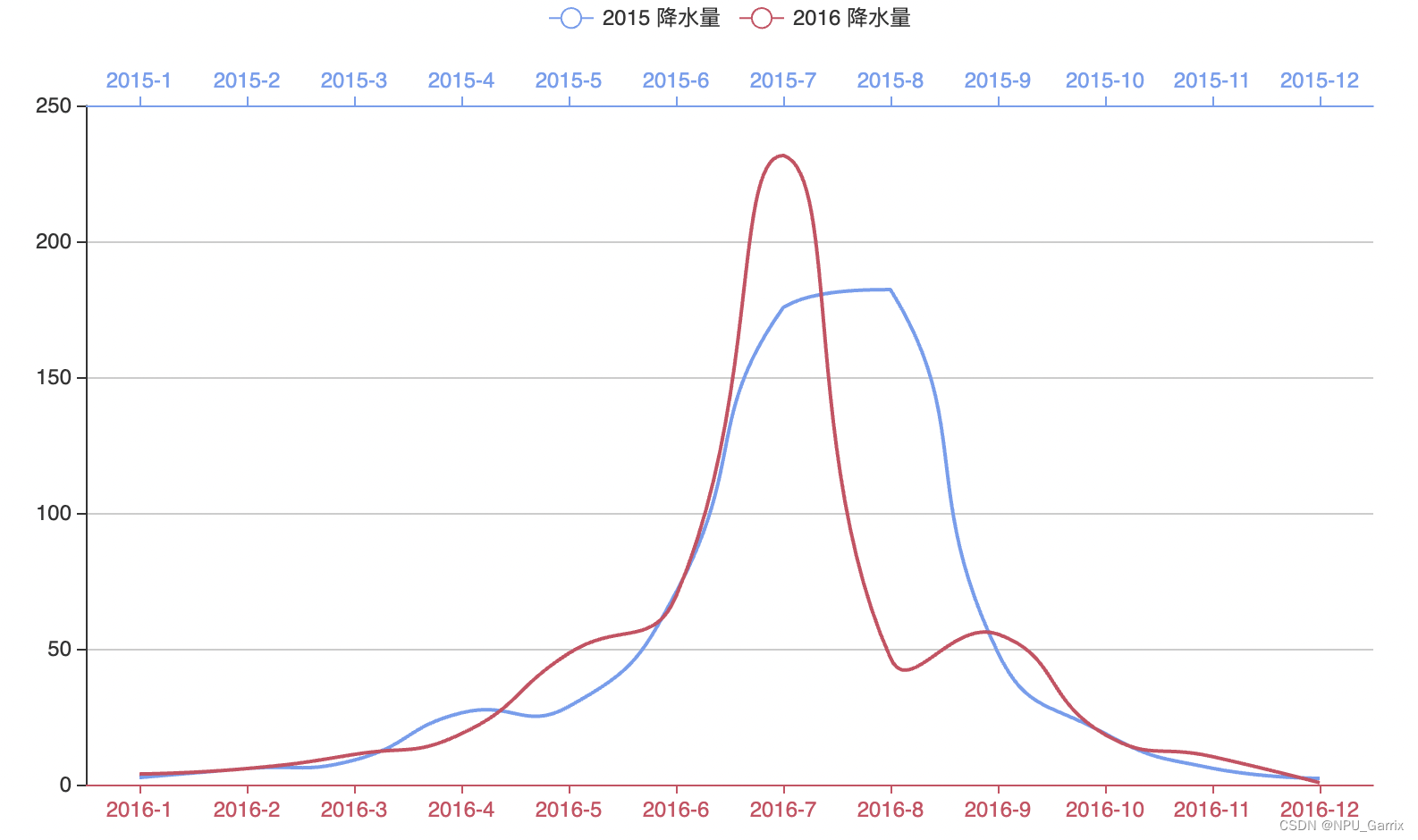
"""js_formatter = """function (params) {console.log(params);return '降水量  ' + params.value + (params.seriesData.length ? ':' + params.seriesData[0].data : '');}"""(Line().add_xaxis(xaxis_data=["2016-1","2016-2","2016-3","2016-4","2016-5","2016-6","2016-7","2016-8","2016-9","2016-10","2016-11","2016-12",]).extend_axis(xaxis_data=["2015-1","2015-2","2015-3","2015-4","2015-5","2015-6","2015-7","2015-8","2015-9","2015-10","2015-11","2015-12",],xaxis=opts.AxisOpts(type_="category",axistick_opts=opts.AxisTickOpts(is_align_with_label=True),axisline_opts=opts.AxisLineOpts(is_on_zero=False, linestyle_opts=opts.LineStyleOpts(color="#6e9ef1")),axispointer_opts=opts.AxisPointerOpts(is_show=True, label=opts.LabelOpts(formatter=JsCode(js_formatter))),),).add_yaxis(series_name="2015 降水量",is_smooth=True,symbol="emptyCircle",is_symbol_show=False,# xaxis_index=1,color="#d14a61",y_axis=[2.6, 5.9, 9.0, 26.4, 28.7, 70.7, 175.6, 182.2, 48.7, 18.8, 6.0, 2.3],label_opts=opts.LabelOpts(is_show=False),linestyle_opts=opts.LineStyleOpts(width=2),).add_yaxis(series_name="2016 降水量",is_smooth=True,symbol="emptyCircle",is_symbol_show=False,color="#6e9ef1",y_axis=[3.9, 5.9, 11.1, 18.7, 48.3, 69.2, 231.6, 46.6, 55.4, 18.4, 10.3, 0.7],label_opts=opts.LabelOpts(is_show=False),linestyle_opts=opts.LineStyleOpts(width=2),).set_global_opts(legend_opts=opts.LegendOpts(),tooltip_opts=opts.TooltipOpts(trigger="none", axis_pointer_type="cross"),xaxis_opts=opts.AxisOpts(type_="category",axistick_opts=opts.AxisTickOpts(is_align_with_label=True),axisline_opts=opts.AxisLineOpts(is_on_zero=False, linestyle_opts=opts.LineStyleOpts(color="#d14a61")),axispointer_opts=opts.AxisPointerOpts(is_show=True, label=opts.LabelOpts(formatter=JsCode(js_formatter))),),yaxis_opts=opts.AxisOpts(type_="value",splitline_opts=opts.SplitLineOpts(is_show=True, linestyle_opts=opts.LineStyleOpts(opacity=1)),),).render("multiple_x_axes.html")
)

在这里插入图片描述

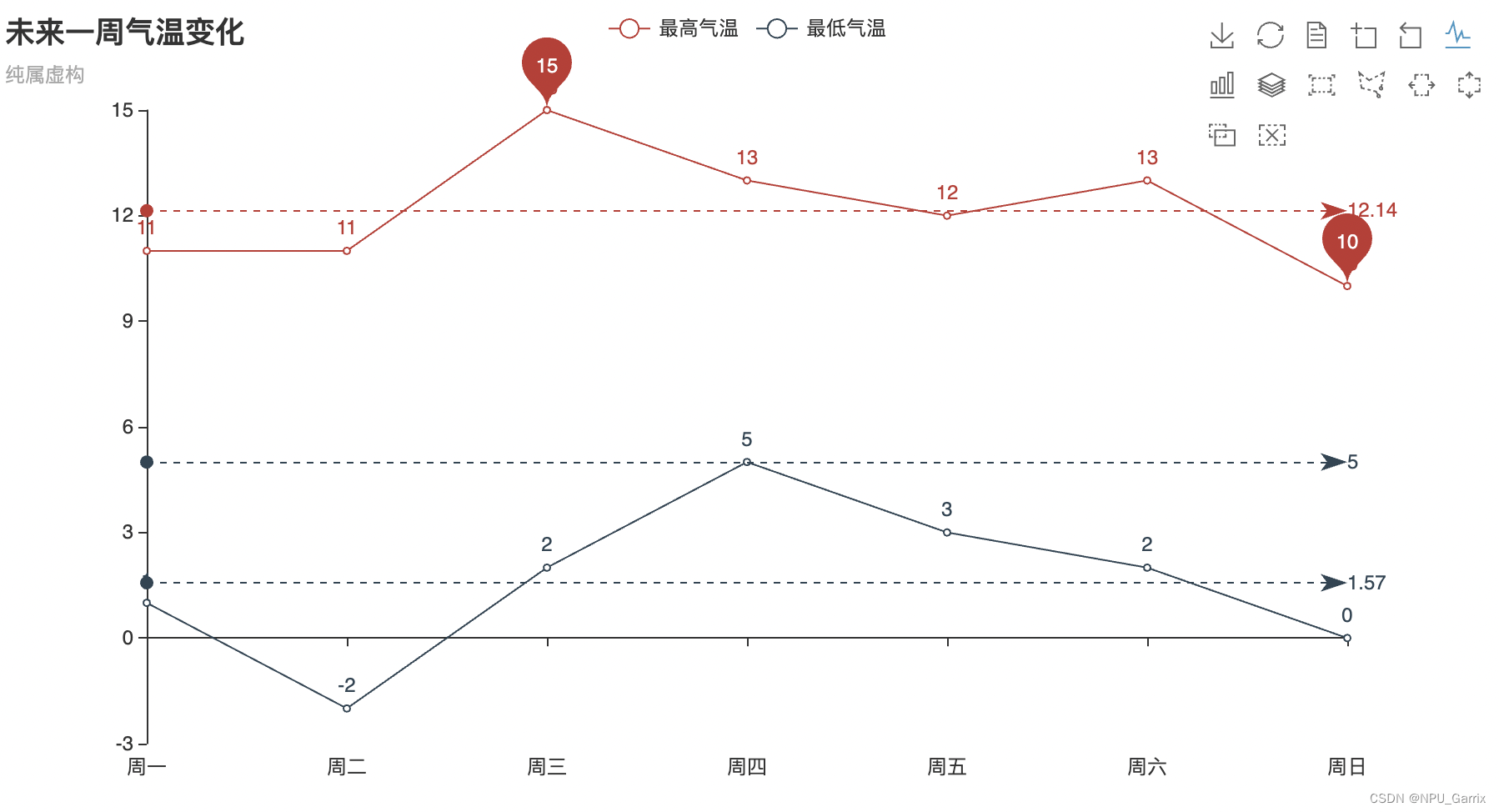
8. 多功能图

import pyecharts.options as opts
from pyecharts.charts import Line"""
Gallery 使用 pyecharts 1.1.0
参考地址: https://echarts.apache.org/examples/editor.html?c=line-marker目前无法实现的功能:1、最低气温的最高值暂时无法和 Echarts 的示例完全复刻
"""week_name_list = ["周一", "周二", "周三", "周四", "周五", "周六", "周日"]
high_temperature = [11, 11, 15, 13, 12, 13, 10]
low_temperature = [1, -2, 2, 5, 3, 2, 0](Line().add_xaxis(xaxis_data=week_name_list).add_yaxis(series_name="最高气温",y_axis=high_temperature,markpoint_opts=opts.MarkPointOpts(data=[opts.MarkPointItem(type_="max", name="最大值"),opts.MarkPointItem(type_="min", name="最小值"),]),markline_opts=opts.MarkLineOpts(data=[opts.MarkLineItem(type_="average", name="平均值")]),).add_yaxis(series_name="最低气温",y_axis=low_temperature,markpoint_opts=opts.MarkPointOpts(data=[opts.MarkPointItem(value=-2, name="周最低", x=1, y=-1.5)]),markline_opts=opts.MarkLineOpts(data=[opts.MarkLineItem(type_="average", name="平均值"),opts.MarkLineItem(symbol="none", x="90%", y="max"),opts.MarkLineItem(symbol="circle", type_="max", name="最高点"),]),).set_global_opts(title_opts=opts.TitleOpts(title="未来一周气温变化", subtitle="纯属虚构"),tooltip_opts=opts.TooltipOpts(trigger="axis"),toolbox_opts=opts.ToolboxOpts(is_show=True),xaxis_opts=opts.AxisOpts(type_="category", boundary_gap=False),).render("temperature_change_line_chart.html")
)

在这里插入图片描述

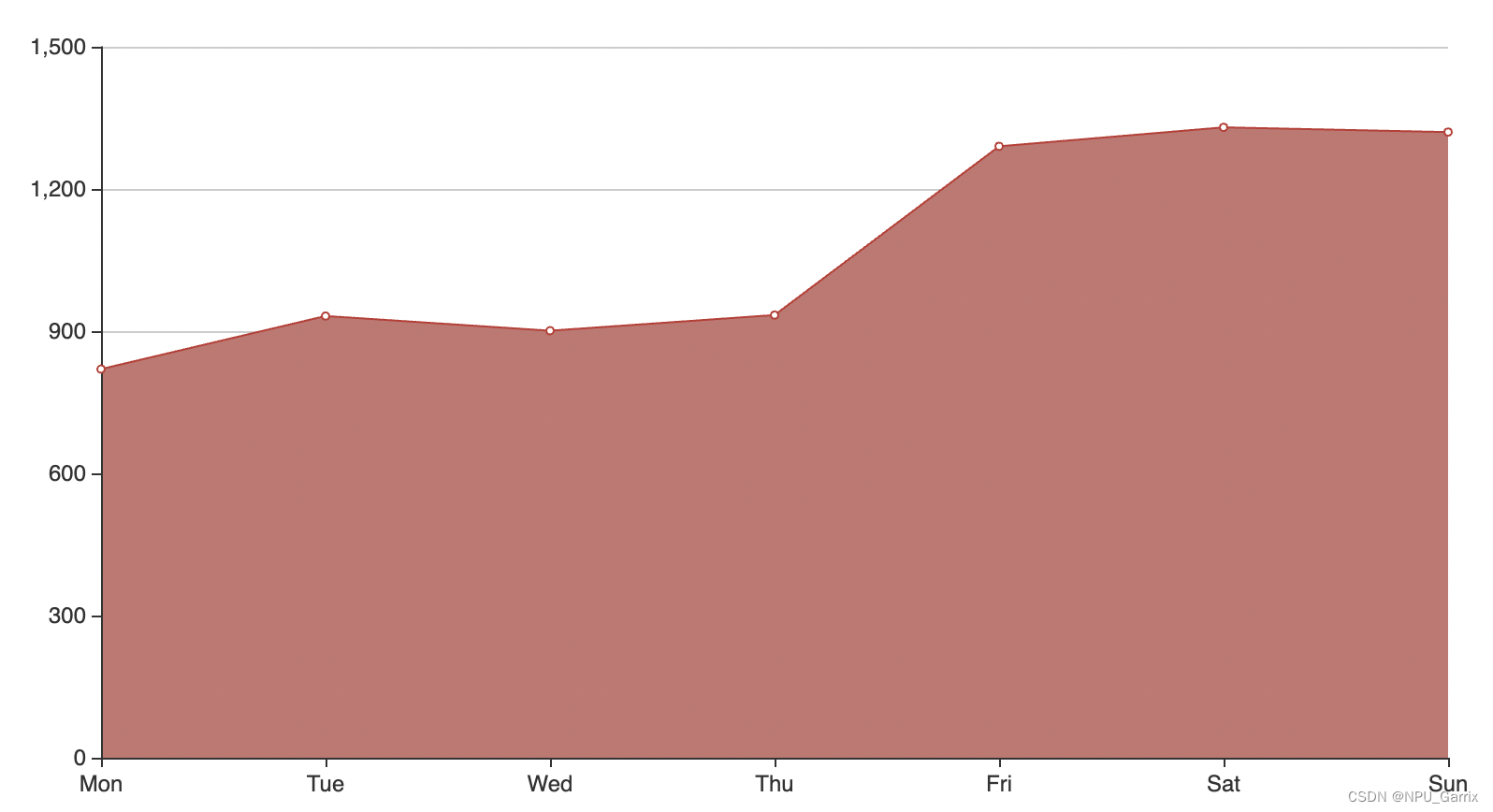
9. 基本区域图

import pyecharts.options as opts
from pyecharts.charts import Line"""
Gallery 使用 pyecharts 1.1.0
参考地址: https://echarts.apache.org/examples/editor.html?c=area-basic目前无法实现的功能:暂无
"""x_data = ["Mon", "Tue", "Wed", "Thu", "Fri", "Sat", "Sun"]
y_data = [820, 932, 901, 934, 1290, 1330, 1320](Line().add_xaxis(xaxis_data=x_data).add_yaxis(series_name="",y_axis=y_data,symbol="emptyCircle",is_symbol_show=True,label_opts=opts.LabelOpts(is_show=False),areastyle_opts=opts.AreaStyleOpts(opacity=1, color="#C67570"),).set_global_opts(tooltip_opts=opts.TooltipOpts(is_show=False),yaxis_opts=opts.AxisOpts(type_="value",axistick_opts=opts.AxisTickOpts(is_show=True),splitline_opts=opts.SplitLineOpts(is_show=True),),xaxis_opts=opts.AxisOpts(type_="category", boundary_gap=False),)# 设置 boundary_gap 的时候一定要放在最后一个配置项里, 不然会被覆盖.render("basic_area_chart.html")
)

在这里插入图片描述

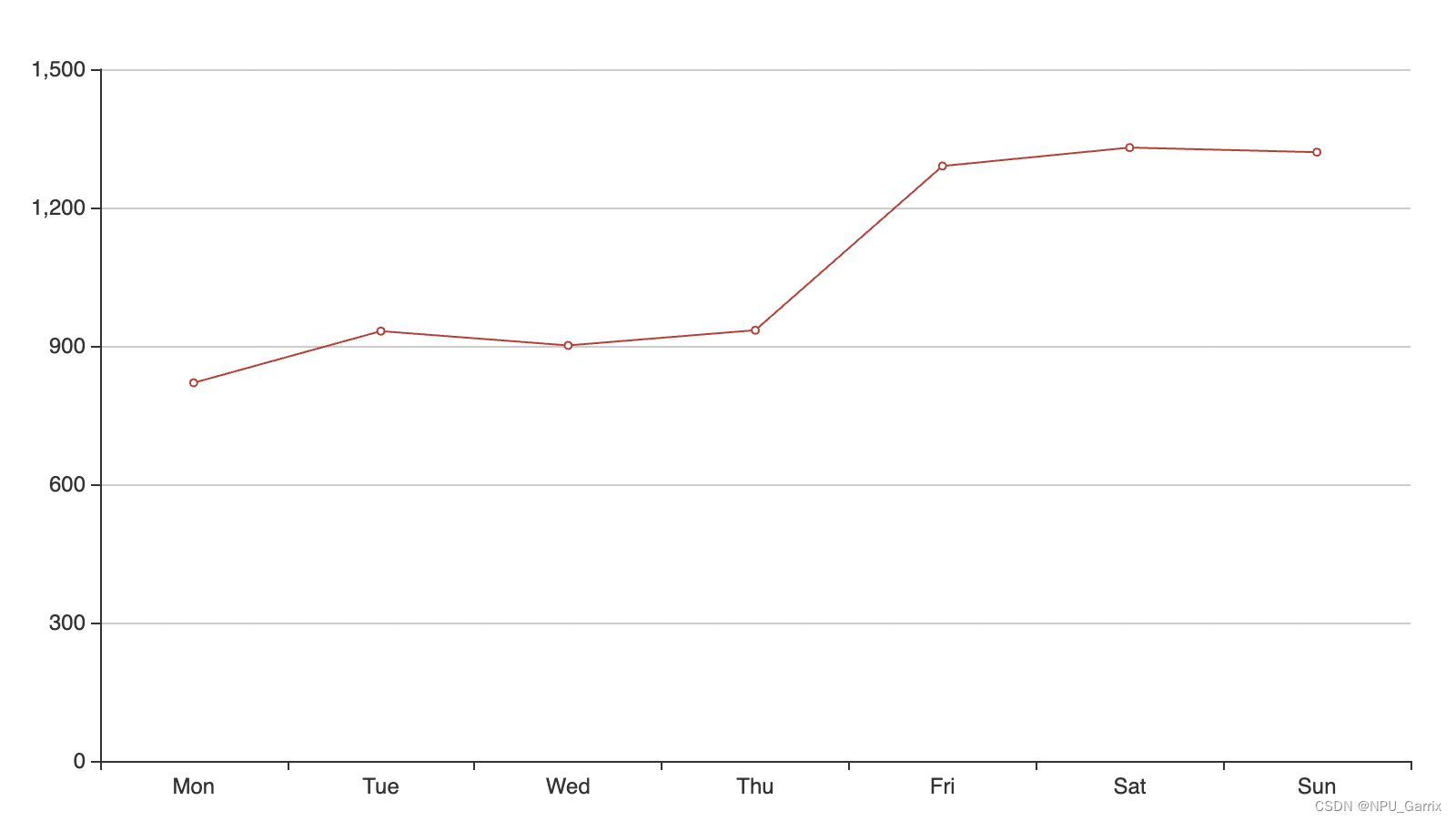
10. 不带数据值标注

import pyecharts.options as opts
from pyecharts.charts import Line"""
Gallery 使用 pyecharts 1.1.0
参考地址: https://echarts.apache.org/examples/editor.html?c=line-simple目前无法实现的功能:暂无
"""x_data = ["Mon", "Tue", "Wed", "Thu", "Fri", "Sat", "Sun"]
y_data = [820, 932, 901, 934, 1290, 1330, 1320](Line().set_global_opts(tooltip_opts=opts.TooltipOpts(is_show=False),xaxis_opts=opts.AxisOpts(type_="category"),yaxis_opts=opts.AxisOpts(type_="value",axistick_opts=opts.AxisTickOpts(is_show=True),splitline_opts=opts.SplitLineOpts(is_show=True),),).add_xaxis(xaxis_data=x_data).add_yaxis(series_name="",y_axis=y_data,symbol="emptyCircle",is_symbol_show=True,label_opts=opts.LabelOpts(is_show=False),).render("basic_line_chart.html")
)

在这里插入图片描述

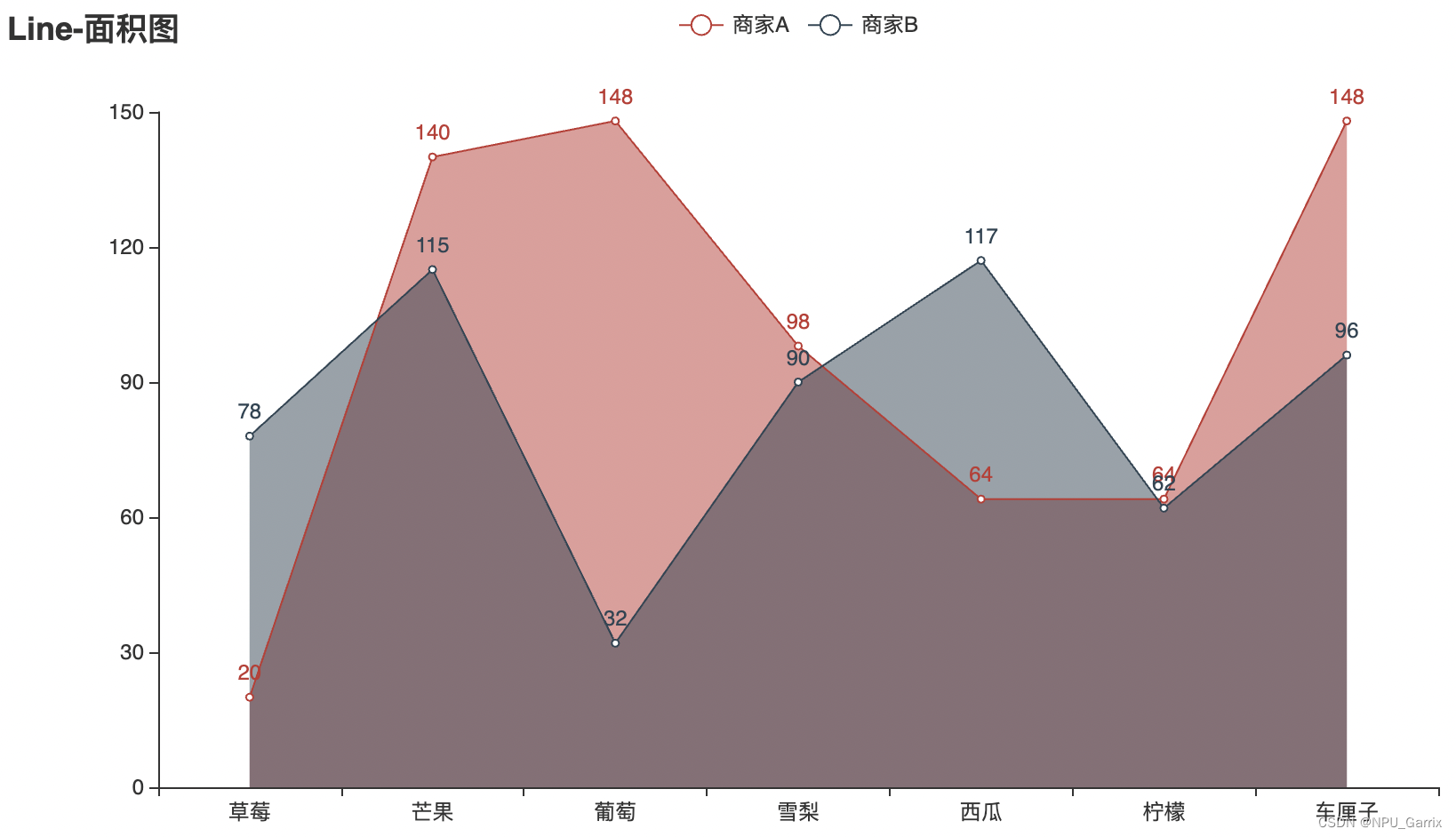
11. 面积图

import pyecharts.options as opts
from pyecharts.charts import Line
from pyecharts.faker import Fakerc = (Line().add_xaxis(Faker.choose()).add_yaxis("商家A", Faker.values(), areastyle_opts=opts.AreaStyleOpts(opacity=0.5)).add_yaxis("商家B", Faker.values(), areastyle_opts=opts.AreaStyleOpts(opacity=0.5)).set_global_opts(title_opts=opts.TitleOpts(title="Line-面积图")).render("line_area_style.html")
)

在这里插入图片描述

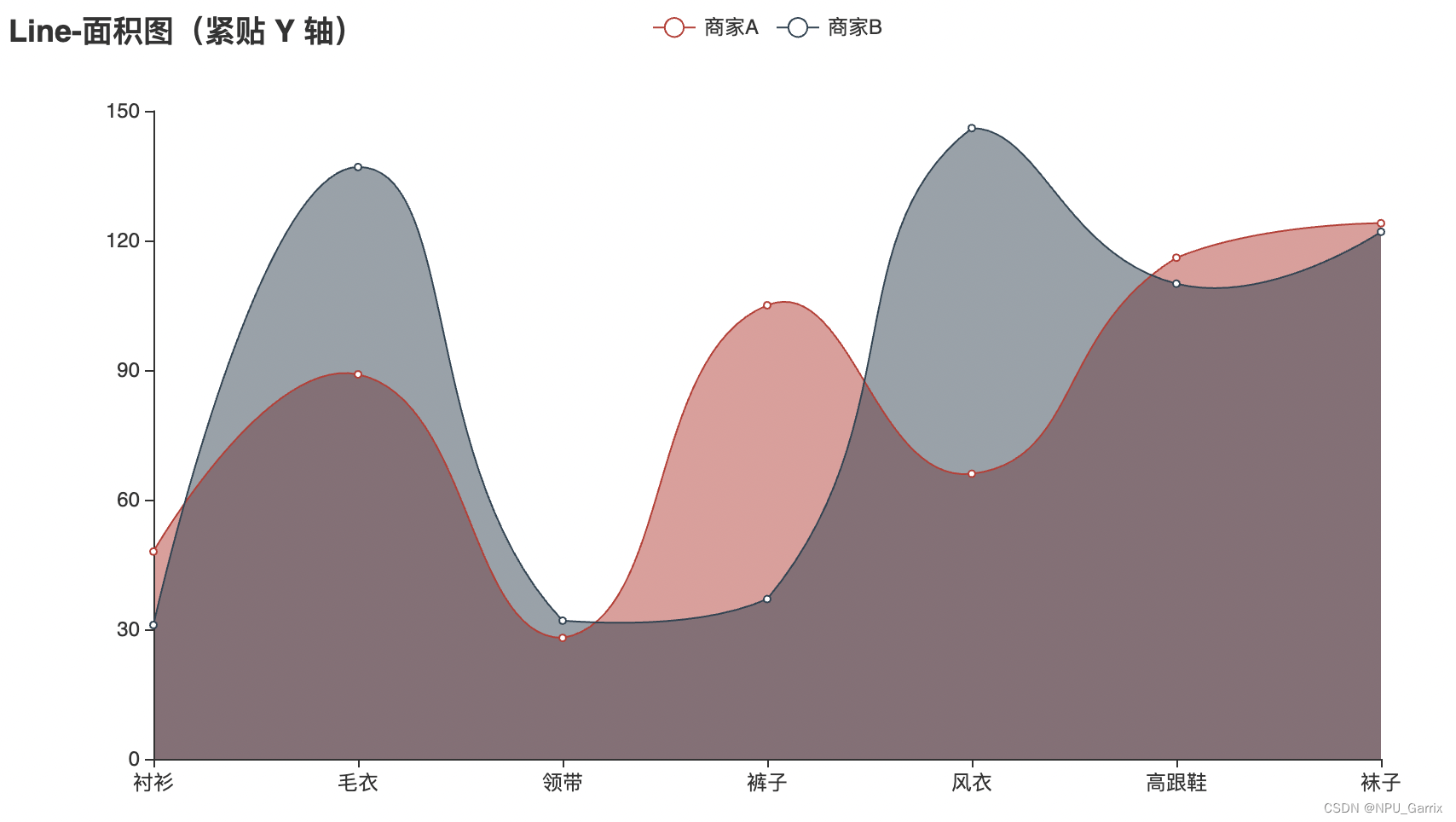
面积图紧贴y轴

import pyecharts.options as opts
from pyecharts.charts import Line
from pyecharts.faker import Fakerc = (Line().add_xaxis(Faker.choose()).add_yaxis("商家A", Faker.values(), is_smooth=True).add_yaxis("商家B", Faker.values(), is_smooth=True).set_series_opts(areastyle_opts=opts.AreaStyleOpts(opacity=0.5),label_opts=opts.LabelOpts(is_show=False),).set_global_opts(title_opts=opts.TitleOpts(title="Line-面积图(紧贴 Y 轴)"),xaxis_opts=opts.AxisOpts(axistick_opts=opts.AxisTickOpts(is_align_with_label=True),is_scale=False,boundary_gap=False,),).render("line_areastyle_boundary_gap.html")
)

在这里插入图片描述

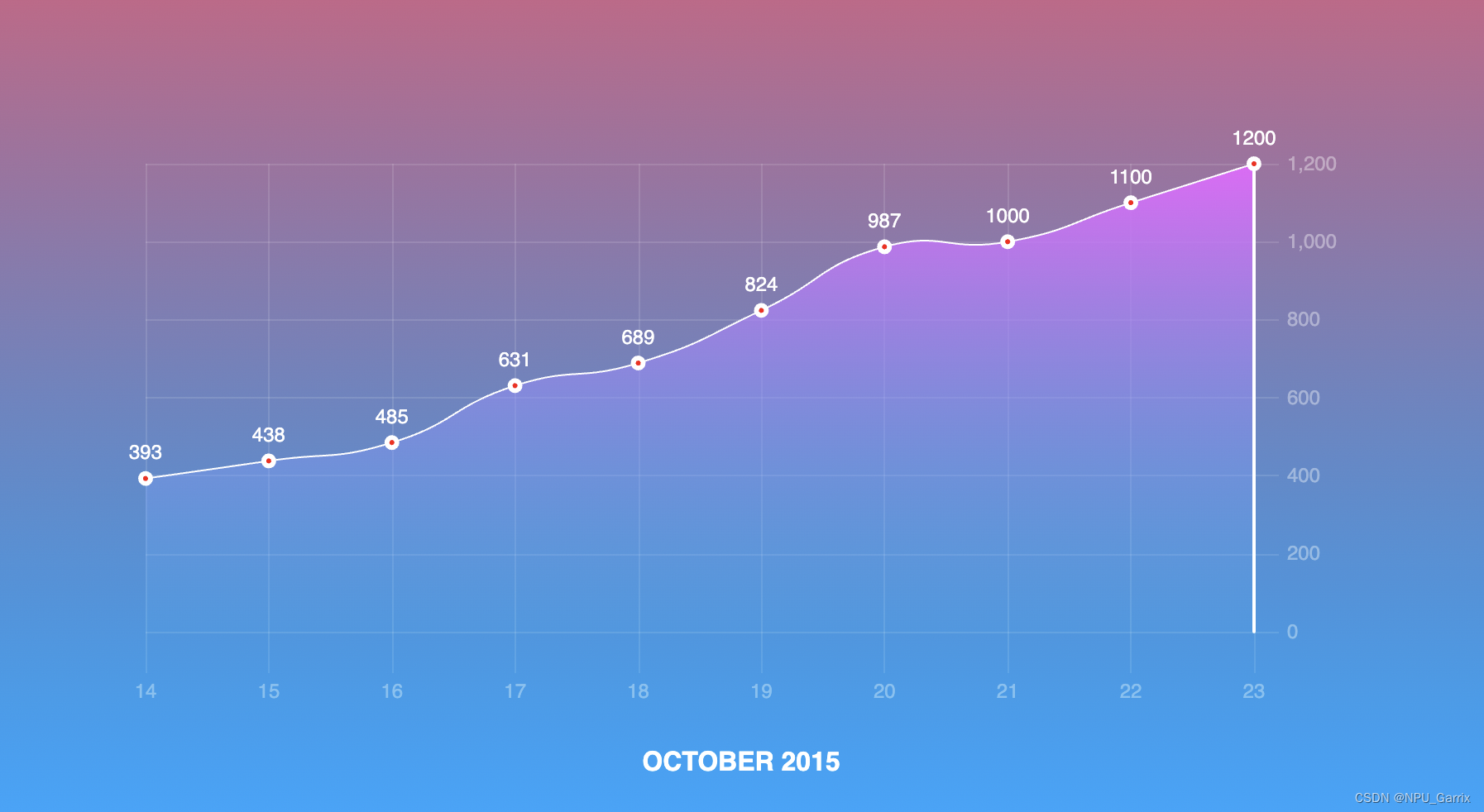
炫彩图

import pyecharts.options as opts
from pyecharts.charts import Line, Grid
from pyecharts.commons.utils import JsCode"""
参考地址: https://gallery.echartsjs.com/editor.html?c=xEyDk1hwBx
"""x_data = ["14", "15", "16", "17", "18", "19", "20", "21", "22", "23"]
y_data = [393, 438, 485, 631, 689, 824, 987, 1000, 1100, 1200]background_color_js = ("new echarts.graphic.LinearGradient(0, 0, 0, 1, ""[{offset: 0, color: '#c86589'}, {offset: 1, color: '#06a7ff'}], false)"
)
area_color_js = ("new echarts.graphic.LinearGradient(0, 0, 0, 1, ""[{offset: 0, color: '#eb64fb'}, {offset: 1, color: '#3fbbff0d'}], false)"
)c = (Line(init_opts=opts.InitOpts(bg_color=JsCode(background_color_js))).add_xaxis(xaxis_data=x_data).add_yaxis(series_name="注册总量",y_axis=y_data,is_smooth=True,is_symbol_show=True,symbol="circle",symbol_size=6,linestyle_opts=opts.LineStyleOpts(color="#fff"),label_opts=opts.LabelOpts(is_show=True, position="top", color="white"),itemstyle_opts=opts.ItemStyleOpts(color="red", border_color="#fff", border_width=3),tooltip_opts=opts.TooltipOpts(is_show=False),areastyle_opts=opts.AreaStyleOpts(color=JsCode(area_color_js), opacity=1),).set_global_opts(title_opts=opts.TitleOpts(title="OCTOBER 2015",pos_bottom="5%",pos_left="center",title_textstyle_opts=opts.TextStyleOpts(color="#fff", font_size=16),),xaxis_opts=opts.AxisOpts(type_="category",boundary_gap=False,axislabel_opts=opts.LabelOpts(margin=30, color="#ffffff63"),axisline_opts=opts.AxisLineOpts(is_show=False),axistick_opts=opts.AxisTickOpts(is_show=True,length=25,linestyle_opts=opts.LineStyleOpts(color="#ffffff1f"),),splitline_opts=opts.SplitLineOpts(is_show=True, linestyle_opts=opts.LineStyleOpts(color="#ffffff1f")),),yaxis_opts=opts.AxisOpts(type_="value",position="right",axislabel_opts=opts.LabelOpts(margin=20, color="#ffffff63"),axisline_opts=opts.AxisLineOpts(linestyle_opts=opts.LineStyleOpts(width=2, color="#fff")),axistick_opts=opts.AxisTickOpts(is_show=True,length=15,linestyle_opts=opts.LineStyleOpts(color="#ffffff1f"),),splitline_opts=opts.SplitLineOpts(is_show=True, linestyle_opts=opts.LineStyleOpts(color="#ffffff1f")),),legend_opts=opts.LegendOpts(is_show=False),)
)(Grid().add(c,grid_opts=opts.GridOpts(pos_top="20%",pos_left="10%",pos_right="10%",pos_bottom="15%",is_contain_label=True,),).render("beautiful_line_chart.html")
)

在这里插入图片描述

xxx

import pyecharts.options as opts
from pyecharts.charts import Line"""
Gallery 使用 pyecharts 1.1.0
参考地址: https://echarts.apache.org/examples/editor.html?c=line-sections目前无法实现的功能:1、visualMap 暂时无法设置隐藏
"""x_data = ["00:00","01:15","02:30","03:45","05:00","06:15","07:30","08:45","10:00","11:15","12:30","13:45","15:00","16:15","17:30","18:45","20:00","21:15","22:30","23:45",
]
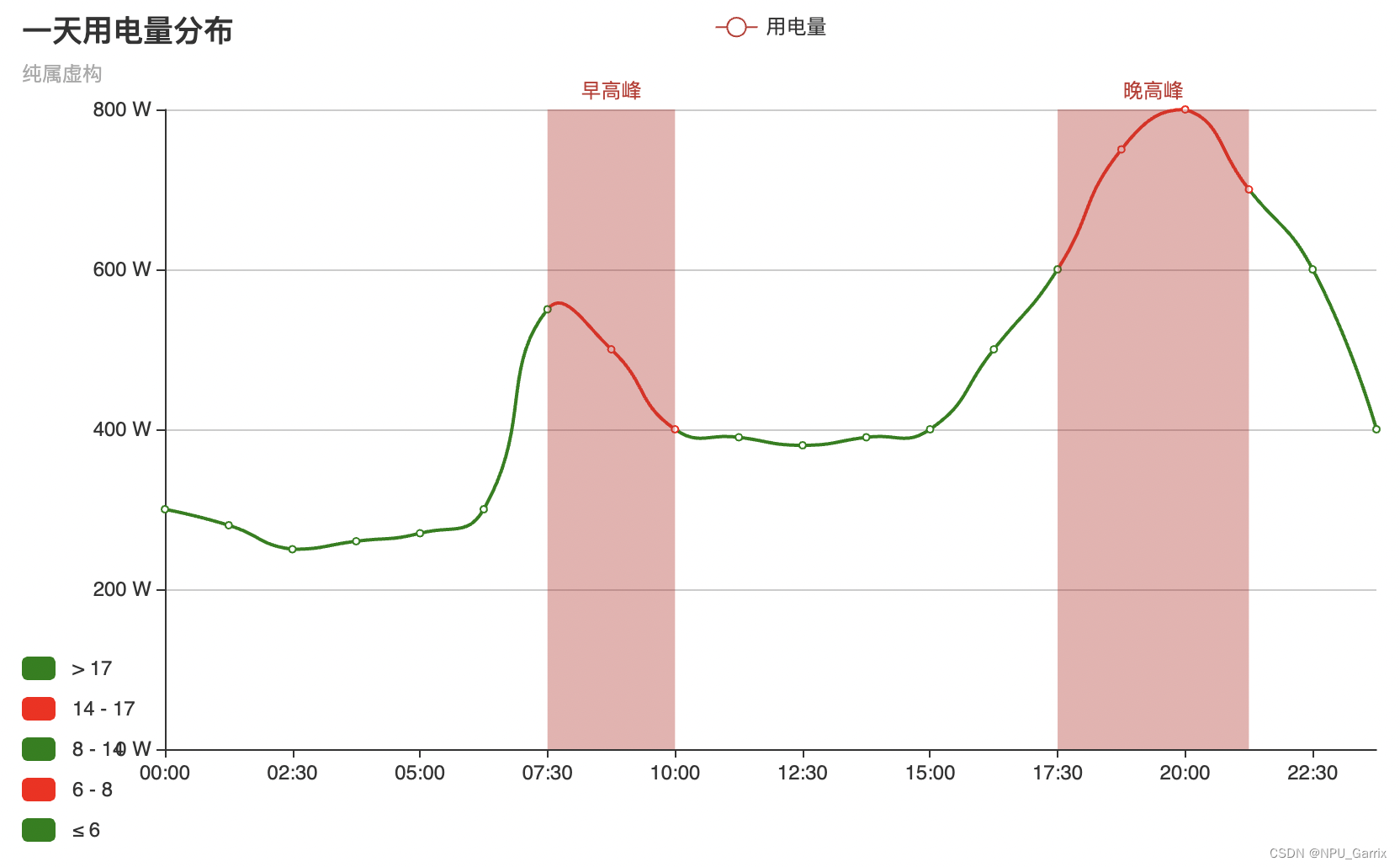
y_data = [300,280,250,260,270,300,550,500,400,390,380,390,400,500,600,750,800,700,600,400,
](Line().add_xaxis(xaxis_data=x_data).add_yaxis(series_name="用电量",y_axis=y_data,is_smooth=True,label_opts=opts.LabelOpts(is_show=False),linestyle_opts=opts.LineStyleOpts(width=2),).set_global_opts(title_opts=opts.TitleOpts(title="一天用电量分布", subtitle="纯属虚构"),tooltip_opts=opts.TooltipOpts(trigger="axis", axis_pointer_type="cross"),xaxis_opts=opts.AxisOpts(boundary_gap=False),yaxis_opts=opts.AxisOpts(axislabel_opts=opts.LabelOpts(formatter="{value} W"),splitline_opts=opts.SplitLineOpts(is_show=True),),visualmap_opts=opts.VisualMapOpts(is_piecewise=True,dimension=0,pieces=[{"lte": 6, "color": "green"},{"gt": 6, "lte": 8, "color": "red"},{"gt": 8, "lte": 14, "color": "green"},{"gt": 14, "lte": 17, "color": "red"},{"gt": 17, "color": "green"},],),).set_series_opts(markarea_opts=opts.MarkAreaOpts(data=[opts.MarkAreaItem(name="早高峰", x=("07:30", "10:00")),opts.MarkAreaItem(name="晚高峰", x=("17:30", "21:15")),])).render("distribution_of_electricity.html")
)

在这里插入图片描述


本文来自互联网用户投稿,文章观点仅代表作者本人,不代表本站立场,不承担相关法律责任。如若转载,请注明出处。 如若内容造成侵权/违法违规/事实不符,请点击【内容举报】进行投诉反馈!

相关文章

立即
投稿

微信公众账号

微信扫一扫加关注

返回
顶部