树莓派连接7寸屏幕(7DP-CAPLCD)的配置笔记
原文链接:Connect to Raspberry Pi
操作步骤:树莓派关机,拔掉SD卡,并插入到电脑中。找到config.txt,直接在尾部添加以下内容(将屏幕分辨率强制修改成1024x600),保存退出。
max_usb_current=1
hdmi_group=2
hdmi_mode=87
hdmi_cvt 1024 600 60 6 0 0 0
hdmi_drive=1
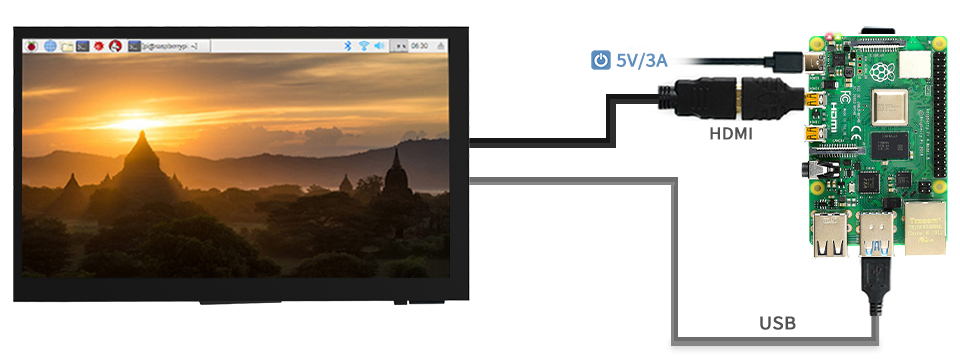
原文: The 7DP-CAPLCA supports Raspbian/Ubuntu/Kali/Retropie and WIN 10
IoT. Only single-point touch is supported in most of OS, multiple
touches may be supported in some software, max 5-points.Raspberry Pi doesn’t support hot-plug and auto-recognized the
resolution, you need to configure the resolution manually, otherwise,
the display cannot work normally.
- Downolad the newest Raspbian image from Raspberry Pi website(Full or Desktop version is recommended )
- Insert the TF card to host PC by card reader and format it.
- If you have TF card which is ready to use, you can skip to Step 4.
- Write Raspbian (.img file) to TF card by image writer software.
- Note: you need to unzip the zip file to get the .img file.
- After writing, open the config.txt file which is located in BOOT directory and modify it.
- Remove the line dtoverlay=vc4-fkms-V3D
- Add the following lines to the end of config.txt file then save.
max_usb_current=1
hdmi_group=2
hdmi_mode=87
hdmi_cvt 1024 600
60 6 0 0 0 hdmi_drive=1
本文来自互联网用户投稿,文章观点仅代表作者本人,不代表本站立场,不承担相关法律责任。如若转载,请注明出处。 如若内容造成侵权/违法违规/事实不符,请点击【内容举报】进行投诉反馈!