使用VS2019 创建RDLC报表
Visual Studio 2019安装包没有自带RDLC报表控件,需要自己手动安装。
安装文件如下下路径:
https://marketplace.visualstudio.com/items?itemName=ProBITools.MicrosoftRdlcReportDesignerforVisualStudio-18001
下载该文件安装
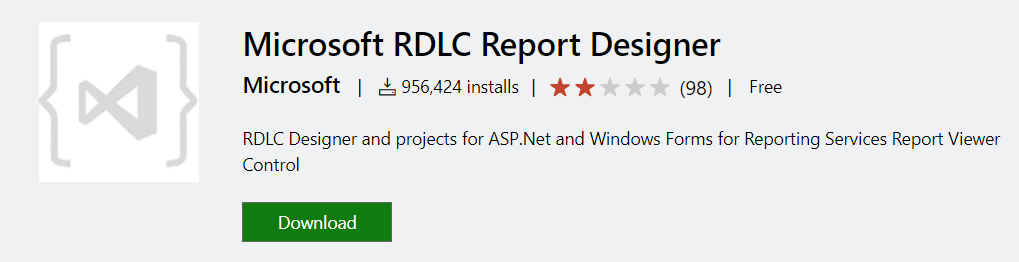
点击Download
下载成功后,先关闭VS编译器,安装成功后再开启VS2019.
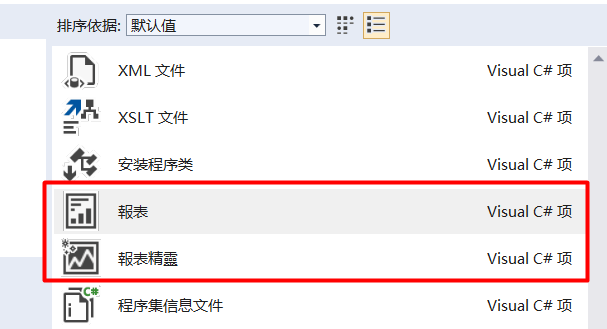
安装成功后,可以添加报表项,繁体显示并不影响使用。
安装OK
创建一个WindowForm应用程序演示
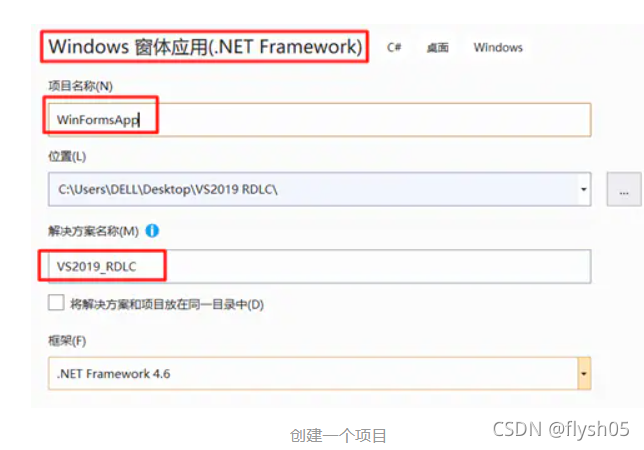
1. 创建一个Project
2. 添加数据模型类型,例如 Student类
public class Student
{public int Id { get; set; }public string Name { get; set; }public double Socres { get; set; }}
3. 添加RDLC报表
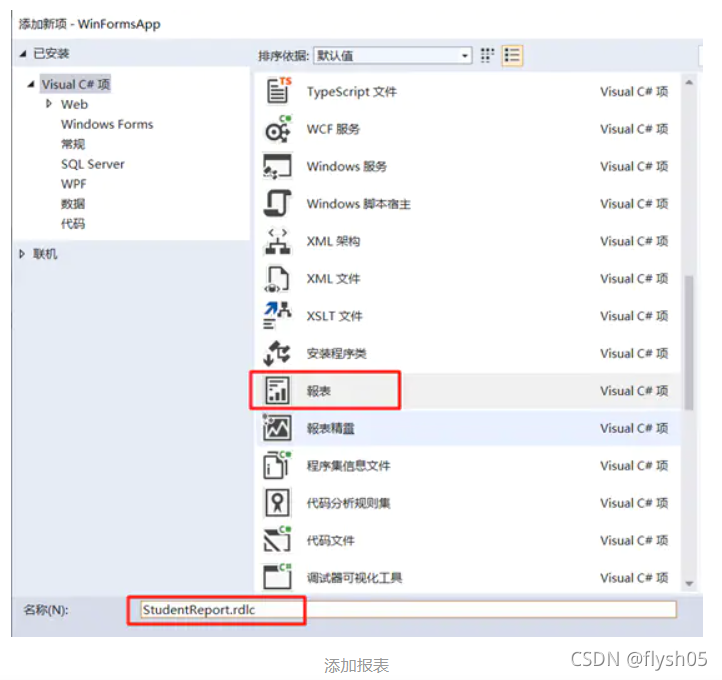
4. 为报表添加数据源
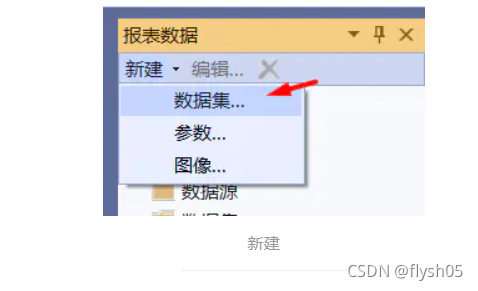
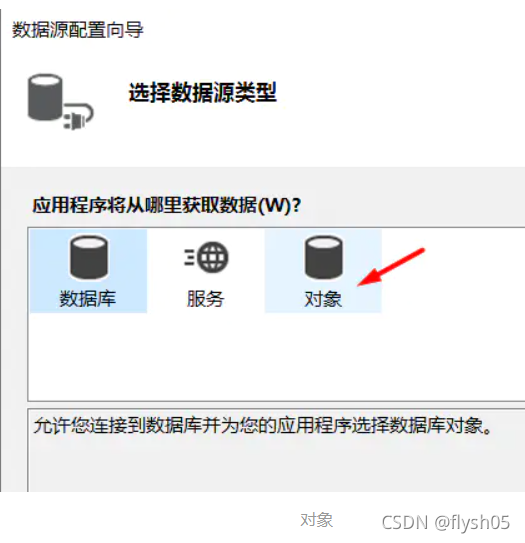
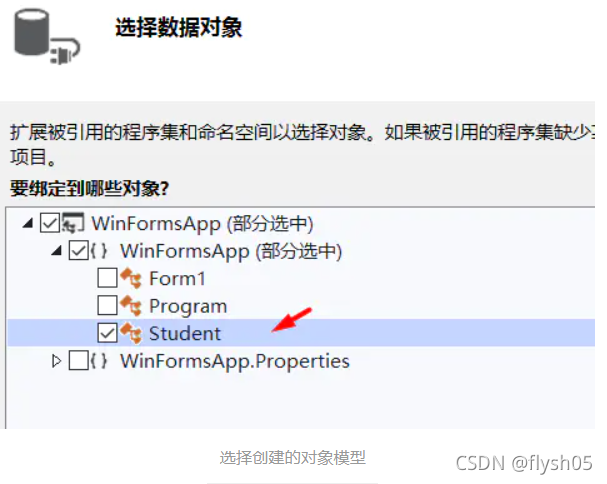
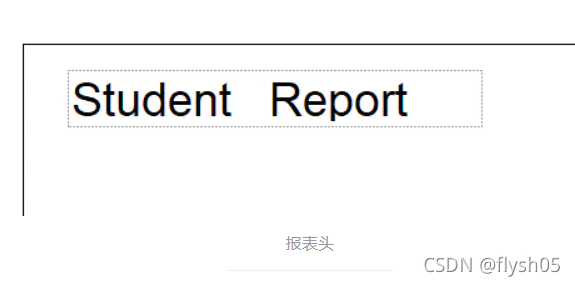
修改报表格式,添加一个表头信息,固定文本文件
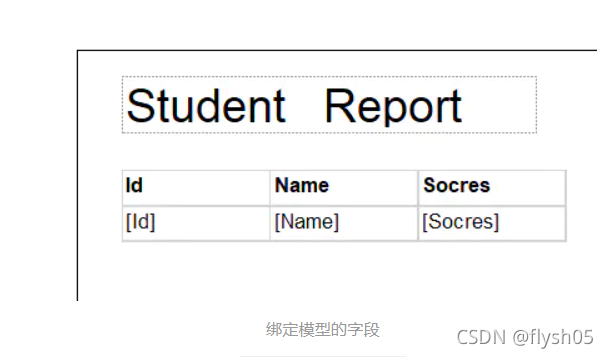
添加表格,绑定数据模型
5. 添加报表预览组件的引用
在Nuget中查找Microsoft.ReportingServices.ReportViewerControl.WinForms
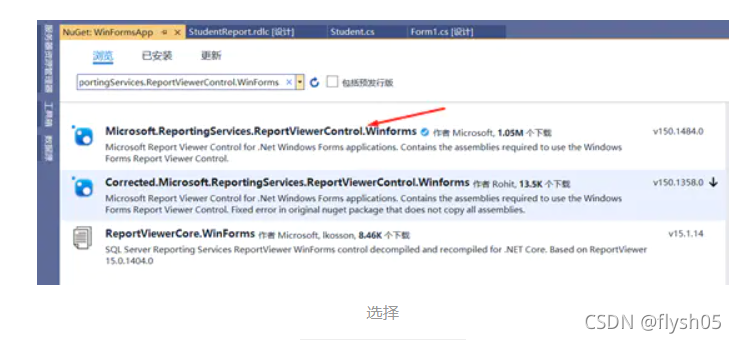
当前版本为150.1484.0
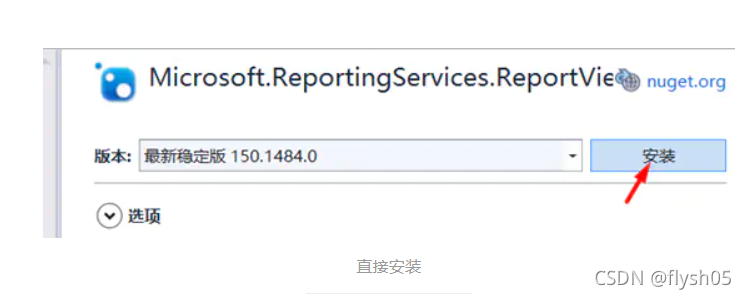
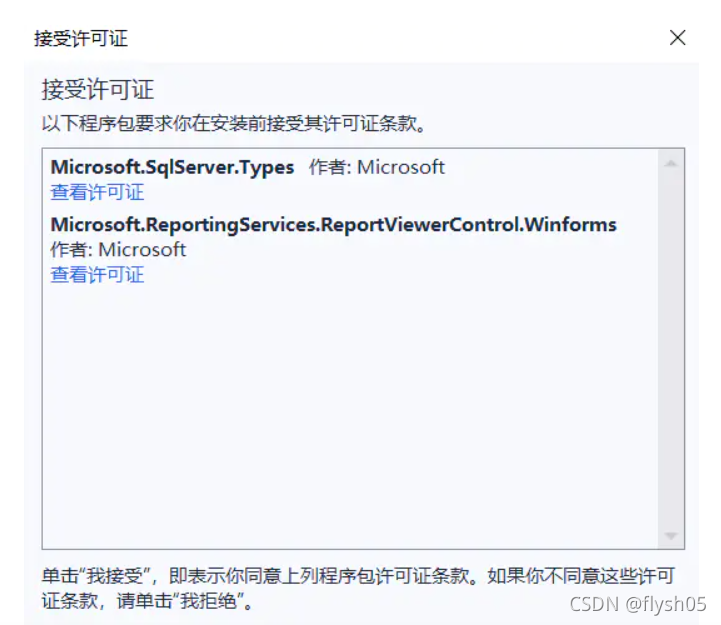
接受许可
6. 安装成功后,重新编译Project
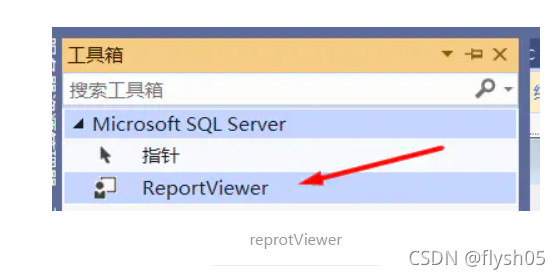
工具箱添加了 ReportViewer 空间
7. 将该控件添加到Winform UI
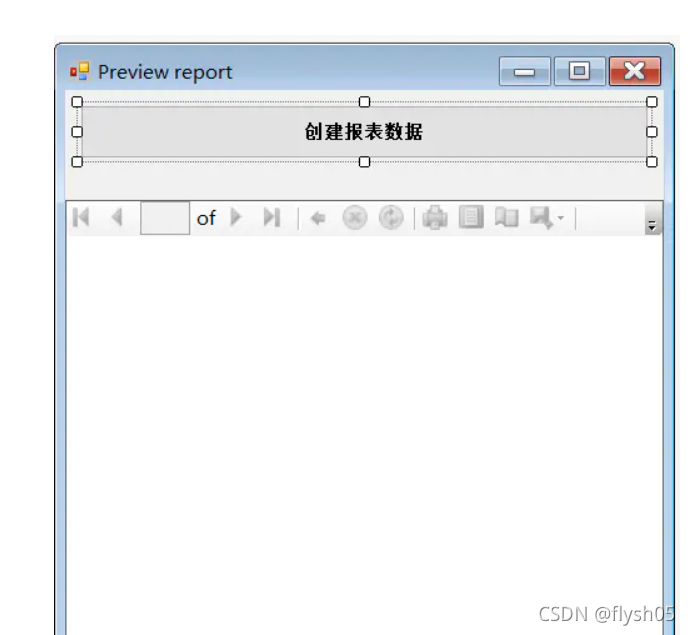
添加一个Buton,通过Click事件添加数据到报表中展示。
8. 添加数据代码
private void btnGenerateReport_Click(object sender, EventArgs e)
{this.reportViewer1.LocalReport.ReportPath = "StudentReport.rdlc";ReportDataSource rds = new ReportDataSource("StudentDataSet", get\_Students());this.reportViewer1.LocalReport.DataSources.Add(rds);this.reportViewer1.RefreshReport();}private List get\_Students(){return new List{new Student{Id=1, Name="Mike",Socres=88},new Student{Id=2, Name="Tom",Socres=90},new Student{Id=3, Name="Jack",Socres=74},new Student{Id=4, Name="Kate",Socres=63},new Student{Id=5, Name="Black",Socres=98},new Student{Id=6, Name="Smith",Socres=54}};}
创建数据模型的数据集合,绑定到报表的数据源。
最终效果如下:
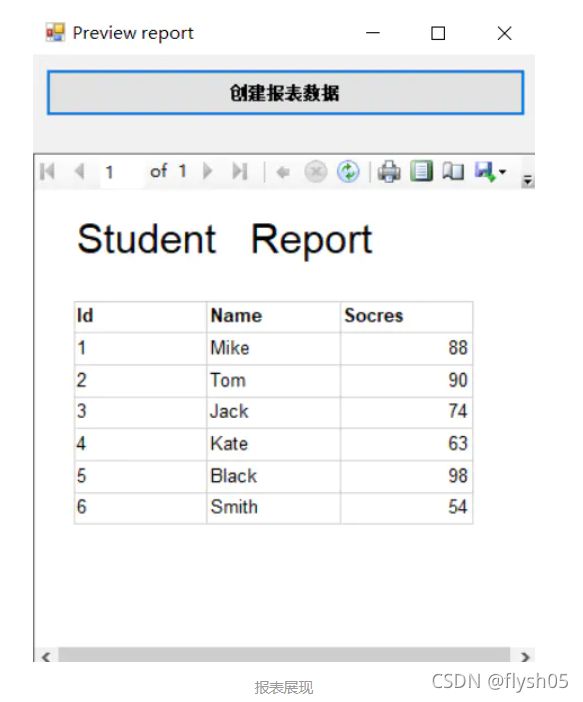
数据集合最终都展现在报表上了。
如上一个代码和思路是如果在VS2019中,创建一个RDLC报表,并将数据绑定到报表展示。
这个是可以预览打印的,如果喜欢请给我点赞,谢谢,每一位关注的朋友!
本文来自互联网用户投稿,文章观点仅代表作者本人,不代表本站立场,不承担相关法律责任。如若转载,请注明出处。 如若内容造成侵权/违法违规/事实不符,请点击【内容举报】进行投诉反馈!