cesium 自定义动态标记
# 效果
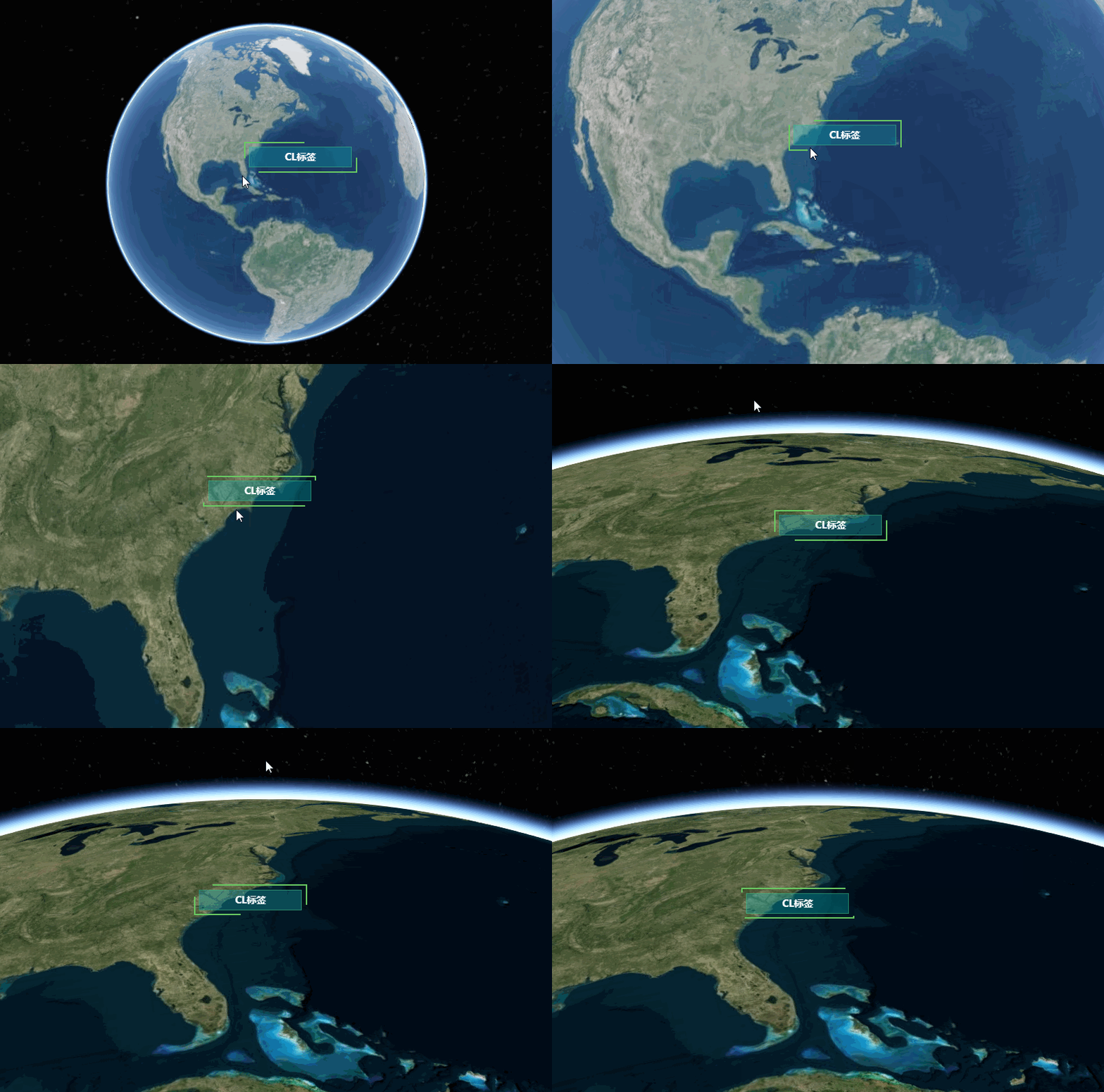
图中效果源代码在下面的封装栏中
效果展示:https://www.bilibili.com/video/BV1db4y167z7
# 基本思路
将DOM元素渲染到cesium容器中,并利用cesium中提供的 viewer.scene.postRender 实时更新坐标位置。思路很简单,接下来我们进行实现。
# 实现方法
首先我们需要生成一个球体做我们标记的容器。
viewer = new Cesium.Viewer('cesiumContainer',{// terrainProvider: Cesium.createWorldTerrain(),// animation: false, // 控制场景动画的播放速度控件// baseLayerPicker: true, // 底图切换控件// baselLayerPicker:false,// 将图层选择的控件关掉,才能添加其他影像数据// // fullscreenButton: false, // 全屏控件// geocoder: false, // 地理位置查询定位控件// homeButton: true, // 默认相机位置控件// timeline: false, // 时间滚动条控件// infoBox: false, //是否显示信息框// sceneModePicker: false, //是否显示3D/2D选择器// selectionIndicator: false, // 点击点绿色弹出 是否显示选取指示器组件// sceneMode: Cesium.SceneMode.SCENE3D, //设定3维地图的默认场景模式:Cesium.SceneMode.SCENE2D、Cesium.SceneMode.SCENE3D、Cesium.SceneMode.MORPHING// navigationHelpButton: false, // 默认的相机控制提示控件// scene3DOnly: true, // 每个几何实例仅以3D渲染以节省GPU内存// navigationInstructionsInitiallyVisible: false,// showRenderLoopErrors: false, //是否显示渲染错误// orderIndependentTranslucency:false,//设置背景透明});
然后我们在vue methods中构建一个方法,设定我们想要配置的参数对象data
| data{ position:[106,125],title:"标题",id:"0" } | position:经纬度 title:文本标题, id:唯一标识 |
addDynamicLabel(data){// 此处编写代码
}
**我们需要用js中 document.createElement 来动态添加一个div标记并设其样式内容,并利用cesium中 viewer.cesiumWidget.container.appendChild() 将动态添加的div添加到cesium容器中 **
addDynamicLabel(data){let div = document.createElement("div");div.id = data.id;div.style.position = "absolute";div.style.width = "100px";div.style.height = "30px";let HTMLTable = `${data.title}`;div.innerHTML = HTMLTable;viewer.cesiumWidget.container.appendChild(div);
}虽然我们将div添加到了cesium容器中,但是并不能显示到我们想要的位置,具体原因是因为我们并未有给添加的标签设置top和left值,接下来我们需要根据传入的坐标转换成屏幕xy值,我们可以利用cesium中提供的 Cesium.SceneTransforms.wgs84ToWindowCoordinates() 方法进行转化
addDynamicLabel(data){let div = document.createElement("div");div.id = data.id;div.style.position = "absolute";div.style.width = "100px";div.style.height = "30px";let HTMLTable = `${data.title}`;div.innerHTML = HTMLTable;viewer.cesiumWidget.container.appendChild(div);let gisPosition = Cesium.Cartesian3.fromDegrees(data.position[0],data.position[1],0);const canvasHeight = viewer.scene.canvas.height;const windowPosition = new Cesium.Cartesian2();Cesium.SceneTransforms.wgs84ToWindowCoordinates(viewer.scene,gisPosition,windowPosition);div.style.bottom = canvasHeight - windowPosition.y + "px";const elWidth = div.offsetWidth;div.style.left = windowPosition.x - elWidth / 2 + "px";
}
现在咱们自定义的标记已经显示到我们想要的位置了,但是我们还出现了一个问题我们在移动地球的时候,标签不会跟着动,总不能不能让用户操作呀,在那摆着当个花瓶看。那不可能,我们可以在看cesium给咱们提供的文档中有一个 viewer.scene.postRender 方法实时更新位置
addDynamicLabel(data){let div = document.createElement("div");div.id = data.id;div.style.position = "absolute";div.style.width = "100px";div.style.height = "30px";let HTMLTable = `${data.title}`;div.innerHTML = HTMLTable;viewer.cesiumWidget.container.appendChild(div);let gisPosition = Cesium.Cartesian3.fromDegrees(data.position[0],data.position[1],0);//实时更新位置viewer.scene.postRender.addEventListener(() => {const canvasHeight = viewer.scene.canvas.height;const windowPosition = new Cesium.Cartesian2();Cesium.SceneTransforms.wgs84ToWindowCoordinates(viewer.scene,gisPosition,windowPosition);div.style.bottom = canvasHeight - windowPosition.y + "px";const elWidth = div.offsetWidth;div.style.left = windowPosition.x - elWidth / 2 + "px";}, this);
}
现在我们自定义的标签已经能跟随地球移动了,但是我们在转动的过程中可以发现,当目标点位已经到地球背面时label标签并没有消失,下面我们来完美解决他
addDynamicLabel(data){let div = document.createElement("div");div.id = data.id;div.style.position = "absolute";div.style.width = "100px";div.style.height = "30px";let HTMLTable = `${data.title}`;div.innerHTML = HTMLTable;viewer.cesiumWidget.container.appendChild(div);let gisPosition = Cesium.Cartesian3.fromDegrees(data.position[0],data.position[1],0);//实时更新位置viewer.scene.postRender.addEventListener(() => {const canvasHeight = viewer.scene.canvas.height;const windowPosition = new Cesium.Cartesian2();Cesium.SceneTransforms.wgs84ToWindowCoordinates(viewer.scene,gisPosition,windowPosition);div.style.bottom = canvasHeight - windowPosition.y + "px";const elWidth = div.offsetWidth;div.style.left = windowPosition.x - elWidth / 2 + "px";//解决滚动不隐藏问题const camerPosition = viewer.camera.position;let height = viewer.scene.globe.ellipsoid.cartesianToCartographic(camerPosition).height;height += viewer.scene.globe.ellipsoid.maximumRadius;console.log(camerPosition,val.position )if((!(Cesium.Cartesian3.distance(camerPosition,gisPosition ) > height))&&viewer.camera.positionCartographic.height<50000000){div.style.display = "block"}else{div.style.display = "none"}}, this);
}
接下来就差用css3调样式了,其余的基本上解决完,但是我们先不要急于调样式,在我们开发过程中不止一处会用到,所以我们先来对其进行封装一下(最中的炫酷效果我也放到封装栏里面进行讲解 )
# 封装
这里我们用es6中class 进行封装,我们先创建一个js文件divLabel.js
/*** @descripion:* @param {Viewer} viewer* @param {Cartesian2} position* @param {String} title* @param {String} id* @return {*}*/export default class DivLabel{constructor(val) {this.viewer = val.viewer;this.height = val.height;this.position = Cesium.Cartesian3.fromDegrees(val.position[0],val.position[1],val.height);this.div =  document.createElement("div");this.addLabel(val);}addLabel(val) {this.div.id = val.id;this.div.style.position = "absolute";this.div.style.width = "100px";this.div.style.height = "30px";let divHTML = `${val.title}`this.div.innerHTML = divHTML;this.viewer.cesiumWidget.container.appendChild(this.div);this.addPostRender()}addPostRender() {this.viewer.scene.postRender.addEventListener(this.postRender, this);}postRender() {const canvasHeight = this.viewer.scene.canvas.height;const windowPosition = new Cesium.Cartesian2();Cesium.SceneTransforms.wgs84ToWindowCoordinates(this.viewer.scene,this.position,windowPosition);this.div.style.bottom = canvasHeight - windowPosition.y + "px";const elWidth = this.div.offsetWidth ;this.div.style.left = windowPosition.x - elWidth / 2 + "px";const camerPosition = this.viewer.camera.position;let height = this.viewer.scene.globe.ellipsoid.cartesianToCartographic(camerPosition).height;height += this.viewer.scene.globe.ellipsoid.maximumRadius;if((!(Cesium.Cartesian3.distance(camerPosition,this.position) > height))&&this.viewer.camera.positionCartographic.height<50000000){this.div.style.display = "block"}else{this.div.style.display = "none"}}
}
直接调用就可以了,但是我们这样加载dom貌似有点不完美,不便于维护,到最后飞的满天都是。我们可以看一线VUE官网中可以用Vue.extend + $mount,构造器来创建子类。接下来我们先创建一个vue文件取名为label.vue,用来存放我们的标签及样式
<template><div :id="id" class="divlabel-container" v-if="show" ><div class="animate-maker-border"><span class="animate-marker__text">{{ title }}</span></div></div>
</template><script>
export default {name: "DynamicLabel",data() {return {show: true,};},props: {title: {type: String,default: "标题",},id:{type:String,default:'001'}},
};
</script><style lang="scss">
.divlabel-container , .divlabel-container::before, .divlabel-container::after {position: absolute;left: 0;bottom: 0;pointer-events: none;cursor: pointer;
}
.animate-maker-border, .animate-maker-border::before, .animate-maker-border::after {position: absolute;top: 0;bottom: 0;left: 0;right: 0;
}
.animate-maker-border {width: 150px;height: 30px;margin: 0;color: #69ca62;box-shadow: inset 0 0 0 1px rgba(105, 202, 98, 0.5);
//   outline:2px solid red;
//   outline-offset:5px;}
.animate-maker-border::before,.animate-maker-border::after{content: '';z-index: 10;margin: -5%;box-shadow: inset 0 0 0 2px;animation: clipMe 8s linear infinite;
}
.animate-maker-border::before {animation-delay: -4s;
}
@keyframes clipMe {0%, 100% {clip: rect(0px, 170.0px, 2px, 0px);}25% {clip: rect(0px, 2px, 47.0px, 0px);}50% {clip: rect(45.0px, 170.0px, 47.0px, 0px);}75% {clip: rect(0px, 170.0px, 47.0px, 45.0px);}
}
.animate-marker__text {color: #fff;font-size: 14px;display: flex;width: 100%;height: 100%;align-items: center;justify-content: center;font-weight: bolder;user-select: none;cursor: pointer;background: rgba(0, 173, 181, 0.32);
}
</style>
接下来我们改造刚才拿class 封装的divLabel.js文件,将label.vue引进来
/*** @descripion:* @param {Viewer} viewer* @param {Cartesian2} position* @param {String} title* @param {String} id* @return {*}*/import Vue from "vue";
import Label from "./label.vue";
let WindowVm = Vue.extend(Label);
export default class DivLabel{constructor(val) {this.viewer = val.viewer;this.height = val.height;this.position = Cesium.Cartesian3.fromDegrees(val.position[0],val.position[1],val.height);let title = val.title;let id = val.idthis.vmInstance = new WindowVm({propsData: {title,id}}).$mount(); //根据模板创建一个面板val.viewer.cesiumWidget.container.appendChild(this.vmInstance.$el); //将字符串模板生成的内容添加到DOM上this.addPostRender();}//添加场景事件addPostRender() {this.viewer.scene.postRender.addEventListener(this.postRender, this);}//场景渲染事件 实时更新窗口的位置 使其与笛卡尔坐标一致postRender() {if (!this.vmInstance.$el || !this.vmInstance.$el.style) return;const canvasHeight = this.viewer.scene.canvas.height;const windowPosition = new Cesium.Cartesian2();Cesium.SceneTransforms.wgs84ToWindowCoordinates(this.viewer.scene,this.position,windowPosition);this.vmInstance.$el.style.bottom =canvasHeight - windowPosition.y + this.height + "px";const elWidth = this.vmInstance.$el.offsetWidth;this.vmInstance.$el.style.left = windowPosition.x - elWidth / 2 + "px";const camerPosition = this.viewer.camera.position;let height = this.viewer.scene.globe.ellipsoid.cartesianToCartographic(camerPosition).height;height += this.viewer.scene.globe.ellipsoid.maximumRadius;if((!(Cesium.Cartesian3.distance(camerPosition,this.position) > height))&&this.viewer.camera.positionCartographic.height<50000000){this.vmInstance.$el.style.display = "block";}else{this.vmInstance.$el.style.display = "none";}}
}
最后我们只需在我们页面中引用即可
import DivLabel from './divLabel.js'addDivLabel() {let val = {viewer:this.$store.state.viewer, position:[124.54035, 38.92146],height:0,title:'CL标签',id:'210201025' }let label = new DivLabel(val)
}
至此我们我们的效果就与开始图中的效果一摸一样了。大功告成
本文来自互联网用户投稿,文章观点仅代表作者本人,不代表本站立场,不承担相关法律责任。如若转载,请注明出处。 如若内容造成侵权/违法违规/事实不符,请点击【内容举报】进行投诉反馈!