C++ 17开发环境及IDE搭建(Winubuntucentos)
目录
编译套件SDK
安装&验证
vs code IDE
开发
构建
调试
Code::Blocks IDE
Linux 环境
Ubuntu
centos
参考
编译套件SDK
TDM-GCC, A compiler suite for 32- and 64-bit Windows based on the GNU toolchain.
安装&验证
website: tdm-gcc
至2020.09最新版本为 tdm64-gcc-9.2.0.exe , 约60MB, 安装时一律点next, 会自动添加 PATH.
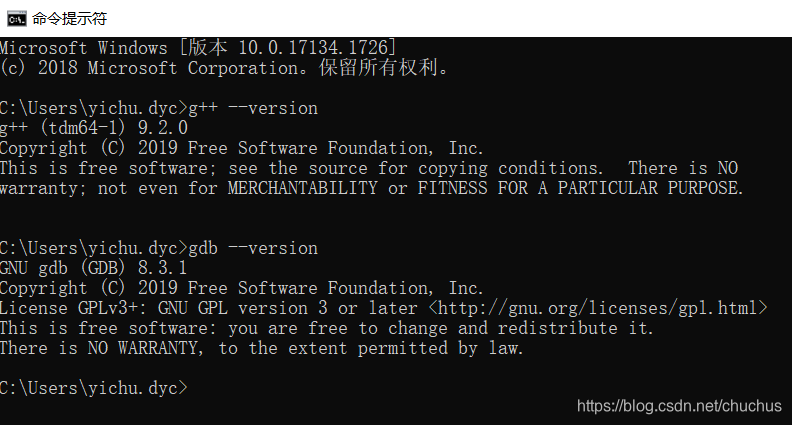
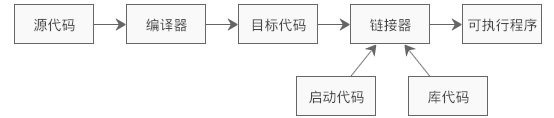
没有IDE的情况下, 运行分两步:
1. g++ -o, 生成目标代码
2. 赋予目标代码可执行权限, 直接执行即可.
vs_code IDE
安装vscode及 两个 c++ 插件: C/C++, C/C++ Extension Pack, 然后读插件的指导教学文档就够了, 见参考[1].
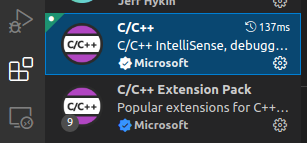
图 插件安装
开发
如果引了其他头文件, 要在
c_cpp_properties.json (compiler path and IntelliSense settings)
中配置. 方便自动提示.
{"configurations": [{"name": "Win32","includePath": ["${workspaceFolder}/**","${workspaceFolder}/_external/usr/local/include/**"],"defines": ["_DEBUG","UNICODE","_UNICODE"],"windowsSdkVersion": "10.0.17763.0","compilerPath": "D:\\Program Files\\TDM-GCC-64\\bin\\g++.exe","cStandard": "c11","cppStandard": "c++17","intelliSenseMode": "gcc-x64"}],"version": 4
}
构建
vscode 通常会自动检测到 刚才安装的gcc..
写一个a.cpp, 令其在 vscode 中出于激活的视图tab, 然后 Terminal | Run build task , 候选中有 g++, cpp 等多个命令, 都差不多, 选中一个即可构建, 默认产出 a.exe. 控制台中 ./a.exe 即可运行.
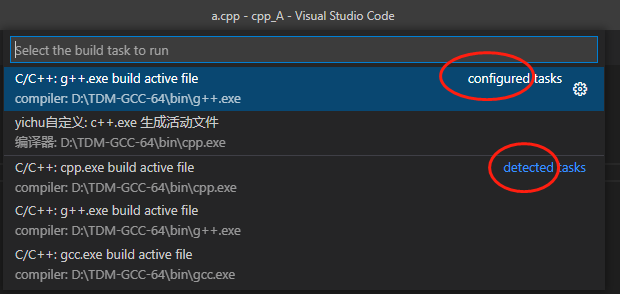
光标悬停某一项, 右上角会有 齿轮 标志, 单击后会自动在工作目录中新建 .vscode/tasks.json, label 即为选项卡中的名字, 可以自定义. 然后选项卡中会多出 configured tasks.
{"说明": "这是一个 win 下的示例","version": "2.0.0","tasks": [{"type": "cppbuild","label": "yichu自定义: g++.exe 生成活动文件","command": "D:\\TDM-GCC-64\\bin\\g++.exe","args": ["-fdiagnostics-color=always","-g","${file}","-o","${fileDirname}\\${fileBasenameNoExtension}.exe"],"options": {"cwd": "D:\\TDM-GCC-64\\bin"},"problemMatcher": ["$gcc"],"group": "build","detail": "编译器: D:\\TDM-GCC-64\\bin\\cpp.exe"}]
}
注意: c++.exe 与 g++.exe, 前者不含调试信息, 后者含调试信息?
{"说明": "这是一个 linux 下的示例","version": "2.0.0","tasks": [{"type": "cppbuild","label": "yichu - g++ - share","command": "/usr/bin/g++","args": ["-fdiagnostics-color=always","-shared ","-std=c++11","-fPIC","-I${fileDirname}/include","-I/usr/include/python3.8/","-I/usr/local/lib/python3.8/dist-packages/pybind11/include/","-g","${file}","-o","${fileDirname}/${fileBasenameNoExtension}"],"options": {"cwd": "${fileDirname}"},"problemMatcher": ["$gcc"],"group": "build","detail": "编译器: /usr/bin/g++"}]
}
调试
Terminal | Run Task,
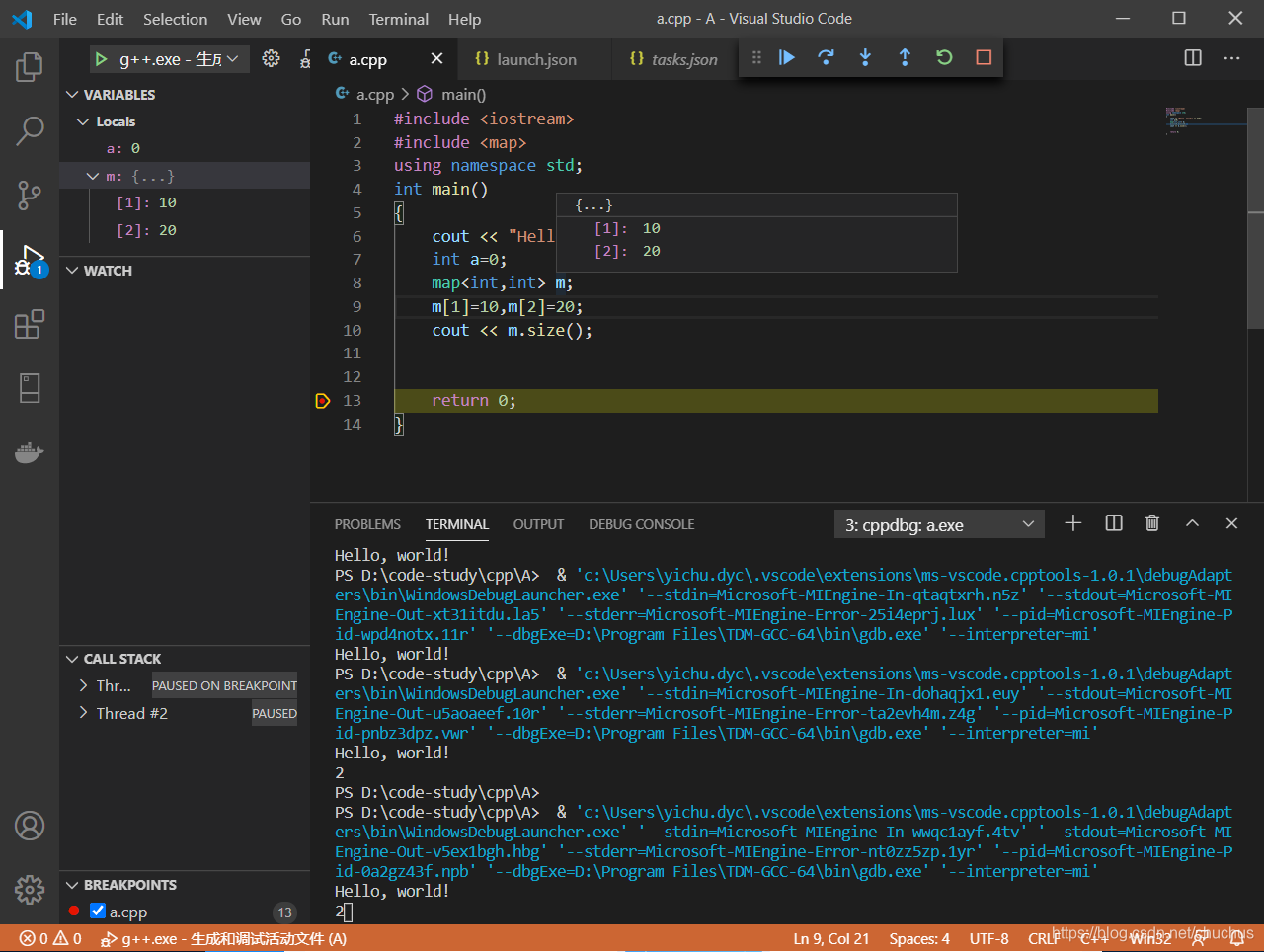
图 断点示意
Code::Blocks IDE
已过时.
Linux 环境
Ubuntu
如果是 Ubuntu 20.04.3 LTS, 自带的GCC 版本很新, gcc (Ubuntu 9.3.0-17ubuntu1~20.04) 9.3.0
centos
如果是centos7, 可能不自带 gcc, 默认安装下来是古老的 4.8.5 .
升级可参照参考[2].
参考
1. vscode, cpp官方指导: Get Started with C++ and Mingw-w64 in Visual Studio Code https://code.visualstudio.com/docs/cpp/config-mingw 2. CentOS 7升级gcc版本 - 姬无华 - 博客园 (cnblogs.com)https://www.cnblogs.com/jixiaohua/p/11732225.html
本文来自互联网用户投稿,文章观点仅代表作者本人,不代表本站立场,不承担相关法律责任。如若转载,请注明出处。 如若内容造成侵权/违法违规/事实不符,请点击【内容举报】进行投诉反馈!