如何获得一个单实例Oracle数据库(从Oracle Container Registry)
环境
一台笔记本电脑,Windows操作系统,安装了VirtualBox,Vagrant。一个Oracle账号。
目标
操作系统Oracle Linux 7,运行容器数据库,数据库为单实例,版本12.2.0.1(也可以12.1.0.2),实例名为ORCLCDB,带一个可插拔数据库orclpdb1。
从Oracle Container Registry可以得到比Docker Hub更多的Oracle docker image,包括单实例,RAC,包括企业版,标准版和instant client。
创建Linux操作系统
在Vagrantfile中将内存改为4096,然后创建虚机(Oracle Linux 7)。耗时6分59秒。
PS E:\DB\vagrant-boxes\OracleLinux\7> Measure-Command { vagrant up | Out-Default}
安装Docker
安装Docker,耗时1m9.076s:
sudo yum install -y yum-utils
sudo yum-config-manager --enable ol7_addons
sudo yum install -y docker-engine
sudo systemctl start docker
sudo systemctl enable docker
sudo usermod -aG docker vagrant
$ sudo docker version
Client: Docker Engine - CommunityVersion:           18.09.8-olAPI version:       1.39Go version:        go1.10.8Git commit:        76804b7Built:             Fri Sep 27 21:00:18 2019OS/Arch:           linux/amd64Experimental:      falseServer: Docker Engine - CommunityEngine:Version:          18.09.8-olAPI version:      1.39 (minimum version 1.12)Go version:       go1.10.8Git commit:       76804b7Built:            Fri Sep 27 20:54:00 2019OS/Arch:          linux/amd64Experimental:     falseDefault Registry: docker.io
用户vagrant自动加入到docker组:
$ id vagrant
uid=1000(vagrant) gid=1000(vagrant) groups=1000(vagrant),10(wheel),993(docker)
Pull Docker Image
访问网页,进入enterprise 目录:
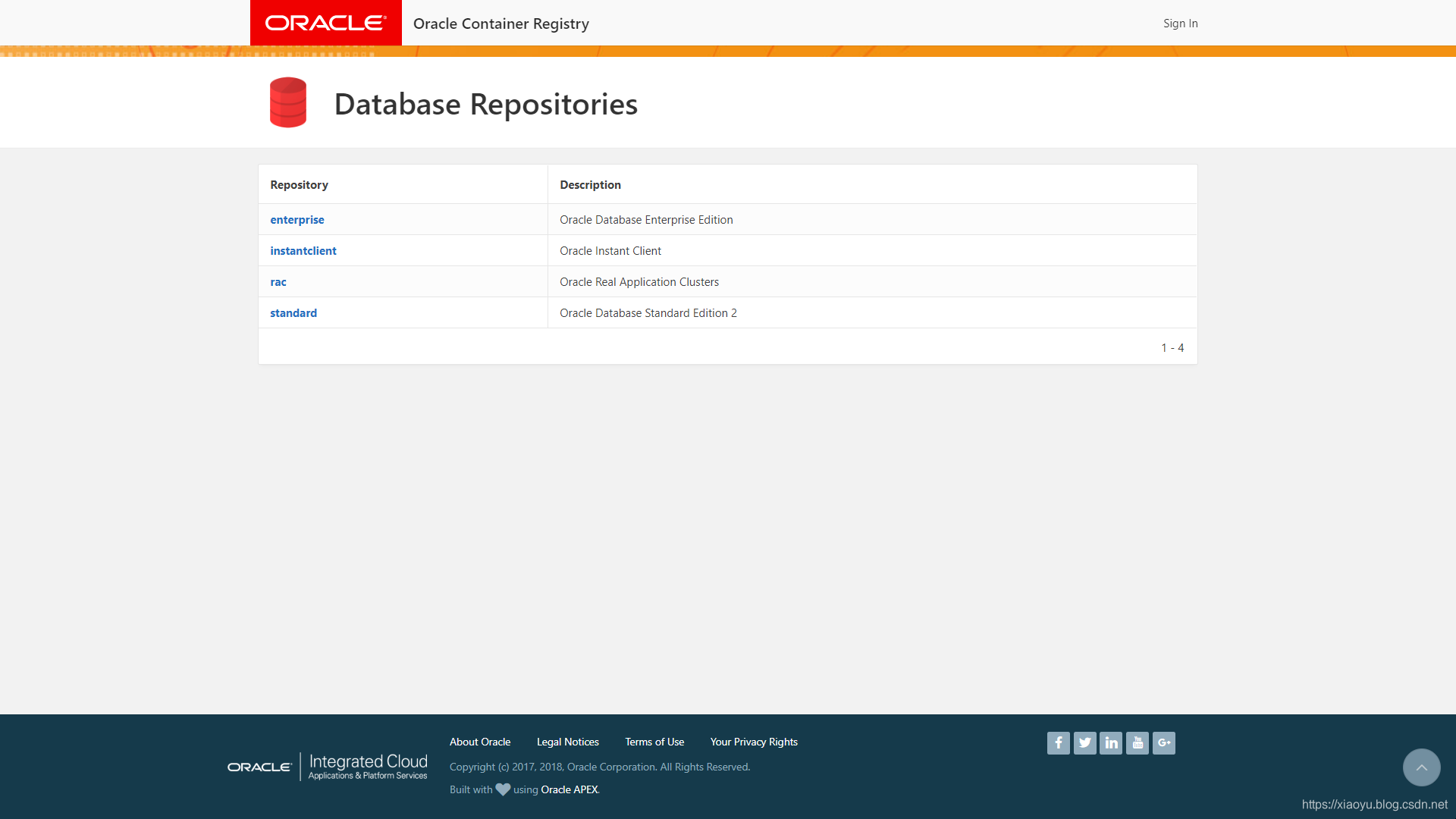
对于企业版,有3个image。分别为12.2.0.1(3 GB),12.2.0.1-slim(2 GB),12.1.0.2( 5 GB)。
slim版没有以下功能:
Analytics, Oracle R, Oracle Label Security, Oracle Text, Oracle Application Express and Oracle DataVault
$ docker login container-registry.oracle.com
$ docker pull container-registry.oracle.com/database/enterprise:12.2.0.1
感觉网速有点慢,此步骤耗时45m26.719s。
实际上,这样的场景还是建议在云环境中进行,利用免费账号做一台主机就好。
在OCI云环境中,Frankfurt区域耗时3m21.626s。
查看image:
$ docker images
REPOSITORY                                          TAG                 IMAGE ID            CREATED             SIZE
container-registry.oracle.com/database/enterprise   12.2.0.1            12a359cd0528        2 years ago         3.44GB
创建容器数据库
docker run -d -it --name odbee12201 container-registry.oracle.com/database/enterprise:12.2.0.1
容器很快就启动了,但实际上需要做一些配置工作后才可使用,这些配置工作包括参数设置,创建PDB登。但数据库实例是已经包含在docker image里了的。这些配置脚本位于容器中的~/setup目录。
查看状态,等待其从(health: starting)变为(health:), 数据库就可以使用了。
$ docker ps
CONTAINER ID        IMAGE                                                        COMMAND                  CREATED             STATUS                            PORTS                NAMES
00f72df39972        container-registry.oracle.com/database/enterprise:12.2.0.1   "/bin/sh -c '/bin/ba…"   5 seconds ago       Up 4 seconds (health: starting)   1521/tcp, 5500/tcp   odbee12201
也可以监控docker的运行日志:
$ docker logs -f 00f72df39972
Setup Oracle Database
Oracle Database 12.2.0.1 Setup
Sun Nov 10 00:02:06 UTC 2019Check parameters ......
log file is : /home/oracle/setup/log/paramChk.log
paramChk.sh is done at 0 secuntar DB bits ......
log file is : /home/oracle/setup/log/untarDB.log
untarDB.sh is done at 114 secconfig DB ......
log file is : /home/oracle/setup/log/configDB.log
Sun Nov 10 00:04:00 UTC 2019
Start Docker DB configuration
Call configDBora.sh to configure database
Sun Nov 10 00:04:01 UTC 2019
Configure DB as oracle user
Setup Database directories ...SQL*Plus: Release 12.2.0.1.0 Production on Sun Nov 10 00:04:01 2019Copyright (c) 1982, 2016, Oracle.  All rights reserved.Connected to an idle instance.SQL>
File created.SQL> ORACLE instance started.Total System Global Area 1342177280 bytes
Fixed Size                  8792536 bytes
Variable Size             352323112 bytes
Database Buffers          973078528 bytes
Redo Buffers                7983104 bytes
Database mounted.
Database opened.
SQL>
Database altered.SQL>
NAME                                 TYPE        VALUE
------------------------------------ ----------- ------------------------------
spfile                               string      /u01/app/oracle/product/12.2.0/dbhome_1/dbs/spfileORCLCDB.ora
SQL>
NAME                                 TYPE        VALUE
------------------------------------ ----------- ------------------------------
encrypt_new_tablespaces              string      CLOUD_ONLY
SQL>
User altered.SQL>
User altered.SQL> Disconnected from Oracle Database 12c Enterprise Edition Release 12.2.0.1.0 - 64bit Production
update passwordEnter password for SYS:
create pdb : ORCLPDB1SQL*Plus: Release 12.2.0.1.0 Production on Sun Nov 10 00:04:55 2019Copyright (c) 1982, 2016, Oracle.  All rights reserved.Connected to:
Oracle Database 12c Enterprise Edition Release 12.2.0.1.0 - 64bit ProductionSQL>   2    3    4    5
Pluggable database created.SQL>
Pluggable database altered.SQL>
Pluggable database altered.SQL> Disconnected from Oracle Database 12c Enterprise Edition Release 12.2.0.1.0 - 64bit Production
Reset Database parametersSQL*Plus: Release 12.2.0.1.0 Production on Sun Nov 10 00:05:44 2019Copyright (c) 1982, 2016, Oracle.  All rights reserved.Connected to:
Oracle Database 12c Enterprise Edition Release 12.2.0.1.0 - 64bit ProductionSQL>
System altered.SQL> Disconnected from Oracle Database 12c Enterprise Edition Release 12.2.0.1.0 - 64bit ProductionLSNRCTL for Linux: Version 12.2.0.1.0 - Production on 10-NOV-2019 00:05:44Copyright (c) 1991, 2016, Oracle.  All rights reserved.Starting /u01/app/oracle/product/12.2.0/dbhome_1/bin/tnslsnr: please wait...TNSLSNR for Linux: Version 12.2.0.1.0 - Production
System parameter file is /u01/app/oracle/product/12.2.0/dbhome_1/admin/ORCLCDB/listener.ora
Log messages written to /u01/app/oracle/diag/tnslsnr/00f72df39972/listener/alert/log.xml
Listening on: (DESCRIPTION=(ADDRESS=(PROTOCOL=tcp)(HOST=0.0.0.0)(PORT=1521)))
Listening on: (DESCRIPTION=(ADDRESS=(PROTOCOL=ipc)(KEY=EXTPROC1521)))Connecting to (DESCRIPTION=(ADDRESS=(PROTOCOL=TCP)(HOST=0.0.0.0)(PORT=1521)))
STATUS of the LISTENER
------------------------
Alias                     LISTENER
Version                   TNSLSNR for Linux: Version 12.2.0.1.0 - Production
Start Date                10-NOV-2019 00:05:45
Uptime                    0 days 0 hr. 0 min. 0 sec
Trace Level               off
Security                  ON: Local OS Authentication
SNMP                      OFF
Listener Parameter File   /u01/app/oracle/product/12.2.0/dbhome_1/admin/ORCLCDB/listener.ora
Listener Log File         /u01/app/oracle/diag/tnslsnr/00f72df39972/listener/alert/log.xml
Listening Endpoints Summary...(DESCRIPTION=(ADDRESS=(PROTOCOL=tcp)(HOST=0.0.0.0)(PORT=1521)))(DESCRIPTION=(ADDRESS=(PROTOCOL=ipc)(KEY=EXTPROC1521)))
The listener supports no services
The command completed successfullyDONE!
Remove password info
Docker DB configuration is complete !
configDB.sh is done at 219 secDone ! The database is ready for use .最后一行Done ! The database is ready for use .表示数据库就绪了。可以看到这段时间用了219秒。
当然后面还有一段日志,可以参考一下:
# ===========================================================================
# == Add below entries to your tnsnames.ora to access this database server ==
# ====================== from external host =================================
ORCLCDB=(DESCRIPTION=(ADDRESS=(PROTOCOL=TCP)(HOST=<ip-address>)(PORT=<port>))(CONNECT_DATA=(SERVER=DEDICATED)(SERVICE_NAME=ORCLCDB.localdomain)))
ORCLPDB1=(DESCRIPTION=(ADDRESS=(PROTOCOL=TCP)(HOST=<ip-address>)(PORT=<port>))(CONNECT_DATA=(SERVER=DEDICATED)(SERVICE_NAME=ORCLPDB1.localdomain)))
#
#ip-address : IP address of the host where the container is running.
#port       : Host Port that is mapped to the port 1521 of the container.
#
# The mapped port can be obtained from running "docker port "
# ===========================================================================
Thread 1 advanced to log sequence 5 (LGWR switch)Current log# 2 seq# 5 mem# 0: /u04/app/oracle/redo/redo002.log
2019-11-10T00:05:44.378849+00:00
ORCLPDB1(3):Opening pdb with no Resource Manager plan active
Pluggable database ORCLPDB1 opened read write
Completed:     alter pluggable database ORCLPDB1 openalter pluggable database all save state
Completed:     alter pluggable database all save state
2019-11-10T00:05:44.861897+00:00
ALTER SYSTEM SET encrypt_new_tablespaces='DDL' SCOPE=BOTH;
2019-11-10T00:05:46.157969+00:00
TABLE SYS.WRP$_REPORTS: ADDED INTERVAL PARTITION SYS_P287 (3600) VALUES LESS THAN (TO_DATE(' 2019-11-10 01:00:00', 'SYYYY-MM-DD HH24:MI:SS', 'NLS_CALENDAR=GREGORIAN'))
TABLE SYS.WRP$_REPORTS_DETAILS: ADDED INTERVAL PARTITION SYS_P288 (3600) VALUES LESS THAN (TO_DATE(' 2019-11-10 01:00:00', 'SYYYY-MM-DD HH24:MI:SS', 'NLS_CALENDAR=GREGORIAN'))
2019-11-10T00:05:46.198517+00:00
Shared IO Pool defaulting to 64MB. Trying to get it from Buffer Cache for process 486.
TABLE SYS.WRP$_REPORTS_TIME_BANDS: ADDED INTERVAL PARTITION SYS_P291 (3600) VALUES LESS THAN (TO_DATE(' 2019-11-10 01:00:00', 'SYYYY-MM-DD HH24:MI:SS', 'NLS_CALENDAR=GREGORIAN'))
可以登录到容器中:
docker exec -it odbee12201 bash
或者直接登录数据库:
docker exec -it odbee12201 bash -c "source /home/oracle/.bashrc; sqlplus /nolog"
数据库版本为12.2.0.1,实例名为ORCLCDB,带一个可插拔数据库orclpdb1。
参考
- https://container-registry.oracle.com/
- https://blogs.oracle.com/opal/a-node-oracledb-web-service-in-docker
本文来自互联网用户投稿,文章观点仅代表作者本人,不代表本站立场,不承担相关法律责任。如若转载,请注明出处。 如若内容造成侵权/违法违规/事实不符,请点击【内容举报】进行投诉反馈!