QML中动态与静态模型应用详解
QML是一种描述性的脚本语言,文件格式以.qml结尾。语法格式非常像CSS(参考后文具体例子),但又支持javascript形式的编程控制。QtDesigner可以设计出·ui界面文件,但是不支持和Qt原生C++代码的交互
前言
对于开发用户界面,最重要的就是保持数据与UI分离。数据通常被称为为model,可视化处理称作view。在QML中,model与view都通过delegate连接起来。功能划分如下,model提供数据,对于每个数据项,可能有很多个值。显示在view(视图)中的每项数据,都是通过delegate(代理)来实现可视化的。view(视图)的任务是排列这些delegate(代理),每个delegate(代理)将model item(模型项)的值呈现给用户。
本文福利,莬费领取Qt开发学习资料包、技术视频,内容包括(C++语言基础,C++设计模式,Qt编程入门,QT信号与槽机制,QT界面开发-图像绘制,QT网络,QT数据库编程,QT项目实战,QSS,OpenCV,Quick模块,面试题等等)↓↓↓↓↓↓见下面↓↓文章底部点击莬费领取↓↓
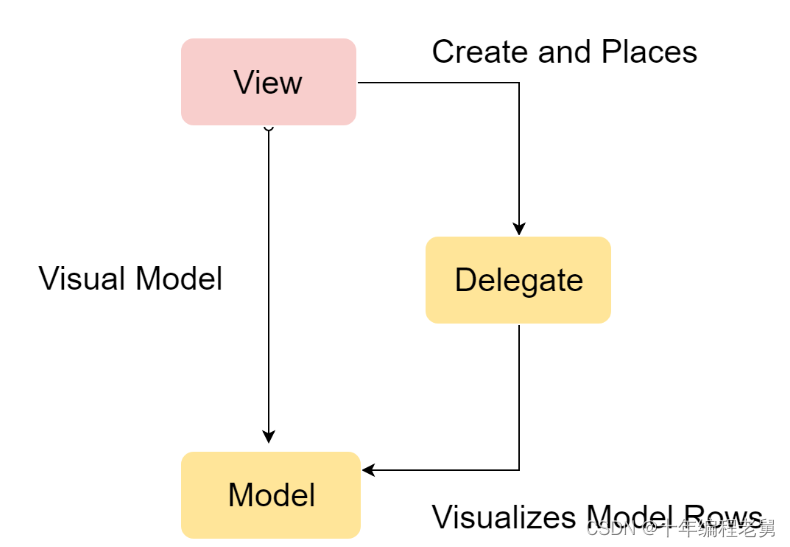
一个模型可以是一个整数,提供给代理使用的索引值(index).如果JavaScript数组被作为一个模型,模型数据变量(modelData)代表了数组的数据的当前索引。对于更加复杂的情况,每个数据项需要提供多个值,可以使用ListModel与ListElement。
对于静态模型,一个Repeater可以被用作视图。它可以非常方便的使用行(Row),列(Column),栅格(Grid),或者流(Flow)来创建用户界面。对于动态或者更大的数据模型,使用ListView或者GridView更加合适。它们会在需要时动态的创建代理,减少在场景下一次显示的元素的数量。
在视图中的代理可以与数据模型中的属性静态绑定或者动态绑定。使用onAdd与onRemove信号,可以动态的播放他们的添加和移除的特效。
静态模型
通过Repeater来作视图,用来创建一些静态的显示界面。
import QtQuick 2.12
import QtQuick.Window 2.12
Window {visible: truewidth: 640height: 480title: qsTr("静态模型")//静态显示单一的数据模型Column{id: column1spacing: 10Repeater{model: 4Rectangle{width:300height: 40radius: 3color: "lightBlue"Text {anchors.centerIn: parenttext: index}}}}//静态显示列表数据模型Column{id: column2anchors.top: column1.bottomanchors.topMargin: 10spacing: 10Repeater{model: ["Enterpris","Colombia","Challenger","Discover"]Rectangle{width:300height: 40radius: 3color: "lightBlue"Text {anchors.centerIn: parenttext: index + ":" + modelData}}}}//使用多元素的ListModelRow{id: listModelItemanchors.top: column2.bottomanchors.topMargin: 10spacing: 10Repeater{model: ListModel{ListElement{name : "项目1";surfaceColor: "gray";}ListElement{name : "项目2";surfaceColor: "orange";}ListElement{name : "项目3";surfaceColor: "red";}}Rectangle{width: 150height: 40radius: 3color: "lightBlue"Text {anchors.left: circleItem.rightanchors.leftMargin: 10anchors.centerIn: parenttext: name}Rectangle{id: circleItemanchors.left: parent.leftanchors.verticalCenter: parent.verticalCenteranchors.leftMargin: 4width: 32height: 32radius: 16border.color: "black"border.width: 2color: surfaceColor}}}}Row{spacing: 5anchors.top: listModelItem.bottomanchors.topMargin: 10Repeater{model:4delegate: Rectangle{width: 150height: 40radius: 3color: "lightBlue"Text {anchors.centerIn: parenttext: index}}}}
}
显示效果如下图所示:

动态模型
Repeator元素适合有限的静态元素,但是真正使用的时候,模型通常更加复杂和庞大。QtQuick提供了ListView和GridView元素,这两个都是基于Flickable区域的元素,因此用户可以放入更大的数据。
import QtQuick 2.12
import QtQuick.Window 2.12
Window {visible: truewidth: 640height: 480title: qsTr("动态模型")Rectangle{id: rowViewwidth: 80height: 300color: "white"ListView{anchors.fill: parentanchors.margins: 20//是否对边界进行裁剪clip: truemodel: 5delegate: numberDelegate//列表显示是水平还是垂直orientation: ListView.Vertical//focus: truespacing: 10//页眉和页脚header: headerComponentfooter: footerComponent}Component{id: numberDelegate//必须使用Item做为基本元素Rectangle{width: 40height: 40color:"lightGreen"Text {anchors.centerIn: parentfont.pixelSize: 15text: index}}}Component{id: headerComponentRectangle{width: 40height: 20color: "yellow"}}Component{id: footerComponentRectangle{width: 40height: 20color: "yellow"}}}Rectangle{id: gridViewwidth: 240height: 300color: "white"anchors.left: rowView.rightGridView{anchors.fill: parentanchors.margins: 20//是否对边界进行裁剪clip: truemodel: 100delegate: gridDelegatecellHeight: 45cellWidth: 45focus: true}Component{id: gridDelegate//必须使用Item做为基本元素Rectangle{width: 40height: 40color: GridView.isCurrentItem? "Green":"lightGreen"Text {anchors.centerIn: parentfont.pixelSize: 10text: index}}}}
}
显示效果如下图所示:

有时候我们需要根据需要动态的向数据模型中添加或者删除元素,这时候我们需要了解元素添加和移除的接口。为了方便使用,QML为每个视图绑定了两个信号,onAdd和onRemove.使用动画连接它们,可以方便的创建识别哪些内容被添加或删除的动画。
import QtQuick 2.12
import QtQuick.Window 2.12
Window {visible: truewidth: 640height: 480title: qsTr("动态添加和删除元素")Rectangle{width: 480height: 300color: "white"ListModel{id: theModelListElement{number:0}ListElement{number:1}ListElement{number:2}ListElement{number:3}ListElement{number:4}ListElement{number:5}ListElement{number:6}ListElement{number:7}ListElement{number:8}}Rectangle{anchors.left: parent.leftanchors.right: parent.rightanchors.bottom: parent.bottomanchors.margins: 20height: 40color: "darkGreen"Text {anchors.centerIn: parenttext: "add item"}MouseArea{anchors.fill: parentonClicked: {theModel.append({"number": ++parent.count})}}property int count: 9}GridView{anchors.fill: parentanchors.margins: 20anchors.bottomMargin: 80clip: truemodel: theModelcellWidth: 45cellHeight: 45delegate: numberDelegate}Component{id:numberDelegateRectangle{id: wrapperwidth: 40height: 40color: "lightGreen"Text {anchors.centerIn: parentfont.pixelSize: 10text: number}MouseArea{anchors.fill: parentonClicked: {if(!wrapper.GridView.delayRemove){theModel.remove(index)}}}//模型元素移除时候的动画GridView.onRemove: SequentialAnimation {PropertyAction { target: wrapper; property: "GridView.delayRemove"; value: true }NumberAnimation { target: wrapper; property: "scale"; to: 0; duration: 250; easing.type: Easing.InOutQuad }PropertyAction { target: wrapper; property: "GridView.delayRemove"; value: false }}//模型元素添加的时候的动画GridView.onAdd: SequentialAnimation {NumberAnimation { target: wrapper; property: "scale"; from: 0; to: 1; duration: 250; easing.type: Easing.InOutQuad }}}}}
}
显示效果如下图所示:

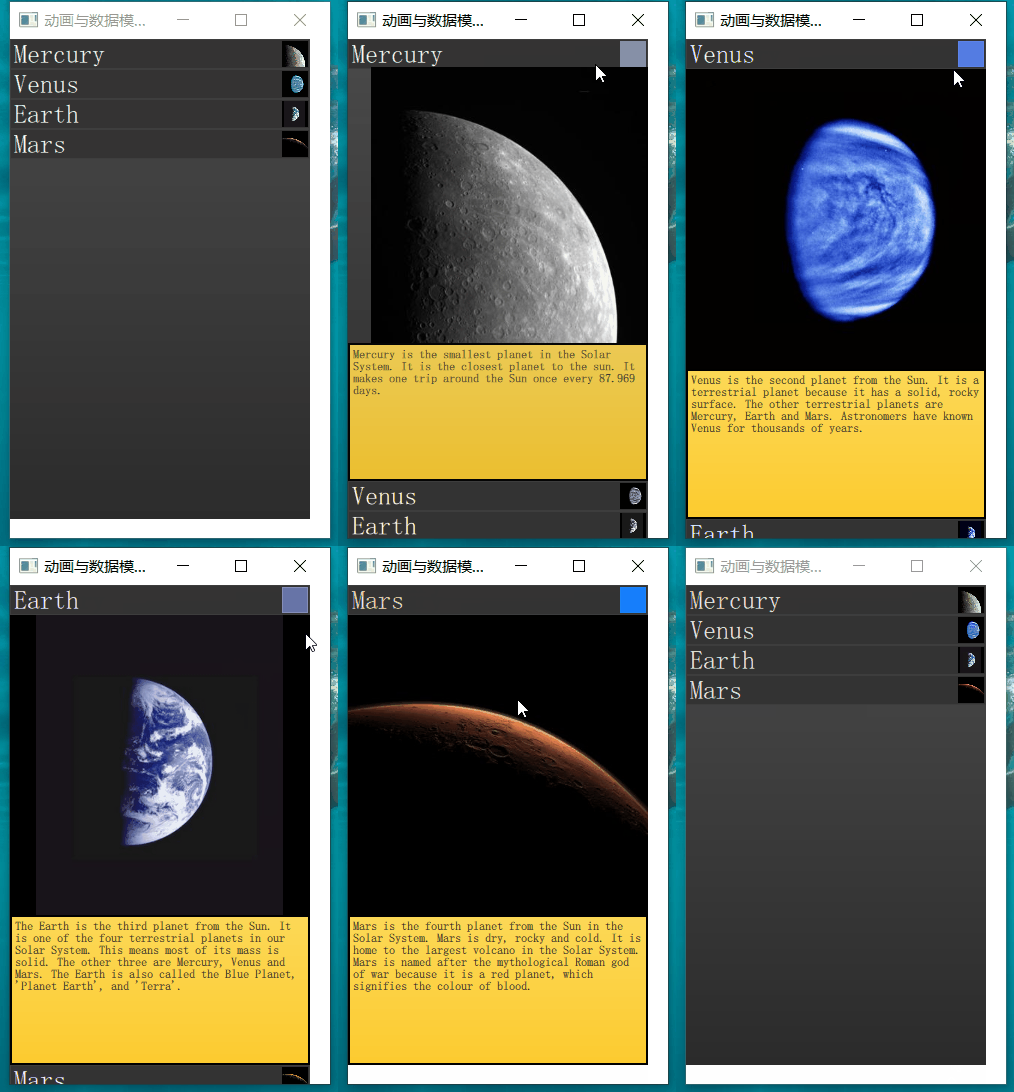
在使用链表时通常会使用当前项激活时展开的机制。这个操作可以被用于动态的将当前项目填充到整个屏幕来添加一个新的用户界面,或者为链表中的当前项提供更多的信息。
import QtQuick 2.12
import QtQuick.Window 2.12
Window {visible: truewidth: 640height: 480title: qsTr("动画与数据模型组合使用")Item {width: 300height: 480Rectangle {anchors.fill: parentgradient: Gradient {GradientStop { position: 0.0; color: "#4a4a4a" }GradientStop { position: 1.0; color: "#2b2b2b" }}}//视图ListView {id: listViewanchors.fill: parentdelegate: detailsDelegatemodel: planets}//数据模型ListModel {id: planetsListElement { name: "Mercury"; imageSource: "images/mercury.jpeg"; facts: "Mercury is the smallest planet in the Solar System. It is the closest planet to the sun. It makes one trip around the Sun once every 87.969 days." }ListElement { name: "Venus"; imageSource: "images/venus.jpeg"; facts: "Venus is the second planet from the Sun. It is a terrestrial planet because it has a solid, rocky surface. The other terrestrial planets are Mercury, Earth and Mars. Astronomers have known Venus for thousands of years." }ListElement { name: "Earth"; imageSource: "images/earth.jpeg"; facts: "The Earth is the third planet from the Sun. It is one of the four terrestrial planets in our Solar System. This means most of its mass is solid. The other three are Mercury, Venus and Mars. The Earth is also called the Blue Planet, 'Planet Earth', and 'Terra'." }ListElement { name: "Mars"; imageSource: "images/mars.jpeg"; facts: "Mars is the fourth planet from the Sun in the Solar System. Mars is dry, rocky and cold. It is home to the largest volcano in the Solar System. Mars is named after the mythological Roman god of war because it is a red planet, which signifies the colour of blood." }}//控件代理Component {id: detailsDelegateItem {id: wrapperwidth: listView.widthheight: 30Rectangle {anchors.left: parent.leftanchors.right: parent.rightanchors.top: parent.topheight: 30color: "#333"border.color: Qt.lighter(color, 1.2)Text {anchors.left: parent.leftanchors.verticalCenter: parent.verticalCenteranchors.leftMargin: 4font.pixelSize: parent.height-4color: '#fff'text: name}}Rectangle {id: imagewidth: 26height: 26anchors.right: parent.rightanchors.top: parent.topanchors.rightMargin: 2anchors.topMargin: 2color: "black"Image {anchors.fill: parentfillMode: Image.PreserveAspectFitsource: imageSource}}MouseArea {anchors.fill: parentonClicked: parent.state = "expanded"}Item {id: factsViewanchors.top: image.bottomanchors.left: parent.leftanchors.right: parent.rightanchors.bottom: parent.bottomopacity: 0Rectangle {anchors.fill: parentgradient: Gradient {GradientStop { position: 0.0; color: "#fed958" }GradientStop { position: 1.0; color: "#fecc2f" }}border.color: '#000000'border.width: 2Text {anchors.fill: parentanchors.margins: 5clip: truewrapMode: Text.WordWrapcolor: '#1f1f21'font.pixelSize: 12text: facts}}}Rectangle {anchors.right: parent.rightanchors.top: parent.topanchors.rightMargin: 2anchors.topMargin: 2width: 26height: 26color: "#157efb"border.color: Qt.lighter(color, 1.1)opacity: 0MouseArea {anchors.fill: parentonClicked: wrapper.state = ""}}//通过状态切换来更改界面控件的状态states: [State {name: "expanded"PropertyChanges { target: wrapper; height: listView.height }PropertyChanges { target: image; width: listView.width; height: listView.width; anchors.rightMargin: 0; anchors.topMargin: 30 }PropertyChanges { target: factsView; opacity: 1 }PropertyChanges { target: closeButton; opacity: 1 }PropertyChanges { target: wrapper.ListView.view; contentY: wrapper.y; interactive: false }}]transitions: [Transition {NumberAnimation {duration: 200;properties: "height,width,anchors.rightMargin,anchors.topMargin,opacity,contentY"}}]}}}
}
显示效果如下图所示:
本文福利,莬费领取Qt开发学习资料包、技术视频,内容包括(C++语言基础,C++设计模式,Qt编程入门,QT信号与槽机制,QT界面开发-图像绘制,QT网络,QT数据库编程,QT项目实战,QSS,OpenCV,Quick模块,面试题等等)↓↓↓↓↓↓见下面↓↓文章底部点击莬费领取↓↓
本文来自互联网用户投稿,文章观点仅代表作者本人,不代表本站立场,不承担相关法律责任。如若转载,请注明出处。 如若内容造成侵权/违法违规/事实不符,请点击【内容举报】进行投诉反馈!