Hexo静态博客搭建+个人定制
写在前面
很早以前就想写这样一篇了,因为各种原因耽搁到现在(逃)…网上关于Hexo的教程其实已经有挺多了,但是很多都是一笔带过。这篇博客除了Hexo博客的搭建过程,还有一些我加进去的个人定制模块,以及博客如何被搜索引擎(百度、谷歌)收录、如何进行SEO优化等等,以及在这过程中遇到的数不胜数的坑。虽然时隔一个月,有些搭建过程遇到的问题记不太清了orz…但是有什么问题还是可以问我的,我尽量解答=3=最后!!!【超长文预警】!!!建议可以先看目录选择感兴趣的部分orz
也可以先看看我用Hexo搭的博客【虽然可能也不是特别好看…】
2017-11-23更新说明:
用Python写了个一键推送文章至百度的工具,加速百度收录,有兴趣的可以看看呀,http://blog.csdn.net/LemonXQ/article/details/78615849
2017-11-20更新说明:
1. 因为多说评论已经关闭服务,故改用韩国的Livere评论,具体参见http://blog.csdn.net/lemonxq/article/details/78578617
2. 关于博客背景的设置问题(静态+动态),参见http://blog.csdn.net/lemonxq/article/details/78578650
3. 本篇文章已经介绍了双线部署(GitHub Pages + Coding Pages)博客的方法,可基于此实现全站Https,具体参见http://blog.csdn.net/lemonxq/article/details/78578649
Hexo简介
相信点进来看的都是对 Hexo 已经有了一定了解的吧~简而言之,Hexo 是一个基于 Node.js 的静态博客程序,可以方便的生成静态网页托管在github和Heroku上。其作者是来自台湾的tommy351大神。Hexo 因其界面简洁、美观且对各类人群(不只是程序猿)友好而广受欢迎,声望不亚于大名鼎鼎的WordPress。这也是我放弃 WordPress 改投 Hexo 的原因=。=放一张 Hexo NexT 主题的照片(是不是很好看hhh)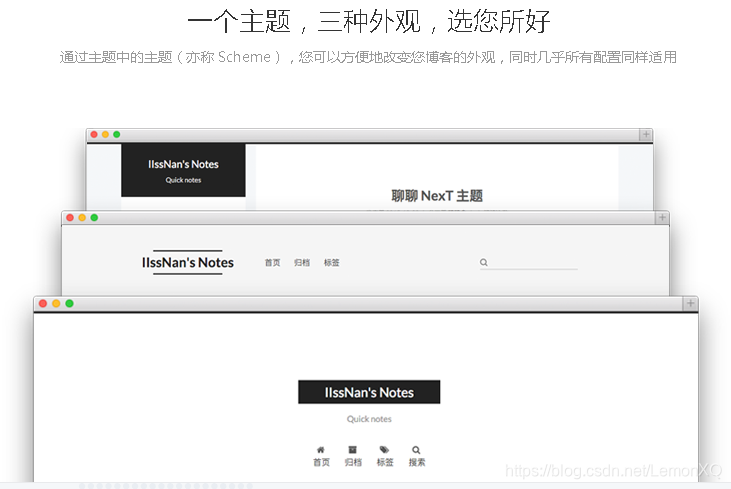
基础配置篇
【注:本文中使用的 Hexo 版本为3.22,部分配置与2.x可能有所出入】
1.安装 & 搭建
- 安装Git:安装后,注册 Github 账号,配置 SSH(具体见下一步),打开 Git Bash,接下来的命令均在Git Bash中执行
- 安装Node.js
- 安装 Hexo :
$npm install -g hexo - 安装依赖包:
$npm install - 新建博客文件夹:cd到该文件夹,执行
$hexo init - 新建Github仓库:仓库名必须为
你的Github名.github.io,要不然就不能使用Github Pages服务了。。。
2.配置 SSH
关于什么是 SSH,请自行百度(我懒…)这里直接讲一下配置步骤。
- 本地生成公钥私钥
$ssh-keygen -t rsa -C "你的邮件地址" - 添加公钥到 Github
- 根据上一步的提示,找到公钥文件(默认为id_rsa.pub),用记事本打开,全选并复制。
- 登录 Github,右上角 头像 -> Settings —> SSH keys —> Add SSH key。把公钥粘贴到key中,填好title并点击 Add key。
- git bash中输入命令
$ssh -T git@github.com,选yes,等待片刻可看到成功提示。
3. NexT主题下载
NexT 主题是由 iissnan 大神所制作的一款简洁美观不失逼格的主题。下载方法有以下两种:
- 进入
博客根目录/themes/, 执行$git clone https://github.com/iissnan/hexo-theme-next.git - 直接进入上面的链接,在项目主页download zip文件,然后解压到
博客根目录/themes/文件夹
4. 发布
使用以下两条命令进行发布,发布成功后可在浏览器中使用你的github名.github.io进入你的博客~
$hexo clean
$hexo d -g
Hexo日常使用篇
1.生成静态页面:
$hexo generate
2.本地预览:
$hexo server//或 hexo s
//然后打开浏览器输入localhost:4000可以预览博客效果,用于调试
3. 新建文章
$hexo new post "title"
//新文章位置:/source/_posts
4. 新建页面
$hexo new page "title"
5. 部署并生成
$hexo d -g
6. 清除生成的文件和缓存
$hexo clean
_config文件配置篇
1.整站配置
直接贴一下我的配置文件吧【路径:博客根目录/_config.yml】
【友情提示: 不要用系统自带记事本打开,容易出现编码不一致问题,最好用 Notepad++ 或 Sublime Text 之类的】
# Hexo Configuration
## Docs: https://hexo.io/docs/configuration.html
## Source: https://github.com/hexojs/hexo/# Site
title: Lemon-XQ # 博客名
subtitle: Stay Hungry, Stay Foolish # 副标题
description: 银河街角,时光路口 # 站点描述
author: Lemon-XQ # 作者名
language: zh-Hans # 语言设置
timezone: Asia/Shanghai# URL
## If your site is put in a subdirectory, set url as 'http://yoursite.com/child' and root as '/child/'
url: http://lemonxq.cn # 博客所要绑定的域名,没有则不填
root: /
permalink: :year/:month/:day/:title/
permalink_defaults:# Directory
source_dir: source
public_dir: public
tag_dir: tags
archive_dir: archives
category_dir: categories
code_dir: downloads/code
i18n_dir: :lang
skip_render:# Writing
new_post_name: :title.md # File name of new posts
default_layout: post
titlecase: false # Transform title into titlecase
external_link: true # Open external links in new tab
filename_case: 0
render_drafts: false
post_asset_folder: false
relative_link: false
future: true
highlight: # Hexo自带代码高亮插件enable: trueline_number: trueauto_detect: falsetab_replace:# Category & Tag
default_category: uncategorized
category_map:
tag_map:# Date / Time format
## Hexo uses Moment.js to parse and display date
## You can customize the date format as defined in
## http://momentjs.com/docs/#/displaying/format/
date_format: YYYY-MM-DD
time_format: HH:mm:ss# Pagination
## Set per_page to 0 to disable pagination
per_page: 10 # 每页显示文章数
pagination_dir: page# Extensions # 以下为第三方插件设置
## Plugins: https://hexo.io/plugins/
## Themes: https://hexo.io/themes/
theme: next # 使用的主题,主题配置后面讲search: # 本地搜索插件path: search.xmlfield: postformat: htmllimit: 10000feed: # RSS订阅插件type: atompath: atom.xmllimit: 0plugins:
baidusitemap: # 百度站点地图path: baidusitemap.xml# Deployment # 非常重要的部署设置
## Docs: https://hexo.io/docs/deployment.html
deploy:type: gitrepository: # 可选择同时部署到 GitHub 和 coding 或者只部署到 Githubgithub: git@github.com:你的GitHub名/你的GitHub名.github.io.gitcoding: git@git.coding.net:你的Coding名/你的Coding名.gitbranch: master
2.Next主题配置
一样贴一下我的主题config文件吧,注意和上面的全局config文件区分。
【路径:博客根目录/themes/next/_config.yml】
# ---------------------------------------------------------------
# Site Information Settings
# ---------------------------------------------------------------# Put your favicon.ico into `hexo-site/source/` directory.
favicon: /favicon.ico # 网站logo# Set default keywords (Use a comma to separate)
keywords: "Lemon,xq,unity,Hexo" # 网站关键词,有利于SEO优化# Set rss to false to disable feed link.
# Leave rss as empty to use site's feed link.
# Set rss to specific value if you have burned your feed already.
rss: /atom.xml# Specify the date when the site was setup
since: 2017 # 建站年份# icon between year and author @Footer
authoricon: heart# Footer `powered-by` and `theme-info` copyright
copyright: true# Canonical, set a canonical link tag in your hexo, you could use it for your SEO of blog.
# See: https://support.google.com/webmasters/answer/139066
# Tips: Before you open this tag, remeber set up your URL in hexo _config.yml ( ex. url: http://yourdomain.com )
canonical: true# Change headers hierarchy on site-subtitle (will be main site description) and on all post/pages titles for better SEO-optimization.
seo: false# ---------------------------------------------------------------
# Menu Settings
# ---------------------------------------------------------------# When running the site in a subdirectory (e.g. domain.tld/blog), remove the leading slash (/archives -> archives)
menu: # 菜单栏设置home: /categories: /categoriesabout: /aboutarchives: /archivestags: /tags#sitemap: /sitemap.xml#commonweal: /404.html# Enable/Disable menu icons.
# Icon Mapping:
#   Map a menu item to a specific FontAwesome icon name.
#   Key is the name of menu item and value is the name of FontAwsome icon. Key is case-senstive.
#   When an question mask icon presenting up means that the item has no mapping icon.
menu_icons: # 菜单项图标enable: true#KeyMapsToMenuItemKey: NameOfTheIconFromFontAwesomehome: homeabout: usercategories: thschedule: calendartags: tagsarchives: archivesitemap: sitemapcommonweal: heartbeat# ---------------------------------------------------------------
# Scheme Settings
# ---------------------------------------------------------------# Schemes # NexT 主题提供三种布局
#scheme: Muse
#scheme: Mist
scheme: Pisces# ---------------------------------------------------------------
# Font Settings
# - Find fonts on Google Fonts (https://www.google.com/fonts)
# - All fonts set here will have the following styles:
#     light, light italic, normal, normal intalic, bold, bold italic
# - Be aware that setting too much fonts will cause site running slowly
# - Introduce in 5.0.1
# ---------------------------------------------------------------
font:enable: true# Uri of fonts host. E.g. //fonts.googleapis.com (Default)host:# Global font settings used on  element.global:# external: true will load this font family from host.external: truefamily: Lato# Font settings for Headlines (h1, h2, h3, h4, h5, h6)# Fallback to `global` font settings.headings:external: truefamily:# Font settings for posts# Fallback to `global` font settings.posts:external: truefamily:# Font settings for Logo# Fallback to `global` font settings.# The `size` option use `px` as unitlogo:external: truefamily:size:# Font settings for  and code blocks.codes:external: truefamily:size:# ---------------------------------------------------------------
# Sidebar Settings
# ---------------------------------------------------------------#friend links
links_title: 友情链接links:# 添加你的友情链接(eg. 慕课网: imooc.com)# Social Links
# Key is the link label showing to end users.
# Value is the target link (E.g. GitHub: https://github.com/iissnan)
social: # 添加你的社交账号GitHub: https://github.com/Lemon-XQ# Social Links Icons
# Icon Mapping:
#   Map a menu item to a specific FontAwesome icon name.
#   Key is the name of the item and value is the name of FontAwsome icon. Key is case-senstive.
#   When an globe mask icon presenting up means that the item has no mapping icon.
social_icons: enable: true# Icon Mappings.# KeyMapsToSocalItemKey: NameOfTheIconFromFontAwesomeGitHub: githubTwitter: twitterWeibo: weibo# Sidebar Avatar
# in theme directory(source/images): /images/avatar.jpg
# in site  directory(source/uploads): /uploads/avatar.jpg
avatar: /images/avatar.jpg # 自定义头像# 是否为侧边栏文章的目录自动添加索引
# Table Of Contents in the Sidebar
toc:enable: true# Automatically add list number to toc.number: true# Creative Commons 4.0 International License.
# http://creativecommons.org/
# Available: by | by-nc | by-nc-nd | by-nc-sa | by-nd | by-sa | zero
#creative_commons: by-nc-sa
#creative_commons:sidebar: # 这个改了好像没什么用。。。# Sidebar Position, available value: left | rightposition: left#position: right# Sidebar Display, available value:#  - post    expand on posts automatically. Default.#  - always  expand for all pages automatically#  - hide    expand only when click on the sidebar toggle icon.#  - remove  Totally remove sidebar including sidebar toggler.display: post#display: always#display: hide#display: remove# Blogrolls
#links_title: Links
#links_layout: block
#links_layout: inline
#links:#Title: http://example.com/# ---------------------------------------------------------------
# Post Settings
# ---------------------------------------------------------------# Automatically scroll page to section which is under  mark.
# 开启后使用  可以实现点击查看全文效果
scroll_to_more: true# Automatically excerpt description in homepage as preamble text.
excerpt_description: true# Automatically Excerpt. Not recommand.
# Please use  in the post to control excerpt accurately.
auto_excerpt:enable: truelength: 150# Post meta display settings
post_meta:item_text: truecreated_at: trueupdated_at: falsecategories: true#开启微信赞赏
# Wechat Subscriber
wechat_subscriber:enabled: trueqcode: http://okwl1c157.bkt.clouddn.com/wechat-qcode.jpgdescription: 坚持原创技术分享,您的支持将鼓励我继续创作!# ---------------------------------------------------------------
# Misc Theme Settings # Misc布局设置
# ---------------------------------------------------------------# Custom Logo.
# !!Only available for Default Scheme currently.
# Options:
#   enabled: [true/false] - Replace with specific image
#   image: url-of-image   - Images's url
custom_logo:enabled: falseimage: # Code Highlight theme
# Available value:
#    normal | night | night eighties | night blue | night bright
# https://github.com/chriskempson/tomorrow-theme
# 设置代码高亮主题
highlight_theme: night bright# ---------------------------------------------------------------
# Third Party Services Settings
# ---------------------------------------------------------------# MathJax Support
mathjax:enable: falseper_page: falsecdn: //cdn.mathjax.org/mathjax/latest/MathJax.js?config=TeX-AMS-MML_HTMLorMML# 自从Swiftype要收费后。。。你懂的
# Swiftype Search API Key
#swiftype_key:# Baidu Analytics ID
#baidu_analytics:# 多说 你的昵称
# Duoshuo ShortName
duoshuo_shortname: lemonxq# Disqus
#disqus_shortname:# Hypercomments
#hypercomments_id:# Gentie productKey
#gentie_productKey:# Support for youyan comments system.
# You can get your uid from http://www.uyan.cc
#youyan_uid: your uid# Baidu Share
# Available value:
#    button | slide
# Warning: Baidu Share does not support https.
#baidushare:
##  type: button# Share
#jiathis:
# Warning: JiaThis does not support https.
#add_this_id:# Share
duoshuo_share: true# Google Webmaster tools verification setting
# See: https://www.google.com/webmasters/
#google_site_verification:# Google Analytics
#google_analytics:# CNZZ count
cnzz_siteid: # CNZZ站长统计功能,开启服务后将siteid添加在此处# Application Insights
# See https://azure.microsoft.com/en-us/services/application-insights/
# application_insights:# Make duoshuo show UA
# user_id must NOT be null when admin_enable is true!
# you can visit http://dev.duoshuo.com get duoshuo user id.
# 多说评论功能
duoshuo_info:ua_enable: true admin_enable: trueuser_id: # 管理员IDadmin_nickname: 博主duoshuo_hotartical: true # 多说 热评文章# Facebook SDK Support.
# https://github.com/iissnan/hexo-theme-next/pull/410
facebook_sdk:enable: falseapp_id:       #fb_admin:     #like_button:  #truewebmaster:    #true# Facebook comments plugin
# This plugin depends on Facebook SDK.
# If facebook_sdk.enable is false, Facebook comments plugin is unavailable.
facebook_comments_plugin:enable: falsenum_of_posts: 10  # min posts num is 1width: 100%       # default width is 550pxscheme: light     # default scheme is light (light or dark)# Show number of visitors to each article.
# You can visit https://leancloud.cn get AppID and AppKey.
# 启动页面浏览量功能
leancloud_visitors:enable: trueapp_id: # leancloud 控制台后台获取app_key: # leancloud 控制台后台获取# Show PV/UV of the website/page with busuanzi.
# Get more information on http://ibruce.info/2015/04/04/busuanzi/
# 不蒜子统计功能
busuanzi_count:# count values only if the other configs are falseenable: true# custom uv span for the whole sitesite_uv: falsesite_uv_header: site_uv_footer:# custom pv span for the whole sitesite_pv: falsesite_pv_header: site_pv_footer:# custom pv span for one page onlypage_pv: falsepage_pv_header: page_pv_footer:# Tencent analytics ID
# tencent_analytics:# Enable baidu push so that the blog will push the url to baidu automatically which is very helpful for SEO
# 百度推送
baidu_push: true# Google Calendar
# Share your recent schedule to others via calendar page
#
# API Documentation:
# https://developers.google.com/google-apps/calendar/v3/reference/events/list
calendar:enable: falsecalendar_id: api_key: orderBy: startTimeoffsetMax: 24offsetMin: 4timeZone:showDeleted: falsesingleEvents: truemaxResults: 250# Algolia Search
algolia_search:enable: falsehits:per_page: 10labels:input_placeholder: Search for Postshits_empty: "We didn't find any results for the search: ${query}"hits_stats: "${hits} results found in ${time} ms"
个人定制模块
更改代码块颜色及字体大小
- 打开
\themes\next\source\css\ _variables\base.styl文件 - 修改
$code-background和$code-foreground的值:
// Code & Code Blocks
// 用``围出的代码块
// --------------------------------------------------
$code-font-family               = $font-family-monospace
$code-font-size                 = 15px # 代码字体大小
$code-background                = #自定义RGB值
$code-foreground                = #自定义RGB值
$code-border-radius             = 4px
实现底栏半透明
- 打开
博客根目录/themes/next/source/css/_common/components/footer/footer,styl文件 - 在最开始的.footer中修改color值为#999
.footer {font-size: 14px;color: #999;img { border: none; }+mobile(){font-size: 13px;}
}
添加背景图片
- 将背景图片命名为background.jpg并放入
博客根目录/source/images文件夹中 - 打开
博客根目录/themes/next/source/css/_custom/custom.styl文件 - 加入如下代码:
// Custom styles.
body { background-image: url(/images/background.jpg);background-attachment: fixed;background-repeat: no-repeat;
}
域名绑定
购买域名
一个高逼格的博客怎么能够少了域名呢=。=域名提供商有很多,像godaddy、万网等。如果是学生党的话推荐使用腾讯云“1元云主机+域名”计划。
绑定域名
这里以在腾讯云购买的域名为例。
- 进入腾讯云后台域名管理,点击解析域名
- 添加DNS记录:


【注:腾讯云中DNS记录生效需要十分钟,请耐心等待】 - 在博客根目录里的source目录中新建CNAME文本文件(不带任何后缀!!!),然后用Notepad++编辑CNAME文件,写入你的域名,保存退出
- 重新部署一下博客(hexo clean、hexo d -g)
- 试试能不能通过域名访问到你的博客
百度 & 谷歌收录
检测站点是否已被百度 or 谷歌收录的方法: 在百度 or 谷歌搜索框中输入site:你的站点然后回车,如果有结果显示,说明已被收录。
百度收录
让百度收录我的博客真的是经历了很长的一段过程。。。关于提交sitemap、设置推送链接可以看一下这篇文章。事实上按照该博客的做法后,我等了一个星期都没有收录成功(明明谷歌的都收录了orz)。后来,我发现了原因。那就是github禁止了百度爬虫,而我的站点又是托管在github上的,所以百度爬取不到我的网页,自然收录不了,以下是解决方案。
- 将博客同时部署在github和coding上,coding的服务器在国内,访问速度快,而且最重要的是不禁百度爬虫
- 打开根目录下_config.yml文件,修改最下面的deploy部分如下
deploy:type: gitrepository:github: git@github.com:你的GitHub名/你的GitHub名.github.io.gitcoding: git@git.coding.net:你的Coding名/你的Coding名.gitbranch: master
- coding上创建一个新项目,建议命名为你的Github名
- 本地打开 id_rsa.pub 文件,复制其中全部内容,填写到SSH_RSA公钥key下的一栏,公钥名称可以随意起名字。完成后点击“添加”,然后输入密码或动态码即可添加完成。添加后,在git bash命令输入:
ssh -T git@git.coding.net检测公钥是否添加成功 - 在coding项目主页中点击pages服务,进行如下配置
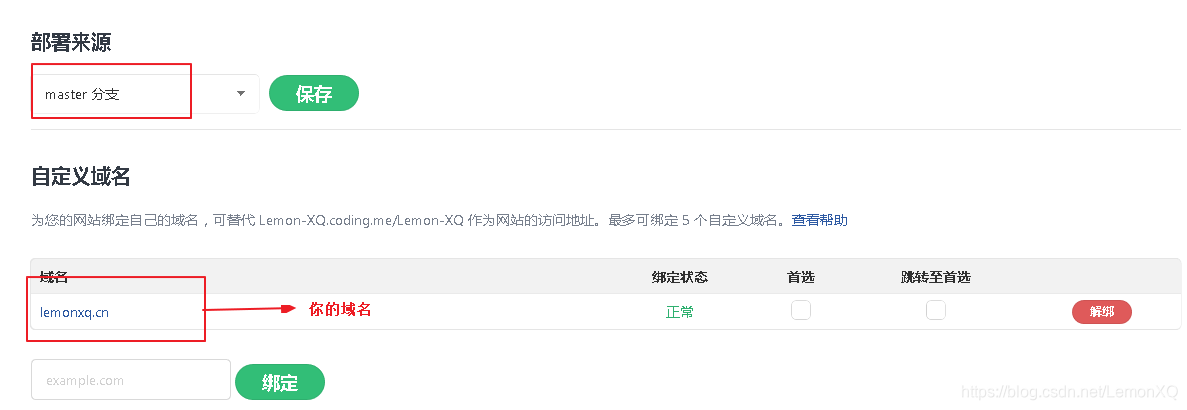
- 在DNS Pod中添加两条CNAME记录,如下


- 重新部署博客,等待一两天后应该就可以在百度里搜索到你的博客啦(虽然目前为止,百度好像也就收录了我的站点首页= =)
- 小tips:百度主动推送比自动推送等要快的多,因此每写完一篇博客后,建议自己主动推送给百度,方法百度站长平台里有写
- 小tips之二:在百度站长平台索引量工具定制索引规则为:
你的站点/*可以加快百度爬虫爬取你的博客网站下的子网页并建立索引的速度。
谷歌收录
让谷歌收录就容易多了,只要提交站点地图然后验证域名所有权就行了,具体的上面那篇文章也很详细地介绍了,这里不再赘述。
SEO优化
更改首页标题格式
打开\themes\next\layout\index.swig文件,找到这行代码:
{% block title %} {{ config.title }} {% endblock %}
把它改成:
{% block title %}{{ theme.keywords }} - {{ config.title }} - {{ theme.description }}
{% endblock %}
外链生成
这里推荐使用外链工具为你的站点批量生成外链。百度一下“超级外链SEO工具”,输入站点名,然后就让它自动为你生成外链吧~~新站的话建议每天刷两次。
扩展功能(更新ing)
插入图片
- 插入本地图片:在**\hexo\source**目录下新建文件夹,命名随意(以images为例),然后在文章中需要插入图片的地方输入:
 - 插入外部链接图片:直接输入
 - 使用七牛云存储:如果博客中使用的图片数量过多,尽量不要用第1种方式,一来git空间有限,二来博客迁移的时候比较麻烦。这里推荐使用图床来存储博客中图片。下面以七牛为例大致说明一下步骤:
-
进入七牛官网注册账号
-
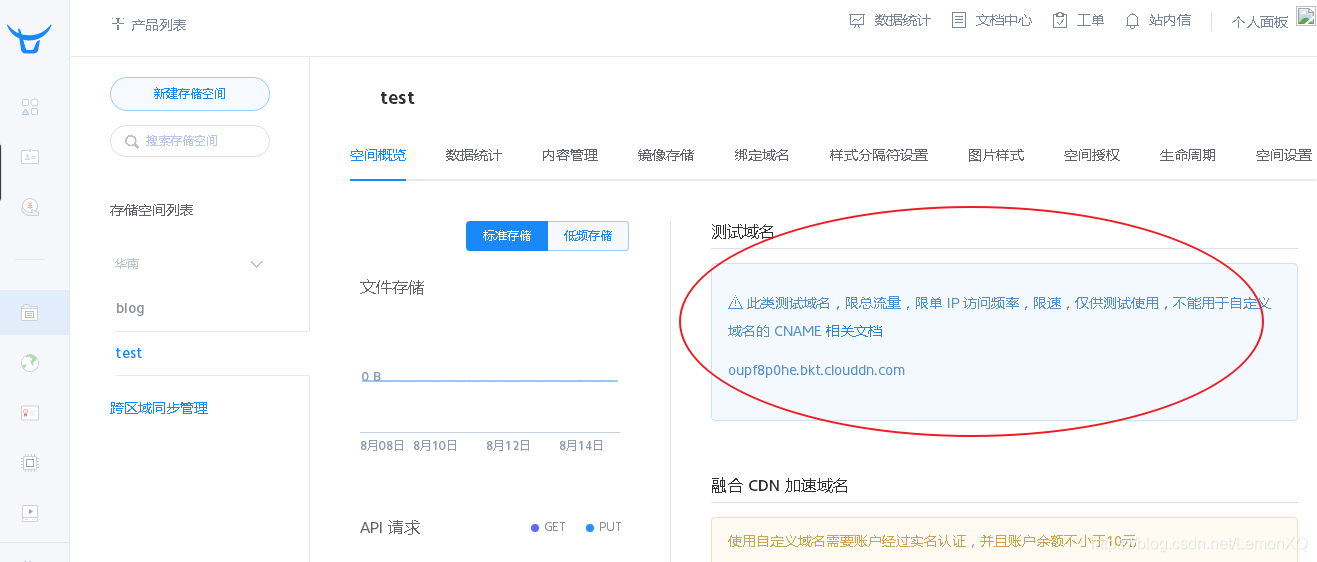
新建对象存储空间
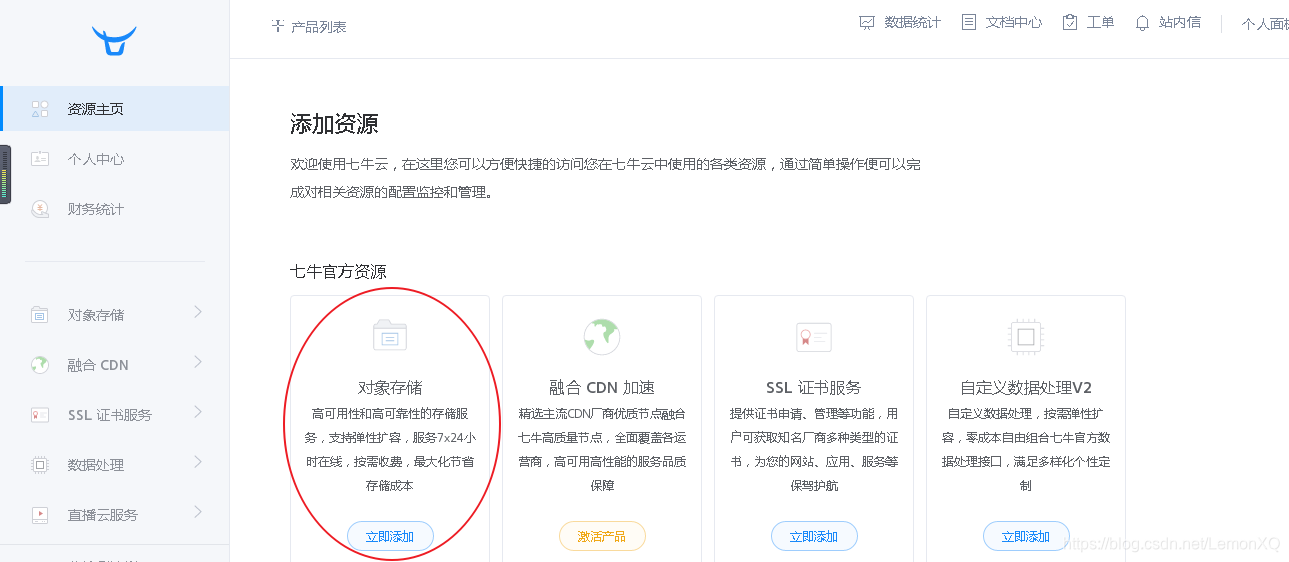
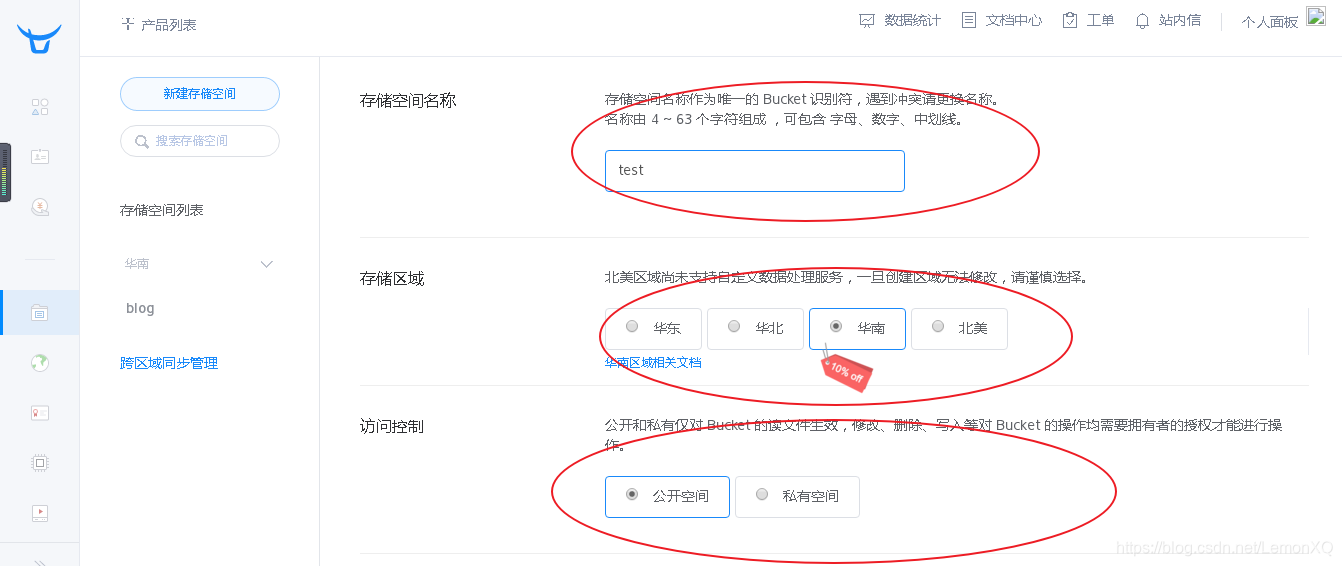
-
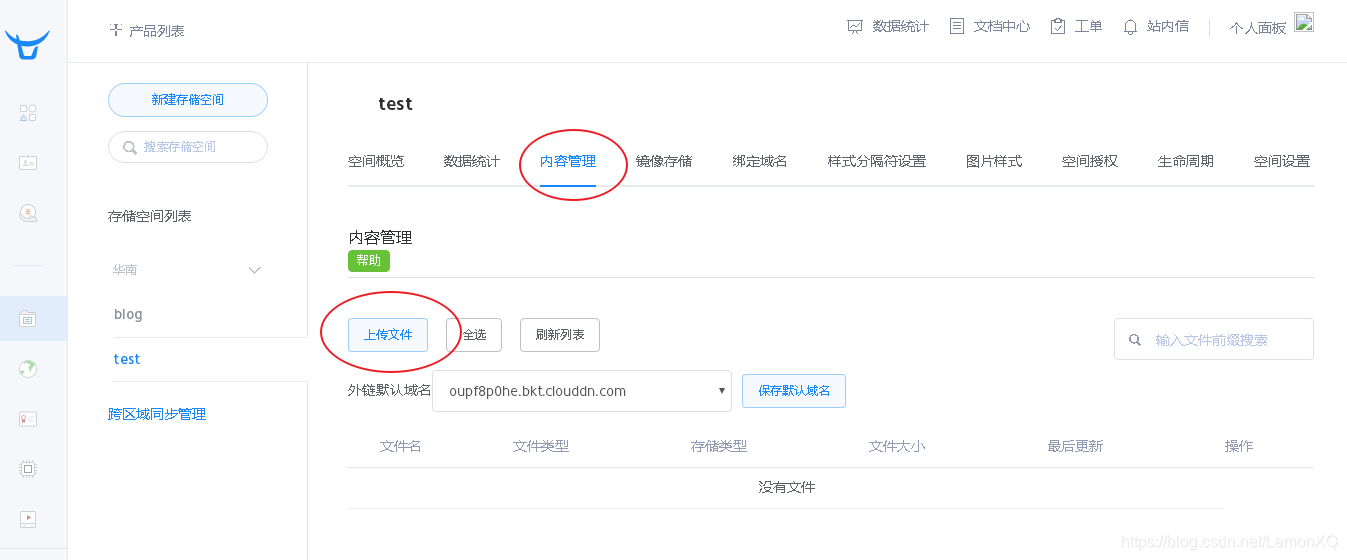
上传图片
-
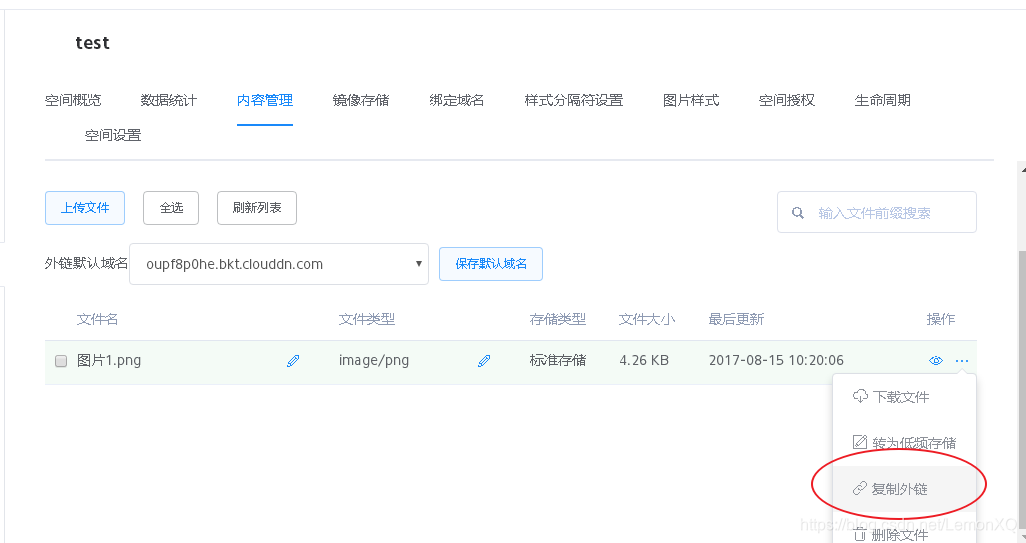
copy生成的图片外链
-
PS: 如果想要生成的外链域名为独立域名而不是七牛默认域名,需要支付10元
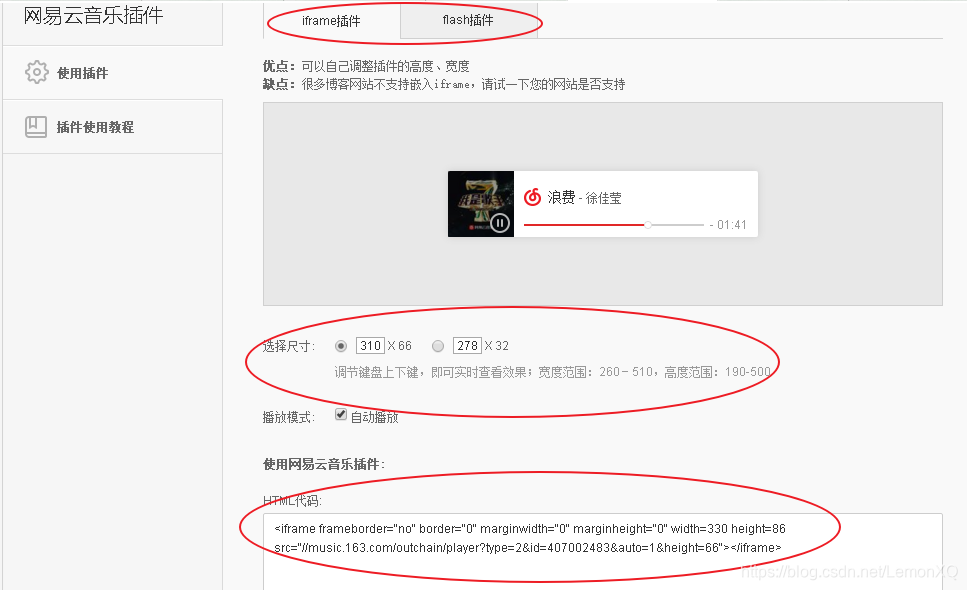
插入音乐(以网易云为例)
-
打开网易云音乐官网,进入想插入的音乐的界面
-
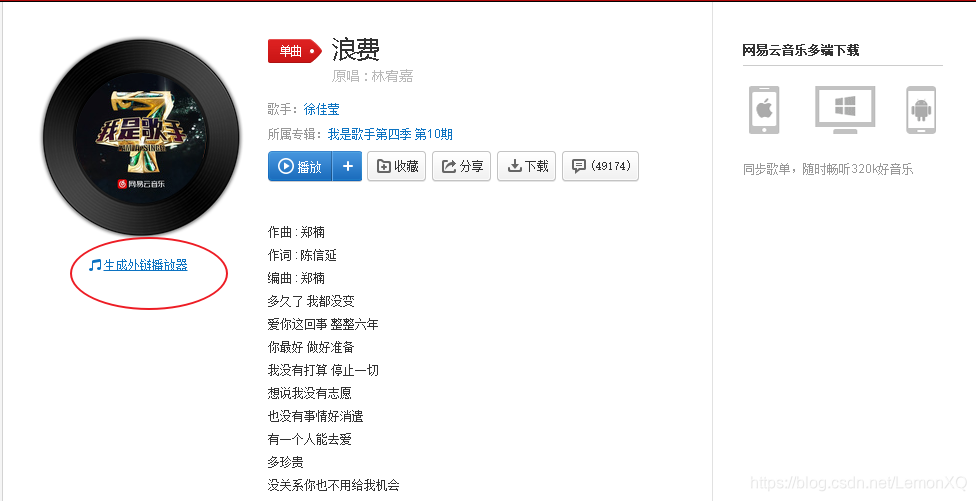
点击“生成外链播放器”
-
复制下方的代码,粘贴到博客中即可
插入视频
直接贴代码:
参考资料
-
Hexo3.1.1静态博客搭建指南
-
NexT使用文档
-
Hexo官方文档(中文版)
如果觉得有帮助到你欢迎打赏呀嘻嘻嘻,不要脸的放个二维码(逃…)

本文来自互联网用户投稿,文章观点仅代表作者本人,不代表本站立场,不承担相关法律责任。如若转载,请注明出处。 如若内容造成侵权/违法违规/事实不符,请点击【内容举报】进行投诉反馈!