Unity实现生成本地二维码并访问二维码内容
Unity版本:2018.4.36 VisualStudio版本:2020;引用库:zxing.unity.dll
最近做一个人脸换装的项目,人脸融合选用了百度人脸融合API,具体实现文档:
融合后的图片保存到了本地主机,将主机端口开放,局域网内访问IP+端口+图片名称即可将图片保存到局域网内其他设备;
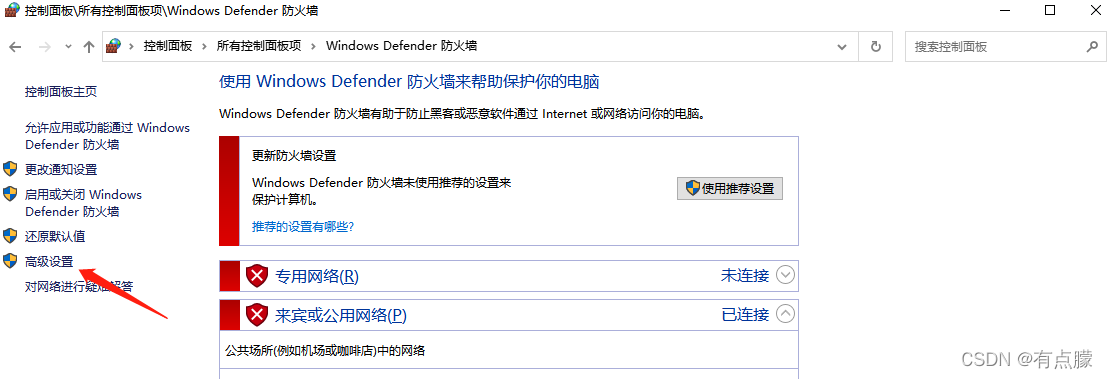
1:开放本地主机端口:打开控制面板-所有控制面板项-Windows Defender 防火墙-高级设置-右击入站规则-新建规则-创建的规则类型选择(端口)- 规则应用选择TCP-选择特定本地端口-允许链接-然后一直下一步填写名称和描述下一步即可完成(云服务器开放端口自己到购买服务器的网站去控制台-安全组中添加规则)
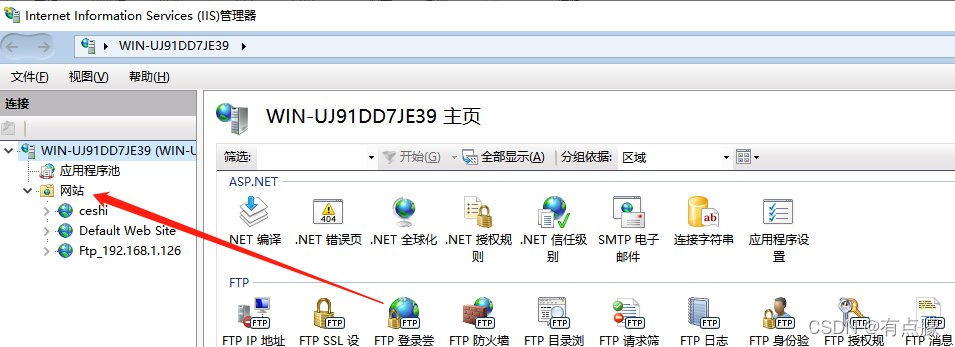
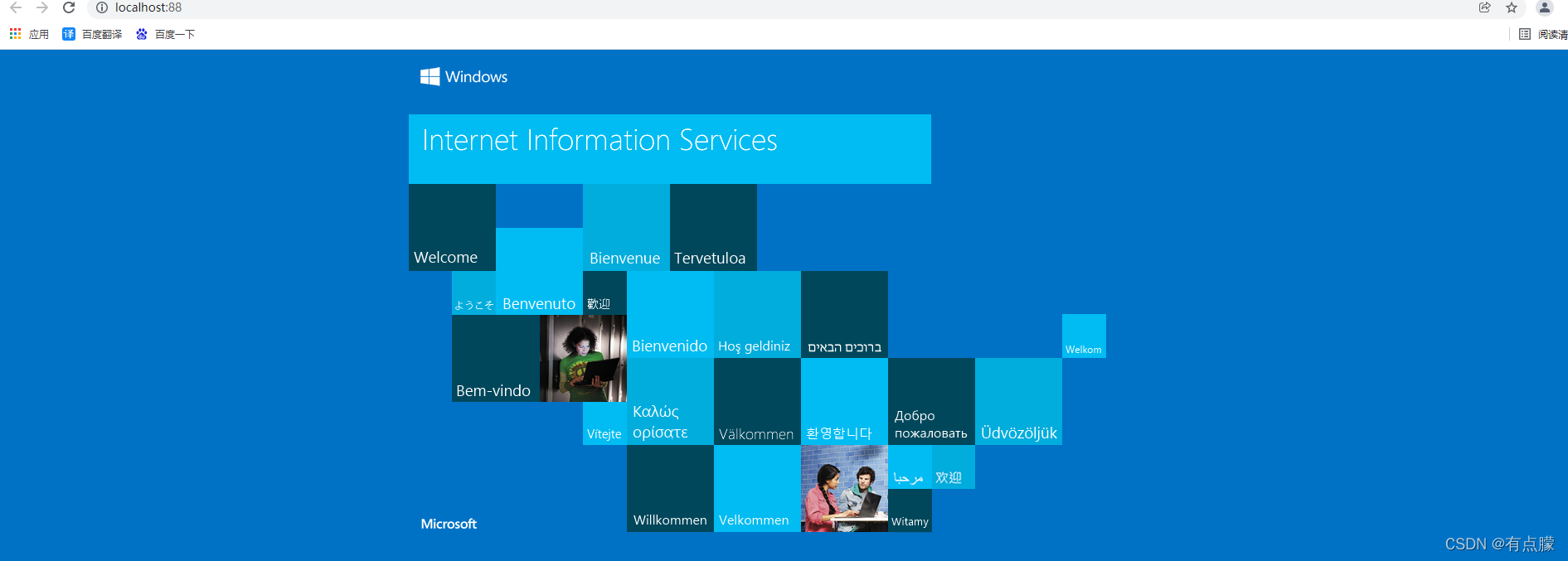
2:打开本地IISSevers管理器,没安装的需要安装,具体安装教程自行百度;打开后选择网站并右击-添加网站-名称随便填,路径填写本机指定文件夹-然后端口选择刚刚开放的端口(这里设置了88端口)然后确定启动网站即可;查看是否正确配置网站浏览器输入http://localhost:88/,网站显示为下下图中所示,网站则正常配置,局域网内其他设备也可以访问该地址;
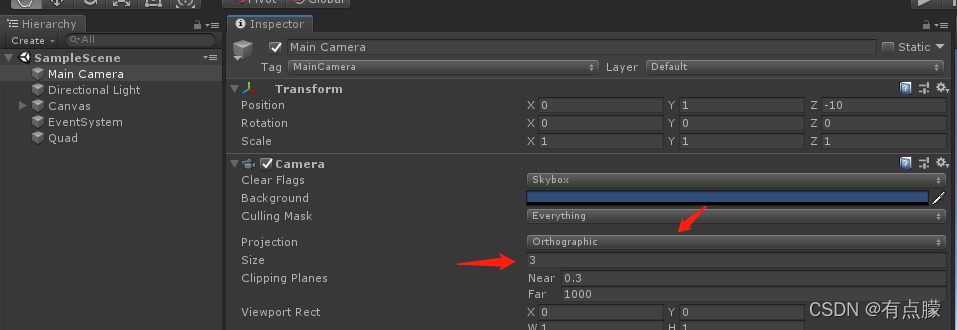
3:新建Unity工程,本次测试了两个版本,Unity2020.3.25使用 WebCamTexture API的时候图像会卡顿(不知道为啥,没研究),Unity2018.4.36则效果非常棒,所有本次测试选用了该版本;接下来导入zxing.unity.dll文件,相机设置为下图;新建一个Quad物体,大小设置为(x,y,z)=(16.9.1)
4:新建脚本QuadGetTexture.cs挂在新建的Quad物体上;代码如下:
using System.Collections;
using System.Collections.Generic;
using UnityEngine;   public class QuadGetTexture : MonoBehaviour
{ private WebCamTexture webCamTexture;//摄像头的内容 void Start(){//打开了摄像头WebCamDevice[] devices = WebCamTexture.devices;string deviceName = devices[0].name;webCamTexture = new WebCamTexture(deviceName, 400, 300);GetComponent<Renderer>().material.mainTexture = webCamTexture;webCamTexture.Play();  }
}
5:截屏将图片保存到刚刚设置的网站的路径下;
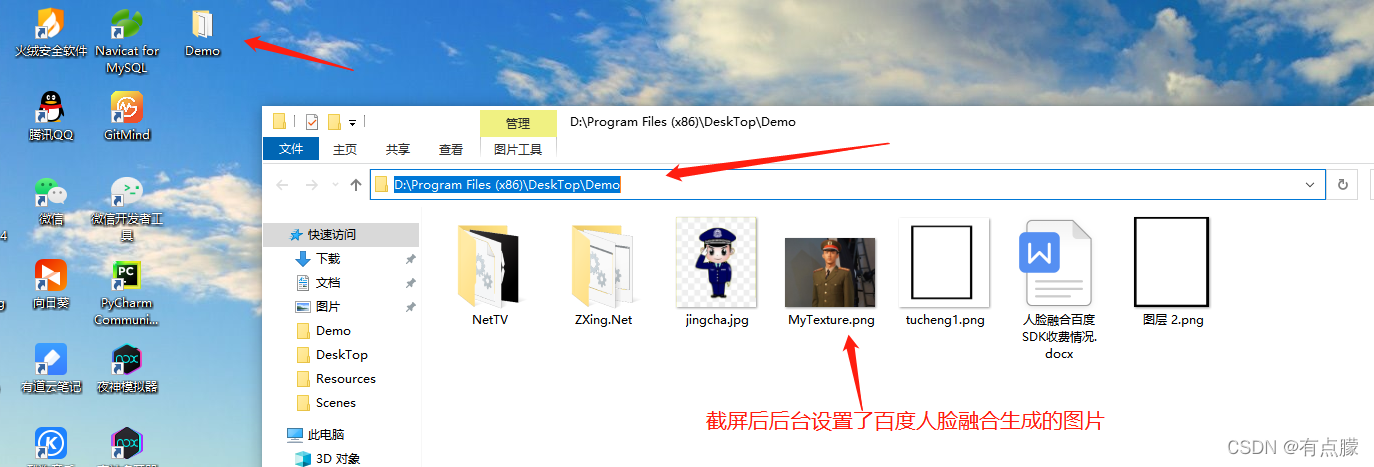
6:调用ZXINGdll文件生成二维码显示到界面上:新建脚本GetQRCode.cs;当作工具类使用;
using System.Collections;
using System.Collections.Generic;
using UnityEngine;using ZXing;
using ZXing.QrCode;
using ZXing.QrCode.Internal;public class GetQRCode
{ /// 7:调用生成二维码:
//生成显示二维码 RawImage showRawImage //GameUtils.NET_PATH = "http://192.168.1.126:88/jingcha.jpg" 生成图片的访问地址,IIS配置的网站var t = GetQRCode.CreatQRCode(GameUtils.NET_PATH, 256, 256);showRawImage.texture = t;showRawImage.SetNativeSize();
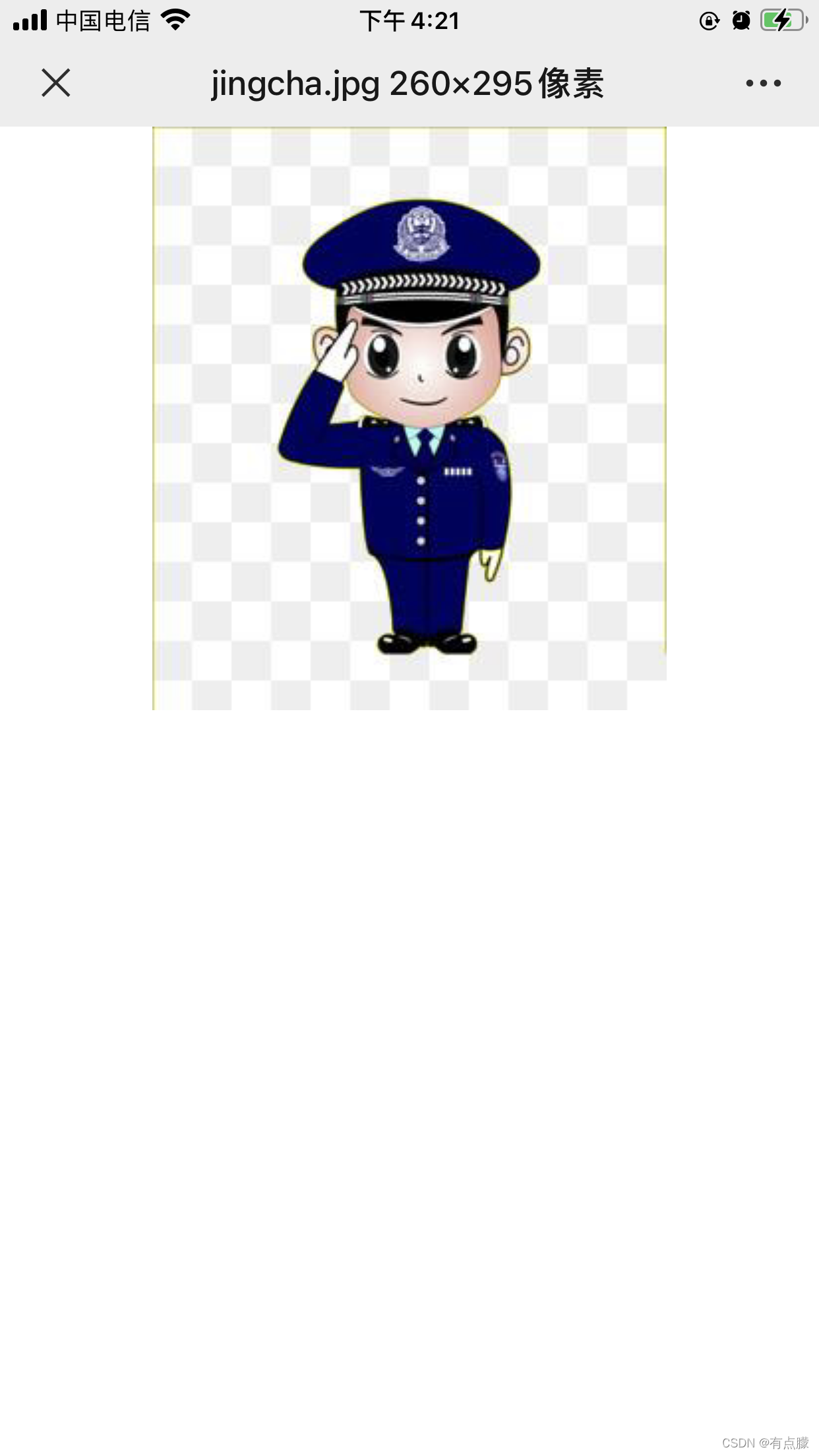
8:局域网内手机端访问:微信扫码出的结果;
Demo仓库地址;需要的拿去用,不谢!
本文来自互联网用户投稿,文章观点仅代表作者本人,不代表本站立场,不承担相关法律责任。如若转载,请注明出处。 如若内容造成侵权/违法违规/事实不符,请点击【内容举报】进行投诉反馈!