React项目实战之租房app项目(三)首页顶部导航城市选择模块数据处理
前言
目录
- 前言
- 一、顶部导航
- 1.1 顶部导航效果图
- 1.2 顶部导航布局和样式
- 1.3 百度地图API
- 1.3.1 申请百度账号和秘钥
- 1.3.2 使用步骤
- 1.4 获取顶部导航城市信息
- 1.5 配置顶部导航路由跳转
- 二、城市选择模块-处理城市列表数据
- 2.1 城市选择页面效果图
- 2.2 顶部导航栏
- 2.3 获取城市列表数据并处理
- 2.3.1 获取城市列表数据
- 2.3.2 处理城市列表数据格式
- 2.3.3 获取当前城市信息
- 总结
一、顶部导航
1.1 顶部导航效果图
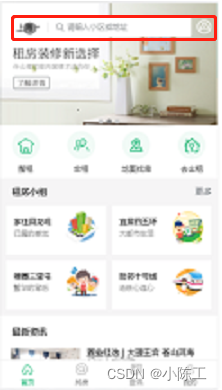
1.2 顶部导航布局和样式
在src/pages/index/index.js中添加如下代码:
{/* 左侧白色区域 */}{/* 位置 */}长沙{/* 搜索表单 */}请输入小区或地址 {/* 右侧地图图标 */}
相关样式(index.scss):
// 顶部导航
.search-box {position: absolute;top: 25px;width: 100%;padding: 0 10px;// 左侧白色区域.search {flex: 1;height: 34px;margin: 0 10px;padding: 5px 5px 5px 8px;border-radius: 3px;background-color: #fff;// 位置.location {.icon-arrow {margin-left: 2px;font-size: 12px;color: #7f7f80;}}// 搜索表单.form {border-left: solid 1px #e5e5e5;margin-left: 12px;line-height: 16px;.icon-seach {vertical-align: middle;padding: 0 2px 0 12px;color: #9c9fa1;font-size: 15px;}.text {padding-left: 4px;font-size: 13px;color: #9c9fa1;}}}// 右侧地图图标.icon-map {font-size: 25px;color: #fff;}
}
1.3 百度地图API
1.3.1 申请百度账号和秘钥
1、注册百度账号,登录百度地图开放平台。
2、点击创建应用。
3、获取到密钥(ak)
1.3.2 使用步骤
1、在项目入口文件index.js中引入百度地图 API 的JS文件,替换自己申请好的密钥
2、在index.css 中设置全局样式:
html, body, #root, .App {height:100%
}
body{margin:0px;padding:0px
}
3、在src/pages目录下创建Map组件,配置路由,在Map组件中添加如下代码:
export default class Map extends React.Component {componentDidMount() {// 初始化地图实例// 注意:在 react 脚手架中全局对象需要使用 window 来访问,否则,会造成 ESLint 校验错误const map = new window.BMap.Map('container')// 设置中心点坐标const point = new window.BMap.Point(116.404, 39.915)// 初始化地图map.centerAndZoom(point, 15)}render() {return ({/* 地图容器元素 */})}
}
1.4 获取顶部导航城市信息
1、通过 IP 定位获取到当前城市名称。
2、调用我们服务器的接口,换取项目中的城市信息(有房源的城市的名称和id)
3、将接口返回的城市信息展示在顶部导航栏中。
在src/pages/index/index.js中添加如下代码:
componentDidMount() {//通过 IP 定位获取到当前城市名称。const curCity = new window.BMap.LocalCity()curCity.get(async res => {// console.log('当前城市信息:', res)const result = await axios.get(`http://localhost:8080/area/info?name=${res.name}`)// console.log(result)this.setState({curCityName: result.data.body.label})})}
1.5 配置顶部导航路由跳转
点击左侧城市信息时跳转到城市选择页面,点击右侧地图图标时跳转到地图页面
二、城市选择模块-处理城市列表数据
2.1 城市选择页面效果图
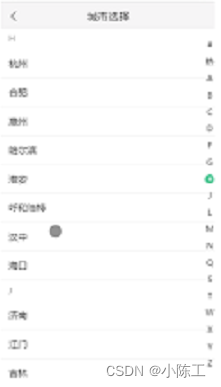
2.2 顶部导航栏
在src/pages/Citylist/index.js中添加如下代码:
import {NavBar, Icon} from 'antd-mobile'<div><NavBar// 模式 默认值是 darkmode="light"// 左侧小图片icon={<i className='iconfont icon-back' />}// 左侧按钮的点击事件onLeftClick={() => this.props.history.go(-1)}>城市列表</NavBar>
</div>
设置相应的样式(index.scss):
.citylist {.navbar {color: #333;background-color: #f6f5f6;}// navbar 标题颜色.am-navbar-title {color: #333;}
}
2.3 获取城市列表数据并处理
2.3.1 获取城市列表数据
在src/pages/Citylist/index.js中添加如下代码:
// 当组件被挂载的时候调用
componentDidMount() {this.getCityList()
}
async getCityList() {let {data:res} = await axios.get('http://localhost:8080/area/city?level=1')
}
2.3.2 处理城市列表数据格式
接口返回的数据格式:[{ “label”: “北京”, “value”: “”, “pinyin”: “beijing”, “short”: “bj” }]
渲染城市列表的数据格式为:{ a: [{}, {}], b: [{}, …] }
渲染右侧索引的数据格式:[‘a’, ‘b’]
封装一个方法来处理数据:
// 数据格式化的方法
const formatCityData = list => {const cityList = {}// 1 遍历list数组list.forEach(item => {// 2 获取每一个城市的首字母const first = item.short.substr(0, 1)// 3 判断 cityList 中是否有该分类if (cityList[first]) {// 4 如果有,直接往该分类中push数据cityList[first].push(item)} else {// 5 如果没有,就先创建一个数组,然后,把当前城市信息添加到数组中cityList[first] = [item]}})// 获取索引数据const cityIndex = Object.keys(cityList).sort()return {cityList,cityIndex}
}
在getCityList()方法中调用这个函数,来格式化数据:
async getCityList() {let { data: res } = await axios.get('http://localhost:8080/area/city?level=1')// 格式化返回的数据let { cityList, cityIndex } = formatCityData(res.body)
}
获取热门数据,并且添加到cityList和cityListIndex中,注意,对象里面的属性是无序的,可以直接插入,但是数组是有序的,我们需要添加到前面:
// 获取城市列表数据的方法async getCityList() {const res = await axios.get('http://localhost:8080/area/city?level=1')// console.log('城市列表数据:', res)const { cityList, cityIndex } = formatCityData(res.data.body)/*1 获取热门城市数据2 将数据添加到 cityList 中3 将索引添加到 cityIndex 中*/const hotRes = await axios.get('http://localhost:8080/area/hot')cityList['hot'] = hotRes.data.body// 将索引添加到 cityIndex 中cityIndex.unshift('hot')}
2.3.3 获取当前城市信息
我们将获取定位城市的代码封装到一个函数中,哪个页面需要获取定位城市,直接调用该方法即可
在src/utils/index.js中添加如下代码:
// 导入axios
import axios from 'axios'// 1 在 utils 目录中,新建 index.js,在该文件中封装
// 2 创建并导出获取定位城市的函数 getCurrentCity
export const getCurrentCity = () => {// 3 判断 localStorage 中是否有定位城市const localCity = JSON.parse(localStorage.getItem('hkzf_city'))if (!localCity) {// 4 如果没有,就使用首页中获取定位城市的代码来获取,并且存储到本地存储中,然后返回该城市数据return new Promise((resolve, reject) => {const curCity = new window.BMap.LocalCity()curCity.get(async res => {try {const result = await axios.get(`http://localhost:8080/area/info?name=${res.name}`)// result.data.body => { label: '上海', value: '' }// 存储到本地存储中localStorage.setItem('hkzf_city', JSON.stringify(result.data.body))// 返回该城市数据resolve(result.data.body)} catch (e) {// 获取定位城市失败reject(e)}})})}// 5 如果有,直接返回本地存储中的城市数据// 注意:因为上面为了处理异步操作,使用了Promise,因此,为了该函数返回值的统一,此处,也应该使用Promise// 因为此处的 Promise 不会失败,所以,此处,只要返回一个成功的Promise即可return Promise.resolve(localCity)
}
在src/pages/Citylist/index.js中将定位的城市信息添加到cityList和cityIndex:
// 获取城市列表数据的方法async getCityList() {// 获取当前定位城市const curCity = await getCurrentCity()/*1 将当前定位城市数据添加到 cityList 中2 将当前定位城市的索引添加到 cityIndex 中*/cityList['#'] = [curCity]cityIndex.unshift('#')}
最后,别忘了在src/pages/index/index.js中修改获取当前城市信息的代码:
async componentDidMount() {const curCity = await getCurrentCity()this.setState({curCityName: curCity.label})}
总结
本文来自互联网用户投稿,文章观点仅代表作者本人,不代表本站立场,不承担相关法律责任。如若转载,请注明出处。 如若内容造成侵权/违法违规/事实不符,请点击【内容举报】进行投诉反馈!