Project 6:Mobile APP
Kivy+Python
Python文件控制逻辑
定义类;
MainApp(APP)控制 Rootwidget(ScreenManager)控制每一个(Screen);
#转为执行文件时需要命名为main.py
from kivy.app import App
from kivy.lang import Builder  #连接kv
from kivy.uix.screenmanager import ScreenManager, ScreenBuilder.load_file("design.kv")  #引入kvfileclass LoginScreen(Screen):def sign_up(self):self.manager.current="sign_up_screen" #manager为当前页面#使用sign_up函数会跳转到signup页面class SignUpScreen(Screen):def back(self):self.manager.current="login_screen"class Rootwidget(ScreenManager):passclass MainApp(App):def build(self):return Rootwidget()  #返回一个对象if __name__=="__main__":MainApp().run()
kv文件用于编辑app的显示图像
每一个screen都为Python文件中的一类;
布置每一个screen的布局;
注意点
对每个screen命名,以便于在python文件中调用;
<LoginScreen>:GridLayout:cols:1GridLayout:cols:1Label:text:"User Login"TextInput:hint_text:"User name"TextInput:hint_text:"User password"Button:text:"Login"GridLayout:cols: 2Button:text:"Forgot password"Button:text:"Sign Up"on_press: root.sign_up()<SignUpScreen>:GridLayout:cols:1Label:text:"Sign up for a space journey!"TextInput:hint_text:"Username"TextInput:hint_text:"Password"Button:text:"Submit"on_press:root.back()<Rootwidget>:LoginScreen:name:"login_screen"SignUpScreen:name:"sign_up_screen"
调整signup screen,使输出signup的名字和密码
main.py
class SignUpScreen(Screen):def add_user(self,uname,pword):print(uname,pword)
design.ky
<SignUpScreen>:GridLayout:cols:1Label:text:"Sign up for a space journey!"TextInput:id:usernamehint_text:"Username"TextInput:id:passwordhint_text:"Password"Button:text:"Submit"on_press:root.add_user(root.ids.username.text,root.ids.password.text)#.text,从object中提出text#root 代表signupscreen , adduser 来自signupscreen类# ids是Screen 中的properties,username为上面创建的id,text为strvalue
改变add_user函数,使得输入的info可以传入jsonfile
load得到jsonfile中的字典数据;
dump对jsonfile进行添加关键词:值;
import json
from datetime import datetime
class SignUpScreen(Screen):def add_user(self,uname,pword):with open("user.json") as file:users = json.load(file)users[uname]={"username":uname,"password":pword,"created":datetime.now().strftime("%Y-%m-%d %H-%M-%S")}#覆盖原本jsonfilewith open("user.json",'w') as file:json.dump(users,file)
添加注册成功页面
按钮从右往左返回login页面
class SignUpScreenSuccess(Screen):def go_to_login(self):self.manager.transition.direction="right"self.manager.current="login_screen"
显示——success,下方一个返回按钮;
<SignUpScreenSuccess>:GridLayout:cols:1Label:text:"Sign up Successful!"Button:text:"Login page"on_press:root.go_to_login()
添加账号密码的判断——login按钮
main.py
密码正确则进入successpage;
失败则在label显示wrongname;
class LoginScreen(Screen):def sign_up(self):self.manager.current="sign_up_screen"def login(self,uname,pword):with open("user.json") as file:users = json.load(file)if uname in users and users[uname]['password'] == pword: self.manager.transition.direction="left"self.manager.current="login_screen_success"else:self.ids.login_wrong.text="Wrong username or password!"design.ky
为loginpage增加一个label,用于显示账号密码是否正确;
<LoginScreen>:GridLayout:cols:1GridLayout:cols:1Label:text:"User Login"TextInput:id:usernamehint_text:"User name"TextInput:id:passwordhint_text:"User password"Button:text:"Login"on_press:root.login(root.ids.username.text,root.ids.password.text)Label:id:login_wrongtext:""GridLayout:cols: 2Button:text:"Forgot password"Button:text:"Sign Up"on_press: root.sign_up()
设置登入后界面,实现随机输出txt文本的内容
main.py
glob得到给定目录下的所有txt的相对路径;
path.stem得到路径下的文件名;
打开文件,readlines()得到文件中的行列表;
random.choice随机选择文件中的一行;
import glob
from pathlib import Path
import randomclass LoginScreenSuccess(Screen):def log_out(self):self.manager.transition.direction="right"self.manager.current="login_screen"def get_quotes(self,feel):feel=feel.lower() #转为小写available_feelings=glob.glob("quotes/*txt")#glob得到目录下每一个txt#path.stem得到文件名#name得到文件名+后缀available_feelings=[Path(filename).stem for filename in available_feelings]#去掉后缀if feel in available_feelings:with open(f"quotes/{feel}.txt",'r',encoding='UTF-8') as file:quotes=file.readlines()#得到listself.ids.quote.text=random.choice(quotes)#print(feel)else:self.ids.quote.text="Try another feeling"
design.kv
<LoginScreenSuccess>:GridLayout:cols:1Button:text:"Logout"on_press:root.log_out()Label:text:"How do you feel!"TextInput:id:feelinghint_text:"Things to try: happy, sad, unloved..."Button:text:"Enlighten me"on_press:root.get_quotes(root.ids.feeling.text)Label:id:quotetext:""
上述代码可实现app所有功能
main.py
#转为执行文件时需要命名为main.py
from kivy.app import App
from kivy.lang import Builder  #连接kv
from kivy.uix.screenmanager import ScreenManager, Screen
import json
from datetime import datetime
import glob
from pathlib import Path
import randomBuilder.load_file("design.kv")  #引入kvfileclass LoginScreen(Screen):def sign_up(self):self.manager.current="sign_up_screen"def login(self,uname,pword):with open("user.json") as file:users = json.load(file)if uname in users and users[uname]['password'] == pword:      self.manager.transition.direction="left"self.manager.current="login_screen_success"else:self.ids.login_wrong.text="Wrong username or password!"class SignUpScreen(Screen):def add_user(self,uname,pword):with open("user.json") as file:users = json.load(file)users[uname]={"username":uname,"password":pword,"created":datetime.now().strftime("%Y-%m-%d %H-%M-%S")}#覆盖原本jsonfilewith open("user.json",'w') as file:json.dump(users,file)self.manager.current="sign_up_screen_success"class SignUpScreenSuccess(Screen):def go_to_login(self):self.manager.transition.direction="right"self.manager.current="login_screen"class LoginScreenSuccess(Screen):def log_out(self):self.manager.transition.direction="right"self.manager.current="login_screen"def get_quotes(self,feel):feel=feel.lower() #转为小写available_feelings=glob.glob("quotes/*txt")#glob得到目录下每一个txt#path.stem得到文件名#name得到文件名+后缀available_feelings=[Path(filename).stem for filename in available_feelings]#去掉后缀if feel in available_feelings:with open(f"quotes/{feel}.txt",'r',encoding='UTF-8') as file:quotes=file.readlines()#得到listself.ids.quote.text=random.choice(quotes)#print(feel)else:self.ids.quote.text="Try another feeling"class Rootwidget(ScreenManager):passclass MainApp(App):def build(self):return Rootwidget()  #返回一个对象if __name__=="__main__":MainApp().run()
design.kv
<LoginScreen>:GridLayout:cols:1GridLayout:cols:1Label:text:"User Login"TextInput:id:usernamehint_text:"User name"TextInput:id:passwordhint_text:"User password"Button:text:"Login"on_press:root.login(root.ids.username.text,root.ids.password.text)Label:id:login_wrongtext:""GridLayout:cols: 2Button:text:"Forgot password"Button:text:"Sign Up"on_press: root.sign_up()<SignUpScreen>:GridLayout:cols:1Label:text:"Sign up for a space journey!"TextInput:id:usernamehint_text:"Username"TextInput:id:passwordhint_text:"Password"Button:text:"Submit"on_press:root.add_user(root.ids.username.text,root.ids.password.text)#.text,从object中提出text#root  代表signupscreen , adduser 来自signupscreen类# ids是Screen 中的properties,username为上面创建的id,text为strvalue
<SignUpScreenSuccess>:GridLayout:cols:1Label:text:"Sign up Successful!"Button:text:"Login page"on_press:root.go_to_login()<LoginScreenSuccess>:GridLayout:cols:1Button:text:"Logout"on_press:root.log_out()Label:text:"How do you feel!"TextInput:id:feelinghint_text:"Things to try: happy, sad, unloved..."Button:text:"Enlighten me"on_press:root.get_quotes(root.ids.feeling.text)Label:id:quotetext:""<Rootwidget>:LoginScreen:name:"login_screen"SignUpScreen:name:"sign_up_screen"SignUpScreenSuccess:name:"sign_up_screen_success"LoginScreenSuccess:name:"login_screen_success"
下面将优化app显示界面和兼容性
布置login界面
degin.kv
<LoginScreen>:GridLayout:cols:1GridLayout: #等分子layoutcols:1padding:15,15 #此grid相对外面的layout设置padding#左右 上下spacing:20,20#grid内部每个widget的距离Label:text:"User Login"font_size:'20sp'#sp=space-independent pixelsTextInput:id:usernamehint_text:"User name"TextInput:id:passwordpassword: Truehint_text:"User password"RelativeLayout:#设定相对layoutButton:text:"Login"on_press:root.login(root.ids.username.text,root.ids.password.text)#需要设定sizesize_hint:0.3,0.5# 百分比缩短 wide heightpos_hint:{"center_x":0.5,"center_y":0.6}#0.5 0.6比较好Label:id:login_wrongtext:""GridLayout:cols: 2size_hint:0.2,0.2#该layout占20%的比例,相对的另外的平分80%padding:10,10spacing:10,0Button:text:"Forgot password"background_color:1,1,1,0#RGB+背景透明度opacity:1 if self.state == 'normal' else 0.5#normal时透明度1,其他时候透明度0.5color:0.1,0.7,1,1Button:text:"Sign Up"on_press: root.sign_up()background_color:1,1,1,0#RGB+背景透明度opacity:1 if self.state == 'normal' else 0.5#normal时透明度1,其他时候透明度0.5color:0.1,0.7,1,1
显示效果:
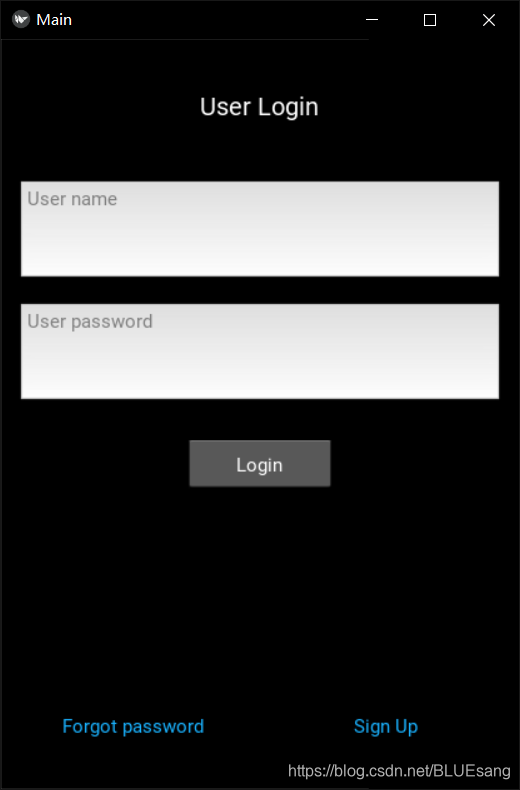
sign-up page的布置
<SignUpScreen>:GridLayout:cols:1padding:20,20spacing:20,20Label:text:"Sign up for a space journey!"TextInput:size_hint:0.4,0.4id:usernamehint_text:"Username"TextInput:size_hint:0.4,0.4id:passwordhint_text:"Password"Button:size_hint:0.4,0.4text:"Submit"on_press:root.add_user(root.ids.username.text,root.ids.password.text)#.text,从object中提出text#root 代表signupscreen , adduser 来自signupscreen类# ids是Screen 中的properties,username为上面创建的id,text为strvalue
设置图像按钮——执行hover监测
main.py
定义imagebutton类,继承自三个类
from hoverable import HoverBehavior
#引入hover
from kivy.uix.image import Image
from kivy.uix.behaviors import ButtonBehaviorclass ImageButton(ButtonBehavior,HoverBehavior,Image):#ButtonBehavior要放在最前面!#image的顺序会影响behaviorpass
#imagebutton 可以使用上述三种类的功能
design.kv
使用两个图像,在hover中切换;
调用的button为imagebutton类,继承三个类的功能;
<LoginScreenSuccess>:GridLayout:cols:1padding:30,30spacing:30,30RelativeLayout:ImageButton:#text:"Logout" #无用size_hint:0.35,0.35#pos_hint需要在relateivelayout中使用pos_hint:{'center_x':0.93,'center_y':0.8}on_press:root.log_out()source:"logout_hover.png" if self.hovered else "logout_nothover.png"Label:text:"How do you feel!"TextInput:id:feelinghint_text:"Things to try: happy, sad, unloved..."Button:text:"Enlighten me"on_press:root.get_quotes(root.ids.feeling.text)Label:id:quotetext:""为enlighten页面添加滚轮+动态text
text_size:可设置label中text的大小;
其中None表示text不受label高度的限制;
size_hint_y:None表示label的高度不受hiny的限制(可高于分配的20%);
设置height参数可设置fixed height,即固定label 的高度;
动态高度:height:self.texture_size[1]; 高度为1,宽度为0;
则当前label高度受text变化而变化;
将整个label放入ScrollView中,即可使text动态缩进,且label高度为scrollview高度,通过滚轮访问;
ScrollView: #添加滚轮#滚轮作为label中text大小的限制Label:id:quotetext:""#text_size:self.width, self.height#self指label,则width和height会随label变化text_size:self.width, None#height不受label限制size_hint_y:None #labelheight不受hinty限制(可超过20%) 默认100px#height:200#设置label 的高度#设置label动态高度height:self.texture_size[1]#0 - width 1-height 动态高度
上面已完成app的所有界面
添加forget password
main.py
#转为执行文件时需要命名为main.py
from kivy.app import App
from kivy.lang import Builder  #连接kv
from kivy.uix.screenmanager import ScreenManager, Screen
import json
from datetime import datetime
import glob
from pathlib import Path
import random
from hoverable import HoverBehavior
#引入hover
from kivy.uix.image import Image
from kivy.uix.behaviors import ButtonBehaviorBuilder.load_file("design.kv")  #引入kvfileclass LoginScreen(Screen):def sign_up(self):self.manager.transition.direction="left"self.manager.current="sign_up_screen"def login(self,uname,pword):with open("user.json") as file:users = json.load(file)if uname in users and users[uname]['password'] == pword:      self.manager.transition.direction="left"self.manager.current="login_screen_success"else:self.ids.login_wrong.text="Wrong username or password!"def forget(self):self.manager.transition.direction="left"self.manager.current="forget_password"class SignUpScreen(Screen):def add_user(self,uname,pword):with open("user.json") as file:users = json.load(file)users[uname]={"username":uname,"password":pword,"created":datetime.now().strftime("%Y-%m-%d %H-%M-%S")}#覆盖原本jsonfilewith open("user.json",'w') as file:json.dump(users,file)self.manager.transition.direction="left"self.manager.current="sign_up_screen_success"def back(self):self.manager.transition.direction="right"self.manager.current="login_screen"class SignUpScreenSuccess(Screen):def go_to_login(self):self.manager.transition.direction="right"self.manager.current="login_screen"class LoginScreenSuccess(Screen):def log_out(self):self.manager.transition.direction="right"self.manager.current="login_screen"def get_quotes(self,feel):feel=feel.lower() #转为小写available_feelings=glob.glob("quotes/*txt")#glob得到目录下每一个txt#path.stem得到文件名#name得到文件名+后缀available_feelings=[Path(filename).stem for filename in available_feelings]#去掉后缀if feel in available_feelings:with open(f"quotes/{feel}.txt",'r',encoding='UTF-8') as file:quotes=file.readlines()#得到listself.ids.quote.text=random.choice(quotes)#print(feel)else:self.ids.quote.text="Try another feeling"class ImageButton(ButtonBehavior,HoverBehavior,Image):#ButtonBehavior要放在最前面!#image的顺序会影响behaviorpass
#imagebutton 可以使用上述三种类的功能class FindPassword(Screen):def change(self,uname,pword):with open("user.json") as file:users=json.load(file)if uname not in users.keys():self.ids.board.text="This username is not exist! Please try again!"else:users[uname]={"username":uname,"password":pword,"created":datetime.now().strftime("%Y-%m-%d %H-%M-%S")}with open("user.json",'w') as file:json.dump(users,file)self.manager.transition.direction="right"self.manager.current="login_screen"def back(self):self.manager.transition.direction="right"self.manager.current="login_screen"class Rootwidget(ScreenManager):passclass MainApp(App):def build(self):return Rootwidget()  #返回一个对象if __name__=="__main__":MainApp().run()
design.kv
<LoginScreen>:GridLayout:cols:1GridLayout: #等分子layoutcols:1padding:15,15  #此grid相对外面的layout设置padding#左右  上下spacing:20,20#grid内部每个widget的距离Label:text:"User Login"font_size:'20sp'#sp=space-independent pixelsTextInput:id:usernamehint_text:"User name"TextInput:id:passwordpassword: Truehint_text:"User password"RelativeLayout:#设定相对layoutButton:text:"Login"on_release:root.login(root.ids.username.text,root.ids.password.text)#需要设定sizesize_hint:0.3,0.5#   百分比缩短 wide  heightpos_hint:{"center_x":0.5,"center_y":0.6}#0.5 0.6比较好Label:id:login_wrongtext:""GridLayout:cols: 2size_hint:0.2,0.2#该layout占20%的比例,相对的另外的平分80%padding:10,10spacing:10,0Button:text:"Forgot password"on_release:root.forget()background_color:1,1,1,0#RGB+背景透明度opacity:1 if self.state == 'normal' else 0.5#normal时透明度1,其他时候透明度0.5color:0.1,0.7,1,1Button:text:"Sign Up"on_release: root.sign_up()background_color:1,1,1,0#RGB+背景透明度opacity:1 if self.state == 'normal' else 0.5#normal时透明度1,其他时候透明度0.5color:0.1,0.7,1,1<SignUpScreen>:GridLayout:cols:1padding:20,20spacing:20,20RelativeLayout:   size_hint:0,0.35Button:size_hint:0.3,0.3pos_hint:{'center_x':0.17,'center_y':0.8}text:"BACK"on_release:root.back()Label:#font_size:'40sp'text:"Sign up for a space journey!"TextInput:#size_hint:0.4,0.4id:usernamehint_text:"Username"TextInput:#size_hint:0.4,0.4id:passwordhint_text:"Password"Button:#size_hint:0.4,0.4text:"Submit"on_release:root.add_user(root.ids.username.text,root.ids.password.text)#.text,从object中提出text#root  代表signupscreen , adduser 来自signupscreen类# ids是Screen 中的properties,username为上面创建的id,text为strvalue<SignUpScreenSuccess>:GridLayout:cols:1padding:20,20spacing:20,20Label:text:"Sign up Successful!"RelativeLayout:Button:size_hint:0.6,0.35pos_hint:{'center_x':0.5,'center_y':0.6}text:"Login page"on_release:root.go_to_login()
<FindPassword>:GridLayout:cols:1padding:20,20spacing:20,20RelativeLayout:   size_hint:0,0.35Button:size_hint:0.3,0.3pos_hint:{'center_x':0.17,'center_y':0.8}text:"BACK"on_release:root.back()Label:id:boardtext:"Change your password"TextInput:hint_text:"Enter your username"id:usernameTextInput:hint_text:"Enter your new password"id:passwordButton:text:"Change password"on_release:root.change(root.ids.username.text,root.ids.password.text)<LoginScreenSuccess>:GridLayout:cols:1padding:30,30spacing:30,30RelativeLayout:ImageButton:#text:"Logout"  #无用size_hint:0.35,0.35#pos_hint需要在relateivelayout中使用pos_hint:{'center_x':0.93,'center_y':0.8}on_press:root.log_out()source:"logout_hover.png" if self.hovered else "logout_nothover.png"Label:text:"How do you feel!"TextInput:id:feelinghint_text:"Things to try: happy, sad, unloved..."Button:text:"Enlighten me"on_release:root.get_quotes(root.ids.feeling.text)ScrollView: #添加滚轮#滚轮作为label中text大小的限制Label:id:quotetext:""#text_size:self.width, self.height#self指label,则width和height会随label变化text_size:self.width, None#height不受label限制size_hint_y:None #labelheight不受hinty限制(可超过20%)  默认100px#height:200#设置label 的高度#设置label动态高度height:self.texture_size[1]#0 - width   1-height 动态高度<Rootwidget>:LoginScreen:name:"login_screen"SignUpScreen:name:"sign_up_screen"SignUpScreenSuccess:name:"sign_up_screen_success"LoginScreenSuccess:name:"login_screen_success"FindPassword:name:"forget_password"
下面将files包装为APK file
进入linux——ubuntu系统;
按如下顺序在ubuntu中下载;
buildozer init
Just in case: Ubuntu version 20.04 LTS: checked by lsb_release -a
- This one helped me to run kivy with Python3 on Ubuntu at least
sudo apt-get install python3-kivy
- Another line to install buildozer
pip3 install -U buildozer
- After running buildozer android debug
that very new Ubuntu installation messaged about missing “git” and “java-jdk”
So, installed “git” and “jdk”
sudo apt install git
sudo apt install default-jdk
- …and run “buildozer” again with:
buildozer appclean
buildozer android debug
the process will install lots of missing things as python-for-android and Android SDK, NDK, etc
still an error but different from what Ardit had with "android.arch = armeabi-v7a" in buildozer.spec file.
the only good thing the command:
bash kivy-buildozer-installer.sh
works after all, but cannot go further yet (
- Thanks to David and some Internet articles: need to install a bit more to avoid of missing autoconf, automake,ctypes errors:
sudo apt install cython3
sudo apt-get install autoconf
sudo apt-get install automake
sudo apt-get install g++
sudo apt-get install libtool m4 automake
sudo apt-get install lld
sudo apt install libssl-dev
sudo apt-get install libffi-devel
the last line cleared _ctypes file missing problem
buildozer appclean
buildozer android debug
after work bin/ folder will have an *.apk file
结束并得到bin,里面放着apk文件;
传入github;
本文来自互联网用户投稿,文章观点仅代表作者本人,不代表本站立场,不承担相关法律责任。如若转载,请注明出处。 如若内容造成侵权/违法违规/事实不符,请点击【内容举报】进行投诉反馈!