vue-qr批量下载二维码插件封装
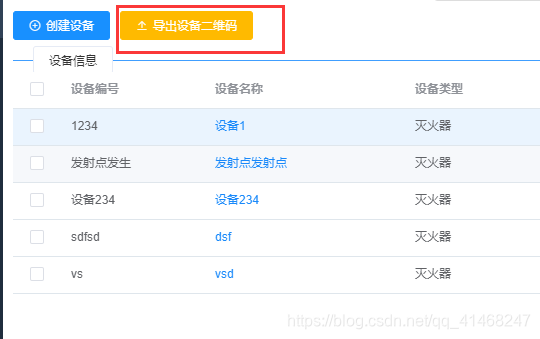
1.功能预览
1)界面
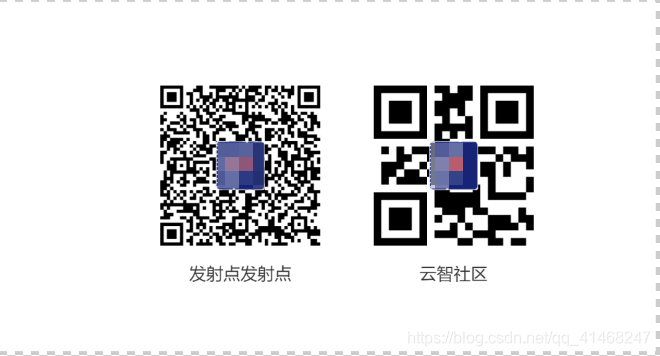
2)导出二维码事例
2.使用
1)安装
npm install vue-qr --save
npm install html2canvas --save
npm install jszip --save
npm install file-saver --saver --save
vue-qr:生成二维码样式参考链接
html2canvas:html的二维码转成canvas再转成图片参考链接
jszip :将图片压缩参考链接
file-saver:将压缩包下载下来参考链接
2)使用
- 代码组件(新建qrCode/index.vue)
/** @Author: duyan* @Date: 2020-07-30 11:01:19* @Last Modified by: duyan* @Last Modified time: 2020-08-03 16:54:02*/
<template><div><div v-show="codeId" ref="QrcodePage" style="z-index:-1111;position:absolute;width: 800px;left:-999px;overflow:hidden;height: 475px;background-size: cover;"><div v-if="codeId" id="qrCode" class="qrCode"><QrcodeVue:correct-level="3":key="random":callback="texte":text="codeValue":logo-scale="0.3":margin="0":logo-margin="2":size="750"logo-src="https://yzwy1-app.oss-cn-shenzhen.aliyuncs.com/yzparkinglogo.png"/><p style="text-align: center; font-size: 2rem;">{{ codeName }}</p></div><div v-if="codeId" id="qrCode1" class="qrCode"><QrcodeVue:correct-level="3":logo-src="imageUrl":logo-scale="0.3":margin="0":logo-margin="2":size="750"text="http://kmzhtc-app.oss-cn-shenzhen.aliyuncs.com/org.kcsm.yzc/1593422803050_Android_3.0.4_.apk"/><p style="text-align: center; font-size: 2rem;">云智社区</p></div></div></div>
</template>
<script>
import QrcodeVue from 'vue-qr'
import html2canvas from 'html2canvas'
import JSZip from 'jszip'
import FileSaver from 'file-saver'export default {name: 'Qrcode',components: {QrcodeVue},props: {qrName: {type: String,default: ''}},data() {return {random: '1',codeId: '',qrcodeUrl: '',imageUrl: 'https://yzwy1-app.oss-cn-shenzhen.aliyuncs.com/yunzhilogo.png',// imageUrl: 'https://shop.mmdddd.com/workShopWeb/static/img/72.png',//logoqrContentImage: '',codeValue: '',// initCodeVal: 'http://xcx.nmte.net/tips/index.html',codeNumber: '',codeName: '',arr: [],qrcodeArr: [],index: 0}},watch: {index(newName, oldName) {if (newName !== oldName && newName <= this.arr.length - 1) {setTimeout(_ => {this.setarr(this.arr)}, 0)} else {this.$nextTick(_ => {this.$emit('downloadQr', 'finish')})}}},created() {},mounted() {},methods: {texte(url, qid) {setTimeout(_ => {this.createImgs()}, 100)},setarr(arr) {this.arr = arrif (this.index > this.arr.length - 1) {this.index = 0}const index = this.index || 0this.$emit('downloadQr', 'start')this.codeName = this.arr[index].codeNameif (this.arr[index].codeId) {this.codeId = this.arr[index].codeIdthis.codeValue = JSON.stringify(this.arr[index].codeValue)console.log(this.codeValue)this.random = Math.random()} else {this.$notify({title: '失败',message: '二维码信息获取失败,请重试',type: 'error'})this.$emit('downloadQr', 'error')}},createImgs() {var that = thisif (that.index <= that.arr.length - 1 && that.codeId) {const shareContent = that.$refs.QrcodePageconst width = shareContent.offsetWidthconst height = shareContent.offsetHeightconst canvas = document.createElement('canvas')const scale = 1canvas.width = width * scalecanvas.height = height * scalecanvas.style.width = (shareContent.clientWidth * scale) / 100 + 'rem'canvas.style.height = (shareContent.clientHeight * scale) / 100 + 'rem'canvas.getContext('2d').scale(scale, scale)const opts = {scale: scale,canvas: canvas,logging: false,width: width,height: height,useCORS: true}html2canvas(shareContent, opts).then(function(canvas) {const qrContentImage = canvas.toDataURL('image/jpeg', 1.0)if (that.index <= that.arr.length - 1 && that.codeId) {that.qrcodeArr.push({url: qrContentImage,name: that.arr[that.index].codeName,number: that.arr[that.index].codeNumber})}if (that.codeId) {that.index++}if (that.qrcodeArr.length === that.arr.length) {that.packageImages()that.codeId = null}}).catch(function(reason) {console.log(reason)})}},packageImages() {const that = thisconst zip = new JSZip()const cache = {}setTimeout(_ => {const arr = that.qrcodeArrarr.forEach((item, index) => {const fileName = item.namezip.file(fileName + '.png', item.url.substring(22), { base64: true })cache[fileName] = item.url})zip.generateAsync({ type: 'blob' }).then(content => {FileSaver.saveAs(content, this.qrName + '.zip')})}, 0)}}
}
</script><style lang="stylus" scoped="scoped">
#qrCode1{left: 80% !important;
}
.qrCode {width: 300px;height: 300px;position: absolute;top: 52%;left: 30%;transform: translate(-50%, -50%);img {display: block;width: 100%;height: 100%;}
}
</style>
- 使用
import QrcodeVue from 'vue-qr'
// 部件components: { QrcodeVue},- methods中
勾选需要导出的二维码:
// 表格勾选selectTable(val) {this.delEquipmentList = []this.selEquipmentList = valval.forEach(val1 => {this.delEquipmentList.push(val1.id)})},点击导出二维码按钮调用
exportQr(){if (this.selAddressList.length) {const list = []console.log(this.selAddressList)this.selAddressList.forEach((val, index) => {const params = {codeId: val.id,codeNumber: val.gateId,codeName: val.gateName,codeValue: {key: 'address',value: val.gateId}}list.push(params)if (index === this.selAddressList.length - 1) {console.log(list)that.$refs.downloadQr.setarr(list)}})} else {this.$notify({title: '提示',message: '请先勾选需要导出的地点二维码',type: 'warning'})}
// 二维码下载监听downloadQr(data) {if (data === 'start') {this.searchHandle[1].loading = truethis.searchHandle[1].label = '二维码下载中...'} else if (data === 'error') {this.searchHandle[1].loading = falsethis.searchHandle[1].label = '重新导出二维码'} else if (data === 'finish') {this.searchHandle[1].loading = falsethis.searchHandle[1].label = '导出地点二维码'this.$notify({title: '成功',message: '二维码导出成功',type: 'success'})}},
- 注意
二维码样式需要根据自己的需求来进行调整,先将二维码显示,调好样式后再隐藏
2020-08-07日优化
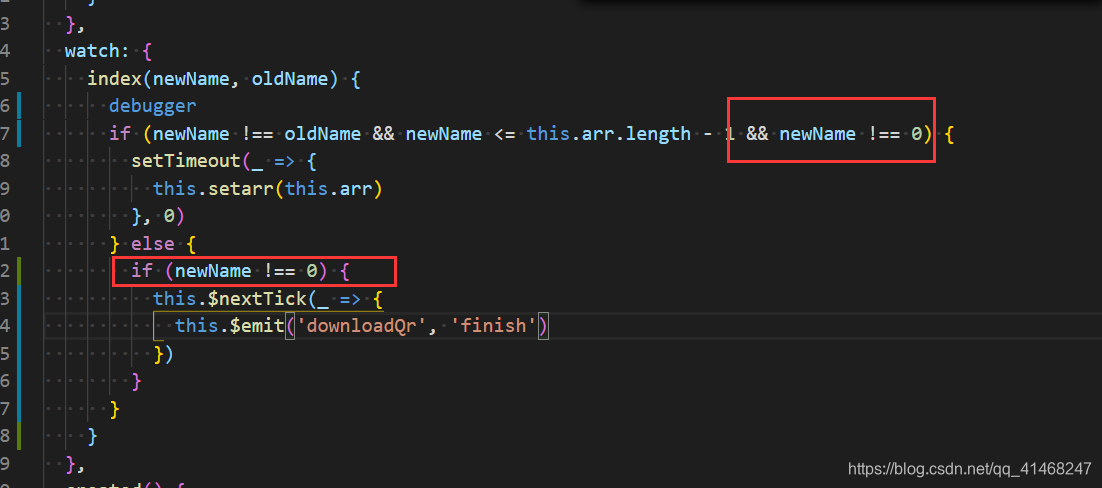
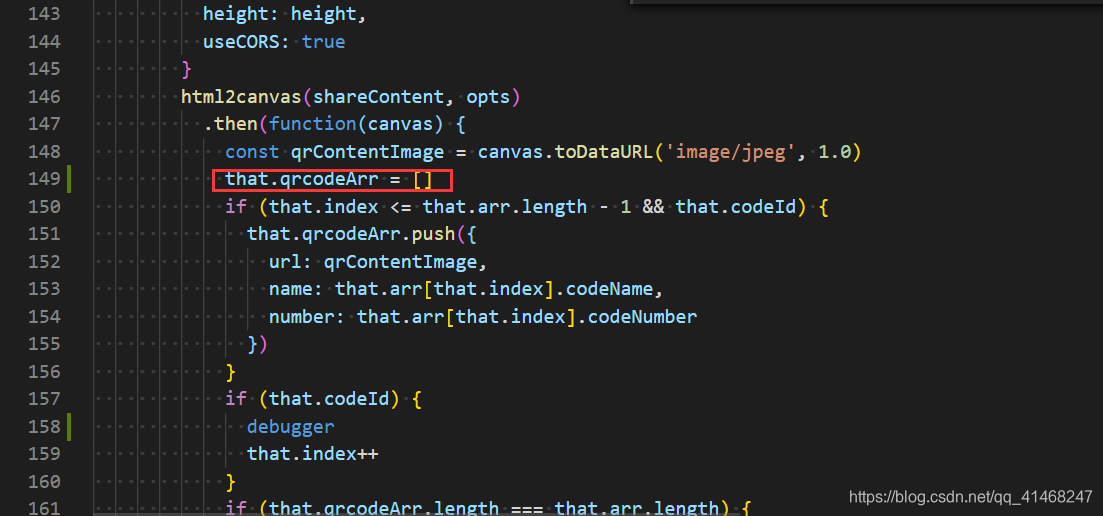
出现问题:
1)二维码不能重新下载
问题解决:
- 判断index为0的时候不处理
- 每次下载的时候将存储图片的数组置空,不然length会出问题
本文来自互联网用户投稿,文章观点仅代表作者本人,不代表本站立场,不承担相关法律责任。如若转载,请注明出处。 如若内容造成侵权/违法违规/事实不符,请点击【内容举报】进行投诉反馈!