Habor 搭建镜像仓库
01、环境准备
(1)安装docker和docker-compose
(2)下载harbor离线安装包
下载地址:https://github.com/goharbor/harbor/releases
02、安装harbor
(1)修改配置
cp harbor.yml.tmpl harbor.yml
#按需要修改配置文件
(2)运行脚本
./prepare
./install.sh
(3)访问harbor
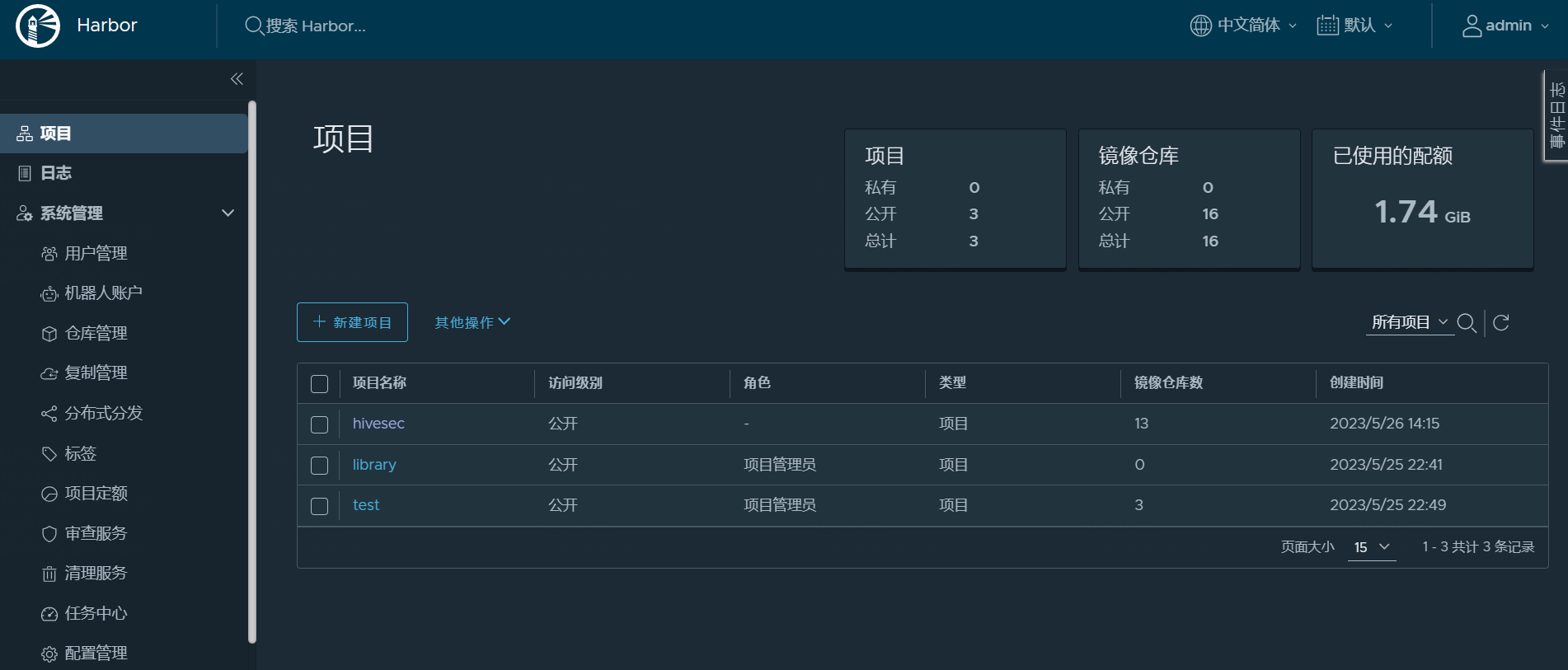
(4)客户端添加insecure-registary配置
vim  /etc/docker/daemon.json
{"registry-mirrors": ["https://kd88kykb.mirror.aliyuncs.com"],#"insecure-registries": ["192.168.93.31:80"]"insecure-registries": ["harbor.xxx.com"]
}
(5)命令行登录harbor
[root@harbor ~]# docker login harbor.xxx.com
Authenticating with existing credentials...
WARNING! Your password will be stored unencrypted in /root/.docker/config.json.
Configure a credential helper to remove this warning. See
https://docs.docker.com/engine/reference/commandline/login/#credentials-storeLogin Succeeded
(6)镜像推送操作
docker tag mysql:5.7  harbor.xxx.com/test/mysql:5.7
docker push harbor.xxx.com/test/mysql:5.7
docker pull harbor.xxx.com/test/mysql:5.7
03、问题处理
使用ip端口登录报错信息:
[root@local admin]#  docker login 192.168.91.31:80
Username: admin
Password:
Error response from daemon: Get https://192.168.91.31:80/v2/: dial tcp 192.168.91.31:80: connect: connection refused

解决方式:
docker-compose down -v
find / -name docker.service -type f
vim /usr/lib/systemd/system/docker.service
    ExecStart=/usr/bin/dockerd -H fd:// --insecure-registry=192.168.93.31 --containerd=/run/containerd/containerd.sock  #增加--insecure-registry
systemctl daemon-reload &&systemctl restart docker
docker-compose up -d
ps -aux | grep docker
登录成功:
[root@local harbor]# docker login 192.168.93.31
Username: admin
Password:
WARNING! Your password will be stored unencrypted in /root/.docker/config.json.
Configure a credential helper to remove this warning. See
https://docs.docker.com/engine/reference/commandline/login/#credentials-storeLogin Succeeded
参考链接:
https://blog.51cto.com/u_15266039/2895998
https://blog.csdn.net/SHELLCODE_8BIT/article/details/125356015
本文来自互联网用户投稿,文章观点仅代表作者本人,不代表本站立场,不承担相关法律责任。如若转载,请注明出处。 如若内容造成侵权/违法违规/事实不符,请点击【内容举报】进行投诉反馈!