python进行数据查询_Python实现历史天气数据查询

作者:叶庭云
源自:快学python
今天咋们用Python 爬虫+tkinter界面来实现历史天气查询
一、实现效果
1. python代码
具体python代码实现,可关注后回复天气获得
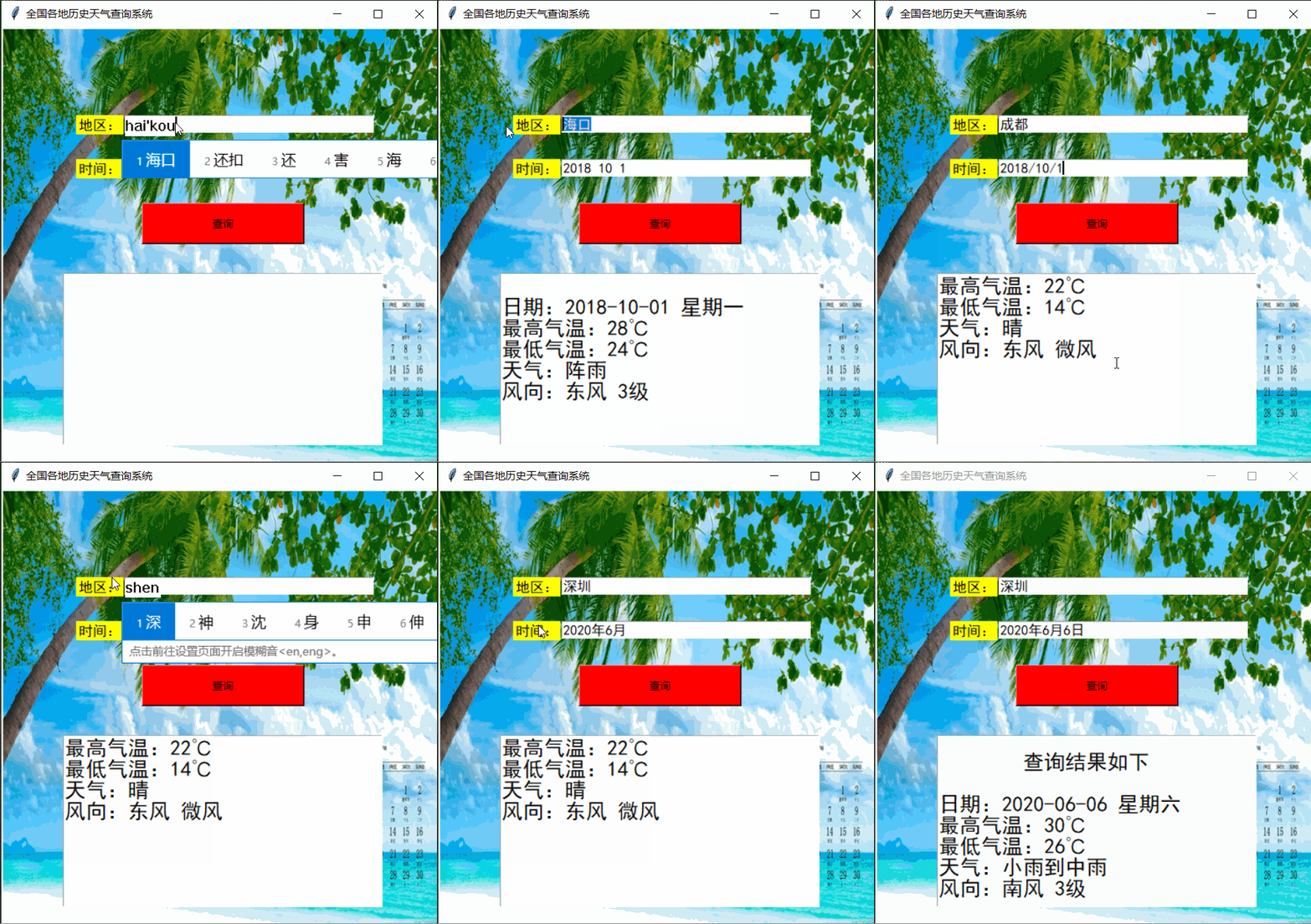
2. 运行效果
运行效果如下:
二、基本思路
导入用到的库
import requests
from lxml import etree
import re
import tkinter as tk
from PIL import Image, ImageTk
from xpinyin import Pinyin
1. 爬虫部分
目标url:https://lishi.tianqi.com/
该网站提供了全国34个省、市所属的2290个地区的历史天气预报查询,数据来源于城市当天的天气信息,可以查询到历史天气气温,历史风向,历史风力等历史天气状况。
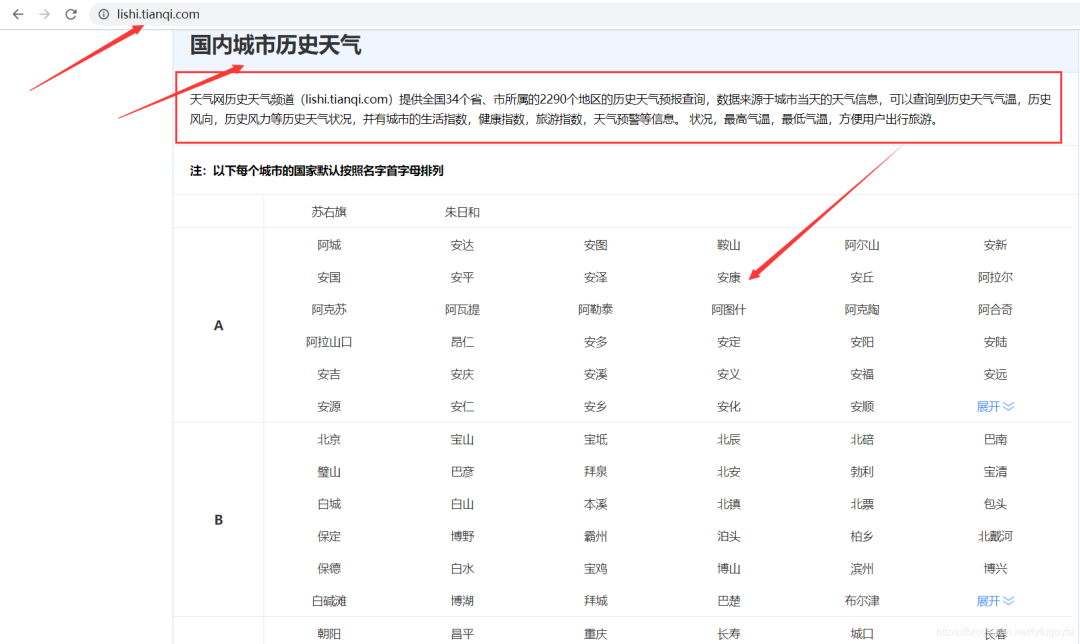
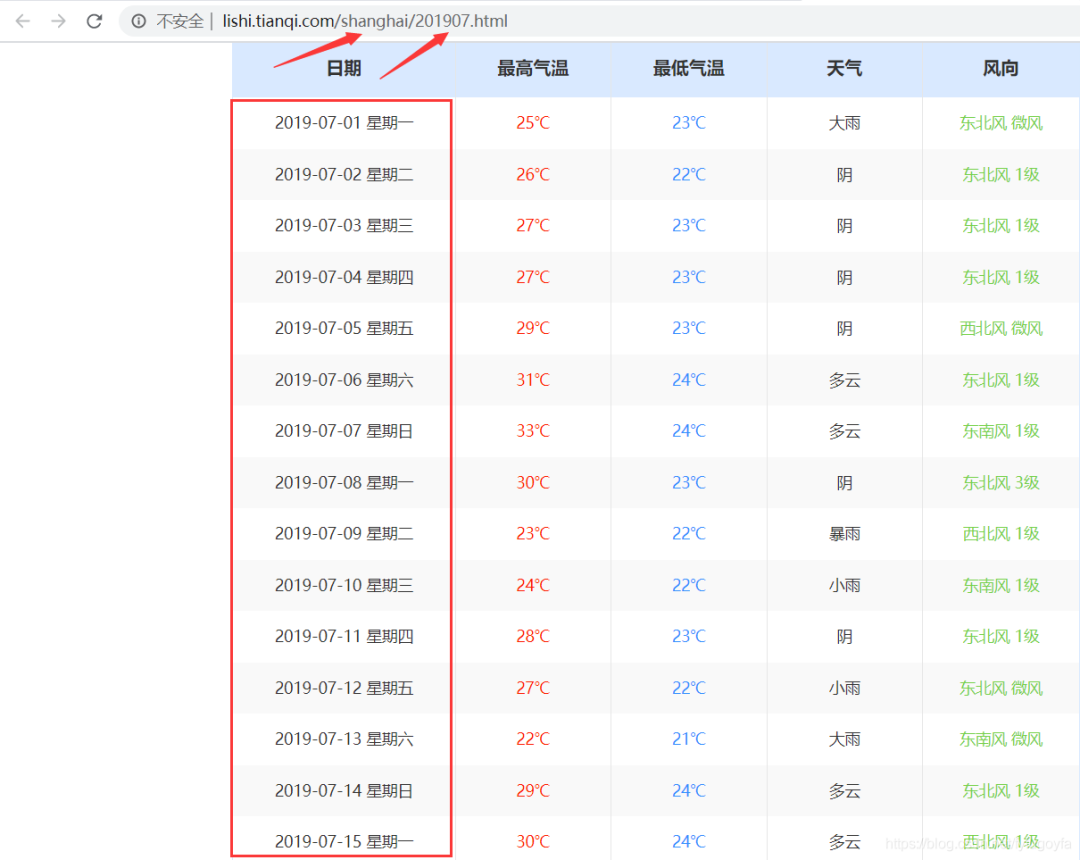
分析网页可以发现,某个地区、某个月的所有天气数据的url为:https://lishi.tianqi.com/ + 地区名字的拼音 + '/' + 年月.html。根据用户输入的地区和时间,进行字符串的处理,构造出url,用于request请求有该月所有天气信息的页面,获取响应后Xpath定位提取用户输入的要查询的日期的天气信息,查询结果显示在tkinter界面。
爬虫代码如下:
def spider():
headers = {
'user-agent': 'Mozilla/5.0 (Windows NT 6.2; WOW64) AppleWebKit/535.24 (KHTML, like Gecko) Chrome/19.0.1055.1 Safari/535.24',
"referer": "https://lishi.tianqi.com/chengdu/index.html"
}
p = Pinyin()
place = ''.join(p.get_pinyin(b1.get()).split('-')) # 获取地区文本框的输入 变为拼音
# 处理用户输入的时间
# 规定三种格式都可以 2018/10/1 2018年10月1日 2018-10-1
date = b2.get() # 获取时间文本框的输入
if '/' in date:
tm_list = date.split('/')
elif '-' in date:
tm_list = date.split('-')
else:
tm_list = re.findall(r'\d+', date)
if int(tm_list[1])
tm_list[1] = f'0{tm_list[1]}'
# 分析网页发现规律 构造url
# 直接访问有该月所有天气信息的页面 提高查询效率
url = f"https://lishi.tianqi.com/{place}/{''.join(tm_list[:2])}.html"
resp = requests.get(url, headers=headers)
html = etree.HTML(resp.text)
# xpath定位提取该日天气信息
info = html.xpath(f'//ul[@class="thrui"]/li[{int(tm_list[2])}]/div/text()')
# 输出信息格式化一下
info1 = ['日期:', '最高气温:', '最低气温:', '天气:', '风向:']
datas = [i + j for i, j in zip(info1, info)]
info = '\n'.join(datas)
t.insert('insert', ' 查询结果如下 \n\n')
t.insert('insert', info)
print(info)
2. tkinter界面
代码如下:
def get_image(file_nam, width, height):
im = Image.open(file_nam).resize((width, height))
return ImageTk.PhotoImage(im)
win = tk.Tk()
# 设置窗口title和大小
win.title('全国各地历史天气查询系统')
win.geometry('500x500')
# 画布 设置背景图片
canvas = tk.Canvas(win, height=500, width=500)
im_root = get_image('test.jpg', width=500, height=500)
canvas.create_image(250, 250, image=im_root)
canvas.pack()
# 单行文本
L1 = tk.Label(win, bg='yellow', text="地区:", font=("SimHei", 12))
L2 = tk.Label(win, bg='yellow', text="时间:", font=("SimHei", 12))
L1.place(x=85, y=100)
L2.place(x=85, y=150)
# 单行文本框 可采集键盘输入
b1 = tk.Entry(win, font=("SimHei", 12), show=None, width=35)
b2 = tk.Entry(win, font=("SimHei", 12), show=None, width=35)
b1.place(x=140, y=100)
b2.place(x=140, y=150)
# 设置查询按钮 点击 调用爬虫函数实现查询
a = tk.Button(win, bg='red', text="查询", width=25, height=2, command=spider)
a.place(x=160, y=200)
# 设置多行文本框 宽 高 文本框中字体 选中文字时文字的颜色
t = tk.Text(win, width=30, height=8, font=("SimHei", 18), selectforeground='red') # 显示多行文本
t.place(x=70, y=280)
# 进入消息循环
win.mainloop()
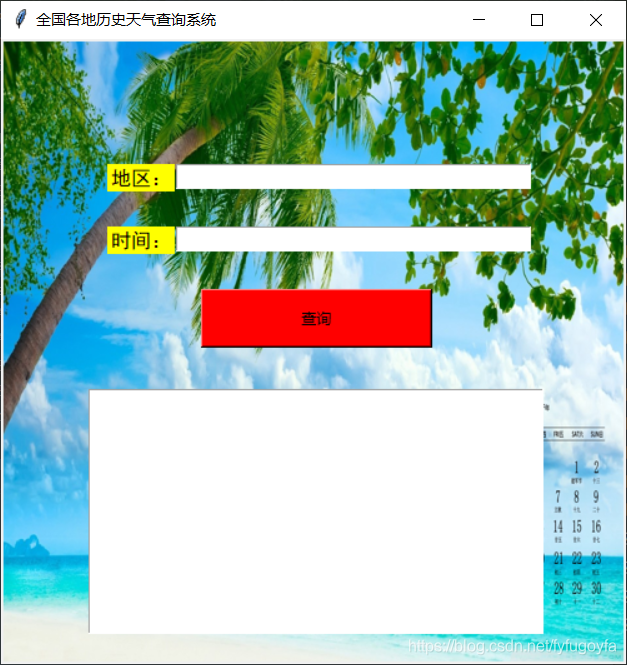
tkinter界面效果如下:
本文来自互联网用户投稿,文章观点仅代表作者本人,不代表本站立场,不承担相关法律责任。如若转载,请注明出处。 如若内容造成侵权/违法违规/事实不符,请点击【内容举报】进行投诉反馈!