OpenCV人脸检测打卡系统
Python+OpenCV人脸检测打卡系统
如需远程调试,可加QQ905733049由专业技术人员远程协助!
运行代码如下:
from tkinter import *
from tkinter import ttk
import db
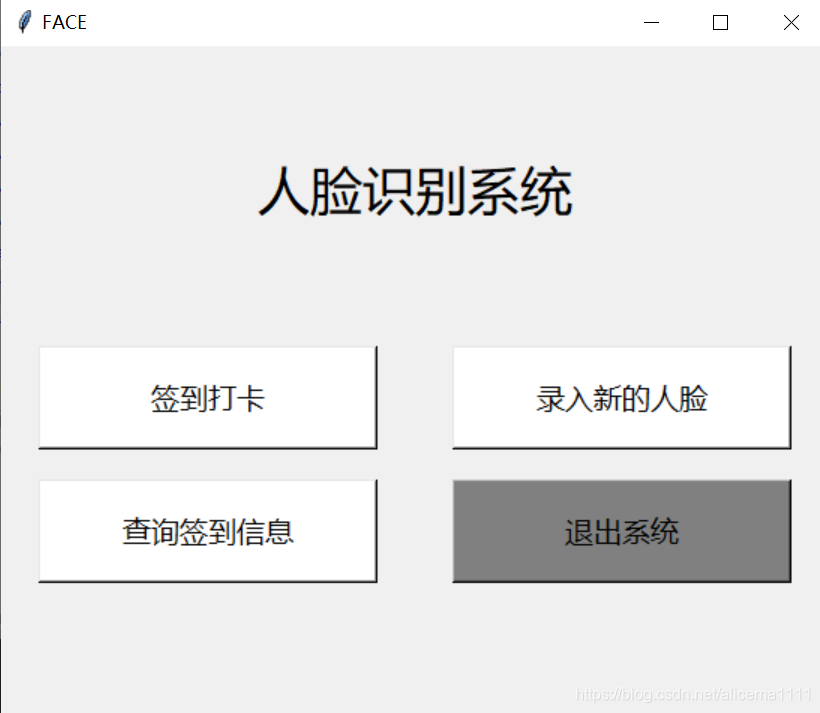
import detectclass APP:def __init__(self):self.root = Tk()self.root.title('FACE')self.root.geometry('%dx%d' % (550, 450))self.createFirstPage()# 新录入的人的姓名self.name = StringVar()def createFirstPage(self):self.page1 = Frame(self.root)self.page1.grid()Label(self.page1, height=4, text='人脸识别系统', font=('microsoft yahei', 26)).grid(columnspan=2)#self.usernames 是 用户名字组成的列表self.usernames = []self.usernames = self.mydb.query_name()self.button11 = Button(self.page1, width=18, height=2, text="签到打卡", bg='white', font=("microsoft yahei", 14),relief='raise', command = lambda :detect.check( self.usernames))self.button11.grid(row=1, column=0, padx=25, pady=10)self.button12 = Button(self.page1, width=18, height=2, text="录入新的人脸", bg='white', font=("microsoft yahei", 14),relief='raise', command = self.createSecondPage)self.button12.grid(row=1, column=1, padx=25, pady=10)self.button13 = Button(self.page1, width=18, height=2, text="查询签到信息", bg='white', font=("microsoft yahei", 14),relief='raise',command = self.checkDataView)self.button13.grid( row=2, column=0,padx=25, pady=10)self.button14 = Button(self.page1, width=18, height=2, text="退出系统", bg='gray', font=("microsoft yahei", 14),relief='raise',command = self.quitMain)self.button14.grid(row=2, column=1,padx=25, pady=10)def createSecondPage(self):# self.camera = cv2.VideoCapture(0)self.page1.grid_forget()self.page2 = Frame(self.root)self.page2.pack()Label(self.page2, text='欢迎使用人脸识别系统', font=('粗体', 20)).pack()# 输入姓名的文本框font1 = ('宋',18)# self.name = StringVar()self.text = Entry(self.page2, textvariable=self.name, width=20, font=font1).pack(side=LEFT)self.name.set('请输入姓名')# 确认名字的按钮self.button21 = Button(self.page2, text='确认', bg='white', font=("宋", 12),relief='raise', command=lambda :add_face.add_face( self.name, self.usernames))self.button21.pack(side=LEFT, padx=5, pady=10)# 返回按钮self.button22 = Button(page2, text="返回", bg='white', font=("宋", 12),relief='raise',command = self.backFirst)self.button22.pack(side=LEFT, padx=10, pady=10)def checkDataView(self):self.page3 = Frame(self.root)self.page1.grid_forget()self.root.geometry('700x360')self.page3.pack()Label(self.page3, text='今日签到信息', bg='white', fg='red', font=('宋体', 25)).pack(side=TOP, fill='x')# 签到信息查看视图self.checkDate = ttk.Treeview(self.page3, show='headings', column=('sid', 'name', 'check_time'))self.checkDate.column('sid', width=100, anchor="center")self.checkDate.column('name', width=200, anchor="center")self.checkDate.column('check_time', width=300, anchor="center")self.checkDate.heading('sid', text='签到序号')self.checkDate.heading('name', text='名字')self.checkDate.heading('check_time', text='签到时间')# 插入数据self.records = self.mydb.query_record()for i in self.records:self.checkDate.insert('', 'end', values=i)# y滚动条yscrollbar = Scrollbar(self.page3, orient=VERTICAL, command=self.checkDate.yview)self.checkDate.configure(yscrollcommand=yscrollbar.set)yscrollbar.pack(side=RIGHT, fill=Y)self.checkDate.pack(expand=1, fill=BOTH)# 返回按钮Button(self.page3, width=20, height=2, text="返回", bg='gray', font=("宋", 12),relief='raise',command =self.backMain).pack(padx = 20, pady = 20)def backFirst(self):self.page2.pack_forget()self.root.geometry('400x300')self.page1.grid()def backMain(self):self.root.geometry('400x300')self.page3.pack_forget()self.page1.grid()def quitMain(self):sys.exit(0)if __name__ == '__main__':demo = APP()
运行结果:
本文来自互联网用户投稿,文章观点仅代表作者本人,不代表本站立场,不承担相关法律责任。如若转载,请注明出处。 如若内容造成侵权/违法违规/事实不符,请点击【内容举报】进行投诉反馈!