linux使用ps查看进程_如何使用ps命令监视Linux进程

linux使用ps查看进程

Get a snapshot of the processes running in your Linux computer with the ps command. Locate processes by name, user, or even terminal with as much or as little detail as you need. We show you how.
使用ps命令获取Linux计算机中正在运行的进程的快照。 通过名称,用户甚至终端来定位进程,并根据需要提供尽可能多的细节。 我们向您展示如何。
Linux上的流程管理 (Process Management on Linux)
The beating heart of all Linux and Unix-like operating systems is the kernel. Amongst its many responsibilities is the allocation of system resources such as RAM and CPU time. These have to be juggled in real-time so that all running processes get their fair share, according to the priority of each task.
所有Linux和类Unix操作系统的心脏都是内核。 它的许多职责之一是分配系统资源,例如RAM和CPU时间。 必须实时处理这些问题,以便根据每个任务的优先级,所有正在运行的进程都能公平分配。
Sometimes tasks can lock-up, or enter a tight loop, or become unresponsive for other reasons. Or they may continue running, but gobble up too much CPU time or RAM, or behave in some equally anti-social way. Sometimes tasks need to be killed as a mercy to everyone involved. The first step. Of course, is to identify the process in question.
有时,任务可能会锁定,进入紧密循环或由于其他原因而变得无响应。 否则它们可能会继续运行,但会占用过多的CPU时间或RAM,或者表现为某种反社会的行为。 有时需要杀死任务,以怜悯所有参与其中的人。 第一步。 当然是确定有问题的过程。
But maybe you don’t have any task or performance issues at all. Perhaps you’re just curious about which processes are running inside your computer, and you’d like to peek beneath the hood. The ps command satisfies both of these needs. It gives you a snapshot of what is happening inside your computer “right now.”
但是也许您根本没有任何任务或性能问题。 也许您只是对计算机内部正在运行的进程感到好奇,并且想了解一下这些信息。 ps命令满足这两个需求。 它为您提供了“现在”计算机内部正在发生的情况的快照。
ps is flexible enough to give you precisely the information you need in exactly the format you’d like it. In fact, ps has a great many options. The options described here will cater for most commonplace needs. If you need to go deeper into ps than we’ve taken it in this article, you’ll find that our introduction makes the man page easier to digest.
ps足够灵活,可以按照您想要的格式准确地为您提供所需的信息。 实际上, ps有很多选择。 此处描述的选项将满足大多数普通需求。 如果您需要比本文更深入地了解ps ,您会发现我们的介绍使手册页更易于理解。
上市流程 (Listing Processes)
The easiest way to use ps is to fire it up with no parameters:
使用ps的最简单方法是不带参数启动它:
ps

ps displays a list of the processes started by the user who ran the command.
ps显示由运行命令的用户启动的进程的列表。

The four columns are:
这四列是:
PID: The process ID number of the process.
PID :进程的进程ID号。
TTY: The name of the console that the user is logged in at.
TTY :用户登录所在的控制台的名称。
TIME: The amount of CPU processing time that the process has used.
TIME :进程已使用的CPU处理时间。
CMD: The name of the command that launched the process
CMD :启动进程的命令的名称
所有用户的上市流程(Listing Process for All Users)
by adding the -e (select all processes) we can make ps list the processes that have been started by all users, not just the user who is running the ps command. Because this is going to be a long list, we’re piping it into less.
通过添加-e (选择所有进程),我们可以使ps列出所有用户(而不仅仅是运行ps命令的用户)已经启动的进程。 因为这将是一长串,所以我们将其分配到less 。
ps -e | less

The process list is piped into less.
进程列表通过管道传递到less 。
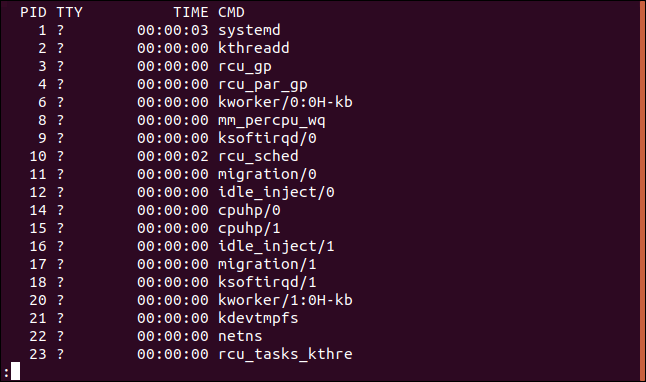
We’ve got many more entries in the list, but we see the same four columns as before. The entries with a question mark ? in the TTY column were not started from a terminal window.
列表中还有更多条目,但是我们看到与以前相同的四列。 带有问号的条目? TTY列中的“开始”不是从终端窗口启动的。
显示流程层次结构 (Showing Process Hierarchy)
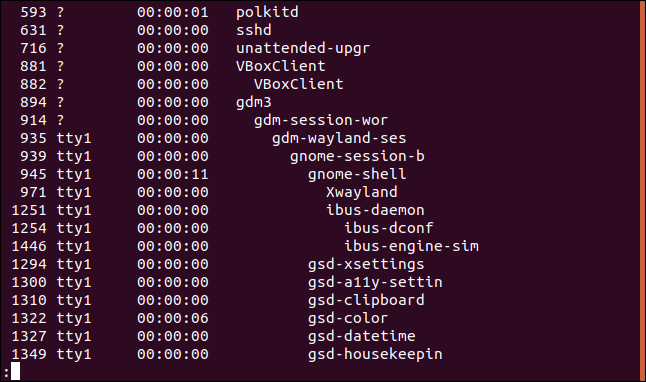
Sometimes it can help to figure out an issue or identify a particular process if you can see which processes launched other processes. We use the -H (hierarchy) option to do so.
有时,如果您可以查看哪些进程启动了其他进程,则有助于找出问题或确定特定进程。 我们使用-H (层次结构)选项来执行此操作。
ps -eH | less

The indentation indicates which processes are parents of which other processes.
缩进指示哪些进程是哪些其他进程的父进程。
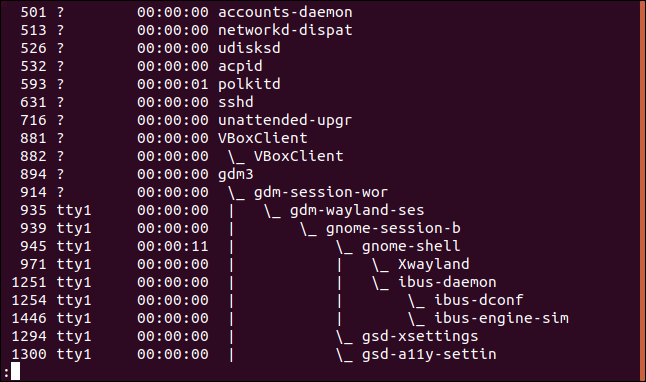
To add a little more clarity, we can ask ps to add some ASCII lines and to draw the hierarchy as a tree. The option to do this is the --forest option.
为了更加清晰,我们可以要求ps添加一些ASCII行并将层次结构绘制为树。 执行此操作的选项是--forest选项。
ps -eH --forest | less

This makes it easier to track which processes are the parents of other processes.
这使得更容易跟踪哪些进程是其他进程的父进程。
按名称列出流程 (Listing Processes by Name)
You can pipe the output from ps through grep to list entries that have names that match the search term. Here we’re looking for entries that match the “firefox” search term:
您可以通过grep将ps的输出传递给名称与搜索词匹配的列表条目。 在这里,我们正在寻找与“ firefox”搜索词匹配的条目:
ps -e | grep firefox

In this case, the output is a single entry for the process we are interested in. Of course, if we’d launched several instances of Firefox, there’d be more than one item returned in the list.
在这种情况下,输出是我们感兴趣的过程的单个条目。当然,如果我们启动了Firefox的多个实例,则列表中将返回多个项。

在输出中显示更多列 (Showing More Columns in the Output)
To add more columns to the output, use the -f (full-format) option.
要将更多列添加到输出中,请使用-f (完整格式)选项。
ps -ef | less

An extra set of columns are included in the output from ps.
ps的输出中包含一组额外的列。
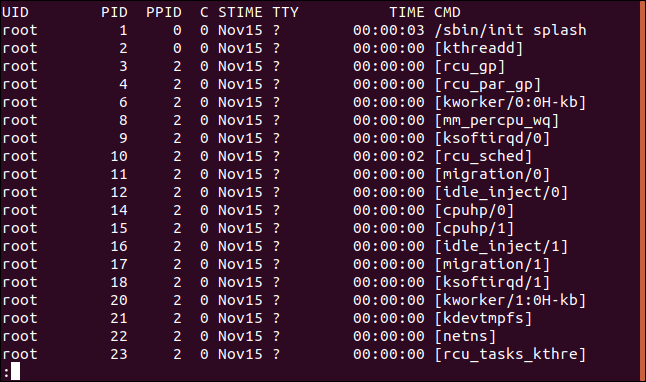
The columns are:
这些列是:
UID: The user ID of the owner of this process.
UID :此进程所有者的用户ID。
PID: The process ID of the process.
PID :进程的进程ID。
PPID: Parent process ID of the process.
PPID :流程的父流程ID。
C: The number of children the process has.
C :进程具有的子级数。
STIME: Start time. The time when the process commenced.
STIME :开始时间。 该过程开始的时间。
TTY: The name of the console that the user is logged in at.
TTY :用户登录所在的控制台的名称。
TIME: The amount of CPU processing time that the process has used.
TIME :进程已使用的CPU处理时间。
CMD: The name of the command that launched the process.
CMD :启动进程的命令的名称。
By using the -F (extra full-format) option we can get even more columns:
通过使用-F (超全格式)选项,我们可以获得更多的列:
ps -eF | less

The columns we get this time require the screen to be scrolled sideways to reveal them all.
我们这次获得的列要求将屏幕横向滚动以显示所有内容。
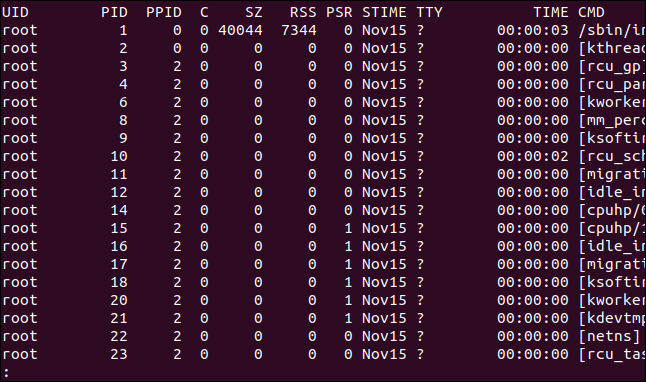
Pressing the “Right Arrow” key shifts the display to the left.
按下“向右箭头”键可将显示向左移动。
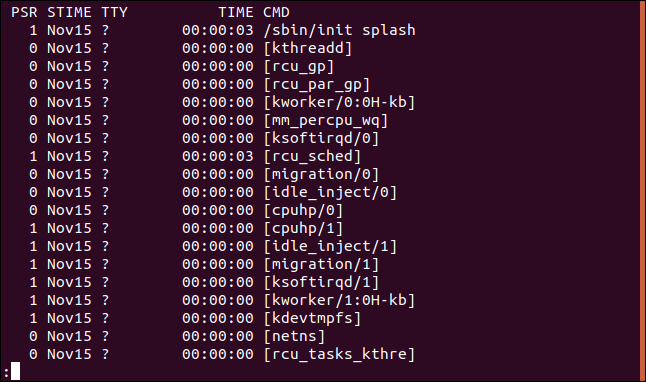
The columns we now get are:
我们现在得到的列是:
UID: The user ID of the owner of this process.
UID :此进程所有者的用户ID。
PID: The process ID of the process.
PID :进程的进程ID。
PPID: Parent process ID of the process.
PPID :流程的父流程ID。
C: The number of children the process has.
C :进程具有的子级数。
SZ: Size in RAM pages of the process image.
SZ :过程映像的RAM页中的大小。
RSS: Resident set size. This is the non-swapped physical memory used by the process.
RSS :居民集大小。 这是该进程使用的未交换的物理内存。
PSR: The processor that the process is assigned to.
PSR :将进程分配给的处理器。
STIME: Start time. The time when the process commenced.
STIME :开始时间。 该过程开始的时间。
TTY: The name of the console that the user is logged in at.
TTY :用户登录所在的控制台的名称。
TIME: The amount of CPU processing time that the process has used.
TIME :进程已使用的CPU处理时间。
CMD: The name of the command that launched the process.
CMD :启动进程的命令的名称。
按进程ID列出进程 (Listing Processes by Process ID)
Once you have found the process ID for the process you’re interested in, you can use it with the ps command to list the details of that process. Use the -p (select by process ID) option to achieve this:
找到感兴趣的进程的进程ID后,可以将其与ps命令一起使用以列出该进程的详细信息。 使用-p (按进程ID选择)选项可以实现以下目的:
ps -p 3403

The details for this process are listed:
列出了此过程的详细信息:

You are not restricted to one process ID. You can provide a list of process IDs, separated by spaces.
您不限于一个进程ID。 您可以提供一个进程ID列表,以空格分隔。
按命令列出进程 (Listing Processes by Command)
The -C (command) option lets you search for a process using the command name. That is, the name of the command that launched the process. This is subtly different from the command line, which might include path names and parameters or options.
-C (命令)选项使您可以使用命令名称搜索进程。 即,启动进程的命令的名称。 这与命令行稍有不同,命令行可能包含路径名,参数或选项。
ps -C shutter

The details for the shutter process are listed.
列出了快门处理的详细信息。
列出用户拥有的流程 (Listing Processes Owned by a User)
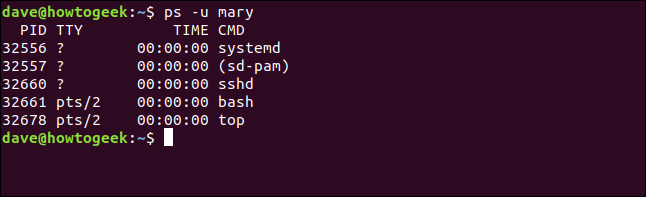
To see the processes that are owned by a particular user, use the -u (user list) option:
要查看特定用户拥有的进程,请使用-u (用户列表)选项:
ps -u mary

The processes owned by the user account mary are displayed.
显示用户帐户mary拥有的进程。
终端列出流程 (Listing Processes by Terminal)
To see the processes associated with a TTY, use the -t (select by TTY) option. Used without a TTY number, the -t option reports on processes associated with the current terminal window.
要查看与TTY相关的进程,请使用-t (按TTY选择)选项。 -t选项在不带TTY编号的情况下使用,报告与当前终端窗口关联的进程。
tty
ps -t
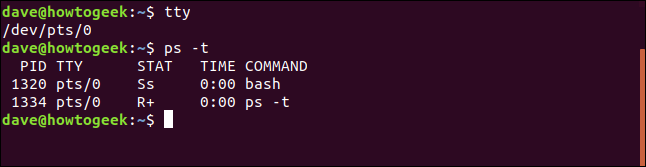
The tty command reports that this is pseudo-teletype 0. The processes listed by ps -t are all associated with TTY pts/0.
tty命令报告这是伪整数ps -t列出的进程都与TTY pts/0相关联。
If we pass a TTY number on the command line, we should get a report of the processes associated with that TTY.
如果我们在命令行上传递了一个TTY编号,则应该获得与该TTY相关联的进程的报告。
ps -t 1
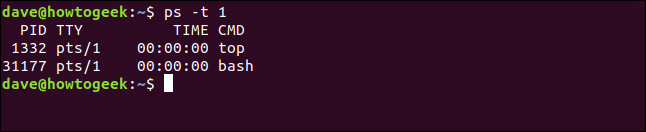
This time the processes are all associated with TTY pts/1.
这次,所有进程都与TTY pts/1相关联。
选择要显示的列 (Selecting Columns to Display)
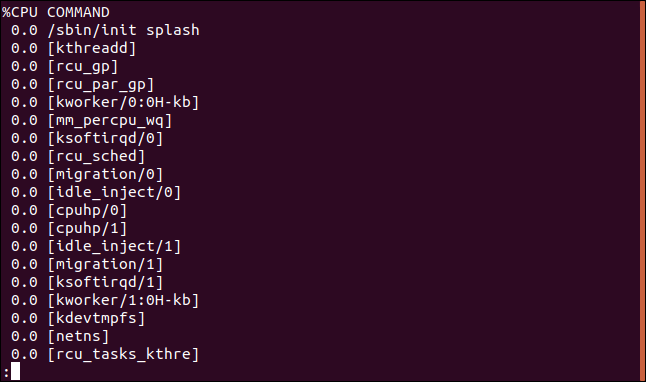
With the -o (format) option you can select which columns you want to have included in the output from ps. You specify the columns by name. The (long) list of column names can be seen on the man page in the section titled “Standard Format Specifiers.” In this example, we’re choosing to have the CPU time (pcpu) and the command line with arguments (args) included in the output.
使用-o (格式)选项,您可以选择要包含在ps输出中的列。 您可以按名称指定列。 列名的(长)列表可以在手册页的“标准格式说明符”部分中找到。 在此示例中,我们选择在输出中包含CPU时间( pcpu )和带有参数( args )的命令行。
ps -e -o pcpu,args | less

The output only includes our two requested columns.
输出仅包含我们要求的两个列。
按列对输出排序 (Sorting The Output by Columns)
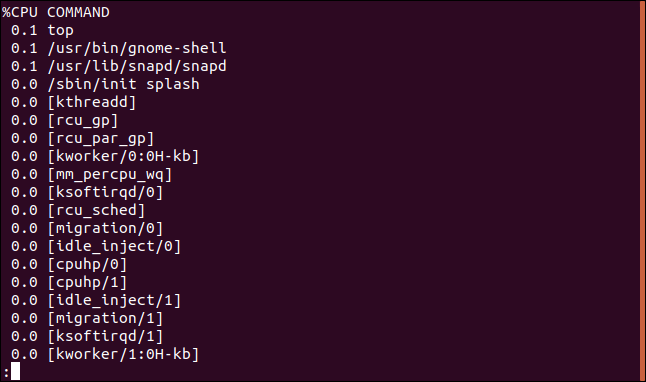
You can have the output sorted for you by using the --sort option. Let’s sort the output by the CPU column:
您可以使用--sort选项对输出进行排序。 让我们按CPU列对输出进行排序:
ps -e -o pcpu,args --sort -pcpu| less

The hyphen “-” on the pcpu sort parameter gives a descending sort order.
pcpu sort参数上的连字符“ - ”给出降序排列。
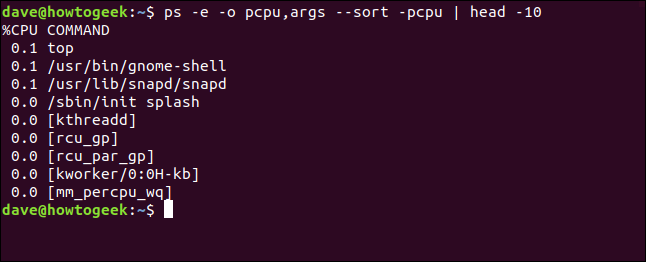
To see the ten most CPU intensive processes, pipe the output through the head command:
要查看十个最占用CPU的进程,请通过head命令通过管道传递输出:
ps -e -o pcpu,args --sort -pcpu | head -10

We get a sorted, truncated list.
我们得到一个排序的,被截断的列表。
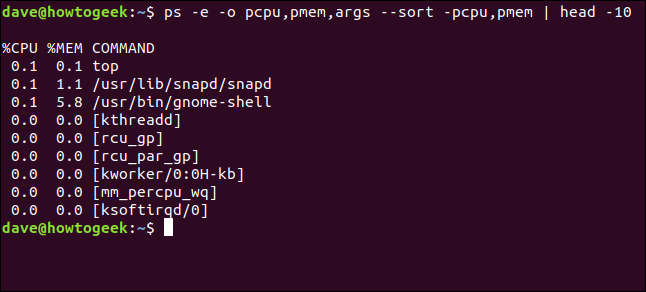
If we add more columns to our display, we can sort by more columns. Let’s add the pmem column. This is the percentage of the computer’s memory that is being used by the process. Without a hyphen, or with a plus ” +“, the sort order is ascending.
如果我们在显示中添加更多列,则可以按更多列进行排序。 让我们添加pmem列。 这是该进程正在使用的计算机内存的百分比。 如果不使用连字符或加号“ + ”,则排序顺序将递增。
ps -e -o pcpu,pmem,args --sort -pcpu,pmem | head -10

We get our extra column, and the new column is included in the sorting. The first column is sorted before the second column, and the second column is sorted in ascending order because we didn’t put a hyphen on pmem.
我们得到了额外的列,并且新列包含在排序中。 第一列在第二列之前排序,第二列以升序排序,因为我们没有在pmem上加上连字符。
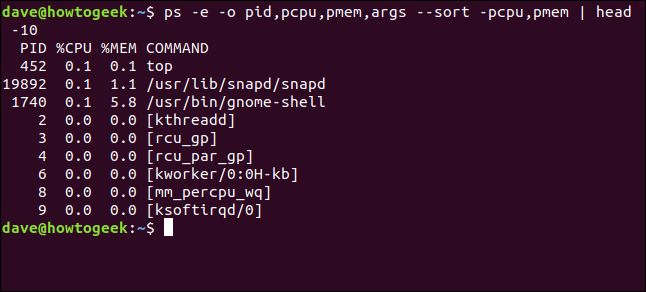
Let’s make it a bit more useful and add in the process ID column (pid) so we can see the process number of each process in our listing.
让我们使其更加有用,并添加进程ID列( pid ),以便我们可以在清单中看到每个进程的进程号。
ps -e -o pid,pcpu,pmem,args --sort -pcpu,pmem | head -10

Now we can identify the processes.
现在我们可以确定流程了。
通过进程ID终止进程 (Killing Processes by Process ID)
We’ve covered a range of ways to identify processes, including name, command, user, and terminal. We’ve also covered ways to identify processes by their dynamic attributes, such as CPU usage and memory.
我们介绍了多种方法来识别进程,包括名称,命令,用户和终端。 我们还介绍了通过进程的动态属性(例如CPU使用率和内存)识别进程的方法。
So, one way or another, we can identify the processes that are running. By knowing their process ID, we can (if we need to) kill any of those processes using the kill command. If we wanted to kill process 898, we’d use this format:
因此,我们可以以一种方式来识别正在运行的进程。 通过了解它们的进程ID,我们可以(如果需要)使用kill命令杀死任何这些进程。 如果我们想终止进程898,则可以使用以下格式:
sudo kill 898

If all goes well, the process is silently terminated.
如果一切顺利,该过程将以静默方式终止。

按名称杀死进程 (Killing Processes by Name)
The pkill command allows you to kill processes by name. Make sure you’ve identified the correct process! This command will terminate the top process.
使用pkill命令可以按名称杀死进程。 确保您确定了正确的过程! 此命令将终止顶层进程。
sudo pkill top

Again, no news is good news. The process is silently terminated.
同样,没有消息是好消息。 该过程以静默方式终止。

按名称杀死多个进程 (Killing Multiple Processes by Name)
If you have multiple copies of a process running, or a process has spawned a number of child processes (like Google Chrome can do), how can you kill them off? That’s just as easy. We use the killall command.
如果您正在运行一个进程的多个副本,或者一个进程产生了多个子进程(例如Google Chrome浏览器可以做到),那么如何杀死它们? 就这么简单。 我们使用killall命令。
We’ve got two copies of top running:
我们有两本热门广告:
ps -e | grep top

We can terminate both of them with this command:
我们可以使用以下命令终止它们:
sudo killall top

No response means no problems, so both of those processes have been terminated.
没有响应就意味着没有问题,因此这两个过程都已终止。

使用顶部获取动态视图 (Get a Dynamic View with top)
The output from ps is a snapshot view. It doesn’t update. To get an updating view of the processes, use the top command. It provides a dynamic view of the processes running in your computer. The display is in two parts. There is a dashboard area at the top of the screen made up of lines of text, and a table in the lower part of the screen made up of columns.
ps的输出是快照视图。 它不会更新。 要获取进程的更新视图,请使用top命令。 它提供了计算机中正在运行的进程的动态视图。 显示分为两部分。 屏幕顶部的仪表板区域由文本行组成,而屏幕下部的表则由列组成。
Start top with this command:
开始top用这个命令:
top
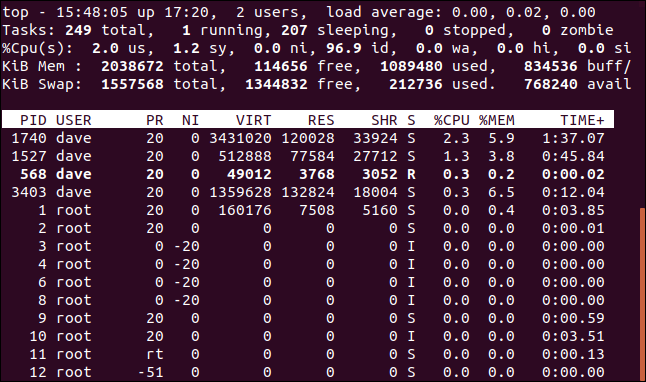
The columns hold information on the processes:
这些列包含有关流程的信息:
PID: Process ID
PID :进程ID
USER: Name of the owner of the process
USER :流程所有者的名称
PR: Process priority
PR :流程优先级
NI: The nice value of the process
NI :该过程的价值
VIRT: Virtual memory used by the process
VIRT :进程使用的虚拟内存
RES: Resident memory used by the process
RES :进程使用的常驻内存
SHR: Shared memory used by the process
SHR :进程使用的共享内存
S: Status of the process. See the list below of the values this field can take
S :进程状态。 请参阅以下该字段可以采用的值的列表
%CPU: the share of CPU time used by the process since the last update
%CPU :自上次更新以来该进程使用的CPU时间的份额
%MEM: share of physical memory used
%MEM :使用的物理内存份额
TIME+: total CPU time used by the task in hundredths of a second
TIME + :任务使用的总CPU时间,以百分之一秒为单位
COMMAND: command name or command line (name and command line parameters) If the command column cannot be seen, press the “Right Arrow” key.
COMMAND :命令名称或命令行(名称和命令行参数)如果看不到命令列,请按“向右箭头”键。
The status of the process can be one of:
进程的状态可以是以下之一:
D: Uninterruptible sleep
D :不间断的睡眠
R: Running
R :跑步
S: Sleeping
S :睡觉
T: Traced (stopped)
T :已追踪(已停止)
Z: Zombie
Z :僵尸
Press the “Q” key to exit from top.
按“ Q”键从top退出。
在终止进程之前 (Before You Kill a Process)
Make sure it is the one you’re after, and check that it isn’t going to cause you any problems. In particular, it is worth checking with the -H (hierarchy) and --forest options to make sure it doesn’t have any important child processes that you’d forgotten about.
确保它是您所追求的,并确保它不会给您带来任何问题。 特别值得一提的是,使用-H (层次结构)和--forest选项进行检查,以确保它没有任何您遗忘的重要子进程。
翻译自: https://www.howtogeek.com/448271/how-to-use-the-ps-command-to-monitor-linux-processes/
linux使用ps查看进程
本文来自互联网用户投稿,文章观点仅代表作者本人,不代表本站立场,不承担相关法律责任。如若转载,请注明出处。 如若内容造成侵权/违法违规/事实不符,请点击【内容举报】进行投诉反馈!