golang cpu/内存性能分析
如果cpu或内存占用明显,使用pprof则能很快定位到问题。否则最好结合多个时间段的数据对比进行查看。
1、golang代码中引入pprof
import(_ "net/http/pprof"
)
Demo全部代码如下:
package mainimport ("fmt""log""net/http"_ "net/http/pprof"
)func main() {http.HandleFunc("/", indexHandler)http.HandleFunc("/hello", helloHandler)log.Fatal(http.ListenAndServe(":9999", nil))
}// handler echoes r.URL.Path
func indexHandler(w http.ResponseWriter, req *http.Request) {for i:= 0;i<100;i++ {fmt.Fprintf(w, "URL.Path = %q\n", `package mainimport ("fmt""log""net/http"_ "net/http/pprof"
)func main() {http.HandleFunc("/", indexHandler)http.HandleFunc("/hello", helloHandler)log.Fatal(http.ListenAndServe(":9999", nil))
}// handler echoes r.URL.Path
func indexHandler(w http.ResponseWriter, req *http.Request) {fmt.Fprintf(w, "URL.Path = %q\n", req.URL.Path)
}// handler echoes r.URL.Header
func helloHandler(w http.ResponseWriter, req *http.Request) {for k, v := range req.Header {fmt.Fprintf(w, "Header[%q] = %q\n", k, v)}
}`)}
}// handler echoes r.URL.Header
func helloHandler(w http.ResponseWriter, req *http.Request) {for k, v := range req.Header {fmt.Fprintf(w, "Header[%q] = %q\n", k, v)}
}
go run main.go拉起服务
3、浏览器访问
http://localhost:9999/debug/pprof/
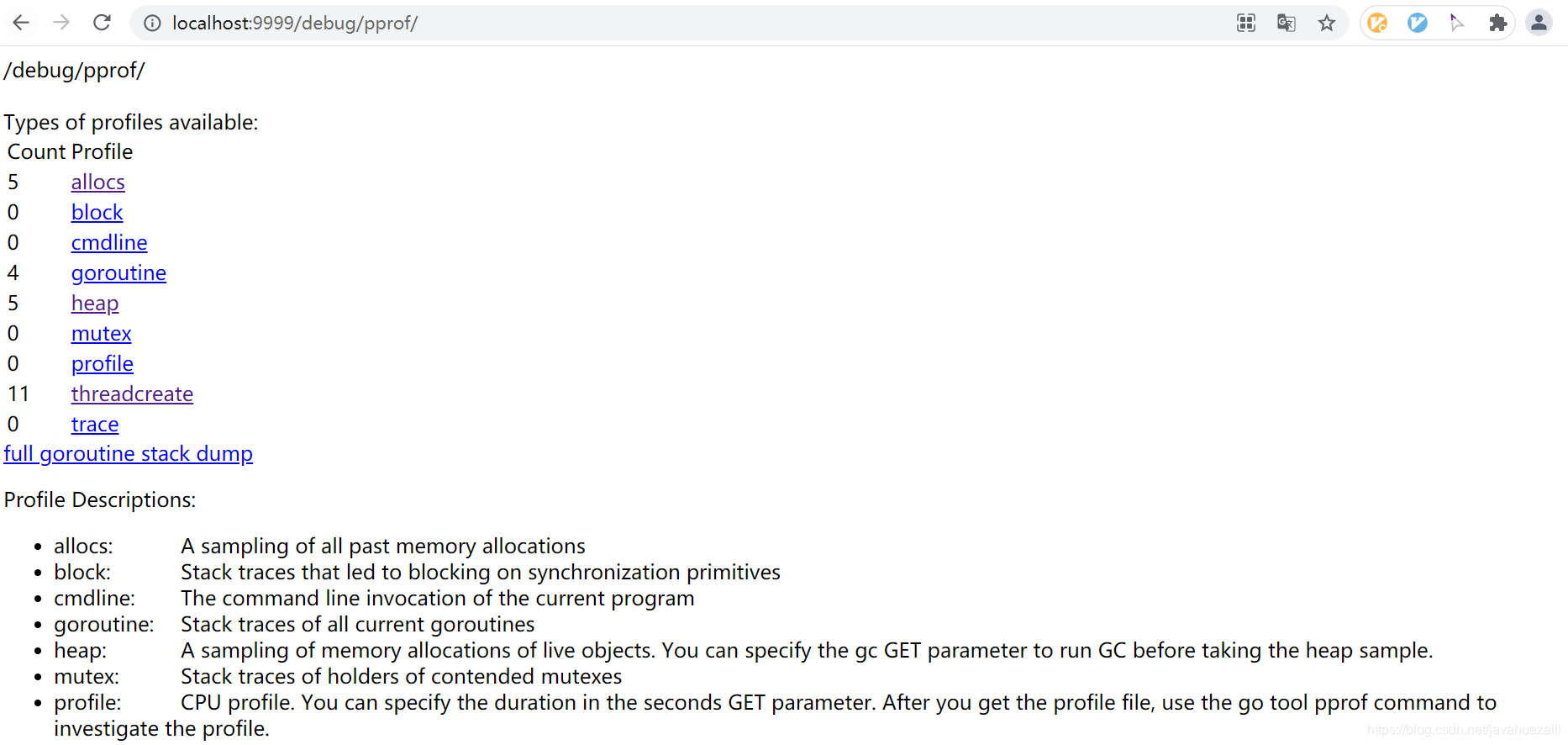
4、使用pprof
go tool pprof http://127.0.0.1:9999/debug/pprof/profile如下图:
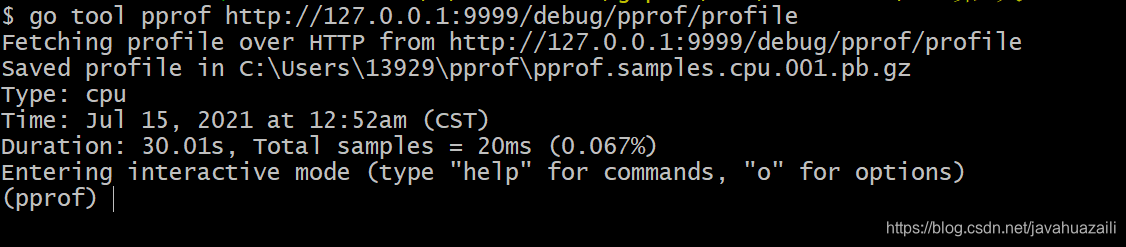
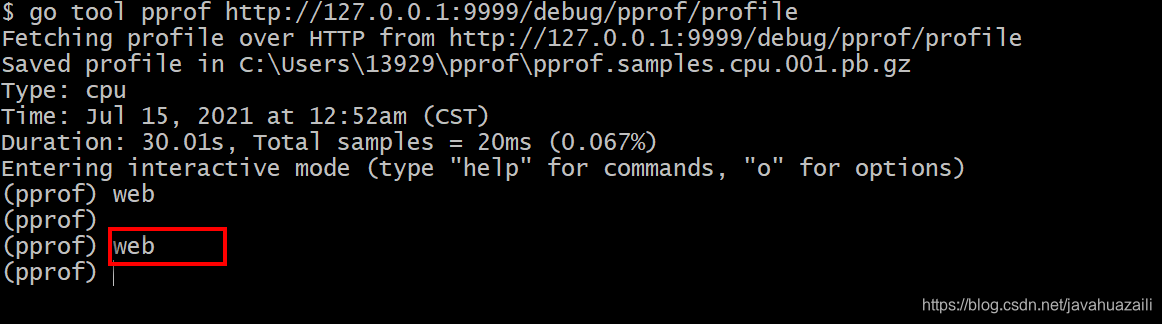
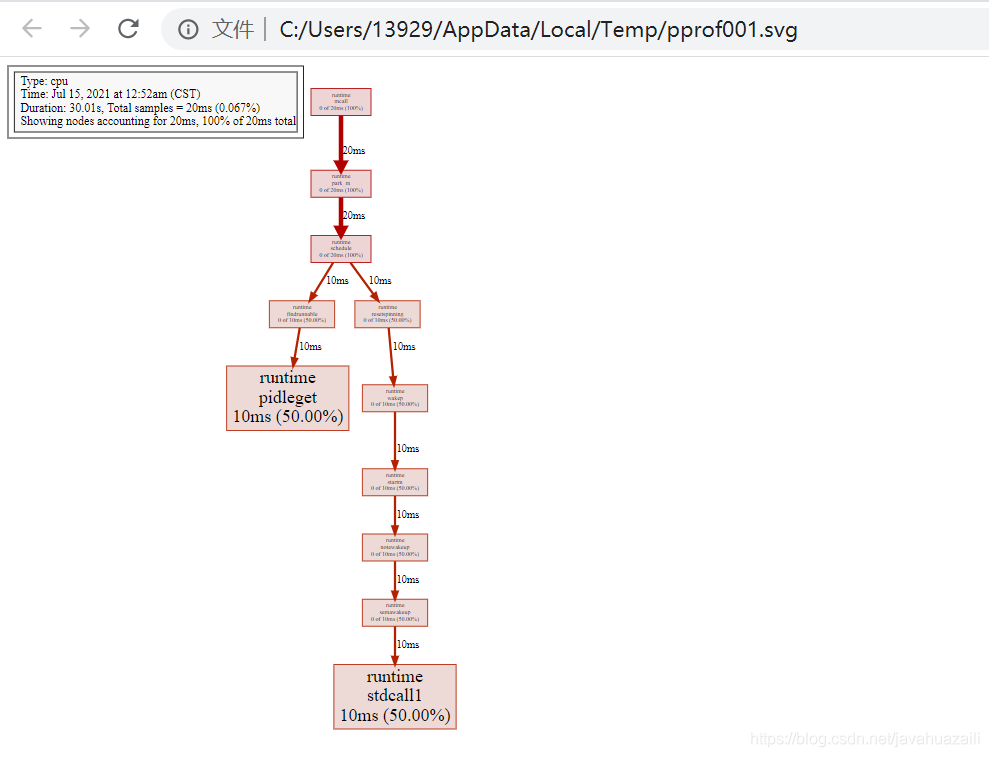
5、然后我们可以输入命令web,其会给我们的浏览器弹出一个.svg图片,其会把这些累积关系画成一个拓扑图给我们。
如下图 :
此时浏览器会自动访问到svg图片:
6、或者直接执行
go tool pprof -alloc_space -cum -svg http://192.168.1.17:9999/debug/pprof/heap > heap.svg
或者
go tool pprof -http 0.0.0.0:8899 http://192.168.1.11:32220/debug/pprof/allocs此时会在本地拉起一个8899的服务,用来实时中转展示服务上pprof上的对应指标
http://192.168.1.17:8899/ui
通过左上角的菜单栏可以选择看“火焰图’”等等
7、下载数据使用pprof查看(适合不能直接访问到pprof端口的情况,比如容器内)
curl http://xxxxxx/debug/pprof/heap > base.heap
curl http://xxxxxx/debug/pprof/heap > current.heap
go tool pprof -http 0.0.0.0:9987 -alloc_space --base base.heap current.heap

本文来自互联网用户投稿,文章观点仅代表作者本人,不代表本站立场,不承担相关法律责任。如若转载,请注明出处。 如若内容造成侵权/违法违规/事实不符,请点击【内容举报】进行投诉反馈!