高可用系统——Harbor高可用
什么是harbor?
harbor是一个开源注册库,可靠地使用策略和基于角色的访问控制,确保扫描图像并没有漏洞,并将图像标记为可信。 CNCF毕业项目,提供合规性,性能和互操作性,以帮助您跨越云原始计算平台始终如一地和安全地管理镜像,如Kubernetes和Docker。
简单理解就是本地化的Docker hub。
双实例复制部署
生成SSL证书
1. 使用185作为CA服务器,准备根证书
# CA的配置文件、序列号、索引等
sudo vim /etc/pki/tls/openssl.cnf
---[ req_distinguished_name ]
countryName                     = Country Name (2 letter code)
countryName_default             = CN
countryName_min                 = 2
countryName_max                 = 2stateOrProvinceName             = State or Province Name (full name)
stateOrProvinceName_default     = BeiJinglocalityName                    = Locality Name (eg, city)
localityName_default            = BeiJing0.organizationName              = Organization Name (eg, company)
0.organizationName_default      = Hazulnuts Group Ltd.# we can do this but it is not needed normally :-)
#1.organizationName             = Second Organization Name (eg, company)
#1.organizationName_default     = World Wide Web Pty LtdorganizationalUnitName          = Organizational Unit Name (eg, section)
organizationalUnitName_default  = Nuts---# 在CA目录下创建两个初始文件:index.txt serial
cd /etc/pki/CA/
sudo touch index.txt serial
sudo sed -i '1i 01' /etc/pki/CA/serial# 生成根密钥
cd /etc/pki/CA/
sudo openssl genrsa -out private/cakey.pem 4096# 使用req命令生成自签证书
cd /etc/pki/CA/
sudo openssl req -new -x509 -key private/cakey.pem -out cacert.pem# 查看CA证书内容
openssl x509 -in /etc/pki/CA/cacert.pem -noout -text


2. 76服务器上生成服务器证书
# CA的配置文件、序列号、索引等
sudo vim /etc/pki/tls/openssl.cnf
---[ req_distinguished_name ]
countryName                     = Country Name (2 letter code)
countryName_default             = CN
countryName_min                 = 2
countryName_max                 = 2stateOrProvinceName             = State or Province Name (full name)
stateOrProvinceName_default     = BeiJinglocalityName                    = Locality Name (eg, city)
localityName_default            = BeiJing0.organizationName              = Organization Name (eg, company)
0.organizationName_default      = WNTime Ltd# we can do this but it is not needed normally :-)
#1.organizationName             = Second Organization Name (eg, company)
#1.organizationName_default     = World Wide Web Pty LtdorganizationalUnitName          = Organizational Unit Name (eg, section)
organizationalUnitName_default  = Smart City---# 在CA目录下创建两个初始文件:index.txt serial
cd /etc/pki/CA/
sudo touch index.txt serial
sudo sed -i '1i 01' /etc/pki/CA/serial# 生成根密钥
cd /etc/pki/CA/
sudo openssl genrsa -out private/harbor.wntime.com.key 4096# 使用req命令生成自签证书
cd /etc/pki/CA/
sudo openssl req -new -key private/harbor.wntime.com.key -out harbor.wntime.com.csr# 查看整数申请
openssl req -in harbor.wntime.com.csr -noout -text

3. 185 CA服务器上为76根据请求来签署证书
# 生成 x509 v3 扩展文件
cat > v3.ext <<-EOF
authorityKeyIdentifier=keyid,issuer
basicConstraints=CA:FALSE
keyUsage = digitalSignature, nonRepudiation, keyEncipherment, dataEncipherment
extendedKeyUsage = serverAuth
subjectAltName = @alt_names[alt_names]
DNS.1=harbor.wntime.com
DNS.2=wntime.com
DNS.3=wntime
EOF# 签发证书,签发过程其实默认使用了-cert cacert.pem -keyfile cakey.pem,这两个文件就是第一步生成的位于/etc/pki/CA下的根密钥和根证书。
sudo openssl ca -days 3650 -extfile v3.ext -in harbor.wntime.com.csr -out harbor.wntime.com.crt# 另外在极少数情况下,上面的命令生成的证书不能识别,试试下面的命令:
sudo openssl x509 -req -days 3650 -extfile v3.ext -in harbor.wntime.com.csr -CA /etc/pki/CA/cacert.pem -CAkey /etc/pki/CA/private/cakey.pem -CAcreateserial -out harbor.wntime.com.crt

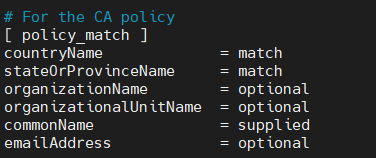
注意:引起The organizationName field needed to be the same in the
CA certificate (Hazulnuts Group Ltd.) and the request (WNTime Ltd),的原因是下面配置
修改CA服务器的 /etc/pki/tls/openssl.cnf,配置成下面配置,然后重新生成76证书申请
organizationName = optional
# 使用req命令生成自签证书
cd /etc/pki/CA/
sudo openssl req -new -key private/harbor.wntime.com.key -out harbor.wntime.com.csr# 查看整数申请
openssl req -in harbor.wntime.com.csr -noout -text
注意:多次生成同一个证书申请的证书时,会报以下错误:
failed to update database
TXT_DB error number 2
主要原因是commonName 相同,也就是 harbor.wntime.com 这个域名相同若是需要重新生成同一个证书申请csr,可以清空/etc/pki/CA/index.txt,或删除对应的commonName记录
配置harbor并开启https
harbor部署服务器为76,77,把185 生成的签名证书 harbor.wntime.com.csr, 76服务器的私钥文件harbor.wntime.com.key
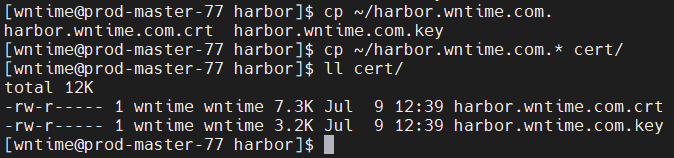
都复制一份到76、77 的 /opt/containers/harbor/cert/ 文件夹下(后面会创建)
设置DNS服务器
参照 高可用系统——DNS服务器 搭建 DNS服务,并统一修改所有服务器的 /etc/resover.conf 文件
./auto-ssh-remote.sh "sudo sed -i '2i nameserver 172.16.1.185' /etc/resolv.conf" \
"sudo sed -i '"'$a'" nameserver 172.16.1.181' /etc/resolv.conf" \
"sudo sed -i '"'$a'" nameserver 172.16.1.182' /etc/resolv.conf"
注: 需要在域名服务器的 /var/named/wntime.com.zone 配置以下内容
harbor A 10.10.10.76
A 10.10.10.77这样通过DNS服务,harbor.wntime.com 就好被解析到 76/77 服务器上,但存在导航到应用挂掉的服务器的可能,后续解决这部分问题
统一设置docker容器目录
./auto-ssh-remote.sh 'sudo mkdir -p /opt/containers/' \
> 'sudo chown wntime:docker /opt/containers/'
配置harbor.yml文件,并运行
76,77操作一样
 cd /opt/containers/tar -zxf ~/harbor-offline-installer-v2.3.0.tgzll
total 0
drwxr-x--- 2 wntime wntime 116 Jul  7 21:03 harborcd harbor/ll
total 604M
-rw-r----- 1 wntime wntime  12K Jun 17 17:07 LICENSE
-rw-r----- 1 wntime wntime 3.3K Jun 17 17:07 common.sh
-rw-r----- 1 wntime wntime 7.7K Jun 17 17:07 harbor.yml.tmpl
-rw-r----- 1 wntime wntime 604M Jun 17 17:08 harbor.v2.3.0.tar.gz
-rwxr-x--- 1 wntime wntime 2.5K Jun 17 17:07 install.sh
-rwxr-x--- 1 wntime wntime 1.9K Jun 17 17:07 preparecp harbor.yml.tmpl harbor.ymlsed -i 's/hostname: reg.mydomain.com/hostname: harbor.wntime.com/' harbor.ymlsed -i 's/^http:/#http:/' harbor.ymlsed -i 's/port: 80/#port: 80/' harbor.ymlsed -i 's/certificate: \/your\/certificate\/path/certificate: \/opt\/containers\/harbor\/cert\/harbor.wntime.com.crt/'  harbor.ymlsed -i 's/private_key: \/your\/private\/key\/path/private_key: \/opt\/containers\/harbor\/cert\/harbor.wntime.com.key/' harbor.ymlsed -i 's/data_volume: \/data/data_volume: \/opt\/containers\/harbor\/data/' harbor.yml# 根据需要修改密码sed -i 's/harbor_admin_password: Harbor12345/harbor_admin_password: password/' harbor.ymlsed -i 's/password: root123/password: password/' harbor.ymlmkdir -p mkdir -p /opt/containers/harbor/{cert,data}
# 拷贝 https证书,和秘钥文件
首先,运行 ./prepare
然后,运行 sudo ./install.sh
就是等待完成安装,就可以访问 https://10.10.10.77
[wntime@prod-master-77 harbor]$ ./prepare
prepare base dir is set to /opt/containers/harbor
Clearing the configuration file: /config/portal/nginx.conf
Clearing the configuration file: /config/log/logrotate.conf
Clearing the configuration file: /config/log/rsyslog_docker.conf
Clearing the configuration file: /config/nginx/nginx.conf
Clearing the configuration file: /config/core/env
Clearing the configuration file: /config/core/app.conf
Clearing the configuration file: /config/registry/passwd
Clearing the configuration file: /config/registry/config.yml
Clearing the configuration file: /config/registryctl/env
Clearing the configuration file: /config/registryctl/config.yml
Clearing the configuration file: /config/db/env
Clearing the configuration file: /config/jobservice/env
Clearing the configuration file: /config/jobservice/config.yml
Generated configuration file: /config/portal/nginx.conf
Generated configuration file: /config/log/logrotate.conf
Generated configuration file: /config/log/rsyslog_docker.conf
Generated configuration file: /config/nginx/nginx.conf
Generated configuration file: /config/core/env
Generated configuration file: /config/core/app.conf
Generated configuration file: /config/registry/config.yml
Generated configuration file: /config/registryctl/env
Generated configuration file: /config/registryctl/config.yml
Generated configuration file: /config/db/env
Generated configuration file: /config/jobservice/env
Generated configuration file: /config/jobservice/config.yml
loaded secret from file: /data/secret/keys/secretkey
Generated configuration file: /compose_location/docker-compose.yml
Clean up the input dir
[wntime@prod-master-77 harbor]$
[wntime@prod-master-77 harbor]$ sudo ./install.sh[Step 0]: checking if docker is installed ...Note: docker version: 18.09.9[Step 1]: checking docker-compose is installed ...Note: docker-compose version: 1.29.2[Step 2]: loading Harbor images ...b8cb4f2fe042: Loading layer [==================================================>]  8.112MB/8.112MB
Loaded image: goharbor/nginx-photon:v2.3.0
2b6cbbd060e5: Loading layer [==================================================>]  6.186MB/6.186MB
69fc2a5d7057: Loading layer [==================================================>]  4.096kB/4.096kB
421b6d0db9f6: Loading layer [==================================================>]  3.072kB/3.072kB
bc5645ad7d34: Loading layer [==================================================>]  19.02MB/19.02MB
962c38e6d231: Loading layer [==================================================>]  19.81MB/19.81MB
Loaded image: goharbor/registry-photon:v2.3.0
4d82179a9400: Loading layer [==================================================>]  9.914MB/9.914MB
675e2c32eb5d: Loading layer [==================================================>]  3.584kB/3.584kB
8818aef7131e: Loading layer [==================================================>]   2.56kB/2.56kB
9d5d2ed48330: Loading layer [==================================================>]  55.83MB/55.83MB
475c7500b29b: Loading layer [==================================================>]  5.632kB/5.632kB
10e61cefb27a: Loading layer [==================================================>]   93.7kB/93.7kB
f2e373a19887: Loading layer [==================================================>]  11.78kB/11.78kB
f622f2e58e5a: Loading layer [==================================================>]  56.73MB/56.73MB
d220e8c2ccdb: Loading layer [==================================================>]   2.56kB/2.56kB
Loaded image: goharbor/harbor-core:v2.3.0
fa7dc2e6a798: Loading layer [==================================================>]  6.186MB/6.186MB
0f612ded4ff1: Loading layer [==================================================>]  4.096kB/4.096kB
fbb3f0d75fe7: Loading layer [==================================================>]  19.02MB/19.02MB
11c455c1ad44: Loading layer [==================================================>]  3.072kB/3.072kB
5b5dc65c296c: Loading layer [==================================================>]   25.4MB/25.4MB
073cf43e62b3: Loading layer [==================================================>]   45.2MB/45.2MB
Loaded image: goharbor/harbor-registryctl:v2.3.0
b106b5752942: Loading layer [==================================================>]  1.096MB/1.096MB
a10890f8f147: Loading layer [==================================================>]  5.888MB/5.888MB
b7d39d927c0a: Loading layer [==================================================>]  209.2MB/209.2MB
c7b75a8ac758: Loading layer [==================================================>]  15.05MB/15.05MB
685aea1b7e0e: Loading layer [==================================================>]  4.096kB/4.096kB
29eea9e3830a: Loading layer [==================================================>]  6.144kB/6.144kB
6c89dc4abd54: Loading layer [==================================================>]  3.072kB/3.072kB
8f6ddd91b278: Loading layer [==================================================>]  2.048kB/2.048kB
44885e6b8efc: Loading layer [==================================================>]   2.56kB/2.56kB
d0650c47bd17: Loading layer [==================================================>]   2.56kB/2.56kB
baa9d588c87c: Loading layer [==================================================>]   2.56kB/2.56kB
c0948a512263: Loading layer [==================================================>]  8.704kB/8.704kB
Loaded image: goharbor/harbor-db:v2.3.0
230bb4d21843: Loading layer [==================================================>]  9.914MB/9.914MB
3b267db69816: Loading layer [==================================================>]  17.67MB/17.67MB
48f062b756ef: Loading layer [==================================================>]  4.608kB/4.608kB
83cea239dd18: Loading layer [==================================================>]  18.46MB/18.46MB
Loaded image: goharbor/harbor-exporter:v2.3.0
7ce03d8b76bc: Loading layer [==================================================>]  156.8MB/156.8MB
146ee77daba1: Loading layer [==================================================>]  3.072kB/3.072kB
7980207d1d35: Loading layer [==================================================>]   59.9kB/59.9kB
4599e620911a: Loading layer [==================================================>]  61.95kB/61.95kB
Loaded image: goharbor/redis-photon:v2.3.0
e1e5285ecc15: Loading layer [==================================================>]  6.181MB/6.181MB
69fa33ea8a76: Loading layer [==================================================>]  6.207MB/6.207MB
90ecbcead336: Loading layer [==================================================>]  14.89MB/14.89MB
05a6e541d31d: Loading layer [==================================================>]  27.38MB/27.38MB
14d6723ce8f3: Loading layer [==================================================>]  22.02kB/22.02kB
cfe4608e735e: Loading layer [==================================================>]  14.89MB/14.89MB
Loaded image: goharbor/notary-server-photon:v2.3.0
65081183b9d5: Loading layer [==================================================>]  8.112MB/8.112MB
4f1c9ff2daf9: Loading layer [==================================================>]  11.64MB/11.64MB
15070dd6843f: Loading layer [==================================================>]  1.688MB/1.688MB
Loaded image: goharbor/harbor-portal:v2.3.0
3ff2cc3e192a: Loading layer [==================================================>]    161MB/161MB
b39b810a2c31: Loading layer [==================================================>]  3.584kB/3.584kB
bc5176327384: Loading layer [==================================================>]  3.072kB/3.072kB
d178cb37812e: Loading layer [==================================================>]   2.56kB/2.56kB
a0eb93f025fe: Loading layer [==================================================>]  3.072kB/3.072kB
26e033b26702: Loading layer [==================================================>]  3.584kB/3.584kB
0532e71b3bd4: Loading layer [==================================================>]  19.97kB/19.97kB
Loaded image: goharbor/harbor-log:v2.3.0
0cae3dac3e77: Loading layer [==================================================>]  9.914MB/9.914MB
90bebc66effb: Loading layer [==================================================>]  3.584kB/3.584kB
595eefd6fb57: Loading layer [==================================================>]   2.56kB/2.56kB
11c19159aa0f: Loading layer [==================================================>]  62.49MB/62.49MB
5d8a4f259631: Loading layer [==================================================>]  63.28MB/63.28MB
Loaded image: goharbor/harbor-jobservice:v2.3.0
7f36930441df: Loading layer [==================================================>]  6.186MB/6.186MB
f3d478212fb5: Loading layer [==================================================>]  67.47MB/67.47MB
028a02a35dde: Loading layer [==================================================>]  3.072kB/3.072kB
4dd4f408cedc: Loading layer [==================================================>]  4.096kB/4.096kB
6bf984b97419: Loading layer [==================================================>]  68.26MB/68.26MB
Loaded image: goharbor/chartmuseum-photon:v2.3.0
3b9eb50911fc: Loading layer [==================================================>]  41.95MB/41.95MB
a817012987ff: Loading layer [==================================================>]  4.096kB/4.096kB
31d1db570868: Loading layer [==================================================>]  3.072kB/3.072kB
e6eb84749dcb: Loading layer [==================================================>]  31.52MB/31.52MB
6217368c82fa: Loading layer [==================================================>]  11.39MB/11.39MB
91c725a368fd: Loading layer [==================================================>]   43.7MB/43.7MB
Loaded image: goharbor/trivy-adapter-photon:v2.3.0
Loaded image: goharbor/prepare:v2.3.0
fe023c4074c2: Loading layer [==================================================>]  6.181MB/6.181MB
64f739adb147: Loading layer [==================================================>]  6.207MB/6.207MB
ae8dd74e5ae3: Loading layer [==================================================>]  13.35MB/13.35MB
f35b97e2a785: Loading layer [==================================================>]  27.38MB/27.38MB
0a1f6bad7db8: Loading layer [==================================================>]  22.02kB/22.02kB
7a5ef06c750b: Loading layer [==================================================>]  13.35MB/13.35MB
Loaded image: goharbor/notary-signer-photon:v2.3.0[Step 3]: preparing environment ...[Step 4]: preparing harbor configs ...
prepare base dir is set to /opt/containers/harbor
Clearing the configuration file: /config/portal/nginx.conf
Clearing the configuration file: /config/log/logrotate.conf
Clearing the configuration file: /config/log/rsyslog_docker.conf
Clearing the configuration file: /config/nginx/nginx.conf
Clearing the configuration file: /config/core/env
Clearing the configuration file: /config/core/app.conf
Clearing the configuration file: /config/registry/passwd
Clearing the configuration file: /config/registry/config.yml
Clearing the configuration file: /config/registryctl/env
Clearing the configuration file: /config/registryctl/config.yml
Clearing the configuration file: /config/db/env
Clearing the configuration file: /config/jobservice/env
Clearing the configuration file: /config/jobservice/config.yml
Generated configuration file: /config/portal/nginx.conf
Generated configuration file: /config/log/logrotate.conf
Generated configuration file: /config/log/rsyslog_docker.conf
Generated configuration file: /config/nginx/nginx.conf
Generated configuration file: /config/core/env
Generated configuration file: /config/core/app.conf
Generated configuration file: /config/registry/config.yml
Generated configuration file: /config/registryctl/env
Generated configuration file: /config/registryctl/config.yml
Generated configuration file: /config/db/env
Generated configuration file: /config/jobservice/env
Generated configuration file: /config/jobservice/config.yml
loaded secret from file: /data/secret/keys/secretkey
Generated configuration file: /compose_location/docker-compose.yml
Clean up the input dir[Step 5]: starting Harbor ...
Creating network "harbor_harbor" with the default driver
Creating harbor-log ... done
Creating registry      ... done
Creating harbor-db     ... done
Creating redis         ... done
Creating registryctl   ... done
Creating harbor-portal     ... done
Creating harbor-core   ... done
Creating harbor-jobservice ... done
Creating nginx             ... done
✔ ----Harbor has been installed and started successfully.----
[wntime@prod-master-77 harbor]$
[wntime@prod-master-77 harbor]$
[wntime@prod-master-77 harbor]$
[wntime@prod-master-77 harbor]$ docker ps
CONTAINER ID        IMAGE                                COMMAND                  CREATED             STATUS                             PORTS                                         NAMES
f1b11a38564a        goharbor/nginx-photon:v2.3.0         "nginx -g 'daemon of…"   10 seconds ago      Up 9 seconds (health: starting)    0.0.0.0:80->8080/tcp, 0.0.0.0:443->8443/tcp   nginx
eada1c627f3c        goharbor/harbor-jobservice:v2.3.0    "/harbor/entrypoint.…"   11 seconds ago      Up 9 seconds (health: starting)                                                  harbor-jobservice
f62f3192fb93        goharbor/harbor-core:v2.3.0          "/harbor/entrypoint.…"   11 seconds ago      Up 10 seconds (health: starting)                                                 harbor-core
18ab03b5a9bf        goharbor/harbor-registryctl:v2.3.0   "/home/harbor/start.…"   13 seconds ago      Up 11 seconds (health: starting)                                                 registryctl
593b16da1efd        goharbor/harbor-portal:v2.3.0        "nginx -g 'daemon of…"   13 seconds ago      Up 10 seconds (health: starting)                                                 harbor-portal
15a28f8d3a61        goharbor/redis-photon:v2.3.0         "redis-server /etc/r…"   13 seconds ago      Up 11 seconds (health: starting)                                                 redis
553937ab2aa8        goharbor/harbor-db:v2.3.0            "/docker-entrypoint.…"   13 seconds ago      Up 11 seconds (health: starting)                                                 harbor-db
12f61b8e9c11        goharbor/registry-photon:v2.3.0      "/home/harbor/entryp…"   13 seconds ago      Up 11 seconds (health: starting)                                                 registry
74e3ac203dad        goharbor/harbor-log:v2.3.0           "/bin/sh -c /usr/loc…"   14 seconds ago      Up 13 seconds (health: starting)   127.0.0.1:1514->10514/tcp                     harbor-log
配置相互复制
配置76,77都增加copyer用户

都增加 hazulnuts 项目

都创建仓库,不要勾选验证证书,否则无法通过

配置复制

配置完成效果

Docker 配置 harbor库
转化证书格式为docker使用格式
openssl x509 -inform PEM -in harbor.wntime.com.crt -out harbor.wntime.com.cert使用75服务器测试
把上面生成的 harbor.wntime.com.cert,harbor.wntime.com.key,根证书 cacert.pem 都考到 75 $HOME 备用
# 根据 harbor域名 创建目录
sudo mkdir -p /etc/docker/certs.d/harbor.wntime.com:443# 吧上面证书相关文件移动到 /etc/docker/certs.d/harbor.wntime.com:443
sudo mv cacert.pem harbor.wntime.com.* /etc/docker/certs.d/harbor.wntime.com:443/
sudo mv /etc/docker/certs.d/harbor.wntime.com:443/cacert.pem /etc/docker/certs.d/harbor.wntime.com:443/ca.crt
# 查看
sudo ls /etc/docker/certs.d/harbor.wntime.com:443/
ca.crt  harbor.wntime.com.cert  harbor.wntime.com.key# 重启docker
sudo systemctl restart docker# docker login测试
docker login harbor.wntime.com
Username: copyer
Password:
Error response from daemon: Get https://harbor.wntime.com/v2/: x509: certificate signed by unknown authority
# 主要原因是自己生成的证书不受信任# 配置 /etc/docker/daemon.json
sudo vim /etc/docker/daemon1.json
---
{"registry-mirrors": ["https://i4jgg87u.mirror.aliyuncs.com"],"insecure-registries": ["harbor.wntime.com"]
}
---# 重启docker
sudo systemctl restart docker# docker login测试
docker login harbor.wntime.com
Username: copyer
Password:
Error response from daemon: login attempt to https://harbor.wntime.com/v2/ failed with status: 401 Unauthorized# 这里是由于没有赋予项目权限,
# 给copyer 授权 hazulnuts 维护者权限,再次登录
docker login harbor.wntime.com
Username: copyer
Password:
WARNING! Your password will be stored unencrypted in /home/wntime/.docker/config.json.
Configure a credential helper to remove this warning. See
https://docs.docker.com/engine/reference/commandline/login/#credentials-storeLogin Succeeded# 上传测试
docker pull nginx
docker tag 4cdc5dd7eaad harbor.wntime.com/hazulnuts/nginx:laster
docker push harbor.wntime.com/hazulnuts/nginx:laster

后来验证发现是由DNS引起,harbor.wntime.com 会被DNS随机解析成 76 或77,docker push 是多步并行, 这就造成docker会话登录过期,
而在浏览器中会缓存第一次解析的ip,后面一直都是用第一次解析结果,
修改DNS harbor.wntime.com 只被解析成一个IP,推送成功,等待3分钟,可以看到同步成功

注意:下图中的【名称空间】不要填,就会按照原始路径同步

总结:
到此harbor的简单高可用搭建起来了,实现了浏览器访问harbor,两台同时提供服务,但是docker访问的高可用不可用,后续需要改进
本文来自互联网用户投稿,文章观点仅代表作者本人,不代表本站立场,不承担相关法律责任。如若转载,请注明出处。 如若内容造成侵权/违法违规/事实不符,请点击【内容举报】进行投诉反馈!