29、CSS进阶——美化表单元素
美化表单元素
文章目录
- 美化表单元素
- 1. 新的伪类
- 1.1 focus(聚焦样式)
- 1.2 checked(选中样式)
- 2. 常见用法
- 2.1 重置表单元素样式
- 2.2 设置textarea是否允许调整尺寸(resize)
- 2.3 文本框边缘到内容的距离(padding/text-indent)
- 2.4 控制单选和多选的样式(span/:checked)
1. 新的伪类
1.1 focus(聚焦样式)
:focus元素聚焦时的样式。
可以按TAB键切换聚焦的元素,切换顺序可以在元素属性中设置tabindex来编号。
<p><a tabindex="2" href="https://www.baidu.com">lorema>
p><p><input tabindex="1" type="text">
p><p><button tabindex="3">提交button>
p>
input{color: #999;
}
:focus {outline: 2px solid #f40;outline-offset: 0;color: #000;
}
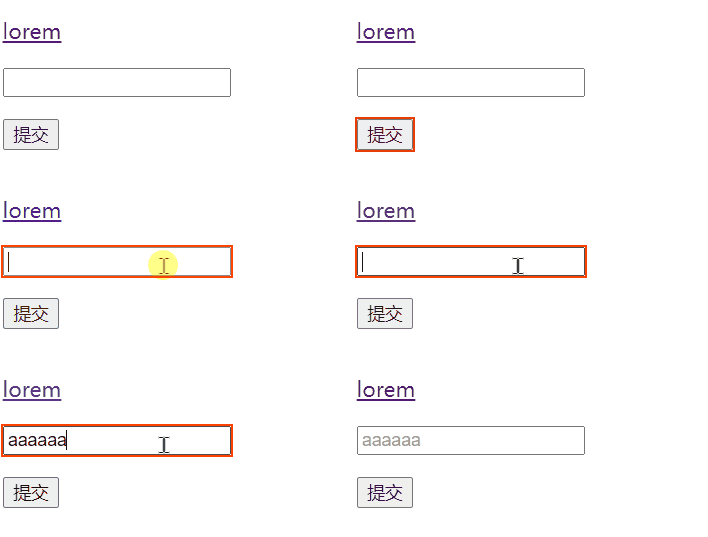
当用foucs伪类选择器设置外边框(outline)时,边框样式设置为auto时,边框宽度设置无效。
outline-offset外边框偏移量。
1.2 checked(选中样式)
单选或多选框被选中的样式。
<input type="radio" name="gender" id="radmale">
<label for="radmale">男label>
<input type="radio" name="gender" id="radfemale">
<label for="radfemale">女label>
input:checked+label {color: #05f;
}

2. 常见用法
2.1 重置表单元素样式
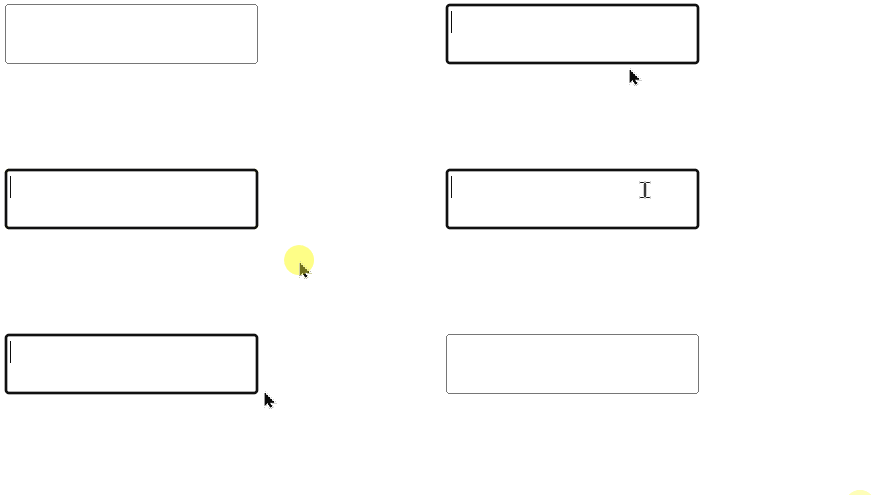
input, textarea, button, select{border: none;
}
input:focus, textarea:focus, button:focus, select:focus{outline: none;outline-offset: 0;
}
文本框、多行文本框、按钮、下拉列表选择框去边框,去聚焦时的外边框,外边框偏移量置0。
重置表单元素样式后,就可以根据自己的需求重新设置表单样式,input[type="text"],textarea,select{},input[type="text"]:focus,textarea:focus,select:focus{}等。
2.2 设置textarea是否允许调整尺寸(resize)
css属性resize:
- both:默认值,两个方向都可以调整尺寸
<textarea>textarea>
或
<textarea style="resize:both;">textarea>
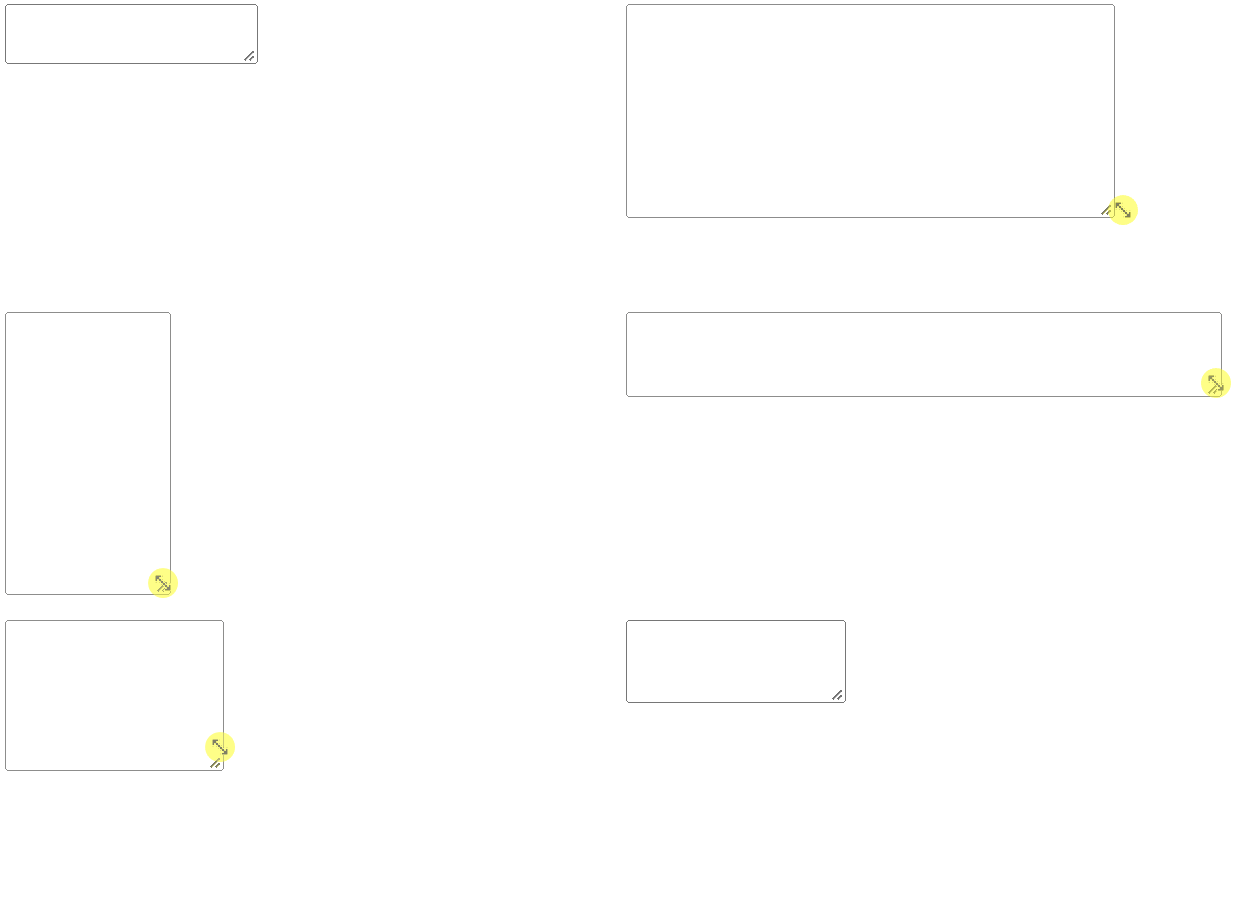
- none:不能调整尺寸
<textarea style="resize:none;">textarea>
- horizontal: 水平方向可以调整尺寸
<textarea style="resize:horizontal;">textarea>

- vertical:垂直方向可以调整尺寸
<textarea style="resize:vertical;">textarea>

2.3 文本框边缘到内容的距离(padding/text-indent)
方式1:padding设置内边距;
<input type="text" style="padding: 15px 10px;">
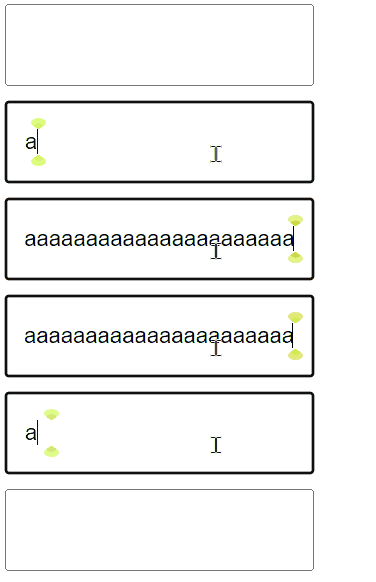
方式2:text-indent首行文本缩进。
<input type="text" style="text-indent: 1em;">

这两种方式不仅可以应用在input元素上,也可以应用到textarea元素。
2.4 控制单选和多选的样式(span/:checked)
radio单选框和checkbox多选框是无法改变样式的,因为他们是可替换元素,只能通过其他元素自行设计选择框样式。
在label元素中是不能加入div元素的,做选框样式的元素可以用span。
<p>请选择你的性别:<input type="radio" name="gender" id="male"><label for="male"><span class="myRadio">span><span class="text">男span>label><input type="radio" name="gender" id="female"><label for="female"><span class="myRadio">span><span class="text">女span>label>
p>
span{cursor: pointer;
}
.myRadio{display: inline-block;width: 10px;height: 10px;background-color: #eee;border: solid 3px #5e5e5e;border-radius: 50%;position: relative;top: 2px;
}
input[type="radio"]:checked+label>.myRadio{border: solid 3px #05f;background-color: #fff;
}
input[type="radio"]:checked+label .text{color: #05f;
}
input[type="radio"]:checked+label>.myRadio::after{content: "";position: absolute;width: 7px;height: 7px;background-color: #05f;border-radius: 50%;top: 0;bottom: 0;left: 0;right: 0;margin: auto;
}
input[type="radio"]{display: none;
}
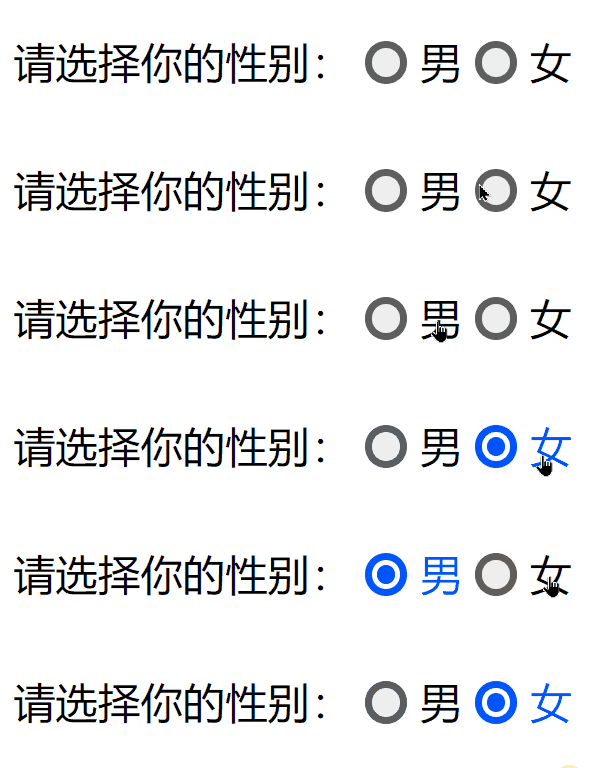
总体的思想就是在radio类型的input元素关联的label元素中添加一个span元素,用来制作自己的单选框,样式设置包括选中前和选中后,样式设置好之后,将input元素的display设为none,将原有的单选框隐藏起来。
其中需要注意的是,span元素以及伪元素after都是行盒,若想设置他们的宽高,必须将display设置为inline-block或block,最好设为行块盒以便于控制样式。这里由于伪元素after是一个绝对定位元素,因此其已经转换为了块盒,不需要额外设置display。
选择器的难点在于设置单选选中状态时,如何选中特定的元素,上例关联label和input元素使用的显式关联,使用选择器稍微有些麻烦,可以使用隐式关联,以便于选择器书写。
本文来自互联网用户投稿,文章观点仅代表作者本人,不代表本站立场,不承担相关法律责任。如若转载,请注明出处。 如若内容造成侵权/违法违规/事实不符,请点击【内容举报】进行投诉反馈!