高德地图实现点聚合功能的详细步骤加截取地图图片 (附源码)
目录
- 介绍
- 准备工作
- 1.注册并登录高德地图开放平台,申请密钥
- 2.在Vue项目中安装高德地图的相关库/插件。
- 一、点聚合
- 1.引入高德地图API
- initializeMap()
- loadData()
- createMarkerClusterer()
- createPopupContent(point)
- 完成代码如下:
- 二、结尾
介绍
在现代Web和移动应用中,地图成为了不可或缺的一部分。本文将介绍如何在Vue前端开发中利用高德地图API实现点聚合、自定义信息窗口以及在小程序中打开导航地图的功能。### 使用案例和场景
- 点聚合: 展示如何在地图上将密集的标注点进行聚合,提高地图的可读性和性能。
- 自定义信息窗: 解释如何为地图上的标注点创建自定义的信息窗口,以展示更多相关信息。
- 小程序导航地图: 演示如何在小程序中利用高德地图开发,实现导航功能,帮助用户找到目的地。
准备工作
在进入具体实现之前,需要确保以下准备工作已经完成:
- 注册高德开发者账号并创建应用。
- 在Vue项目中安装高德地图的相关库/插件。
- 了解Vue基础知识和组件开发。
1.注册并登录高德地图开放平台,申请密钥
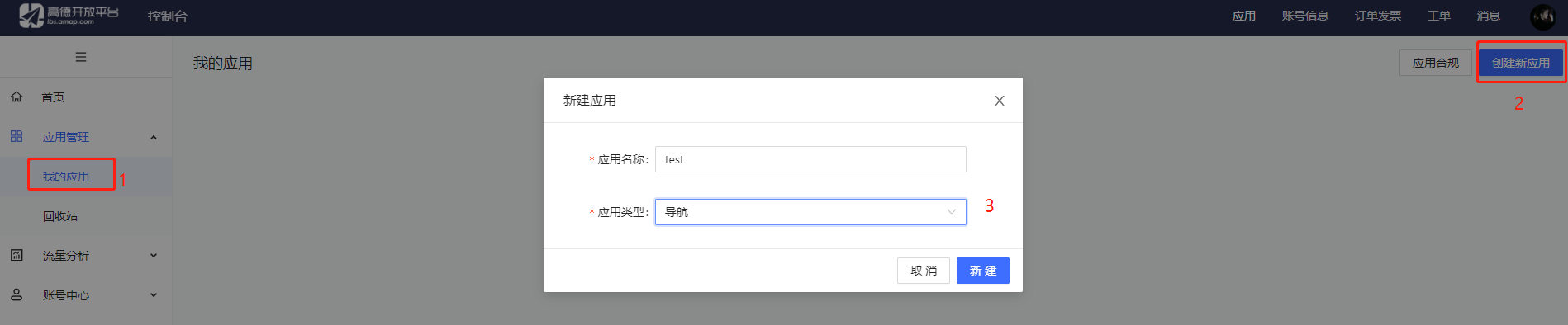
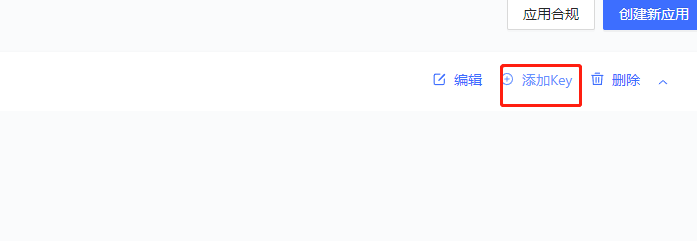
这里有微信小程序需求的需要在添加一个,web和小程序需要分开不能混用。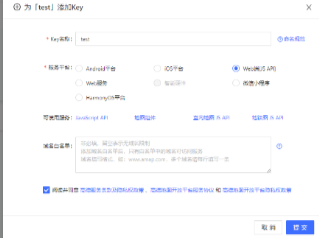
2.在Vue项目中安装高德地图的相关库/插件。
npm i @amap/amap-jsapi-loader -S首先,让我们从点聚合开始。
一、点聚合
实现效果如下:
更换搜索条件,地图会重新加载点位数据
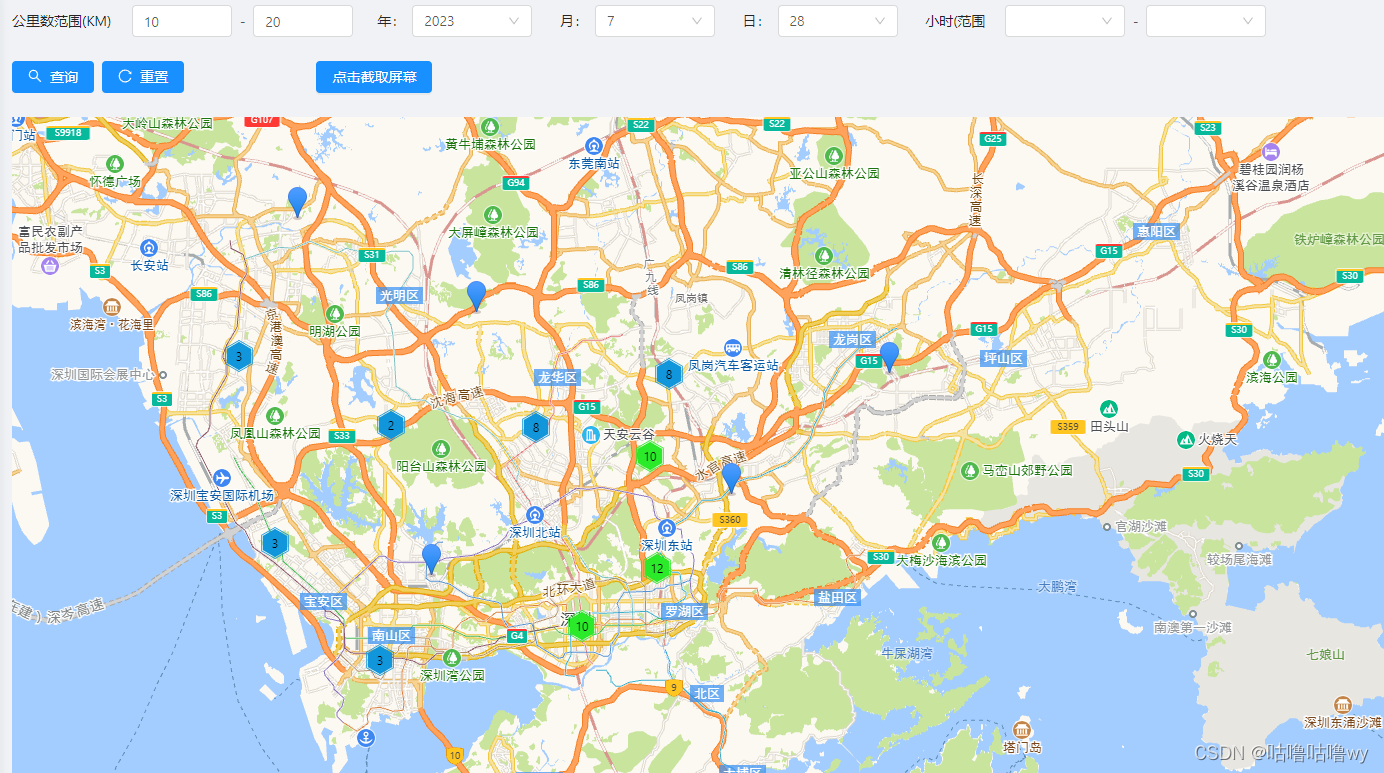
地图放大后效果:

1.引入高德地图API
在整个项目中引入高德地图的JavaScript库,并同时加载了一些插件(AMap.MarkerClusterer、AMap.Autocomplete、AMap.Geocoder、AMap.DistrictSearch)。这些插件提供了一些高级功能,比如标注点聚合、地点自动完成、地理编码、行政区划搜索等
、、
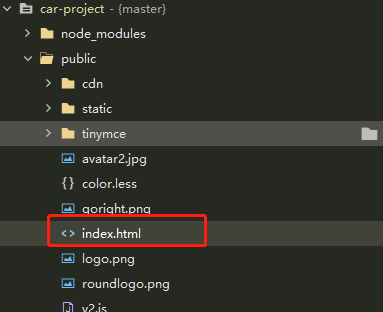
index.html中加入以下代码
<script type="text/javascript"src="http://webapi.amap.com/maps?v=1.4.15&key=你注册的key&plugin=AMap.MarkerClusterer,AMap.Autocomplete,AMap.Geocoder,AMap.DistrictSearch"></script>
initializeMap()
这个方法用于初始化地图实例。在初始化地图之前,您需要配置一些选项,例如缩放级别、中心点坐标等。这里是具体的解释:
- Vue.prototype. m a p = n e w A M a p . M a p ( ′ c o n t a i n e r ′ , . . . ) ∗ ∗ : 在 ∗ ∗ V u e ∗ ∗ 的原型对象上添加一个名为 ∗ ∗ map = new AMap.Map('container', {...})**: 在**Vue**的原型对象上添加一个名为** map=newAMap.Map(′container′,...)∗∗:在∗∗Vue∗∗的原型对象上添加一个名为∗∗map的属性,将一个新的高德地图实例赋值给它。**‘container’**是一个HTML元素的ID,它将成为地图的容器。
- zoom: 11: 设置地图的缩放级别为11。
- center: [114.16129136801659, 22.64461948509109]: 设置地图的中心点坐标为给定的经度和纬度。
- resizeEnable: true: 启用地图容器大小自适应窗口变化。
- averageCenter: true: 当标注点聚合时,将平均值作为聚合点的坐标。
最后,将地图实例存储在组件的map属性中,以便在其他方法中可以访问和操作地图实例。
loadData()
这个方法用于加载数据并在地图上渲染标记点。具体的解释如下:
- this.kgOrder(): 调用**kgOrder()方法来获取数据。这是一个异步操作,它返回一个Promise对象,当数据成功获取时,会执行.then()**中的代码。
- .then((gpsData) => {…}): 当数据成功获取时,将获取的数据作为gpsData参数传入回调函数。
- this.pointList = gpsData;: 将获取的数据赋值给组件的pointList属性,这样在其他地方可以使用这个数据。
- this.createMarkerClusterer();: 调用**createMarkerClusterer()**方法来渲染地图标记点,实现标记点的聚合显示。
- .catch((error) => {…});: 如果获取数据时发生错误,会在这里捕获并输出错误信息。
createMarkerClusterer()
这个方法负责创建标记点的聚合器,以便在地图上显示聚合点。下面是该方法的解释:
- let _this = this;: 将当前组件实例保存在 _this 变量中,以便在闭包函数中访问。
- let markers = [];: 创建一个空数组用于存储所有标记点的实例。
- var styles = […]: 定义了一组样式,用于指定标记点聚合后的图标样式,根据不同级别的聚合。
- _this.pointList.forEach(point => {…});: 遍历 pointList 数组中的每个点,创建对应的标记点,并将这些标记点实例存储在 markers 数组中。
- marker.on(“click”, function(e) {…});: 给每个标记点添加一个点击事件监听器。当用户点击一个标记点时,会触发一个事件,此时会创建一个信息窗口(弹出框)以显示该标记点的详细信息。
- popup.open(_this.map, marker.getPosition());: 打开信息窗口,将其显示在地图上,并将其定位到被点击的标记点位置。
- _this.map.plugin([“AMap.MarkerClusterer”], function() {…});: 调用高德地图的 MarkerClusterer 插件,创建标记点聚合。这个插件将一组标记点进行聚合,以便在地图上显示更好的可视化效果。
createPopupContent(point)
这个方法负责创建信息窗口的内容,以显示被点击的标记点的详细信息。
- return …;: 返回一个字符串,这个字符串就是信息窗口的HTML内容。
- ${point.startaddress}: 通过模板字符串插入被点击标记点的起始地址信息。
这些方法共同协作,实现了在地图上显示聚合标记点和信息窗口的功能。当用户点击一个标记点时,会显示该点的详细信息,以提供更多的交互和信息展示。
完成代码如下:
<template><div><div class="table-page-search-wrapper"><a-form layout="inline" @keyup.enter.native="searchQuery"><a-row :gutter="24"><a-col :xl="6" :lg="7" :md="8" :sm="24"><a-form-model-item label="公里数范围(KM)"><div class="input-container"><a-input-number v-model="distance" :min="0" :max="9999" style="width: 100px" /><span class="divider">-</span><a-input-number v-model="enddistance" :min="0" :max="9999" style="width: 100px" /></div></a-form-model-item></a-col><a-col :xl="3" :lg="7" :md="8" :sm="24"><a-form-model-item label="年"><a-select v-model="year" style="width: 120px;"><a-select-option value="">无</a-select-option><a-select-option v-for="year in yearOptions" :key="year" :value="year">{{ year }}</a-select-option></a-select></a-form-model-item></a-col><a-col :xl="3" :lg="7" :md="8" :sm="24"><a-form-model-item label="月"><a-select v-model="month" style="width: 120px;"><a-select-option value="">无</a-select-option><a-select-option v-for="month in monthOptions" :key="month" :value="month">{{ month }}</a-select-option></a-select></a-form-model-item></a-col><a-col :xl="3" :lg="7" :md="8" :sm="24"><a-form-model-item label="日"><a-select v-model="day" style="width: 120px;"><a-select-option value="">无</a-select-option><a-select-option v-for="day in dayOptions" :key="day" :value="day">{{ day }}</a-select-option></a-select></a-form-model-item></a-col><a-col :xl="6" :lg="7" :md="8" :sm="24"><a-form-model-item label="小时(范围)"><div class="input-container"><a-select v-model="hour" style="width: 120px;"><a-select-option value="">无</a-select-option><a-select-option v-for="hour in hourOptions" :key="hour" :value="hour">{{ hour }}</a-select-option></a-select><span class="divider">-</span><a-select v-model="hour2" style="width: 120px;"><a-select-option value="">无</a-select-option><a-select-option v-for="hour in hourOptions" :key="hour" :value="hour">{{ hour }}</a-select-option></a-select></div></a-form-model-item></a-col><a-col :xl="5" :lg="15" :md="18" :sm="24"><span style="float: left;overflow: hidden;" class="table-page-search-submitButtons"><a-button type="primary" @click="searchQuery" icon="search">查询</a-button><a-button type="primary" @click="searchReset" icon="reload" style="margin-left: 8px">重置</a-button></span></a-col><a-col :xl="7" :lg="15" :md="18" :sm="24"><!-- <a-select v-model="resolvingPower" placeholder="请选择分辨率" @change="resolvingChange"><a-select-option v-for="item in resolvingPowerOptions" :key="item.value" :value="item.value">{{item.label}}</a-select-option></a-select> --><a-button type="primary" plain @click="getSignImg">点击截取屏幕</a-button></a-col></a-row></a-form></div><div id="container"><slot></slot></div></div>
</template>
<script>import Vue from 'vue'import moment from 'moment'import html2canvas from 'html2canvas';import {getAction,httpAction,postAction} from '../../api/manage'export default {props: {// licence: {// type: String, // 参数的数据类型// required: true // 参数是否必需// }},data() {return {resolvingPower: '',canvaswidth: 1.5,resolvingPowerOptions: [{value: '1',label: '1360<=分辨率<1440'}, {value: '2',label: '1440<=分辨率<1600'}, {value: '3',label: '1600<=分辨率<1680'}, {value: '4',label: '1680<=分辨率<1920'}, {value: '5',label: '分辨率<=1920'}],dayOptions: [],monthOptions: [],hourOptions: [],yearOptions: [], // 存储年份选项的数组distance: 10, // 默认开始距离为100000enddistance: 20,selectedDate: null,selectedHour: null, // 设置一个默认值 '00'year: 2023,month: 7,day: 28,hour: null,hour2: null,url: {kgOrder: '/jeecg-customers/statistics/kgOrder/all-list',},map: '',pointList: [],popup: null,}},watch: {selectedDate: {immediate: true,handler(newVal) {if (newVal) {const date = new Date(newVal);this.year = date.getFullYear();this.month = date.getMonth() + 1;this.day = date.getDate();}}},selectedHour: {immediate: true,handler(newVal) {const momentObj = moment(newVal, "HH");if (!isNaN(momentObj)) {this.hour = momentObj.hours();}}},},provide: function() {return {removeOlver: this.removeOlver,addOverlay: this.addOverlay,markers: [],}},components: {},created() {},mounted() {this.generateYearOptions();this.initializeMap(); // 初始化地图this.loadData(); // 加载数据this.generateMonthOptions()this.generateDayOptions()this.generateHourOptions();},methods: {// 截图打印功能getSignImg() {window.pageYOffset = 0;document.documentElement.scrollTop = 0;document.body.scrollTop = 0;html2canvas(document.getElementById('container'), // 要截图的容器id{backgroundColor: null, //画出来的图片有白色的边框,不要可设置背景为透明色(null)useCORS: true, //支持图片跨域scale: this.canvaswidth, //设置放大的倍数}).then(canvas => {//截图用img元素承装,显示在页面的上let img = new Image();img.src = canvas.toDataURL('image/jpeg'); // toDataURL :图片格式转成 base64// document.getElementById('test').appendChild(img); // 这是看截图的页面承载,可以删掉//如果你需要下载截图,可以使用a标签进行下载let a = document.createElement('a');a.href = canvas.toDataURL('image/jpeg');a.download = 'test';a.click();this.$message.info('已截取屏幕')})},// 选择分辨率resolvingChange(val) {console.log(val)if (val == 1) {this.canvaswidth = 1.5;} else if (val == 2) {this.canvaswidth = 1.4;} else if (val == 3) {this.canvaswidth = 1.2;} else if (val == 4) {this.canvaswidth = 1.1;} else if (val == 5) {this.canvaswidth = 1;}},initializeMap() {Vue.prototype.$map = new AMap.Map('container', {zoom: 11,center: [114.16129136801659, 22.64461948509109],resizeEnable: true,averageCenter: true,});this.map = Vue.prototype.$map; // 存储地图实例的引用},loadData() {this.kgOrder().then((gpsData) => {this.pointList = gpsData;this.createMarkerClusterer(); // 渲染地图标记点}).catch((error) => {console.error(error);});},searchQuery() {this.pointList = []; // 清空原有数据// 移除之前的地图实例if (this.map) {this.map.destroy();this.map = null;}// 创建新的地图实例并重新加载数据this.initializeMap();this.loadData();},searchReset() {this.selectedDate = null;this.selectedHour = null;this.year = null,this.month = null,this.day = null,this.hour = null,this.distance = 10, // 默认开始距离为100000this.enddistance = nullthis.hour2 = null,this.enddistance = 20},handleDateChange(value) {const date = new Date(value);this.year = date.getFullYear();this.month = date.getMonth() + 1;this.day = date.getDate();},handleHourChange(value) {const momentObj = moment(value, "HH");if (!isNaN(momentObj)) {this.hour = momentObj.hours();}console.log(this.hour)},kgOrder() {return new Promise((resolve, reject) => {const Params = {year: this.year,month: this.month,day: this.day,hour: this.hour,distance: this.distance,enddistance: this.enddistance}console.log(Params)// 快狗统计数据getAction(this.url.kgOrder, Params).then((res) => {console.log(res);if (res.success) {// var t = res.result;// this.pointList = tresolve(res.result); // 返回参数} else {reject(new Error('Failed to get GPS data.')); // 返回错误this.$message.info(res.message)}});});},/*** 动态更改中心点位*/setCenter(lng, lat) {console.log('New center:', lng, lat);this.map.setCenter(new AMap.LngLat(lng, lat));},removeOlver(overlay) {this.$nextTick(() => {if (overlay) {this.map.remove(overlay)}})},addOverlay(overlay) {this.$nextTick(() => {// console.log(this.map);this.map && this.map.add(overlay)})},delOne() {// 删除了数组的元素,但是没用,需要调用地图的清除标记的方法// this.arr.pop()},// 海量点聚合,10w数量以下createMarkerClusterer() {let _this = thislet markers = []// 利用styles属性修改点聚合的图标样式,这个是聚合之后的显示效果,在这里定义var styles = [{url: "https://a.amap.com/jsapi_demos/static/images/blue.png",size: new AMap.Size(32, 32),offset: new AMap.Pixel(-16, -16)}, {url: "https://a.amap.com/jsapi_demos/static/images/green.png",size: new AMap.Size(32, 32),offset: new AMap.Pixel(-16, -16)}, {url: "https://a.amap.com/jsapi_demos/static/images/orange.png",size: new AMap.Size(36, 36),offset: new AMap.Pixel(-18, -18)}, {url: "https://a.amap.com/jsapi_demos/static/images/red.png",size: new AMap.Size(48, 48),offset: new AMap.Pixel(-24, -24)}, {url: "https://a.amap.com/jsapi_demos/static/images/darkRed.png",size: new AMap.Size(48, 48),offset: new AMap.Pixel(-24, -24)}];_this.pointList.forEach(point => {// 这里是点击到无法聚合,到单个点的时候展示的效果var marker = new AMap.Marker({position: new AMap.LngLat(point.startLng, point.startLat),title: point.startaddress,// content: `${ point.startaddress}`, });//给marker增加click事件marker.on("click", function(e) {// Create a popup instancevar popup = new AMap.InfoWindow({content: _this.createPopupContent(point),offset: new AMap.Pixel(0, -30),closeWhenClickMap: true // Close the popup when the map is clicked});popup.open(_this.map, marker.getPosition());_this.popup = popup; // Store reference to the active popup window});markers.push(marker);});//添加聚合组件_this.map.plugin(["AMap.MarkerClusterer"], function() {new AMap.MarkerClusterer(_this.map, // 地图实例markers, // 海量点组成的数组{styles: styles,gridSize: 80});});},createPopupContent(point) {return `${point.startaddress}`;},// 生成年份选项数组generateYearOptions() {const currentYear = new Date().getFullYear();for (let year = currentYear; year >= 1900; year--) {this.yearOptions.push(year);}},// 生成月份选项数组generateMonthOptions() {for (let month = 1; month <= 12; month++) {this.monthOptions.push(month);}},// 生成日选项数组generateDayOptions() {for (let day = 1; day <= 31; day++) {this.dayOptions.push(day);}},generateHourOptions() {for (let hour = 0; hour <= 23; hour++) {this.hourOptions.push(hour);}},}}
</script><style lang="less" scoped>#container {width: 100%;height: 700px;}::v-deep .marker-route {width: 60px;height: 30px;text-align: center;line-height: 30px;background-color: red;}.button {color: blue;font-size: 18px;}.input-container {display: flex;align-items: center;margin-left: 20px;}.divider {margin: 0 8px;}
</style>二、结尾

"喜欢这篇文章吗?别忘了给个点赞哦!您的支持是我创作的动力。
本文来自互联网用户投稿,文章观点仅代表作者本人,不代表本站立场,不承担相关法律责任。如若转载,请注明出处。 如若内容造成侵权/违法违规/事实不符,请点击【内容举报】进行投诉反馈!