VS Code 安装及C++环境配置
文章目录
- 1.VS Code下载
- 2.配置MinGW-w64
- 3.配置环境变量
- 4.配置C++环境
- 5.设置格式化
重装系统之后什么都要重新装,很烦。。。
1.VS Code下载
渠道很多,我这里官网太慢了,重装后以前的IDM也找不到了,所以选的腾讯软件管家下载:https://pc.qq.com/detail/16/detail_22856.html
2.配置MinGW-w64
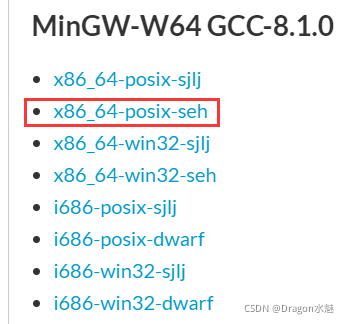
https://sourceforge.net/projects/mingw-w64/files/
找到那个x86_64-win32-seh的链接,点击下载:
3.配置环境变量
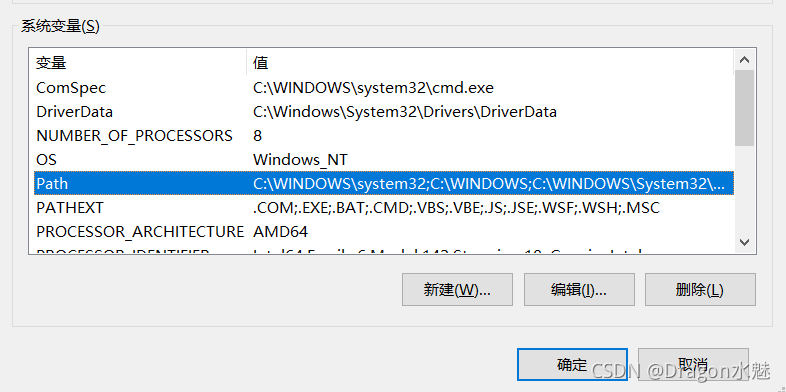
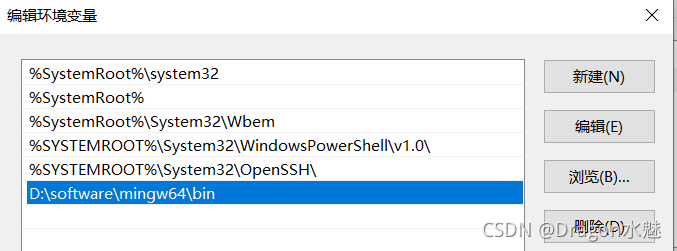
下载后是一个7z压缩包,解压后找到bin文件夹,将其放入Path系统变量:
4.配置C++环境
新建cpp文件:
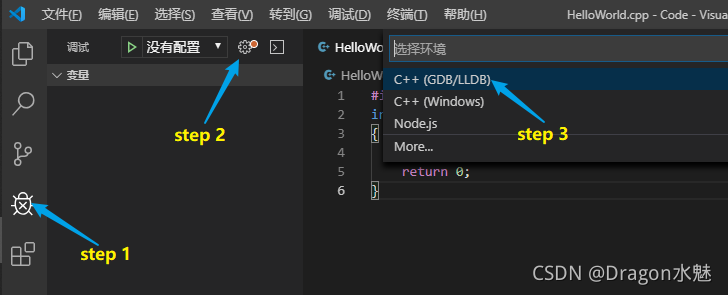
#include 进入调试界面添加配置环境,选择 C++(GDB/LLDB),再选择 g++.exe,之后会自动生成 launch.json 配置文件:
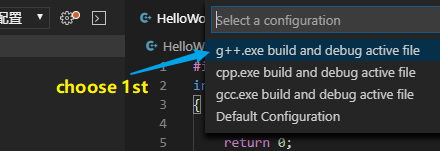
配置 launch.json 文件:
{"version": "0.2.0","configurations": [{"name": "g++.exe build and debug active file","type": "cppdbg","request": "launch","program": "${fileDirname}\\${fileBasenameNoExtension}.exe","args": [],"stopAtEntry": false,"cwd": "${workspaceFolder}","environment": [],"externalConsole": true,      //修改此项,让其弹出终端"MIMode": "gdb","miDebuggerPath": "D:\\2Software\\mingw64\\bin\\gdb.exe",  //换成你的安装路径"setupCommands": [{"description": "Enable pretty-printing for gdb","text": "-enable-pretty-printing","ignoreFailures": true}],"preLaunchTask": "task g++" //修改此项}]
}
返回.cpp文件,按F5进行调试,会弹出找不到任务"task g++",选择 “配置任务”,会自动生成 tasks.json 文件。
配置 tasks.json 文件:
{"version": "2.0.0","tasks": [{"type": "shell","label": "task g++",    //修改此项"command": "D:\\2Software\\mingw64\\bin\\g++.exe",  // 换成你的安装路径"args": ["-g","${file}","-o","${fileDirname}\\${fileBasenameNoExtension}.exe"],"options": {"cwd": "D:\\2Software\\mingw64\\bin"  // 换成你的安装路径},"problemMatcher": ["$gcc"],"group": "build"}]
}
然后运行代码,即可成功运行:
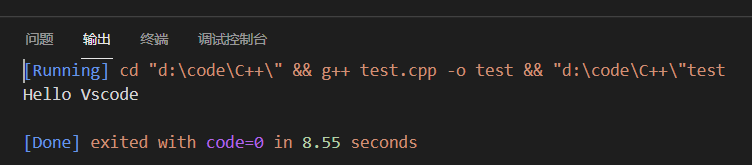
5.设置格式化
打开设置,搜索:
C_Cpp: Clang_format_style
将框中内容改为:
{ BasedOnStyle: LLVM, IndentWidth: 4 }
可将代码格式化为更紧凑的格式:
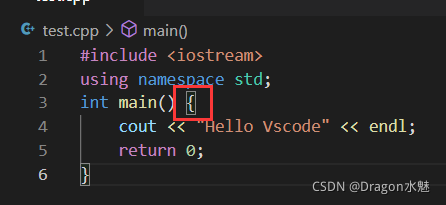
本文来自互联网用户投稿,文章观点仅代表作者本人,不代表本站立场,不承担相关法律责任。如若转载,请注明出处。 如若内容造成侵权/违法违规/事实不符,请点击【内容举报】进行投诉反馈!