Kotlin Toast的使用
文章目录
- 一、非自定义Toast
- 二、自定义Toast(可以带图标)
- 1、项目
- 2、自定义Toast测试如下
- 1.1、不带图标的Toast:
- 1.2、带图标的Toast:
- 三、Toast多次点击只弹一次提示信息
一、非自定义Toast
Toast:提示信息框
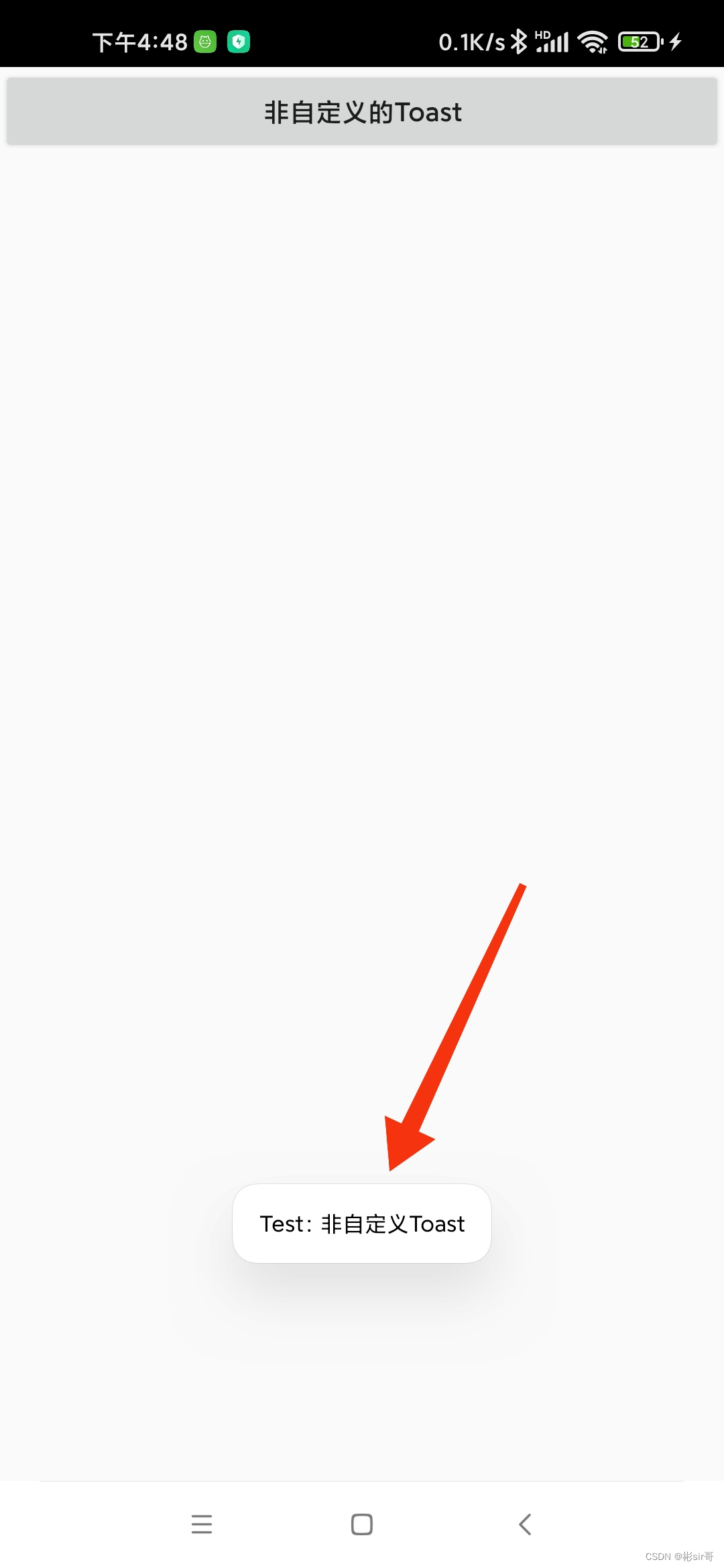
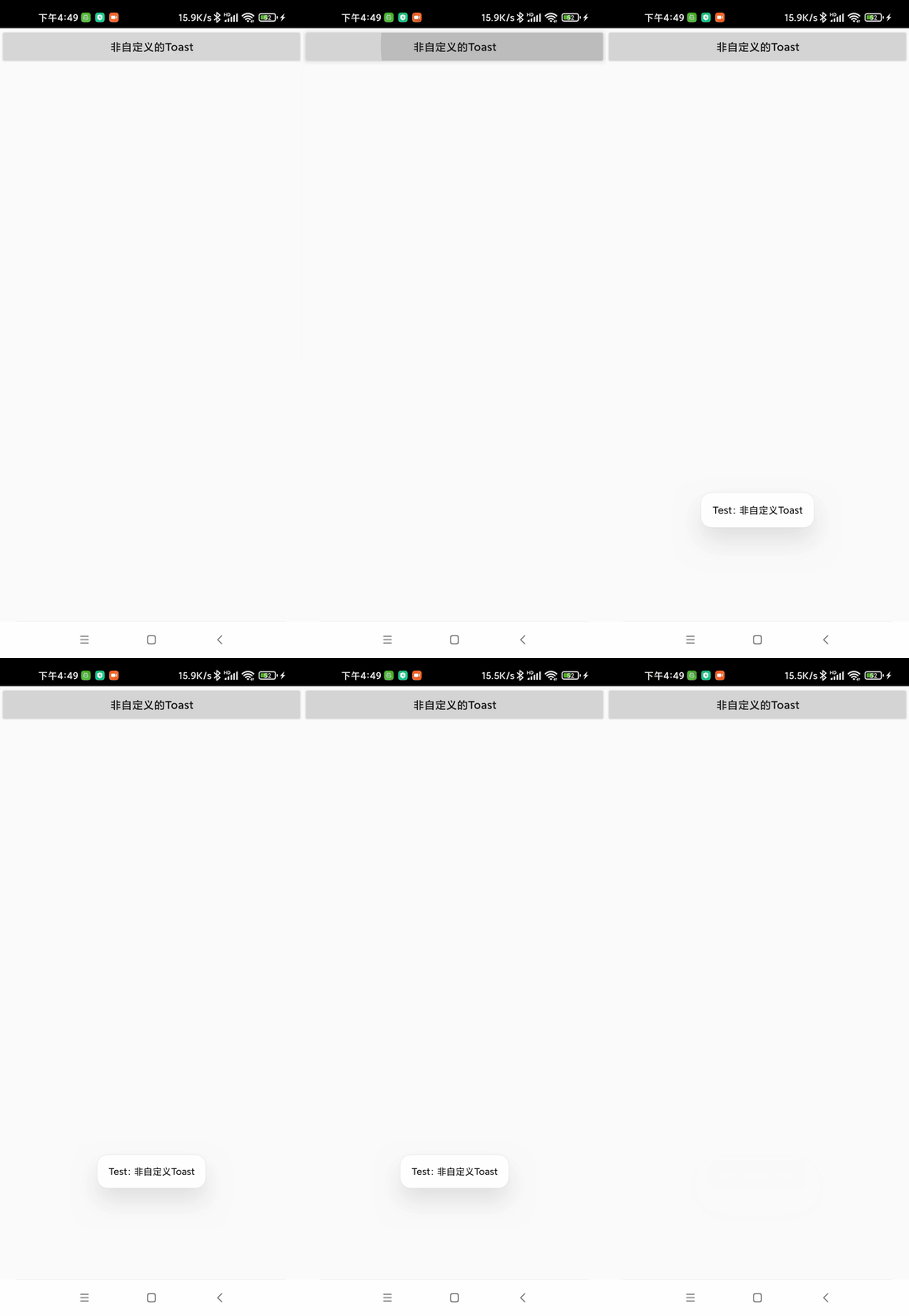
点击Toast按钮后弹出Toast的提示,代码:
button.setOnClickListener {Toast.makeText(this, "非自定义Toast", Toast.LENGTH_LONG).show()}
运行程序后如下图:
二、自定义Toast(可以带图标)
1、项目
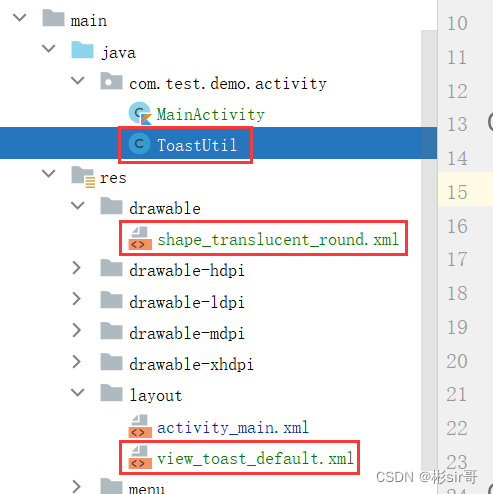
封装ToastUtil.java代码,1.不带图标的Toast,2.带图标的Toast
public class ToastUtil{//不带图标的Toastpublic static Toast makeTextDefault(Context context, CharSequence text, int duration) {Toast toast = new Toast(context);LayoutInflater inflate = (LayoutInflater)context.getSystemService(Context.LAYOUT_INFLATER_SERVICE);View v = inflate.inflate(R.layout.view_toast_default, null);toast.setView(v);toast.setGravity(Gravity.TOP, 0, 150);toast.setText(text);toast.setDuration(duration);return toast;}//带图标的Toastpublic static Toast makeTextDefault(Context context,int resId,CharSequence text,int duration){Toast toast=new Toast(context);LayoutInflater inflate = (LayoutInflater)context.getSystemService(Context.LAYOUT_INFLATER_SERVICE);View v = inflate.inflate(R.layout.view_toast_default, null);toast.setView(v);toast.setGravity(Gravity.TOP,0,150);toast.setText(text);ImageView iv = (ImageView) v.findViewById(R.id.iv_icon);iv.setVisibility(View.VISIBLE);iv.setImageResource(resId);toast.setDuration(duration);return toast;}
}
Toast框样式的圆角shape_translucent_round.xml:
<shape xmlns:android="http://schemas.android.com/apk/res/android"android:shape="rectangle"><solid android:color="@color/toast_bg" /><corners android:radius="7dp" /><paddingandroid:bottom="5dp"android:left="5dp"android:right="5dp"android:top="5dp" />
shape>
自定义Toast的布局view_toast_default.xml:
<LinearLayout xmlns:android="http://schemas.android.com/apk/res/android"android:orientation="horizontal"android:layout_width="match_parent"android:layout_height="match_parent"android:background="@drawable/shape_translucent_round"><ImageViewandroid:id="@+id/iv_icon"android:layout_width="wrap_content"android:layout_height="wrap_content"android:visibility="gone"/><TextViewandroid:id="@android:id/message"android:layout_width="0dp"android:layout_height="wrap_content"android:layout_weight="1.0"android:layout_gravity="center_horizontal"android:textColor="#ffffffff"android:shadowColor="#BB000000"android:shadowRadius="2.75"/>
LinearLayout>
2、自定义Toast测试如下
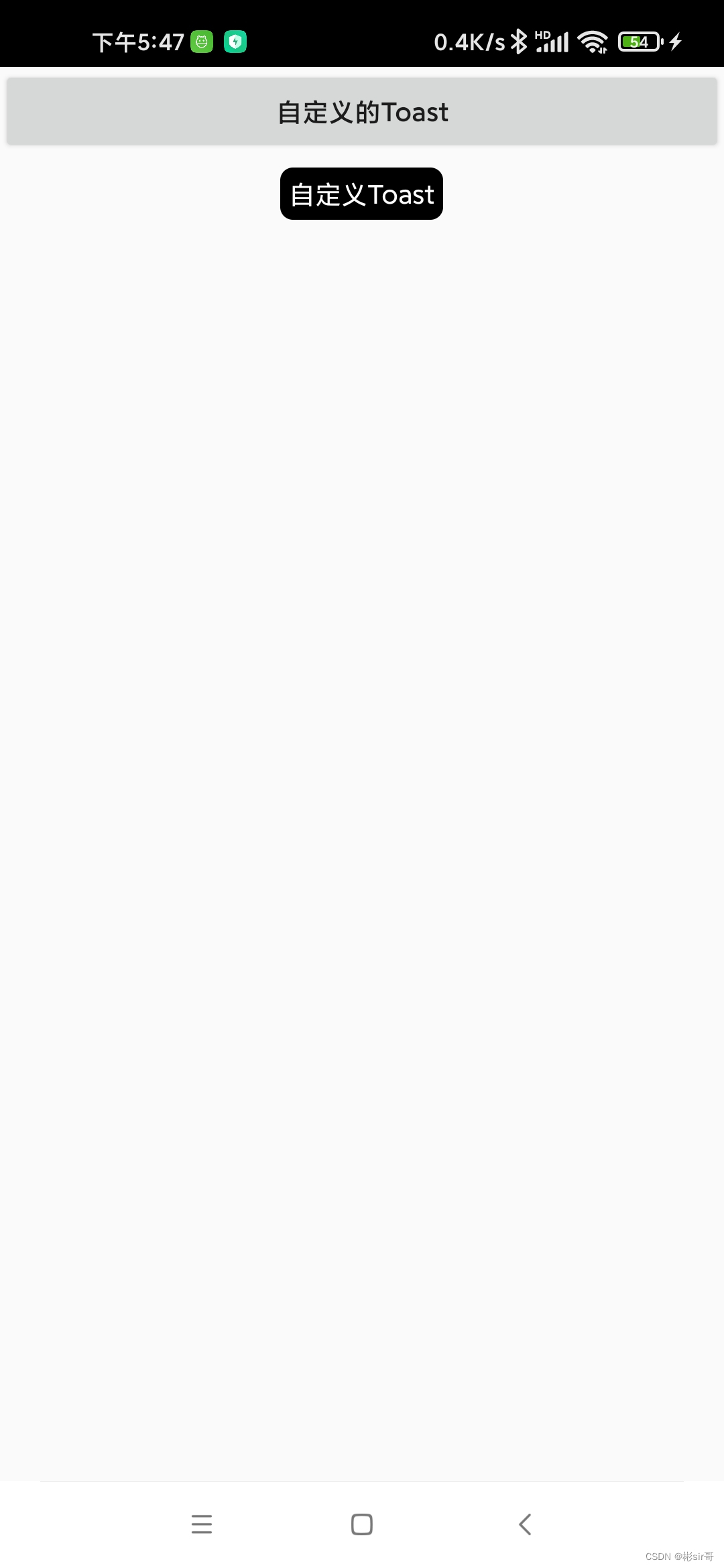
1.1、不带图标的Toast:
button1.setOnClickListener {//调用ToastUtil.makeTextDefault()ToastUtil.makeTextDefault(this, "自定义Toast", Toast.LENGTH_LONG).show();}
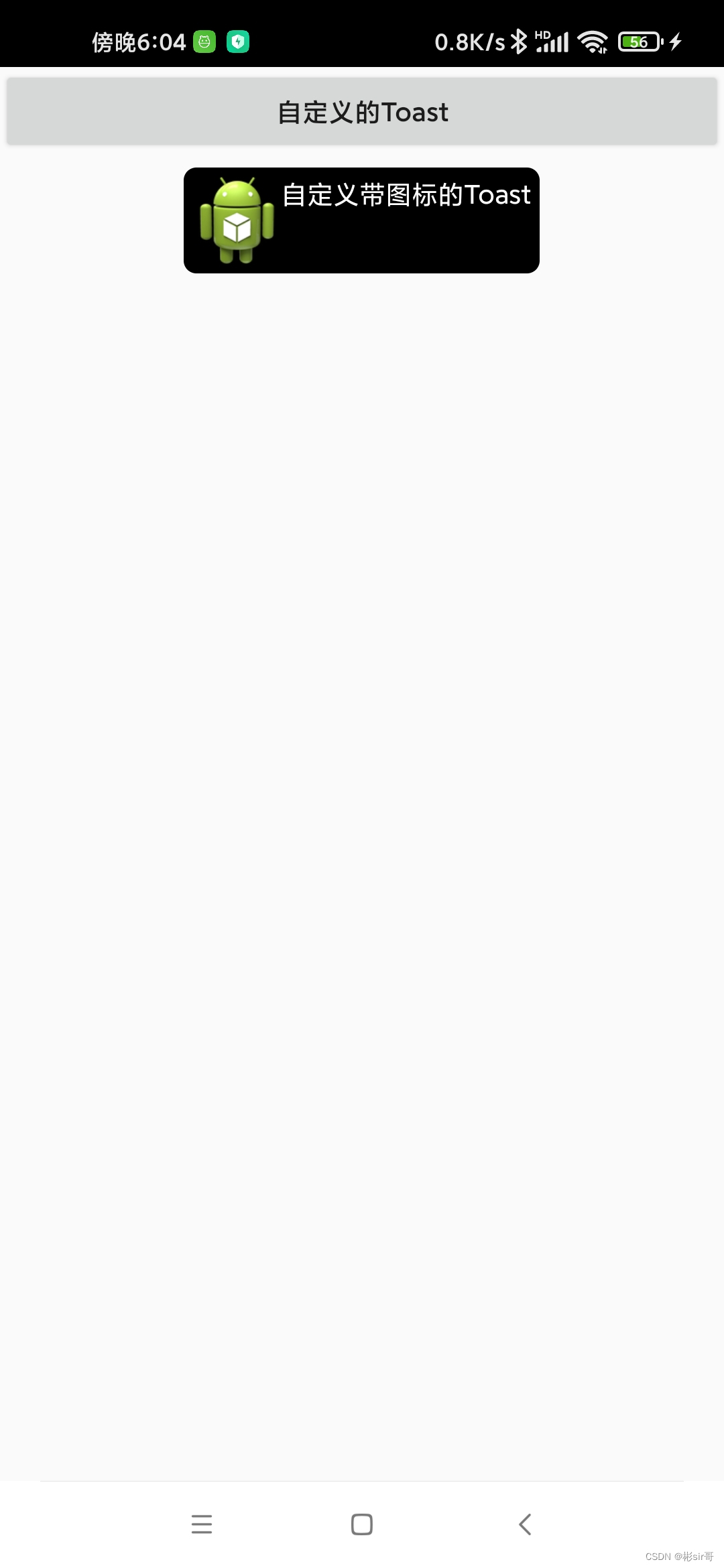
1.2、带图标的Toast:
button1.setOnClickListener {val resId: Int = R.drawable.ic_launcherToastUtil.makeTextDefault(this@MainActivity, resId, "自定义带图标的Toast", Toast.LENGTH_LONG).show()}
三、Toast多次点击只弹一次提示信息
调用封装ToastUtil类代码,Toast多次点击只弹一次提示信息
public class ToastUtil {private static android.widget.Toast toast;public static void shouToast(Context context, String content) {if (toast == null) {toast = android.widget.Toast.makeText(context, content, android.widget.Toast.LENGTH_SHORT);} else {toast.setText(content);}toast.show();}
}
上面代码中的toast.setText():只有一个提示信息框上的文字可以被重写
点击Toast按钮代码:
button1.setOnClickListener {ToastUtil.shouToast(this, "点击的提示")}
本文来自互联网用户投稿,文章观点仅代表作者本人,不代表本站立场,不承担相关法律责任。如若转载,请注明出处。 如若内容造成侵权/违法违规/事实不符,请点击【内容举报】进行投诉反馈!