WPF MaterialDesign 初学项目实战(1)首页搭建
前言
最近在学WPF,由于人比较烂,有一个星期没怎么动代码了。感觉有点堕落。现在开始记录WPF项目,使用MaterialDesignInXamlToolkit。
环境搭建
如果没下载MaterialDesign 的源码
github源码运行
在Nuget里面引入MaterialDesign
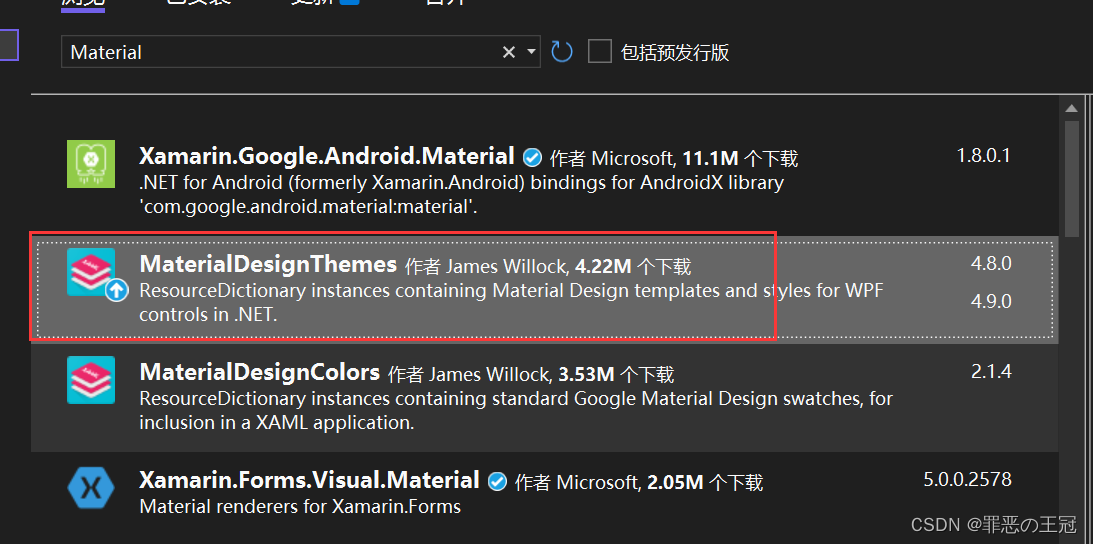
MaterialDesign控件简介
项目运行成功之后左边的列表就是提供的控件的列表
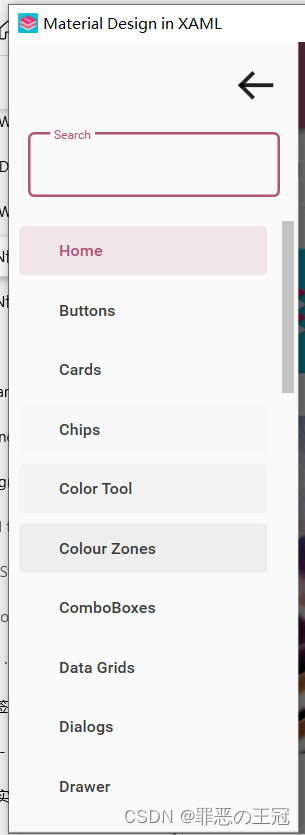
仔细看的话提供的控件非常的完整,消息提示,弹出层,手风琴,面包屑,卡片等。常用的都具备了。
这里顺便说一下,前端的UI一般是+UI框架+统计图解决。
例如:
- Vue
- Elemnent-ui
- ECharts
- Uniapp
- uView
- uChart
这个框架还挺好看的,但是没有提供统计图的方法。我去NuGet上面搜了一下,发现了统计图。
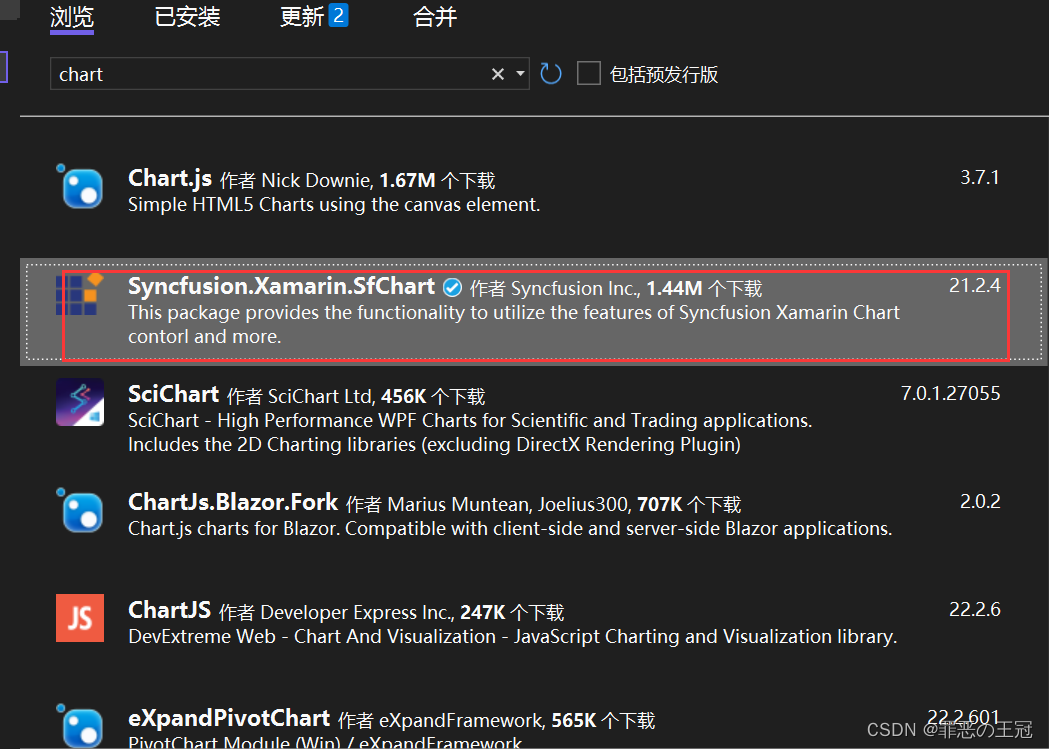
看了一下官网
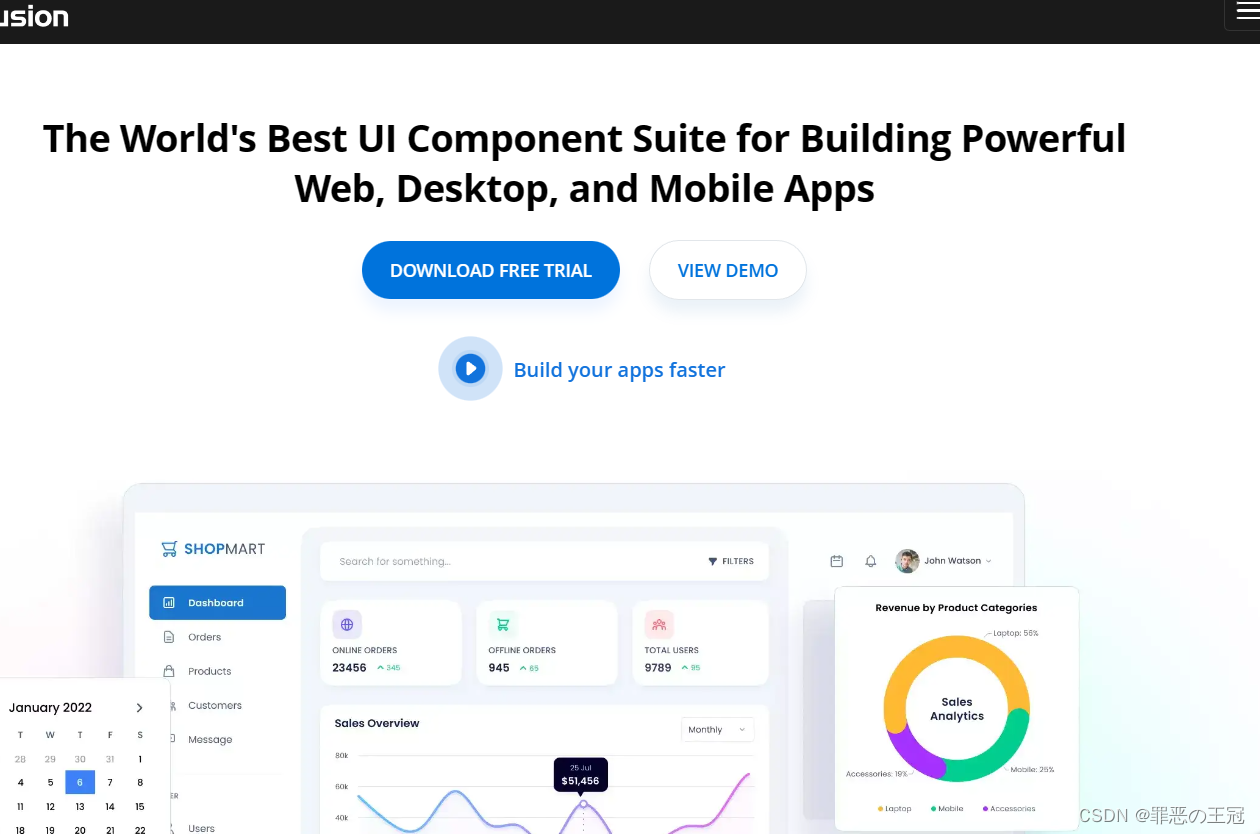
不知道要不要收费,等这个结束了我去学一下这个统计图的UI。基本前端的UI就这些了。
如何自己新建一个项目
Prism基础搭建
新建WPF项目程序
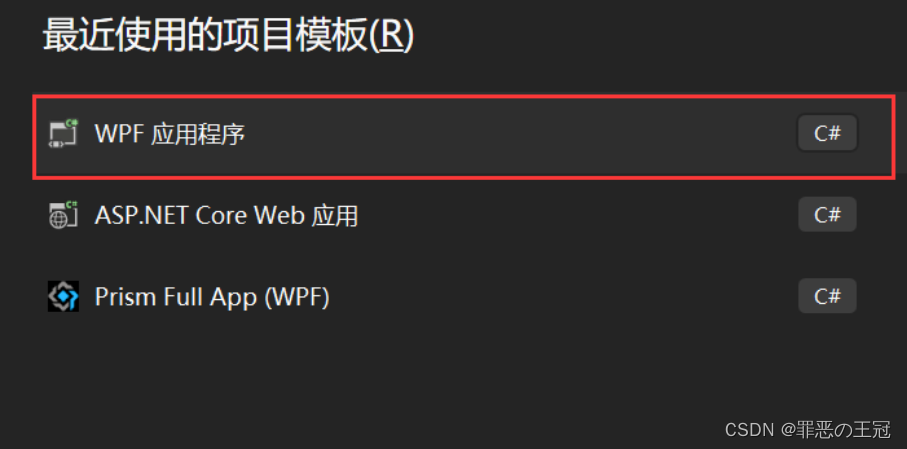
引入命名空间:
在App.xmal里面添加为:
<prism:PrismApplication x:Class="MyToDo.App" //将Application改为prism下面的Application.注意:这里的prism:PrismApplication没有代码提示,但是有是否正确提示。输入完全之后就没有波浪线提醒xmlns="http://schemas.microsoft.com/winfx/2006/xaml/presentation"xmlns:x="http://schemas.microsoft.com/winfx/2006/xaml"xmlns:local="clr-namespace:MyToDo"xmlns:prism="http://prismlibrary.com/"//引入prism的命名空间StartupUri="MainWindow.xaml">主函数继承关系:
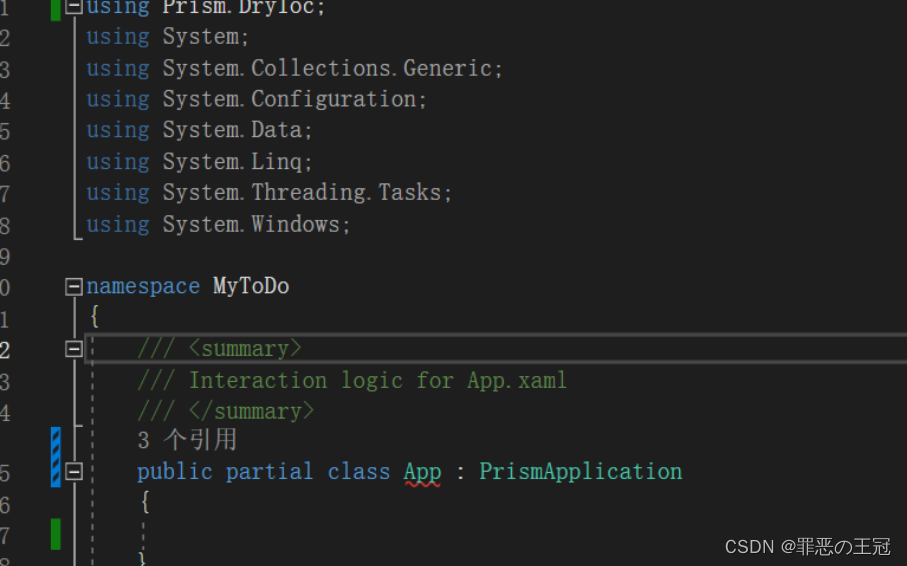
App继承:PrismApplication,但是代码提示可能会有延迟
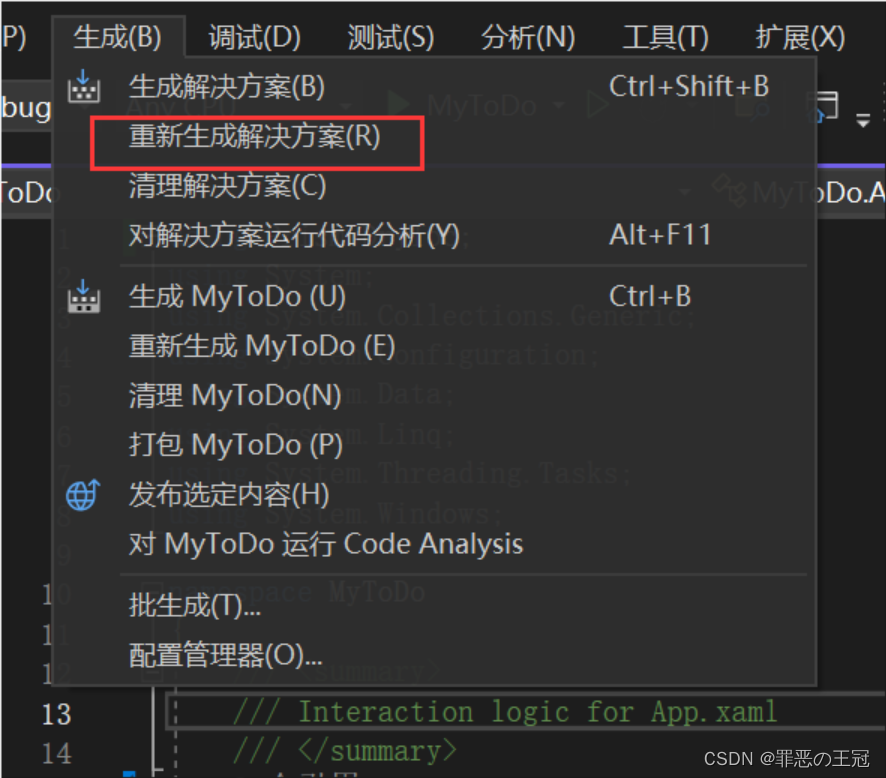
可以通过重新生成文件来修复代码提示BUG
初始化App.xmal
using Prism.DryIoc;
using Prism.Ioc;
using System;
using System.Collections.Generic;
using System.Configuration;
using System.Data;
using System.Linq;
using System.Threading.Tasks;
using System.Windows;namespace MyToDo
{/// Ui资源引入

打开github网址
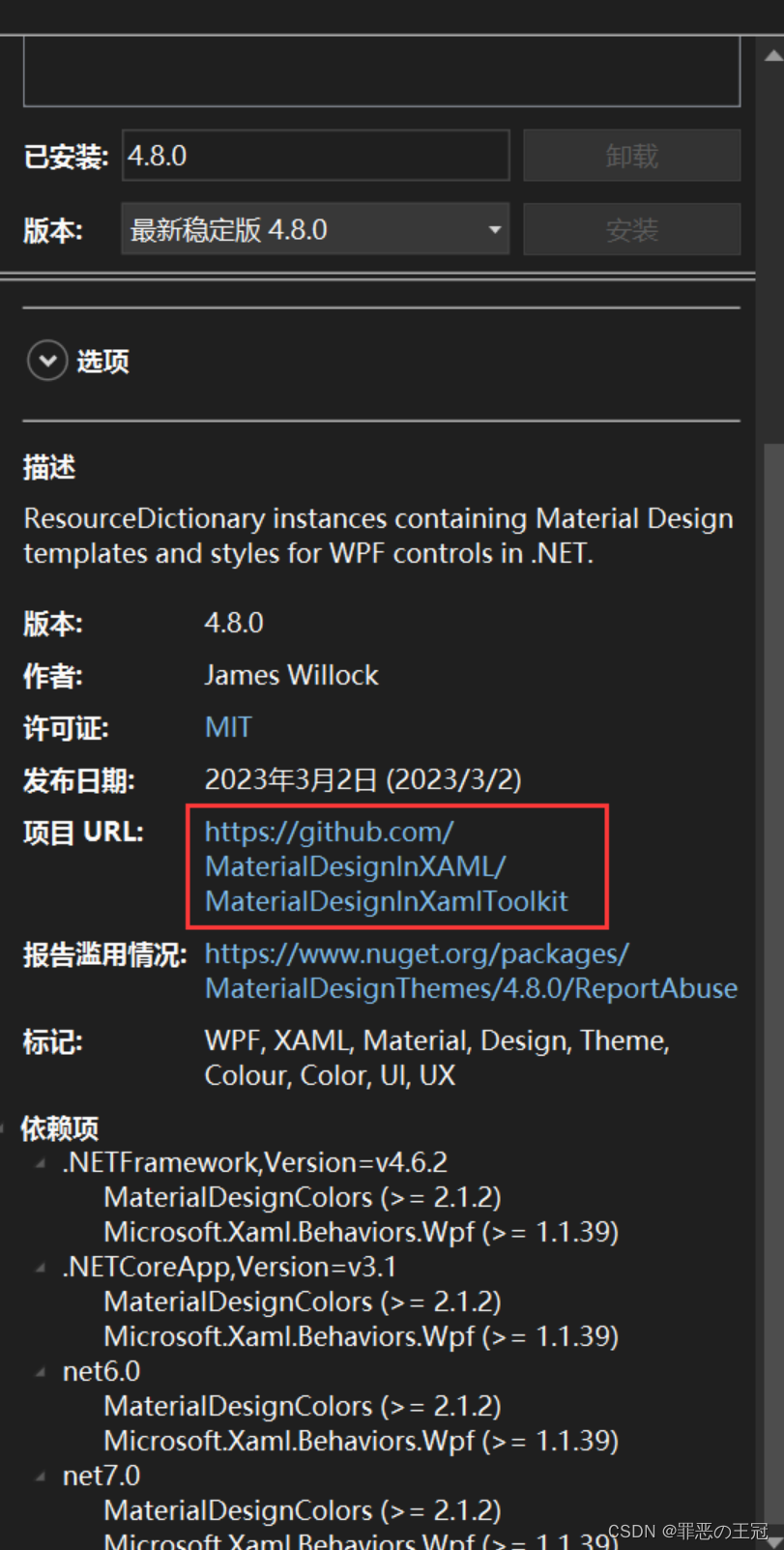
在Github上面选择Wiki
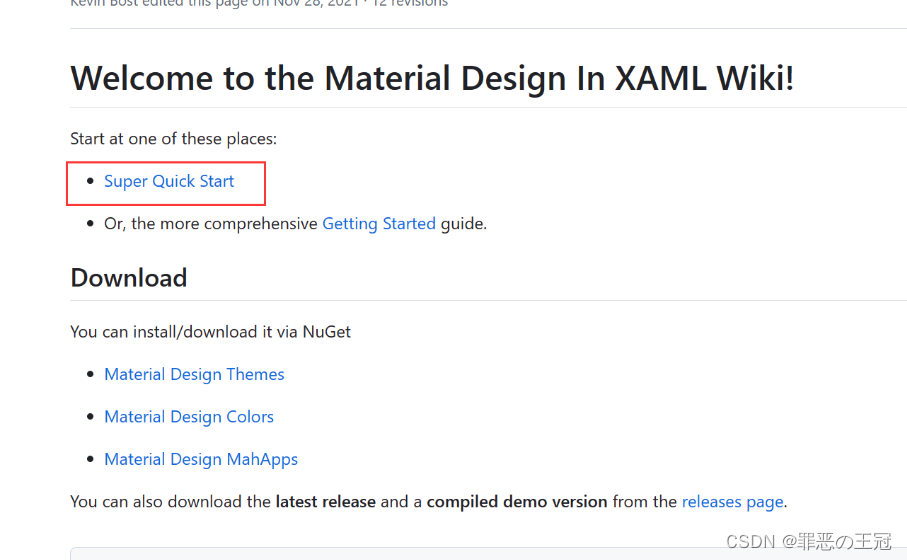
选择快速开始此项目
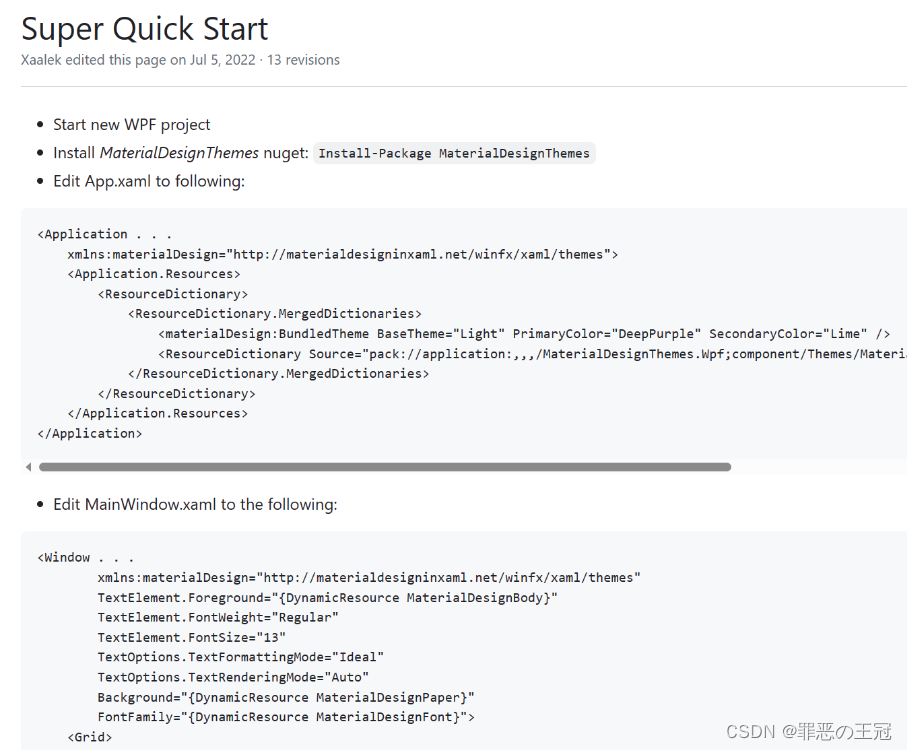
将代码复制粘贴
App.xmal
<prism:PrismApplication x:Class="MyToDo.App"xmlns="http://schemas.microsoft.com/winfx/2006/xaml/presentation"xmlns:x="http://schemas.microsoft.com/winfx/2006/xaml"xmlns:local="clr-namespace:MyToDo"xmlns:prism="http://prismlibrary.com/"xmlns:materialDesign="http://materialdesigninxaml.net/winfx/xaml/themes"StartupUri="MainWindow.xaml"><materialDesign:BundledTheme BaseTheme="Light"PrimaryColor="DeepPurple"SecondaryColor="Lime" />"pack://application:,,,/MaterialDesignThemes.Wpf;component/Themes/MaterialDesignTheme.Defaults.xaml" /> x:Class="MyToDo.MainWindow"xmlns="http://schemas.microsoft.com/winfx/2006/xaml/presentation"xmlns:x="http://schemas.microsoft.com/winfx/2006/xaml"xmlns:d="http://schemas.microsoft.com/expression/blend/2008"xmlns:mc="http://schemas.openxmlformats.org/markup-compatibility/2006"xmlns:local="clr-namespace:MyToDo"mc:Ignorable="d"Title="MainWindow" Height="450" Width="800"xmlns:materialDesign="http://materialdesigninxaml.net/winfx/xaml/themes"TextElement.Foreground="{DynamicResource MaterialDesignBody}"TextElement.FontWeight="Regular"TextElement.FontSize="13"TextOptions.TextFormattingMode="Ideal"TextOptions.TextRenderingMode="Auto"Background="{DynamicResource MaterialDesignPaper}"FontFamily="{DynamicResource MaterialDesignFont}"><materialDesign:Card Padding="32"Margin="16">"{DynamicResource MaterialDesignHeadline6TextBlock}">My First Material Design App materialDesign:Card>
实现效果:
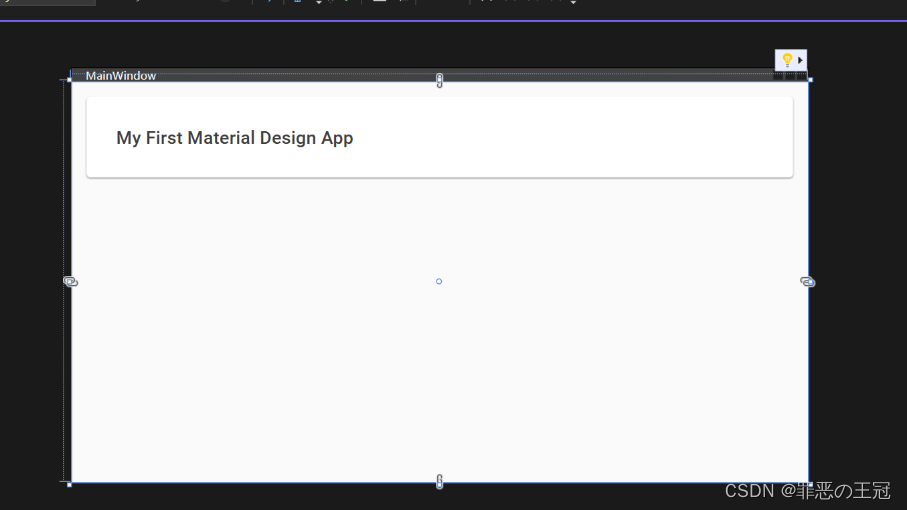
照着Demo写UI
读书人的事情,那能叫偷吗?
使用Github上面的源码
github源码运行
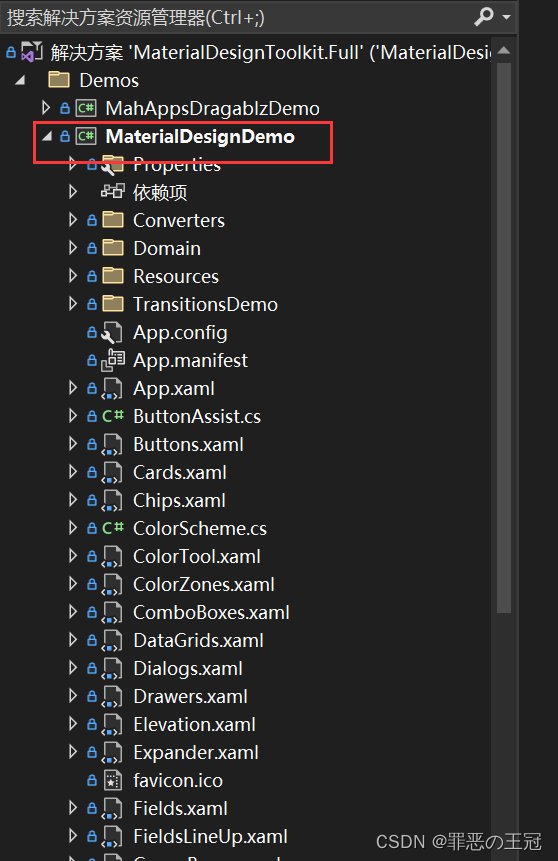
首页导航栏框架
找到主窗体控件

将Ui代码复制
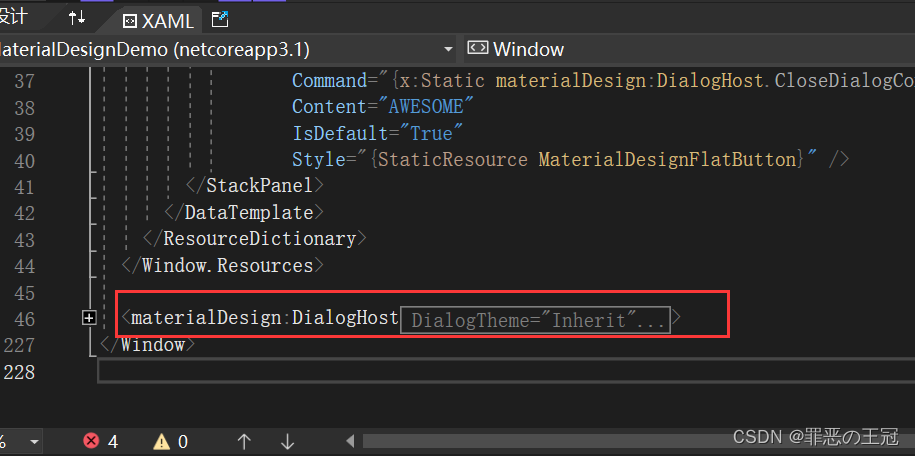
粘贴之后显示是无效代码,因为我们没有引入命名空间
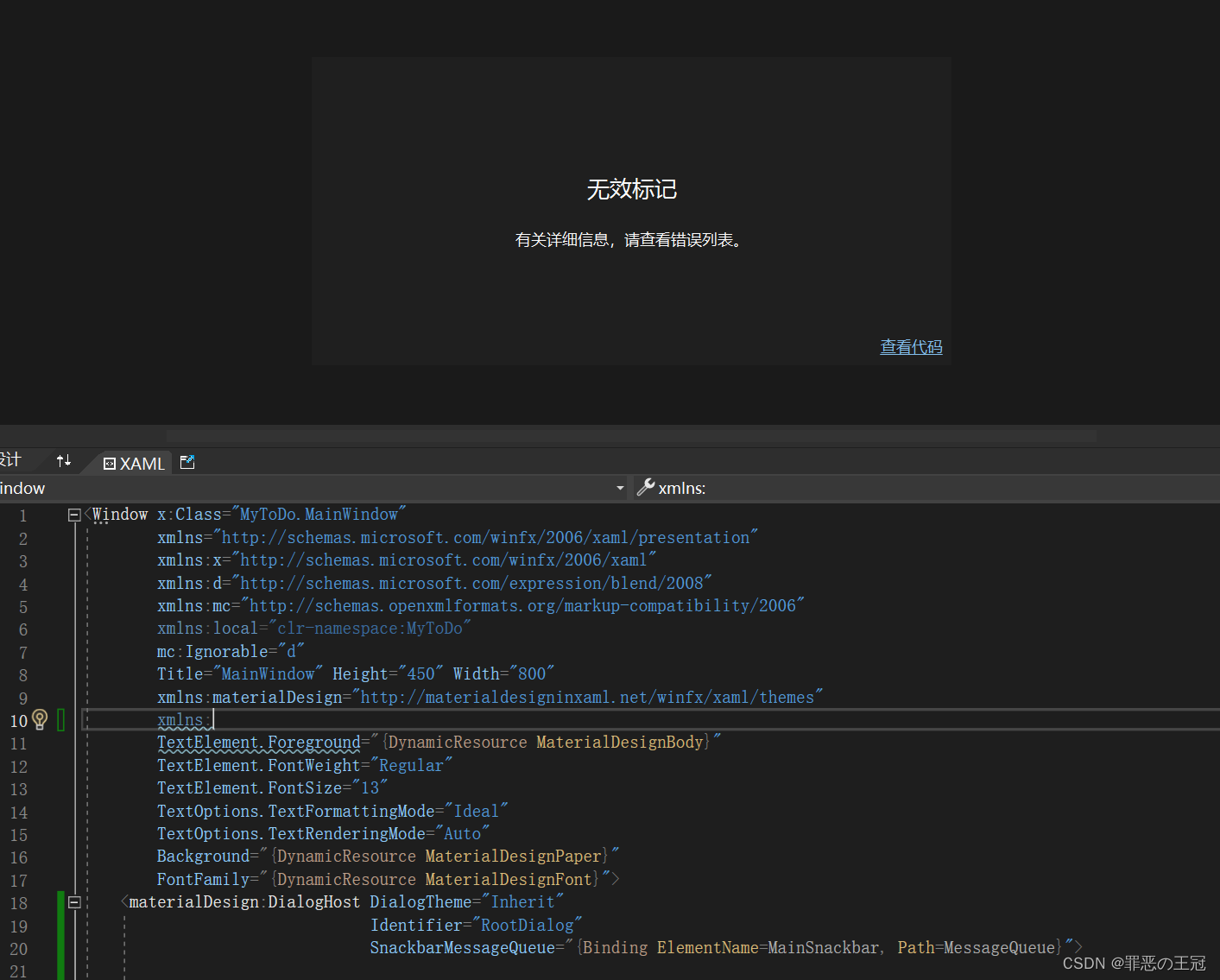
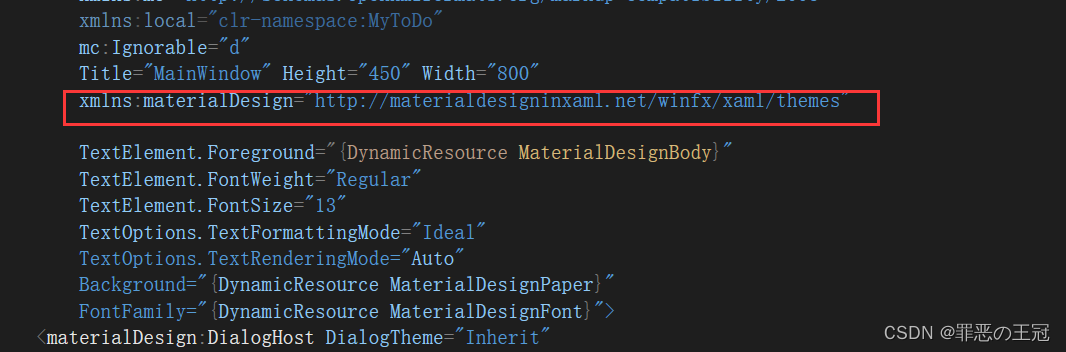
引入命名空间
xmlns:materialDesign=“http://materialdesigninxaml.net/winfx/xaml/themes”
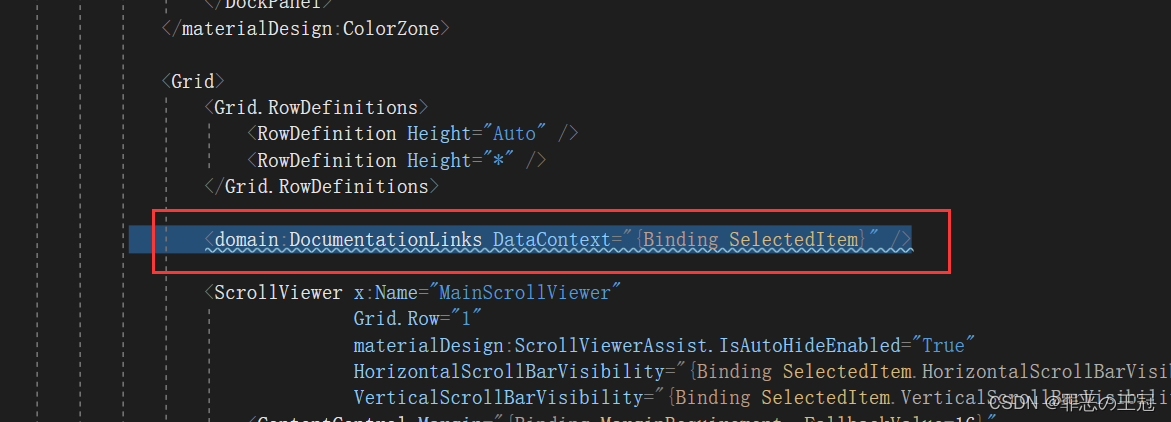
将代码中报错的删除
我们就抄好了源码的首页
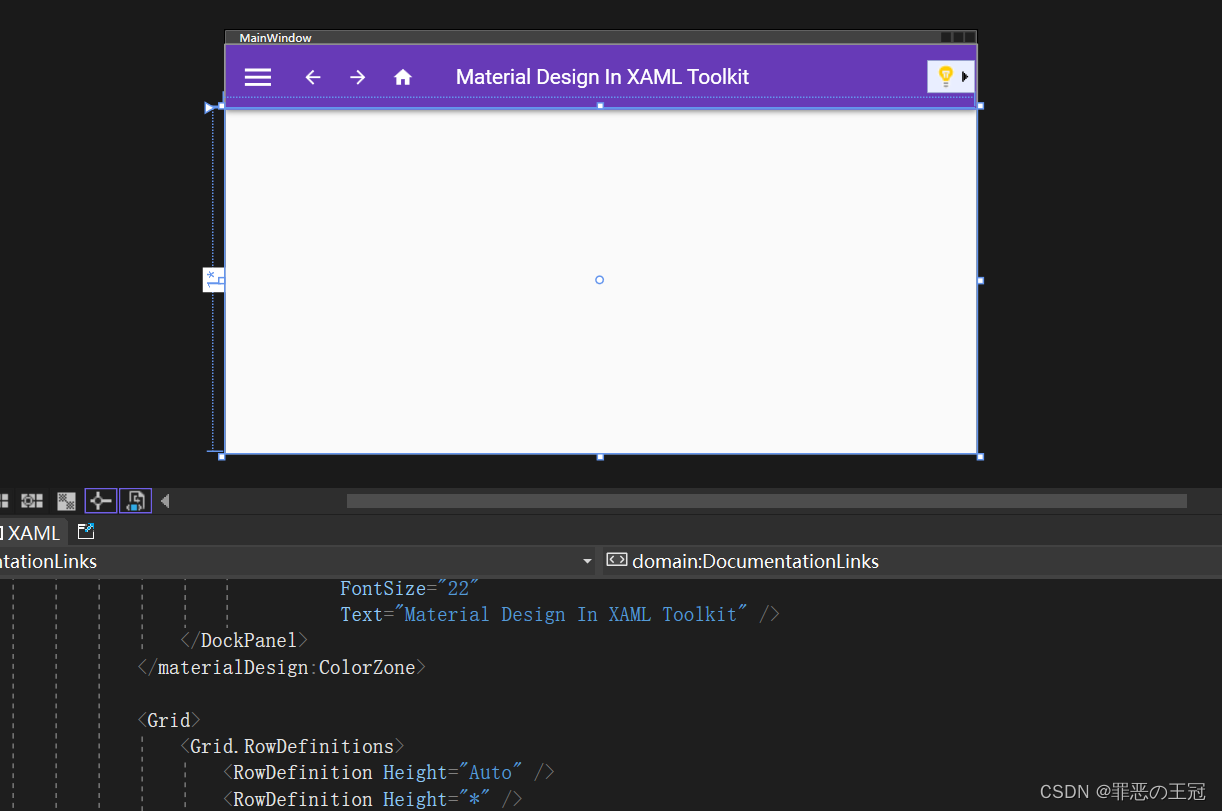
Ui整体逻辑
- materialDesign:DialogHost:materialDesignUi框架,我试过删除了第一层对显示效果没有任何影响
- materialDesign:DialogHost:第二层Ui
- materialDesign:DrawerHost.LeftDrawerContent:左侧列表(删除)
- DockPanel:
- materialDesign:ColorZone :顶部导航栏
- Grid:中间主内容(删除)
最终效果
x:Class="MyToDo.MainWindow"xmlns="http://schemas.microsoft.com/winfx/2006/xaml/presentation"xmlns:x="http://schemas.microsoft.com/winfx/2006/xaml"xmlns:d="http://schemas.microsoft.com/expression/blend/2008"xmlns:mc="http://schemas.openxmlformats.org/markup-compatibility/2006"xmlns:local="clr-namespace:MyToDo"mc:Ignorable="d"Title="MainWindow" Height="450" Width="800"xmlns:materialDesign="http://materialdesigninxaml.net/winfx/xaml/themes"TextElement.Foreground="{DynamicResource MaterialDesignBody}"TextElement.FontWeight="Regular"TextElement.FontSize="13"TextOptions.TextFormattingMode="Ideal"TextOptions.TextRenderingMode="Auto"Background="{DynamicResource MaterialDesignPaper}"FontFamily="{DynamicResource MaterialDesignFont}"><materialDesign:DialogHost DialogTheme="Inherit"Identifier="RootDialog"SnackbarMessageQueue="{Binding ElementName=MainSnackbar, Path=MessageQueue}"><materialDesign:DrawerHost IsLeftDrawerOpen="{Binding ElementName=MenuToggleButton, Path=IsChecked}"><materialDesign:DrawerHost.LeftDrawerContent>"220"> materialDesign:DrawerHost.LeftDrawerContent><materialDesign:ColorZone Padding="16"materialDesign:ElevationAssist.Elevation="Dp4"DockPanel.Dock="Top"Mode="PrimaryMid">"Horizontal">x:Name="MenuToggleButton"AutomationProperties.Name="HamburgerToggleButton"Click="MenuToggleButton_OnClick"IsChecked="False"Style="{StaticResource MaterialDesignHamburgerToggleButton}" /> <materialDesign:PopupBox DockPanel.Dock="Right"PlacementMode="BottomAndAlignRightEdges"StaysOpen="False">"10">"Auto" />"Auto" />"Auto" /> "0,0,10,0"Text="Light" />x:Name="DarkModeToggleButton"Grid.Column="1"Click="MenuDarkModeButton_Click" />"2"Margin="10,0,0,0"Text="Dark" />"1"Margin="0,10,10,0"Text="Enabled" />x:Name="ControlsEnabledToggleButton"Grid.Row="1"Grid.Column="1"Margin="0,10,0,0"IsChecked="{Binding ControlsEnabled}" />"2"Margin="0,10,10,0"Text="LTR" />x:Name="FlowDirectionToggleButton"Grid.Row="2"Grid.Column="1"Margin="0,10,0,0"Click="FlowDirectionButton_Click" />"2"Grid.Column="2"Margin="10,10,0,0"Text="RTL" /> "-152,0,0,0"HorizontalAlignment="Center"VerticalAlignment="Center"AutomationProperties.Name="Material Design In XAML Toolkit"FontSize="22"Text="Material Design In XAML Toolkit" /> materialDesign:DrawerHost>materialDesign:DialogHost>
首页导航栏细化
将框架搭好了之后就是细化了
现在直接启动会报错,因为我们没有定义Button上面的按钮事件。语法不报错,但是编译会报错。
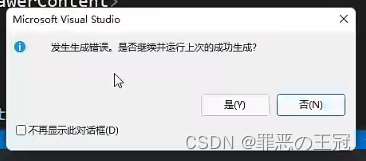
边框去掉
‘+’添加代码,‘-’删除代码。后面不再说明
x:Class="MyToDo.MainWindow"xmlns="http://schemas.microsoft.com/winfx/2006/xaml/presentation"
.......+ WindowStyle="None" //取消窗口边框+ WindowStartupLocation="CenterScreen"//启动时在显示屏中间......
>
其他的就不写了,就是把没用到的删除了,下面是修改好的代码
x:Class="MyToDo.MainWindow"xmlns="http://schemas.microsoft.com/winfx/2006/xaml/presentation"xmlns:x="http://schemas.microsoft.com/winfx/2006/xaml"xmlns:d="http://schemas.microsoft.com/expression/blend/2008"xmlns:mc="http://schemas.openxmlformats.org/markup-compatibility/2006"xmlns:local="clr-namespace:MyToDo"mc:Ignorable="d"Title="MainWindow" Height="450" Width="800"xmlns:materialDesign="http://materialdesigninxaml.net/winfx/xaml/themes"TextElement.Foreground="{DynamicResource MaterialDesignBody}"TextElement.FontWeight="Regular"TextElement.FontSize="13"TextOptions.TextFormattingMode="Ideal"TextOptions.TextRenderingMode="Auto"WindowStartupLocation="CenterScreen"WindowStyle="None"Background="{DynamicResource MaterialDesignPaper}"FontFamily="{DynamicResource MaterialDesignFont}"><materialDesign:DialogHost DialogTheme="Inherit"Identifier="RootDialog"SnackbarMessageQueue="{Binding ElementName=MainSnackbar, Path=MessageQueue}"><materialDesign:DrawerHost IsLeftDrawerOpen="{Binding ElementName=MenuToggleButton, Path=IsChecked}"><materialDesign:DrawerHost.LeftDrawerContent>"220"> materialDesign:DrawerHost.LeftDrawerContent><materialDesign:ColorZone Padding="16"materialDesign:ElevationAssist.Elevation="Dp4"DockPanel.Dock="Top"Mode="PrimaryMid">"Horizontal">x:Name="MenuToggleButton"AutomationProperties.Name="HamburgerToggleButton"IsChecked="False"Style="{StaticResource MaterialDesignHamburgerToggleButton}" /> materialDesign:DrawerHost>materialDesign:DialogHost>
运行效果
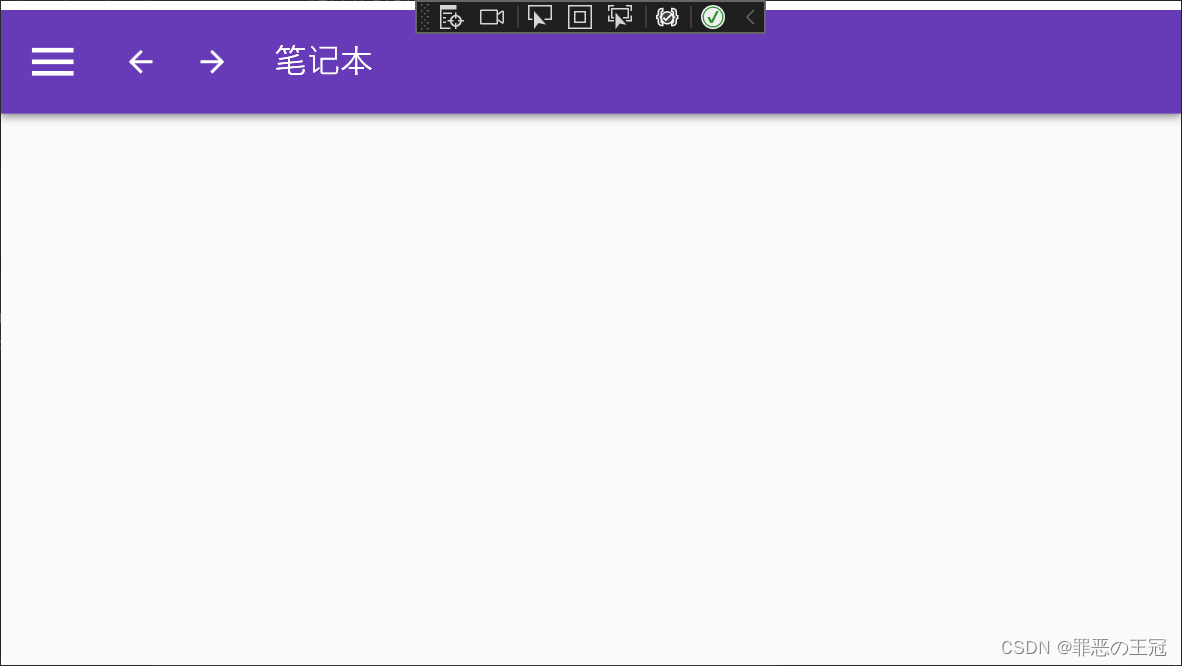
还凑合,现在已经有模有样了。
结尾
Ok,你现在已经做的有模有样了,接下来接着修改吧
本文来自互联网用户投稿,文章观点仅代表作者本人,不代表本站立场,不承担相关法律责任。如若转载,请注明出处。 如若内容造成侵权/违法违规/事实不符,请点击【内容举报】进行投诉反馈!