k8s安装nexus3私服

一、环境准备
1.1 环境说明
本文搭建MongoDB,基于WMware虚拟机,操作系统CentOS 8,且已经基于Kubeadm搭好了k8s集群,k8s节点信息如下:
| 服务器 | IP地址 |
| master | 192.168.31.80 |
| node1 | 192.168.31.8 |
| node2 | 192.168.31.9 |
如需知道k8s集群搭建,可跳转我的文章《kubeadm部署k8s集群》查看。
1.2 安装说明
随着企业级应用程序的增加和需求的增长,开发人员越来越需要一个可靠的、可扩展的、可管理的存储库来存储和共享构件。Nexus是一个流行的存储库管理器,它是一个开源的、基于Java的软件,用于管理和分发构件。Nexus 3是Nexus的新版本,它提供了许多新的功能和改进,使其成为一个更加强大和灵活的存储库管理器。本文将详细介绍如何在k8s上部署一个Nexus 3私服。
二、安装NFS
NFS 存储主要功能是提供稳定的后端存储,当 Nexus 的 Pod 发生故障重启或迁移后,依然能获得原先的数据。
2.1 安装NFS
我选择在 master 节点创建 NFS 存储,首先执行如下命令安装 NFS:
yum -y install nfs-utils rpcbind2.2 创建NFS共享文件夹
cd /var/nfs/mkdir nexus2.3 重启NFS服务
systemctl start nfs-server
systemctl enabled nfs-server
systemctl start rpcbind
systemctl enabled rpcbind
2.4 创建nfs 客户端sa授权
  #创建namespace
kubectl create ns nexuscat > nexus-nfs-client-sa.yamlapiVersion: v1
kind: ServiceAccount
metadata:name: nfs-clientnamespace: nexus
---
kind: ClusterRole
apiVersion: rbac.authorization.k8s.io/v1
metadata:name: nfs-client-runnernamespace: nexus
rules:- apiGroups: [""]resources: ["persistentvolumes"]verbs: ["get","list","watch","create","delete"]- apiGroups: [""]resources: ["persistentvolumeclaims"]verbs: ["get","list","watch","create","delete"]- apiGroups: ["storage.k8s.io"]resources: ["storageclasses"]verbs: ["get","list","watch"]- apiGroups: [""]resources: ["events"]verbs: ["get","list","watch","create","update","patch"]- apiGroups: [""]resources: ["endpoints"]verbs: ["create","delete","get","list","watch","patch","update"]---
kind: ClusterRoleBinding
apiVersion: rbac.authorization.k8s.io/v1
metadata:name: run-nfs-provisionernamespace: nexus
subjects:- kind: ServiceAccountname: nfs-clientnamespace: nexus
roleRef:kind: ClusterRolename: nfs-client-runnerapiGroup: rbac.authorization.k8s.io
2.5 执行创建命令
kubectl apply -f nexus-nfs-client-sa.yaml2.6 检查服务是否成功
kubectl get ServiceAccount -n nexus -o widekubectl get ClusterRole -n nexus -o widekubectl get ClusterRoleBinding -n nexus -o wide
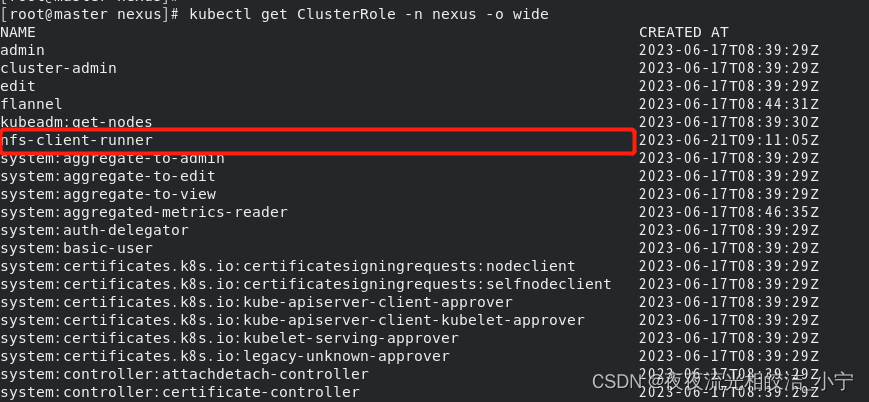
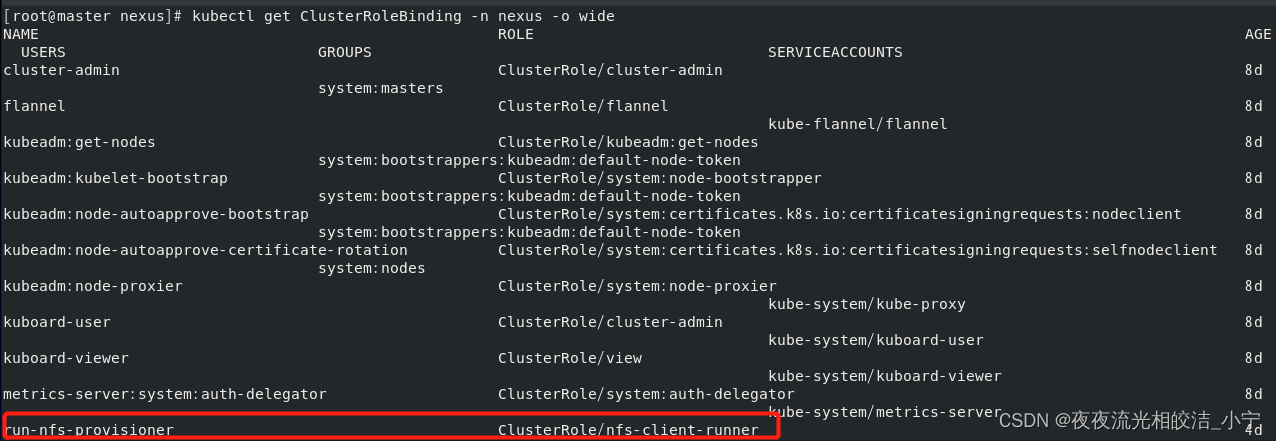
2.7 创建nfs 客户端
cat > nexus-nfs-client.yamlapiVersion: apps/v1
kind: Deployment
metadata:name: nfs-clientlabels:app: nfs-client# replace with namespace where provisioner is deployednamespace: nexus
spec:replicas: 1strategy:type: Recreateselector:matchLabels:app: nfs-clienttemplate:metadata:labels:app: nfs-clientspec:serviceAccountName: nfs-clientcontainers:- name: nfs-clientimage: quay.io/external_storage/nfs-client-provisioner:latestvolumeMounts:- name: nfs-client-rootmountPath: /persistentvolumesenv:- name: PROVISIONER_NAME   ## 这个名字必须与storegeclass里面的名字一致value:  my-nexus-nfs- name: ENABLE_LEADER_ELECTION  ## 设置高可用允许选举,如果replicas参数等于1,可不用value: "True"- name: NFS_SERVERvalue: 192.168.31.80  #修改为自己的ip(部署nfs的机器ip)- name: NFS_PATHvalue: /var/nfs/nexus     #修改为自己的nfs安装目录volumes:- name: nfs-client-rootnfs:server: 192.168.31.80 #修改为自己的ip(部署nfs的机器ip)path: /var/nfs/nexus     #修改为自己的nfs安装目录
2.8 创建storeclass
cat > nexus-store-class.yamlapiVersion: storage.k8s.io/v1
kind: StorageClass
metadata:name: nexus-nfs-storagenamespace: nexus
provisioner: my-nexus-nfs
2.9 检查nfs客户端和storeclass创建是否成功
kubectl get StorageClass -n nexus -o widekubectl get pod -n nexus -o wide

三、创建PV卷
3.1 创建PV卷yaml
cat > nexus-pv.yamlapiVersion: v1
kind: PersistentVolumeClaim
metadata:name: nexus-pvc # 自定义namespace: nexus # 自定义,与本文前后所有命名空间保持一致labels:pvc: nexus-pvc # 自定义
spec:storageClassName: nexus-nfs-storage # 创建的StorageClass的名字accessModes:- ReadWriteOnceresources:requests:storage: 20Gi
3.2 执行命令创建
kubectl apply -f nexus-pv.yaml3.3 检查PV卷是否创建成功
kubectl get pv

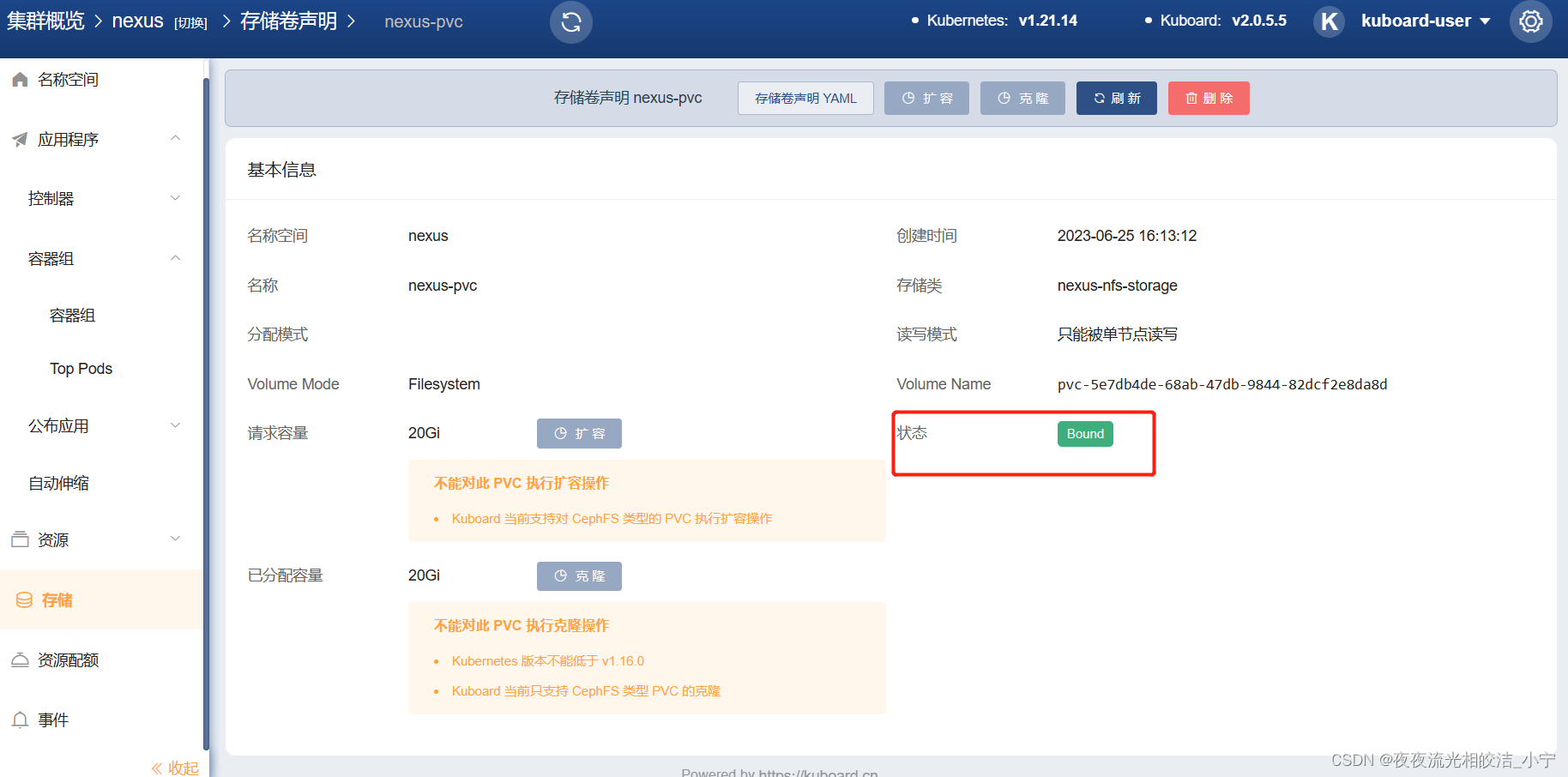
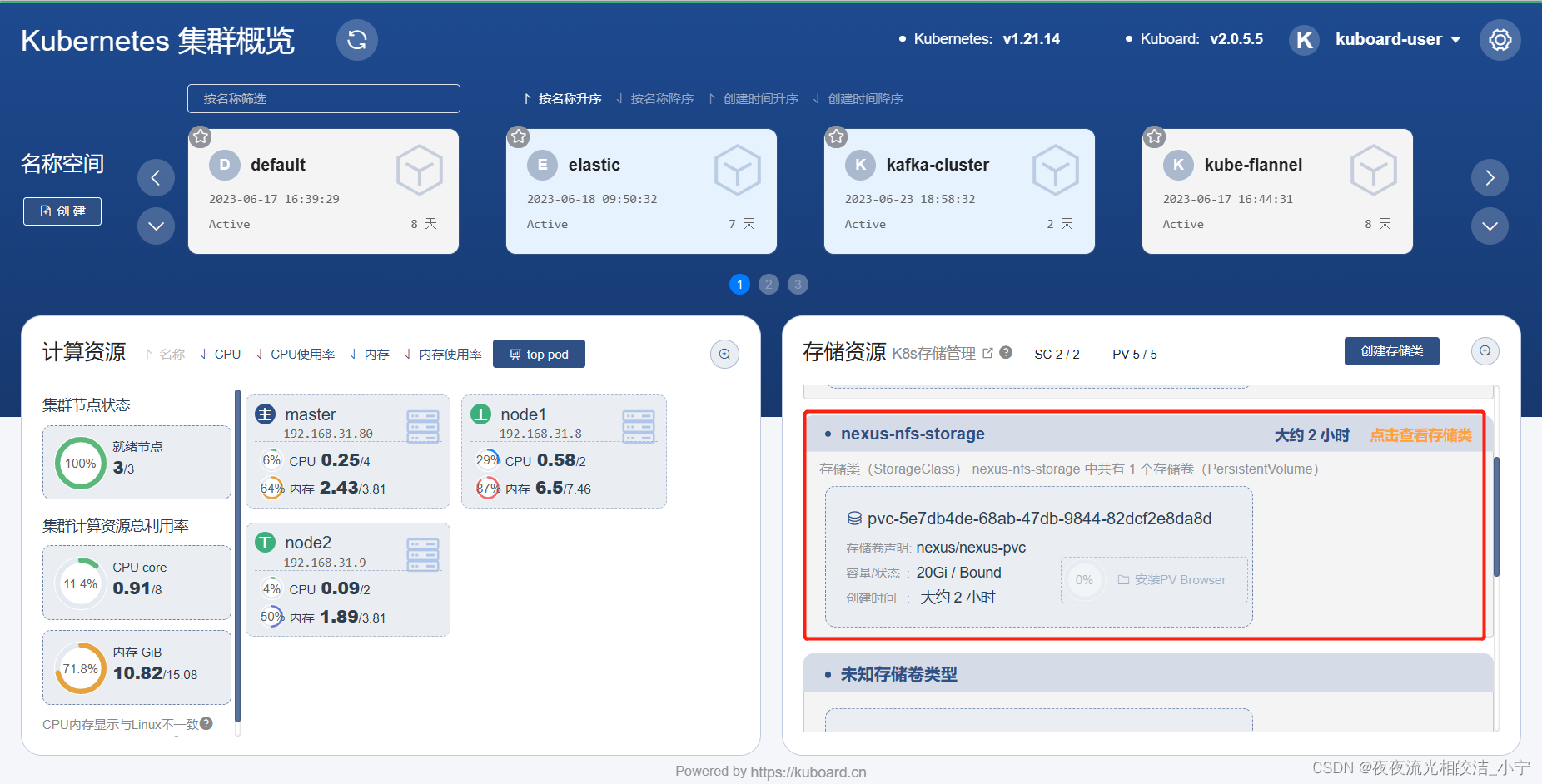
四、部署Nexus
4.1 创建service
cat > nexus-service.yamlkind: Service
apiVersion: v1
metadata:name: nexus3namespace: nexuslabels:app: nexus3
spec:type: NodePortports:- port: 8081targetPort: 8081nodePort: 30520 # 对外开发的端口,自定义selector:app: nexus3
4.2 执行命令创建
kubectl apply -f nexus-service.yaml4.3 创建deployment
cat > nexus-deployment.yamlkind: Deployment
apiVersion: apps/v1
metadata:name: nexus3 # 自定义labels:app: nexus3 # 自定义namespace: nexus # 自定义,与本文前后所有命名空间保持一致
spec:replicas: 1 # 副本的数量selector:matchLabels:app: nexus3template:metadata:labels:app: nexus3spec:containers:- name: nexus3image: sonatype/nexus3ports:- name: nexus3-8081containerPort: 8081 # 容器端口protocol: TCPresources:limits:memory: 6Gcpu: 1000mimagePullPolicy: IfNotPresentvolumeMounts:- name: datamountPath: /nexus-data # 数据路径挂载出来restartPolicy: Alwaysvolumes:- name: datapersistentVolumeClaim:claimName: nexus-pvc # PVC的名字readOnly: false
4.4 执行命令创建deployment
kubectl apply -f nexus-deployment.yaml4.5 检查service和deployment是否创建成功
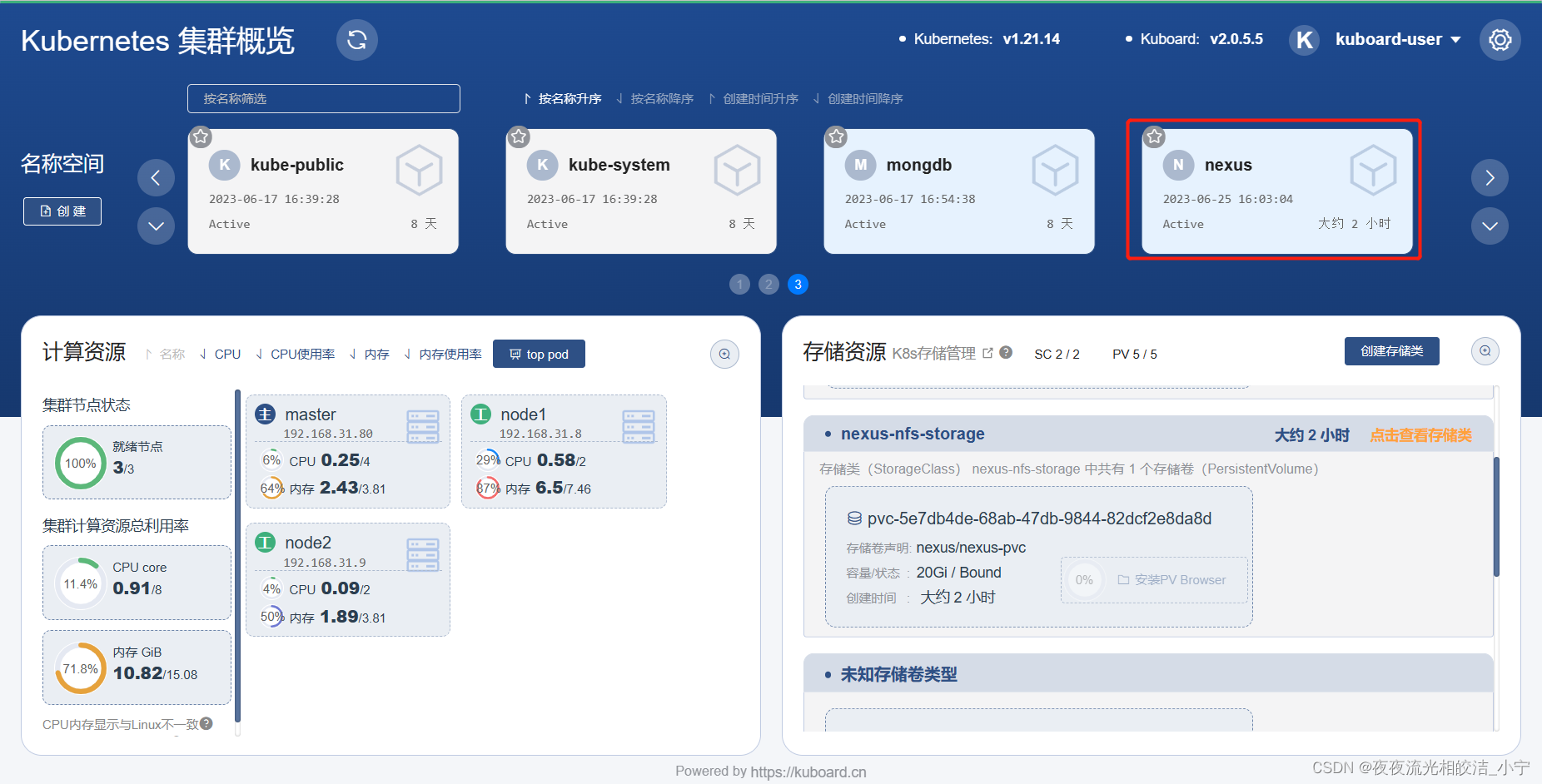
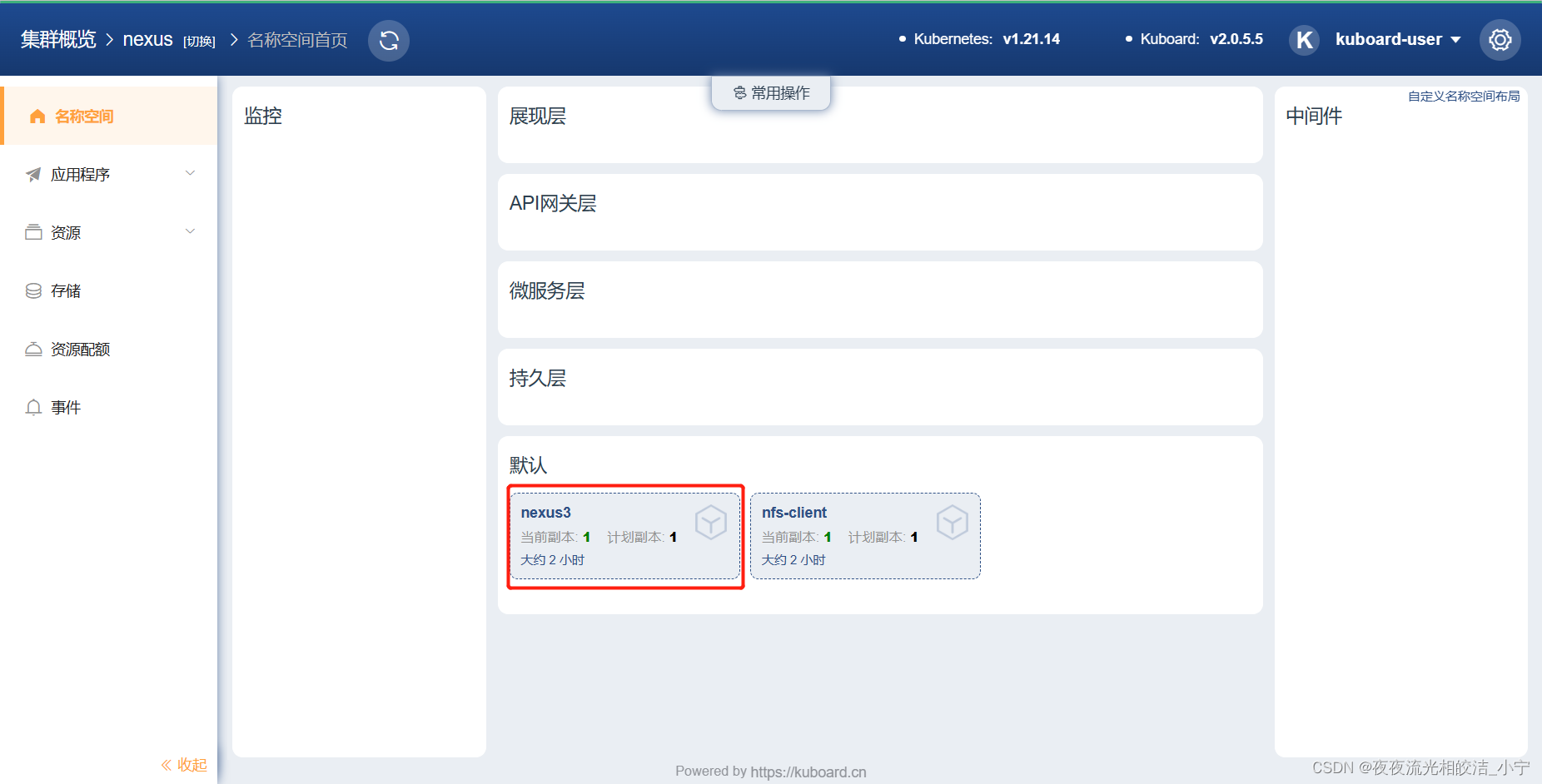
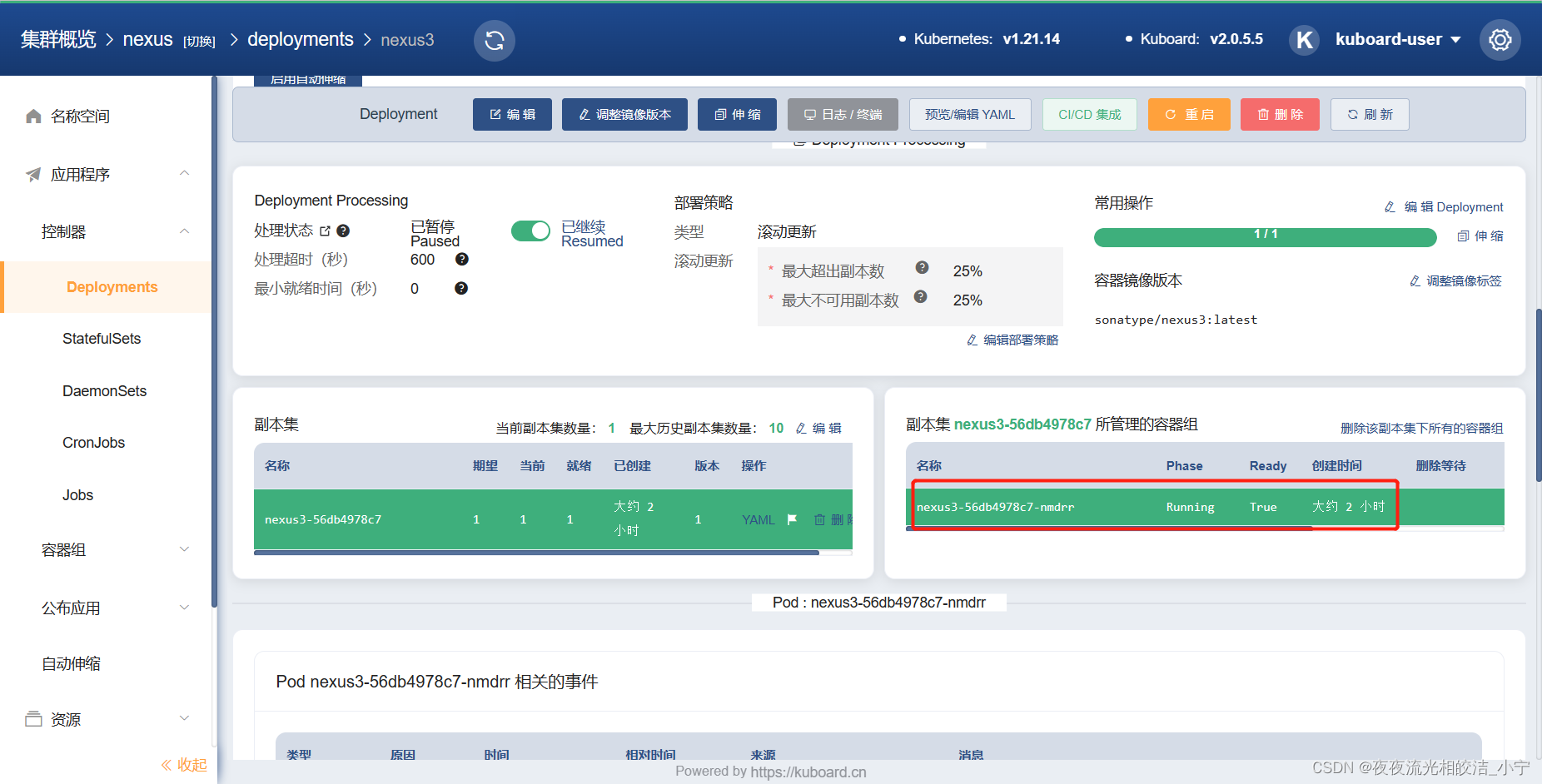
kubectl get service -n nexus -o widekubectl get pod -n nexus -o wide
五、登录测试
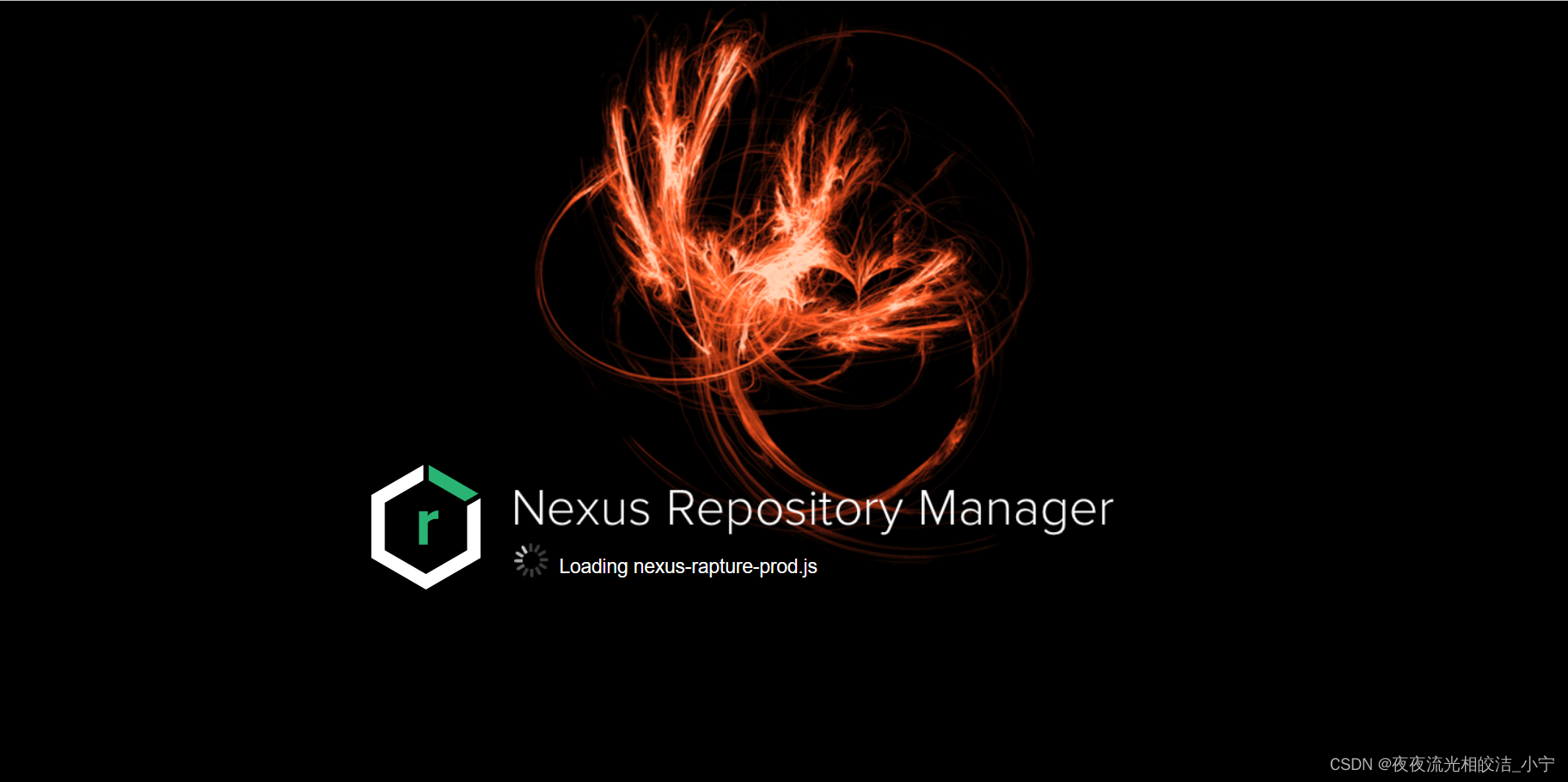
5.1 测试外网访问Nexus
Welcome - Nexus Repository Manager

5.2 获取到默认登录密码
进入Nexus 容器,默认的登录密码在/nexus-data/admin.password 目录下,通过cat /nexus-data/admin.password 把密码打印在屏幕上,默认的账号名是admin

5.3 修改密码
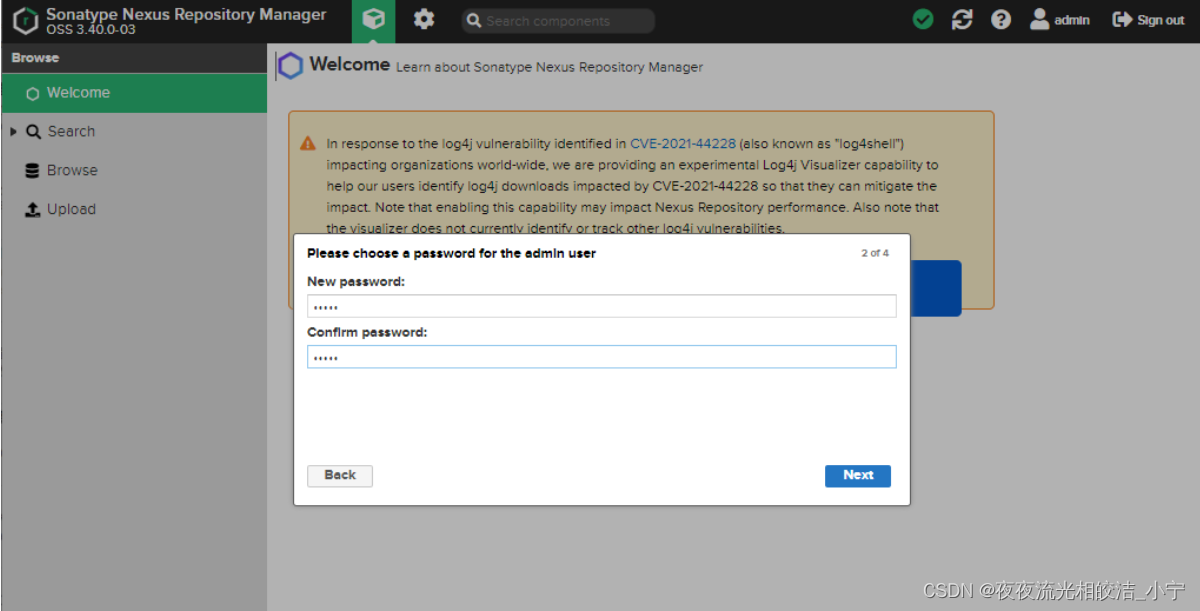
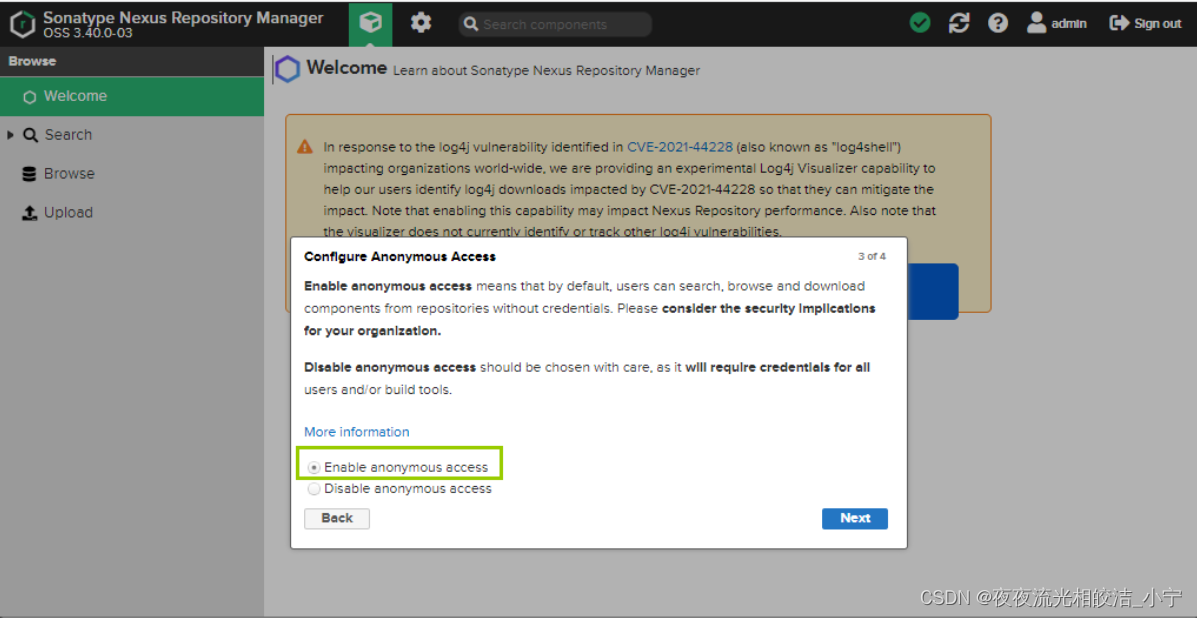
修改完密码,重新登录就可以了。好了,到此通过k8s部署Nexus就完成了!
如果觉得本文对您有帮助,欢迎点赞+收藏+关注!
本文来自互联网用户投稿,文章观点仅代表作者本人,不代表本站立场,不承担相关法律责任。如若转载,请注明出处。 如若内容造成侵权/违法违规/事实不符,请点击【内容举报】进行投诉反馈!