Linux虚拟机扩容磁盘详细教程
最近在VMware虚拟机上使用Centos,用着用着,发现虚拟机的磁盘空间不够了。通过以下步骤成功扩展了根目录的磁盘空间
1、Centos 关机,选择编辑虚拟机设置,硬盘,在实用工具那里选择“扩展”
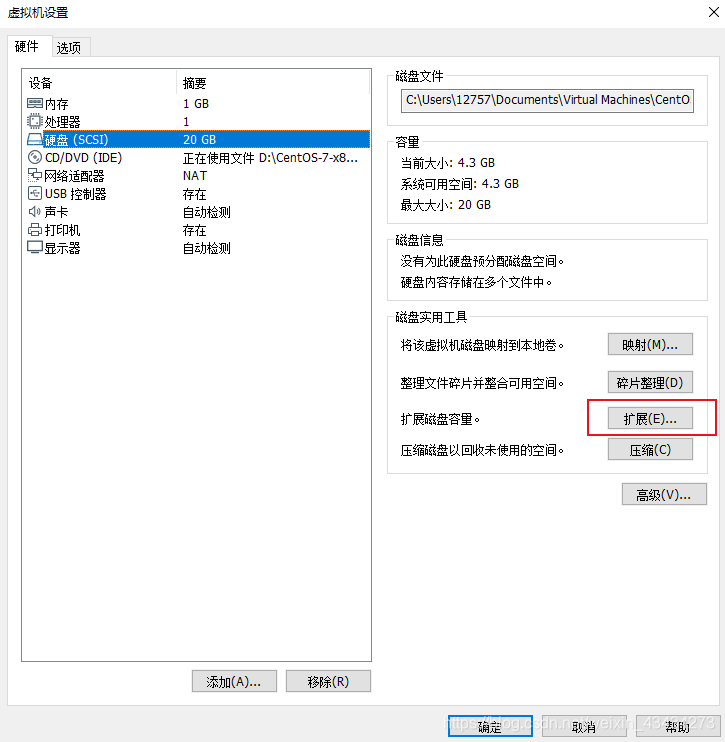
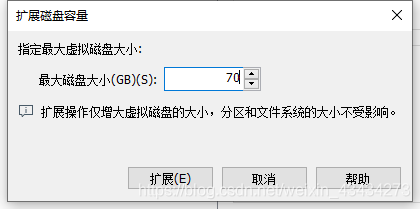
填写扩展的磁盘容量
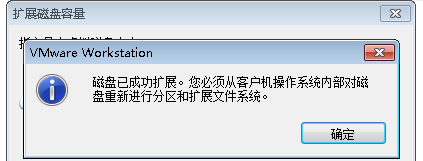
点击扩展后,VMware会提示磁盘已成功扩展。您必须从客户机操作系统内部对磁盘重新进行分区和扩展文件系统。也就是说,这里扩展的磁盘空间,在操作系统里面还不可用,还没生效,需要在操作系统里面进行设置后才能使用。
2、启动客户机操作系统Centos,查看磁盘情况
输入指令
fdisk -l
显示结果如下
[root@localhost ~]# fdisk -lDisk /dev/sda: 75.2 GB, 75161927680 bytes, 146800640 sectors
Units = sectors of 1 * 512 = 512 bytes
Sector size (logical/physical): 512 bytes / 512 bytes
I/O size (minimum/optimal): 512 bytes / 512 bytes
Disk label type: dos
Disk identifier: 0x000ab772Device Boot      Start         End      Blocks   Id  System
/dev/sda1   *        2048     2099199     1048576   83  Linux
/dev/sda2         2099200    41943039    19921920   8e  Linux LVMDisk /dev/mapper/centos-root: 18.2 GB, 18249416704 bytes, 35643392 sectors
Units = sectors of 1 * 512 = 512 bytes
Sector size (logical/physical): 512 bytes / 512 bytes
I/O size (minimum/optimal): 512 bytes / 512 bytesDisk /dev/mapper/centos-swap: 2147 MB, 2147483648 bytes, 4194304 sectors
Units = sectors of 1 * 512 = 512 bytes
Sector size (logical/physical): 512 bytes / 512 bytes
I/O size (minimum/optimal): 512 bytes / 512 bytes[root@localhost ~]# fdisk /dev/sda
Welcome to fdisk (util-linux 2.23.2).Changes will remain in memory only, until you decide to write them.
Be careful before using the write command.Command (m for help): n                   # 输入 n 进入
Partition type:p   primary (2 primary, 0 extended, 2 free)e   extended
Select (default p): p                     # 输入 p 进行扩容模式
Partition number (3,4, default 3): 3      # 输入 3 因为前面已经有两个了
First sector (41943040-146800639, default 41943040):
Using default value 41943040
Last sector, +sectors or +size{K,M,G} (41943040-146800639, default 146800639):
Using default value 146800639
Partition 3 of type Linux and of size 50 GiB is setCommand (m for help): w                   # 输入 w 保存退出
The partition table has been altered!Calling ioctl() to re-read partition table.WARNING: Re-reading the partition table failed with error 16: Device or resource busy.
The kernel still uses the old table. The new table will be used at
the next reboot or after you run partprobe(8) or kpartx(8)
Syncing disks.
再次查看分区情况
fdisk -l
这时可以看到
Disk /dev/sda: 75.2 GB, 75161927680 bytes, 146800640 sectors
Units = sectors of 1 * 512 = 512 bytes
Sector size (logical/physical): 512 bytes / 512 bytes
I/O size (minimum/optimal): 512 bytes / 512 bytes
Disk label type: dos
Disk identifier: 0x000ab772Device Boot      Start         End      Blocks   Id  System
/dev/sda1   *        2048     2099199     1048576   83  Linux
/dev/sda2         2099200    41943039    19921920   8e  Linux LVM
/dev/sda3        41943040   146800639    52428800   83  LinuxDisk /dev/mapper/centos-root: 18.2 GB, 18249416704 bytes, 35643392 sectors
Units = sectors of 1 * 512 = 512 bytes
Sector size (logical/physical): 512 bytes / 512 bytes
I/O size (minimum/optimal): 512 bytes / 512 bytesDisk /dev/mapper/centos-swap: 2147 MB, 2147483648 bytes, 4194304 sectors
Units = sectors of 1 * 512 = 512 bytes
Sector size (logical/physical): 512 bytes / 512 bytes
I/O size (minimum/optimal): 512 bytes / 512 bytes
其中,分区已变为3个了,但这时还没挂载,还不能用
   Device Boot      Start         End      Blocks   Id  System
/dev/sda1   *        2048     2099199     1048576   83  Linux
/dev/sda2         2099200    41943039    19921920   8e  Linux LVM
/dev/sda3        41943040   146800639    52428800   83  Linux
3、重启操作系统
reboot
4、查看文件系统格式
输入指令
[root@localhost ~]# blkid
结果为 xfs格式文件系统:
/dev/sda1: UUID="b82649ca-dbc6-4ad7-8757-b8ac8506f1e6" TYPE="xfs"
/dev/sda2: UUID="r7VR1e-fCbC-as1M-KAEz-Nf9S-LuLP-yVYwmf" TYPE="LVM2_member"
/dev/sr0: UUID="2018-11-25-23-54-16-00" LABEL="CentOS 7 x86_64" TYPE="iso9660" PTTYPE="dos"
/dev/mapper/centos-root: UUID="3808fa57-2fed-4fc0-a04b-63d976d602d9" TYPE="xfs"
/dev/mapper/centos-swap: UUID="607a6401-d2f3-4417-835f-730ec0c7e22b" TYPE="swap"
5、将物理硬盘分区初始化为物理卷,以便被LVM使用,输入指令
lvs
pvcreate /dev/sda3
6、新分区加入物理卷组,更改逻辑卷大小,扩容xfs文件系统
查看lvm组名,输入指令 df -h
[root@test001 ~]# df -h
Filesystem            Size  Used Avail Use% Mounted on
/dev/mapper/centos-root8.3G  5.4G  2.5G  69% /
tmpfs                1001M     0 1001M   0% /dev/shm
/dev/sda1             477M   54M  394M  12% /boot
其中,centos 就是 根 所在的组名
输入指令,增加卷组的容量
vgextend centos /dev/sda3
7、查看可扩展的空间大小
输入指令,显示LNM卷组的元数据信息
vgdisplay
结果为
--- Volume group ---VG Name centosSystem IDFormat lvm2Metadata Areas 2Metadata Sequence No 4VG Access read/writeVG Status resizableMAX LV 0Cur LV 2Open LV 2Max PV 0Cur PV 2Act PV 2VG Size 68.99 GiBPE Size 4.00 MiBTotal PE 17662Alloc PE / Size 4863 / <19.00 GiBFree PE / Size 12799 / <50.00 GiBVG UUID Zu3nec-EiMo-dafs-UG3R-RGO0-5qvk-qvqCp9其中 Free PE / Size 就是可供分配的自由空间,最多有 50G,在扩展时输入小于该值
8、检查下文件系统的正确性
输入:
[root@ucx-auto dev]# e2fsck -f /dev/mapper/centos-root
结果为:
e2fsck 1.42.9 (28-Dec-2013)
/dev/mapper/centos-root is mounted.
e2fsck: Cannot continue, aborting.
9、.重新定义大小
[root@localhost ~]# lvextend -L+49.99G /dev/mapper/centos-root /dev/sda3
10、扩容xfs文件系统
[root@ucx-auto dev]# xfs_growfs /dev/mapper/centos-root
结果为:
meta-data=/dev/mapper/centos-root isize=512    agcount=4, agsize=1113856 blks=                       sectsz=512   attr=2, projid32bit=1=                       crc=1        finobt=0 spinodes=0
data     =                       bsize=4096   blocks=4455424, imaxpct=25=                       sunit=0      swidth=0 blks
naming   =version 2              bsize=4096   ascii-ci=0 ftype=1
log      =internal               bsize=4096   blocks=2560, version=2=                       sectsz=512   sunit=0 blks, lazy-count=1
realtime =none                   extsz=4096   blocks=0, rtextents=0
data blocks changed from 4455424 to 17560576
11、最后输入
[root@ucx-auto dev]# df -lh
看到根目录已经扩大了
Filesystem               Size  Used Avail Use% Mounted on
/dev/mapper/centos-root   67G  2.4G   65G   4% /
devtmpfs                 475M     0  475M   0% /dev
tmpfs                    487M     0  487M   0% /dev/shm
tmpfs                    487M  7.7M  479M   2% /run
tmpfs                    487M     0  487M   0% /sys/fs/cgroup
/dev/sda1               1014M  133M  882M  14% /boot
tmpfs                     98M     0   98M   0% /run/user/0
本文来自互联网用户投稿,文章观点仅代表作者本人,不代表本站立场,不承担相关法律责任。如若转载,请注明出处。 如若内容造成侵权/违法违规/事实不符,请点击【内容举报】进行投诉反馈!