如何熟练的使用 git 上传代码到 github
如何熟练的使用 git 上传代码到 github

一、初始配置 git
第一次使用 git 需要配置。
(1)、下载 git
所谓工欲善其事,必先利其器
sudo apt-get install git
(2)、配置 git
git git config --global user.name <your-name> #输入你github的用户名
git config --global user.email <your-email> #输入你的邮箱
git config --list #可以查看你刚刚的配置
(3)、通过 ssh 密钥连接 github
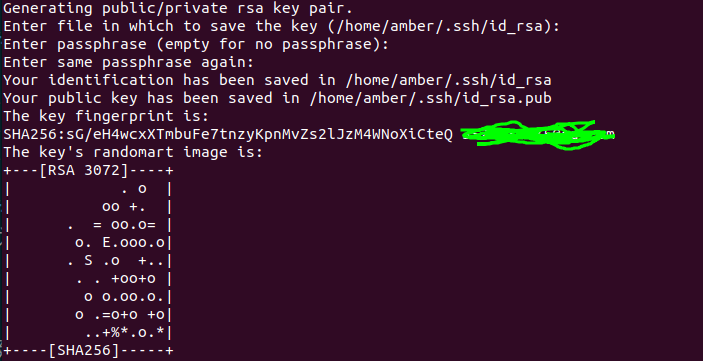
因为代码托管到 github,需要 SSH Key 验证,所以执行以下命令创建 SSH Key:
ssh-keygen -t rsa -C "你的邮箱地址"
创建后会在~/.ssh 目录下生成 id_rsa 和 id_rsa.pub 两个文件。这两个就是生成的秘钥对,其中 id_rsa 是私钥,不能暴露出去;另一个是公钥,也就是我们等会要用到的,把里面的内容复制出来。
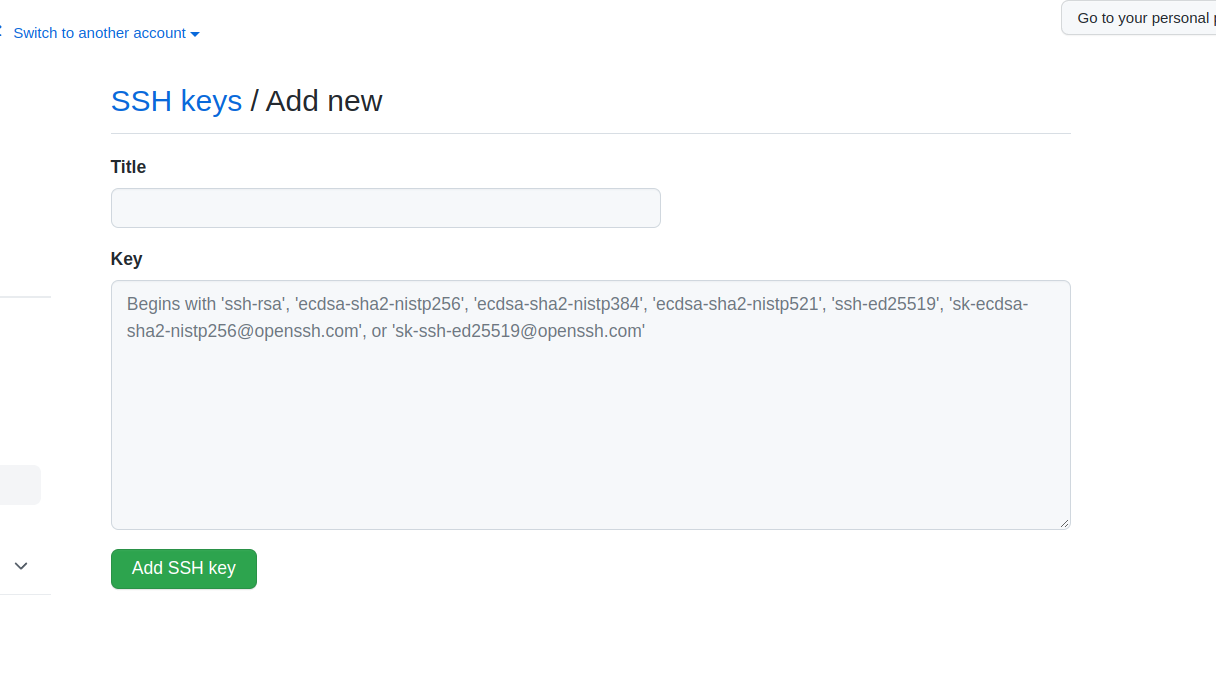
回到 github 网址,依次选择:点击自己头像下的 Settings–>SSH and GPG keys –> New SSH key”,填写 title,然后把刚刚复制的内容黏贴 Key 上去就可以了。
(4)、验证是否连接成功
接下来,测试一下连接是否成功,输入:
ssh -T git@github.com

二、上传代码到 github
(1)、github 新建仓库拉取
- 在 github 网站新建仓库,然后在本地目录拉取。
- 如果拉取自己的仓库,拉取 ssh 的链接,因为添加的是 ssh 密钥
- 要是拉取 https 链接,需要添加个人令牌才能推送,因为 github 现在取消了帐号密码推送,会发生鉴权失败的错误
- 要是从 github 拉取下来,后续推送就不需要 git init、git remote 操作,可以直接 git add 然后 git commit,之后推送 git push 即可。
git clone git@github.com:用户名/项目名称.git
git clone https://github.com/用户名/项目名称.git
(2)、上传代码到 github
- 在你需要上传的文件夹
git init
- 上传之前,我们需要添加上传的文件。这里使用到的指令是:
git add file # file是我们想要添加的文件
git add ./ # 将整个文件夹内容都添加进去
- 检查当前 git 状态
git status
- commit 推送
将缓存区的修改提交到本地仓库
git commit -m "Update Readme Files(Version of Chinese & English)"
- 添加文件到远程库
git remote add origin git@github.com:用户名/项目名称.git
如果此时出现错误:fatal: remote origin already exists. 这时候说明远程仓库已经存在。这时候需要先删除 origin 仓库,然后再重新添加该远程仓库。指令如下:
git remote -v # git查看远程仓库地址
git remote rm origin  # 删除已经存在且不需要的origin
git remote add origin git@github.com:用户名/项目名称.git
- 进行上传
第一次上传需要指定分支
git push origin master # 需要指定分支
后续上传
git push
push 结束后,在 GitHub 端的对应仓库上刷新一下,内容就改变了。说明项目内容已经上传成功了~
-
某些 push 错误的情况
有时候对新建的仓库进行 push 操作,会出现上传失败的情况。通常出现这种情况的原因,是新建的仓库往往会有一个文件 Readme.md 文件,而本地仓库中没有这个文件,也就是说本地仓库与服务器端仓库没有实现同步。所以将这个 Readme.md 文件 clone 到本地,然后再 commit 提交,应该就没有问题了。
或者在 push 操作的时候遇到下述错误:error: 无法推送一些引用到 ‘git@github.com:upcAutoLang/BackgroundSplit-OpenCV.git’
提示:更新被拒绝,因为远程仓库包含您本地尚不存在的提交。这通常是因为另外
提示:一个仓库已向该引用进行了推送。再次推送前,您可能需要先整合远程变更
提示:(如 ‘git pull …’)。
提示:详见 ‘git push --help’ 中的 ‘Note about fast-forwards’ 小节。
强制推送:
git push -u origin +master
尽量先同步 Github 上的代码到本地,在上面更改之后再上传。
三、vscode 上到使用 git
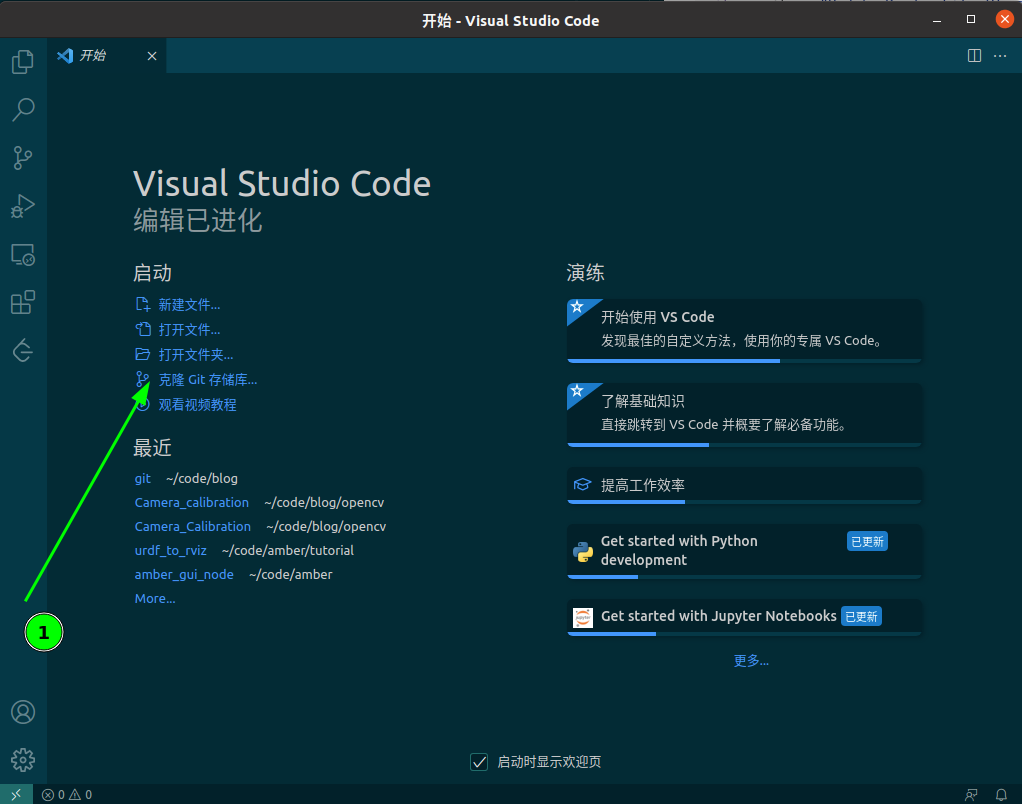
(1)、克隆 git 储存库
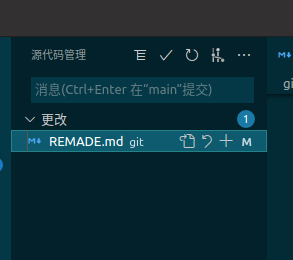
(2)、添加commit
(3)、推送push
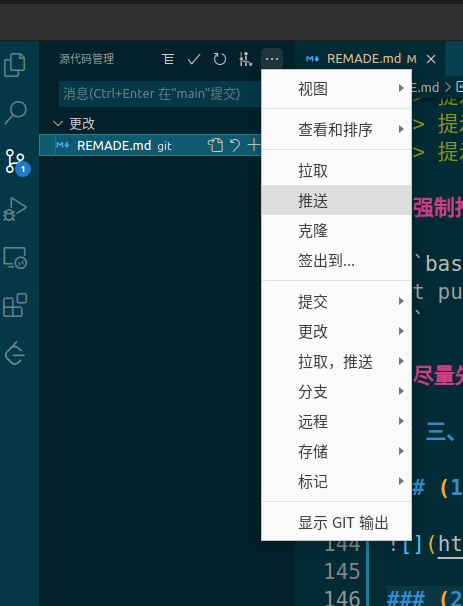
四、其他 git 命令
CREAT(创建)
git init                                      在当前目录下创建一个本(Create a new local repository)
git clone  ssh://user@domain.tld/repo.git     在远程库克隆一个本地库(Clone an existing repository)
Configuration(配置)
git config [--global] user.name         设置提交时附带的名字(Set the name attached to all your commits)
git config [--global] user.email        设置提交时附带的email(Set the email attached to all your commits)
git config --global color.ui auto       设置命令行输出回执的颜色(Set colorzition of  command line output for all repos)
git config [--global] user.name         获取当前库设置的用户名(Print set name(in current repository or globally))
git config [--global] user.email        获取当前库设置的email(Print set email(in current repository or  globally))
Local Changes(本地操作)
git status        查看工作区内的文件修改(List changed files in your working directory)
git diff          查看已追踪文件的修改(List changed to tracked files)
git add           添加此文件的所有修改在下次提交时(Add all current changed in file to the next commit)
git add .         添加本地库中的所有修改在下次提交的时(Add all current changed to the next commit)
git mv            修改文件名并添加到下次提交当中(Rename file and add it to next commit)
git rm            删除此文件并将此处删除添加到下次提交当中(Delete file and add its deletion to next commit)
git commit -a     提交工作区所有文件(Commit all local changes in tracked files)
Commit History(提交历史)
git log                                 显示所有的提交日志(Show all commits)
git log -p                              这个文件的最后一次提交日志(Shwo changes over time for a specific file)
git log --author=<committer name>       这个提交者最后一次的提交日志(Show changes over time for a specific committer)
git blame <file>                        此文件被谁修改了(Who changed what and when in file)
git stash                               查看临时的文件变动 (Store changes temporarily)
git stash pop                           删除上一次记录储蓄新的改动记录(Remove and apply changes)
git rm --cached <file>                  把此文件从过去的提交记录中删除但是保留当前本地的文件(Remvoe file from previous commits but keep it locally)
Branches & Tags(分支和标签)
git branch                                      本地所有的分支列表(List all existing branches)
git checkout <branch>                           切换分支(Switch HEAD branch)
git branch <new branch>                         创建新分支(Creat a new branch based on your current HEAD)
git branch --track <new-branch><remote-branch>  创建一个新的分支基于一个远程的分支(Creat a new  tracking branch based on a remote branch)
git branch -d <branch>                          删除一个本地分支(Delete a local branch)
git branch origin --delete <branch>             删除一个远程分支(Delete a remote branch)
git push <remote> : <old name>                  重命名远程分支名(Rename a branch on remote)git push
git push <remote> <new name>
git tag <tag-name>                              给当前提交打一个tag,也可以查看当前标签(Tag the current commit)
Update & Publish(更新和提交)
git remote -v 查看远程库的地址列表(List all currently configured remotes)
git remote show <remote> 查看这个远程库的信息(Show information about a remote)
git remote add <remote> <url> 添加新的远程库(Add new remote repository)
git remote rename <old-name> <new-name> 重命名远程库(Rename a remote)
git fetch <remote> 从远程库更新所有的信息到本地,但是不合并(Download all changes from remote,but don't merge into HEAD)
git fetch -p 从远程库更新所有的信息到本地,但是不合并并清理已删除的远程分支(Download all changes fromm remote,but don' t merge in HEAD and clean up deleted branchs from origin)
git pull <remote><branch> 从远程库更新数据并立即合并数据(Download changes and directly merge into HEAD)
git push <remote><branch> 将本地数据同步到远程库中(Publish local changes on a remote)
git remote add --track <remote-branch><remote><url> 追踪一个远程库(Track a remote repository)
git push --tags 同步标签到远程库(Publish your tags
git remote show <remote> 显示远程库信息(Show information about a submodule)
Merge & Rebase(分支合并和重整数据)
git merge <branch>            将其他分支和并到当前分支(Merge branch into your current HEAD)
git rebase <branch>           将亲她分支合并到当前分支并按照提交顺序排序(Rebase your current HEAD onto branch)
git rebase --abort            终止当前合并(Abort a rebase)
git rebase --continue         解决冲突后继续当前合并和重整(Continue a rebase after resolving confilcys)
git mergetool                 使用配置的合并工具解决冲突(Resolve conflicts using your configured merge tool)
git add <resolved-file>       手动解决冲突使用编辑器并标记已解决的文件
git rm <resolved-file>
Undo(撤销)
git reset --hard HEAD              丢弃所有的本地修改(Discard all local changes in your working directory)
git checkout HEAD <file>           丢弃此文件的本地修改(Discard local changes in a specific file)
git revert  <commit>               撤销某次的提交内容(Revert a commit by providing a new commit with contrary changes)
git checkout <commit><file>        撤销某次提交的某个文件的内容(Revert a specific file from a previous commit)
重置头指针到过去的某个提交上,版本回退(Reset your HEAD pointer to a previous commit)
git reset --hard  <commit>         回退到某个版本(Discarding local changes)
git reset <commit>                 回退到某个版本并保存未追踪的改动
git reset --keep <commit>          回退到某个版本并保存未提交的改动
本文来自互联网用户投稿,文章观点仅代表作者本人,不代表本站立场,不承担相关法律责任。如若转载,请注明出处。 如若内容造成侵权/违法违规/事实不符,请点击【内容举报】进行投诉反馈!