win11 下安装启动nginx
1.下载nginx
nginx: download
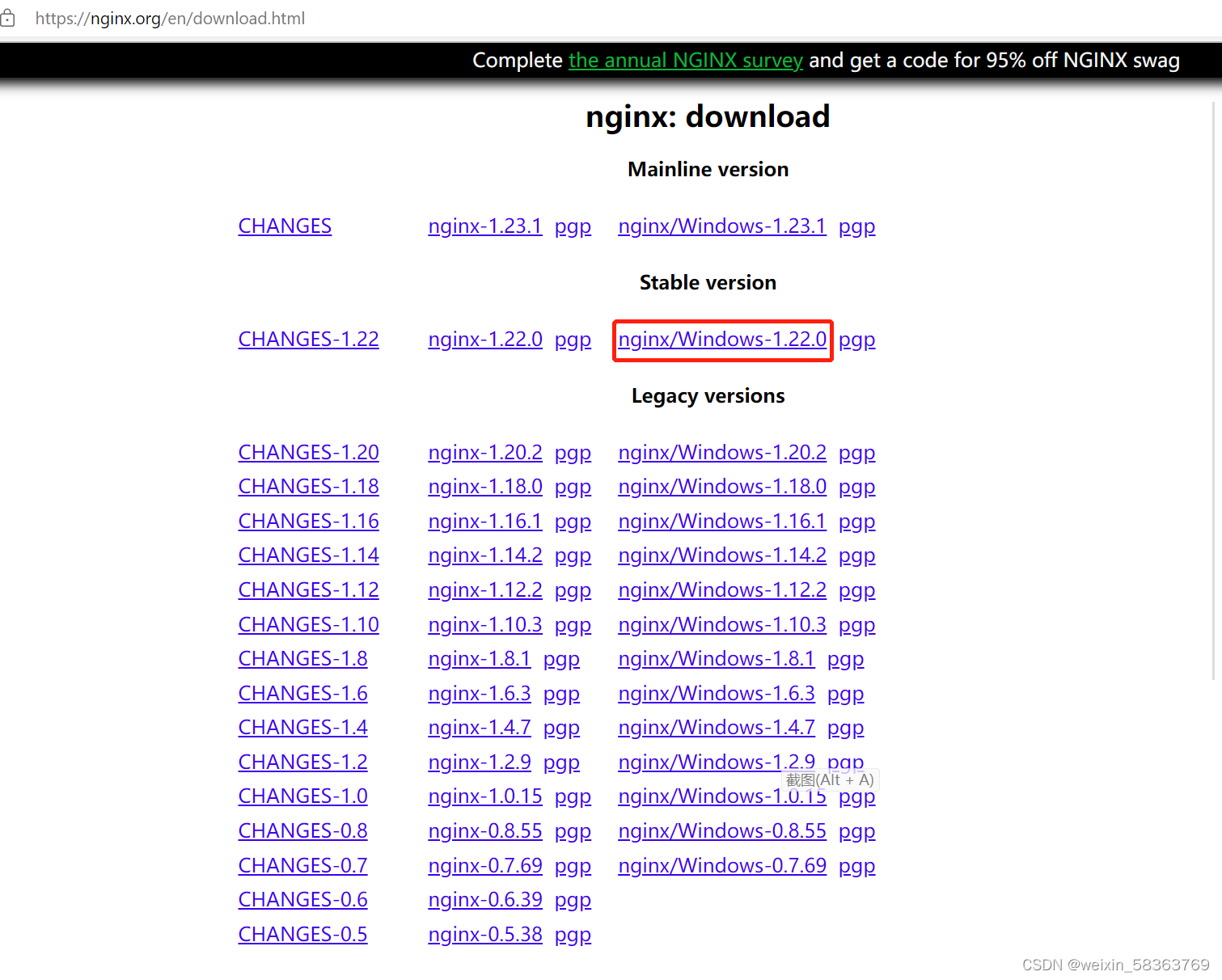
Mainline version是nginx的活跃版,经常进行升级修复错误,Stable version是nginx的稳定版,不进行升级,修复一些重大错误。
1.下载红框里面的压缩包,进行解压。
2.配置环境变量,环境变量名:IGNITE_HOME,值写nginx的压缩目录。
3.修改nginx解压目录下的conf目录下的nginx.conf
http {include mime.types;default_type application/octet-stream;log_format main '$remote_addr - $remote_user [$time_local] "$request" ''$status $body_bytes_sent "$http_referer" ''"$http_user_agent" "$http_x_forwarded_for"';#access_log logs/access.log main;sendfile on;#tcp_nopush on;#keepalive_timeout 0;keepalive_timeout 65;#gzip on;server {listen 8089;server_name 127.0.0.1;#charset koi8-r;access_log logs/host.access.log main;error_log logs/zjerr.log error;location / {root html;index index.html index.htm;}#error_page 404 /404.html;# redirect server error pages to the static page /50x.html#error_page 500 502 503 504 /50x.html;location = /50x.html {root html;}# proxy the PHP scripts to Apache listening on 127.0.0.1:80##location ~ \.php$ {# proxy_pass http://127.0.0.1;#}# pass the PHP scripts to FastCGI server listening on 127.0.0.1:9000##location ~ \.php$ {# root html;# fastcgi_pass 127.0.0.1:9000;# fastcgi_index index.php;# fastcgi_param SCRIPT_FILENAME /scripts$fastcgi_script_name;# include fastcgi_params;#}# deny access to .htaccess files, if Apache's document root# concurs with nginx's one##location ~ /\.ht {# deny all;#}}(1)默认配置文件nginx.conf里面的log_format和access_log是被注释掉的,需要打开log_format和access_log的注释,error_log和access_log可以自定义文件名和文件位置。
(2)新建logs文件夹,默认是在安装目录下的,新建logs和temp文件夹
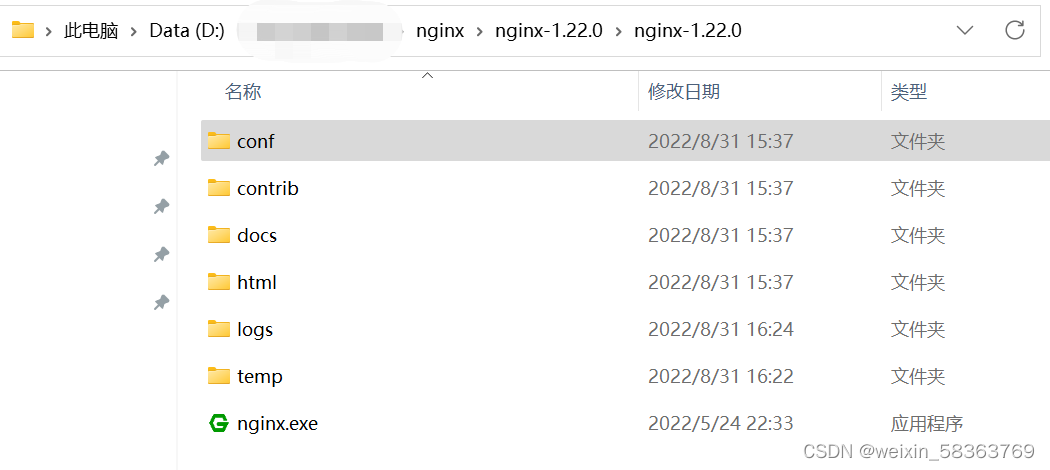
如果出现 [error] createfile()类型的错误,可以根据报错信息新建缺的文件夹,如logs文件夹。
(3)修改server里面的listen默认监听端口,默认是80端口可能会被占用,win下cmd窗口输入命令:
netstat -ano | find "80"可以看到80端口的占用情况。
4.cmd到nginx解压目录,执行start nginx 或者 nginx.exe 命令,回车,可以启动nginx。
5.在浏览器输入:ip和端口号就可以访问,如 http://l27.0.0.1:8089
6.在cmd窗口,输入命令:
tasklist /fi “imagename eq nginx.exe”可以看到启动的nginx服务。
7.在cmd窗口,输入命令:
taskkill taskkill /f /t /im nginx.exe可以关闭启动的nginx服务。
其他nginx命令待续。
本文来自互联网用户投稿,文章观点仅代表作者本人,不代表本站立场,不承担相关法律责任。如若转载,请注明出处。 如若内容造成侵权/违法违规/事实不符,请点击【内容举报】进行投诉反馈!