使用Electron打包JavaSpringboot项目为exe文件(含electron-builder下载出错解决方案)
文章目录
- 1、问题背景
- 2、electron入门,使用electron打包静态页面或URL
- 3、electron-builder下载出错
- 4、使用electron打包springboot
1、问题背景
问题如下:
- 现在我们有一个springboot的项目,启动后可以在localhost:8080访问网站并使用网站提供的服务。
- 我们想要打包为windows下的可执行文件exe,即 exe会自动打开一个窗口访问到该网站。
使用说明:
- 请先将项目打包为jar,并确保可以通过java -jar即可启动该web服务
- 使用前请先用java -jar xx.jar测试该项目可以成功访问,一切正常。
2、electron入门,使用electron打包静态页面或URL
什么是Electron?
- Electron是GitHub开发的一个开源框架。它通过使用Node.js和Chromium的渲染引擎完成跨平台的桌面GUI应用程序的开发。
Electron现已被多个开源Web应用程序用于前端与后端的开发,著名项目包括GitHub的Atom和微软的Visual Studio Code。 - Electron是大前端的重要组成部分。
如何安装Electron?
参考资料:
https://qii404.me/2019/07/10/electron.html
https://www.jianshu.com/p/a8a7820c8bfd
https://juejin.cn/post/6844904159104204814node -v
npm -v
npm config set ELECTRON_MIRROR http://npm.taobao.org/mirrors/electron/ #淘宝源
sudo npm install electron -g --allow-root -unsafe-perm=true # 全局安装
electron -v  # 验证安装
使用electron-packager打包静态
安装electron-packager
一个用于打包electron应用的工具,只是打包成各个平台下可执行文件,并不是安装包
再全局安装 npm install electron-packager -g打包静态:
参考资料:https://www.jianshu.com/p/a8a7820c8bfd
electron-packager . app --win --out presenterTool --arch=x64 --electron-version 1.0.0 --overwrite --ignore=node_modules
electron-packager . 可执行文件的文件名 --win --out 打包成的文件夹名 --arch=x64位还是32位 --electron-version版本号 --overwrite --ignore=node_modules(网上很多写法是--version 1.0.0 在高版本中的electron中,这个好像不行啦,必须要--electron-version这样写)打包成功
会生成一个目录,然后打开这个目录,找到exe文件,打开即可。打包成安装包:
https://www.cnblogs.com/kakayang/p/9559777.html
我们建立一个目录,放置三个文件

index.html
DOCTYPE html>
<html>
<head><title>my-apptitle>
head>
<body>Hello World!
body>
html>
main.js
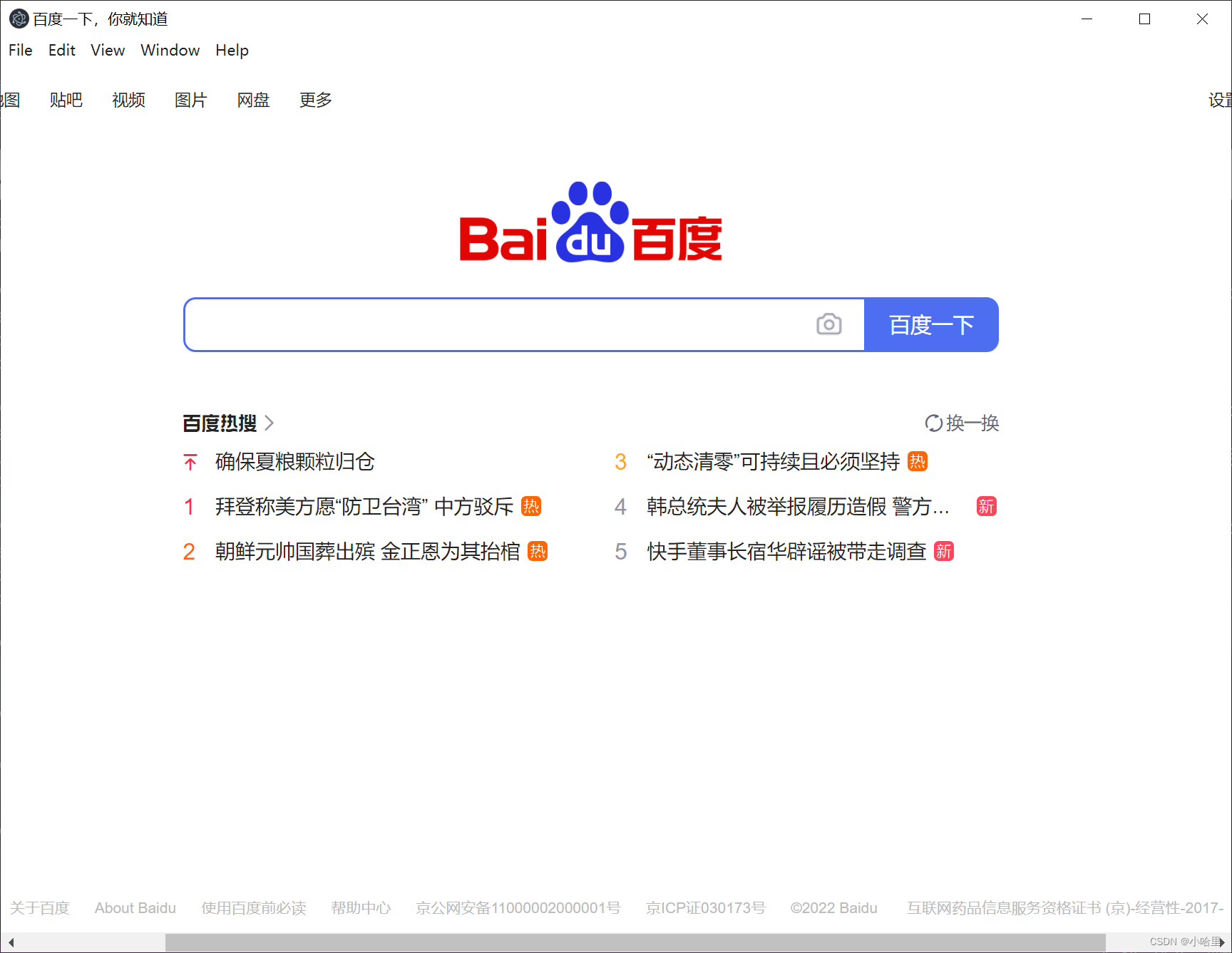
const {app, BrowserWindow} = require('electron')let mainWindowfunction createWindow () {mainWindow = new BrowserWindow({width: 1000,height: 770,webPreferences: {// nodeIntegration: true}})mainWindow.loadFile('index.html')// 改为使用loadURL加载微信网页版url地址// mainWindow.loadURL('https://wx.qq.com/')// mainWindow.loadURL('https://baidu.com/')// mainWindow.loadURL('http://localhost:8080/')mainWindow.on('closed', function () {mainWindow = null})
}app.on('ready', createWindow)
package.json
{"name": "my-app","version": "0.1.0","main": "main.js","scripts": {"start": "electron ."},"devDependencies": {"electron": "^5.0.6"}}
然后打开当前目录的终端使用如下命令:
electron-packager . app --win --out presenterTool --arch=x64 --electron-version 1.0.0 --overwrite --ignore=node_modules

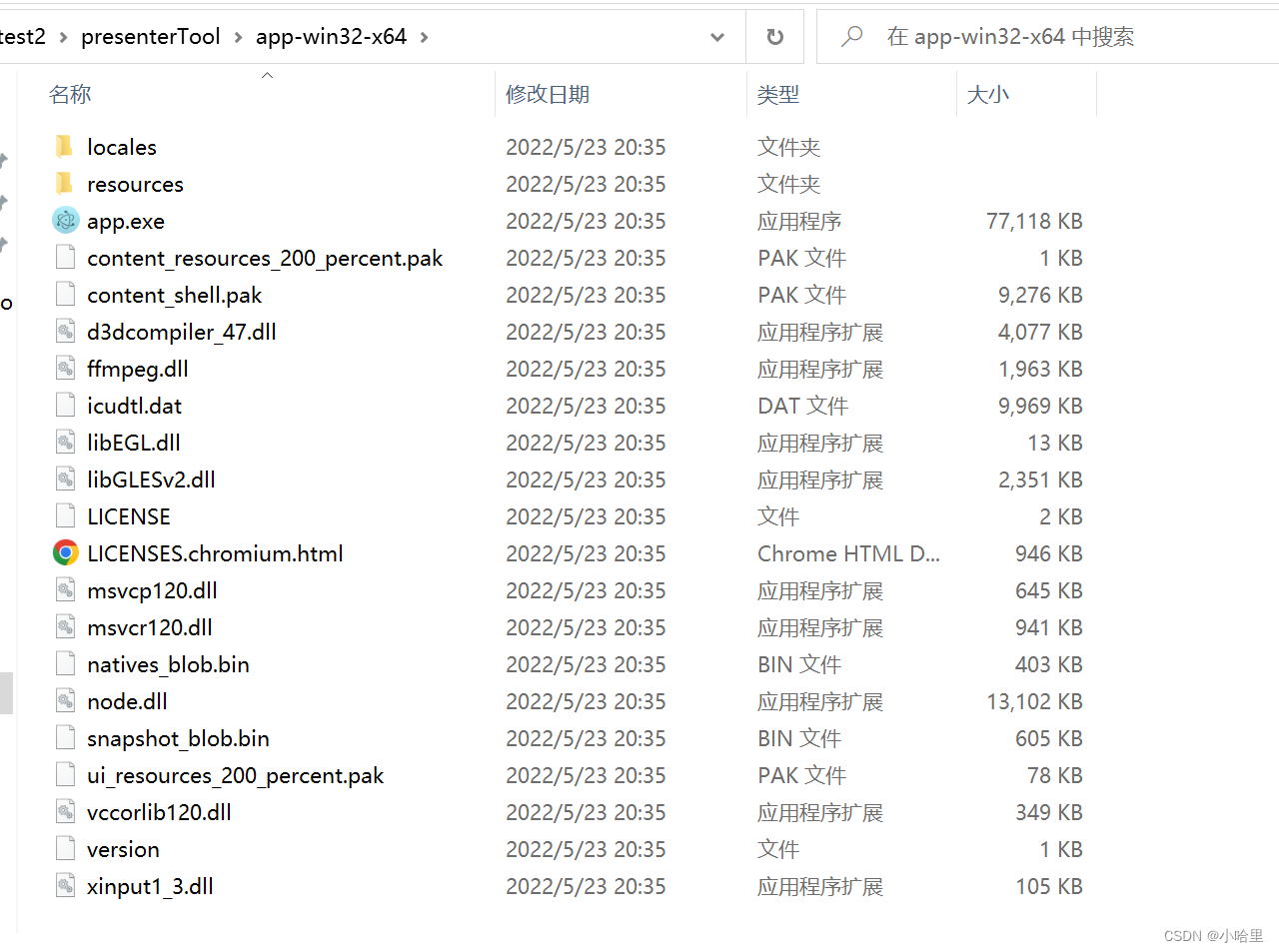
就会生成一个可用的EXE文件
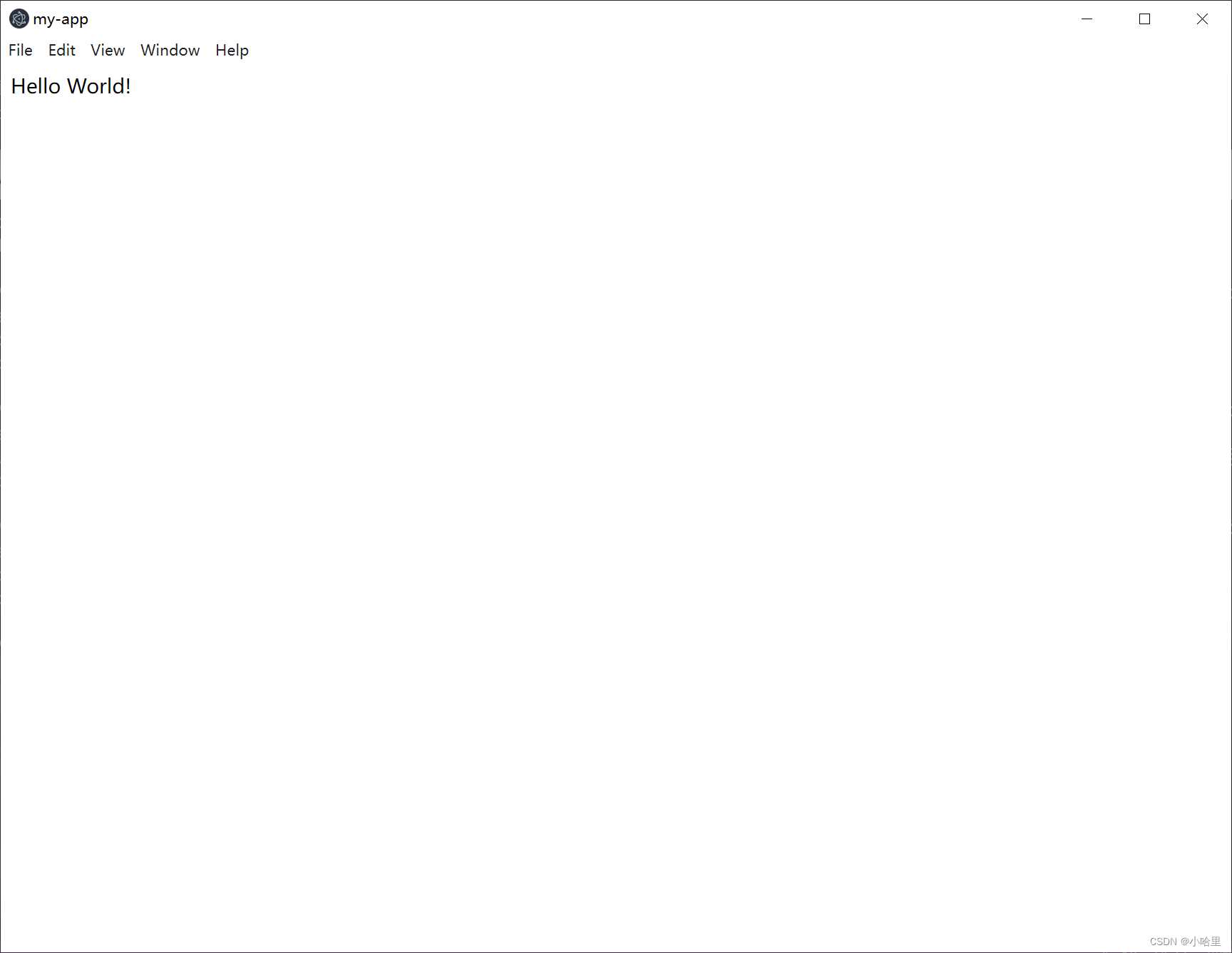
打包URL的方式是一样的,改一下main.js中的内容,使用加载URL方法即可
另外如果想不打包直接运行测试
可以在当前目录直接electron .即可。
3、electron-builder下载出错
-
网络报错1
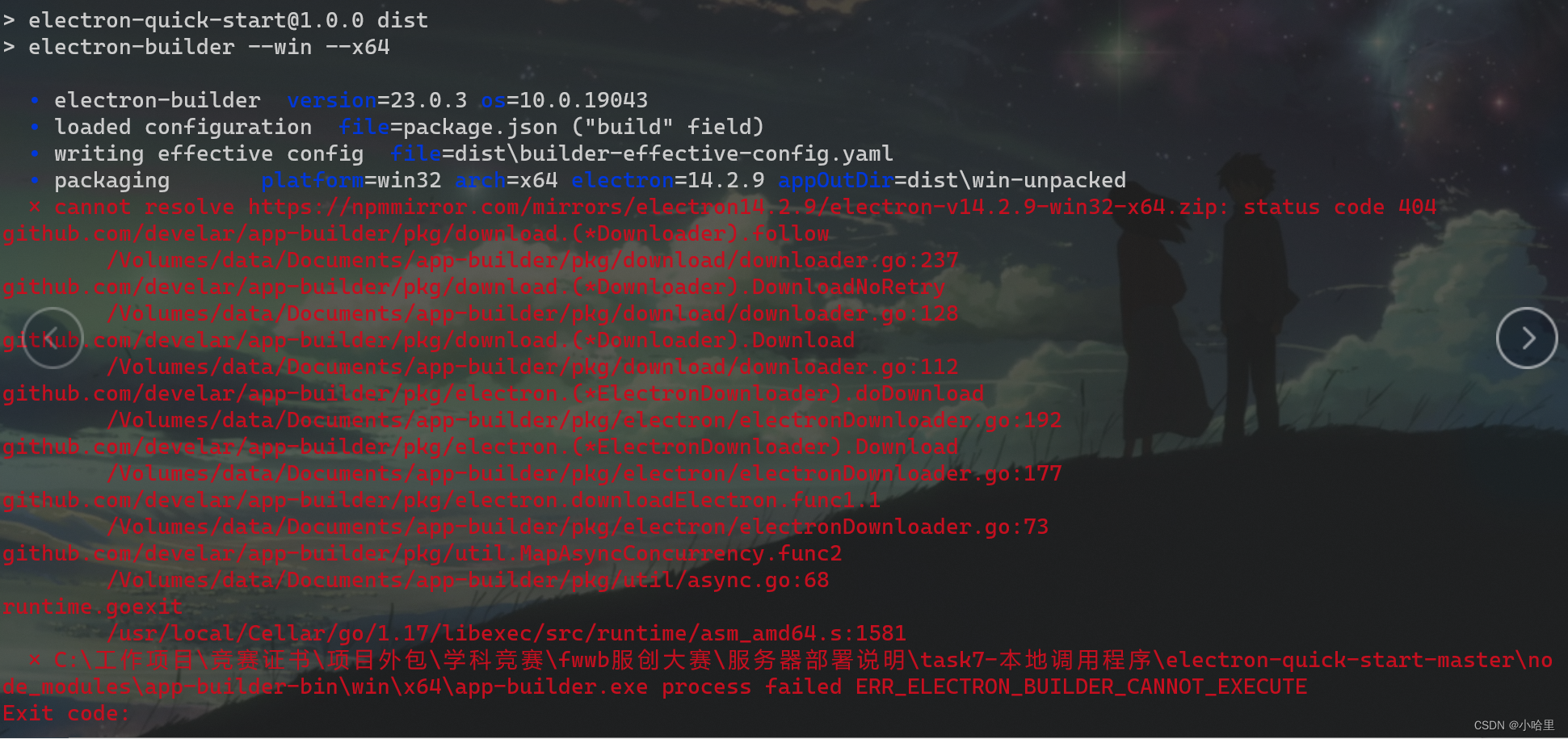
挂在了打包 electron-builder上面
如果本地没有安装electron-builder,npm run dist时先加载依赖https://registry.npmmirror.com/binary.html?path=electron/npm config set ELECTRON_MIRROR=https://npm.taobao.org/mirrors/electron/ npm install electron-builder -
网络报错2:

关于网络报错 https://segmentfault.com/a/1190000023314583打包成安装包错误,下载不来winCodeSign https://github.com/trazyn/weweChat/issues/26 https://github.com/electron-userland/electron-builder/issues/3492 https://github.com/electron-userland/electron-builder/issues/5668 https://blog.csdn.net/qq_32682301/article/details/105234408macOS: ~/Library/Caches/electron-builder Linux: ~/.cache/electron-builder windows: %LOCALAPPDATA%\electron-builder\cache@baochunliang C:\Users\Administrator\AppData\Local\electron-builder\cache 路径下要先建winCodeSign,在把下载的winCodeSign-1.9.0整个文件夹放进去,nsis与nsis-resources同样操作就可以打包成功。 -
缺少jquery
jquery判断是否加载成功
https://www.html.cn/qa/jquery/15411.htmlhttps://github.com/electron/electron/issues/28511
4、使用electron打包springboot
-
参考以下大佬的文章
https://blog.csdn.net/fei565789229/article/details/120176038参考资料: 官方文档:https://www.electronjs.org/zh/docs/latest/tutorial/quick-start Electron入门指南 | 一篇文章看懂Electron封装网页并打包应用 :https://qii404.me/2019/07/10/electron.html electron打包桌面应用:https://juejin.cn/post/6844904159104204814 Electron打包exe的使用:https://www.jianshu.com/p/a8a7820c8bfd 关于 electron-builder 打包遇到的一点点问题:https://xie.infoq.cn/article/ee4b9adcc5a3be2d5678200ca 使用Electron14.0.0打包java web服务为exe-爬坑记录:https://blog.csdn.net/fei565789229/article/details/120176038 -
首先是下载官方的electron-quick-start项目
https://github.com/electron/electron-quick-start
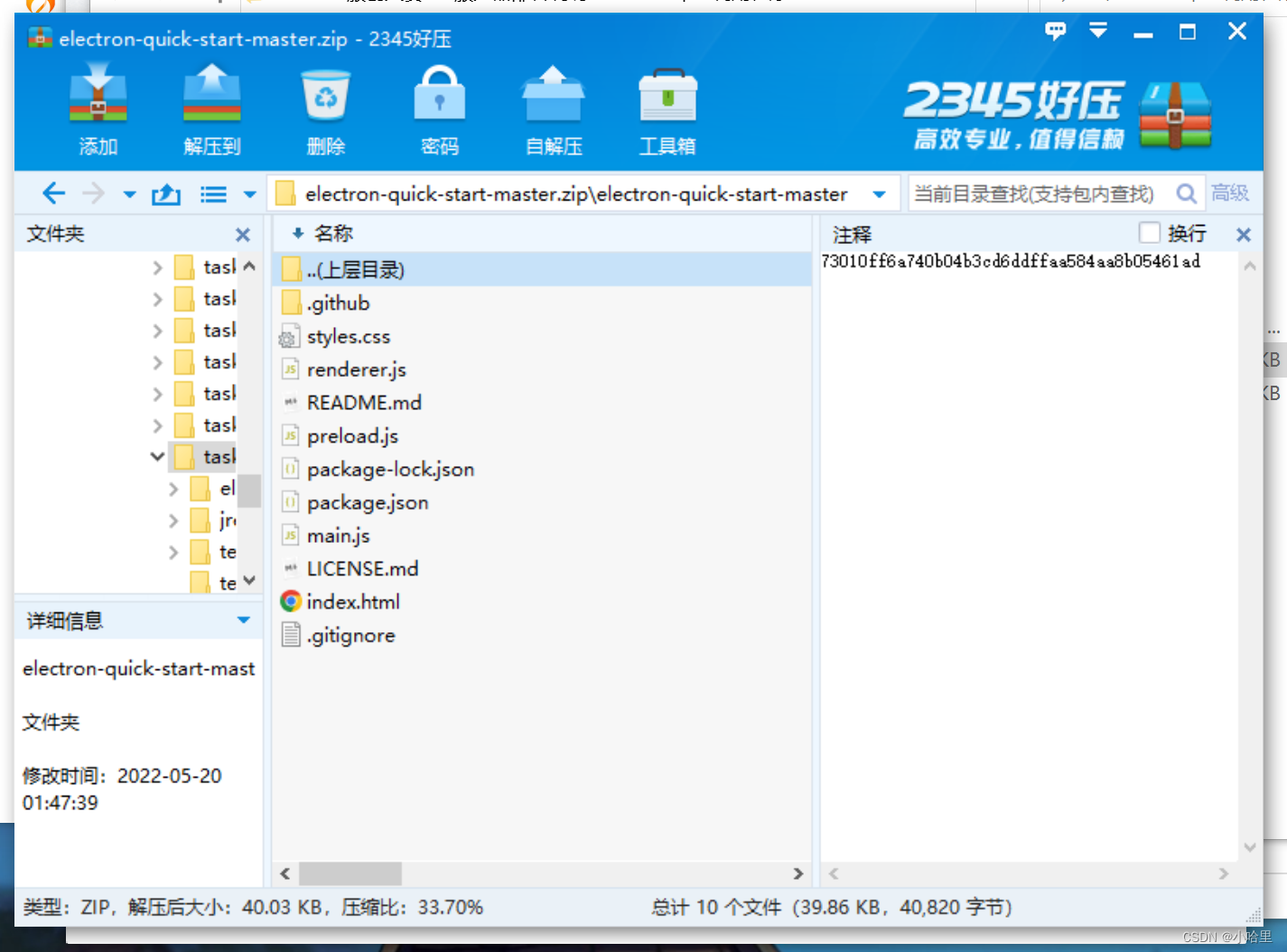
-
然后替换preload.js,修改main.js
preload.js
const { contextBridge } = require('electron')
const { spawn, exec } = require('child_process')
const path = require('path')contextBridge.exposeInMainWorld('myAPI', {startServerForSpawn: () => {let path1 = path.join(__dirname, 'app/ruoyi-admin.jar');const ls = spawn('java', ['-jar', path1]);ls.stdout.on('data', (data) => {if(data.toString().indexOf("Started RuoYiApplication") !== -1){window.location.href="http://localhost:80";}});ls.stderr.on('data', (data) => {console.error(`stderr: ${data}`);alert("启动服务异常");});ls.on('close', (code) => {console.log(`child process exited with code ${code}`);});},startServerForbat: () =>{const bat = spawn(path.join(__dirname, 'my.bat'));bat.stdout.on('data', (data) => {console.log(data.toString());if(data.toString().indexOf("Started RuoYiApplication") !== -1){window.location.href="http://localhost:80";}});bat.stderr.on('data', (data) => {console.error(data.toString());});bat.on('exit', (code) => {console.log(`Child exited with code ${code}`);});}
})
main.js
// Modules to control application life and create native browser window const {app, BrowserWindow} = require('electron') const path = require('path')function createWindow () {// Create the browser window.const mainWindow = new BrowserWindow({width: 800,height: 600,webPreferences: {nodeIntegration:true,contextIsolation:true,preload: path.join(__dirname, 'preload.js')}})// and load the index.html of the app.mainWindow.loadFile('index.html')// Open the DevTools.// mainWindow.webContents.openDevTools() }// This method will be called when Electron has finished // initialization and is ready to create browser windows. // Some APIs can only be used after this event occurs. app.whenReady().then(() => {createWindow()app.on('activate', function () {// On macOS it's common to re-create a window in the app when the// dock icon is clicked and there are no other windows open.if (BrowserWindow.getAllWindows().length === 0) createWindow()}) })// Quit when all windows are closed, except on macOS. There, it's common // for applications and their menu bar to stay active until the user quits // explicitly with Cmd + Q. app.on('window-all-closed', function () {if (process.platform !== 'darwin') app.quit() })// In this file you can include the rest of your app's specific main process // code. You can also put them in separate files and require them here. -
替换package.json
{"name": "electron-quick-start","version": "1.0.0","description": "A minimal Electron application","main": "main.js","scripts": {"start": "electron .","package": "electron-packager . construction --win --out build --arch=x64 --version1.0.0 --overwrite --icon=static/images/128.ico","dist": "electron-builder --win --x64","win32": "electron-builder --win --ia32"},"repository": "https://github.com/electron/electron-quick-start","keywords": ["Electron","quick","start","tutorial","demo"],"author": "GitHub","license": "CC0-1.0","devDependencies": {"electron": "^14.0.0","electron-builder": "^23.0.3"},"build": {"appId": "com.phil.test","copyright": "https://github.com/phil-cheng","productName": "PDF_TO_EPUB","asar": false,"mac": {"target": ["dmg","zip"]},"win": {"target": ["nsis","zip"],"icon": "static/images/256.ico"}} } -
新建两个html
index.htmlDOCTYPE html> <html><head><meta charset="UTF-8"><meta http-equiv="Content-Security-Policy" content=""><title>indextitle>head><body><script src="./static/js/jquery.min.js"> script><script>$(document).ready(function(){$.ajax({timeout: 200,type: 'GET',url: 'http://localhost:8080',data: {},success: function(obj){window.location.href = "http://localhost:8080"},error: function(obj){window.location.href = "loading.html";}})})script>body> html>loading.html
DOCTYPE html> <html><head><meta charset="UTF-8"><title>loadingtitle>head><body><h1>Loadingh1><div>正在启动,请等待!div><script>window.myAPI.startServerForbat();console.log("-----------hello-------------")script>body> html> -
新建app和jre文件夹,新建bat脚本
my.bat脚本:cd ./jre/bin java -jar ../../app/admin.jarapp文件夹中放置打包好的jar文件
jre文件夹中放置可以运行的jre环境 -
最后使用以下命令打包:
npm run dist
本文来自互联网用户投稿,文章观点仅代表作者本人,不代表本站立场,不承担相关法律责任。如若转载,请注明出处。 如若内容造成侵权/违法违规/事实不符,请点击【内容举报】进行投诉反馈!