在Vue 3项目中使用 echarts
记得第一次使用 echarts 还是2019年的时候,那时做的一个物联网项目云平台的前端需要一些数据可视化功能,经过一些对比后就使用了 echarts 。上手非常快,专业性也足够,因此在后来其他的一些项目中就多次用到它。
echarts 是百度基于 JavaScript 实现的一个开源可视化图表库,主要特点就是可视化类型丰富、动画炫酷、使用简单。
这个教程就简单演示如何在 Vue 3 项目中使用 echarts。
一,创建 Vue3 项目并安装 echarts
npm 创建项目:
npm create useecharts
安装 echarts:
npm install echarts --save
二,创建数据可视化组件
通常可来说,我会把数据可视化功能放到单独的组件中来实现:单独获取数据,单独展示数据,只从父组件获取必要的控制字段。
(一)组件内容
创建一个组件 BarGraph:
src/components/BarGraph.vue:<template><div class="echarts-box"><div id="myEcharts" :style="{ width: this.width, height: this.height }">div>div>
template><script>
import * as echarts from "echarts";
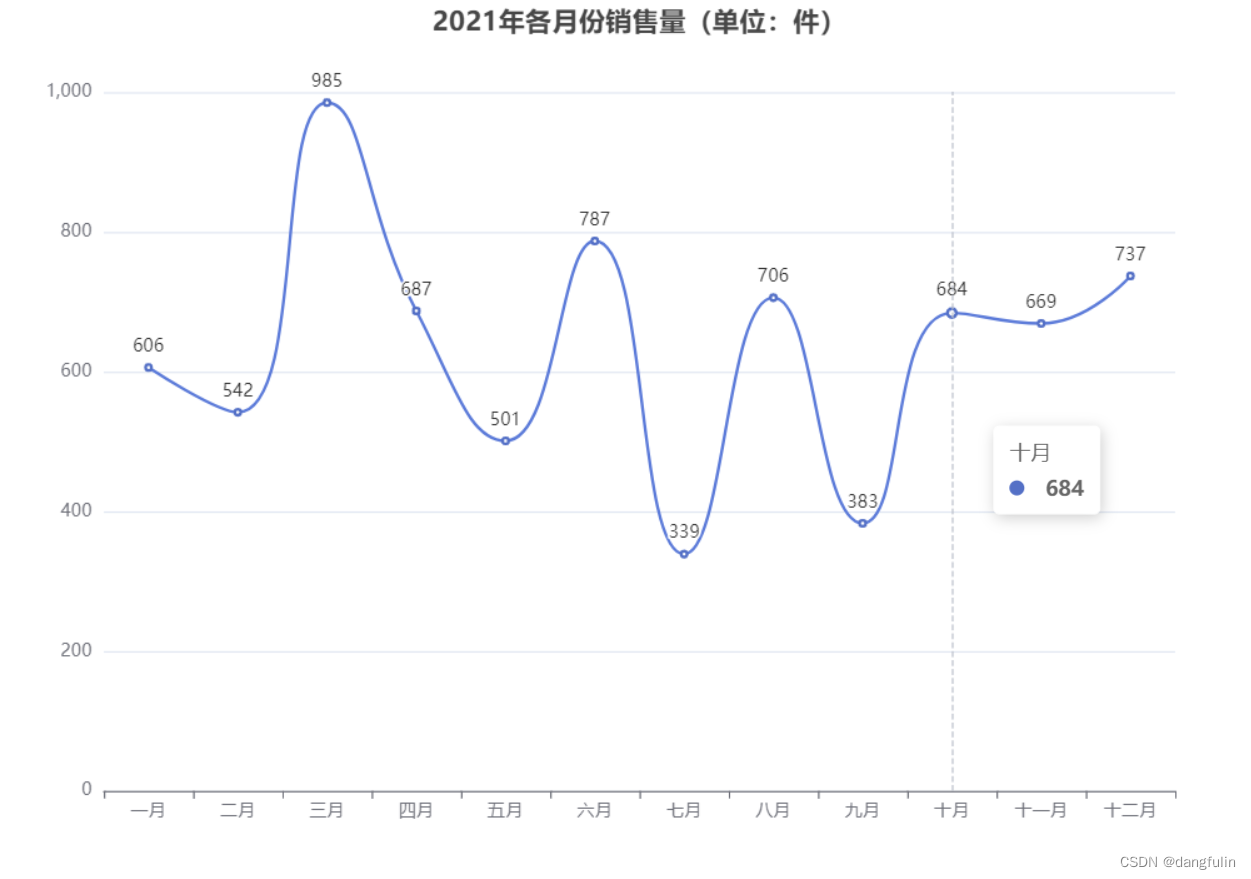
import {onMounted, onUnmounted} from "vue";export default {name: "App",props: ["width", "height"],setup() {let myEcharts = echarts;onMounted(() => {initChart();});onUnmounted(() => {myEcharts.dispose;});function initChart() {let chart = myEcharts.init(document.getElementById("myEcharts"), "purple-passion");chart.setOption({title: {text: "2021年各月份销售量(单位:件)",left: "center",},xAxis: {type: "category",data: ["一月", "二月", "三月", "四月", "五月", "六月", "七月", "八月", "九月", "十月", "十一月", "十二月"]},tooltip: {trigger: "axis"},yAxis: {type: "value"},series: [{data: [606, 542, 985, 687, 501, 787, 339, 706, 383, 684, 669, 737],type: "line",smooth: true,itemStyle: {normal: {label: {show: true,position: "top",formatter: "{c}"}}}}]});window.onresize = function () {chart.resize();};}return {initChart};}
};
script>
(二)使用组件
在父组件中使用上面那个子组件时,只需动态绑定控制数据窗口大小的控制值:
src/App.vue:<template><bar-graph :width="'900px'" :height="'600px'">bar-graph>
template><script>
import BarGraph from "@/components/BarGraph";export default {name: "App",components: {BarGraph},
}
script><style>
#app {
}
style>
效果如下:
(三)程序解释
1,导入 echarts
import * as echarts from "echarts";
通常来说,在哪里实现就在哪里导入,而不是在 main.js 里面全局引入。
2,接收 props
通过 props 接收父组件传入的控制值,这种不写死的方式增加了数据展示大小的灵活性,
3,初始化 echarts
首先以调用 echarts.init() 的方式创建一个 echarts 实例。
这里我们指定了实例容器以及所用的主题。
然后调用 echartsInstance.setOption() 来设置图表实例的配置项以及数据,详见配置项手册。
1,通过 title 设置了图表的标题。
2,通过 xAxis 设置了直角坐标系中的 x 轴。
3,通过 yAxis 设置了直角坐标系中的 y 轴。
4,通过 tooltip 设置了提示框组件。
5,通过在 series 内部的 type 设置图例为柱状图,data 填充数据内容。
初始化工作是在组件的 setup 中完成的。
<template><div class="echarts-box"><div id="myEcharts" :style="{ width: this.width, height: this.height }">div>div>
template><script>
// 导入 ECharts
import * as echarts from "echarts";
import {onMounted, onUnmounted} from "vue";export default {name: "App",props: ["width", "height"],setup() {let myEcharts = echarts;// 挂载时初始化图表onMounted(() => {initChart();});// 卸载时销毁图表onUnmounted(() => {// 销毁图表myEcharts.dispose;});function initChart() {// 基于准备好的dom,初始化echarts实例let chart = myEcharts.init(document.getElementById("myEcharts"), "purple-passion");chart.setOption({// 设置图表的标题title: {// 设置标题文本text: "2021年各月份销售量(单位:件)",// title 组件离容器左侧的距离left: "center",},// 设置图表的 X 轴xAxis: {// 数据类型为离散的类目数据type: "category",// 设置 X 轴数据data: ["一月", "二月", "三月", "四月", "五月", "六月", "七月", "八月", "九月", "十月", "十一月", "十二月"]},// 设置提示框组件tooltip: {// 设置提示框的触发条件trigger: "axis"},// 设置图表的 Y 轴yAxis: {// 数据类型为连续的数值数据type: "value"},// 设置图表的图例series: [{// 图例中要展示的数据data: [606, 542, 985, 687, 501, 787, 339, 706, 383, 684, 669, 737],// 设置图表的类型为折线图type: "line",// 平滑曲线smooth: true,// 在顶部显示数据itemStyle: {normal: {label: {show: true,position: "top",formatter: "{c}"}}}}]});// 大小自适应窗口大小变化window.onresize = function () {// 重置容器高宽chart.resize();};}return {initChart};}
};
script>
三,响应式刷新
data property 中的数据本身就是响应式的,但有时其中数据发生变化时,图表并不跟随变化。
通常来说,data property 中要展示的数据都是从后台服务器中获取的,而这些数据通常是不断变化的,因此需要为图表添加一个响应式刷新的功能,
最简单的方式,就是使用 watch property 监听数据源变化,Echarts是数据驱动的,这意味着只要我们重新设置数据,图表就会重新渲染,
<script>
// 导入 ECharts
import * as echarts from "echarts";export default {name: "App",props: ["width", "height"],data() {return {// 数据源一,从服务器获得postTitle: [...],// 数据源二,从服务器获得postLikes: [...],myEcharts: {},option: {// 设置图表的 X 轴xAxis: {// 数据类型为离散的类目数据type: "category",// 设置 X 轴数据data: this.postTitle,},// 设置图表的 Y 轴yAxis: {// 数据类型为连续的数值数据type: "value",},// 设置图表的图例series: [{// 图例中要展示的数据data: this.postLikes,// 设置图表的类型为柱状图type: "bar",}]},}},...watch: {// 如果 postTitle 发生变化,则重新渲染图表postTitle: {handler: function (newVal, oldVal) {if (newVal !== oldVal) {this.option.xAxis.data = this.postTitle;// 横坐标变化,纵坐标也相应变化this.option.series[0].data = this.postLikes;// 重新渲染图表this.myEcharts.setOption(this.option);}},deep: true},postLikes: {handler: function (newVal, oldVal) {if (newVal !== oldVal) {this.option.series[0].data = this.postLikes;this.myEcharts.setOption(this.option);}},deep: true}}
};
script>
更进一步,对于有实时性要求的数据,比如物联网传感器数据,自然要实时动态刷新才行。
有两种方法:
- 前端定时向后端请求数据。
- 后端通过长连接定时向前端发送数据。
这里简单说说如何使用第一种方法。说来也简单,就是使用定时器周期性请求数据。
只不过有一个小坑坑(如果明白Echarts是数据驱动的,就不算):不正确地填充数据将导致数据堆叠,比如:
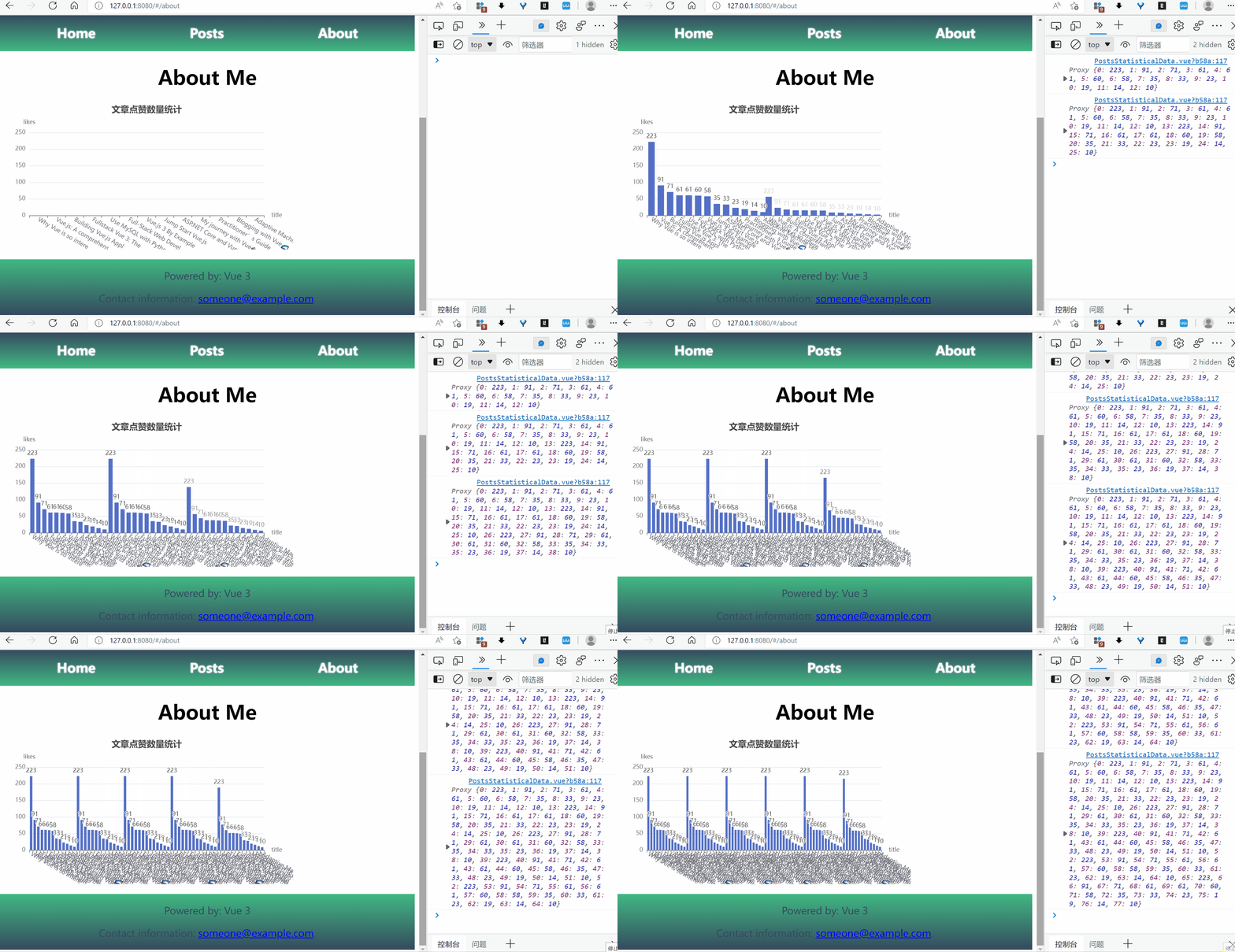
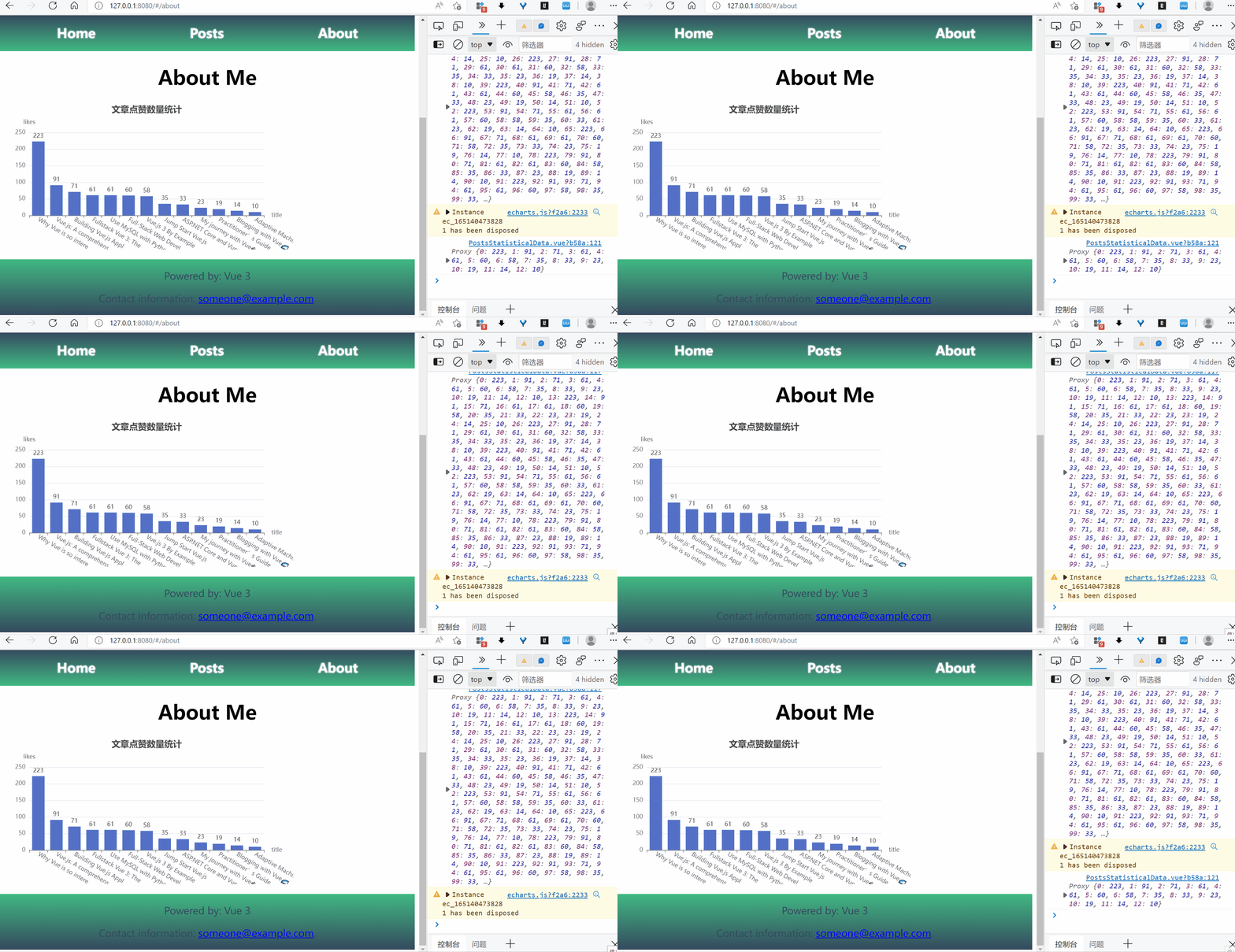
只需要在刷新数据之前清空数据源和图表中的 data 就行。
更多功能可扩展:
- 多 X 轴轴切换:

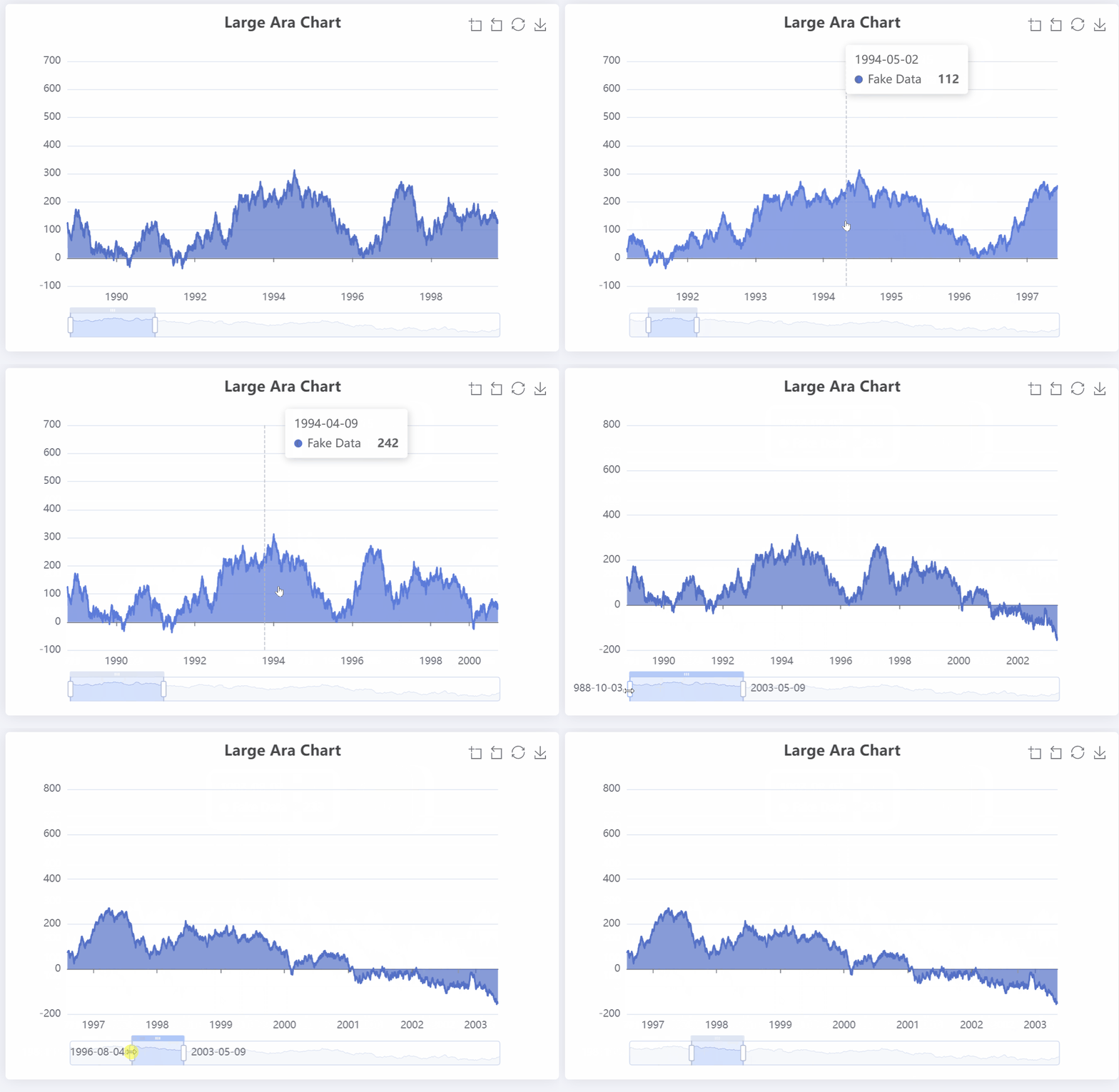
- 数据区域缩放:
本文来自互联网用户投稿,文章观点仅代表作者本人,不代表本站立场,不承担相关法律责任。如若转载,请注明出处。 如若内容造成侵权/违法违规/事实不符,请点击【内容举报】进行投诉反馈!