vscode中vue代码格式相关设置,(个人观点)
目录
设置tab为2空格:
生成代码格式设置:
我的VScode代码格式化,setting.json配置
使用时发现vscode中vue文件的代码块不能折叠
选中变量高亮提醒相同内容
vscode关闭当前光标所在变量自动高亮
代码格式化参考:
在Vscode中配置Vetur,ESlint,Prettier(转载) - 浅巷深念 - 博客园 (cnblogs.com)
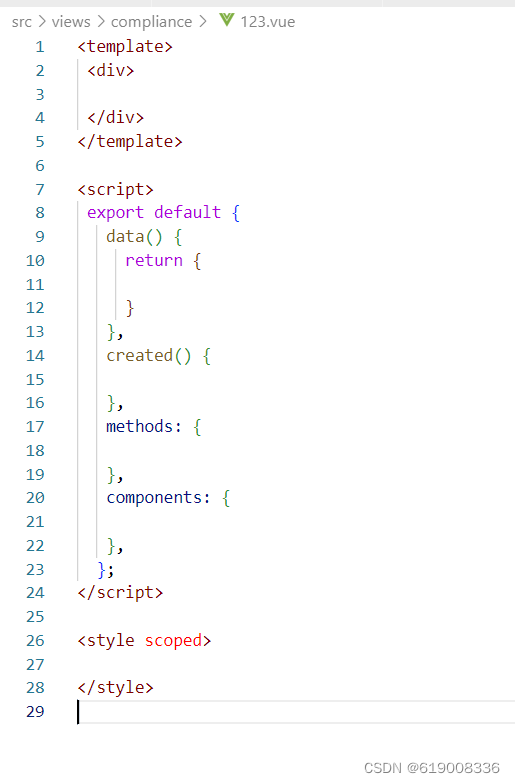
设置完在文件夹中新建xxx.vue,打开后在第一行写vue就可以快速生成
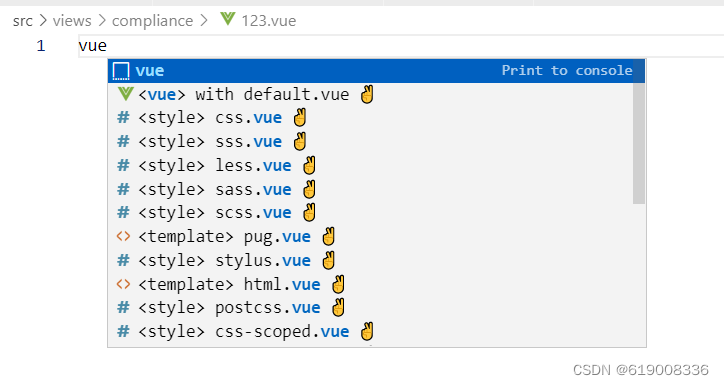
效果如下:
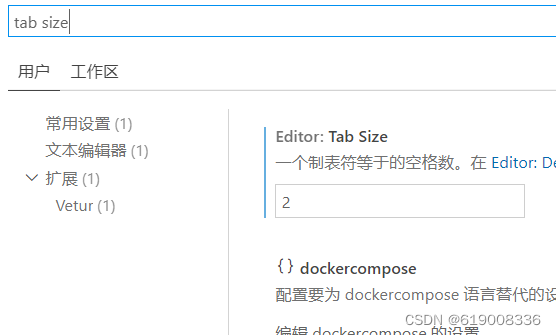
设置tab为2空格:
点击左下角的设置,选择设置在设置中搜索tab size,设置成2,这样tab就改为默认的2个空格

生成代码格式设置:
点击用户代码片段
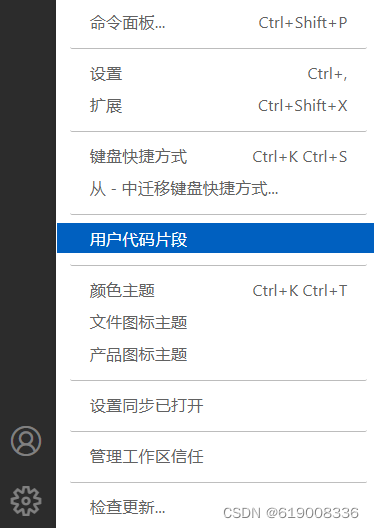
选择下面的vue.json(vue)

把下面的代码复制到其中
{"Print to console": {"prefix": "vue" ,"body": ["" ," " ," " ," " ,"" ,"" ,"\n" ,"" ,"$2"],"description": "Log output to console"}
}我的VScode代码格式化,setting.json配置
{// 导入文件时是否携带文件的拓展名"path-autocomplete.extensionOnImport": true,// 配置@的路径提示"path-autocomplete.pathMappings": {"@": "${folder}/src"},"workbench.startupEditor": "none","path-autocomplete.excludedItems": {},//忽略找不到`tsconfig.json` or `jsconfig.json` "vetur.ignoreProjectWarning": true,"vetur.completion.scaffoldSnippetSources": {"workspace": "💼","user": "🗒️","vetur": "✌"},// vscode默认启用了根据文件类型自动设置tabsize的选项// "editor.detectIndentation": false,// 重新设定tabsize 缩进值为2"editor.tabSize": 2,"liveServer.settings.useBrowserPreview": true,"vscode-edge-devtools.fallbackRevision": "@a41122be052fe9616f0def5fe6842fa942930d46",//  #去掉代码结尾的分号"prettier.semi": false,// 添加 vue 支持"eslint.validate": ["javascript","javascriptreact","vue",],"vetur.format.defaultFormatter.js": "vscode-typescript",// #让vue中的js按"prettier"格式进行格式化// "vetur.format.defaultFormatter.js": "prettier","vetur.format.defaultFormatterOptions": {"js-beautify-html": {// #vue组件中html代码格式化样式"wrap_attributes": "force-aligned", //也可以设置为“auto”,效果会不一样"wrap_line_length": 200,"end_with_newline": false,"semi": false,"singleQuote": true},"prettier": {// Prettier option here"trailingComma": "es5", // 多行时,尽可能打印尾随的逗号"tabWidth": 2, // 会忽略vetur的tabSize配置"useTabs": false, // 是否利用tab替代空格"semi": true, // 句尾是否加;"singleQuote": true, // 使用单引号而不是双引号"arrowParens": "avoid", // allow paren-less arrow functions 箭头函数的参数使用圆括号}},//每次保存的时候将代码按eslint格式进行修复"editor.codeActionsOnSave": {"source.fixAll.eslint": true},//保存时自动格式化"editor.formatOnSave": true,"editor.foldingStrategy": "indentation","window.zoomLevel": 1,"workbench.colorCustomizations": {//当前选项卡颜色"tab.activeBackground": "#888888",//与选中同内容"editor.selectionHighlightBackground": "#828000",// "editor.selectionHighlightBorder": "#ecd9d9"},
}
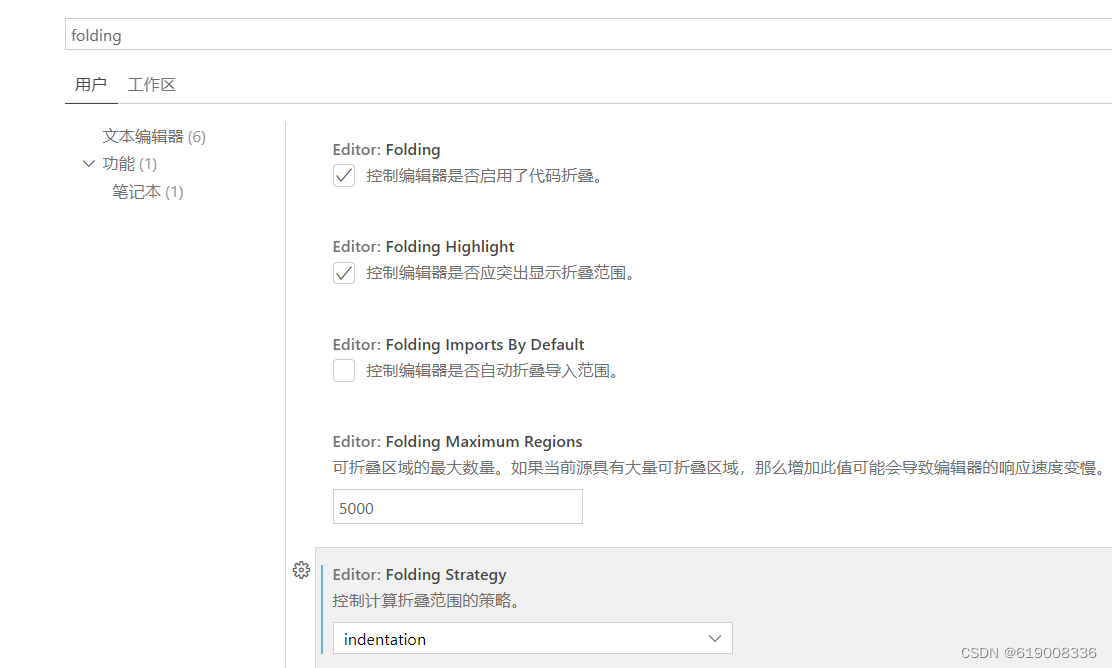
使用时发现vscode中vue文件的代码块不能折叠
可以在Ctrl+,的设置中搜索folding,找到floding strategy默认是auto,设置为indentation就可以折叠代码块了
选中变量高亮提醒相同内容
vscode 选中后相同内容高亮的设置 - bp9jISKIN - 博客园
在设置中搜索 workbench.colorCustomizations, 在setting.json中编辑
"workbench.colorCustomizations": {//选中变量高亮+边框"editor.selectionHighlightBackground": "#a2bbf8","editor.selectionHighlightBorder": "#ecd9d9"},vscode关闭当前光标所在变量自动高亮
设置中搜索occurrencesHighlight,取消勾选

Idea 主题导入导出
file->manager idea settings下导入导出
私人存储在阿里云盘
本文来自互联网用户投稿,文章观点仅代表作者本人,不代表本站立场,不承担相关法律责任。如若转载,请注明出处。 如若内容造成侵权/违法违规/事实不符,请点击【内容举报】进行投诉反馈!