如何对整个 WPF 应用程序进行灰度
如何对整个 WPF 应用程序进行灰度
控件名:GrayscaleEffect
作 者:WPFDevelopersOrg - 驚鏵
原文链接[1]:https://github.com/WPFDevelopersOrg/WPFDevelopers 简易源码[2]
框架使用
.NET40;Visual Studio 2019;如果要实现灰度第一反是使用主题色更改,但是使用主题色需要重新配色比较慢,需
Effect类派生以实现自定义位图效果,将使用ShaderEffect[3]进行更改灰度,从ShaderEffect类派生,以基于单个像素着色器实现自定义效果。必须安装
.NET Framework 3.5 sp1或更高版本才能正常工作。
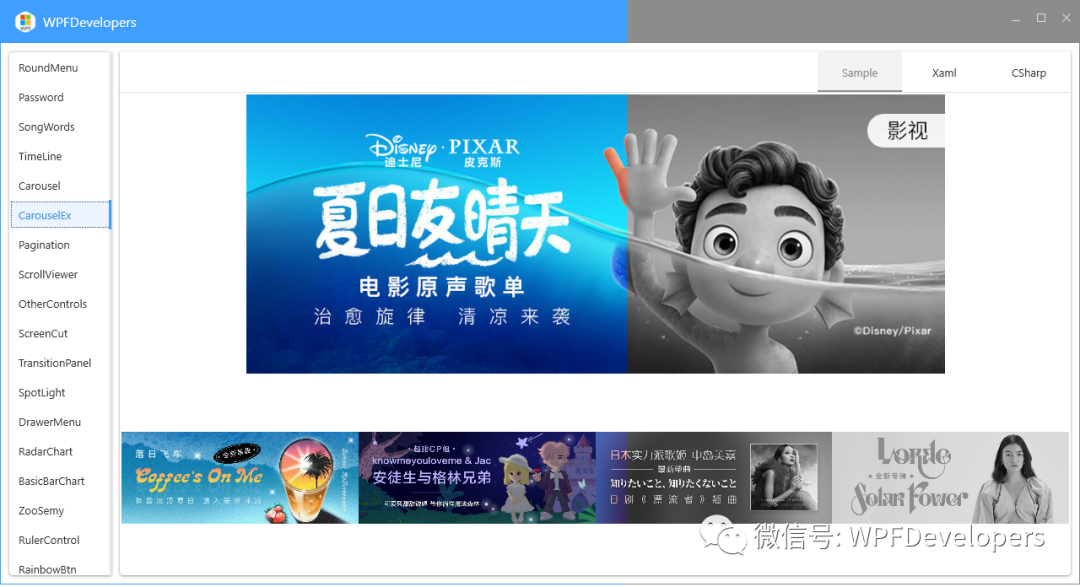
需要安装
DirectX SDK才能编译像素着色器效果。PixelShader[4]从预编译的高级着色语言 (
HLSL) 字节代码加载 。定义表示效果参数和基于表面输入的
Brush依赖属性。使用其中 RegisterPixelShaderSamplerProperty[5] 一个重载将这些输入与HLSL字节码中引用的寄存器号相关联。DirectX SDK[6]
下载完成
DirectX SDK安装完成。
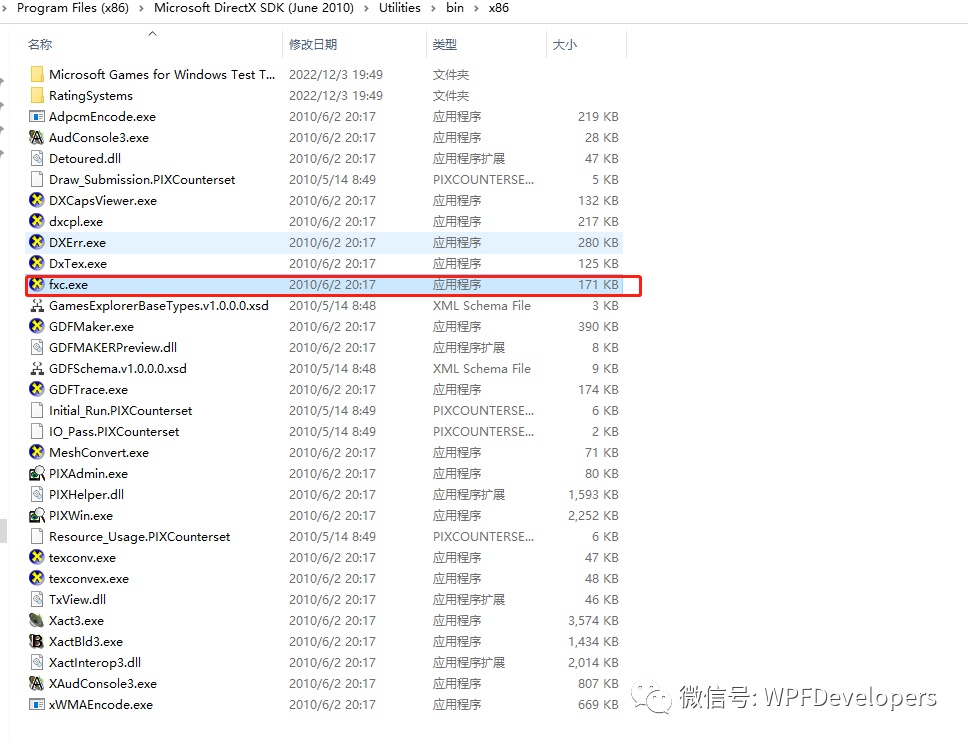
到安装目录下
\Utilities\bin\x86执行以下命令,就会输出.ps文件。Nuget 最新[7]
Install-Package WPFDevelopers1.0.9.5-previewNuget 最新[8]
Install-Package WPFDevelopers.Minimal1.0.0.1-preview推荐使用Shazzam Shader Editor[9]进行编辑。
1) GrayscaleEffect.hlsl 代码如下:
sampler2D implicitInput : register(s0);
float factor : register(c0);/// The brightness offset.
/// -1
/// 1
/// 0
float brightness : register(c1);float4 main(float2 uv : TEXCOORD) : COLOR
{float4 pixelColor = tex2D(implicitInput, uv);pixelColor.rgb /= pixelColor.a;// Apply brightness.pixelColor.rgb += brightness;// Return final pixel color.pixelColor.rgb *= pixelColor.a;float4 color = pixelColor;float pr = .299;float pg = .587;float pb = .114;float gray = sqrt(color.r * color.r * pr + color.g * color.g * pg + color.b * color.b * pb);float4 result;    result.r = (color.r - gray) * factor + gray;result.g = (color.g - gray) * factor + gray;result.b = (color.b - gray) * factor + gray;result.a = color.a;return result;
}2)执行命令 代码如下:
fxc /T ps_2_0 /Fo E:\GrayscaleEffect\GrayscaleEffect.ps E:\GrayscaleEffect\GrayscaleEffect.hlsl
3)得到以下文件
4)新建GrayscaleEffect.cs 代码如下:
using System;
using System.Windows;
using System.Windows.Media;
using System.Windows.Media.Effects;namespace WPFDevelopers
{public class GrayscaleEffect : ShaderEffect{/// /// Identifies the Input property./// public static readonly DependencyProperty InputProperty = RegisterPixelShaderSamplerProperty("Input", typeof(GrayscaleEffect), 0);/// /// Identifies the Factor property./// public static readonly DependencyProperty FactorProperty = DependencyProperty.Register("Factor", typeof(double), typeof(GrayscaleEffect), new UIPropertyMetadata(0D, PixelShaderConstantCallback(0)));/// /// Identifies the Brightness property./// public static readonly DependencyProperty BrightnessProperty = DependencyProperty.Register("Brightness", typeof(double), typeof(GrayscaleEffect), new UIPropertyMetadata(0D, PixelShaderConstantCallback(1)));/// /// Creates a new instance of the public GrayscaleEffect(){var pixelShader = new PixelShader();pixelShader.UriSource = new Uri("WPFDevelopers;component/Effects/GrayscaleEffect.ps", UriKind.Relative);PixelShader = pixelShader;UpdateShaderValue(InputProperty);UpdateShaderValue(FactorProperty);UpdateShaderValue(BrightnessProperty);}/// /// Gets or sets the public Brush Input{get => ((Brush)(GetValue(InputProperty)));set => SetValue(InputProperty, value);}/// /// Gets or sets the factor used in the shader./// public double Factor{get => ((double)(GetValue(FactorProperty)));set => SetValue(FactorProperty, value);}/// /// Gets or sets the brightness of the effect./// public double Brightness{get => ((double)(GetValue(BrightnessProperty)));set => SetValue(BrightnessProperty, value);}}
}5)使用Window.Xaml 代码如下,默认原色:
6)使用Window.Xaml.cs 灰度代码如下:
private void tbGrayscale_Checked(object sender, RoutedEventArgs e){Create(0);}void Create(double to){var sineEase = new SineEase() { EasingMode = EasingMode.EaseOut };var doubleAnimation = new DoubleAnimation{To = to,Duration = TimeSpan.FromMilliseconds(1000),EasingFunction = sineEase};grayscaleEffect.BeginAnimation(GrayscaleEffect.FactorProperty, doubleAnimation);}private void tbGrayscale_Unchecked(object sender, RoutedEventArgs e){Create(1);}
参考资料
[1]
原文链接: https://github.com/WPFDevelopersOrg/WPFDevelopers
[2]简易源码: https://github.com/yanjinhuagood/WPFApplicationGrayscale
[3]ShaderEffect: https://learn.microsoft.com/zh-cn/dotnet/api/system.windows.media.effects.shadereffect?view=windowsdesktop-7.0
[4]PixelShader: https://learn.microsoft.com/zh-cn/dotnet/api/system.windows.media.effects.pixelshader?view=windowsdesktop-7.0
[5]RegisterPixelShaderSamplerProperty: https://learn.microsoft.com/zh-cn/dotnet/api/system.windows.media.effects.shadereffect.registerpixelshadersamplerproperty?view=windowsdesktop-7.0
[6]DirectX SDK: https://www.microsoft.com/zh-cn/download/details.aspx?id=6812
[7]Nuget : https://www.nuget.org/packages/WPFDevelopers/
[8]Nuget : https://www.nuget.org/packages/WPFDevelopers.Minimal/
[9]Shazzam Shader Editor: https://github.com/JohanLarsson/Shazzam
本文来自互联网用户投稿,文章观点仅代表作者本人,不代表本站立场,不承担相关法律责任。如若转载,请注明出处。 如若内容造成侵权/违法违规/事实不符,请点击【内容举报】进行投诉反馈!