Unity中视切角转盘UI的实现
在游戏中,动态的UI设计常常会造成更好的用户体验和更流畅的操作反馈。
其中,视切角轮盘是其中常用的一种。其好处在于可以在显示转盘中所有选项的同时,将其所在的矩形区域调整至符合窗口显示的比例。
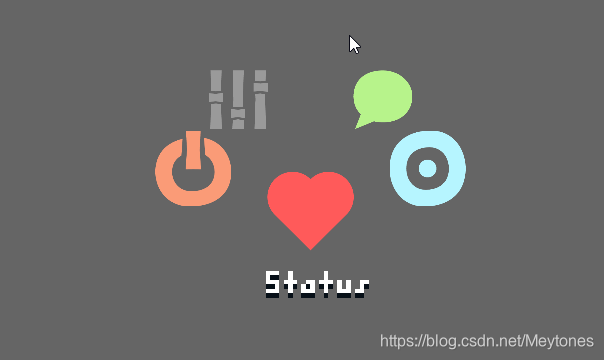
实现思路
游戏开发就是一个将脑中构建的物理逻辑转换为界面上素材显示的逻辑的过程。在这个视切角轮盘的运作过程中,其物理过程为:
- 所有的选项在三维空间中呈圆形分布,其位置取决于圆心位置center、圆的半径R,以及所在位置在圆上的角度θ。
- 我们在观察角度上视切角α以斜方向观察,因此产生前后交替以及近大远小的视觉效果。

以上过程描述了视切角轮盘在真实的物理世界运作的机理,将其映射至纯粹的显示空间中:
-
其空间位置(x,y)遵循如下关系:
x = center.x + R*cos(θ)y = center.y + R*sin(θ)*cos(α) -
“近大院小”即是图形大小随z轴位置变化。在假想的三维空间中,其z轴坐标应为:
z = center.z + R*sin(θ)*sin(α)
此时即可以将该选项的localScale设置为随z轴位置变化大小的函数即可。(我这里直接使用了一个线性函数)
代码实现
using System.Collections;
using System.Collections.Generic;
using UnityEngine;
using UnityEngine.UI;
//控制单个选项位置与显示
public class CoronaButton : MonoBehaviour
{RectTransform thistf;GameObject buttonText;float theta;    //当前button在轮盘中所处角度readonly float sightAngle = Mathf.PI / 6;  //视切角大小float primeScale;	//起始的图标大小Vector3 center;float radius;void Awake(){thistf = this.GetComponent<RectTransform>();buttonText = this.GetComponentInChildren<Text>().gameObject;primeScale = thistf.localScale.x;}//设置初始角度public void SetCenter(Vector3 input,int radius){center = input;this.radius = radius;}//直接改变圆域极坐标角度public void SetTheta(float neoTheta){theta = neoTheta;//控制在-pi到pi之间theta -= theta > Mathf.PI ? (Mathf.PI * 2) : 0;theta += theta < -1 * Mathf.PI ? (Mathf.PI * 2) : 0;thistf.anchoredPosition3D = center + radius * new Vector3(Mathf.Cos(theta), Mathf.Sin(theta) * Mathf.Sin(sightAngle), -1 * Mathf.Sin(theta) * Mathf.Cos(sightAngle));//根据z轴改变localScale大小thistf.localScale = new Vector3(primeScale * (1 + thistf.position.z / radius / 5), primeScale * (1 + thistf.position.z / radius / 5), thistf.localScale.z);//控制只有正面的一个按钮显示文字buttonText.SetActive(Mathf.Abs(theta + Mathf.PI / 2) < Mathf.PI / 15);this.GetComponent<Button>().interactable = Mathf.Abs(theta + Mathf.PI / 2) < Mathf.PI / 15;}//旋转时的角度连续变化public void MoveTheta(float addTheta){theta += addTheta;//控制在-pi到pi之间theta -= theta > Mathf.PI ? (Mathf.PI * 2) : 0;theta += theta < -1 * Mathf.PI ? (Mathf.PI * 2) : 0;thistf.anchoredPosition3D = center + radius * new Vector3(Mathf.Cos(theta), Mathf.Sin(theta) * Mathf.Sin(sightAngle), -1 * Mathf.Sin(theta) * Mathf.Cos(sightAngle));thistf.localScale = new Vector3(primeScale * (1 + thistf.position.z / radius / 5), primeScale * (1 + thistf.position.z / radius / 5), thistf.localScale.z);buttonText.SetActive(Mathf.Abs(theta + Mathf.PI / 2) < Mathf.PI / 15);this.GetComponent<Button>().interactable = Mathf.Abs(theta + Mathf.PI / 2) < Mathf.PI / 15;}
}
using System.Collections;
using UnityEngine;
//控制整个轮盘进行统一的角度变化
public class CoronaManager : MonoBehaviour
{CoronaButton[] buttons;[SerializeField]Vector3 buttonDownPos, buttonUpPos,curMousePos,preMousePos, mouseMove;private void Awake(){buttons = this.GetComponentsInChildren<CoronaButton>();}// Start is called before the first frame updatevoid Start(){//初始化轮盘属性for (int i = 0; i < buttons.Length; i++){buttons[i].SetCenter(new Vector3(0, 0, 0), 100);buttons[i].SetTheta(Mathf.PI * 2 * i / buttons.Length - Mathf.PI / 2);}}// Update is called once per framevoid Update(){//根据鼠标操作不,设定运动速度if (Input.GetMouseButtonDown(0)){buttonDownPos = Input.mousePosition;preMousePos = Input.mousePosition;StopAllCoroutines();}if (Input.GetMouseButton(0)){curMousePos = Input.mousePosition;for (int i = 0; i < buttons.Length; i++){buttons[i].MoveTheta(((curMousePos.x - preMousePos.x) > 300 ? 300 : (curMousePos.x - preMousePos.x)) / 350f); }preMousePos = Input.mousePosition;}if (Input.GetMouseButtonUp(0)){buttonUpPos = Input.mousePosition;mouseMove = buttonUpPos - preMousePos;StartCoroutine(Turn((mouseMove.x > 100 ? 100 : mouseMove.x) / 30f));}}//轮盘旋转的协程IEnumerator Turn(float primeAngleSpeed){float curAngleSpeed = primeAngleSpeed;while (curAngleSpeed < 0){for (int i = 0; i < buttons.Length; i++){buttons[i].MoveTheta(curAngleSpeed * Time.deltaTime);}curAngleSpeed = curAngleSpeed + Time.deltaTime * 2;yield return 0;}}
}
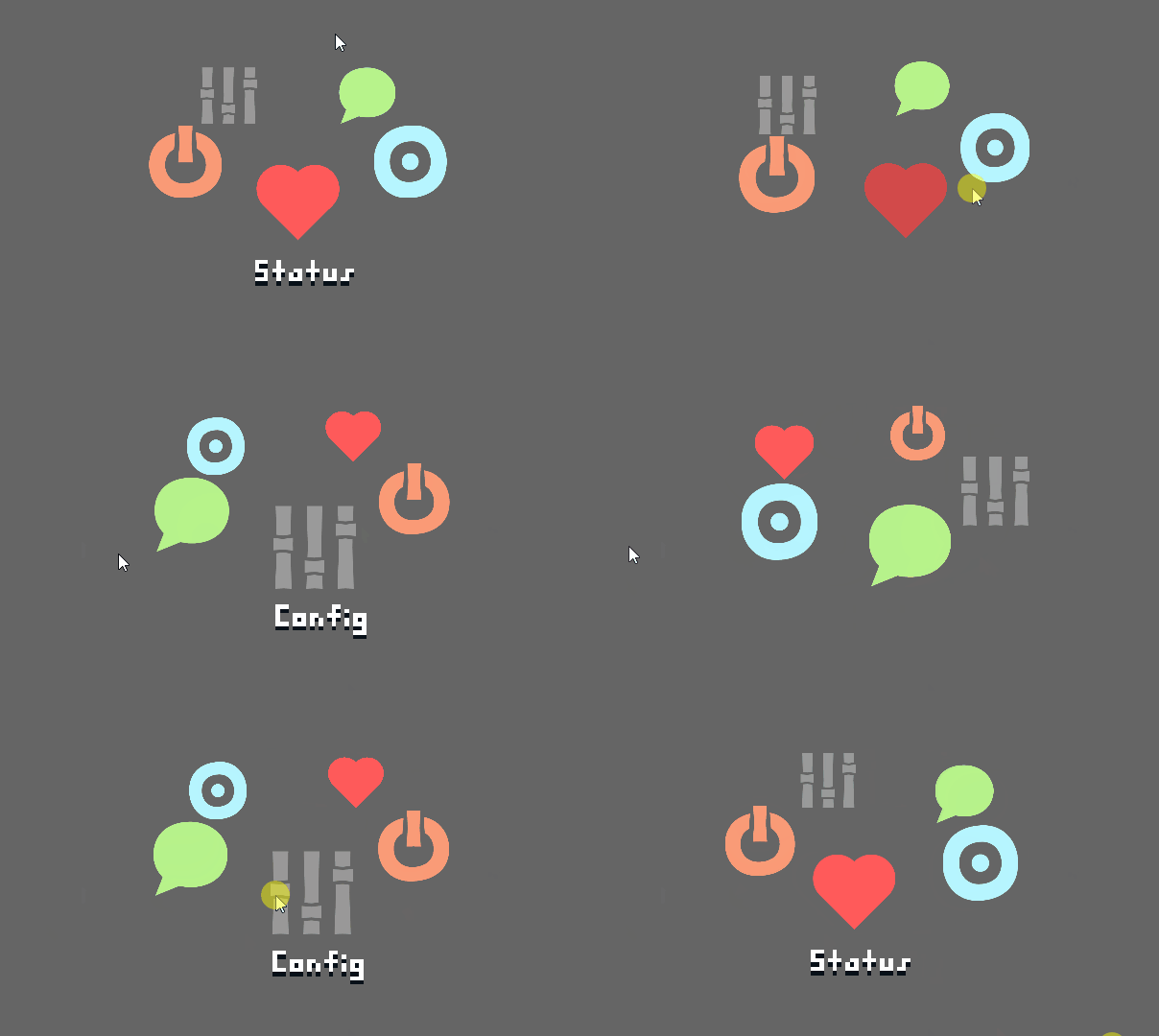
最终实现效果如下:
总结
视切角轮盘作为常用的UI设计之一,其设计思想可以延伸至书页UI、机械轮盘UI等多种UI设计中,其中涉及的延展UI设计思路也是千变万化。这里仅时作为一个基础功能实现的思路与参考。
谢谢大家看到这里!我写博客的初衷是为了总结自己的学习过程和思路,希望它也能帮到您,如果这篇文章对您有帮助,请顺手点个赞,谢谢!
本文来自互联网用户投稿,文章观点仅代表作者本人,不代表本站立场,不承担相关法律责任。如若转载,请注明出处。 如若内容造成侵权/违法违规/事实不符,请点击【内容举报】进行投诉反馈!