自定义View详解之时钟实战
引言
在我们平时做的项目中,基本上都会用到自定义View来满足我们的页面设计需求,一些基本的知识我们大家都是比较清楚的,可是一些详细的知识,我们可能接触了解的比较少,这次大家就跟一起来熟悉回顾一下吧。
知识前瞻
在我们学习之前我们先可以简答的去看一下View的源码,加上注释之类的,总共是2w多行,有些人看到这个数字就被吓到了,确实View的源码行数是比较多的了,但是里面很多的知识,我们在日常的使用中都已经见过了,我们看起来也不会很累,所以,建议大家还是看一下,加强自己的忍耐力和阅读源码的能力,奥利给!
流程介绍
构造方法
/*** Simple constructor to use when creating a view from code.** @param context The Context the view is running in, through which it can* access the current theme, resources, etc.*/
public View(Context context)/*** Constructor that is called when inflating a view from XML. This is called* when a view is being constructed from an XML file, supplying attributes* that were specified in the XML file. This version uses a default style of* 0, so the only attribute values applied are those in the Context's Theme* and the given AttributeSet.** * The method onFinishInflate() will be called after all children have been* added.** @param context The Context the view is running in, through which it can* access the current theme, resources, etc.* @param attrs The attributes of the XML tag that is inflating the view.* @see #View(Context, AttributeSet, int)*/
public View(Context context, @Nullable AttributeSet attrs)/*** Perform inflation from XML and apply a class-specific base style from a* theme attribute. This constructor of View allows subclasses to use their* own base style when they are inflating. For example, a Button class's* constructor would call this version of the super class constructor and* supply R.attr.buttonStyle for defStyleAttr; this* allows the theme's button style to modify all of the base view attributes* (in particular its background) as well as the Button class's attributes.** @param context The Context the view is running in, through which it can* access the current theme, resources, etc.* @param attrs The attributes of the XML tag that is inflating the view.* @param defStyleAttr An attribute in the current theme that contains a* reference to a style resource that supplies default values for* the view. Can be 0 to not look for defaults.* @see #View(Context, AttributeSet)*/
public View(Context context, @Nullable AttributeSet attrs, int defStyleAttr)/*** Perform inflation from XML and apply a class-specific base style from a* theme attribute or style resource. This constructor of View allows* subclasses to use their own base style when they are inflating.*
* When determining the final value of a particular attribute, there are* four inputs that come into play:*
* - Any attribute values in the given AttributeSet.*
- The style resource specified in the AttributeSet (named "style").*
- The default style specified by defStyleAttr.*
- The default style specified by defStyleRes.*
- The base values in this theme.*
* * Each of these inputs is considered in-order, with the first listed taking* precedence over the following ones. In other words, if in the* AttributeSet you have supplied <Button * textColor="#ff000000">* , then the button's text will always be black, regardless of* what is specified in any of the styles.** @param context The Context the view is running in, through which it can* access the current theme, resources, etc.* @param attrs The attributes of the XML tag that is inflating the view.* @param defStyleAttr An attribute in the current theme that contains a* reference to a style resource that supplies default values for* the view. Can be 0 to not look for defaults.* @param defStyleRes A resource identifier of a style resource that* supplies default values for the view, used only if* defStyleAttr is 0 or can not be found in the theme. Can be 0* to not look for defaults.* @see #View(Context, AttributeSet, int)*/
public View(Context context, @Nullable AttributeSet attrs, int defStyleAttr, int defStyleRes)
View一共四个构造方法,各个构造方面的用途在方法的描述中已经写了,我这里就不再赘述了。
关键方法
想要知道自定义View我们一般常用的那几个关键方法,我们可以简单的想一想。画一个东西,我们需要做哪些操作,测量一下这个物品的大小,物品放在那个位置,物品有哪些内容,物品是否可以移动等等,做完简单的这些,这个物品基本上就被我们画出来了,其他的知识一些细化的东西。
protected void onMeasure(int widthMeasureSpec, int heightMeasureSpec)protected void onLayout(boolean changed, int left, int top, int right, int bottom)protected void onDraw(Canvas canvas)
下面我们就来详细的讲一讲这三个方法的用法。
onMeasure是测量需要绘制View的大小,好进行下一步View的位置的摆放,具体的调用的位置是在measure,方法里面调用参数分别是父控件对子View的测量宽高的期望,MeasureSpec:父控件对子View的测量宽高的期望———>一个32位的数,前两位表示测量模式——SpecModel;后30位表示测量大小SpecSize。
/*** Measure specification mode: The parent has not imposed any constraint* on the child. It can be whatever size it wants.*/public static final int UNSPECIFIED = 0 << MODE_SHIFT;/*** Measure specification mode: The parent has determined an exact size* for the child. The child is going to be given those bounds regardless* of how big it wants to be.*/public static final int EXACTLY = 1 << MODE_SHIFT;/*** Measure specification mode: The child can be as large as it wants up* to the specified size.*/public static final int AT_MOST = 2 << MODE_SHIFT;
通俗点点讲就是1、Exactly,精确的,有300px,match_parent,2、AtMost,最大是多少,有wrap_content,3、Unspecfide,无限大。测量结束后能获取测量的宽和测量的高,也就是widthSpecSize和heightSpecSize。 通过getMeasureWidth和getMeasureHeight方法。
代表测量结束的方法setMeasureDimetion(widthSpecSize,heightSpecSize)。
自定义ViewGroup一定要重写onMeasure方法,如果不重写则子View获取不到宽和高。重写是在onMeasure方法中调用measureChildern()方法,遍历出所有子View并对其进行测量。
自定义View如果要使用wrap_content属性的话,则需重写onMeasure方法。
onLayout是在确定View的布局的位置的时候调用,方法里面参数的含义分别是,布局是否改变,view的左上右下的位置,具体的调用的位置是在layout方法里面调用,layout方法中调用了setFram(l,t,r,b)方法,该方法内部的实现{mLeft = l;mRight = r;mTop = t;mBottom = b}, 该方法代表布局完成。布局完成之后,能够获取getWidth()和getHeight()的值。这两个方法的实现分别是return mRight - mLeft; return mBottom - mTop;所以有时候我们需要获取View的宽高,我们在onCreate里面获取的时候,我们一般的处理方法就是view.post。 ViewGroup必须实现这个方法,否则子view不能确定其位置。
onDraw方法是进行View的绘制工作,具体的调用位置是在draw方法里面调用,绘制工作一般分为以下几步
/** Draw traversal performs several drawing steps which must be executed* in the appropriate order:** 1. Draw the background* 2. If necessary, save the canvas' layers to prepare for fading* 3. Draw view's content* 4. Draw children* 5. If necessary, draw the fading edges and restore layers* 6. Draw decorations (scrollbars for instance)*/
无论是View或者是ViewGroup都必须实现该方法。
知识拓展
Android屏幕坐标系以及获取各个坐标的含义
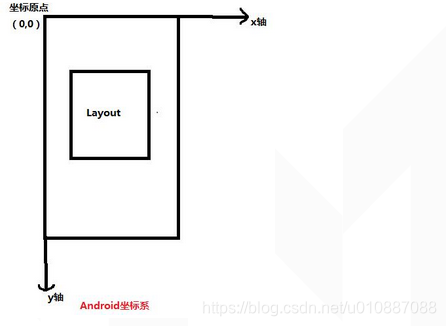
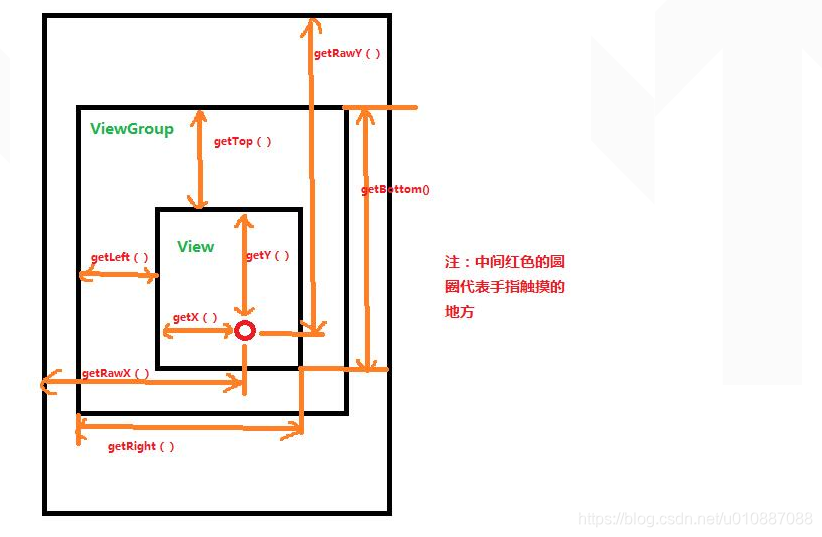
Android坐标系是屏幕的左上角是屏幕原点,往右是是X轴正向,往下是Y轴正向,相对于Unity的屏幕中心的是原点,这个要区分,下图可以看出来。
Canvas
顾名思义就是画布,也就是我们将要自定义View的画布,我们需要了解到的是Canvas的一些方法,我们可以参考下面的博客来学一下。
https://www.jianshu.com/p/afa06f716ca6
https://blog.csdn.net/qq_41405257/article/details/80487997
Paint
/* * Paint类介绍 * * Paint即画笔,在绘图过程中起到了极其重要的作用,画笔主要保存了颜色, * 样式等绘制信息,指定了如何绘制文本和图形,画笔对象有很多设置方法, * 大体上可以分为两类,一类与图形绘制相关,一类与文本绘制相关。 * * 1.图形绘制 * setARGB(int a,int r,int g,int b); * 设置绘制的颜色,a代表透明度,r,g,b代表颜色值。 * * setAlpha(int a); * 设置绘制图形的透明度。 * * setColor(int color); * 设置绘制的颜色,使用颜色值来表示,该颜色值包括透明度和RGB颜色。 * * setAntiAlias(boolean aa); * 设置是否使用抗锯齿功能,会消耗较大资源,绘制图形速度会变慢。 * * setDither(boolean dither); * 设定是否使用图像抖动处理,会使绘制出来的图片颜色更加平滑和饱满,图像更加清晰 * * setFilterBitmap(boolean filter); * 如果该项设置为true,则图像在动画进行中会滤掉对Bitmap图像的优化操作,加快显示 * 速度,本设置项依赖于dither和xfermode的设置 * * setMaskFilter(MaskFilter maskfilter); * 设置MaskFilter,可以用不同的MaskFilter实现滤镜的效果,如滤化,立体等 * * setColorFilter(ColorFilter colorfilter); * 设置颜色过滤器,可以在绘制颜色时实现不用颜色的变换效果 * * setPathEffect(PathEffect effect); * 设置绘制路径的效果,如点画线等 * * setShader(Shader shader); * 设置图像效果,使用Shader可以绘制出各种渐变效果 * * setShadowLayer(float radius ,float dx,float dy,int color); * 在图形下面设置阴影层,产生阴影效果,radius为阴影的角度,dx和dy为阴影在x轴和y轴上的距离,color为阴影的颜色 * * setStyle(Paint.Style style); * 设置画笔的样式,为FILL,FILL_OR_STROKE,或STROKE * * setStrokeCap(Paint.Cap cap); * 当画笔样式为STROKE或FILL_OR_STROKE时,设置笔刷的图形样式,如圆形样式 * Cap.ROUND,或方形样式Cap.SQUARE * * setSrokeJoin(Paint.Join join); * 设置绘制时各图形的结合方式,如平滑效果等 * * setStrokeWidth(float width); * 当画笔样式为STROKE或FILL_OR_STROKE时,设置笔刷的粗细度 * * setXfermode(Xfermode xfermode); * 设置图形重叠时的处理方式,如合并,取交集或并集,经常用来制作橡皮的擦除效果 * * 2.文本绘制 * setFakeBoldText(boolean fakeBoldText); * 模拟实现粗体文字,设置在小字体上效果会非常差 * * setSubpixelText(boolean subpixelText); * 设置该项为true,将有助于文本在LCD屏幕上的显示效果 * * setTextAlign(Paint.Align align); * 设置绘制文字的对齐方向 * * setTextScaleX(float scaleX); * 设置绘制文字x轴的缩放比例,可以实现文字的拉伸的效果 * * setTextSize(float textSize); * 设置绘制文字的字号大小 * * setTextSkewX(float skewX); * 设置斜体文字,skewX为倾斜弧度 * * setTypeface(Typeface typeface); * 设置Typeface对象,即字体风格,包括粗体,斜体以及衬线体,非衬线体等 * * setUnderlineText(boolean underlineText); * 设置带有下划线的文字效果 * * setStrikeThruText(boolean strikeThruText); * 设置带有删除线的效果 * */`
项目实战
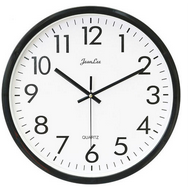
自定义挂钟View
/*** Created by Wiky on 2020/10/29*/
public class ClockView extends View {private Paint mPaint;
private int mCenterX;
private int mCenterY;
private int mRadius = 500;
private int mLongLine = 60;
private Path mPath;
private Rect mTextBound;
private int mHour;
private int mMinute;
private int mSecond;
private Calendar mCalendar;public ClockView(Context context) {super(context);init(context);
}public ClockView(Context context, @Nullable AttributeSet attrs) {super(context, attrs);init(context);
}private void init(Context context){DisplayMetrics outMetrics = new DisplayMetrics();WindowManager windowManager = (WindowManager) context.getSystemService(Context.WINDOW_SERVICE);windowManager.getDefaultDisplay().getMetrics(outMetrics);mCenterX = outMetrics.widthPixels/2;mCenterY = outMetrics.heightPixels/2;mPaint = new Paint(Paint.ANTI_ALIAS_FLAG);mPaint.setStrokeWidth(2.0f);mPaint.setColor(Color.BLACK);mTextBound = new Rect();mPath = new Path();mCalendar = Calendar.getInstance();mHour = mCalendar.get(Calendar.HOUR);mMinute = mCalendar.get(Calendar.MINUTE);mSecond = mCalendar.get(Calendar.SECOND);
}@Override
protected void onDraw(Canvas canvas) {super.onDraw(canvas);mPaint.setStyle(Paint.Style.STROKE);//画圆canvas.drawCircle(mCenterX, mCenterY, mRadius, mPaint);//画刻度drawLine(canvas);//画数字drawNumber(canvas);//画圆心canvas.drawCircle(mCenterX, mCenterY, 10.0f, mPaint);//画Logo(option)//画指针drawTime(canvas);postDelayed(mRunnable, 1000);
}/*** 画刻度* @param canvas*/
private void drawLine(Canvas canvas) {canvas.save();int startY = mCenterY - mRadius;int endLongY = startY + mLongLine;int endShortY = startY + mLongLine / 3;for (int i = 1; i <= 60; i++) {canvas.rotate(-6.0f, mCenterX, mCenterY);if (i % 5 == 0) {//长刻度canvas.drawLine(mCenterX, startY, mCenterX, endLongY, mPaint);} else {//短刻度canvas.drawLine(mCenterX, startY, mCenterX, endShortY, mPaint);}}canvas.restore();
}/*** 画1-12个数字* @param canvas*/
private void drawNumber(Canvas canvas) {canvas.save();mPaint.setTextSize(50.0f);mPaint.setStyle(Paint.Style.FILL);float offsetY = 10.0f;for (int j = 1; j <= 12; j++) {mPaint.getTextBounds(String.valueOf(j), 0, String.valueOf(j).length(), mTextBound);canvas.rotate(30.0f * j);float textWidth = mTextBound.width();float textHeight = mTextBound.height();float translateY = mRadius - mLongLine - offsetY - textHeight/2;canvas.translate(0, -translateY);canvas.rotate(-30.0f * j);canvas.drawText(String.valueOf(j), -textWidth / 2.0f + mCenterX, mCenterY + textHeight/2, mPaint);canvas.rotate(30.0f * j);canvas.translate(0, translateY);canvas.rotate(-30.0f * j);}canvas.restore();
}/*** 画时分秒* @param canvas*/
private void drawTime(Canvas canvas) {//画时针canvas.save();canvas.rotate(30.0f * mHour + 30.0f/60 * mMinute, mCenterX, mCenterY);mPath.reset();mPath.moveTo(mCenterX, mCenterY);mPath.lineTo(mCenterX+10.0f, mCenterY-50.0f);mPath.lineTo(mCenterX, mCenterY-250.0f);mPath.lineTo(mCenterX-10.0f, mCenterY-50.0f);mPath.lineTo(mCenterX, mCenterY);canvas.drawPath(mPath, mPaint);canvas.restore();//画分针canvas.save();canvas.rotate(6.0f * mMinute + 6.0f/60 *mSecond, mCenterX, mCenterY);mPath.rewind();mPath.moveTo(mCenterX, mCenterY);mPath.lineTo(mCenterX+5.0f, mCenterY-50.0f);mPath.lineTo(mCenterX, mCenterY-300.0f);mPath.lineTo(mCenterX-5.0f, mCenterY-50.0f);mPath.lineTo(mCenterX, mCenterY);canvas.drawPath(mPath, mPaint);canvas.restore();//画秒针canvas.save();canvas.rotate(6.0f * mSecond, mCenterX, mCenterY);mPath.rewind();mPath.moveTo(mCenterX, mCenterY+30.0f);mPath.lineTo(mCenterX+3.0f, mCenterY-50.0f);mPath.lineTo(mCenterX, mCenterY-400.0f);mPath.lineTo(mCenterX-3.0f, mCenterY-50.0f);mPath.lineTo(mCenterX, mCenterY+50.0f);canvas.drawPath(mPath, mPaint);canvas.restore();
}/*** 开启表钟*/
Runnable mRunnable = new Runnable() {@Overridepublic void run() {mCalendar.setTimeInMillis(System.currentTimeMillis());mHour = mCalendar.get(Calendar.HOUR);mMinute = mCalendar.get(Calendar.MINUTE);mSecond = mCalendar.get(Calendar.SECOND);postInvalidate();}
};}
在此项目中比较难的一个点就是画1-12这12个数字,首先我们需要了解一下Text的一些尺寸参数
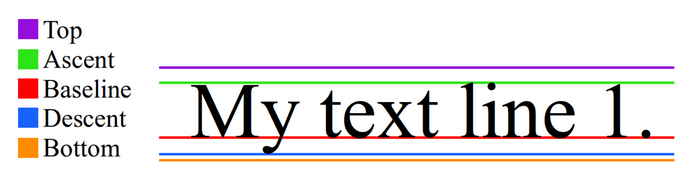
Paint mPaint = new Paint();
mPaint.setTextSize(50);
Paint.FontMetrics fontMetrics = mPaint.getFontMetrics();
float ascent = fontMetrics.ascent;
float bottom = fontMetrics.bottom;
float descent = fontMetrics.descent;
float leading = fontMetrics.leading;
float top = fontMetrics.top;
总结
经过这个简单的时钟自定义View,我们算是比较简单的了解了一些自定义View的过程,以及Canvas、Paint等的一些基础知识,如果需要较深入的了解,还需要平常多使用以及其他的自定义View的设计,多用多实践才是王道,大家一起加油!
本文来自互联网用户投稿,文章观点仅代表作者本人,不代表本站立场,不承担相关法律责任。如若转载,请注明出处。 如若内容造成侵权/违法违规/事实不符,请点击【内容举报】进行投诉反馈!