Harbor部署及简单应用
Harbor
-
虽然Docker官方提供了公共的镜像仓库,但是从安全和效率等方面考虑,部署我们私有环境内的Registry也是非常必要的。
-
Harbor是由VMware公司开源的企业级的Docker Registry管理项目,相比docker官方拥有更丰富的权限权利和完善的架构设计,适用大规模docker集群部署提供仓库服务。
-
它主要提供 Dcoker Registry 管理界面UI,可基于角色访问控制,镜像复制, AD/LDAP 集成,日志审核等功能,完全的支持中文。

Harbor 的主要功能
-
基于角色的访问控制
- 用户与Docker镜像仓库通过“项目”进行组织管理,一个用户可以对多个镜像仓库在同一命名空间(project)里有不同的权限。
-
基于镜像的复制策略
- 镜像可以在多个Registry实例中复制(可以将仓库中的镜像同步到远程的Harbor,类似于MySQL主从同步功能),尤其适合于负载均衡,高可用,混合云和多云的场景。
-
图形化用户界面
- 用户可以通过浏览器来浏览,检索当前Docker镜像仓库,管理项目和命名空间。
-
支持 AD/LDAP
- Harbor可以集成企业内部已有的AD/LDAP,用于鉴权认证管理。
-
镜像删除和垃圾回收
- Harbor支持在Web删除镜像,回收无用的镜像,释放磁盘空间。image可以被删除并且回收image占用的空间。
-
审计管理
- 所有针对镜像仓库的操作都可以被记录追溯,用于审计管理。
-
RESTful API
- RESTful API 提供给管理员对于Harbor更多的操控, 使得与其它管理软件集成变得更容易。
-
部署简单
- 提供在线和离线两种安装工具, 也可以安装到vSphere平台(OVA方式)虚拟设备。Harbor 的所有组件都在 Docker 中部署,所以 Harbor 可使用 Docker Compose 快速部署。
注意: 由于 Harbor 是基于 Docker Registry V2 版本,所以 docker 版本必须 > = 1.10.0 docker-compose >= 1.6.0
Harbor 架构组件
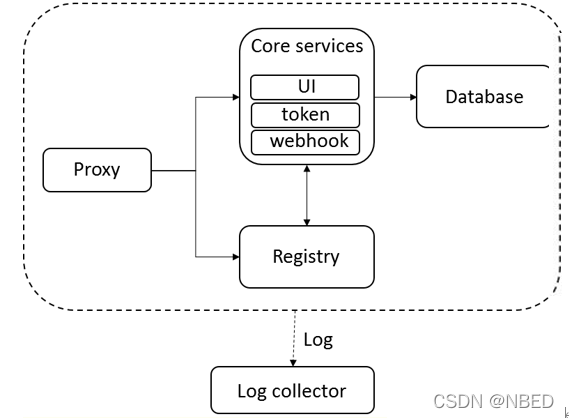
架构组件图:
-
Proxy:反向代理工具
-
Registry:负责存储docker镜像,处理上传/下载命令。对用户进行访问控制,它指向一个token服务,强制用户的每次docker pull/push请求都要携带一个合法的token,registry会通过公钥对token进行解密验证。
-
Core service:Harbor的核心功能:
-
UI:图形界面
-
Webhook:及时获取registry上image状态变化情况,在registry上配置 webhook,把状态变化传递给UI模块。
-
Token服务:复杂根据用户权限给每个docker push/p/ull命令签发token。Docker客户端向registry服务发起的请求,如果不包含token,会被重定向到这里,获得token后再重新向registry进行请求。
-
Database:提供数据库服务,存储用户权限,审计日志,docker image分组信息等数据
-
Log collector:为了帮助监控harbor运行,复责收集其他组件的log,供日后进行分析
Harbor 部署
环境说明:
| 主机名 | ip | 需要的应用 |
|---|---|---|
| harbor | 192.168.58.100 | docker-ce 、docker-compose、Harbor |
| docker | 192.168.58.10 | docekr-ce |
环境准备:
关闭防火墙
[root@harbor ~# systemctl stop firewalld
[root@harbor ~]# vim /etc/sysconfig/selinux
#     disabled - No SELinux policy is loaded.
SELINUX=disabled
# SELINUXTYPE= can take one of these three values:
[root@harbor ~]# setenforce 0
[root@harbor ~]# reboot[root@harbor ~]# getenforce
Disabled
部署过程:
harbor主机上安装docekr-ce
#配置网络源
[root@harbor ~]# curl -o /etc/yum.repos.d/CentOS-Base.repo https://mirrors.aliyun.com/repo/Centos-8.repo#配置docker-ce 源
[root@harbor ~]# cd /etc/yum.repos.d/
[root@harbor yum.repos.d]# curl -o docker-ce.repo https://mirrors.tuna.tsinghua.edu.cn/docker-ce/linux/centos/docker-ce.repo安装 docker-ce 以及依赖包和工具
[root@harbor ~]# dnf -y install yum-utils device-mapper-persistent-data lvm2
[root@harbor ~]# yum -y install docker-ce --allowerasing#安装完成后,使用 docker version 命令查看docker的版本信息
[root@harbor ~]# docker version
Client: Docker Engine - CommunityVersion:           20.10.12API version:       1.41Go version:        go1.16.12Git commit:        e91ed57Built:             Mon Dec 13 11:45:22 2021OS/Arch:           linux/amd64Context:           defaultExperimental:      true#配置镜像加速
[root@harbor ~]# mkdir -p /etc/docker
[root@harbor ~]# vim /etc/docker/daemon.json
{"registry-mirrors": ["https://a74l47xi.mirror.aliyuncs.com"]     //此处的网址是个人账户分配的
}
[root@harbor ~]# systemctl daemon-reload
[root@harbor ~]# systemctl enable --now  docker
在harbor主机上安装compose 和 harbor
#将docker-compose  harbor-offline-installer-v2.3.5.tgz //上传到主机上[root@harbor ~]# ls
anaconda-ks.cfg  docker-ce.repo  docker-compose  harbor-offline-installer-v2.3.5.tgz#将docker-compose移动到/usr/local/bin目录下并授权测试[root@harbor ~]# mv docker-compose /usr/local/bin/
[root@harbor ~]# chmod +x /usr/local/bin/docker-compose
[root@harbor ~]# ln -s /usr/local/bin/docker-compose /usr/bin/docker-compose
[root@harbor ~]# docker-compose --version
docker-compose version 1.26.2, build eefe0d31#修改主机名
[root@harbor harbor]# hostnamectl set-hostname harbor.example.com
[root@harbor harbor]# bash
[root@harbor harbor]# hostname
harbor.example.com[root@harbor ~]# vim /etc/hosts  //加入主机文件
127.0.0.1   localhost localhost.localdomain localhost4 localhost4.localdomain4
::1         localhost localhost.localdomain localhost6 localhost6.localdomain6
192.168.58.100 harbor.example.com[root@harbor harbor]# ping harbor.example.com  //测试
PING harbor.example.com (192.168.58.100) 56(84) bytes of data.
64 bytes from harbor.example.com (192.168.58.100): icmp_seq=1 ttl=64 time=0.175 ms
64 bytes from harbor.example.com (192.168.58.100): icmp_seq=2 ttl=64 time=0.120 ms
64 bytes from harbor.example.com (192.168.58.100): icmp_seq=3 ttl=64 time=0.142 ms#解压harbor包,查看install.sh脚本 和 xxx-compose.yml
[root@harbor ~]# tar xf harbor-offline-installer-v2.3.5.tgz -C /usr/local/
[root@harbor ~]# cd /usr/local/harbor/
[root@harbor harbor]# ls
common.sh  harbor.v2.3.5.tar.gz  harbor.yml.tmpl  install.sh  LICENSE  prepare
[root@harbor harbor]# #对harbor配置文件进行修改# Configuration file of Harbor# The IP address or hostname to access admin UI and registry service.
# DO NOT use localhost or 127.0.0.1, because Harbor needs to be accessed by external clients.
hostname: harbor.example.com   //修改此处,修改为本机主机名# http related config
http:# port for http, default is 80. If https enabled, this port will redirect to https portport: 80# https related config
#https:    //注释此处,没有使用证书时# https port for harbor, default is 443#  port: 443  //注释此处,没有使用证书时# The path of cert and key files for nginx#  certificate: /your/certificate/path   //注释此处,没有使用证书时#private_key: /your/private/key/path   //注释此处,没有使用证书时......省略n行harbor_admin_password: Harbor12345   //web界面admin用户的密码# Harbor DB configuration
database:# The password for the root user of Harbor DB. Change this before any production use.password: root123   // 数据库的密码# The maximum number of connections in the idle connection pool. If it <=0, no idle connections are retained.max_idle_conns: 100   //最大空闲连接# The maximum number of open connections to the database. If it <= 0, then there is no limit on the number of open connections.# Note: the default number of connections is 1024 for postgres of harbor.max_open_conns: 900  //最大连接数
# The default data volume
data_volume: /data    //数据挂载目录# 执行install.sh 安装脚本,进行安装
[root@harbor harbor]# ./install.sh [Step 0]: checking if docker is installed ...Note: docker version: 20.10.12[Step 1]: checking docker-compose is installed ...Note: docker-compose version: 1.26.2[Step 2]: loading Harbor images ...
.......省略n行[Step 5]: starting Harbor ...
Creating network "harbor_harbor" with the default driver
Creating harbor-log ... done
Creating harbor-portal ... done
Creating registry      ... done
Creating harbor-db     ... done
Creating registryctl   ... done
Creating redis         ... done
Creating harbor-core   ... done
Creating nginx             ... done
Creating harbor-jobservice ... done
✔ ----Harbor has been installed and started successfully.----    //到此安装成功
使用docker ps -a 查看新建的容器
[root@harbor harbor]# docker ps -a
CONTAINER ID   IMAGE                                COMMAND                  CREATED              STATUS                        PORTS                                   NAMES
6a44d6fa2b86   goharbor/nginx-photon:v2.3.5         "nginx -g 'daemon of…"   About a minute ago   Up About a minute (healthy)   0.0.0.0:80->8080/tcp, :::80->8080/tcp   nginx
66d0c10d9757   goharbor/harbor-jobservice:v2.3.5    "/harbor/entrypoint.…"   About a minute ago   Up About a minute (healthy)                                           harbor-jobservice
2a7b837c912e   goharbor/harbor-core:v2.3.5          "/harbor/entrypoint.…"   About a minute ago   Up About a minute (healthy)                                           harbor-core
0e72f101b866   goharbor/redis-photon:v2.3.5         "redis-server /etc/r…"   About a minute ago   Up About a minute (healthy)                                           redis
25c6487abc22   goharbor/harbor-registryctl:v2.3.5   "/home/harbor/start.…"   About a minute ago   Up About a minute (healthy)                                           registryctl
720f2093b6c7   goharbor/harbor-db:v2.3.5            "/docker-entrypoint.…"   About a minute ago   Up About a minute (healthy)                                           harbor-db
92e25fdb5be3   goharbor/registry-photon:v2.3.5      "/home/harbor/entryp…"   About a minute ago   Up About a minute (healthy)                                           registry
1039beeeb34c   goharbor/harbor-portal:v2.3.5        "nginx -g 'daemon of…"   About a minute ago   Up About a minute (healthy)                                           harbor-portal
e52f5f49216b   goharbor/harbor-log:v2.3.5           "/bin/sh -c /usr/loc…"   About a minute ago   Up About a minute (healthy)   127.0.0.1:1514->10514/tcp               harbor-log[root@harbor harbor]# ss -anlt  //查看端口
State             Recv-Q            Send-Q                       Local Address:Port                       Peer Address:Port            Process
LISTEN            0                 128                              127.0.0.1:1514                            0.0.0.0:*
LISTEN            0                 128                                0.0.0.0:80                              0.0.0.0:*
LISTEN            0                 128                                0.0.0.0:22                              0.0.0.0:*
LISTEN            0                 128                                   [::]:80                                 [::]:*
LISTEN            0                 128                                   [::]:22                                 [::]:*                                  //端口和容器都处于正常状态
访问web页面(默认用户:admin 密码:Harbor12345)
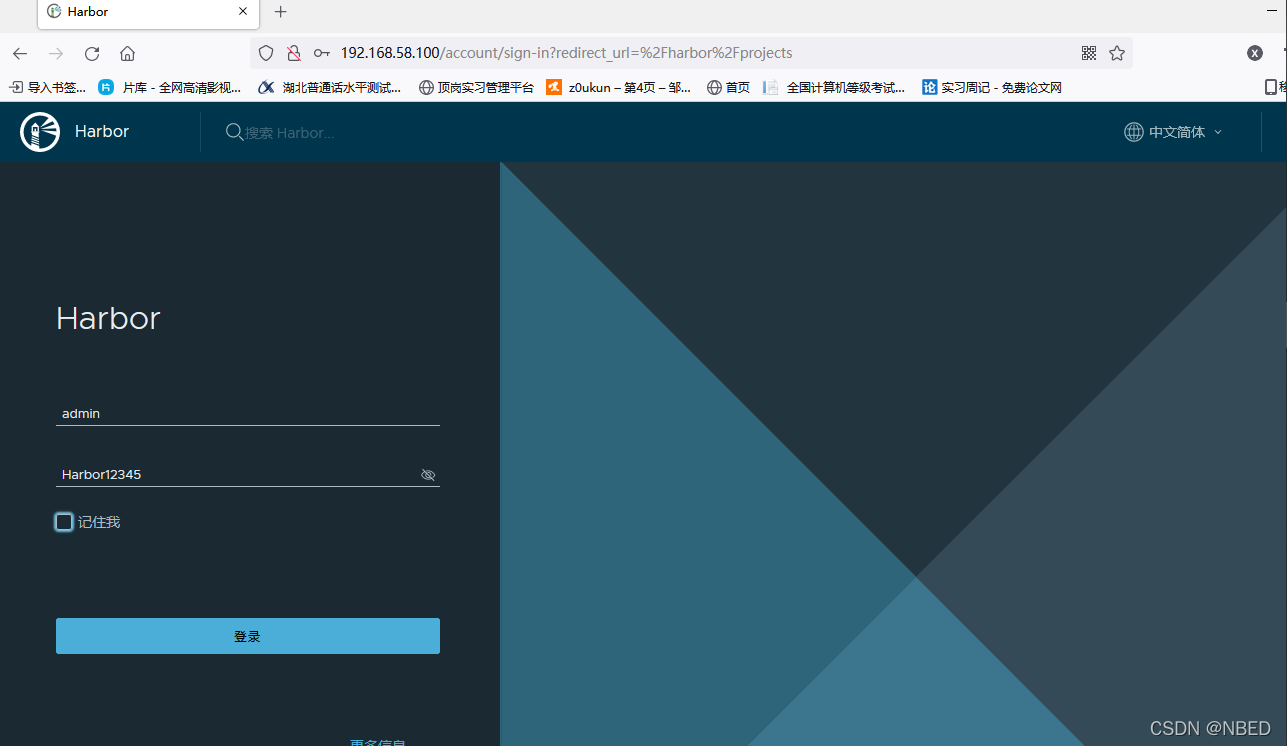
成功登入
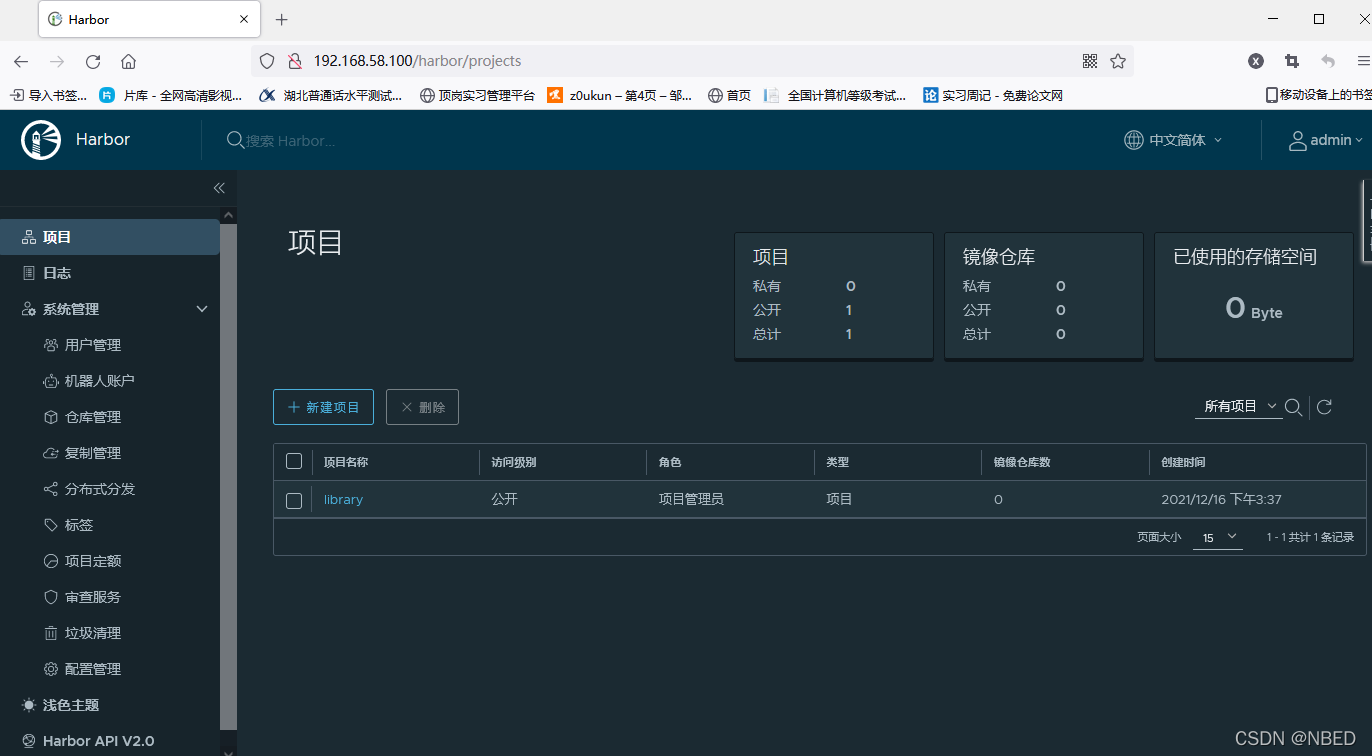
上传镜像至harbor仓库
关闭防火墙
[root@docekr ~]# systemctl stop firewalld
[root@docekr ~]# vim /etc/sysconfig/selinux
#     disabled - No SELinux policy is loaded.
SELINUX=disabled
# SELINUXTYPE= can take one of these three values:
[root@docekr ~]# setenforce 0
[root@docekr ~]# reboot[root@docekr ~]# getenforce
Disabled
部署过程:
docker主机上安装docekr-ce
#配置网络源
[root@docekr ~]# curl -o /etc/yum.repos.d/CentOS-Base.repo https://mirrors.aliyun.com/repo/Centos-8.repo#配置docker-ce 源
[root@docekr ~]# cd /etc/yum.repos.d/
[root@docekr ~]#  curl -o docker-ce.repo https://mirrors.tuna.tsinghua.edu.cn/docker-ce/linux/centos/docker-ce.repo安装 docker-ce 以及依赖包和工具
[root@docekr ~]# dnf -y install yum-utils device-mapper-persistent-data lvm2
[root@docekr ~]# yum -y install docker-ce --allowerasing#安装完成后,使用 docker version 命令查看docker的版本信息
[root@docekr ~]# docker version
Client: Docker Engine - CommunityVersion:           20.10.12API version:       1.41Go version:        go1.16.12Git commit:        e91ed57Built:             Mon Dec 13 11:45:22 2021OS/Arch:           linux/amd64Context:           defaultExperimental:      true#配置镜像加速
[root@docekr ~]# mkdir -p /etc/docker
[root@docekr ~]# vim /etc/docker/daemon.json
{"registry-mirrors": ["https://a74l47xi.mirror.aliyuncs.com"]     //此处的网址是个人账户分配的
}
[root@docekr ~]# systemctl daemon-reload
[root@docekr ~]# systemctl enable --now  docker
使用insecure-registries参数添加http支持
# douker主机上[root@docker ~]# vim /etc/docker/daemon.json
{"registry-mirrors": ["https://a74l47xi.mirror.aliyuncs.com"],"insecure-registries": ["harbor.example.com"]  //添加此行
}[root@docker ~]# systemctl daemon-reload
[root@docker ~]# systemctl restart docker将harbor主机域名进行映射
[root@docker ~]# vim /etc/hosts
127.0.0.1   localhost localhost.localdomain localhost4 localhost4.localdomain4
::1         localhost localhost.localdomain localhost6 localhost6.localdomain6192.168.58.100 harbor.example.com[root@docker ~]# ping harbor.example.com
PING harbor.example.com (192.168.58.100) 56(84) bytes of data.
64 bytes from harbor.example.com (192.168.58.100): icmp_seq=1 ttl=64 time=3.20 ms
64 bytes from harbor.example.com (192.168.58.100): icmp_seq=2 ttl=64 time=0.929 ms
拉取busybox镜像
[root@docker ~]# docker pull busybox
Using default tag: latest
latest: Pulling from library/busybox
3cb635b06aa2: Pull complete
Digest: sha256:b5cfd4befc119a590ca1a81d6bb0fa1fb19f1fbebd0397f25fae164abe1e8a6a
Status: Downloaded newer image for busybox:latest
docker.io/library/busybox:latest[root@docker ~]# docker images
REPOSITORY                 TAG       IMAGE ID       CREATED      SIZE
busybox                    latest    ffe9d497c324   8 days ago   1.24MB
将其重命名
[root@docker ~]# docker tag busybox:latest harbor.example.com/library/busybox:latest
[root@docker ~]# docker images
REPOSITORY                           TAG       IMAGE ID       CREATED      SIZE
busybox                              latest    ffe9d497c324   8 days ago   1.24MB
harbor.example.com/library/busybox   latest    ffe9d497c324   8 days ago   1.24MB
docker login 登录harbor库 (用户密码与web端一致)
[root@docker ~]# docker login harbor.example.com
Username: admin
Password:
WARNING! Your password will be stored unencrypted in /root/.docker/config.json.
Configure a credential helper to remove this warning. See
https://docs.docker.com/engine/reference/commandline/login/#credentials-storeLogin Succeeded
上传镜像
[root@docker ~]# docker push harbor.example.com/library/busybox
Using default tag: latest
The push refers to repository [harbor.example.com/library/busybox]
64cac9eaf0da: Pushed
latest: digest: sha256:50e44504ea4f19f141118a8a8868e6c5bb9856efa33f2183f5ccea7ac62aacc9 size: 527
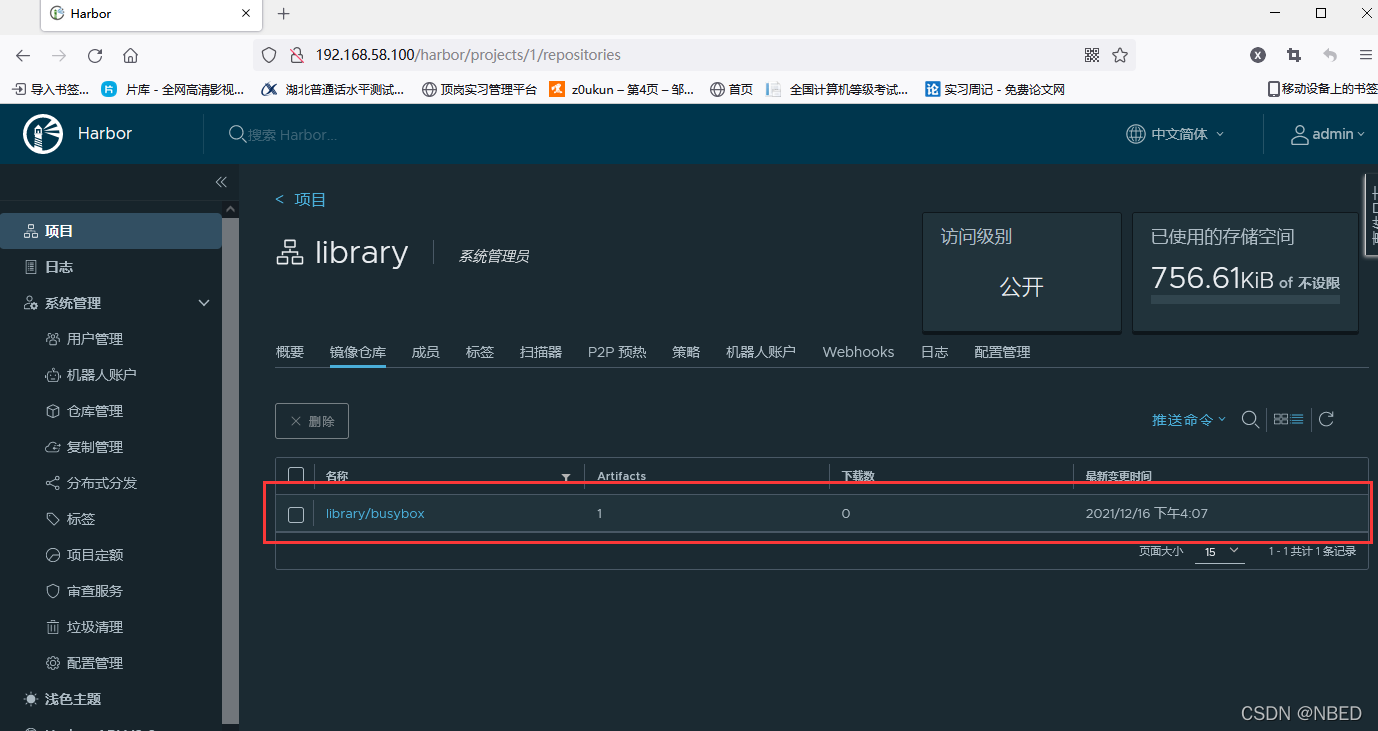
web页面查看
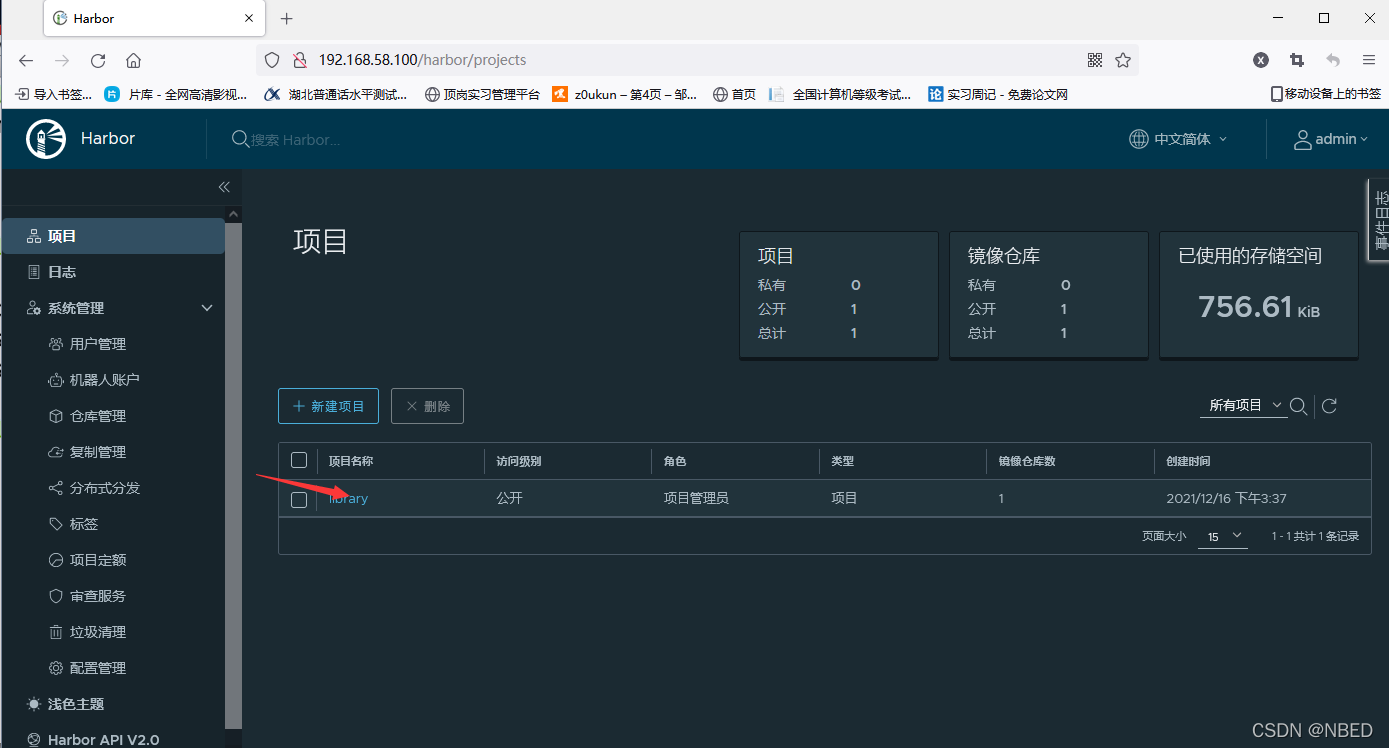
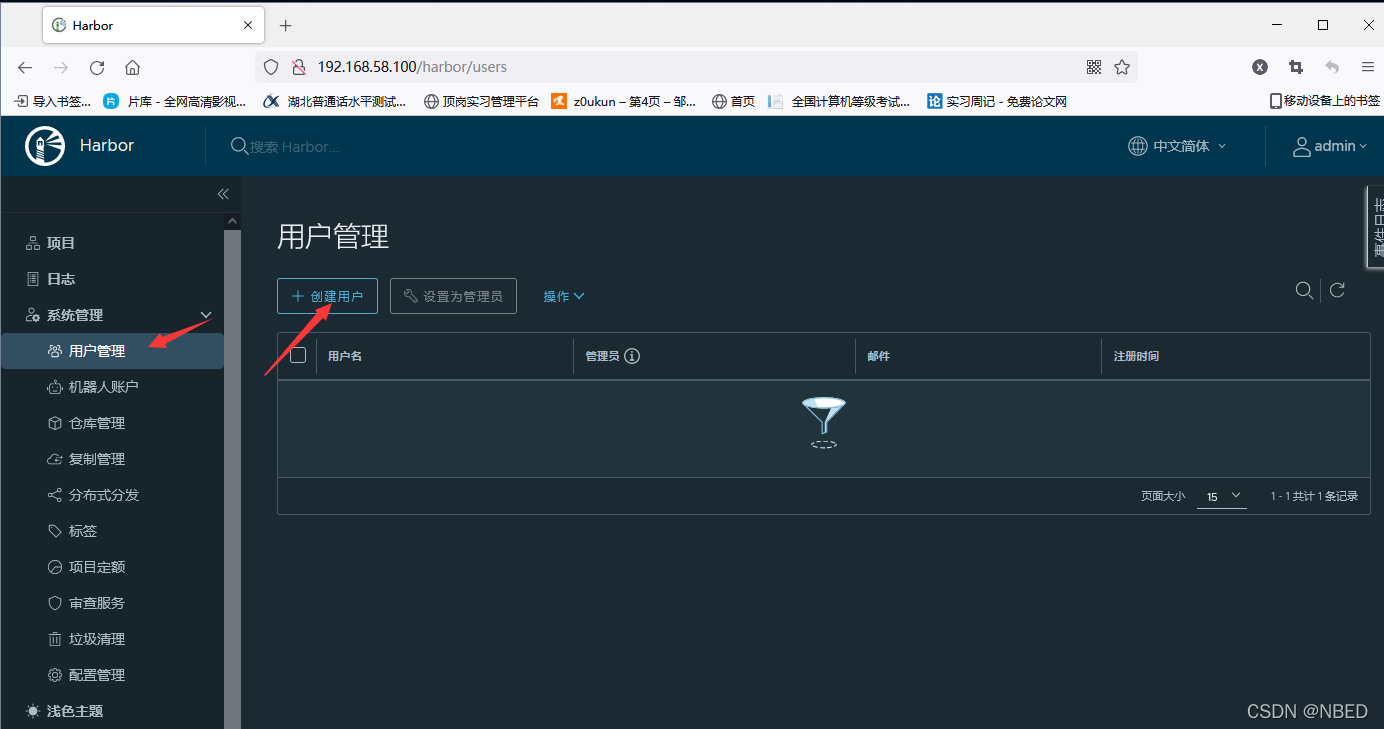
用户管理
新建mike用户,设置为访客,对比管理员 权限
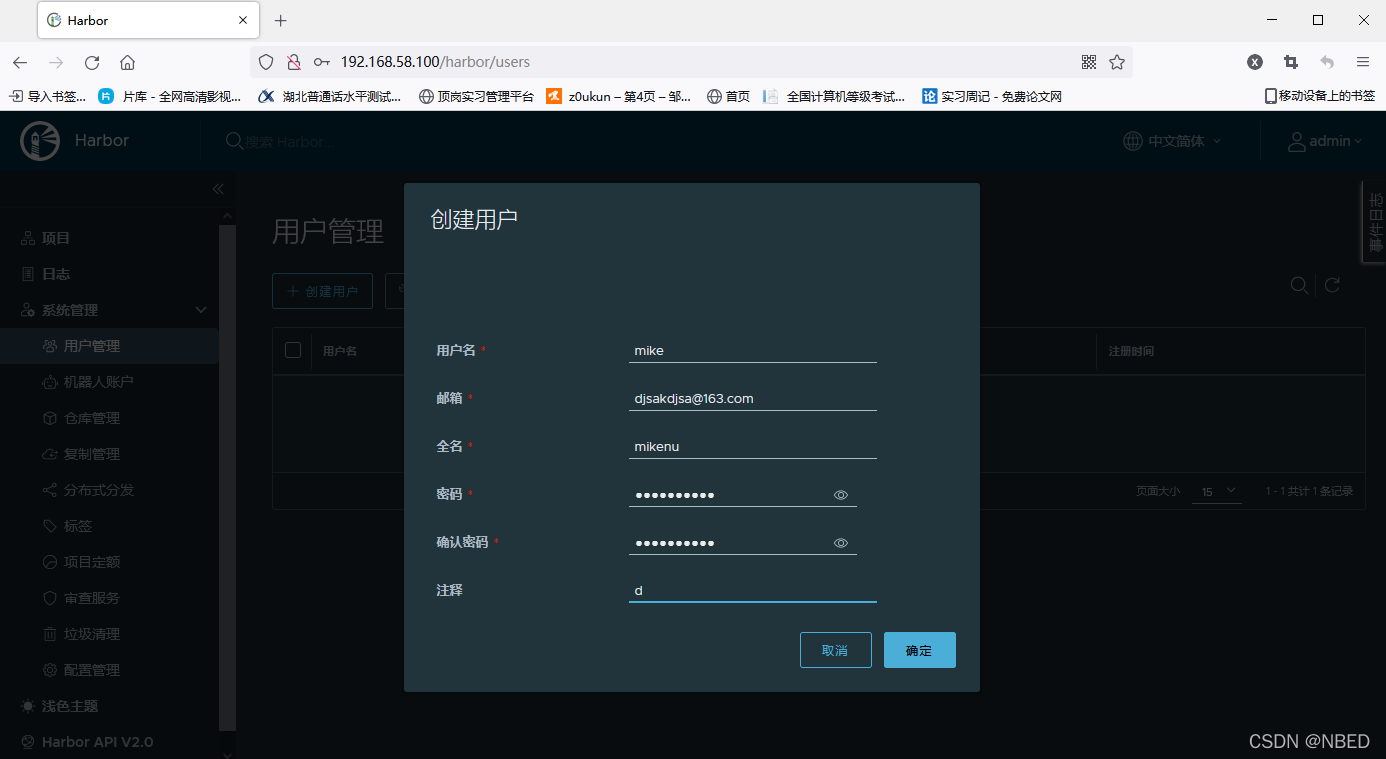
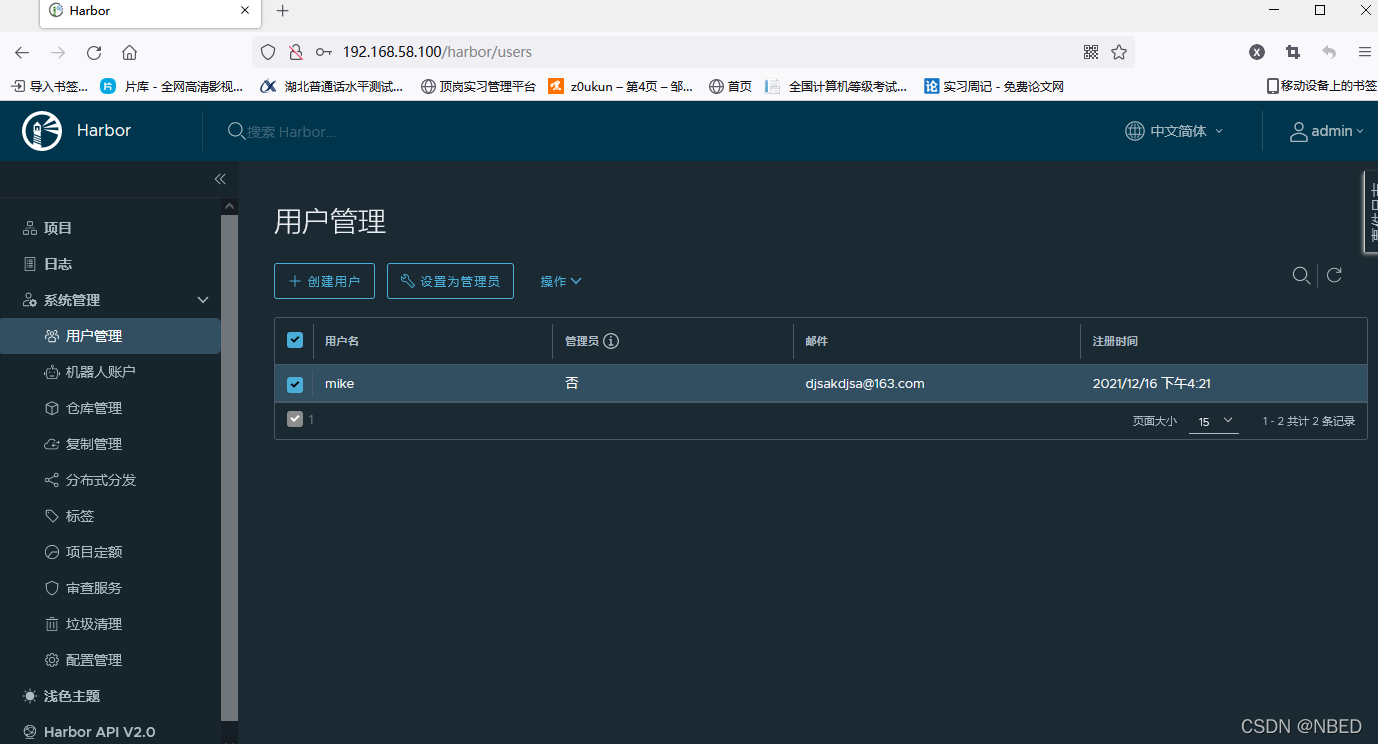
用户创建完成后,将其加入项目
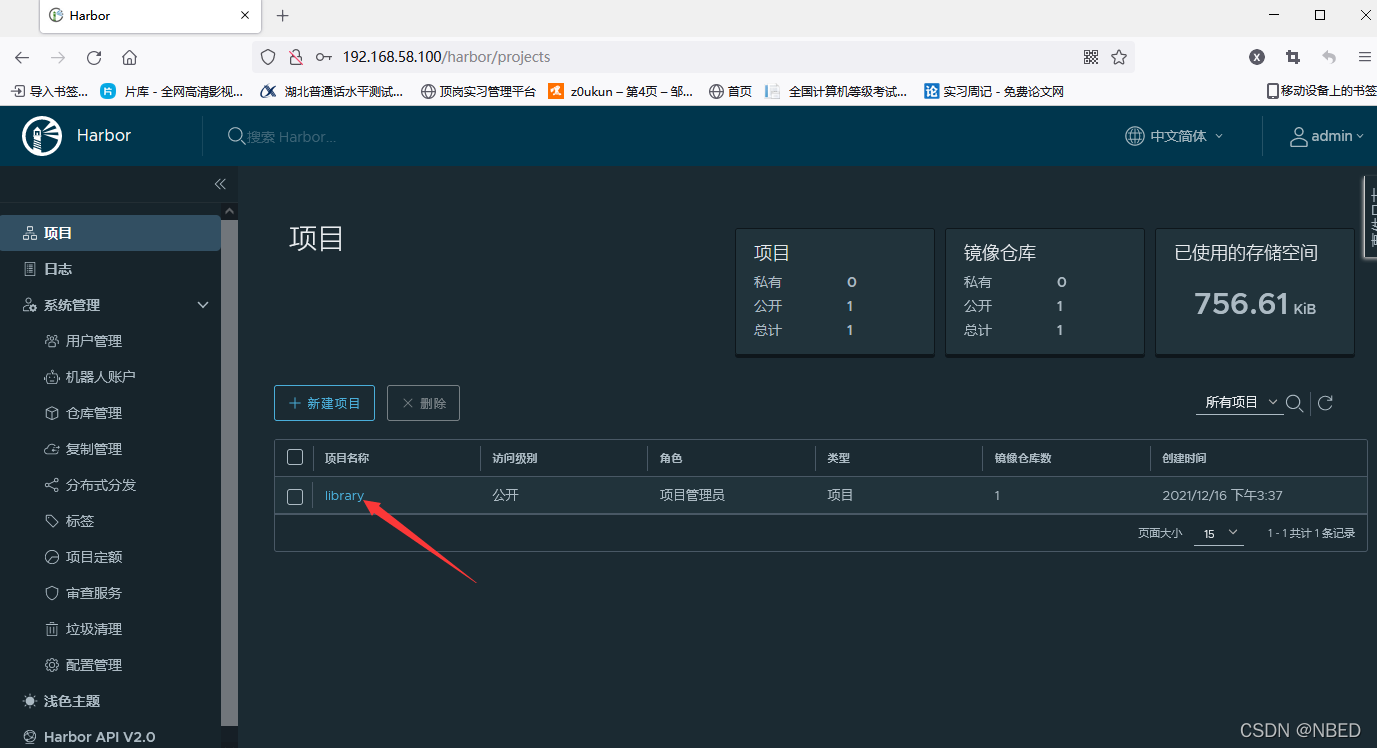
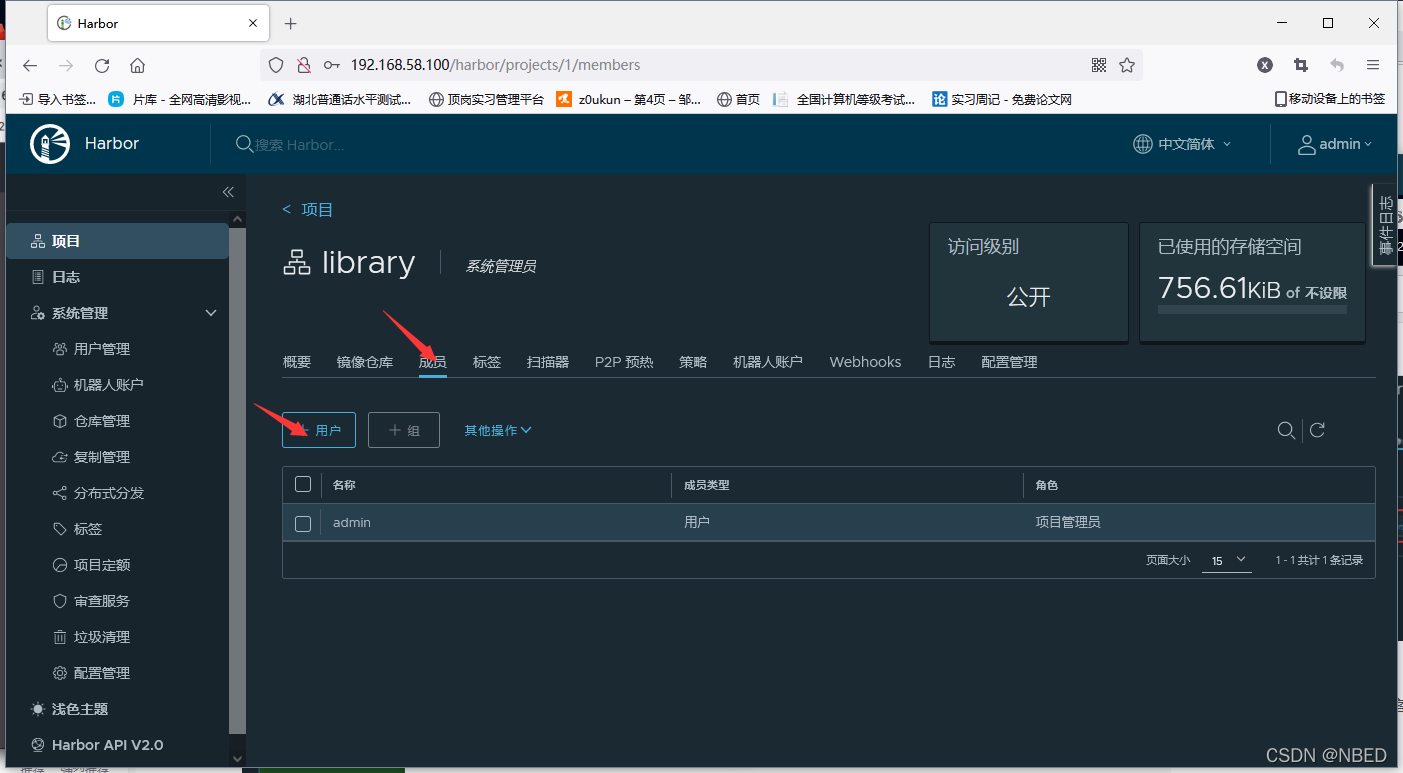
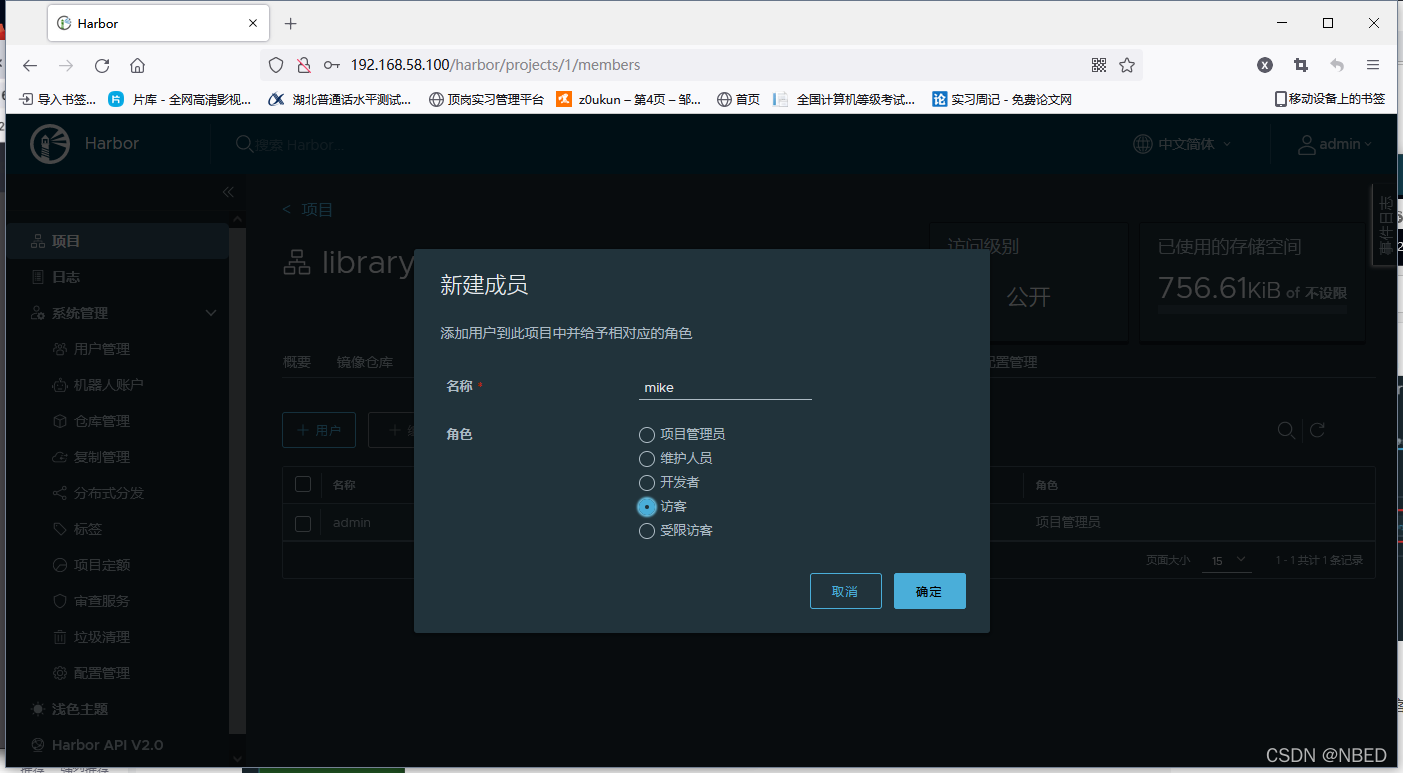
将其设置为访客
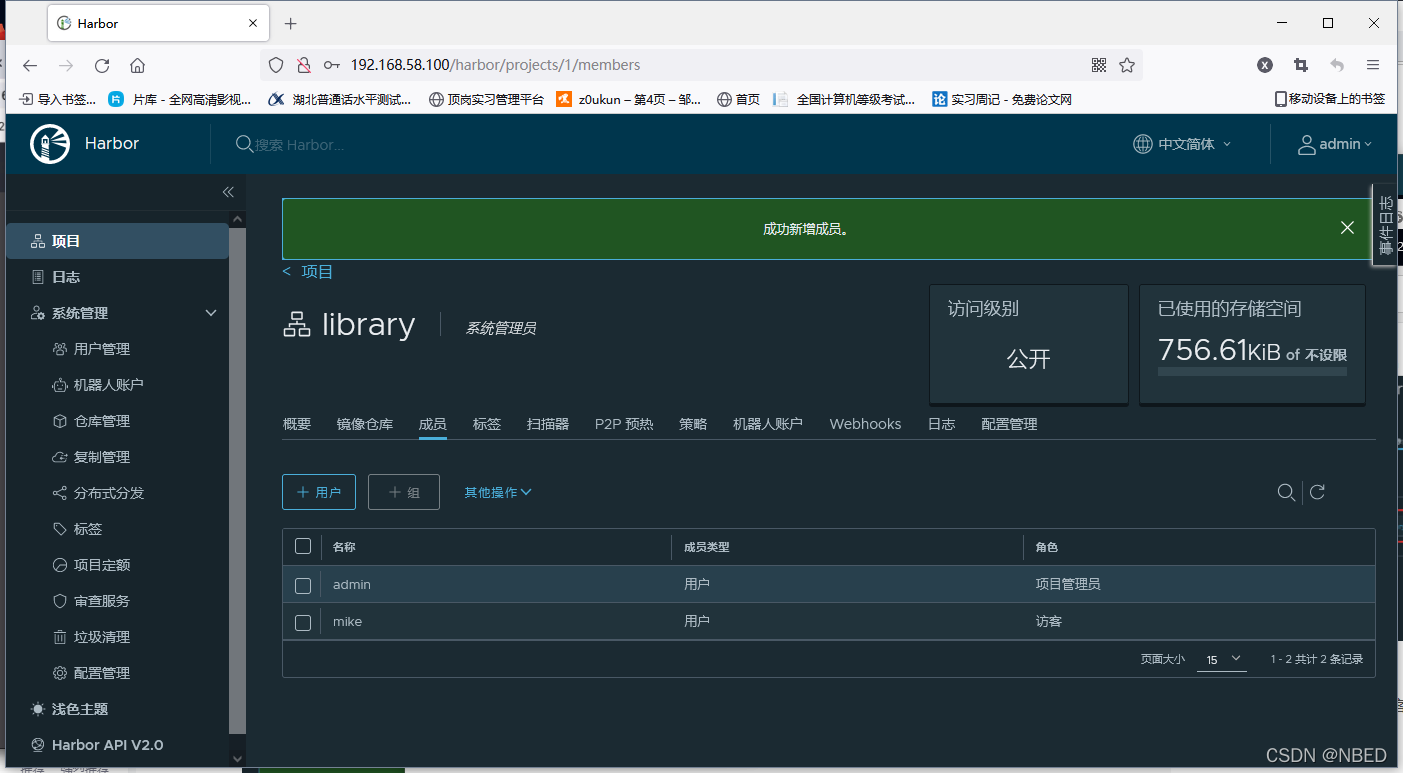
权限对比
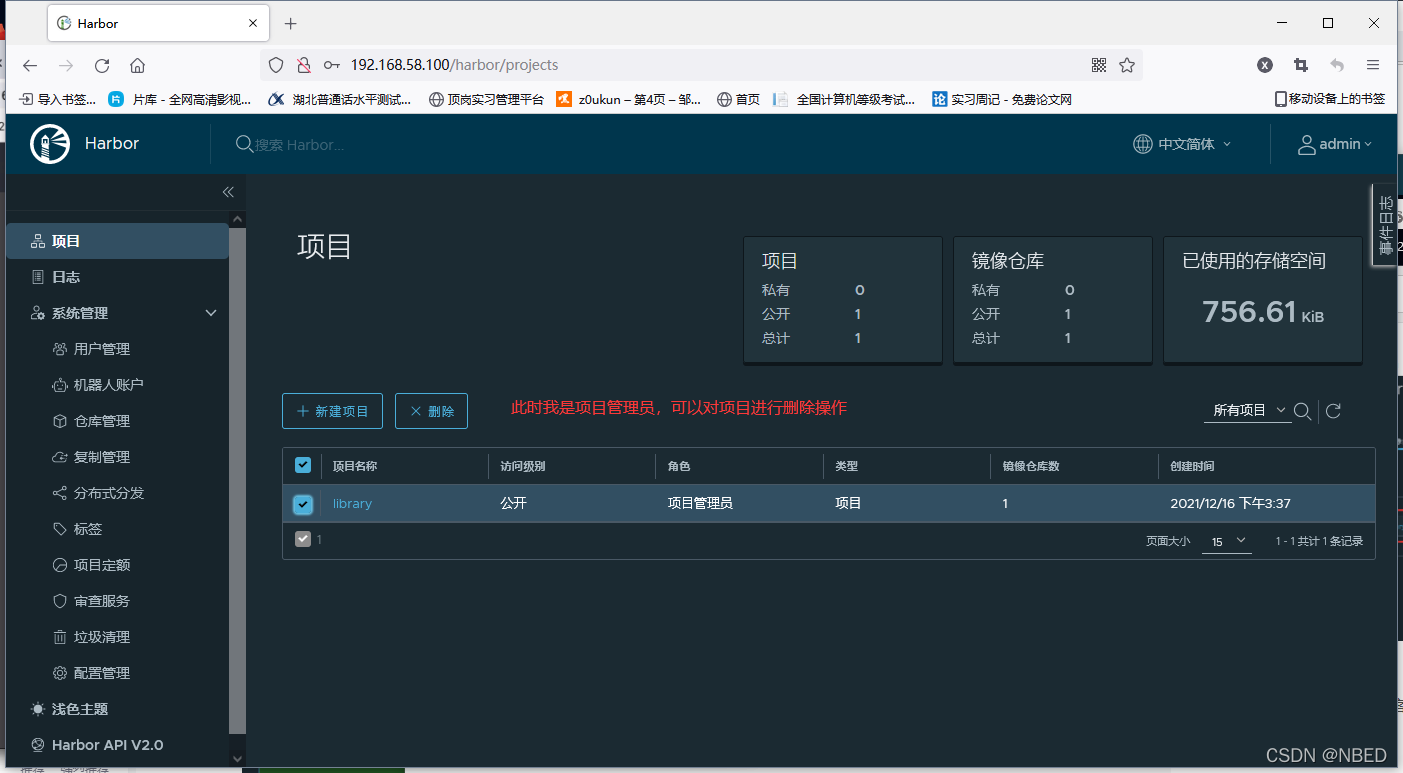
切换mike用户
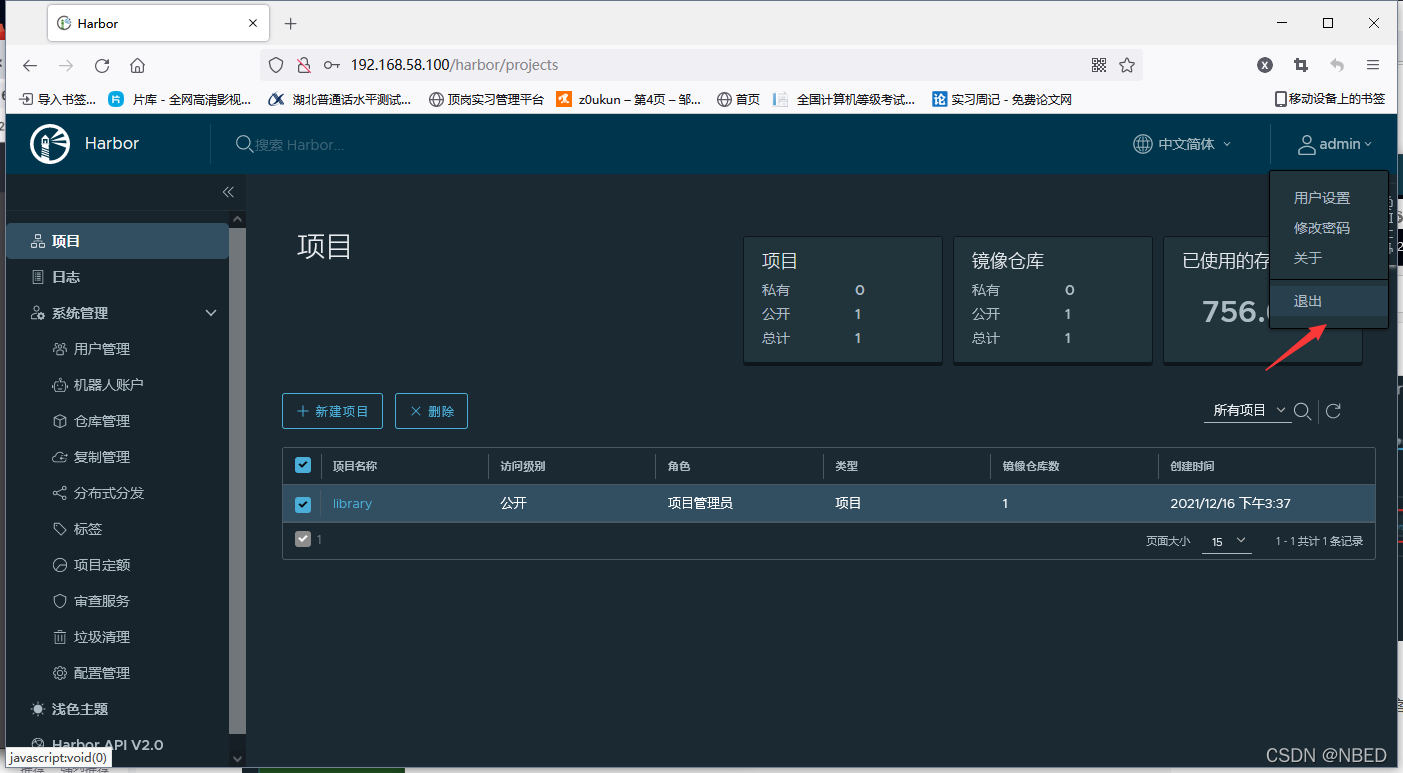
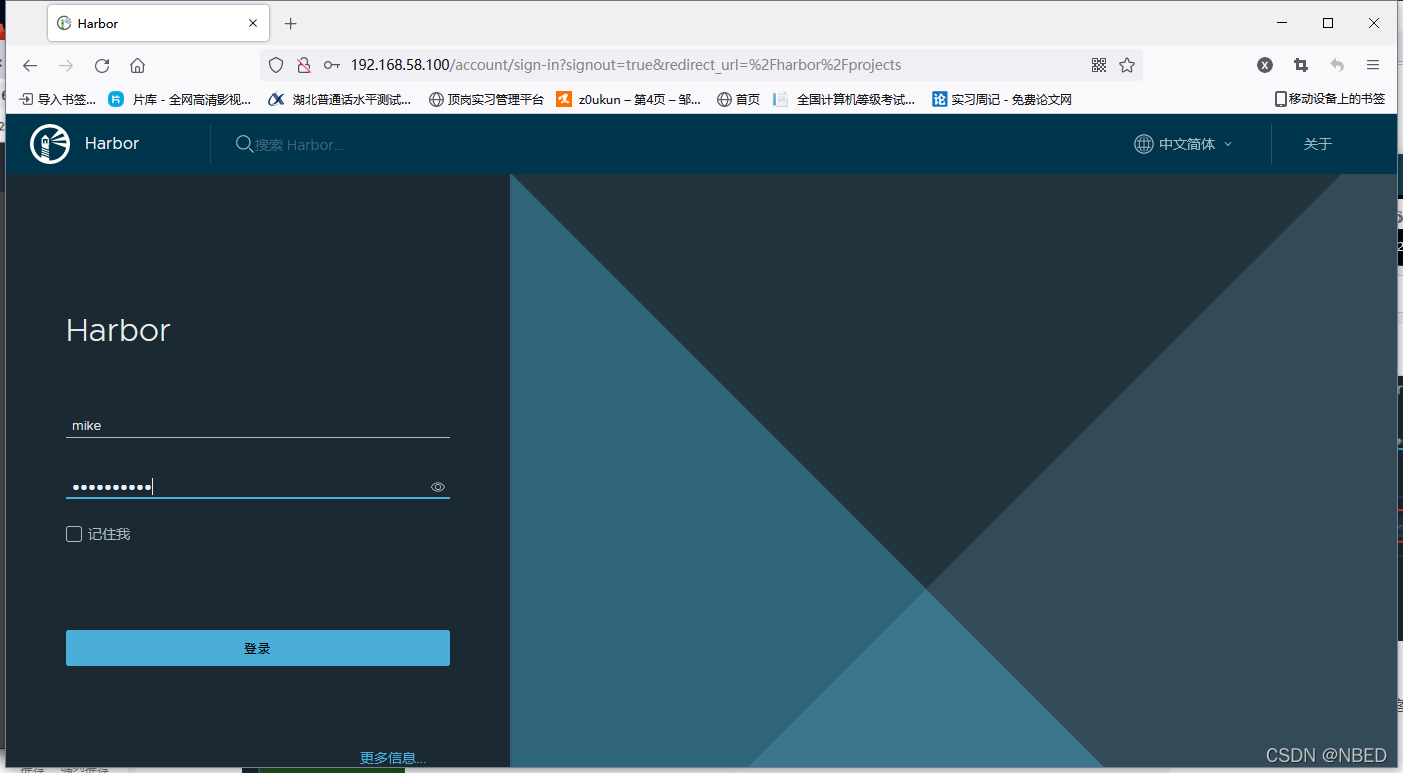
当mike以访客的身份登入时,是无法对项目进行任何操作的。
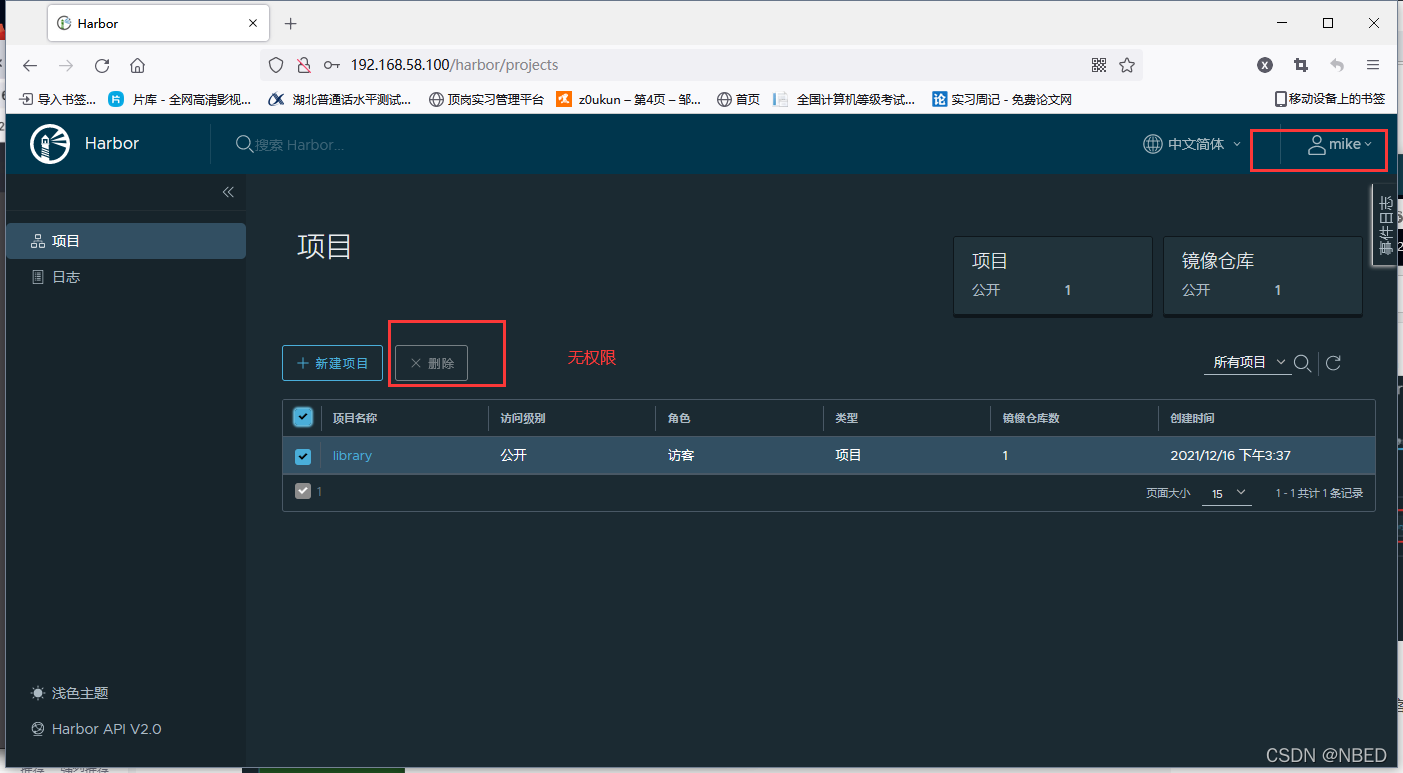
harbor开机自启
因为harbor的服务是由 /usr/local/harbor/中的 docker-compose.yml 配置文件和docker中的 容器 提供的所以,我们在设置开机自启时就需要在此目录中启动容器。
容器启动、停止、重启命令
[root@harbor harbor]# pwd  //在此目录下执行
/usr/local/harbor[root@harbor harbor]# docker-compose stop
Stopping nginx             ... done
Stopping harbor-jobservice ... done
Stopping harbor-core       ... done
Stopping redis             ... done
Stopping registryctl       ... done
Stopping harbor-db         ... done
Stopping registry          ... done
Stopping harbor-portal     ... done
Stopping harbor-log        ... done[root@harbor harbor]# docker-compose start
Starting log         ... done
Starting registry    ... done
Starting registryctl ... done
Starting postgresql  ... done
Starting portal      ... done
Starting redis       ... done
Starting core        ... done
Starting jobservice  ... done
Starting proxy       ... done
编写一个harbor_start.sh脚本
[root@harbor harbor]# pwd
/usr/local/harbor
[root@harbor harbor]# vim harbor_start.sh
#! /bin/bashcd /usr/local/harbor
docker-compose start[root@harbor harbor]# chmod +x harbor_start.sh  // 授予执行权限
[root@harbor harbor]# ll
总用量 594172
drwxr-xr-x 3 root root        20 12月 16 15:36 common
-rw-r--r-- 1 root root      3361 12月 10 15:42 common.sh
-rw-r--r-- 1 root root      5996 12月 16 15:36 docker-compose.yml
-rwxr-xr-x 1 root root        56 12月 16 16:37 harbor_start.sh
-rw-r--r-- 1 root root 608376493 12月 10 15:42 harbor.v2.3.5.tar.gz
-rw-r--r-- 1 root root      7849 12月 16 15:35 harbor.yml
-rw-r--r-- 1 root root      7840 12月 10 15:42 harbor.yml.tmpl
-rwxr-xr-x 1 root root      2500 12月 10 15:42 install.sh
-rw-r--r-- 1 root root     11347 12月 10 15:42 LICENSE
-rwxr-xr-x 1 root root      1881 12月 10 15:42 prepare
将其写入rc.local 文件中
[root@harbor harbor]# vim /etc/rc.local
#!/bin/bash
/bin/bash /usr/local/harbor/harbor_start.sh   // 添加此行
# THIS FILE IS ADDED FOR COMPATIBILITY PURPOSES
#
# It is highly advisable to create own systemd services or udev rules
# to run scripts during boot instead of using this file.
#
# In contrast to previous versions due to parallel execution during boot
# this script will NOT be run after all other services.
#
# Please note that you must run 'chmod +x /etc/rc.d/rc.local' to ensure
# that this script will be executed during boot.touch /var/lock/subsys/local[root@harbor harbor]# chmod +x /etc/rc.local   //授予执行权限
[root@harbor harbor]# ll /etc/rc.local
lrwxrwxrwx. 1 root root 13 3月  17 2021 /etc/rc.local -> rc.d/rc.local
重启主机,验证
[root@harbor harbor]# reboot连接断开
连接成功
Last login: Thu Dec 16 15:34:20 2021 from 192.168.58.1
[root@harbor ~]# docker ps -a
CONTAINER ID   IMAGE                                COMMAND                  CREATED             STATUS                        PORTS                                   NAMES
6a44d6fa2b86   goharbor/nginx-photon:v2.3.5         "nginx -g 'daemon of…"   About an hour ago   Up About a minute (healthy)   0.0.0.0:80->8080/tcp, :::80->8080/tcp   nginx
66d0c10d9757   goharbor/harbor-jobservice:v2.3.5    "/harbor/entrypoint.…"   About an hour ago   Up About a minute (healthy)                                           harbor-jobservice
2a7b837c912e   goharbor/harbor-core:v2.3.5          "/harbor/entrypoint.…"   About an hour ago   Up About a minute (healthy)                                           harbor-core
0e72f101b866   goharbor/redis-photon:v2.3.5         "redis-server /etc/r…"   About an hour ago   Up About a minute (healthy)                                           redis
25c6487abc22   goharbor/harbor-registryctl:v2.3.5   "/home/harbor/start.…"   About an hour ago   Up About a minute (healthy)                                           registryctl
720f2093b6c7   goharbor/harbor-db:v2.3.5            "/docker-entrypoint.…"   About an hour ago   Up About a minute (healthy)                                           harbor-db
92e25fdb5be3   goharbor/registry-photon:v2.3.5      "/home/harbor/entryp…"   About an hour ago   Up About a minute (healthy)                                           registry
1039beeeb34c   goharbor/harbor-portal:v2.3.5        "nginx -g 'daemon of…"   About an hour ago   Up About a minute (healthy)                                           harbor-portal
e52f5f49216b   goharbor/harbor-log:v2.3.5           "/bin/sh -c /usr/loc…"   About an hour ago   Up About a minute (healthy)   127.0.0.1:1514->10514/tcp               harbor-log
本文来自互联网用户投稿,文章观点仅代表作者本人,不代表本站立场,不承担相关法律责任。如若转载,请注明出处。 如若内容造成侵权/违法违规/事实不符,请点击【内容举报】进行投诉反馈!