Android 之 绘图类实战示例
本节引言:
前两节我们学了Bitmap和一些基本的绘图API的属性以及常用的方法,但心里总觉得有点 不踏实,总得写点什么加深下映像是吧,嗯,本节我们就来写两个简单的例子:
- 1.简单画图板的实现
- 2.帮美女擦衣服的简单实现
嘿嘿,第二个例子是小猪刚学安卓写的一个小Demo~嘿嘿~ 开始本节内容~
1.实战示例1:简单画图板的实现:
这个相信大家都不陌生,很多手机都会自带一个给用户涂鸦的画图板,这里我们就来写个简单的 例子,首先我们分析下,实现这个东东的一些逻辑:
Q1:这个画板放在哪里?
答:View里,我们自定义一个View,在onDraw()里完成绘制,另外View还有个onTouchEvent的方法, 我们可以在获取用户的手势操作!
Q2.需要准备些什么?
答:一只画笔(Paint),一块画布(Canvas),一个路径(Path)记录用户绘制路线; 另外划线的时候,每次都是从上次拖动时间的发生点到本次拖动时间的发生点!那么之前绘制的 就会丢失,为了保存之前绘制的内容,我们可以引入所谓的"双缓冲"技术: 其实就是每次不是直接绘制到Canvas上,而是先绘制到Bitmap上,等Bitmap上的绘制完了, 再一次性地绘制到View上而已!
Q3.具体的实现流程?
答:初始化画笔,设置颜色等等一些参数;在View的onMeasure()方法中创建一个View大小的Bitmap, 同时创建一个Canvas;onTouchEvent中获得X,Y坐标,做绘制连线,最后invalidate()重绘,即调用 onDraw方法将bitmap的东东画到Canvas上!
好了,逻辑知道了,下面就上代码了:
MyView.java:
/*** Created by Jay on 2015/10/15 0015.*/
public class MyView extends View{private Paint mPaint;  //绘制线条的Pathprivate Path mPath;      //记录用户绘制的Pathprivate Canvas mCanvas;  //内存中创建的Canvasprivate Bitmap mBitmap;  //缓存绘制的内容private int mLastX;private int mLastY;public MyView(Context context) {super(context);init();}public MyView(Context context, AttributeSet attrs) {super(context, attrs);init();}public MyView(Context context, AttributeSet attrs, int defStyleAttr) {super(context, attrs, defStyleAttr);init();}private void init(){mPath = new Path();mPaint = new Paint();   //初始化画笔mPaint.setColor(Color.GREEN);mPaint.setAntiAlias(true);mPaint.setDither(true);mPaint.setStyle(Paint.Style.STROKE);mPaint.setStrokeJoin(Paint.Join.ROUND); //结合处为圆角mPaint.setStrokeCap(Paint.Cap.ROUND); // 设置转弯处为圆角mPaint.setStrokeWidth(20);   // 设置画笔宽度}@Overrideprotected void onMeasure(int widthMeasureSpec, int heightMeasureSpec) {super.onMeasure(widthMeasureSpec, heightMeasureSpec);int width = getMeasuredWidth();int height = getMeasuredHeight();// 初始化bitmap,CanvasmBitmap = Bitmap.createBitmap(width, height, Bitmap.Config.ARGB_8888);mCanvas = new Canvas(mBitmap);}//重写该方法,在这里绘图@Overrideprotected void onDraw(Canvas canvas) {drawPath();canvas.drawBitmap(mBitmap, 0, 0, null);}//绘制线条private void drawPath(){mCanvas.drawPath(mPath, mPaint);}@Overridepublic boolean onTouchEvent(MotionEvent event) {int action = event.getAction();int x = (int) event.getX();int y = (int) event.getY();switch (action){case MotionEvent.ACTION_DOWN:mLastX = x;mLastY = y;mPath.moveTo(mLastX, mLastY);break;case MotionEvent.ACTION_MOVE:int dx = Math.abs(x - mLastX);int dy = Math.abs(y - mLastY);if (dx > 3 || dy > 3)mPath.lineTo(x, y);mLastX = x;mLastY = y;break;}invalidate();return true;}
}
运行效果图:
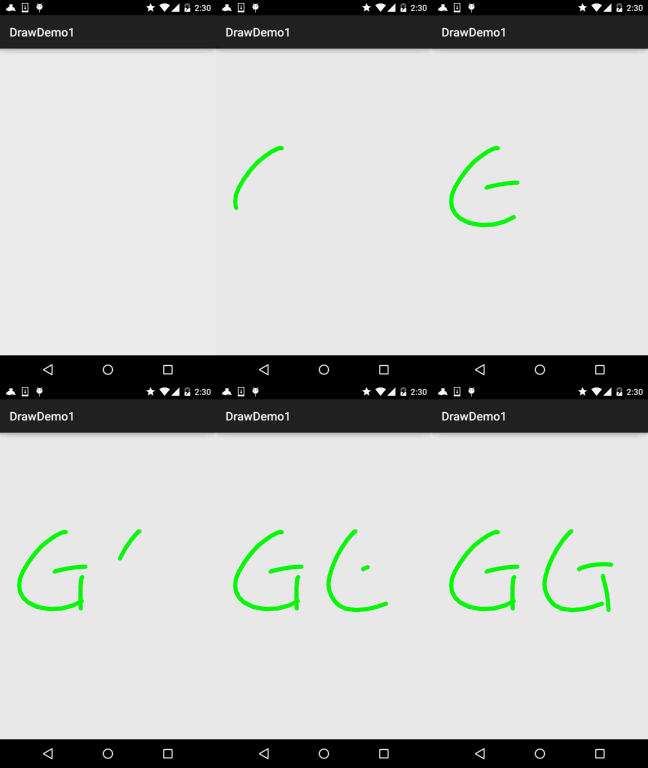
你可以根据自己的需求进行扩展,比如加上修改画笔大小,修改画笔颜色,保存自己画的图等! 发散思维,自己动手~
2.实战示例2:擦掉美女衣服的实现
核心思路是: 利用帧布局,前后两个ImageView,前面的显示未擦掉衣服的情况,后面的显示擦掉衣服后的情况!
为两个ImageView设置美女图片后,接着为前面的ImageView设置OnTouchListener!在这里对手指 触碰点附近的20*20个像素点,设置为透明!
运行效果图:

代码实现:
Step 1:第一个选妹子的Activity相关的编写,首先是界面,一个ImageView,Button和Gallery!
activity_main.xml:
接着是我们Gallery的Adapter类,这里我们重写下BaseAdapter,而里面就显示一个图片比较简单, 就不另外写一个布局了!
MeiziAdapter.java:
/*** Created by Jay on 2015/10/16 0016.*/
public class MeiziAdapter extends BaseAdapter{private Context mContext;private int[] mData;public MeiziAdapter() {}public MeiziAdapter(Context mContext,int[] mData) {this.mContext = mContext;this.mData = mData;}@Overridepublic int getCount() {return mData.length;}@Overridepublic Object getItem(int position) {return mData[position];}@Overridepublic long getItemId(int position) {return position;}@Overridepublic View getView(int position, View convertView, ViewGroup parent) {ImageView imgMezi = new ImageView(mContext);imgMezi.setImageResource(mData[position]);         //创建一个ImageViewimgMezi.setScaleType(ImageView.ScaleType.FIT_XY);      //设置imgView的缩放类型imgMezi.setLayoutParams(new Gallery.LayoutParams(250, 250));    //为imgView设置布局参数TypedArray typedArray = mContext.obtainStyledAttributes(R.styleable.Gallery);imgMezi.setBackgroundResource(typedArray.getResourceId(R.styleable.Gallery_android_galleryItemBackground, 0));return imgMezi;}
}
最后到我们的Activity,也很简单,无非是为gallery设置onSelected事件,点击按钮后把,当前选中的 Position传递给下一个页面!
MainActivity.java:
public class MainActivity extends AppCompatActivity implements AdapterView.OnItemSelectedListener,View.OnClickListener {private Context mContext;private ImageView img_choose;private Button btn_choose;private Gallery gay_choose;private int index = 0;private MeiziAdapter mAdapter = null;private int[] imageIds = new int[]{R.mipmap.pre1, R.mipmap.pre2, R.mipmap.pre3, R.mipmap.pre4,R.mipmap.pre5, R.mipmap.pre6, R.mipmap.pre7, R.mipmap.pre8,R.mipmap.pre9, R.mipmap.pre10, R.mipmap.pre11, R.mipmap.pre12,R.mipmap.pre13, R.mipmap.pre14, R.mipmap.pre15, R.mipmap.pre16,R.mipmap.pre17, R.mipmap.pre18, R.mipmap.pre19, R.mipmap.pre20,R.mipmap.pre21};@Overrideprotected void onCreate(Bundle savedInstanceState) {super.onCreate(savedInstanceState);setContentView(R.layout.activity_main);mContext = MainActivity.this;bindViews();}private void bindViews() {img_choose = (ImageView) findViewById(R.id.img_choose);btn_choose = (Button) findViewById(R.id.btn_choose);gay_choose = (Gallery) findViewById(R.id.gay_choose);mAdapter = new MeiziAdapter(mContext, imageIds);gay_choose.setAdapter(mAdapter);gay_choose.setOnItemSelectedListener(this);btn_choose.setOnClickListener(this);}@Overridepublic void onItemSelected(AdapterView parent, View view, int position, long id) {img_choose.setImageResource(imageIds[position]);index = position;}@Overridepublic void onNothingSelected(AdapterView parent) {}@Overridepublic void onClick(View v) {Intent it = new Intent(mContext,CaClothes.class);Bundle bundle = new Bundle();bundle.putCharSequence("num", Integer.toString(index));it.putExtras(bundle);startActivity(it);}
}
接着是我们擦掉妹子衣服的页面了,布局比较简单,FrameLayout + 前后两个ImageView:
activity_caclothes.xml:
接着到就到Java部分的代码了:
CaClothes.java:
/*** Created by Jay on 2015/10/16 0016.*/
public class CaClothes extends AppCompatActivity implements View.OnTouchListener {private ImageView img_after;private ImageView img_before;private Bitmap alterBitmap;private Canvas canvas;private Paint paint;private Bitmap after;private Bitmap before;private int position;int[] imageIds1 = new int[]{R.mipmap.pre1, R.mipmap.pre2, R.mipmap.pre3, R.mipmap.pre4,R.mipmap.pre5, R.mipmap.pre6, R.mipmap.pre7, R.mipmap.pre8,R.mipmap.pre9, R.mipmap.pre10, R.mipmap.pre11, R.mipmap.pre12,R.mipmap.pre13, R.mipmap.pre14, R.mipmap.pre15, R.mipmap.pre16,R.mipmap.pre17, R.mipmap.pre18, R.mipmap.pre19, R.mipmap.pre20,R.mipmap.pre21};int[] imageIds2 = new int[]{R.mipmap.after1, R.mipmap.after2, R.mipmap.after3, R.mipmap.after4,R.mipmap.after5, R.mipmap.after6, R.mipmap.after7, R.mipmap.after8,R.mipmap.after9, R.mipmap.after10, R.mipmap.after11, R.mipmap.after12,R.mipmap.after13, R.mipmap.after14, R.mipmap.after15, R.mipmap.after16,R.mipmap.after17, R.mipmap.after18, R.mipmap.after19, R.mipmap.after20,R.mipmap.after21};@Overridepublic void onCreate(Bundle savedInstanceState) {super.onCreate(savedInstanceState);setContentView(R.layout.activity_caclothes);Bundle bd = getIntent().getExtras();position = Integer.parseInt(bd.getString("num"));bindViews();}private void bindViews() {img_after = (ImageView) findViewById(R.id.img_after);img_before = (ImageView) findViewById(R.id.img_before);BitmapFactory.Options opts = new BitmapFactory.Options();opts.inSampleSize = 1;after = BitmapFactory.decodeResource(getResources(), imageIds2[position], opts);before = BitmapFactory.decodeResource(getResources(), imageIds1[position], opts);//定义出来的是只读图片alterBitmap = Bitmap.createBitmap(before.getWidth(), before.getHeight(), Bitmap.Config.ARGB_4444);canvas = new Canvas(alterBitmap);paint = new Paint();paint.setStrokeCap(Paint.Cap.ROUND);paint.setStrokeJoin(Paint.Join.ROUND);paint.setStrokeWidth(5);paint.setColor(Color.BLACK);paint.setAntiAlias(true);canvas.drawBitmap(before, new Matrix(), paint);img_after.setImageBitmap(after);img_before.setImageBitmap(before);img_before.setOnTouchListener(this);}@Overridepublic boolean onTouch(View v, MotionEvent event) {switch (event.getAction()) {case MotionEvent.ACTION_DOWN:break;case MotionEvent.ACTION_MOVE:int newX = (int) event.getX();int newY = (int) event.getY();//setPixel方法是将某一个像素点设置成一个颜色,而这里我们把他设置成透明//另外通过嵌套for循环将手指触摸区域的20*20个像素点设置为透明for (int i = -20; i < 20; i++) {for (int j = -20; j < 20; j++) {if (i + newX >= 0 && j + newY >= 0 && i + newX < before.getWidth() && j + newY < before.getHeight())alterBitmap.setPixel(i + newX, j + newY, Color.TRANSPARENT);}}img_before.setImageBitmap(alterBitmap);break;}return true;}
}
代码也不算苦涩难懂,还是比较简单的。
本文来自互联网用户投稿,文章观点仅代表作者本人,不代表本站立场,不承担相关法律责任。如若转载,请注明出处。 如若内容造成侵权/违法违规/事实不符,请点击【内容举报】进行投诉反馈!