Android初学之仿微信APP门户界面设计
实验环境:
在Android Studio中进行有关代码的编写和界面效果展示
图标来源于阿里矢量图标库
界面分析:

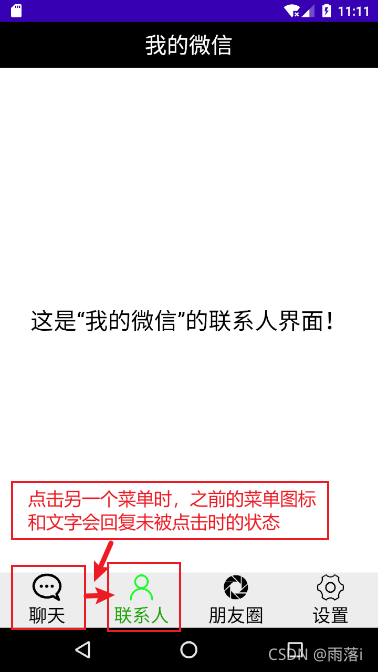
点击底端相应区域,中间内容会进行相应切换(将对应的Fragment显示,其余的Fragment隐藏),下面展示点击联系人后,中间内容的变化。

同时点击菜单后,该菜单的图标和文字都将切换为绿色。
界面布局的代码实现:
- 顶部top.xml
- 底端bottom.xml
- 中间内容四个分段fragment.xml
- 窗体总布局的activity_main.xml
- 四个分段fragment.xml对应的.java文件
- 主函数文件MainActivity.java
- 设置添加颜色colors.xml
顶部top.xml
(布局可以通过设置android:background属性改变背景颜色,文本可以通过设置android:textColor属性改变字体颜色。)
<?xml version="1.0" encoding="utf-8"?>
<LinearLayout xmlns:android="http://schemas.android.com/apk/res/android"android:layout_width="match_parent"android:layout_height="50dp"android:background="@color/black"><TextViewandroid:id="@+id/textView"android:layout_width="wrap_content"android:layout_height="50dp"android:layout_weight="1"android:gravity="center"android:text="我的微信"android:textColor="@color/white"android:textSize="24sp" /></LinearLayout>
底端bottom.xml
(为节省篇幅此处只给出了第一个垂直式的LinearLayout-聊天菜单)
android:gravity属性可以定义布局内控件的对齐方式,居中、水平居中和垂直居中
android:orientation属性可以定义布局内控件的排列方式,一般有水平式和垂直式
<?xml version="1.0" encoding="utf-8"?>
<LinearLayout xmlns:android="http://schemas.android.com/apk/res/android"xmlns:app="http://schemas.android.com/apk/res-auto"android:layout_width="match_parent"android:layout_height="60dp"android:background="@color/colorViewNormal"android:gravity="center"><LinearLayoutandroid:id="@+id/chat"android:layout_width="match_parent"android:layout_height="match_parent"android:layout_weight="1"android:gravity="center"android:orientation="vertical"><ImageViewandroid:id="@+id/imageView1"android:layout_width="match_parent"android:layout_height="wrap_content"android:layout_weight="1"app:srcCompat="@drawable/chat" /><TextViewandroid:id="@+id/textView1"android:layout_width="match_parent"android:layout_height="wrap_content"android:layout_weight="1"android:gravity="center"android:textColor="@color/black"android:text="聊天"android:textSize="20sp" /></LinearLayout></LinearLayout>
中间内容区四个fragment.xml
(同样只给出了一个分段,其余三个分段类似)
<?xml version="1.0" encoding="utf-8"?>
<androidx.constraintlayout.widget.ConstraintLayout xmlns:android="http://schemas.android.com/apk/res/android"xmlns:app="http://schemas.android.com/apk/res-auto"xmlns:tools="http://schemas.android.com/tools"android:layout_width="match_parent"android:layout_height="match_parent"tools:context=".Fragment_chat"><TextViewandroid:id="@+id/textView5"android:layout_width="wrap_content"android:layout_height="50dp"android:gravity="center"android:text="这是“我的微信”的聊天界面!"android:textColor="@color/black"android:textSize="25sp"app:layout_constraintBottom_toBottomOf="parent"app:layout_constraintEnd_toEndOf="parent"app:layout_constraintStart_toStartOf="parent"app:layout_constraintTop_toTopOf="parent" /></androidx.constraintlayout.widget.ConstraintLayout>
activity_main.xml
(包含top、middle、bottom三个部分id,用 include 语句调用顶部和底部导航栏两个xml文件)
<?xml version="1.0" encoding="utf-8"?>
<LinearLayout xmlns:android="http://schemas.android.com/apk/res/android"xmlns:app="http://schemas.android.com/apk/res-auto"xmlns:tools="http://schemas.android.com/tools"android:layout_width="match_parent"android:layout_height="match_parent"android:orientation="vertical"tools:context=".MainActivity"><include layout="@layout/top"></include><FrameLayoutandroid:id="@+id/frame_content"android:layout_width="match_parent"android:layout_height="match_parent"android:layout_weight="1"></FrameLayout><include layout="@layout/bottom"></include></LinearLayout>
fragment_chat.java
(同样只给出点击聊天菜单后显示的分段,其余三个类似)
package com.example.mywork;import android.os.Bundle;
import android.view.LayoutInflater;
import android.view.View;
import android.view.ViewGroup;
import androidx.fragment.app.Fragment;public class Fragment_chat extends Fragment {public Fragment_chat() {}@Overridepublic View onCreateView(LayoutInflater inflater,ViewGroup container, Bundle savedInstanceState) {
//        return super.onCreateView(inflater, container, savedInstanceState);return inflater.inflate(R.layout.fragment_chat,container,false);}
}
MainActivity.java
(各组件的初始化操作及点击各菜单的转换操作函数)
package com.example.mywork;import androidx.appcompat.app.AppCompatActivity;
import androidx.fragment.app.Fragment;
import androidx.fragment.app.FragmentManager;
import androidx.fragment.app.FragmentTransaction;import android.graphics.Color;
import android.os.Bundle;
import android.view.View;
import android.view.Window;
import android.widget.ImageView;
import android.widget.LinearLayout;
import android.widget.TextView;public class MainActivity extends AppCompatActivity implements View.OnClickListener{//Fragmentprivate Fragment fragment_first=new Fragment_chat();private Fragment fragment_second=new Fragment_contacts();private Fragment fragment_third=new Fragment_circle_friend();private Fragment fragment_fourth=new Fragment_settings();//底端菜单栏LinearLayoutprivate LinearLayout linear_first;private LinearLayout linear_second;private LinearLayout linear_third;private LinearLayout linear_fourth;//底端菜单栏中的Imageviewprivate ImageView imageView_first;private ImageView imageView_second;private ImageView imageView_third;private ImageView imageView_fourth;//底端菜单栏中的TextViewprivate TextView textView_first;private TextView textView_second;private TextView textView_third;private TextView textView_fourth;//FragmentManagerprivate FragmentManager fragmentManager;@Overrideprotected void onCreate(Bundle savedInstanceState) {super.onCreate(savedInstanceState);requestWindowFeature(Window.FEATURE_NO_TITLE );setContentView(R.layout.activity_main);initView();initFragment();initEvent();selectFragment(0);//将第一个图标设为选中状态imageView_first.setImageResource(R.drawable.chat_green);textView_first.setTextColor(getResources().getColor(R.color.colorViewPress));}@Overridepublic void onClick(View view) {//每次点击之后,将所有的ImageView和TextView设置为未选中restartButton();switch(view.getId()){case R.id.chat://选择所点击的菜单对应的图层片段selectFragment(0);//将该菜单的点击状态置为点击态imageView_first.setImageResource(R.drawable.chat_green);textView_first.setTextColor(getResources().getColor(R.color.colorViewPress));break;case R.id.contacts:selectFragment(1);imageView_second.setImageResource(R.drawable.contacts_green);textView_second.setTextColor(getResources().getColor(R.color.colorViewPress));break;case R.id.circle_friend:selectFragment(2);imageView_third.setImageResource(R.drawable.circle_people_green);textView_third.setTextColor(getResources().getColor(R.color.colorViewPress));break;case R.id.settings:selectFragment(3);imageView_fourth.setImageResource(R.drawable.settings_green);textView_fourth.setTextColor(getResources().getColor(R.color.colorViewPress));break;default:break;}}//重置菜单的点击状态,设为未点击private void restartButton() {//设置为未点击状态//第一片段imageView_first.setImageResource(R.drawable.chat);textView_first.setTextColor(getResources().getColor(R.color.black));//第二片段imageView_second.setImageResource(R.drawable.contacts);textView_second.setTextColor(getResources().getColor(R.color.black));//第三片段imageView_third.setImageResource(R.drawable.circle_people);textView_third.setTextColor(getResources().getColor(R.color.black));//第四片段imageView_fourth.setImageResource(R.drawable.settings);textView_fourth.setTextColor(getResources().getColor(R.color.black));}//初始化中间的部分的图层片段private void initFragment(){fragmentManager=getSupportFragmentManager();FragmentTransaction transaction=fragmentManager.beginTransaction();transaction.add(R.id.frame_content,fragment_first);transaction.add(R.id.frame_content,fragment_second);transaction.add(R.id.frame_content,fragment_third);transaction.add(R.id.frame_content,fragment_fourth);//提交事务transaction.commit();}//初始化各底端的LinearLayout、ImageView和TextView组件private  void initView(){linear_first=findViewById(R.id.chat);linear_second=findViewById(R.id.contacts);linear_third=findViewById(R.id.circle_friend);linear_fourth=findViewById(R.id.settings);imageView_first=findViewById(R.id.imageView1);imageView_second=findViewById(R.id.imageView2);imageView_third=findViewById(R.id.imageView3);imageView_fourth=findViewById(R.id.imageView4);textView_first=findViewById(R.id.textView1);textView_second=findViewById(R.id.textView2);textView_third=findViewById(R.id.textView3);textView_fourth=findViewById(R.id.textView4);}//初始化点击监听事件private void initEvent(){linear_first.setOnClickListener(this);linear_second.setOnClickListener(this);linear_third.setOnClickListener(this);linear_fourth.setOnClickListener(this);}//隐藏所有图层分段private void hideView(FragmentTransaction transaction){transaction.hide(fragment_first);transaction.hide(fragment_second);transaction.hide(fragment_third);transaction.hide(fragment_fourth);}//选择相应的图层分段private void selectFragment(int i){FragmentTransaction transaction=fragmentManager.beginTransaction();//调用隐藏所有图层函数hideView(transaction);switch (i){case 0:transaction.show(fragment_first);break;case 1:transaction.show(fragment_second);break;case 2:transaction.show(fragment_third);break;case 3:transaction.show(fragment_fourth);break;default:break;}//提交转换事务transaction.commit();}}
colors.xml
(用于添加和修改颜色,并为颜色命名方便调用。在其中我添加了两个颜色color字段用于底端文本颜色的切换)
<?xml version="1.0" encoding="utf-8"?>
<resources><color name="purple_200">#FFBB86FC</color><color name="purple_500">#FF6200EE</color><color name="purple_700">#FF3700B3</color><color name="teal_200">#FF03DAC5</color><color name="teal_700">#FF018786</color><color name="black">#FF000000</color><color name="white">#FFFFFFFF</color><color name="colorViewNormal">#EDEDED</color><color name="colorViewPress">#1FA50C</color></resources>
小结:在Android Studio中进行仿微信APP门户界面的初步设计,实现了top和bottom导航栏的设计,及中间片段图层之间的隐藏与切换,最后实现了点击菜单后的颜色切换问题。用到了TextView、ImageView、LinearLayout、Fragment组件,了解了点击事件onClick函数的编写。
具体代码已上传至gitee代码仓库
——2021.10.04
本文来自互联网用户投稿,文章观点仅代表作者本人,不代表本站立场,不承担相关法律责任。如若转载,请注明出处。 如若内容造成侵权/违法违规/事实不符,请点击【内容举报】进行投诉反馈!