武职301-day02
这里写自定义目录标题
- 软件开发前端最基础的技术
- 三剑客:HTML+CSS+JavaScript
- 二维码
- 搭建后端开发环境
- 创建SpringBoot项目
- Jar怎么存储呢?
- 创建第一个SpringBoot程序
- 使用谷歌工具包zxing产生二维码
- 改造工具类,形成网址输入地址和图片路径,动态生成二维码
- CreateQR.java
- QRController.java
- 做前后端分离项目
- 前端
- 后端
- 检查node是否安装好
- 安装PNPM
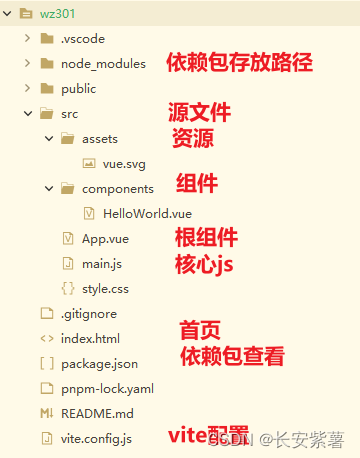
- 核心几个文件作用
- index.html
- main.js
- 文件直接关系
- 安装环境
软件开发前端最基础的技术
三剑客:HTML+CSS+JavaScript
基础必须掌握
二维码
把后端的环境搭建起来
前端负责展现和后端交互。后端负责数据处理加工获取返回前端,前端进行解析然后展现。前后端分离技术。h5+css3+vue == ssm+分布式架构+大数据架构+人工智能
搭建后端开发环境
idea,maven 3.5.4
SpringBoot,tomcat内置
Idea默认配置Maven环境
1)默认的本地仓库位置:
C:/Users/Admins/.m2/repository
存储项目依赖的第三方的包jar(很多.class文件)
例如:谷歌zxing的二维码的jar包
当maven项目使用第三方的jar它会自动取maven中央仓库(网上,远程仓库)
自动把中央仓库的我们需要jar包,下载到本地仓库。
创建SpringBoot项目
它会自动把要使用的jar下载到本地
1)新建一个工程 Project
https://repo.maven.apache.org
/maven2/commons-io/commons-io/2.6/commons-io-2.6.jar
创建项目时,idea会自动从maven的远程仓库(中央仓库)来下载所需要jar
存储到本地仓库(位置可以设置)
默认在c:当前登录用户/.m2/repository目录下
Jar怎么存储呢?
Maven坐标
分为3级
commons-io\commons-io\2.6
org\apache\maven\maven-archiver\3.5.1
1)公司名称或者项目名称
2)项目名称
3)版本号
就是jar包和其他文件pom文件
创建第一个SpringBoot程序
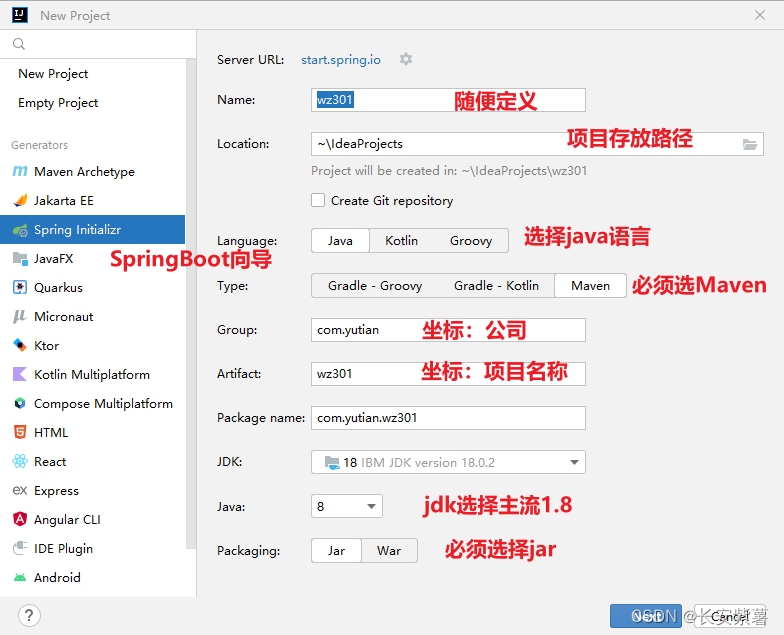
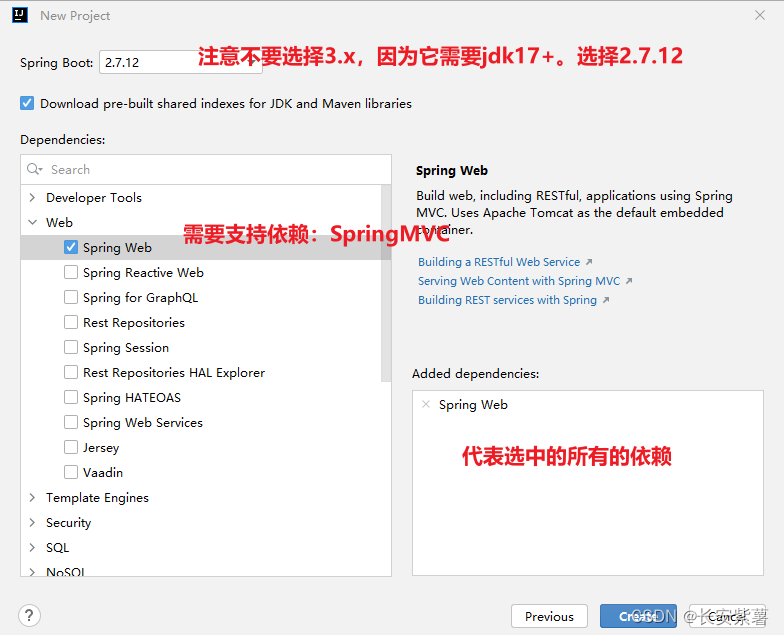
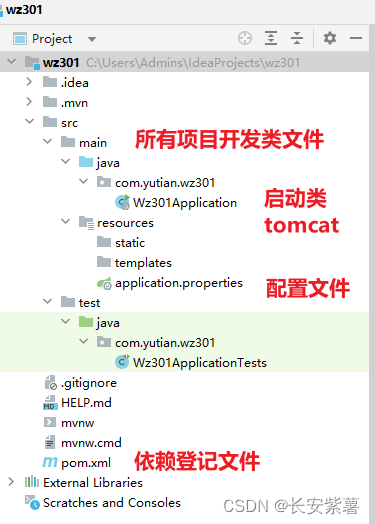
package com.yutian.wz301.controller;//符合SpringMVC,它能解析浏览器输入的连接的地址
//浏览器输入:http://localhost:8080/hello,在java控制台console中打印字符串:hello springbootimport org.springframework.web.bind.annotation.RequestMapping;
import org.springframework.web.bind.annotation.RestController;@RestController //声明这个类是一个SpringMVC的controller,它才能处理浏览器请求
public class HelloController {//写一个方法,方法具体去干活,控制台打印字符串/*浏览器输入:http://localhost:8080/hello(URL)进入到项目,框架会把前面的内容砍掉只剩后面的内容:/hello(URI)*/@RequestMapping("/hello")public String hello(){return "hello SpringBoot";  //会在浏览器页面中展示}
}
使用谷歌工具包zxing产生二维码
1、找到这个jar,都可以通过Maven的依赖,你需要知道zxing的坐标(chatGPT帮我们找到最佳答案)
2、pom.xml
xml就是文本文件(txt)它提供了一系列自定义的标签内容,标签可以嵌套
习惯用来做系统的配置
3、在pom.xml增加zxing它的依赖坐标maven
4、调用
二维码就是一张图片,图片上代表网址,字符串。手机微信、支付宝扫一下,如果返回网址,就会自动打开网址
参数:
1)动态地址(自定义)
2)图片保存到哪里(自定义)
自己写一个类,调用zxing的api的方法,抽取一个方法输入这两个参数,然后运行java类。
改造工具类,形成网址输入地址和图片路径,动态生成二维码
1、复制工具类文件,放到项目中
2、写一个controller,因为它才能接受网络请求
3、通过网络输入网址,和图片地址,最终实现自己定义二维码内容
http://localhost:8080/qr?website=‘http://www.yutianedu.com‘&filePath=‘d:/‘(url)
http://localhost:8080
/qr?website=‘http://www.yutianedu.com‘&filePath=‘d:/‘(URI)
参数:
?website=‘http://www.yutianedu.com‘
&filePath=‘d:/‘
http://localhost:8080/qr?website=a&filePath=b
CreateQR.java
package com.yutian.wz301.util;import java.awt.Graphics2D;
import java.awt.image.BufferedImage;
import java.io.File;
import javax.imageio.ImageIO;import com.google.zxing.BarcodeFormat;
import com.google.zxing.EncodeHintType;
import com.google.zxing.WriterException;
import com.google.zxing.common.BitMatrix;
import com.google.zxing.qrcode.QRCodeWriter;
import com.google.zxing.qrcode.decoder.ErrorCorrectionLevel;public class CreateQR {public static void main(String[] args) {String website = "http://www.yutianedu.com";String filePath = "D:/qrcode.png";make(website, filePath);}//把谷歌zxing二维码形成通用的工具类public static void make(String website, String filePath){int width = 300;int height = 300;String format = "png";// set hintsEncodeHintType hintType = EncodeHintType.ERROR_CORRECTION;ErrorCorrectionLevel level = ErrorCorrectionLevel.M;QRCodeWriter writer = new QRCodeWriter();BitMatrix bitMatrix;try {bitMatrix = writer.encode(website, BarcodeFormat.QR_CODE, width, height);BufferedImage image = new BufferedImage(width, height, BufferedImage.TYPE_INT_RGB);for (int x = 0; x < width; x++) {for (int y = 0; y < height; y++) {image.setRGB(x, y, bitMatrix.get(x, y) ? 0xFF000000 : 0xFFFFFFFF);}}File outputFile = new File(filePath);ImageIO.write(image, format, outputFile);} catch (WriterException e) {e.printStackTrace();} catch (Exception e) {e.printStackTrace();}}
}
QRController.java
package com.yutian.wz301.controller;//根据页面的请求,动态产生二维码图片import com.yutian.wz301.util.CreateQR;
import org.springframework.web.bind.annotation.RequestMapping;
import org.springframework.web.bind.annotation.RestController;@RestController
public class QRController {//网页的规定,参数形式,第一个参数前面是?,后面的多个参数使用&符号,每个参数键值对map,名称=值//连接:http://localhost:8080/qr?website=a&filePath=b//写方法来调用工具类@RequestMapping("/qr")public String make(String website, String filePath){
//        System.out.println("website:"+website);
//        System.out.println("filePath:"+filePath);CreateQR.make(website, filePath);   //调用工具类,在指定路径,产生图片return "make";}
}
做前后端分离项目
前端
Vue3.x 脚手架 + Vite4.x 打包工具 + ElementPlus(ElementUI3.0)+ PNPM(包管理)
基于NodeJS,必须先安装好node工具。
安装完成NodeJS,自带npm。
后端
SpringBoot(Maven)构建项目,管理jar包+SpringMVC+Spring+MybatisPlus
企业级开发。
检查node是否安装好
查看它的版本号,nodejs 15+
官网:https://nodejs.org/en
node --version
npm --version
安装PNPM
为什么要使用PNPM,主流包管理已经有很多很成熟的方式:npm,yarn(大数据)
核心几个文件作用
index.html
VUE 规定,页面必须有一个div标签,它的id属性,名字固定写死的 app
它引入了main.jsmain.js
执行入口
import { createApp } from ‘vue’ 导入js支持vue的支持,vue丰富函数库,createApp创建vue实例
import ‘./style.css’ 导入style.css样式文件,和main.js在同一路径,./代表同一个路径
import App from ‘./App.vue’ .vue就是vue组件,App.vue根组件,其他组件都是由它进行加载
createApp(App).mount(‘#app’)
createApp是上面导入vue函数,参数App是上面导入App.vue组件
mount挂载,vue把上面的内容进行拼接修饰(render渲染)所有的内容添加到div标签中
div.innerHTML(vue)
文件直接关系
index.html > main.js -> App.vue -> HelloWorld.vue -> 加载完成展示页面
安装环境
1、安装ElementPlus
1)pnpm install element-plus
2)导入ElementPlus组件
注意:安装组件时,必须停止项目服务,才能安装
验证是否安装成功
修改main.js
import { createApp } from ‘vue’
// 导入element-plus组件
import ElementPlus from ‘element-plus’
// 导入index.css全局样式
import ‘element-plus/dist/index.css’
import App from ‘./App.vue’
// 创建对象实例,实例名app
const app = createApp(App)
//加载ElementPlus组件
app.use(ElementPlus)
//挂载到div上展示
app.mount(‘#app’)
3)访问
页面上使用组件el-button按钮,如果页面正确展示了它的按钮,修饰。就代表安装成功。
修改App.vue,把下面的按钮组件放入标签中
Default
Primary
Success
Info
Warning
Danger
2、安装ElementPlus Icon图标
3、安装Router路由,解决页面跳转,增强Vue的功能
本文来自互联网用户投稿,文章观点仅代表作者本人,不代表本站立场,不承担相关法律责任。如若转载,请注明出处。 如若内容造成侵权/违法违规/事实不符,请点击【内容举报】进行投诉反馈!