Linux terminator终端使用方式,个人认为目前最好的终端工具
terminator是一款终端软件,可以极大程度的提高工作效率,而且使用方式非常简单,只需要记住一些快捷键就可以了。
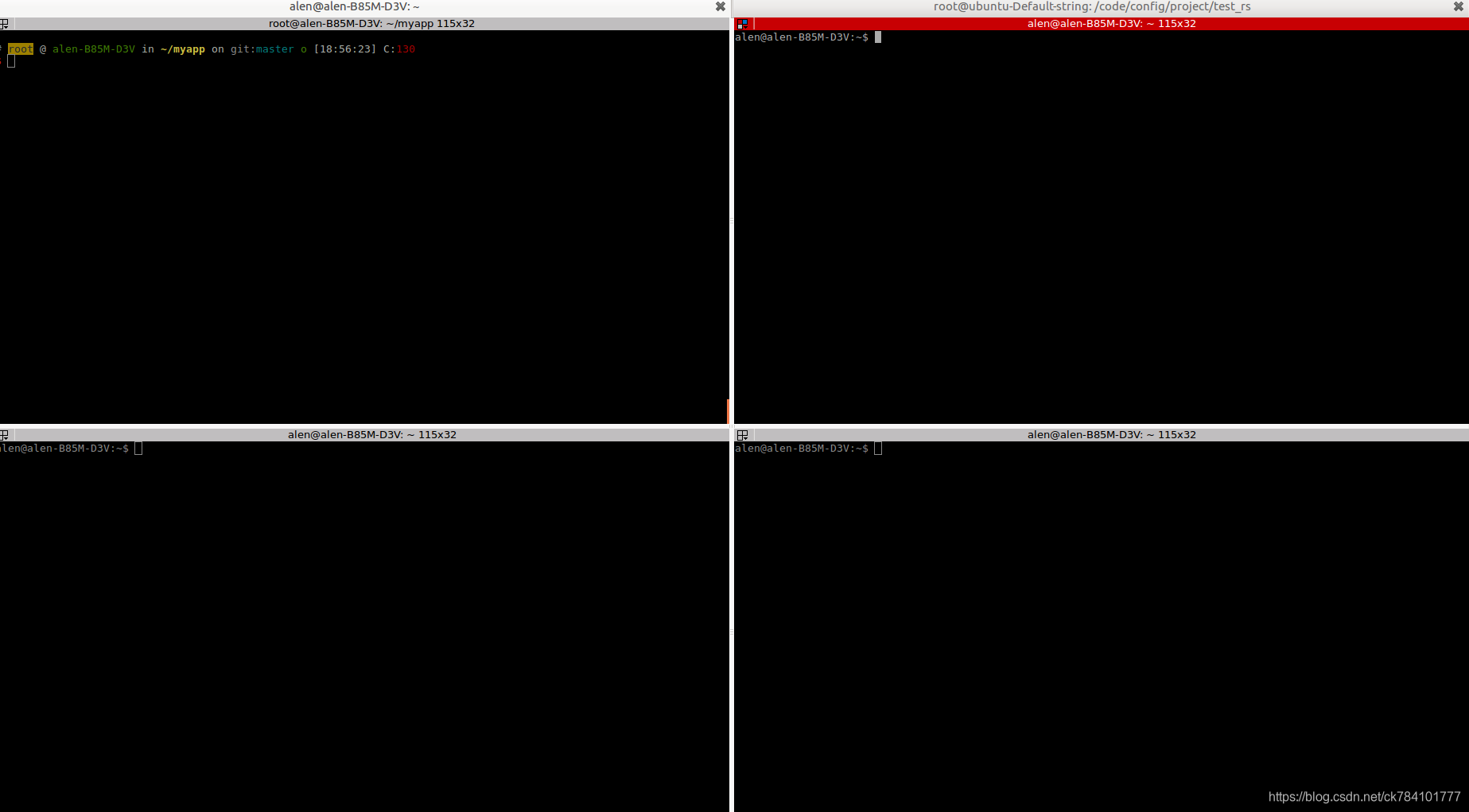
下面是分屏效果
安装
ubuntu: apt-get -y install terminator
centos: yum -y install terminator
注意:不区分大小写
使用方式1:垂直分屏
Ctrl+Shift+E使用方式2:水平分屏
Ctrl+Shift+O使用方式3:关闭窗口
Ctrl+Shift+W使用方式4:多终端同步输入
就是所有终端执行相同的命令,非常适合批量操作
win+G关闭多终端同步输入
win+shift+G使用方式5:放大单个窗口
win+shift+X使用方式6:调整窗口大小
ctrl+shift+左方向键
ctrl+shift+右方向键
调整窗口视觉参数
[global_config]title_transmit_bg_color = "#d30102"focus = systemsuppress_multiple_term_dialog = True
[keybindings]
[profiles][[default]]palette = "#2d2d2d:#f2777a:#99cc99:#ffcc66:#6699cc:#cc99cc:#66cccc:#d3d0c8:#747369:#f2777a:#99cc99:#ffcc66:#6699cc:#cc99cc:#66cccc:#f2f0ec"background_color = "#2D2D2D" # 背景颜色background_image = None   background_darkness = 0.85 cursor_color = "#2D2D2D" # 光标颜色cursor_blink = True # 光标是否闪烁foreground_color = "#EEE9E9" # 文字的颜色use_system_font = False # 是否启用系统字体font = Ubuntu Mono 13  # 字体设置,后面的数字表示字体大小copy_on_selection = True # 选择文本时同时将数据拷贝到剪切板中show_titlebar = False # 不显示标题栏,也就是 terminator 中那个默认的红色的标题栏
[layouts][[default]][[[child1]]]type = Terminalparent = window0profile = default[[[window0]]]type = Windowparent = ""
[plugins]
本文来自互联网用户投稿,文章观点仅代表作者本人,不代表本站立场,不承担相关法律责任。如若转载,请注明出处。 如若内容造成侵权/违法违规/事实不符,请点击【内容举报】进行投诉反馈!