SharePoint中excel file无法打开,弹出The file is corrupted and cannot be opened的解决方案


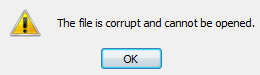
最近收到一个用户反馈,在SharePoint中打开excel文件时弹出下面错误信息“The File is corrupt and cannot beopened.


Machine generated alternative text: ¡ The file is corrupt and cannot be opened. OK


troubleshooting过程中发现主要原因是Office Applicationsettings设置问题。


可以通过下面步骤解决:

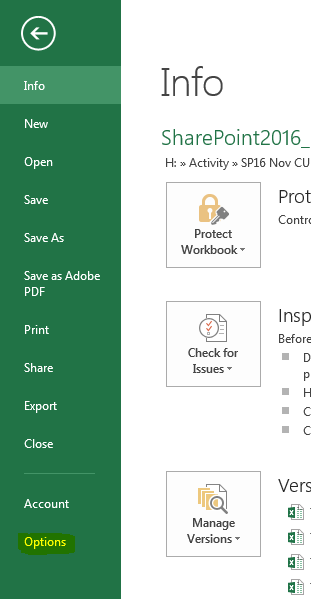
  1. 点击File-> Options

Machine generated alternative text: Info SharePoint2Ol6_ H: » Activity SP16 Nov CU Prot Contrc Ins p Before D p H IC Manage Versions . p Protect Workbook


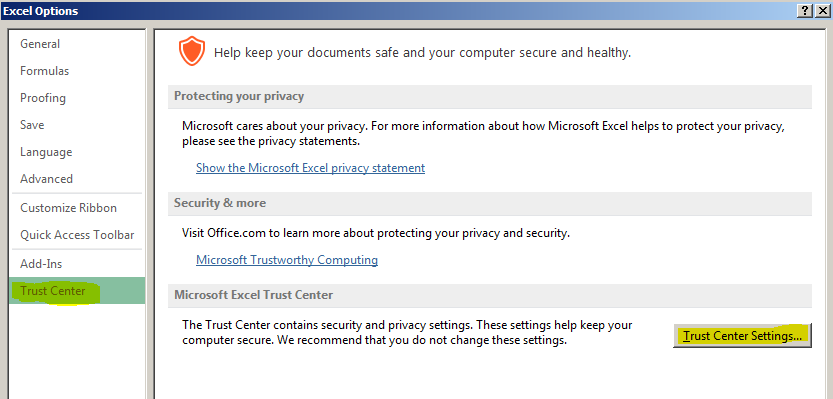
  1. 在弹出的设置页面中点击“Trust Center tab”,在详细设置中点击“Trust Center Settings

Machine generated alternative text: Excel Options _fl ÎIISJ General Help keep your documents safe and your computer secure and healthy. Formulas Proofing Protecting your privacy Save Microsoft cares about your privacy. For more information about how Microsoft Excel helps to protect your privacy, please see the privacy statements. Language Show the Microsoft Excel privacy statement Advanced Customize Ribbon Security & more Quick Access Toolbar Visit Office.com to learn more about protecting your privacy and security. Microsoft Trustworthy Computing Microsoft Excel Trust Center The Trust Center contains security and privacy settings. These settings help keep your computer secure. We recommend that you do not change these settings. Irust Center Settings...

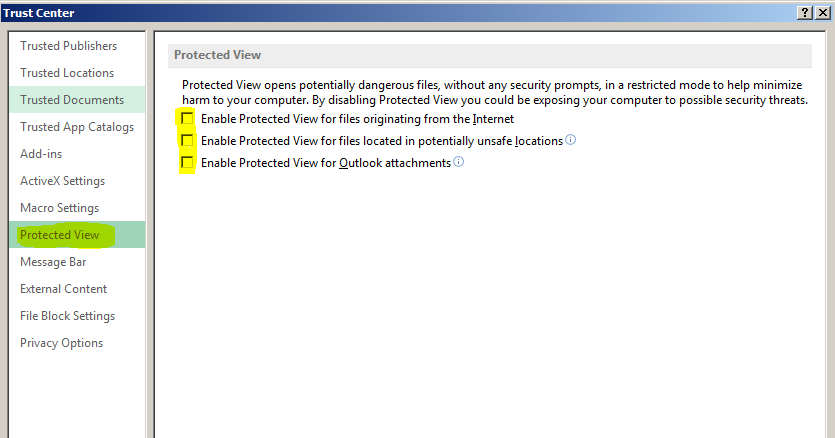
  1. 点击Protected tab,将列出的三个选项都取消勾选,点击OK保存

Machine generated alternative text: Trust Center Trusted Publishers Protected View Trusted Locations Protected View opens potentially dangerous files, without any security prompts, in a restricted mode to help minimize Trusted Documents harm to your computer. By disabling Protected View you could be exposing your computer to possible security threats. r Enable Protected View for files originating from the Internet Trusted App Catalogs . r Enable Protected View for files located in potentially unsafe locations Add-ins r Enable Protected View for Outlook attachments® ActiveX Settings Macro Settings Protected View Message Bar External Content File Block Settings Privacy Options


  1. 关闭Office Application,在SharePoint中重新点击文件,文件可以正确打开,问题解决。


感谢阅读。


本文来自互联网用户投稿,文章观点仅代表作者本人,不代表本站立场,不承担相关法律责任。如若转载,请注明出处。 如若内容造成侵权/违法违规/事实不符,请点击【内容举报】进行投诉反馈!

相关文章

立即
投稿

微信公众账号

微信扫一扫加关注

返回
顶部