Android PickerView简单应用
1. Android-PickerView
Android-PickerView这是一款仿iOS的PickerView控件,有时间选择器和选项选择器。
添加依赖项
implementation 'com.contrarywind:Android-PickerView:4.1.9'
2. 时间选择器
Android-PickerView时间选择器使用Build模式来创建
var timePickerView = TimePickerBuilder(context) { date, v ->}.build()
timePickerView.show()
显示如下
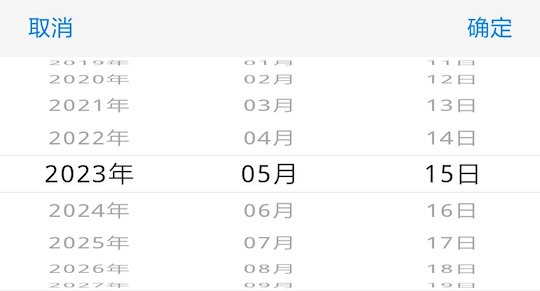
TimePickerBuilder主要方法
| 方法 | 说明 |
|---|---|
| setType(boolean[] type) | 分别控制“年”“月”“日”“时”“分”“秒”的显示或隐藏,type长度为6 |
| setDate(Calendar date) | 调用Calendar的set方法来设置时间 |
| setRangDate(Calendar startDate, Calendar endDate) | 设置起始时间 |
| setCancelText(String textContentCancel) | 设置取消按钮文字 |
| setCancelColor(int textColorCancel) | 设置取消文字颜色 |
| setSubmitText(String textContentConfirm) | 设置确认按钮文字 |
| setSubmitColor(int textColorConfirm) | 设置确认文字颜色 |
| setSubCalSize(int textSizeSubmitCancel) | 设置取消和确认按钮文字大小 |
| setTitleText(String textContentTitle) | 设置标题文字 |
| setTitleColor(int textColorTitle) | 设置标题文字颜色 |
| setTitleSize(int textSizeTitle) | 设置标题文字大小 |
| setTitleBgColor(int bgColorTitle) | 设置标题栏颜色 |
| setBgColor(int bgColorWheel) | 设置背景颜色 |
| setOutSideColor(int outSideColor) | 设置外部背景颜色,默认是灰色 |
| setContentTextSize(int textSizeContent) | 设置内容文字大小 |
| setItemVisibleCount(int count) | 设置可见数目,最好是奇数,默认是9 |
| setTextColorCenter(int textColorCenter) | 设置分割线之间的文字的颜色 |
| setTextColorOut(int textColorOut) | 设置分割线以外的文字的颜色 |
| setDividerColor(int dividerColor) | 设置分割线颜色 |
| setDividerType(WheelView.DividerType dividerType) | 设置分割线样式,默认是FILL |
| setLineSpacingMultiplier(float lineSpacingMultiplier) | 设置间隔倍距,只能在1.0-4.0f之间,默认是1.6 |
| isCyclic(boolean cyclic) | item是否循环 |
| setLabel(String, String, String, String, String, String) | 默认设置为年月日时分秒 |
| isCenterLabel(boolean isCenterLabel) | 是否只显示中间选中项的label文字 |
| setOutSideCancelable(boolean cancelable) | 是否允许点击外部取消 |
| isDialog(boolean isDialog) | 是否是对话框模式 |
| setDecorView(ViewGroup decorView) | 选择器会被添加到此容器中 |
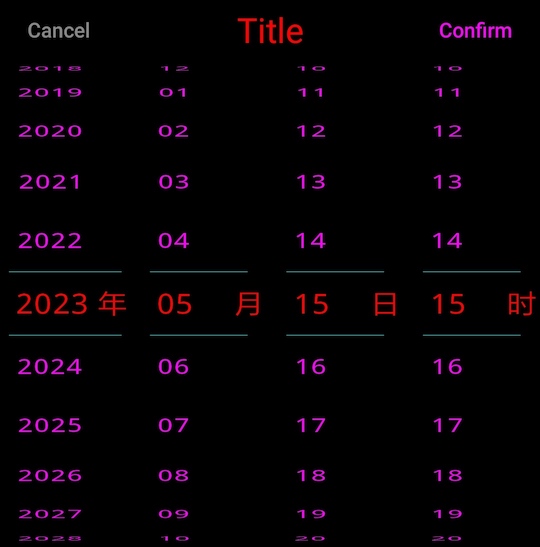
自定义参数
var timePickerView = TimePickerBuilder(this) { date, v ->}.setType(booleanArrayOf(true, true, true, true, false, false)).setCancelText("Cancel").setCancelColor(Color.GRAY).setSubmitText("Confirm").setSubmitColor(Color.MAGENTA).setSubCalSize(15).setTitleText("Title").setTitleColor(Color.RED).setTitleSize(25).setTitleBgColor(Color.BLACK).setBgColor(Color.BLACK).setContentTextSize(20).setItemVisibleCount(11).setTextColorCenter(Color.RED).setTextColorOut(Color.MAGENTA).setOutSideColor(Color.GRAY).setDividerColor(Color.CYAN).setDividerType(WheelView.DividerType.WRAP).setLineSpacingMultiplier(2.5f).isCyclic(true).isCenterLabel(true).build()timePickerView.show()
显示如下
3. 选项选择器
Android-PickerView选项选择器同样使用Build模式来创建,并且支持3级联动。
var optionsPickerView = OptionsPickerBuilder(this) { option1, option2, option3, v ->}.build<String>()optionsPickerView.setNPicker(hourList, minuteList, secondList)var calendar = Calendar.getInstance()
optionsPickerView.setSelectOptions(calendar.get(Calendar.HOUR_OF_DAY),calendar.get(Calendar.MINUTE), calendar.get(Calendar.SECOND))
optionsPickerView.show()
显示如下
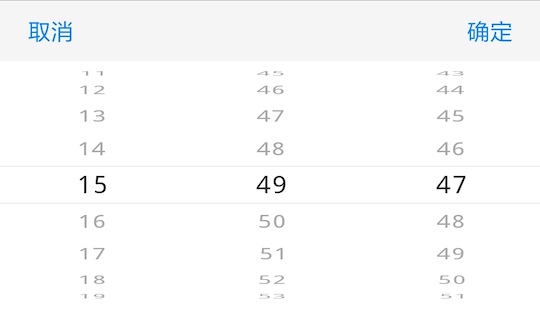
OptionsPickerBuilder主要方法
| 方法 | 说明 |
|---|---|
| setCancelText(String textContentCancel) | 设置取消按钮文字 |
| setCancelColor(int textColorCancel) | 设置取消文字颜色 |
| setSubmitText(String textContentConfirm) | 设置确认按钮文字 |
| setSubmitColor(int textColorConfirm) | 设置确认文字颜色 |
| setSubCalSize(int textSizeSubmitCancel) | 设置取消和确认按钮文字大小 |
| setTitleText(String textContentTitle) | 设置标题文字 |
| setTitleColor(int textColorTitle) | 设置标题文字颜色 |
| setTitleSize(int textSizeTitle) | 设置标题文字大小 |
| setTitleBgColor(int bgColorTitle) | 设置标题栏颜色 |
| setBgColor(int bgColorWheel) | 设置背景颜色 |
| setOutSideColor(int outSideColor) | 设置外部背景颜色,默认是灰色 |
| setContentTextSize(int textSizeContent) | 设置内容文字大小 |
| setItemVisibleCount(int count) | 设置可见数目,最好是奇数,默认是9 |
| setTextColorCenter(int textColorCenter) | 设置分割线之间的文字的颜色 |
| setTextColorOut(int textColorOut) | 设置分割线以外的文字的颜色 |
| setDividerColor(int dividerColor) | 设置分割线颜色 |
| setDividerType(WheelView.DividerType dividerType) | 设置分割线样式,默认是FILL |
| setLineSpacingMultiplier(float lineSpacingMultiplier) | 设置间隔倍距,只能在1.0-4.0f之间,默认是1.6 |
| setCyclic(boolean cyclic1, boolean cyclic2, boolean cyclic3) | item是否循环 |
| setLabels(String label1, String label2, String label3) | 设置单位字符 |
| isCenterLabel(boolean isCenterLabel) | 是否只显示中间选中项的label文字 |
| setOutSideCancelable(boolean cancelable) | 是否允许点击外部取消 |
| isDialog(boolean isDialog) | 是否是对话框模式 |
| setDecorView(ViewGroup decorView) | 选择器会被添加到此容器中 |
| isRestoreItem(boolean isRestoreItem) | 切换选项时,是否还原后面选项,默认保持上一个选项 |
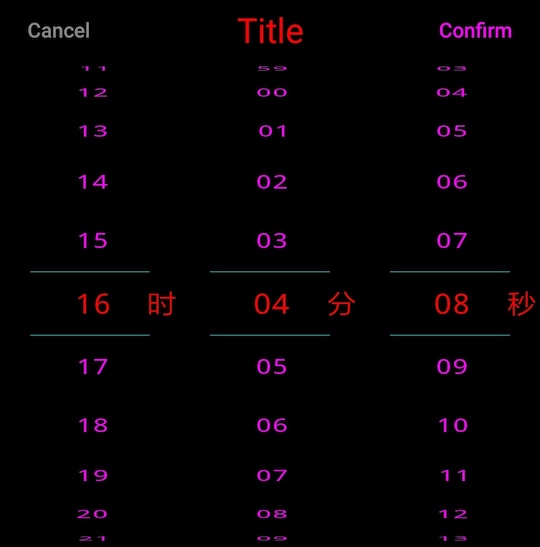
自定义参数
var optionsPickerView = OptionsPickerBuilder(this) { option1, option2, option3, v ->
}.setCancelText("Cancel").setCancelColor(Color.GRAY).setSubmitText("Confirm").setSubmitColor(Color.MAGENTA).setSubCalSize(15).setTitleText("Title").setTitleColor(Color.RED).setTitleSize(25).setTitleBgColor(Color.BLACK).setBgColor(Color.BLACK).setContentTextSize(20).setItemVisibleCount(11).setTextColorCenter(Color.RED).setTextColorOut(Color.MAGENTA).setOutSideColor(Color.GRAY).setDividerColor(Color.CYAN).setDividerType(WheelView.DividerType.WRAP).setLineSpacingMultiplier(2.5f).setCyclic(false, true, true).setLabels("时", "分", "秒").isCenterLabel(true).build<String>()optionsPickerView.setNPicker(hourList, minuteList, secondList)
var calendar = Calendar.getInstance()
optionsPickerView.setSelectOptions(calendar.get(Calendar.HOUR_OF_DAY),calendar.get(Calendar.MINUTE), calendar.get(Calendar.SECOND))optionsPickerView.show()
显示如下
选项内容需要在OptionsPickerView里面设置
| 方法 | 说明 |
|---|---|
| setPicker(List optionsItems) | 设置联动选项 |
setPicker(List options1Items, List
| 设置联动选项 |
setPicker(List options1Items, List
| 设置联动选项 |
| setNPicker(List options1Items, List options2Items, List options3Items) | 设置选项,非联动情况下使用 |
| setSelectOptions(int option1) | 设置默认选中项 |
| setSelectOptions(int option1, int option2) | 设置默认选中项 |
| setSelectOptions(int option1, int option2, int option3) | 设置默认选中项 |
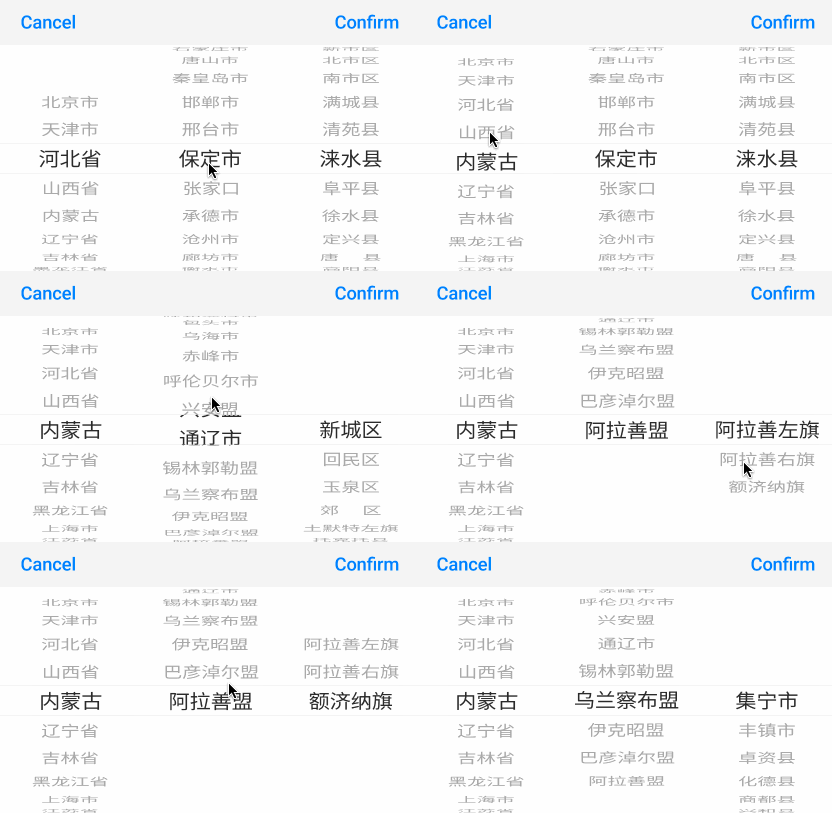
设置联动项,切换选项时,重置下一项
var optionsPickerView = OptionsPickerBuilder(this) { option1, option2, option3, v ->}.isRestoreItem(true).setItemVisibleCount(11).build<String>()optionsPickerView.setPicker(provinceList, cityList, areaList)
optionsPickerView.setSelectOptions(2, 5, 5)
optionsPickerView.show(v)
显示如下
本文来自互联网用户投稿,文章观点仅代表作者本人,不代表本站立场,不承担相关法律责任。如若转载,请注明出处。 如若内容造成侵权/违法违规/事实不符,请点击【内容举报】进行投诉反馈!