微信小程序自定义tabBar根据不同角色展示不同菜单
- "custom": true ,在app.json中,tabBar中开启自定义;

- 微信官方文档的自定义 tabBar
传送门:https://developers.weixin.qq.com/miniprogram/dev/framework/ability/custom-tabbar.html
项目根目录下建立相同文件夹
- 设置index.js文件(“custom-tab-bar”中的index.js)
Component({data: {selected: 0,color: "#000000",roleId: '',selectedColor: "#1396DB",allList: [{list1: [{pagePath: "/pages/user/user",text: "技术",iconPath: "/images/user-white.png",selectedIconPath: "/images/user-white.png"},{pagePath: "/pages/order/orders",text: "订单",iconPath: "/images/order0-white.png",selectedIconPath: "/images/order0-white.png"},{pagePath: "/pages/home/home",text: "主页",iconPath: "/images/home-white.png",selectedIconPath: "/images/home-white.png"}],list2: [{pagePath: "/pages/process/process",text: "流程",iconPath: "/images/infrom-white.png",selectedIconPath: "/images/infrom-white.png"},{pagePath: "/pages/order/orders",text: "订单",iconPath: "/images/order0-white.png",selectedIconPath: "/images/order0-white.png"},{pagePath: "/pages/home/home",text: "主页",iconPath: "/images/home-white.png",selectedIconPath: "/images/home-white.png"}],}],list: []},attached() {const roleId = 1if (roleId == 1) {this.setData({list: this.data.allList[0].list1})} else if (roleId == 2) {this.setData({list: this.data.allList[0].list2})}},methods: {switchTab(e) {const data = e.currentTarget.datasetconst url = data.pathwx.switchTab({ url })this.setData({selected: data.index})}},
})
- 设置index.wxml文件(“custom-tab-bar”中的index.wxml)
<!--custom-tab-bar/index.wxml-->
<cover-view class="tab-bar"><cover-view class="tab-bar-border"></cover-view><cover-view wx:for="{{list}}" wx:key="index" class="tab-bar-item" data-path="{{item.pagePath}}" data-index="{{index}}" bindtap="switchTab"><cover-image class="cover-image" src="{{selected === index ? item.selectedIconPath : item.iconPath}}"></cover-image><cover-view class="cover-view" style="color: {{selected === index ? selectedColor : color}}">{{item.text}}</cover-view></cover-view>
</cover-view>
- 设置index.css文件(“custom-tab-bar”中的index.css)
.tab-bar {position: fixed;bottom: 0;left: 0;right: 0;height: 48px;background: #389375;display: flex;padding-bottom: env(safe-area-inset-bottom);
}.tab-bar-border {background-color: #FFFFFF;position: absolute;left: 0;top: 0;width: 100%;height: 1px;transform: scaleY(0.5);
}.tab-bar-item {flex: 1;text-align: center;display: flex;justify-content: center;align-items: center;flex-direction: column;
}.tab-bar-item .cover-image {width: 44rpx;height: 44rpx;
}.tab-bar-item .cover-view {margin-top: 8rpx;font-size: 24rpx;
}
- 最后一步,在需要使用到tabBar的页面的.js文件中的Onshow函数中,还需要以下设置(为了点击时候选中和页面一致)
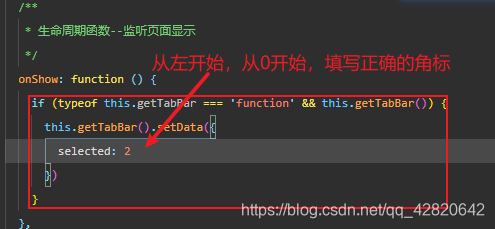
OK!可以开始操作了,有问题滴滴我。
本文来自互联网用户投稿,文章观点仅代表作者本人,不代表本站立场,不承担相关法律责任。如若转载,请注明出处。 如若内容造成侵权/违法违规/事实不符,请点击【内容举报】进行投诉反馈!
