【Unity】控制小球运动
跟着B站教程,做了个简单的控制小球运动的场景,记录一下:
文章目录
- 搭建场景
- 小球运动脚本
- 相机跟随小球运动脚本
- 效果展示
搭建场景
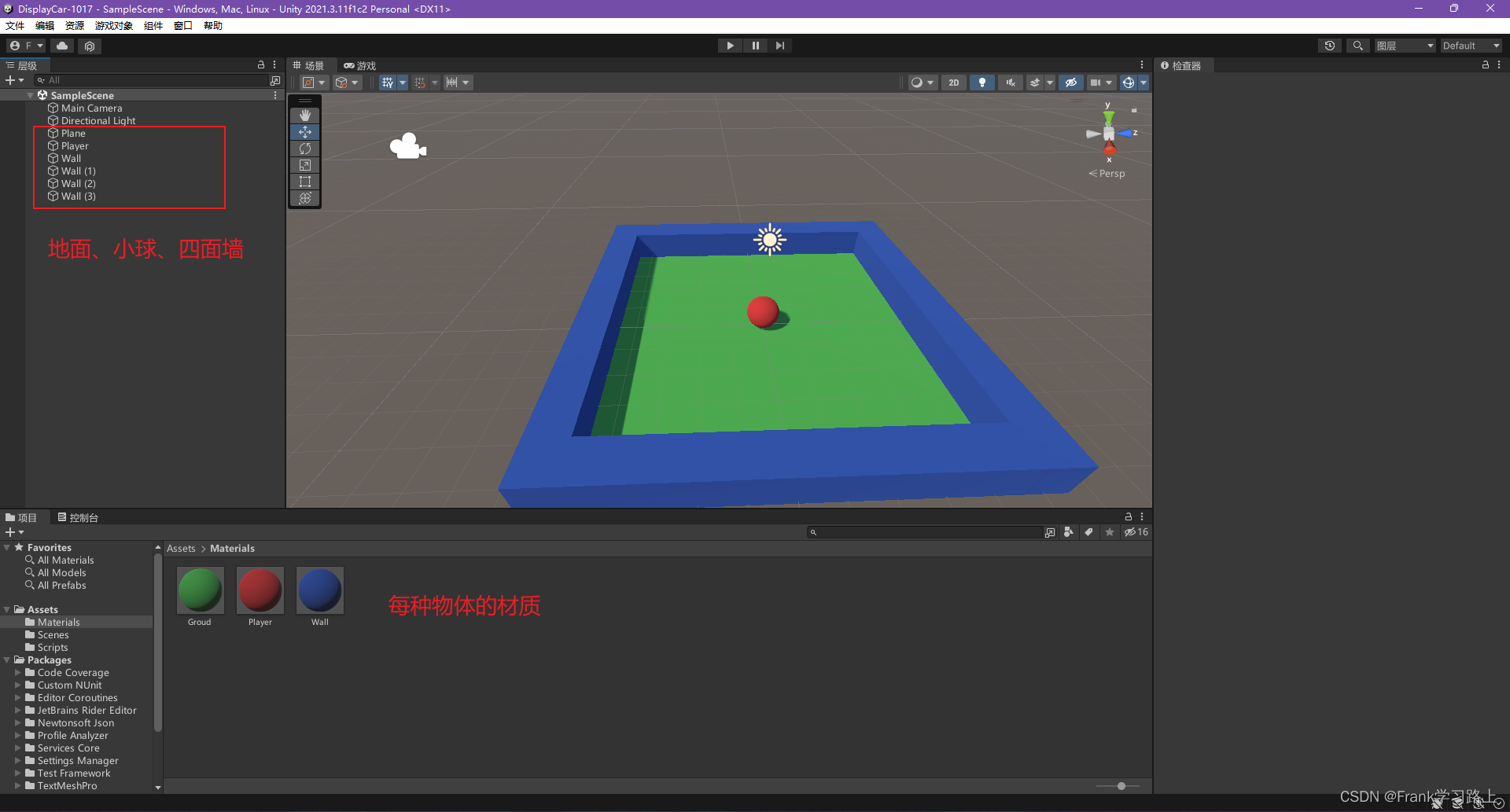
建立地面Plane、小球Player和四面墙Wall。
小球运动脚本
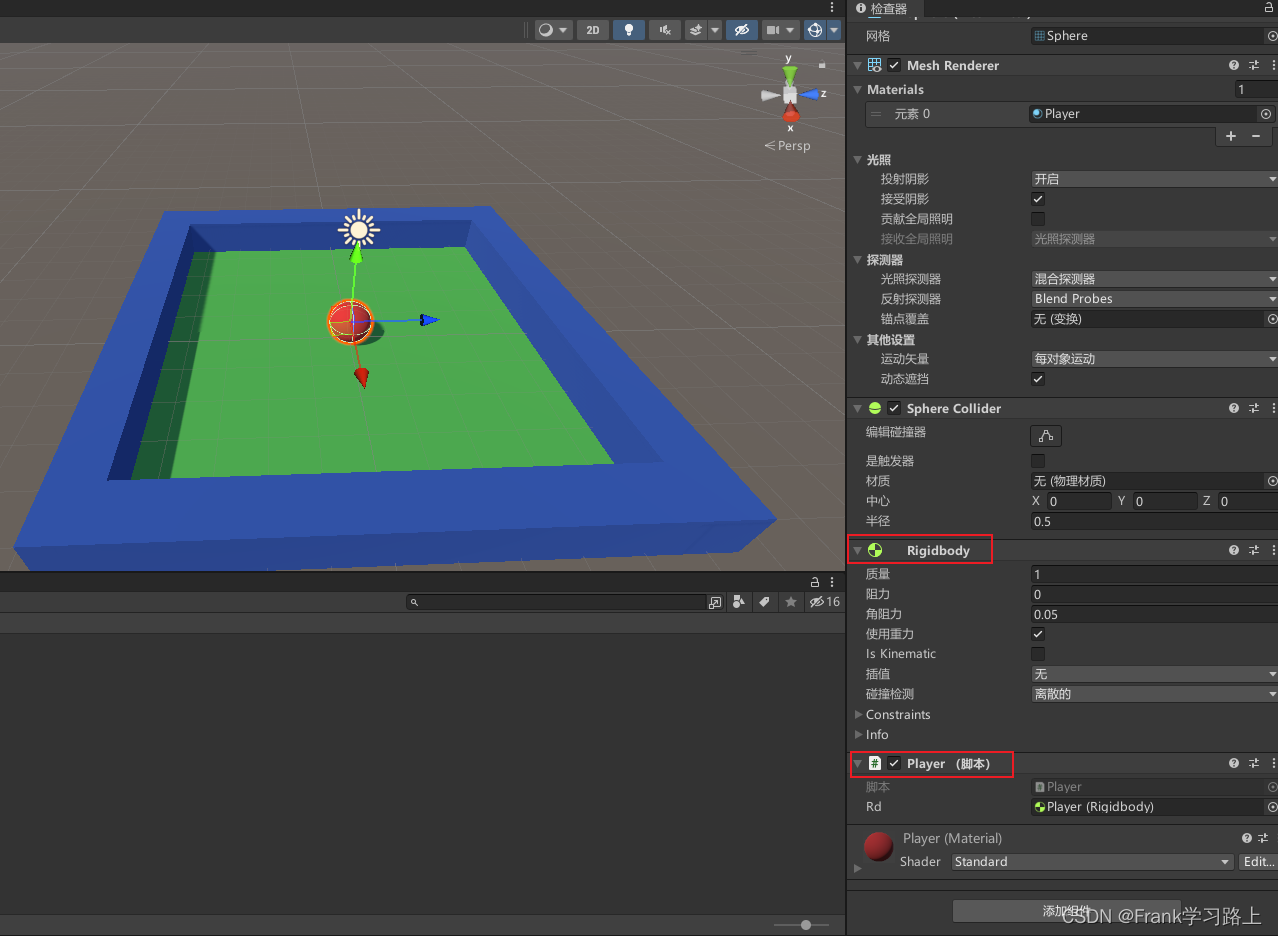
给小球创建一个刚体(有重力的物体),并添加一个Player脚本;
脚本编写如下:
using System.Collections;
using System.Collections.Generic;
using UnityEngine;public class Player : MonoBehaviour
{public Rigidbody rd;    //public或者private(接口)// Start is called before the first frame updatevoid Start(){//Debug.Log("游戏开始了!");rd = GetComponent<Rigidbody>(); // 调用刚体组件}// Update is called once per framevoid Update(){//Debug.Log("游戏正在运行!");//rd.AddForce(Vector3.right); //施加1N(vector3.right left forward back)//rd.AddForce(new Vector3(10, 0, 0));  //自定义力float h = Input.GetAxis("Horizontal");  //keyboard A/D~~~-1/1float v = Input.GetAxis("Vertical");    //keyboard W/S~~~-1/1//Debug.Log(h); (1,2,3) * 2 = (2,4,6)   //加速rd.AddForce(new Vector3(h, 0, v));  //x y z}
}
相机跟随小球运动脚本
如果相机位置固定,小球运动的时候无法实时看到小球的运动,因此要让相机跟随运动,才有运动的效果;
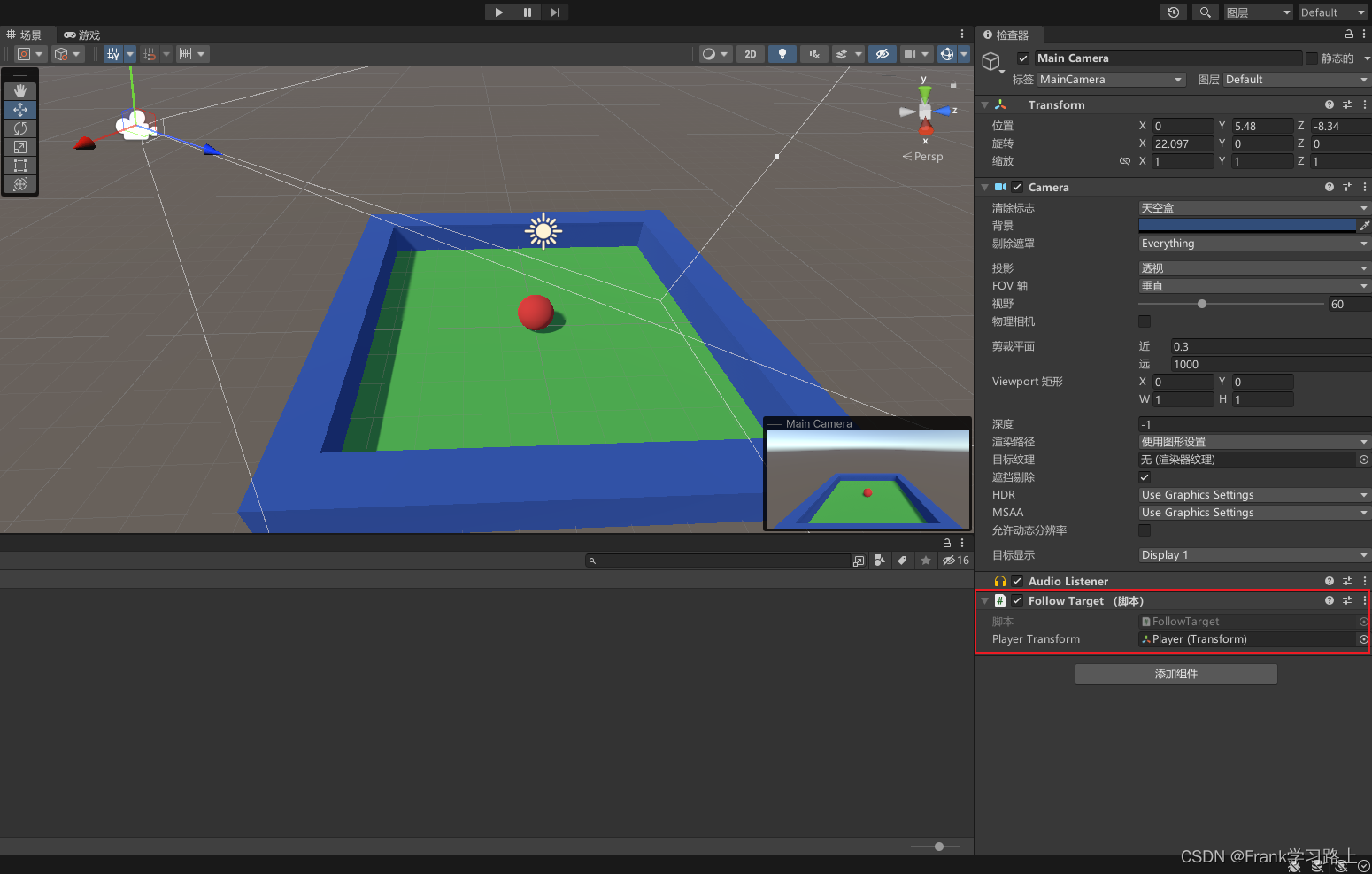
给相机添加FollowTarget脚本,并关联小球刚体:
脚本编写如下:
using System.Collections;
using System.Collections.Generic;
using UnityEngine;public class FollowTarget : MonoBehaviour
{public Transform playerTransform;   //球的位置private Vector3 offset; //将offset定义在函数外(全局)// Start is called before the first frame updatevoid Start(){offset = transform.position - playerTransform.position; //计算相机与小球距离//Vector3 offset;}// Update is called once per framevoid Update(){transform.position = playerTransform.position + offset; //相机实时运动跟随}
}
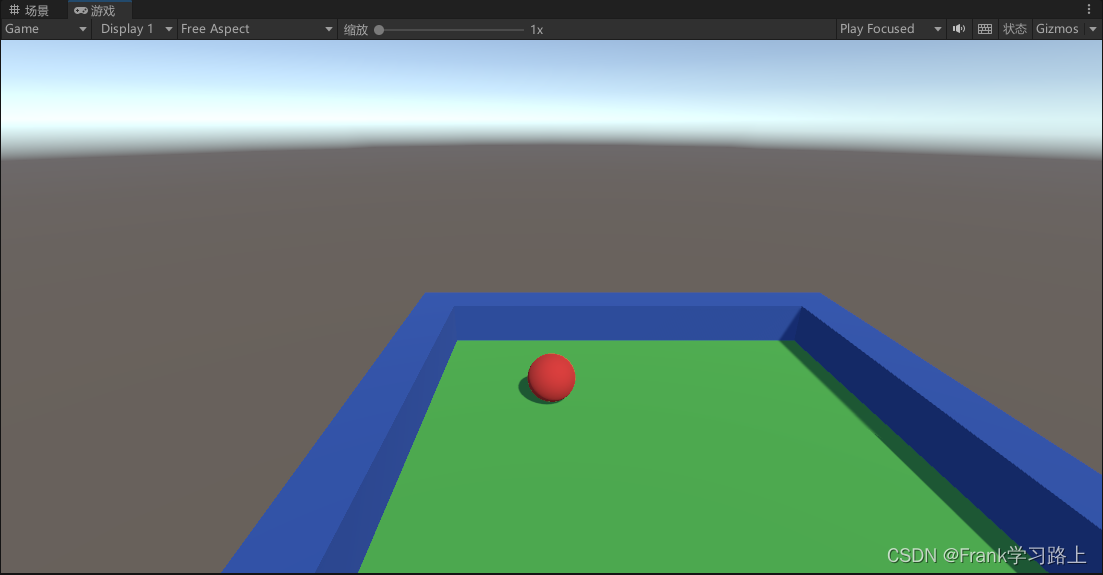
效果展示
以上。
本文来自互联网用户投稿,文章观点仅代表作者本人,不代表本站立场,不承担相关法律责任。如若转载,请注明出处。 如若内容造成侵权/违法违规/事实不符,请点击【内容举报】进行投诉反馈!